You find out which mod is causing a crash by elimination, not by guessing: move your mods folder somewhere safe, confirm the base game runs, then put the mods back in halves until the crash returns. The group that brings it back contains the culprit, and because the math is logarithmic, 100 mods take about 7 tests instead of 100.
Most people lose a whole evening to this because they try to remember which mod they installed last. Install order tells you nothing about the cause. A crash twenty minutes into a session usually has nothing to do with the file you dropped in an hour ago.
Below is the workflow I would use, written for GTA V on PC first, then Android and console players who cannot move folders by hand. Paths and menu names were last checked against current game behaviour in 2026, and they do shift when Rockstar reorganises the launcher.
Table of Contents
- What You Need
- Step-by-Step
- Common Mistakes
- Frequently Asked Questions
- Where is the GTA 5 crash log and what should I search for?
- Is there a faster way than removing mods one by one?
- My game closes to desktop with no error message. What now?
- How do I check if a mod is compatible with my game version?
- Do I need to reinstall GTA V to fix a crashing mod?
- I removed half my mods and it still crashes. What did I miss?
- Conclusion
What You Need
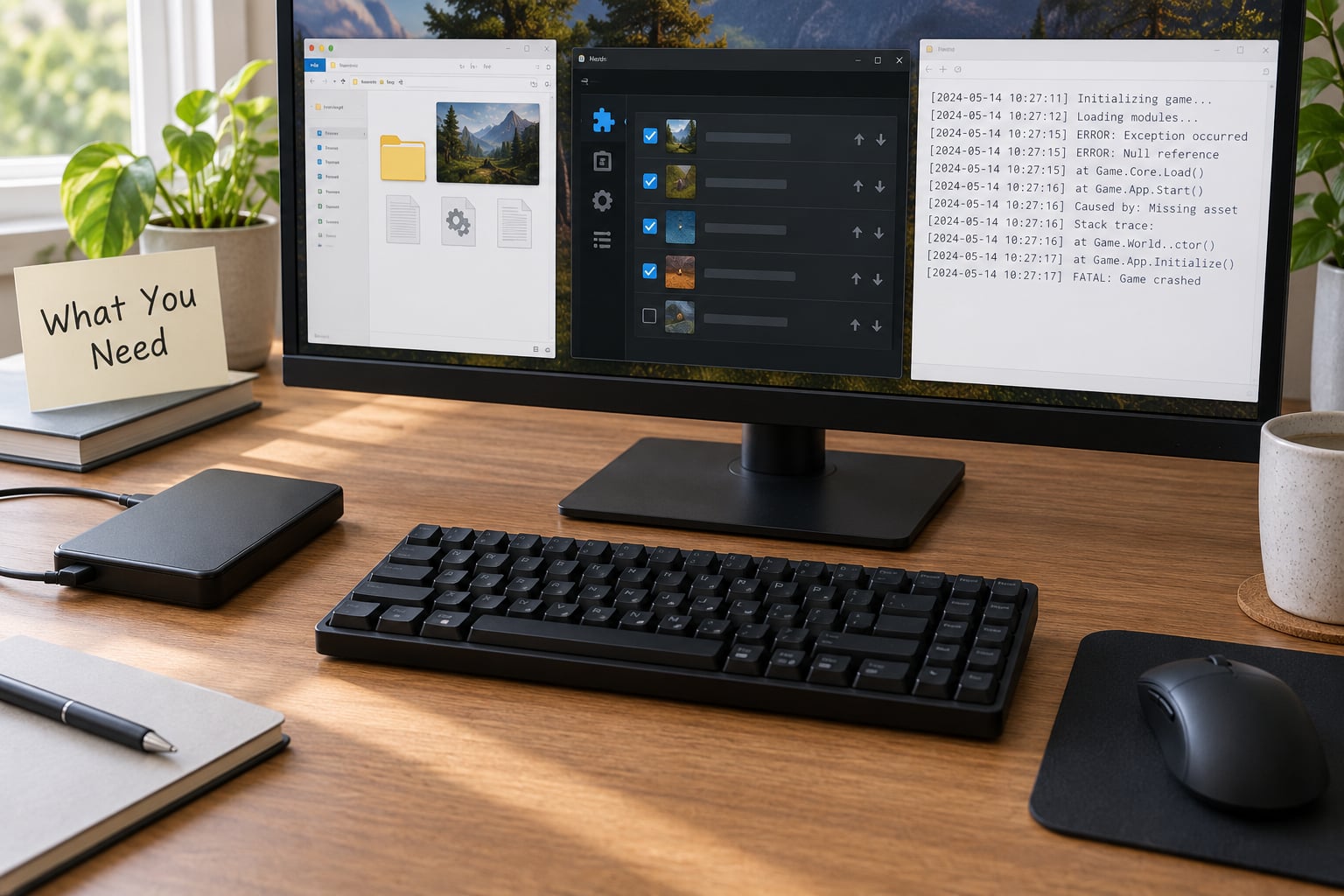
Five things make this fast, and all of them are free.
- A backup of your mods folder. Copy the whole thing to a second drive before you touch anything. Renaming a folder is reversible; deleting files into a modded install is not.
- A save file you do not mind losing. Test in a fresh story mode save if you can. A corrupted save can produce its own crashes and send you chasing the wrong problem.
- A file comparison tool. WinMerge, Beyond Compare, or the compare function in your mod manager all work. You need it later, when the failing group contains five files and you have to split it in half.
- Access to your logs. On PC that means DocumentsRockstar GamesLauncher for the launcher log, and your game folder for ScriptHookVDotNet.log. Detailed paths are in step 2.
- A way to restore original game files. Verify Game Files in the Rockstar Game Launcher or Steam does this. Know where the button is before you need it at 1am.
One warning before we start. Never delete update.rpf, x64a.rpf, or common files as a diagnostic move. People do it because a forum post said so, they break a working install, and now they are reinstalling a 70 GB game instead of troubleshooting. Move and rename only.
Step-by-Step
Step 1: Confirm the crash and record the exact trigger
Before isolating anything, write down precisely what happens. “Game crashes” is useless. “Closes to desktop about twenty minutes into story mode, always near the same mission” gives you a test you can repeat in three minutes instead of half an hour.
Then reproduce it on purpose. Load the save, drive to the same spot, run the same action. A crash you cannot reproduce on demand gives you nothing to compare, and that is the main reason people end up reinstalling.
| Symptom | Likely cause class | Fastest way to confirm |
|---|---|---|
| Crash the moment the game opens | Outdated Script Hook V or ASI loader, broken dinput8.dll | Run the base game with the mods folder moved out |
| Crash on the loading screen | Missing gameconfig.xml for your build, damaged x64a.rpf | Verify Game Files, then test the story mode with no mods |
| Crash about 20 minutes into a session | Animation or script mod, memory pressure from a large setup | Halving test on a short repeatable route |
| Crash only when spawning a modded vehicle | Two add-ons using the same vehicle slot or model name | Load the vehicle alone in an empty session |
| Closes to desktop with no error | Usually a heap or pool limit, or a script error swallowed by the launcher | Event Viewer and Reliability Monitor |
| Crash after a Rockstar or game update | Mod built for an older build number | Compare your build number against the mod page |
Two of these rows are worth separating on purpose. A crash that appears after a game update is usually a version mismatch, not a conflict, and version mismatches do not need the halving method at all.
Step 2: Check crash logs and launcher error messages
The launcher log is the highest-value file in this whole process and almost nobody opens it. On a default Windows install it sits at DocumentsRockstar GamesLauncherlauncher.log.
Open it in Notepad. It is long, so press Ctrl+F and search for the date of the crash, then look at the last entry before the game stops. The lines just before the failure usually name the script or ASI file that gave up, which means you can skip straight to that mod.
ScriptHookVDotNet.log lives in your main GTA V folder, the one containing GTA5.exe. Search it for exception and error. A line naming a .dll that you have never heard of is usually a mod dependency that failed to load, and that mod is the reason the dependent one crashes.
Do not trust the last error line to be the cause. The final entry is often a generic shutdown after something else already failed, so read a few lines back and look for the first mod-related entry.
Step 3: Disable mods in controlled groups
Stop the game, then rename your mods folder to something the loader ignores, such as mods_disabled. Do not delete it. Launch the game and play the route that crashes.
If the base game is clean, you have proved the crash comes from your mods and not from a driver, a save file, or the game itself. That single test saves hours, because it removes an entire category of possibility.
If the base game crashes too, stop here. That is a different problem, and no amount of mod isolation will fix it.
Android and console players cannot rename a folder, so the same halving applies through whatever manager they use: disable half the mods from the mod list, launch, play the route that crashes, then narrow from there. The method is identical, only the on/off switch lives somewhere else. Without a folder system, expect more tests because you are toggling entries one at a time rather than moving whole groups.
Step 4: Re-enable groups one at a time
This is how to find out which mod is causing a crash without testing each one individually. Split your active mods into two halves, restore half, test the exact same route. If it crashes, the culprit is in that half. If it runs clean, the culprit is in the other half.
Each test halves the possibilities. With 100 mods you need about 7 tests; with 20 you need about 5. That is the whole reason this works better than removing mods one by one, and it is the part almost every forum answer skips.
Keep a short table as you go. Two columns, group and result, in a text file is plenty. Without it you will test the same group twice at midnight.
Step 5: Isolate the individual file
Once you have a failing group of five or six files, split it again using your comparison tool rather than by eye. Move three aside, test, move the other half back if needed, and repeat until one file reproduces the crash by itself.
Test that single file alone on a clean save. If the crash returns with only that mod loaded, you have your answer. If it does not, you have a conflict pair, which is a normal result rather than a failure: two mods touching the same slot or the same script hook, where neither crashes alone.
Group your mods by type and you will find conflicts faster. Scripts and ASI files break on version mismatches, vehicle add-ons break on slot collisions, and visual packs break on file size limits. Keep those three groups separate from the start.
Step 6: Confirm the fix and restore your setup
Two options once you know the file. Update it to a build that matches your game, or remove it and keep the rest of your setup as it was. Reinstalling the whole game is never part of this step.
Put your stable groups back one at a time and play the crashing route after each one. The culprit is often the mod someone else fixed quietly, and the real fix is the loader or the gameconfig.xml being current rather than the mod itself.
Finally, save your working mod list. A text file with the mod name and date for each one turns the next crash into a five-minute check instead of another evening of elimination.
Common Mistakes
Enabling everything back at once is the big one. You will not learn which mod broke, and you will have to start the whole process over.
Testing only the main menu wastes the most time of anything here. A loading or script mod can pass a main menu test every single time and still crash the moment you enter story mode.
Deleting files without a backup is how an evening of testing becomes an evening of re-downloading. Move, rename, or move back, never delete.
Ignoring load order makes script mods look innocent. When two script mods are involved, install order decides which one loads first and which one handles the error, so the crash can point at the wrong mod entirely.
Assuming the last installed mod is the culprit is the most expensive wrong guess. Time-delayed crashes frequently come from a mod installed days earlier.
Mixing mod sources and skipping verification adds noise. Verify Game Files after each test round so you know a damaged original file is not compounding the problem, and keep downloads from one place when you can.
One habit that pays off: write down the result of every single test, even the boring clean ones. Intermittent crashes mean you will want to re-test a group later and remember exactly what was loaded at the time.
Frequently Asked Questions
Where is the GTA 5 crash log and what should I search for?
The launcher log is at Documentsu005cRockstar Gamesu005cLauncheru005clauncher.log on a default Windows install. Open it in Notepad and search for the date of the crash, then read the last entries before the game stops. ScriptHookVDotNet.log sits in your main GTA V folder beside GTA5.exe; search it for exception and error. The first mod-named entry is usually the culprit, not the final error line.
Is there a faster way than removing mods one by one?
Yes, binary search. Split your active mods into two halves, restore one, and test the route that crashes. Keep halving the group that reproduces the crash and you will isolate the file in about 7 tests for 100 mods, or 5 tests for 20. One-by-one removal works, but it is the slowest version of the same idea.
My game closes to desktop with no error message. What now?
Silent closes-to-desktop crashes are the hardest to diagnose because the game logs almost nothing. Open Event Viewer under Windows Logs, Application, and check for the faulting application name at the time of the crash. Reliability Monitor, reachable from the Control Panel, shows the same failure with the module that caused it. Then go back to the halving method, because logs will not name the mod for you.
How do I check if a mod is compatible with my game version?
Compare your build number against the one the mod page lists. Your build number appears in Documentsu005cRockstar Gamesu005cLauncher and in the properties of the game on Steam or Epic. Mods that replace files also need a gameconfig.xml written for your exact build. Script Hook V and the ASI loader must be updated too, since an outdated loader fails long before the mod itself is reached.
Do I need to reinstall GTA V to fix a crashing mod?
Almost never. Verify Game Files in the launcher repairs the original files, and moving your mods folder aside tests a clean base. Reinstalling only makes sense if Verify Game Files reports damage it cannot repair. The recovery sequence after a bad mod is to verify files, confirm the base game runs, then add your mods back in groups.
I removed half my mods and it still crashes. What did I miss?
It usually means the culprit is in the half you kept, or that the crash has more than one cause. Check that your loaders and gameconfig.xml match your current build, because those fail independently of which mods are active. Test the base game with the mods folder renamed to confirm what you think you already confirmed, then continue halving from there.
Conclusion
Back up your mods folder, reproduce the crash on a repeatable route, then rename the folder and confirm the base game is clean. Restore half your mods, test, and keep halving the group that brings the crash back until one file does it alone.
Update that file or drop it, restore the rest of your setup, and write down what is working. That last note is what makes the next crash quick.