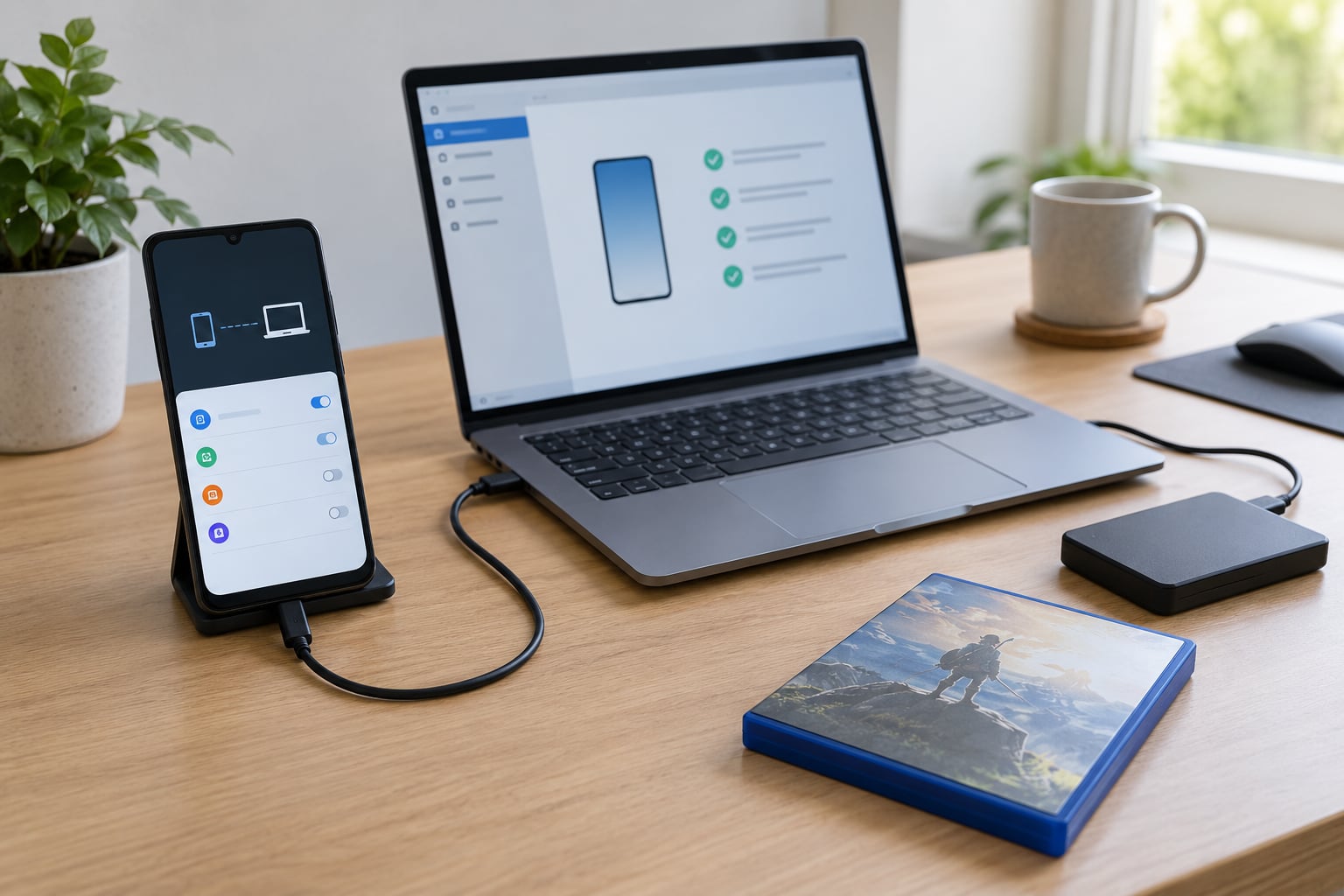
A root check takes about two minutes, changes nothing on your phone, and tells you which mods you can install without breaking your device. Knowing how to root check before installing mobile game mods is the difference between a mod that loads in ten minutes and an afternoon of restoring a phone that will not boot. Here is the Android workflow, step by step, updated for Magisk-era rooting.
The order matters. Confirm your exact model first, work out whether the mod genuinely needs root, then check root status, then inspect the source, and only then install. Skipping straight to the download is how people end up with a signed-app mismatch error, a failed Play Integrity check, or a phone that will not launch the game at all.
One note on scope: this guide is Android only. iPhones have no equivalent root access, and the related searches for this topic often mix the two. More on that below.
Table of Contents
- What You Need
- Step-by-Step: How to Root Check Before Installing Mobile Game Mods
- 1. Confirm the Exact Phone Model and Android Version
- 2. Check Whether Rooting Is Actually Required
- 3. How to Root Check Status Without Rooting Your Phone
- 4. Verify the Bootloader, Warranty, and Security Impact
- 5. Inspect the Mod and Installer Before Opening It
- 6. Test the Installation on a Backup or Spare Device
- 7. Confirm the Mod Works Before Removing the Backup
- Common Mistakes
- Frequently Asked Questions
- Do I need to root my Android phone to install every mobile game mod?
- How can I tell if an Android device is rooted without changing it?
- Is it safe to disable Play Protect before installing a game mod?
- What should I back up before testing a mobile game mod?
- Why does a mod work on one phone model but not another?
- What should I do if a mobile game crashes after installing a mod?
- Conclusion
What You Need
None of this costs money, but every item matters. Gathering it first means you are never mid-install when you discover a missing piece.
- Your phone’s exact model and Android version. Not the brand. Samsung sells dozens of Galaxy models, and they behave differently.
- A reliable internet connection. Needed for the device specs page, the backup, and the mod download itself.
- The original game, at the version the mod targets. Most mods break on the next game update.
- The mod’s source page, opened but not downloaded yet.
- A file manager that can reach Android/data, or the installer the mod author specifies.
- A charged battery. Flashing or a long install on 8 percent is a bad bet.
- A verified backup method that you have already tested. An untested backup is a hope, not a backup.
Two of these deserve an extra sentence. The game version is where most mod failures originate: a mod built against version 1.4 will simply not apply to version 1.5, and the error message often says nothing useful. And a backup is only real if you have opened it and confirmed the game data is in it.
Step-by-Step: How to Root Check Before Installing Mobile Game Mods
Seven steps, in this order. The whole run takes 15 to 30 minutes including the backup, and the root check itself is a couple of minutes at most.
1. Confirm the Exact Phone Model and Android Version
Open Settings, then About phone. The model number and Android version are both on that screen. Note the build number too, since bootloader unlock wipes data on nearly every modern device.
Compare those details against the mod’s requirements page. Check the processor as well: many mid-range phones run the same chipset, but a handful of games behave differently on Mali versus Adreno GPUs, which changes whether graphics mods apply at all.
Two phones from the same brand can behave nothing alike. A Galaxy A54 and a Galaxy S23 share a name and almost nothing else, and a mod verified on one says nothing about the other. Match the model number, not the logo.
2. Check Whether Rooting Is Actually Required
Most mobile game mods do not need root. Sort the mod into one of three buckets before you download anything.
| Mod type | Root needed | Where the files go |
|---|---|---|
| Graphics and quality presets | No | Config folder inside the game’s own data directory |
| Gameplay or currency edits from a save editor | No | Save file, often in Android/data |
| Standalone mod APK replacing the original | No | Normal install; uninstall the original first |
| System-level mods that change game code in memory | Yes | Loaded at runtime with root access |
| Mods that hook other apps or overlay the game | Yes | Require a framework such as LSPosed |
Players on r/androidroot regularly point out the same thing: editing files in /storage/emulated/0/Android/data does not require root, because several file managers reach that folder directly on modern Android. If the mod only swaps textures, audio, or config values, you can almost certainly skip rooting entirely.
Rule of thumb: if the mod’s instructions mention a superuser prompt, a module, or an app that hooks into other apps, it needs root. If they mention dropping a folder into a directory, it does not.
3. How to Root Check Status Without Rooting Your Phone
Here is the short answer most people search for. Three checks, fastest first, and none of them modify the phone.
- Use a reputable root checker app. Install one from the Play Store, open it, and read the result. It looks for the su binary and root management software. Installing a checker does not root anything.
- Look for root management software in your app list. Magisk, or older SuperSU and KingRoot, being installed at all is a strong signal. On a rooted phone, a superuser permission prompt can appear the moment a root-aware app opens.
- Check the su binary through a file manager or ADB. A file manager can browse to system folders and look for su. With a computer connected, the command
adb shell su -c idreturns a uid of 0 when root is live and errors when it is not.
What each one proves matters. The app check is a snapshot and can be fooled by a hidden root. The su binary check is closer to the truth. A Play Integrity or SafetyNet pass is the strictest signal, and it is the one games themselves usually look at.
They can disagree, and that is normal rather than a bug. r/androidroot has threads where a checker reports the device as not rooted while Magisk is clearly installed and working. The usual cause is a Magisk setup with the ramdisk disabled, which gives partial root: enough for some tasks, not enough for mods that need full root.
4. Verify the Bootloader, Warranty, and Security Impact
Bootloader unlock is the step most people underestimate. On most modern Android phones it wipes the device, it can take weeks on some carriers, and it removes the warranty claim in some regions.
Before you go near it, read your manufacturer’s own policy rather than a forum’s summary of it. Then think about what root access costs you day to day: banking apps, payment apps, and some corporate security apps refuse to run on a rooted phone. People on r/Magisk describe losing access to banking and contactless payment, and some gave root up entirely for that reason.
The security picture is mixed, not simple. Root access gives an app the ability to read everything on the device, so a malicious app with a superuser grant is far worse than an ordinary one. Meanwhile Google’s Play Integrity attestation will fail on many rooted setups, which is what blocks a lot of mods and some game anti-cheat.
If you only need a texture pack, none of this applies to you. If you need true root, back up first and accept the tradeoff before you start.
5. Inspect the Mod and Installer Before Opening It
Open the source page and read it before the download. You are checking for a specific list of things.
- The game version the mod supports, and the date of the last update.
- The Android versions listed, and whether your model is named.
- Permissions the installer requests. A texture pack asking for full network access deserves a second look.
- The file type: APK, OBB, ZIP, or an archive of images.
- Any instruction to disable Play Protect or allow installs from unknown sources.
That last one is the warning sign. Play Protect exists to catch exactly the kind of file you are about to download, and a legitimate mod source has no reason to ask you to turn it off. If the page tells you to disable it, stop there and find another source.
Install from a source you can trace, not from a mirror someone posted in a comment. Search the mod’s name plus the game name and see whether a maintained page or a well-known community has it.
6. Test the Installation on a Backup or Spare Device
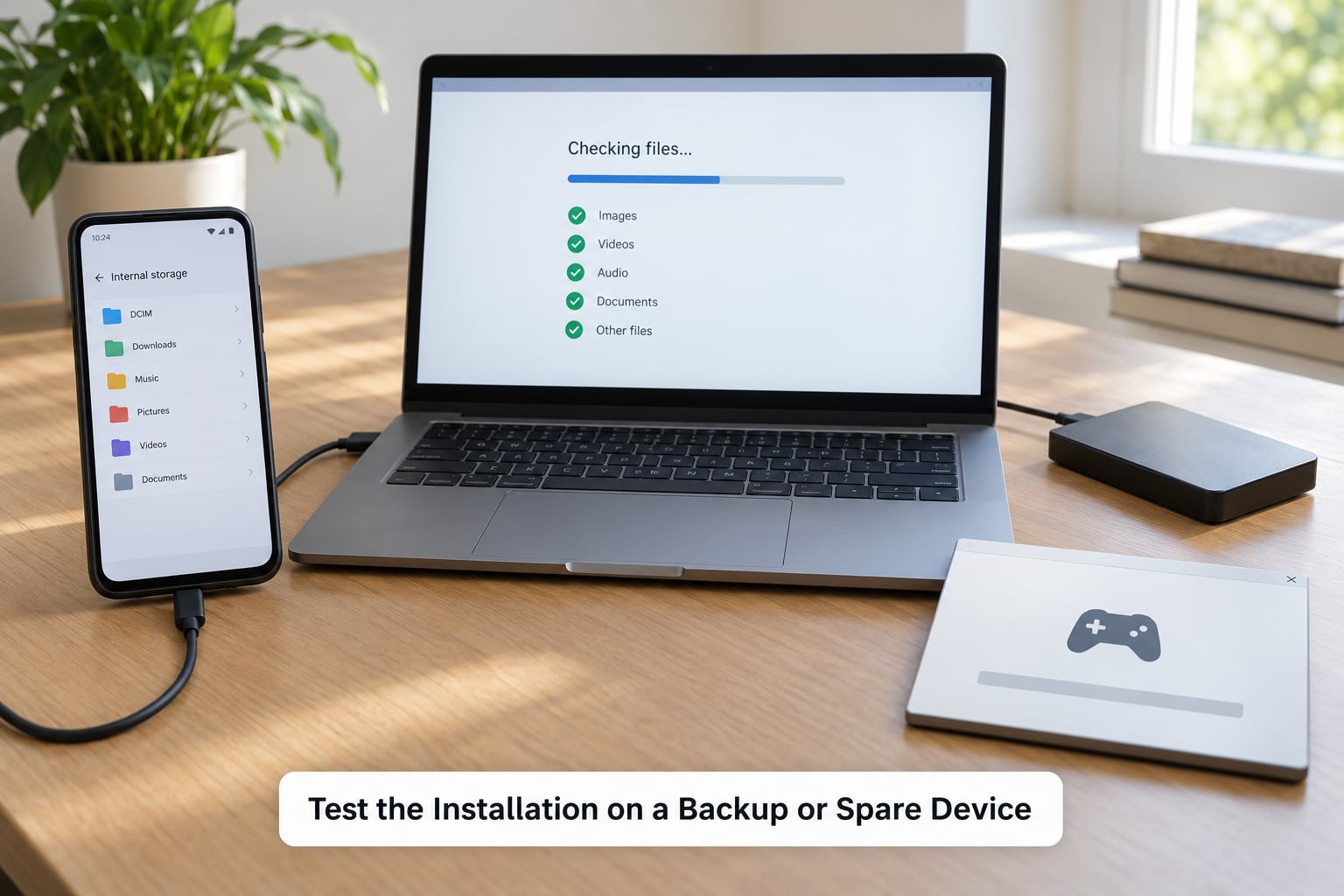
If you have an older Android phone lying around, install the mod there first. It costs you nothing and tells you in ten minutes whether the mod file is good at all.
On your main device, change one thing at a time. Copy files, then launch, then test. If it breaks, you know exactly which step did it. People who install a mod, a config change, and a new game version together spend an evening guessing.
Write down what you did. Model, Android version, game version, mod version, and the result. That note is the difference between fixing a problem in five minutes and redoing the whole diagnosis.
Know your rollback before you need it. Uninstalling a mod APK usually means uninstalling the original game too, because app signatures differ and Android refuses to install over a differently signed package. Have your backup and your original game ready, and clear enough storage to reinstall.
7. Confirm the Mod Works Before Removing the Backup
Installing is not the same as working. Run through this list before you delete anything.
- The game launches normally and gets past the splash screen.
- Menus open without a black screen or a force close.
- The mod’s changes actually appear where the author said they would.
- Saves load and progress sticks across a restart.
- Online features behave normally, or fail in a way the author warned about.
- No security warning or Play Integrity failure appears.
Test across several sessions, not one launch. Some problems only show up when the game reaches a save point or tries to reach a server the second time you open it. Keep the backup for at least a few days of real play.
If anything fails, uninstall the mod, reinstall the clean game from the Play Store, and confirm the base game works before you try again. Starting from a known-good state is faster than debugging on top of a broken install.
Common Mistakes
These six come up again and again, and each has a straightforward fix.
Checking only the brand. Same brand, different model, different behaviour. Always match the model number from About phone against the mod’s supported list.
Assuming root is required. Plenty of mods only need file access to Android/data. Read step 2 again before you unlock a bootloader.
Disabling your security protections. Turning off Play Protect removes your main warning before a bad file installs. Leave it on and get the mod from somewhere reputable instead.
Installing an APK from an unknown mirror. Random mirrors are the single most common way people end up with something malicious. Use a source the community actually maintains.
Backing up after making changes. Too late. A backup taken after a bad install just preserves the problem. Back up first, verify the backup, then install.
Treating a successful install as a working mod. It installed, so what? Work through the checklist in step 7 before you delete anything.
Two more worth knowing. Hiding root is inconsistent rather than solved: on platinmods, users report hiding root from some apps and failing against most Play Store games, so a device that passes a check can still be refused by a game at launch. And partial root has its own signature, where a superuser prompt appears but the operation behind it fails, which people on r/tasker describe when automation tools silently do nothing.
If you need to go back to a clean state, remove the mod first, restore the original game from the Play Store, then deal with root itself. Unrooting by uninstalling the root app leaves leftovers behind, which is why users on r/pokemongodev are advised to unroot, clear the leftover files, verify the device passes integrity checks, and only then reinstall.
Frequently Asked Questions
Do I need to root my Android phone to install every mobile game mod?
No. Graphics presets, config edits, texture replacements and save-file edits all work on a stock phone, usually through a file manager that can reach Android/data. Only mods that load code at runtime, hook other apps, or need write access to system partitions genuinely require root. Check the mod’s instructions: if they mention a superuser prompt, a module, or an app hooking into others, root is required. If they say drop a folder somewhere, it almost certainly is not.
How can I tell if an Android device is rooted without changing it?
Install a reputable root checker from the Play Store and read its result, then look for root management software such as Magisk in your app list. For a closer look, browse system folders in a file manager for the su binary, or run adb shell su -c id from a computer, which returns a uid of 0 when root is live. None of these methods modifies the phone. A passing Play Integrity check is the strictest signal, and the one games usually rely on.
Is it safe to disable Play Protect before installing a game mod?
It is the least safe part of the whole process. Play Protect is the warning that catches malicious or broken files, and switching it off removes your last check before an install. Legitimate mod sources have no reason to ask you to disable it, so treat that instruction as a red flag and find another source. The same goes for any mod that asks you to allow installs from unknown sources as a permanent setting rather than a one-off prompt.
What should I back up before testing a mobile game mod?
Your photos, contacts, messages, downloaded files, and any authentication or two-factor codes you rely on. Back up the game’s own data too if the mod touches saves, because a bad config can leave a save the game will not load. Most importantly, open the backup and confirm the files are actually in it. An untested backup is a hope. On Android, a full account backup plus a copy of Android/data for the specific game covers most modding mishaps.
Why does a mod work on one phone model but not another?
Three usual reasons. The processor differs, so a graphics mod tuned for one GPU does nothing on another. The Android version differs, and Android/data access rules and permission handling have changed across releases. Or the model simply is not in the mod’s supported list, even though it shares a brand name with a model that is. Check the About phone screen against the mod’s requirements, and expect a mod to behave differently across chipset generations.
What should I do if a mobile game crashes after installing a mod?
Uninstall the mod and reinstall the clean game from the Play Store first, then confirm the base game runs before doing anything else. If it still crashes, clear the game’s cache and storage, restart the phone, and check whether the game version has moved past what the mod supports. On a rooted device, pause the mod module in Magisk and retry. Work back to a known-good state rather than changing several things at once.
Conclusion
Start with the safest first action: identify your exact model and the game version, decide whether root is genuinely required, inspect the source page, and confirm a working backup. After that, how to root check before installing mobile game mods comes down to two minutes with a checker app, a look for the su binary, and a Play Integrity result you trust.
Stop and reconsider the moment a compatibility check fails, a source asks you to disable your security protections, or the mod instructions are vague about the game version. None of those is a problem worth risking your device over.