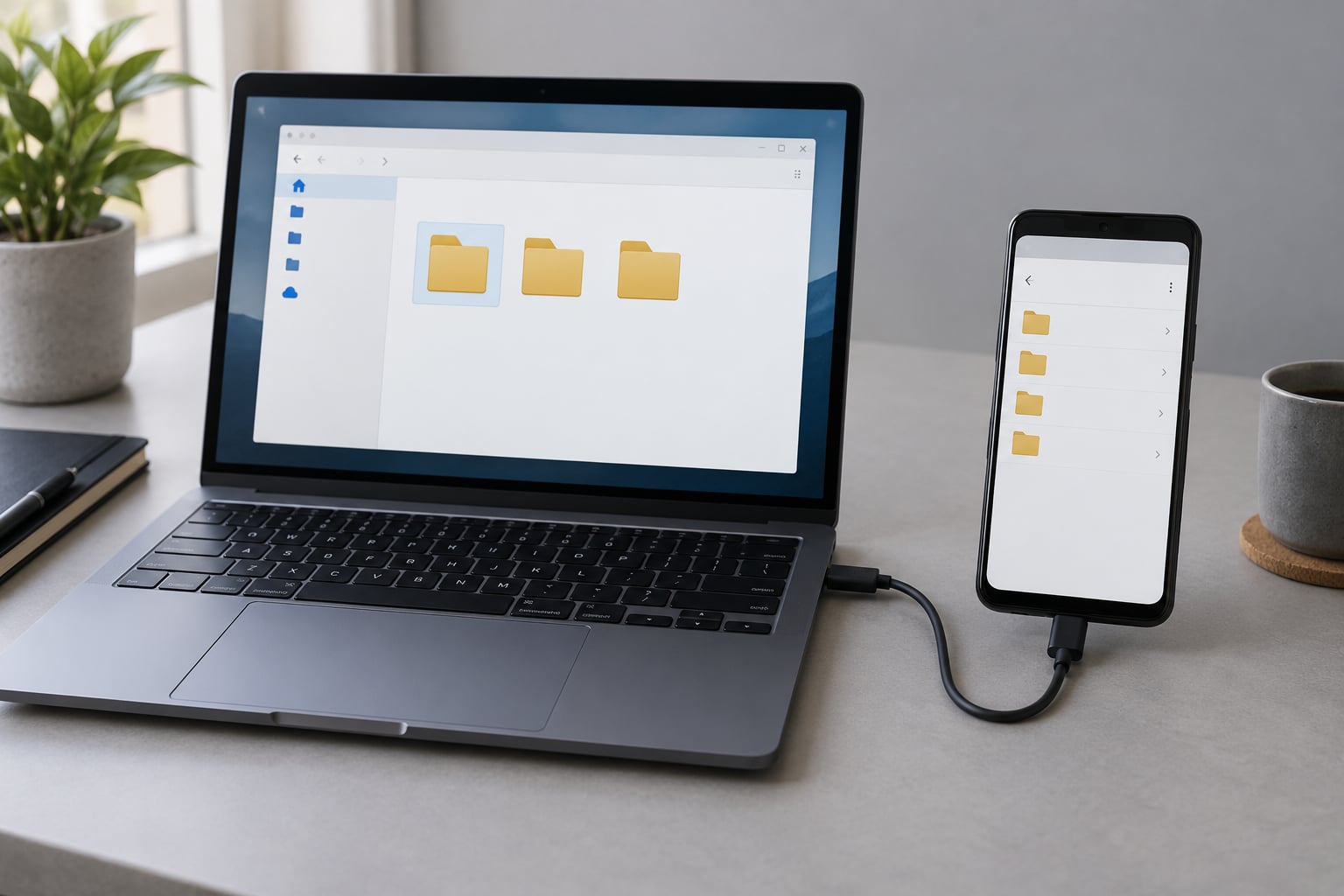
To transfer mods from PC to Android, extract the mod on your computer, copy the mod folder to the phone with a USB cable, and paste it into the game’s own folder — usually Android/data/<package name>/files or Android/obb/<package name>/ — after granting your file manager access to that location. Most of it takes ten minutes.
The catch is Android’s storage rules. Since Android 11, the phone shows you the Android/data and Android/obb folders but often refuses to open or write to them until you grant the file manager the Add storage permission. That single prompt is where most transfers fail, so this guide starts with it rather than burying it at the end.
Not every PC mod can run on a phone, either. Some games ship an Android port that reads the same folders as the desktop version, and some do not. I’ll cover that check in step 1 so you don’t spend an evening copying files for nothing.
A note on what counts as a mod here: I’m talking about asset packs, script folders, map files, .pak or .obb archives and loader-based modifications. Installing a modified APK is a different process with different risks, and it isn’t covered here.
Table of Contents
- What You Need
- Step-by-Step: Transferring Mods from PC to Android
- Common Mistakes
- Frequently Asked Questions
- Can I transfer any PC mod directly to an Android game?
- Where do I put transferred mod files on Android?
- Do PC GTA mods work on Android without conversion?
- What is the easiest way to transfer large mod files from PC to Android?
- Why does my Android game not recognize the transferred mod?
- Can I use a cloud drive instead of a USB cable?
- Conclusion
What You Need
Gather these before you start and the transfer takes minutes instead of an hour:
- Your PC with the mod downloaded and the readme file open beside it.
- WinRAR or 7-Zip on the PC for extracting archives. ZArchiver is popular on phones, but the Beamdog community reported it corrupting extracted OBB archives after an update, so extract on the desktop instead.
- A data-capable USB cable. Many cables charge only. If Windows never offers to open the phone as a drive, try the cable that came with the phone.
- A file manager that can reach restricted folders. Material Files, MT Manager and ZArchiver all handle the Add storage prompt correctly.
- The game already installed and played on the phone. Launching it once creates the data folder. An empty folder tree is the reason a lot of mod copies have nowhere to land.
- A way to identify the package name, which is the folder name inside
Android/dataandAndroid/obb. - Platform-tools only if you plan to use the ADB method. Skip it if a cable works fine.
If you are moving a very large library, add a fast external SSD or a Wi-Fi share to that list. Plain USB over a phone’s port is slow with 65GB of mods.
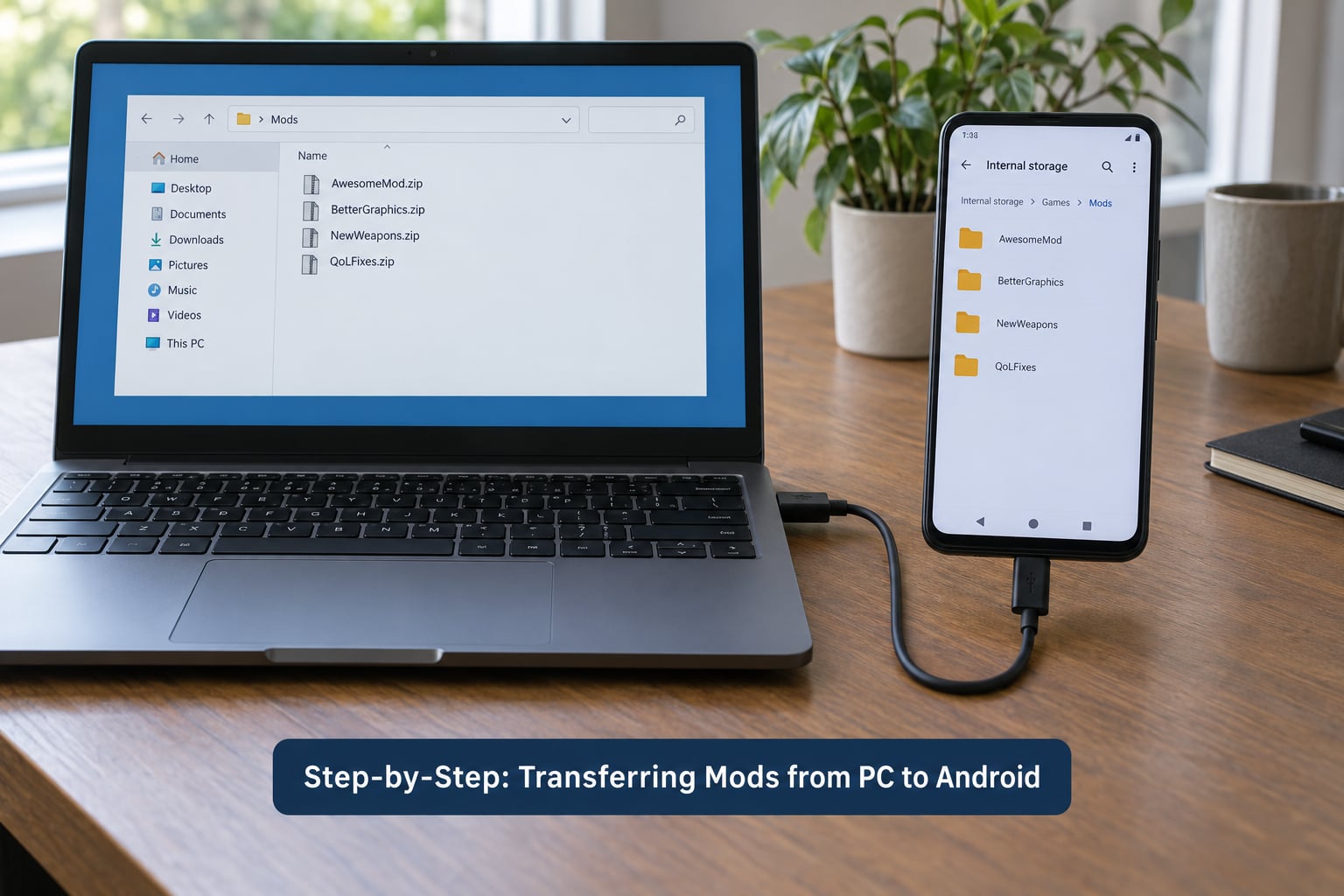
Step-by-Step: Transferring Mods from PC to Android
1. Confirm the Mod Works on Android
Before copying anything, find out whether the game on your phone even looks for these files. Launch the game and open its mod or mods folder once — if the folder exists and the game has a mod menu, the Android port reads the same structure as the PC version.
Unity games are the special case. A Unity game built with the Mono scripting backend can often be patched on Android with MelonLoader through a wrapper such as LemonLoader, which lets PC-style MelonLoader mods run on a phone or standalone headset. A game built with IL2CPP compiles its scripts, so those same mods will not load without a different backend. Native ARM64 libraries also have to exist for the phone’s processor, and a Windows DLL simply will not do.
For open-world and RPG ports, check the mod’s readme for the Android package name. If it names a folder such as com.beamdog.baldursgateIIenhancededition, the desktop and Android layouts match and a straight copy should work. If it says “Windows only,” stop there.
It’s worth doing this check honestly rather than optimistically. Five minutes reading the readme saves a long failed transfer.
2. Locate the Mod Files on Your PC
Your downloads folder is the usual starting point. Open the archive there and read the file list before extracting anything.
Separate the files into what the game must have and what is optional. Required files are usually a mod folder, an override folder, a tp2 script folder, a .pak or .obb archive, or a .hak file. Optional items are usually a readme, screenshots, a source tool, and a compatibility list for other mods.
Extract with WinRAR or 7-Zip on the PC. Watch the archive structure as it unpacks: if the mod folder appears one level deeper than the readme describes, you will end up with a nested folder on the phone and the game will ignore it.
One more thing to check: does the mod depend on an expansion file? If the game needs chitin.key, that file lives inside the main main.<version code>.<package name>.obb archive. Two OBB files that belong together must end up in the same main folder on the phone.
3. Transfer the Files to Your Android Device
Connect the phone to the PC with the data cable, unlock it, and pull down the notification shade. Tap the USB notification and choose File transfer / MTP. Windows Explorer then shows the phone as a drive you can browse normally.
Drag the mod folder from the PC window to a staging folder on the phone, such as Download/ModsStaging. Copy first, paste later. Moving files directly into a restricted game folder over MTP often fails halfway and leaves a partial copy.
Two rules during the copy. Do not let Windows rename a file that is too long or has an unsupported character — the safe staging folder is usually there to catch that. And do not re-zip the mod folder on the PC unless the game’s readme asks for an archive; copying an already-zipped mod into the phone means the game has to unpack it at load time.
Two alternatives work if you would rather not use a cable. A local Wi-Fi share through an app on both machines is quicker for a handful of mid-size files. A cloud drive works well for a mod under a couple of gigabytes, but you have to extract it on the phone afterwards, which is exactly where ZArchiver corruption problems show up.
Check the transfer before you go further. Compare the size of the mod folder on the phone with the size on the PC, and open one file to confirm it is not truncated.
4. Install the Mod in the Correct Android Folder
On the phone, open your file manager and go to Internal storage > Android > data. Each installed game appears there as a folder named after its package name. Open the one for your game, and look for files.
Some mods belong in Android/data/<package name>/files. Others belong in Android/obb/<package name>/, which is where games keep their big data archives — the OBB expansion file is the classic example, a large secondary package stored outside the app itself.
If the folder will not open, tap the hamburger menu in your file manager and look for Add storage or Settings > Root, then select Android/data. Grant it. That prompt is the unlock on Samsung devices and most Android 14 phones.
If Android/obb does not exist at all, launch the game once so it creates the folder, then copy your mod folder inside. Match the structure the mod expects: if the PC version had override/data, the phone needs override/data too, not a flattened copy.
Paste the staged folder into place, then delete the staging copy. That keeps things tidy and makes it obvious later which files belong to the mod.
5. Launch the Game and Verify the Mod
Force stop the game first — swipe it away from the recent apps list — then reopen it. A game that is still running holds its old files open and will not see the new ones.
Load the save you use for modded play, since many mods only apply to a specific campaign or chapter. Look for the specific thing you changed: a new vehicle, a retextured wall, a new map area, a different weapon.
Nothing visible? Work backwards. Confirm the files are in the right folder, confirm you did not leave an extra nesting level, and check the game’s log or error message if it has one. Mod installers such as WeiDU write a weidu.log file, and the error at the top of it names the missing file directly.
If the game crashes on launch, move your mod folder back out to the staging folder and restart. You have now isolated the mod as the cause without losing any of your work.
Common Mistakes
The mod was never Android-compatible. Desktop DLL plugins, Windows executables and any mod relying on a scripting backend the Android port does not use will never load. Nothing you copy changes that.
Everything landed in the wrong folder. Files left in Download are invisible to the game. Each mod has one correct destination, and it is almost always a subfolder of the package folder.
The archive was extracted on the phone instead of the PC. Community reports on the Beamdog forums describe ZArchiver producing mangled files after an update. Extract on Windows with WinRAR or 7-Zip and copy the finished folder.
The files arrived one level too deep. A mod that should sit at files/modname ended up at files/modname/modname. Delete the extra level and the game will find it.
A dependency is missing. Many mods need a framework or a second mod installed first, in a specific order. The readme’s install order is not a suggestion.
Android says access is denied or the file manager shows “access limited”. Grant the file manager the Add storage permission for Android/data and Android/obb. On Android 11 and newer this is required. Rooting works but is a last resort, not a first step.
The file manager can read the folder but not write to it. Some built-in file managers can browse Android/data and still refuse a paste. Switch to Material Files, MT Manager or ZArchiver, which handle the permission grant properly.
The game is still using its old files. Force stop the game completely, then reopen. If that does not help, clear the game’s storage in Android Settings — but be aware that clearing storage can wipe your progress, so back up your save first.
A save did not transfer because of its extension. Windows saves from PC games often arrive as filename.bin. Rename the extension to match what the Android version expects, or the game will not see the file at all.
The game is installed from an unknown APK. A modded or repackaged APK from a third-party site can carry anything. Stick to official stores and official mod sources.
Two transfer habits prevent most of the above. Stage everything in one folder before it goes near a game directory, and never overwrite an existing mod without renaming the old one first. Renaming is your undo button; a deleted folder is gone.
If your phone has a microSD card and the game supports it, the card works as a staging area that survives reboots, which makes it handy for large libraries.
Frequently Asked Questions
Can I transfer any PC mod directly to an Android game?
No. A mod only transfers cleanly when the Android port reads the same folder structure as the desktop version, and when the mod has no Windows-only components. Unity games compiled with IL2CPP will not accept Mono scripting mods at all, and native Windows DLLs never load on ARM64 hardware. Check the mod’s readme for an Android package name before copying anything.
Where do I put transferred mod files on Android?
Most asset mods go into Android/data/u0026lt;package nameu0026gt;/files, keeping the same subfolder layout as the PC install. Large data archives belong in Android/obb/u0026lt;package nameu0026gt;/, where OBB expansion files live. The package name is the folder name already listed inside Android/data. You will need to grant your file manager Add storage access before either folder will open.
Do PC GTA mods work on Android without conversion?
Sometimes, and only for texture and simple asset packs whose file format matches what the Android build reads. Scripts, trainers and anything relying on a PC-only loader generally do not work, because the Android version ships a different scripting backend and different native libraries. Check the mod thread for Android reports before you spend time transferring a large pack.
What is the easiest way to transfer large mod files from PC to Android?
For a few gigabytes, a USB cable with the phone set to File transfer mode is the simplest route. For tens of gigabytes, copy to an external SSD over a high-speed USB port on the PC, then connect the drive to the phone with an OTG adapter. That approach beat direct transfers for one user moving 65GB of mods, and it leaves the phone port free.
Why does my Android game not recognize the transferred mod?
In order of likelihood: the files sit in the wrong folder, they are nested one level too deep, the game was still running when you copied them, or the mod needs a framework installed first. Force stop the game completely and reopen it after any copy. If a log file exists, the top line usually names the missing file directly.
Can I use a cloud drive instead of a USB cable?
Yes, and it suits mods of a couple of gigabytes or less. The catch is that the mod arrives as an archive that you must extract on the phone, which is where extraction tools have caused corrupted files for some users. Extract on the PC with WinRAR or 7-Zip and upload the finished folder instead, then download and paste it into place.
Conclusion
Start with the compatibility check, not the cable. If the mod’s readme names an Android package or folder, you are in business. Extract it on the PC with WinRAR or 7-Zip, copy the folder over, grant your file manager Add storage access, and paste it into Android/data/<package name>/files or the matching Android/obb path.
Force stop the game, reopen it, load your modded save and look for the specific change you made. If nothing shows up, pull the folder back out to your staging folder and you have your answer in under a minute.