An OBB file is an Opaque Binary Blob: a ZIP-style expansion file that Android games use to keep large assets (textures, audio, levels) outside the main APK, stored at /storage/emulated/0/Android/obb/<package name>/. To extract OBB files on Android for game mods, open the archive in an archive manager like ZArchiver, extract it to a temporary folder, then copy the contents into the game’s own package folder. The whole job takes about ten minutes on the phone, but Android 11 and newer block the target folder unless you set up access first.
That last part is where most people get stuck. Since Android 11, scoped storage stops ordinary file managers from writing into Android/obb, and most of the guides online skip straight past it. Work through the steps below in order and you will not lose any files.
Table of Contents
- What You Need
- Step-by-Step
- Phone-Only vs. Computer-Assisted Extraction
- Frequently Asked Questions
- Can I extract an OBB file on Android without root?
- Why does Android/obb say permission denied when I copy files in?
- Where do I find my game’s package name for the OBB folder?
- Does extracting an OBB file break my saves or progress?
- Why does my game ignore the OBB folder and download data again?
- Can I delete the original OBB archive after installing it?
- Conclusion
What You Need
Four things, and none of them exotic:
- The game itself, installed and launched at least once.
- The OBB file (ending
.obb) or an already-unzipped OBB folder. - An archive manager on Android. ZArchiver handles this most cleanly, and X-plore and ES File Explorer both work for simple archives.
- Optional: a PC with 7-Zip or WinRAR, useful for very large or oddly-compressed archives.
Before you copy anything, check whether the game already has an expansion file on the device. Open your file manager, go to Internal storage, then Android, then obb. If you see a folder named after the game, something is already installed there.
Keep the original archive untouched. Work on a copy, and never rename the game’s existing folder.
Step-by-Step
How to extract OBB files on Android for game mods comes down to four steps: find the file, extract it to a scratch folder, move the contents into the package directory, then confirm the game actually reads them. Budget 10 to 15 minutes.
Step 1: Locate the OBB File or Folder
OBB files usually arrive one of two ways: as a download in your Download folder, or bundled inside an XAPK or APKS package. Both show up under Internal storage / Download once installed or unzipped.
You also need to know which folder is yours. The game’s package name is the folder name inside Android/obb — something like com.gamecompany.gamename. Find it with a file manager by opening the game’s Play Store entry, tapping the three dots, choosing App info and reading the Package name field. Or press and hold the app icon, choose App info, and read the same field.
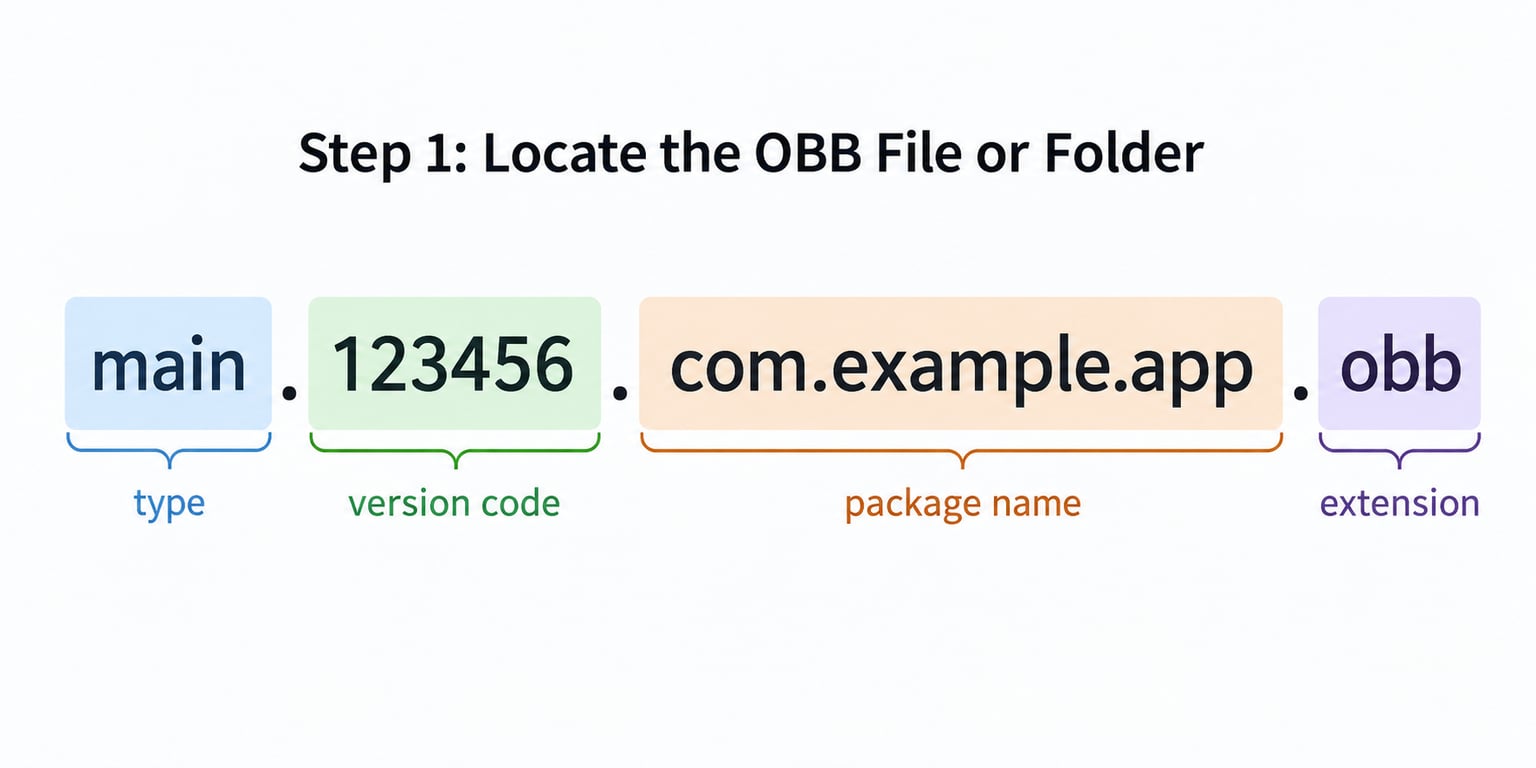
If the file is named main.131.com.gamecompany.gamename.obb, the three parts are the type, the version code and the package name. That version code has to match the version of the app you have installed, which is the single most common reason an otherwise perfect extraction fails.
Step 2: Extract the OBB Archive on Android
This is where most tutorials stall. Open ZArchiver, tap the three-dot menu in the top right, and choose Settings to make two changes first.
- Set
Extract actiontoAskso nothing moves without your say-so. - Turn on
Show system filesandShow hidden filesso nothing disappears.
Then extract:
- Navigate to Internal storage and open the
Downloadfolder. - Tap the
.obbfile. ZArchiver opens its contents in a preview pane. - Tap
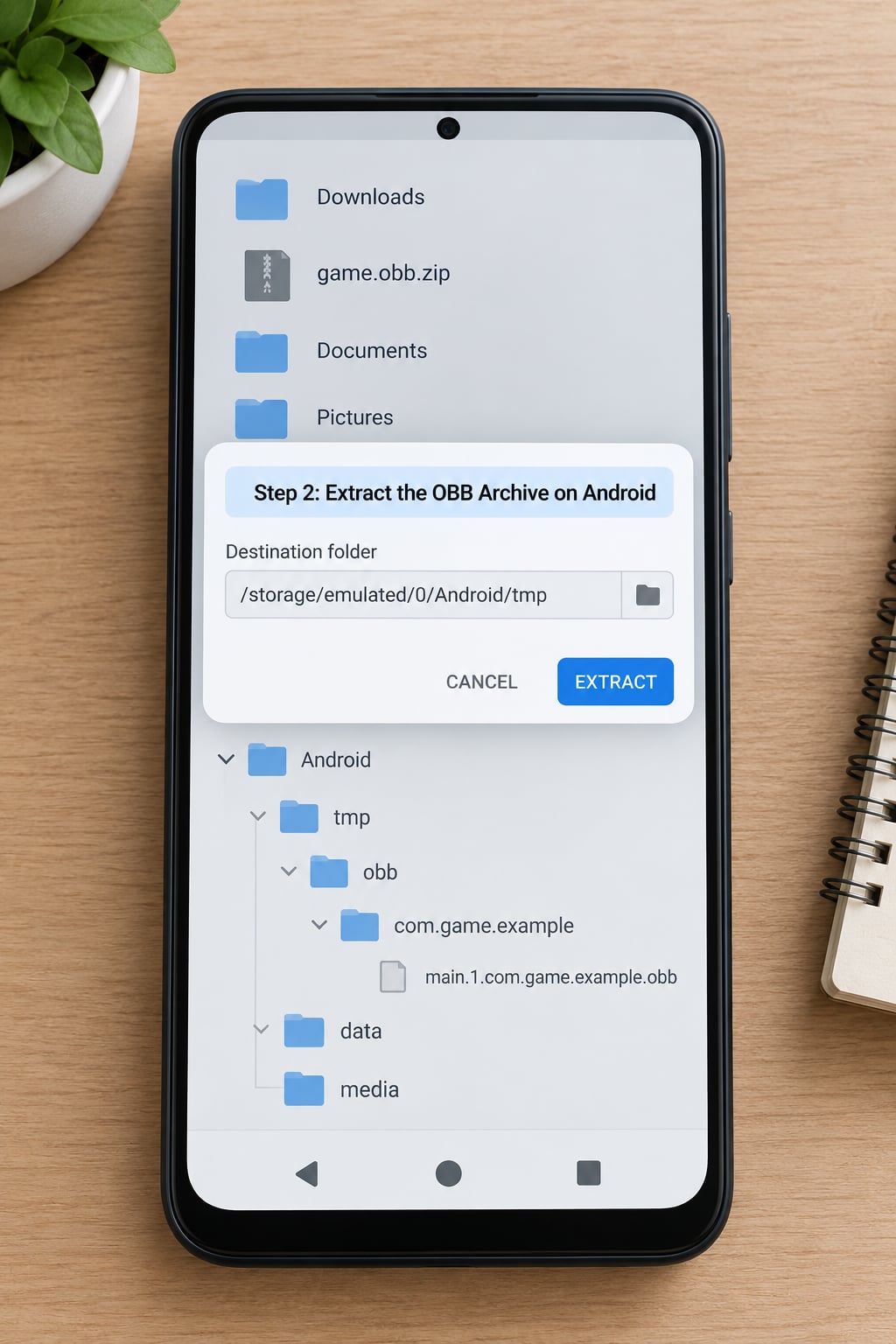
Extractand choose a new folder, for exampleDownload/obb_work. Do not extract into the original folder. - Set
Keep relative pathson, soassets/,lib/and similar folders land in the right places. - Tap
Extractand wait. Large archives take a couple of minutes and phone file managers often look frozen while they work.
You should now see the game’s asset folders directly inside obb_work, not a single extra folder wrapping everything. If everything ended up under obb_work/main.131.com.gamecompany.gamename/, the archive had a nested path — open that inner folder and cut its contents up one level.
If ZArchiver refuses the file and says it is not an archive, try the same operation in 7-Zip or WinRAR on a computer. As the XDA forum notes, some OBBs use a non-ZIP compression method and a rename-to-zip trick simply will not open them. There is no magic fix for those on a phone.
Step 3: Place the Extracted Files in the Correct Location
Copy the contents of obb_work into /storage/emulated/0/Android/obb/<package name>/. The contents, not the folder itself — copying the folder in is the cause of most permission-denied errors people report in the Platinmods thread.
If the package folder does not exist, launch the game once. Let it start, fail, or sit on the loading screen; the system creates the folder when the app touches it. Users on Platinmods and Reddit confirm this works reliably.
On Android 11 and up, most file managers cannot write there at all. The root-free route is Shizuku with ZArchiver:
- Open Settings, tap About phone, and tap Build number seven times to reveal Developer options.
- In Developer options, switch on Wireless debugging.
- Install Shizuku, open it, and choose Pair device with wireless debugging. Accept the pairing code prompt on the phone.
- In ZArchiver settings, set
Type of root accessto Shizuku, then enableUse for Android/(Data/obb). - Return to the Shizuku app and confirm it shows as running, not idle.
Shizuku dies every time you reboot. When it goes idle, ZArchiver silently loses write access, so re-open Shizuku after every restart before touching the obb folder. Users on Samsung and Poco devices hit this pairing or idle problem more than anyone, because their skins are stricter about background wireless connections.
Step 4: Check That the Game Recognizes the Files
Four checks, in order:
- Structure. Open the package folder. You should see the asset folders at the top level, matching what was in the archive.
- Size. Compare the folder’s reported size with the original archive. A big gap means the extraction was interrupted — do it again.
- Version code. Confirm the app’s version code matches the number in the OBB filename. A mismatch means the game ignores the folder and downloads its own data again.
- Launch. Start the game with Wi-Fi off. If it goes straight into the menu, the files loaded. If it stalls on the loading screen or wipes the folder, something is wrong.
If the game deletes the folder on launch, the version code is wrong or the structure has one extra level. If the game keeps re-downloading data, check that the folder name matches the package name exactly, including capitalisation.
Common Mistakes
- An extra wrapping folder. Everything sits one level too deep, so the game cannot find it. Open the deepest folder and move its contents up.
- Copying the folder instead of the contents. Drag the assets themselves into the package directory.
- Wrong package name. A folder called
com.gamecompany.gamename2is a different app. Check App info again. - Wrong capitalisation. Android file systems are case-sensitive here.
Android/OBBis notAndroid/obb. - Incomplete extraction. Phone file managers run out of memory on multi-gigabyte archives. Extract in two halves or move to a computer.
- Unsupported archive format. Some encrypted OBBs will not open on Android at all, as the XDA thread documents.
- Permission denied on write. Shizuku is idle or not paired. Re-pair, then retry.
- Files in the wrong game directory. Data under Android/data and assets under Android/obb are different things. Assets go in obb.
Phone-Only vs. Computer-Assisted Extraction
Staying on the phone is faster and works fine for archives under roughly 2 GB. ZArchiver handles the whole job, and if you already use it to reach Android/data and Android/obb, there is no reason to move anything.
A computer earns its place with large or stubborn files. Archives above 2 GB often fail on device because the file manager runs out of working memory, and non-ZIP OBBs usually need 7-Zip or WinRAR. Renaming the file extension to .zip before opening it in a desktop archive tool is the fastest test.
Whichever route you take, keep the original archive in Download and work from a copy. Desktop extraction lets you inspect the folder tree and repack later, which matters if you intend to edit files and put the archive back.
Once you have working files, that same Android/obb access is what you need for texture and asset replacements. If you have not set it up yet, the Shizuku steps above are the foundation.
Frequently Asked Questions
Can I extract an OBB file on Android without root?
Yes. ZArchiver opens and extracts OBB archives on a normal phone with no root. The only part that needs help is writing into Android/obb on Android 11 and newer, which Shizuku handles without root. Pair Shizuku over wireless debugging, set ZArchiver’s root access type to Shizuku, then copy the extracted contents into the package folder.
Why does Android/obb say permission denied when I copy files in?
Two usual causes. On Android 11 and newer, scoped storage blocks ordinary file managers from writing to that folder, and the fix is to give ZArchiver Shizuku access. On older versions, people copy the folder rather than the files inside it, which fails. Copy the contents of the extracted folder into the package directory, not the folder itself.
Where do I find my game’s package name for the OBB folder?
Open the Play Store entry for the game, tap the three dots and choose App info. The package name appears near the top of that screen, in the same format as the folder name inside Android/obb. On the phone, you can also press and hold the app icon and select App info. It must match the OBB filename character for character.
Does extracting an OBB file break my saves or progress?
No. OBB files hold game assets such as textures, audio and level data, not save files or account data, which Android keeps in separate app-private storage. Reddit users point this out repeatedly because losing progress is the main worry people have. Only delete the OBB folder if you have a backup of anything you edited yourself.
Why does my game ignore the OBB folder and download data again?
The version code almost always disagrees. The number in the filename, for example 131 in main.131.com.company.game.obb, must match the version code of the installed app. A mismatch, wrong capitalisation in the folder path, or one extra nesting level also causes this. Check the version code first, then confirm the asset folders sit directly inside the package folder.
Can I delete the original OBB archive after installing it?
Yes, once the game launches and loads correctly with Wi-Fi off. Keep it until then, because re-extracting is much faster than finding a replacement download. Deleting the archive frees the space, and the extracted folder takes up roughly the same amount of room either way.
Conclusion
Start by identifying the archive format and the package name, because everything after that depends on those two facts. Extract to a temporary folder, check that the asset folders sit at the top level, and only then move the contents into /storage/emulated/0/Android/obb/<package name>/ with Shizuku handling access on Android 11 and newer. Launch the game offline to confirm it worked, and keep the original archive until it does.
Only modify assets from a game you own or one whose publisher licenses mods. Extracting is harmless; repackaging someone else’s paid content is not.