A black screen right after you install a mod means the game cannot load its files, not that your phone is broken. Knowing how to fix black screen after installing a mobile mod comes down to four things: force stop the game, clear its cache and data, put the mod files where the game expects them, then test the clean game before adding mods back one at a time.
Here is the fast version you can try in about a minute before doing anything else.
- Force stop the game from Settings, then reopen it.
- Clear the game cache.
- Clear the game storage if the cache alone did not help.
- Move every mod file out of the game folder and launch the unmodified game.
- If the clean game still shows black, reinstall the official build and restore your save.
Step five is the destructive one, so back up your save folder first. Most people who hit a black screen after a mod install never need to go that far, because the usual culprit is a missing or misplaced file rather than anything wrong with the device.
Table of Contents
- 1What You Need
- 2How to Fix Black Screen After Installing a Mobile Mod: Step-by-Step
- 31. Confirm the game and mod are compatible
- 42. Close the game and back up your files
- 53. Check the mod files and installation paths
- 64. Clear the game cache and temporary files
- 75. Remove the mod and test the base game
- 86. Reinstall one mod at a time
- 97. Restore the game if the base game also fails
- 10Common Mistakes
- 11Frequently Asked Questions
- 12Does a black screen after a mod install mean my phone is damaged?
- 13Does clearing app data delete my game progress?
- 14How do I find out which mod is causing the black screen?
- 15Should the OBB file be extracted or left compressed?
- 16Can I play an older version of the game so my mod works again?
- 17How do I clear a mobile game’s cache on Android?
- 18Conclusion
What You Need
Before you change anything, gather these so you are not hunting for a cable while the game sits broken.
- The Android device with the game installed, and a charger. Phones throttle hard during long installs and file copies.
- The game version number from the launcher or the in-game about screen, plus the exact version the mod was built for.
- The mod files themselves, still in the archive you downloaded, so you can compare what you installed against what you have.
- A file manager that can reach internal storage and, ideally, the Android data folder. Examples that handle permissions well are ZArchiver and Total Commander.
- An archive tool if the mod shipped as a zip or rar. Android cannot load mod files straight out of a compressed archive.
- Backup access, either a laptop with a USB cable or enough cloud space for your save folder.
- A notes file listing every mod you have installed and the date you added it. You will want that list later.
Menu names and file paths differ across Android versions and launchers. Samsung’s One UI puts app management under Device care, stock Android puts it under Apps, and Android 13 and later restrict what a file manager can see inside the Android data folder. Where the steps below name a specific path, read it as the shape of the folder rather than a fixed string.
How to Fix Black Screen After Installing a Mobile Mod: Step-by-Step
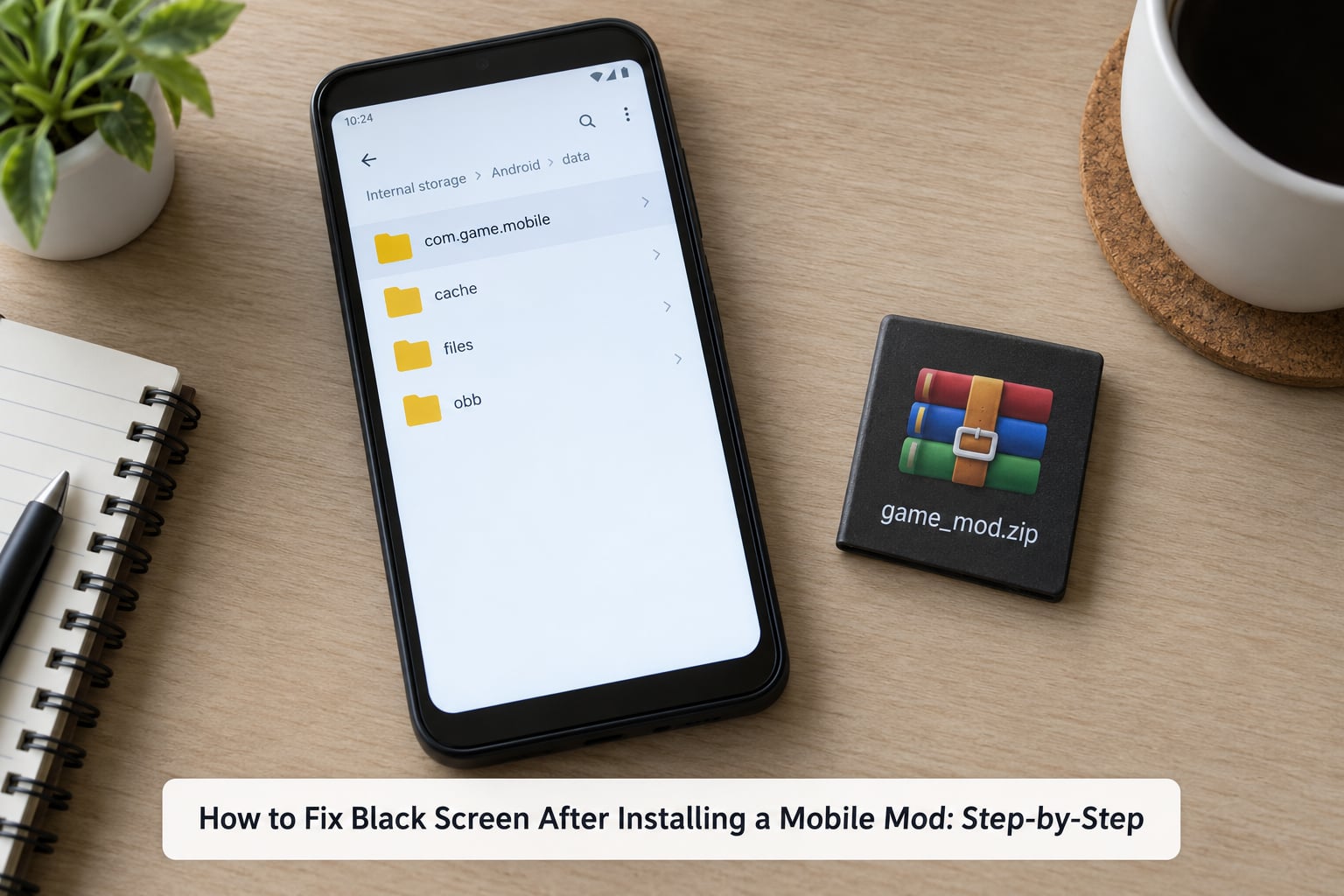
How to fix black screen after installing a mobile mod is a diagnosis, not a repair. Work through these steps in order, because the early ones cost nothing and the later ones can cost your progress.
1. Confirm the game and mod are compatible
Check the mod’s notes for the game edition and the build number it was made against. A mod written for one release of a game will not load on another release, even when the folder names look identical.
Open the launcher or the game’s own info screen and note the version you are running. If the mod lists a different version, stop here and remove the mod. There is no folder trick that makes an asset built for another game version load correctly.
You will know this step worked because the version you recorded matches the one in the mod’s requirements, and the mod’s dependency list, if it has one, is fully installed.
2. Close the game and back up your files
Force stop the game first. On most devices that is Settings, then Apps, then the game, then Force stop. On Samsung, look under Device care, then App management. A game that is still running in the background will overwrite the files you are about to restore.
Then copy your save folder somewhere safe before you touch any data-clearing button. Saves usually live inside the game’s own data directory under a files or savegames folder, and some games also keep a cloud copy you can sign back into. Copy the whole folder to your computer or cloud storage and leave it there.
This matters because clearing storage deletes local progress, and the forum advice most people find first, clear cache then clear data then reinstall, says nothing about that. You will know the backup worked when the copied folder contains your recent saves with matching file sizes.
3. Check the mod files and installation paths
Open your file manager and compare what is on the device against what came in the archive. Most black screens come from a file that is incomplete, renamed, still compressed, or sitting one folder too high.
- Incomplete archive. Compare the file size on your device with the size listed by the source. A truncated download cannot be detected any other way.
- Still compressed. If the mod files are inside a zip or rar on the device, extract them first. The game reads loose files, not archives.
- Wrong folder depth. Asset files usually belong directly inside the game’s data directory, not in a nested folder the installer created. Check for a stray folder with the mod’s name in its path.
- Capitalisation and spacing. Android’s file system is case sensitive. A file named differently from what the game asks for is an invisible file.
- Missing OBB or expansion pack. Large games keep the main asset pack as a separate OBB file. It belongs in the game’s OBB directory, which is separate from the game’s data directory, and the folder inside it must be named after the game’s package.
- Missing dependency. Many mods need a second mod, a script library, or a texture pack to be present. If the notes mention it, install it too.
- Scoped storage on Android 13 and 14. These versions hide the contents of the Android data folder from most file managers. Use a file manager with storage permission access, or grant the game itself storage permission and install through the in-game installer the mod provides.
How to tell this step worked: when you open the game’s data folder you can see each mod’s files exactly where the notes say, and every archive has been extracted.
4. Clear the game cache and temporary files
Open Settings, then Apps, then the game, then Storage. Tap Clear cache. Cache holds temporary files the game rebuilds automatically, so this step is safe and you lose nothing.
Launch the game and see what happens. If you reach the main menu or the world loads, the cache was the problem and the mod is fine. If the screen stays black, move to the next step rather than repeating this one.
On Samsung the same action sits under Device care, then App management, then the app’s Storage button. On some stock Android builds the option is simply called Storage used.
5. Remove the mod and test the base game
Do not delete the mod files. Move them to a folder outside the game’s directory, something like a mods-off folder on internal storage, so you can reinstall without downloading again.
Launch the game now. This is the most informative step in the whole process, and it separates two very different problems.
- The game starts normally. The device is fine and one of your mods is the cause. Go to step 6.
- The game is still black. The mod is not the whole story, and the game data or the game version is the problem. Go to step 7.
6. Reinstall one mod at a time
Put the mods back in small groups rather than all at once, and restart the game after each addition. Note the exact point where the black screen returns.
The fastest version of this is to remove the asset folder of a single mod and test. That approach comes straight from a Monster Hunter player on the Steam community forums who hit a black screen at boot, deleted one mod’s native assets folder, and found the screen came back. The same person then reinstalled each mod individually to confirm.
If you have fifteen mods, halve the group, test, then halve again. Most people find the culprit in three or four launches, and the losing mod is usually the one whose notes never mentioned a specific game version.
7. Restore the game if the base game also fails
If the unmodified game is still black, work down this list, testing the launch after each repair.
- Clear the game’s app data from Settings, then Storage, then Clear storage. This removes everything the game has written locally, so use the backup from step 2.
- Reinstall the game from its official store listing over the existing install, or uninstall and install fresh if the store refuses to overwrite.
- Restore your save folder from the backup while the game is closed, then open it once to confirm it loads.
- If the game was updated recently and your mods predate the update, that update may be what broke things. A MobileLegends player on an S22 Ultra with a Snapdragon chipset hit a permanent black screen after the developer logo on a new build, having already cleared cache, cleared data and reinstalled with no luck, and the only fix that worked was sideloading the previous build.
- As a last resort, uninstall the game, restart the phone, then install again. Anything beyond that, such as reinstalling system files or using developer options, is where real data loss happens.
Two warnings. Only take game and OBB files from sources you trust, because a pack from an unknown mirror can be truncated or repackaged and will send you back to step 3 with a new problem. And do not sideload an older build that you have no way to verify; check the version code in the file name first so you know exactly what you are installing.
Common Mistakes
Most failed attempts repeat one of the same handful of errors. Here is what each symptom usually means.
Black screen straight after the developer logo. Almost always a missing, incomplete, or mismatched asset pack. Check the OBB and the mod folder paths before anything else.
Black screen only when one mod is installed. An incompatible mod, usually a version mismatch. Remove it and confirm the game loads without it.
Black screen on a clean install with no mods. A corrupted app data folder or a game update that changed the file layout. Clear storage, then reinstall.
Stuck on the loading screen instead of fully black. Often an architecture problem. Mods that ship native libraries must match your device’s ABI, which on most current phones is arm64-v8a rather than armeabi-v7a. A library built for the wrong architecture fails silently and the screen never draws.
Mods do not show at all, and the screen stays black. Permission or storage scope. On Android 13 and 14 the file manager cannot see the game folder unless it has access, so grant storage permission to the file manager and to the game.
Beyond those, the classic mistakes are mixing mods made for different releases of the same game, adding four mods at once and having no idea which one broke, forgetting a dependency the notes listed, and clearing app data without a backup. Each of those turns a two-minute fix into an evening.
A few habits prevent most of it. Install one mod at a time and keep a written list. Back up the save folder before any update or reset. Read the version line in the notes before you download. Pull files from a source you have used before, and treat an OBB pack from an unfamiliar mirror as suspect even when the download completes cleanly.
Frequently Asked Questions
Does a black screen after a mod install mean my phone is damaged?
Almost never. A black screen in one game, right after you changed its files, is a game-side failure. Your hardware and display are fine because the phone keeps working normally outside that game. Confirm it by launching the game with every mod moved out, and by checking that other apps and your home screen behave as usual.
Does clearing app data delete my game progress?
It can. Clearing storage removes everything the game has written locally, including local saves, settings, and downloaded assets. Signed-in games often restore progress from the cloud, but games without cloud saves lose it permanently. Copy your save folder to a computer or cloud storage first, and never tap Clear storage before you have that copy.
How do I find out which mod is causing the black screen?
Bisect instead of guessing. Move every mod out of the game folder and confirm the game launches, then add half of them back and test again. Keep halving until the black screen reappears, and the mod in that half is your culprit. A player in the Steam Monster Hunter forums used the same idea on a single mod’s assets folder and found the cause in a few tries.
Should the OBB file be extracted or left compressed?
The OBB stays as one file. It is the game’s own expansion pack and belongs in the game’s OBB directory, in a subfolder named after the game’s package. Mod archives are different, and those do need extracting into loose files in the game data directory. Mixing the two up is a common reason a mod appears to install but changes nothing.
Can I play an older version of the game so my mod works again?
Sometimes, if the mod was built for an older build. Sideloading an older package is a known fix, and one MobileLegends player on an S22 Ultra could only play again after installing the previous build manually. Treat it as a last resort: confirm the version code before installing, back up first, and only download packages you trust, since unverified sources are where corrupt files come from.
How do I clear a mobile game’s cache on Android?
Open Settings, then Apps, then choose the game, then tap Storage and Clear cache. The game rebuilds cached files on the next launch, so nothing is lost. On Samsung, go to Device care, then App management, then the game, then Storage. Use Clear cache, not Clear storage, unless you have a backup of your save folder.
Conclusion
Stop launching the game and back up your save folder first. Then work the order: confirm the mod matches your game version, check the mod files and OBB paths, clear the cache, move every mod out, and test the clean game. If the clean game loads, add mods back in halves until the black screen returns, and that is your culprit. If the clean game stays black, clear app data from your backup, reinstall the official build, and test after every repair.