Nobody can tell a safe mod from a dangerous one by staring at a download page. The only reliable way to know how to tell if a mod download is safe is to verify the file yourself: check where it came from, open the archive and read the file list, scan it with more than one engine, then copy only the files the creator actually shipped. Ten minutes of checking beats reinstalling Windows.
What makes this worth doing is that the bad cases rarely look bad. A Sims modder’s account got taken over and a trusted custom content pack quietly “updated” with a virus downloader, which is exactly the story r/sims4cc documented at length. A GTA V mod menu turned out to carry a keylogger, and the advice that spread across r/GrandTheftAutoV was simply to change every password. None of those files looked strange while you were reading the page.
Mods also run with your full user privileges, so a bad one can log your keystrokes, read saved browser passwords, add a startup entry, or quietly mine cryptocurrency. Because antivirus engines frequently flag legitimate mod managers as “riskware,” you need a fixed routine rather than a feeling. That routine takes about ten minutes per download.
Last reviewed October 2026. Steps below cover Windows 11 with Microsoft Defender, and note where macOS and Android differ. Nothing here replaces a real security tool.
Table of Contents
- 1What You Need
- 2Step-by-Step: How to Tell if a Mod Download Is Safe
- 3Step 1: Check the Download Source
- 4Step 2: Verify the File Type and Download Name
- 5Step 3: Inspect the Archive Before Extracting It
- 6Step 4: Scan the Download With Security Software
- 7Step 5: Check Permissions, Requests, and Installer Behavior
- 8Step 6: Confirm Game and Platform Compatibility
- 9Step 7: Test the Mod in a Safe, Reversible Setup
- 10Common Mistakes
- 11Frequently Asked Questions
- 12Can antivirus software prove a game mod is safe?
- 13Is it safe to download a mod from a file-sharing website?
- 14Why does antivirus detect an installer as malware?
- 15Should I disable antivirus before installing a mod?
- 16How can I test a mod without damaging my GTA installation?
- 17What should I do if I already ran a suspicious mod file?
- 18Conclusion
What You Need
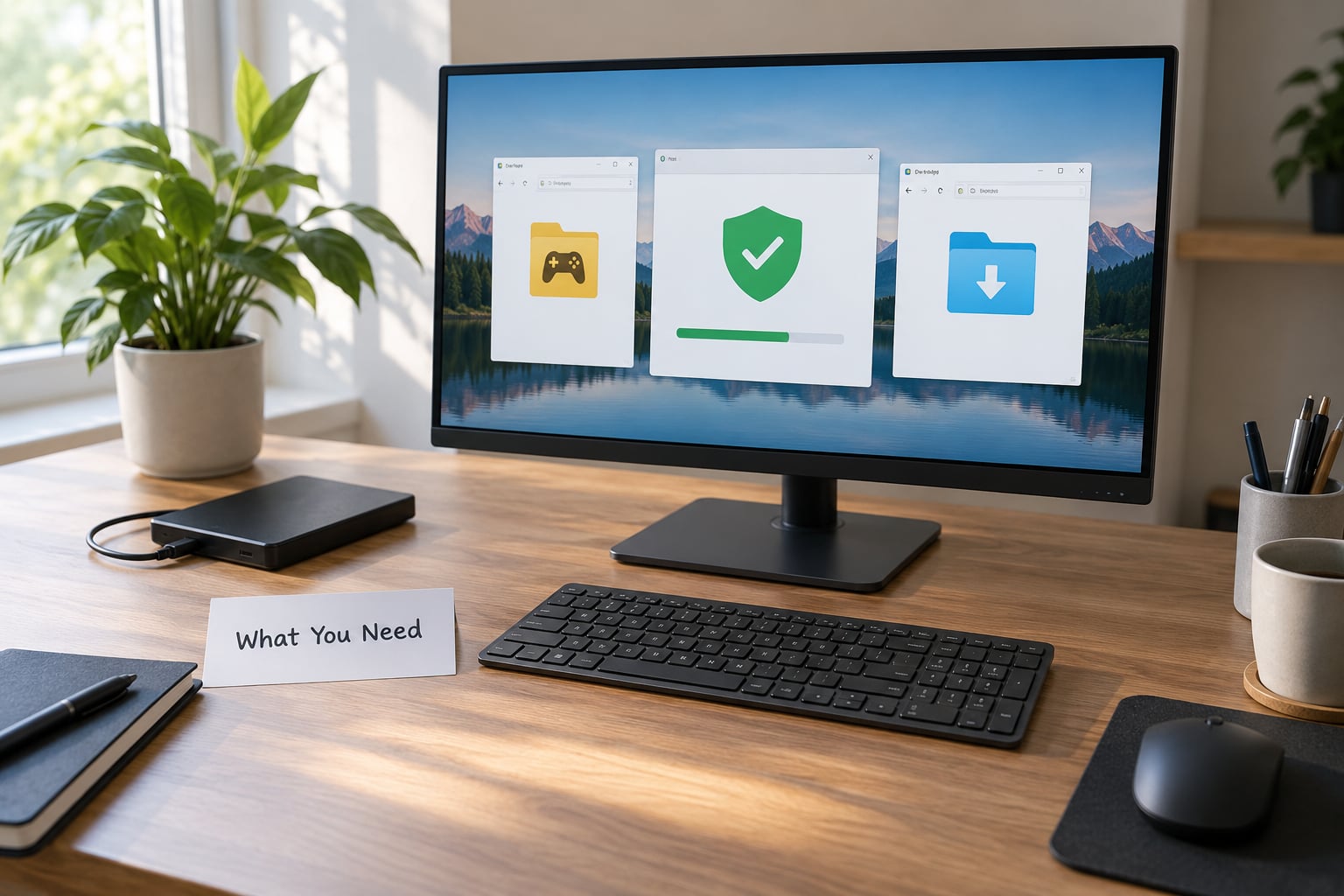
None of this needs to be bought or installed first, but five things make the checks fast:
- A source shortlist. The platform the mod is hosted on (Nexus Mods, ModDB, CurseForge, GameBanana, Steam Workshop) plus the creator’s own site or Patreon page when one exists.
- Working security software. Microsoft Defender is built into Windows 11 and only needs its definitions updated. Malwarebytes Free is the second opinion most modders reach for, and running both catches more than running one.
- An archive viewer. 7-Zip or WinRAR, or the extractor’s built-in preview, so you can look inside without unpacking anything to your game folder.
- A backup of your saves and mods folder. Copy the entire saves directory somewhere else before you touch anything. This is the step people skip and regret.
- A second account or a throwaway environment. A spare Windows user account, Windows Sandbox, or a spare PC lets you run a file once without giving it your everyday session and saved passwords.
A text editor helps too, because half the useful information on a mod page sits in the readme: requirements, install order, and what the creator says the folder should contain.
Step-by-Step: How to Tell if a Mod Download Is Safe
Run these seven checks in order. Each one has a clear success signal, so you can stop as soon as something fails instead of finishing a ritual out of habit.
Step 1: Check the Download Source
Look at who published the file and how the page behaves, not just whether the domain looks familiar. A creator with a long history, a visible version list, and honest changelogs telling you what changed and why is a different proposition from an account created last week.
Check the download actually comes from the platform you are browsing. A button that sends you to a shortened link or an unrelated domain is the single most common pattern in mod scams. Also look at comments for reports, and treat a mod that asks you to disable antivirus, turn off Defender exclusions, or offers a free premium key as finished.
Success signal: the file is served from the platform’s own domain, the uploader has a real history, and the last changelog entry explains a specific change.
Step 2: Verify the File Type and Download Name
Know what your platform’s mods normally look like. Skyrim and Fallout texture packs are usually .zip or .7z archives holding .bsa, .nif, .dds, .png, and .esd files, while script mods add .esp, .esm, or .lua. Minecraft mods are .jar files, which is normal but worth knowing because a .jar can execute Java the moment you launch it.
Double extensions are the giveaway. A file named Realistic_Grass_2.zip.exe is an executable wearing a costume. If the extension does not match what the page described, delete it and go back rather than being curious.
Success signal: the extension matches the mod type described on the page, with no second extension hiding after it.
Step 3: Inspect the Archive Before Extracting It
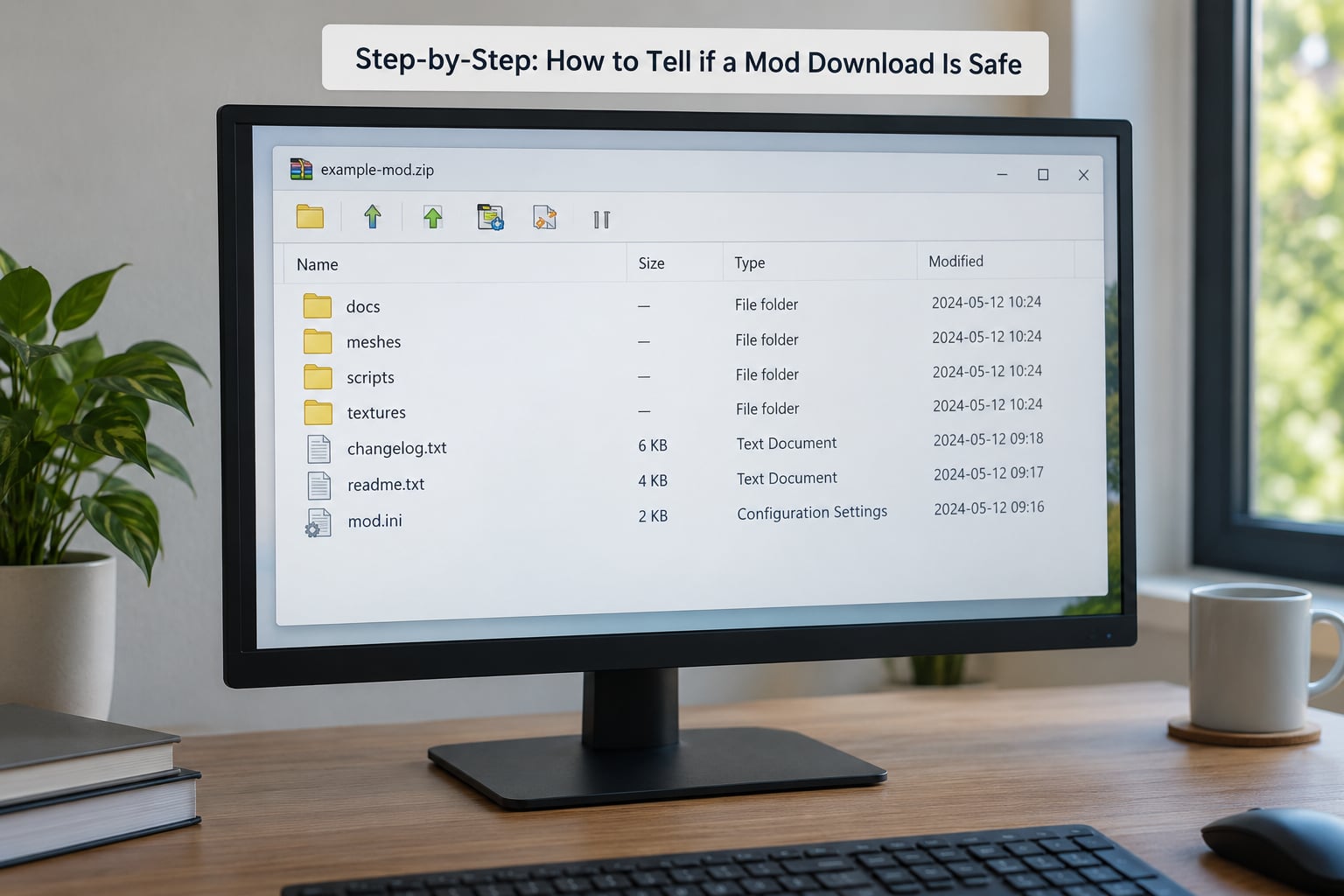
This is the check no competitor covers properly and the one that catches the most problems. Right-click the downloaded archive and choose Open with 7-Zip, then browse the contents inside the viewer without extracting. You are reading a file list, not running anything.
What a texture or gameplay mod should contain: asset files, configuration, a readme, an optional __MACOSX folder if it was zipped on a Mac. What it should not contain: .exe, .bat, .cmd, .scr, or .vbs files, an unfamiliar .dll, an “installer” script, or a second archive nested inside for no stated reason. Plenty of legitimate mods ship a plugin .dll, so the rule is not “no dll ever” but “a dll the creator names and explains in the readme.”
Never launch a file from inside the archive window. Double-clicking there runs it with no warning, no scan, and no backup of your game folder.
Success signal: every entry inside is a file type the game or its loader reads, and anything unfamiliar is explained in the creator’s notes.
Step 4: Scan the Download With Security Software
Start local. Right-click the archive and pick Scan with Microsoft Defender, then run a Malwarebytes scan over the same file. Set Defender to check downloaded files automatically so this happens before you ever open anything.
Then use VirusTotal, but check the hash before you upload. On the VirusTotal search page you can paste a SHA-256 checksum and see whether anyone has already scanned that exact file. If results appear, nothing gets uploaded. If nothing appears, the upload makes your file available to security vendors, so skip it for unreleased or paid mods you are not permitted to share.
Read the verdict carefully rather than the color. Several independent engines naming Trojan, Backdoor, or Keylogger means stop. A single generic HackTool or Riskware flag on a mod manager usually means the detection is about the software bundling launchers, not about malware.
Success signal: Defender and Malwarebytes both come back clean, and VirusTotal shows either no detections or one isolated generic flag you can explain.
Step 5: Check Permissions, Requests, and Installer Behavior
Before running anything, right-click the file and open Properties. On the Digital Signatures tab, an unsigned executable on a mod page is worth avoiding entirely. On Windows, if Mark of the Web blocked the file, that banner means the file came from the internet, which is normal and useful information.
Watch for behavior that has nothing to do with a game mod: a request for administrator rights, a new browser homepage, a notification permission prompt for a site you never visited, a scheduled task, or a new entry under Startup in Task Manager. One r/cybersecurity_help thread traced a persistent startup item named “Realtek Audio Driver.bat” back to a file a mod had dropped, which is the sort of disguise worth recognizing instantly.
Trainers, “anti-cheat bypass” tools, and standalone mod menus are a category of their own. They are not mods, they run at system level, and the risk they carry has nothing to do with graphics.
Success signal: nothing gets installed outside your game folder, no new startup entry appears, and no browser settings change.
Step 6: Confirm Game and Platform Compatibility
Safety and compatibility are separate checks, but a mismatch often means you are running a build against a version it was never written for, which is its own kind of problem. Read the page for the game version it targets, the operating system, 32-bit versus 64-bit, and any loader it needs such as Script Hooker, OpenIV, or an address library for GTA V.
On Android, the check is different in kind. APKs installed outside the Play Store need “unknown sources” permission, so read the permission list before you accept. A texture pack that asks for accessibility services, SMS, or device admin has no business asking.
Success signal: the stated game version, operating system, and loader requirements all match the machine in front of you.
Step 7: Test the Mod in a Safe, Reversible Setup
Install through a mod manager where you can. Mod Organizer 2, Vortex, and r2modman keep mods in separate folders and apply them to the game at launch, so a bad file is one click away from removed rather than buried in your install directory. That isolation is a security control, not just a convenience.
Then launch the game without Script Hooker or other third-party tools until the mod actually requires them. Watch Task Manager’s Startup tab while you do it, since a payload often reveals itself as a new persistence entry rather than a crash. Copy only the files the creator listed, nothing extra from the download folder.
This is how to tell if a mod download is safe in practice rather than on paper: a clean mod launches, plays, and leaves no new startup entry behind. One that crashes, stutters, opens a browser tab, or adds a background process is removed immediately, and the folder restored from your backup.
Success signal: the game runs normally, no new processes or startup entries appear, and you can roll the whole thing back in seconds.
Common Mistakes
Trusting download counts. A large number only means many people clicked. Big mods attract impersonators who copy the name and add one letter, and high download counts are exactly what makes a name worth faking. Check the uploader’s account and comments instead.
Reading endorsements as a security check. Users report mods recommended to them on Nexus Mods that still felt untrustworthy. Endorsements are opinions from people who have not inspected the archive.
Disabling antivirus before installing. This is the step that converts a suspicious file into a confirmed infection. If a mod only works with Defender disabled, you have your answer. Quarantine or add a narrow folder exclusion, never a full one.
Extracting an unknown archive into the game folder. Browse inside the archive first. A texture pack that unpacks an .exe next to your saves folder is not a texture pack.
Confusing one detection with proof of malware. Equally, one clean scan is not proof of safety. The r/antivirus forum is full of people whose mod manager was flagged as Riskware and who then talked themselves into installing it anyway. Read the engine names: Trojan and Backdoor mean act; Riskware and PUP usually mean “software that changes your system,” which for a mod manager is often just accurate.
Installing over your only copy. Back up saves before the first file goes in. Restoring a folder takes a minute; recreating two hundred hours of saves does not.
Skipping the version check. A mod built for last year’s game version can fail in ways that look like tampering. Check requirements before blaming the file.
Leaving the mod manager out of it. Manual installs scatter files through your install directory, and removing a mod by hand often leaves something behind.
Mixing up ban risk with malware risk. These are different questions. A texture mod can get you banned in a competitive multiplayer game while being perfectly safe, and a malware payload will not announce itself as cheating.
A few habits cover most of the above: keep Defender’s real-time protection on, install through a mod manager, buy or download from the creator’s official page when one exists rather than a repost, and re-check any long-established mod that suddenly updates with no changelog, because that pattern is what a compromised account looks like from the outside.
Frequently Asked Questions
Can antivirus software prove a game mod is safe?
No. Security tools find known malware signatures, and a fresh packer or a script that behaves differently on your machine will pass cleanly. Treat a clean scan as one signal among several: check the source, read the archive contents, and look at the uploader’s history. Scanning catches the files already in every vendor’s database, which is most of them and not all of them.
Is it safe to download a mod from a file-sharing website?
It is possible but you carry the whole burden yourself, because file-sharing sites give you no scan history, no uploader history, and no version record. Anyone can upload under any name, and mirror pages are a known route for repackaged installers. If that is the only copy available, download it, browse inside the archive without extracting, scan it locally, and test it in a spare account or sandbox first.
Why does antivirus detect an installer as malware?
Installers do things antivirus dislikes: they write to program folders, change registry keys, run background services, and often bundle launchers. That pattern matches genuine installers of unwanted software, so engines label them Riskware, PUP, or HackTool rather than Trojan. Check the detection name and which engines fired. Several engines calling it a backdoor is different from one engine calling a launcher a hack tool.
Should I disable antivirus before installing a mod?
No, and a mod that needs it disabled is a red flag rather than an inconvenience. Turning off real-time protection removes the only automatic check between the download and execution. If a trusted mod is blocked, use a narrow folder exclusion in Defender’s settings after you have scanned the files yourself. Full real-time protection stays on for everything else.
How can I test a mod without damaging my GTA installation?
Back up your saves and mods folder, then install through Vortex, Mod Organizer 2, or r2modman so the game files stay untouched and rollback is one click. Launch first without Script Hooker and other tools unless the mod needs them, and check the Startup tab in Task Manager during the first run. If the game stutters, crashes, or a new process appears, remove it and restore your backup.
What should I do if I already ran a suspicious mod file?
Disconnect from the network first, since that stops downloads and remote control. From a different, clean device change your email and game platform passwords and enable two-factor authentication. Run a full Microsoft Defender scan plus a Malwarebytes scan, then check the Startup tab and installed programs for anything you do not recognise. Report the upload to the platform and warn the community channel.
Conclusion
Start with the archive, not the download button. Open it, read the file list, and if anything executable is inside, stop there. If it looks clean, scan it with Defender and Malwarebytes, then install through a mod manager so you can undo everything in one click.
The habit that pays off most is re-checking old favourites. A mod you trusted for two years can change overnight if its creator’s account is taken over, which happened at scale in the Sims community. A sudden update with no changelog is the signal to look again.