If you are asking why does my save not load after installing mods, the short answer is that the save file and the mod setup have drifted apart. Your save was written by one version of the game with one set of mods active, and something about the current install no longer matches what the save expects.
The good news is this is usually a diagnosis problem, not a dead save. Work through the steps below in order and you will either get your save loading again or you will know exactly which mod, version, or file is responsible.
Budget about 20 minutes for the full pass. Most cases resolve in the first five steps, before you touch a single game file.
Table of Contents
- 1What You Need
- 2Step-by-Step
- 3Why Does My Save Not Load After Installing Mods? The Five Usual Causes
- 41. Back Up Every Save Before Testing
- 52. Load the Save With Every Mod Disabled
- 63. Check the Mod and Game Versions Match
- 74. Reinstall or Repair the Mod in the Correct Order
- 85. Repair the Game Files and Retry the Save
- 9Common Mistakes
- 10Frequently Asked Questions
- 11Can installing mods permanently damage a save game?
- 12Why does my save work before installing a mod but not afterward?
- 13Should I delete the save if it will not load after installing mods?
- 14How do I find out which mod is causing the save error?
- 15Can I load an old save after updating the game and installing mods?
- 16Why does my Android GTA mod save not appear in the game?
- 17Conclusion
What You Need
Everything here is already on your machine or takes a minute to gather. Gathering it first is what keeps a fixable problem from becoming a lost save.
- A copy of every current save. All slots, not just the one that fails. On PC that usually lives in a save folder inside your user documents or in a game folder; on console it sits in the system save management area.
- The original game installation. Not a second copy. The one you verified before any mod went in.
- The mod files and their instructions. Keep the download page or readme nearby, because version requirements are usually written there and nowhere else.
- A known-good backup from before modding. Autosaves count, but a manual copy on separate storage is better.
- The correct game version and its launcher. Console, PC client, or Android package. You need to know which one produced the save.
If you cannot produce that last item, stop and find out. Half of the cases in the modding forums trace back to a save made on one version being opened on another.
Step-by-Step
Why Does My Save Not Load After Installing Mods? The Five Usual Causes
Mods write their data into your save. A mod that changes weapons, quests, scripts, or world objects leaves records inside the save file that reference the mod’s own content. Remove or reorder that mod later and the save still points at data that is no longer there.
That single mechanism explains most cases. Here are the five that account for nearly all of them.
- Version mismatch. The game updated, or the mod was built for a different game version than the one you are running.
- Missing mods and dependencies. The save references content from a mod that is disabled, moved to another folder, or never installed correctly.
- Load order conflicts. Two mods overwrite the same record, and the save loads whichever version the ordering picked.
- Script extender problems. The extender version does not match the game version, or it was not updated after a patch.
- A genuinely corrupted save. Often caused by uninstalling a large batch of mods partway through a playthrough.
On Bethesda titles this last one comes up constantly, and the community advice is blunt: removing a big mod list mid-playthrough can destroy the save and force a new game. That is why step one is a backup.
1. Back Up Every Save Before Testing
Copy your saves somewhere outside the game folder. On PC that means a separate drive or an archive file, not another folder inside the same installation.
On console, export or copy the save to USB storage through the system’s save management screen. On Android, pull the game data folder to your computer with a file manager, because uninstalling the game wipes it.
Preserve every slot, including autosaves. The slot that loads fine today may be the only clean reference point you have tomorrow.
How you know it worked: open the copied files on the other drive and confirm the file count and dates match what was in the original folder. Do not trust the copy operation message alone.
2. Load the Save With Every Mod Disabled
This is the test that tells you which family of problem you have. Disable everything, then load the save.
If the game has official mod support, use its built-in toggle. If it does not, move the mods folder out of the game directory entirely rather than renaming it, since some loaders scan by folder name and some by file content.
Three outcomes, and each one points somewhere different:
- Save loads clean. Your files are fine. The problem is a mod conflict or version mismatch. Go to step 3.
- Save still fails or crashes to desktop. The save itself is damaged or expects data no longer present. Go to step 5.
- Save hangs on a loading screen. Common with a large mod list where load time grew past what the system can handle. Note the stall point and keep going.
Players report the same pattern across wildly different games: 26 mods and a stall near the end of the loading screen in Resident Evil, hundreds of mods in RimWorld causing intermittent hangs, and Subnautica stopping at a fixed point in the bar. The stall position is a clue, not a verdict.
3. Check the Mod and Game Versions Match
Open the game’s main menu, check its build or patch number, then compare it against what the mod page states.
Do this in three places:
- Game version. Recorded in the main menu or launcher properties.
- Mod requirement. The readme or download page states which build it targets.
- Platform and edition. A save from the console edition will not open in a PC copy of the same game, and vice versa.
If the game updated after your save was made, that is a strong candidate on its own. Some updates change the save format, and the only clean path back is the backup you took before the update.
A loader version mismatch behaves the same way. A community fix for GTA mod crashes was as plain as reinstalling the script loader and checking whether the mod supported that loader version at all.
4. Reinstall or Repair the Mod in the Correct Order
If the save loads with mods off, reintroduce them deliberately instead of all at once.
The binary search, sometimes called the 50/50 method, is the reliable version:
- Enable the first half of your mods. Load the save.
- If it fails, the culprit is in that half. Enable the first quarter. If it works, the problem is in the second quarter.
- Keep halving until you land on one mod.
- Note the version you had installed and check for a known conflict or a patch.
With 100 mods this is tedious. It is still faster than guessing, and each test is a couple of minutes.
Reinstall the suspect mod rather than toggling it. Dependencies first, then the add-on, then any compatibility patch the author recommends. If the mod provides a required framework or library mod, install that before the add-on every time.
Run your load order optimizer after each change rather than at the end. Two mods fighting over the same record can look fine on their own and break the save the moment both are active.
5. Repair the Game Files and Retry the Save
If the save failed even with no mods installed, the damage is in the game data or the save itself.
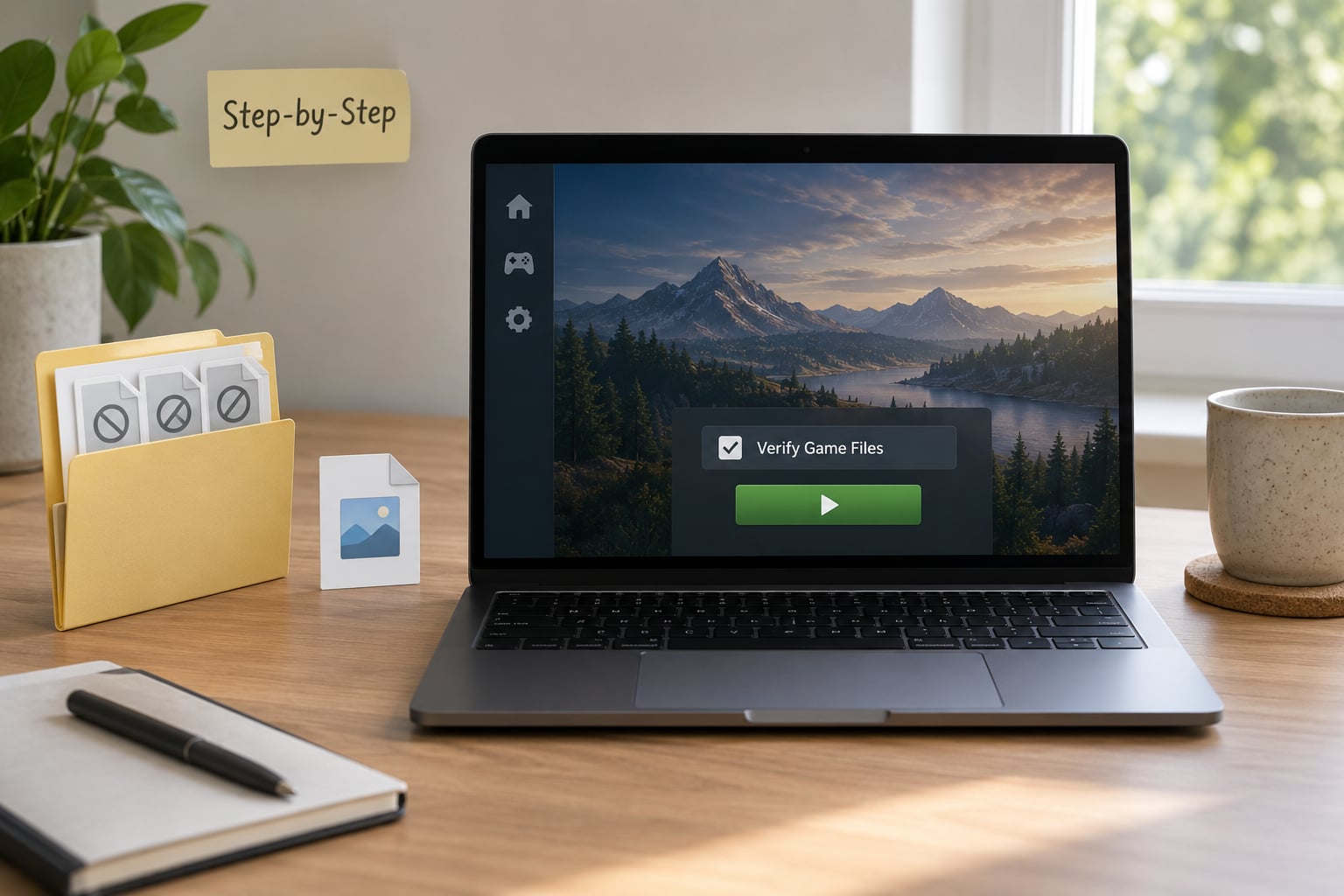
Verify the game files through the launcher. This restores any file a mod overwrote or deleted and repairs the base installation. It does not touch your save folder, and it does not remove your mods.
After verifying, launch once and try the save again before touching anything else.
For Bethesda games, load the save in a new game first to separate a broken world from a broken character. There are save cleaning tools that strip orphaned scripts and dangling references left behind by removed mods, which sometimes restores a loadable file.
On Android, check storage permissions and free space next. A modded package with insufficient space or a storage permission change will fail at load with a generic error that looks like corruption but is not.
Common Mistakes
These are the errors that turn a solvable problem into a lost evening.
Uninstalling mods mid-playthrough. Removing content that a live save references is the single most destructive move you can make. Disable instead of uninstall, and keep the old version’s files until the new save is confirmed good.
Overwriting your only backup. Copy to a new folder each time and date the names. The version you will need is usually the second or third most recent one.
Mixing game editions. A save from a different edition or platform will not load, and the error message rarely explains why.
Installing add-ons before their dependencies. Load order matters. A framework mod that loads after the content depending on it produces missing data at save-read time.
Editing the wrong folder. Mods, game data, and saves often sit near each other. Confirm you are moving mod files and not the save folder before you drag anything.
Trusting autosaves. Forum reports on Mount and Blade point to a reliable habit: use a manual save into a fresh slot, and treat autosaves as unreliably disposable.
Relying on cloud sync. Cloud saves can push a vanilla file over your modded one, or the reverse, which looks exactly like corruption. Copy local files somewhere safe before a sync runs.
Starting fresh too early. A new game is sometimes the only path, but only after steps 1 through 5. Starting over first wastes the backup that could have saved your progress.
Frequently Asked Questions
Can installing mods permanently damage a save game?
Mods can damage a save, and removing them partway through a playthrough is the usual cause. The save keeps records pointing at content a removed mod created, so the game cannot resolve those references when loading. The damage is often repairable with save cleaning tools, and sometimes by re-enabling the mods the save expects. If no backup exists and cleaning fails, a new game may be the only option.
Why does my save work before installing a mod but not afterward?
Because installing a mod usually means playing again and saving, and that new save records the mod’s data. It also may mean the game updated between the last good save and the mod install. Check the game version against the mod’s stated requirement before assuming the mod itself is at fault. Version mismatches are the most commonly missed cause.
Should I delete the save if it will not load after installing mods?
No. Deleting it destroys your clean reference point and any data a repair tool could recover. Copy it somewhere outside the game folder first, then work on the copy. Only consider a fresh start after testing with mods disabled, verifying game files, and trying a save cleaner have all failed.
How do I find out which mod is causing the save error?
Enable half your mods, load the save, then halve the group each time it fails until you isolate one mod. If the save loads with that group, the culprit is in the other half. Reinstall the mod you find, check its required dependencies and version, and place it correctly in the load order. Screenshots of your mod list speed this up enormously.
Can I load an old save after updating the game and installing mods?
It depends on how far the game moved. Small updates usually load fine with the same mods. Larger updates can change the save format, and older saves then need the pre-update version to open, or a save cleaning tool. Load your pre-update backup on the older build first to confirm the file itself is intact before blaming the mods.
Why does my Android GTA mod save not appear in the game?
On Android the save folder is usually separate from the modded package, and each app has its own storage location. Launch the game once so it creates a save folder, then move your backed-up files into that exact path and make sure the app has storage permission. A modded APK and the original app also keep saves in different places, so copy files back to the app you actually play in.
Conclusion
Start with the boring move. Copy every save off the machine, disable all mods, and load the file on the clean installation.
That single test splits the problem in half. Save loads means a version mismatch or a mod conflict, and the binary search finds the culprit fast. Save still fails means the file itself needs game file verification and possibly a save cleaner.
Reinstalling the game is the last step, not the first. A clean install cannot repair a save that has already been damaged, so protect the file before you touch anything.