Installing a savegame on Android is a file copy, not an install. You back up what you have, open the GTA app folder on internal storage, paste the downloaded save files into it with the exact same names and subfolders, then relaunch the game. Most installs take five minutes. The part that catches people is Android’s storage rules, which changed a lot from Android 11 onward.
This guide covers the official GTA Android edition and the modded launchers people often use instead, because the two store files differently. Read the version check in Step 2 before anything else — that one habit prevents most failed installs.
Table of Contents
- 1What You Need
- 2Step-by-Step: How to Install a Savegame on Android
- 3Step 1: Back Up Your Current Android Save
- 4Step 2: Check the Savegame for Your GTA Version
- 5Step 3: Install or Update the Required Android App
- 6Step 4: Open the Downloaded Savegame Archive
- 7Step 5: Find the Correct Savegame Folder
- 8Step 6: Copy the Save Files and Folders
- 9Step 7: Launch GTA and Verify the Save
- 10Common Mistakes and Fixes
- 11Tips for Keeping Android Savegames Safe
- 12Frequently Asked Questions
- 13Where are GTA save files stored on Android?
- 14Do I need root to install a savegame on Android?
- 15Why does my savegame not show up in the game after I copied it?
- 16Can I transfer a save from my PC or emulator to my phone?
- 17How do I move my save to a new Android phone?
- 18Is it safe to download savegames from third-party sites?
- 19Conclusion
What You Need
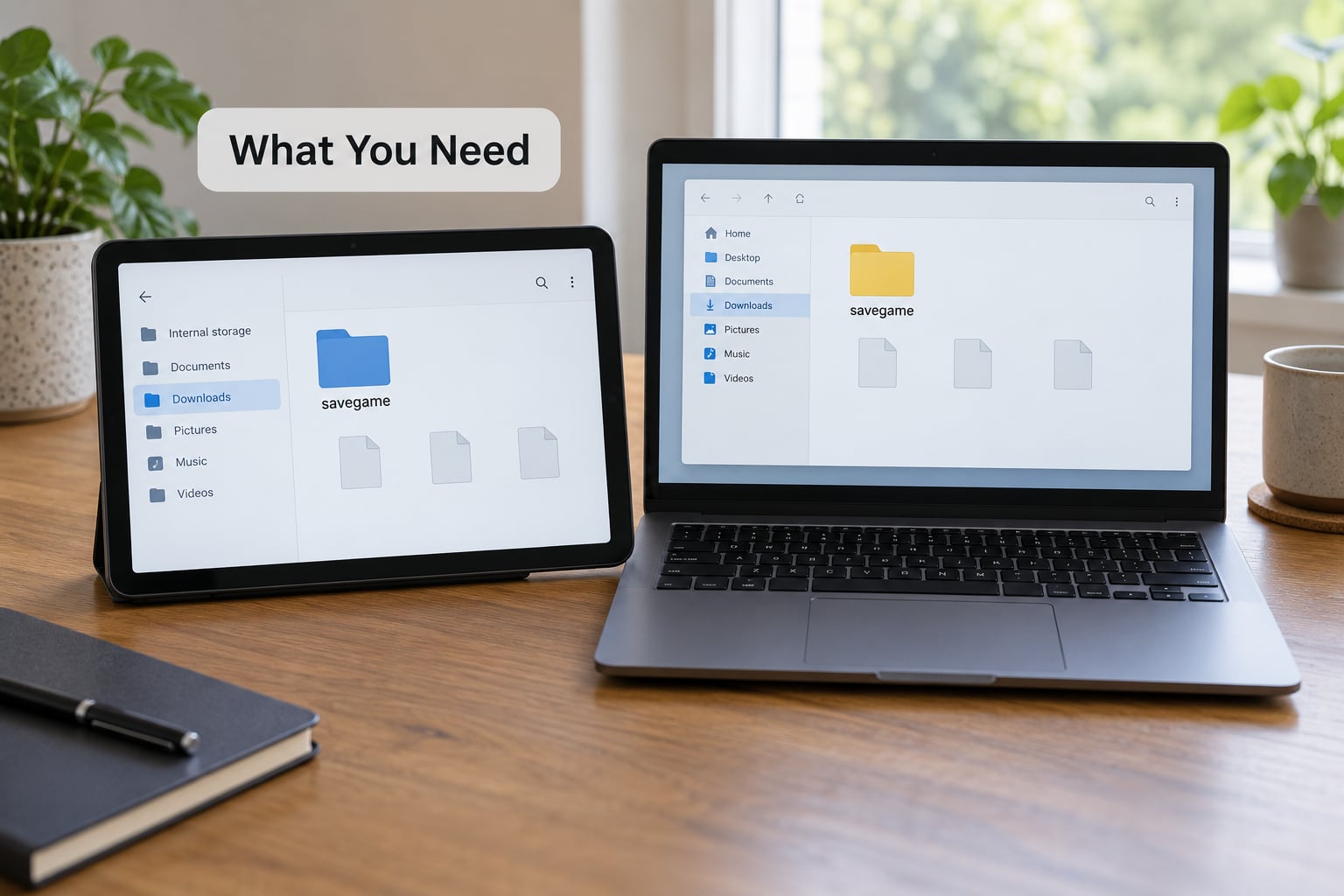
Six things, and most Android players already own five of them:
- An Android device with at least a couple of gigabytes free. You need room for the backup and the new files side by side.
- The GTA edition you actually play — the official Rockstar build, a modded launcher, or a source-port-style APK. Saves are not interchangeable between them.
- The downloaded save files, still zipped or in a folder if you have not extracted them.
- A file manager that can reach
Android/data. The stock Files app on many phones cannot. - An archive tool such as ZArchiver or RAR, to open the download.
- A backup destination — a separate folder on the SD card, a PC, or cloud storage. This is the one item people skip and regret.
File manager choice matters more than it looks, because Android 13 and later block writes into Android/data for most apps. What each one can actually do on a current device:
| File manager | Reads Android/data | Writes into it | Notes |
|---|---|---|---|
| My Files (Samsung) | Yes | Yes on Samsung devices | Samsung modified stock behaviour; the easiest route on a Galaxy |
| MiXplorer Silver | Yes | Often | Install the Silver build from the Play Store, not a sideloaded copy |
| FX File Explorer | Yes | Varies | Use the “Use this folder” permission trick to unlock the directory |
| Total Commander | Yes | Often | Reliable on older devices; throws permission errors on some Android 13 builds |
| ZArchiver / Material Files | Yes | Limited | Fine for opening archives, weaker for writing into game folders |
| Files by Google | Only via “Use this folder” | No | Not usable for save installs on Android 13+ |
If nothing on your phone will write into Android/data, you have three options: use the Samsung My Files route, run the copy over ADB from a computer, or check whether the launcher you use stores its saves somewhere readable.
Step-by-Step: How to Install a Savegame on Android
Step 1: Back Up Your Current Android Save
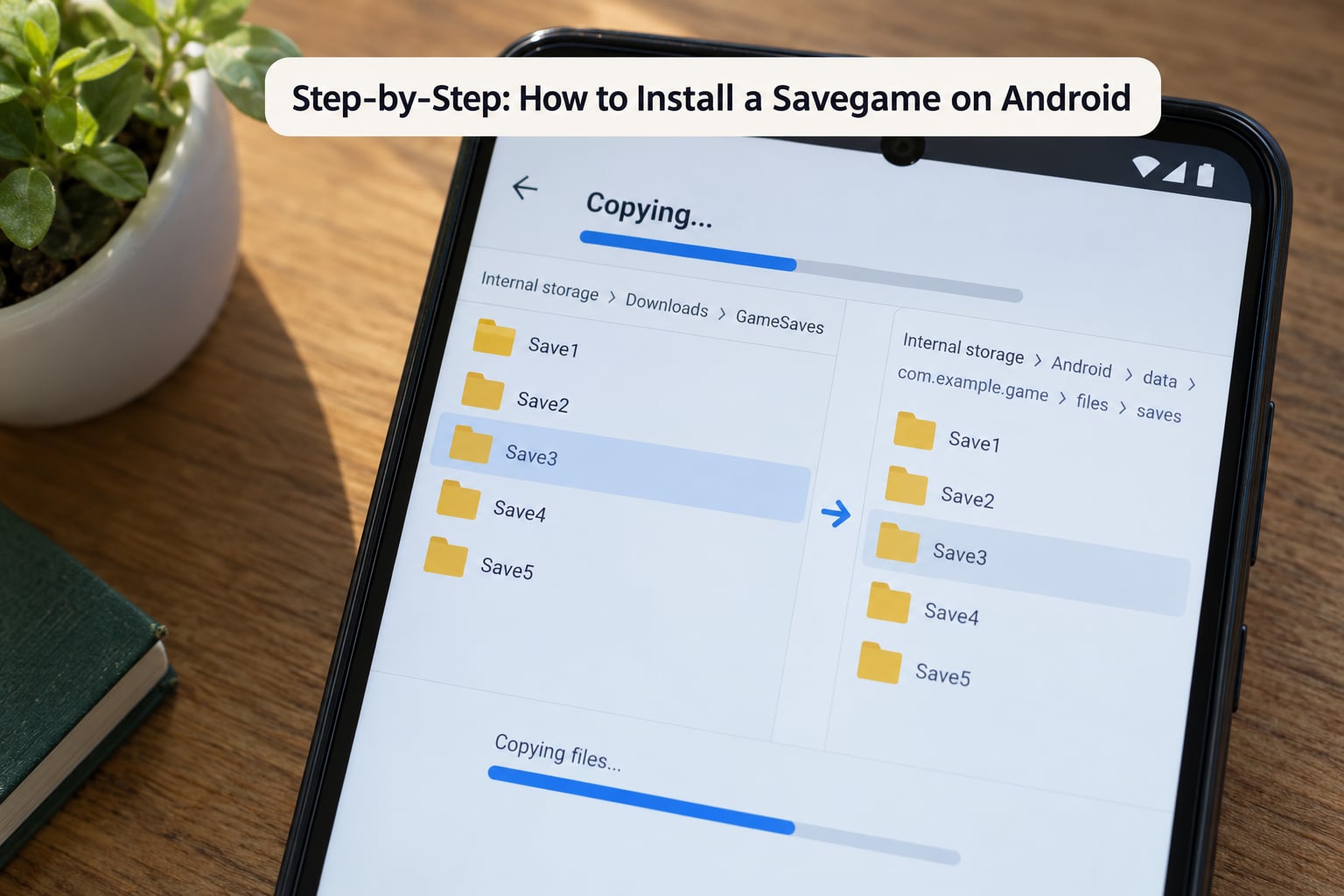
Find the folder your game is already saving to and copy the whole thing, subfolders included, to a separate location before you touch it. Without that copy, a failed install can take your current run with it.
On the official edition the save lives under the package folder Android/data/com.rockstargames.gtasa on internal storage, usually in a saves subfolder. If you have never seen a folder there, launch the game, start a new save, quit properly, then browse again — the game creates its directories on first write.
Step 2: Check the Savegame for Your GTA Version
A savegame is version-locked more often than people expect. Open the download on a computer and read any readme, then compare it against your build.
Check three things: the game version the save was made on, the edition or launcher it came from, and the region or language pack. A save from a newer build usually will not load on an older one, and a save from the official Rockstar APK almost never works in a modded launcher because the packages store progress differently.
If the download ships an encrypted or signed blob instead of readable files, that is the game encrypting its own progress. Those cannot be hand-installed and you will need the in-game cloud route instead.
Step 3: Install or Update the Required Android App
Make sure the launcher you intend to play on is installed and up to date, because a save written by one version will not always be read by another. Storage behaviour also differs sharply between the official build and modded APKs, so install before you copy rather than after.
Open the game once after installing so it creates its own folders. An empty or absent package folder means the game has not written anything yet, and copying into a path that does not exist is the most common reason a paste silently fails.
Step 4: Open the Downloaded Savegame Archive
Extract the archive to a temporary folder in your Downloads directory rather than unpacking it straight into the game folder. ZArchiver handles this well; tap the archive, choose Extract, and pick the temporary folder.
Once extracted, you should see one or more save files and possibly small config or settings files. Write down the exact filenames — character for character, including extensions. The install fails quietly when a file gets renamed on the way out of the zip.
Step 5: Find the Correct Savegame Folder
Open your file manager, navigate to internal storage, and go into Android/data. Sort by folder or search for the package name if the list is crowded.
Three layouts come up in practice. The official edition uses a readable folder under Android/data/. Some launchers write into app-private storage under /data/data/<package>/files, which needs root. Others keep a plain folder on the SD card under Android/data/<package>/ with an obb sibling.
Judge by what already exists. If the game has run on this device, the folder it wrote to is the folder the save belongs in — a downloaded save almost always expects that same structure.
Step 6: Copy the Save Files and Folders
Copy the extracted files into the target folder and preserve names, extensions, and any subfolders exactly. Paste them alongside the existing save files first rather than replacing the whole directory; you can delete the old file once the new one is confirmed working.
Leave the game’s APK, its obb folder, its cache, and any config files alone. Pasting an unrelated .dat or cache file from the download into the package folder can stop the game from launching at all.
If the file manager throws “File operation is not supported” or a permission error, your Android version is blocking writes to Android/data. Switch to a manager listed as working above, use the Samsung route, or push the file over ADB from a computer with adb push /sdcard/Download/save.sav /storage/emulated/0/Android/data/com.rockstargames.gtasa/files/.
Step 7: Launch GTA and Verify the Save
Force-stop the game first so it does not rewrite your files on exit, then launch it and load the slot the new save should occupy. Check the money total, the character, unlocked weapons, mission progress, and the map markers rather than trusting the load screen alone.
Open the map and a shop screen too. A save that half-loaded often shows correct progress but empty inventories, which is a version mismatch rather than a successful install.
Keep the backup until you have played a full session without problems. That is the only real test.
Common Mistakes and Fixes
Almost every failed install is one of these. Work down the symptom column until you find your case.
| Symptom | Likely cause | Fix |
|---|---|---|
| Save does not appear in-game at all | Files pasted into the wrong folder | Compare against the folder the game actually wrote to on first run |
| Permission error or “File operation is not supported” | Android 11+ scoped storage, worst on Android 13+ | Use My Files on Samsung, MiXplorer Silver, or an ADB push |
| Game crashes on launch after the copy | A config, cache or obb file was overwritten | Restore the Step 1 backup and paste only save files |
| Old progress still loads | Old save file was not replaced or was renamed | Delete the previous file, then paste with the exact original name |
| Progress loads but items and missions are wrong | Savegame built on a different game version | Use a save matching your build, or run the same version once to regenerate |
| Folder appears empty in the file manager | The game keeps data in app-private storage | That path needs root or an ADB pull; there is no no-root path here |
| Progress disappeared after uninstalling | No backup existed and no cloud save was enabled | Check the device’s backup history or a previous carbon backup on a PC |
| Save ignored on a new phone | Signature or encryption differs between launchers | Install the same launcher the save came from |
| Works on one phone, not another | OEM storage policies differ | Recreate the folder on the new device and paste again |
Tips for Keeping Android Savegames Safe
Match the version before the file, not after. Two minutes reading the download’s readme saves an evening of debugging.
Back up on a schedule rather than before a crisis. Once a month, copy your package folders to an SD card or a PC carbon backup, and keep two generations so a corrupted backup never replaces a good one.
Test one savegame at a time. Installing several and trying to work out which broke what is far slower than a clean single install.
Skip download sites that push installers or extra downloads. A save file is inert data; an APK next to it is not, and mobile download pages are a well-worn malware route.
Re-copy after a major game update. When a developer changes the save format, an old backup stops loading and the game quietly starts a new file.
Test a backup before you need it. Open it once on a device where losing progress would sting least.
Frequently Asked Questions
Where are GTA save files stored on Android?
On the official Android edition, progress lives in the package folder Android/data/com.rockstargames.gtasa on internal storage, usually in a saves subfolder created the first time you save. Modded launchers differ: some write to a folder on the SD card with the same package name, and a few use app-private storage under /data/data, which no file manager can reach without root. Launch the game, save once, then browse the folder it created.
Do I need root to install a savegame on Android?
Usually not. If the game stores its saves in Android/data, a capable file manager can copy them in without root, and Samsung’s My Files app writes there directly. Root is only unavoidable when a launcher keeps progress in app-private /data/data, where Android blocks all normal apps. Check where your current save already sits before deciding to root anything.
Why does my savegame not show up in the game after I copied it?
Four causes cover nearly every case: the files went into the wrong folder, the old save was never deleted so the game loaded that instead, a subfolder was flattened during extraction, or the save came from a different game version. Check the filename matches exactly, make sure you replaced rather than added alongside, and confirm the game and save share a version. Restart the game fully after each change.
Can I transfer a save from my PC or emulator to my phone?
Yes, for games whose Android edition uses the same save format. Copy the save out of the emulator’s save directory on your PC, unzip it, and paste it into the phone’s Android/data folder using the same filename. Emulators such as Dolphin, RetroArch and PPSSPP keep saves on the host machine rather than the device, so you do that part on your computer. Expect trouble if the Android build handles saves differently from the PC version.
How do I move my save to a new Android phone?
On the old phone, copy the entire package folder rather than one file, since games often split progress across several files and settings. Send it to the new phone by cable, cloud drive or SD card. Install the same game or launcher first so its folder exists, then paste the folder contents into Android/data with the package name matching exactly. Test one slot before you delete anything on the old device.
Is it safe to download savegames from third-party sites?
The save file itself is inert data and cannot run code, but the page around it can. Many download sites wrap saves in installers, ad installers or fake download buttons, which is how mobile malware usually arrives. Prefer communities that host the raw file with a visible file size and version note, never install an APK that arrives alongside a save, and scan the download with a reputable mobile antivirus app before opening it.
Conclusion
Start with the version. Confirm the downloaded savegame was made for the exact GTA build and launcher on your phone, then back up the folder your game already writes to. Extract to a temporary folder, paste into Android/data/<package> with the filenames unchanged, and force-stop the game before the next launch. Load one slot, check the map and inventory, and keep that backup until a full session has gone by.
And if a file manager refuses to write into Android/data, that is Android’s storage rules rather than anything you did wrong — switch to My Files on a Galaxy, MiXplorer Silver, or push the file over ADB.