The safest way to keep single player mods separate from online play is to never let mod files touch the copy of GTA V you launch for GTA Online. Put every mod inside a dedicated mods folder toggled through OpenIV, and keep one installation that stays permanently vanilla for online sessions. Anything sitting loose in the game directory is read at launch, not during play, so residue counts even when you never use the mod online.
That last point is where most people get caught. A lot of players assume the rule is about cheating in a match. It is not. Rockstar checks the files your client loads the moment you connect, which means a leftover injector sitting in the root of the game folder is a problem even on a completely clean session.
Everything below applies to PC and Steam. There is no supported way to mod GTA V on PlayStation or Xbox, so console players are already doing this correctly by default.
If you have never opened OpenIV before, it is worth learning the folder view first. It takes about fifteen minutes and everything below assumes you can move files inside a game folder without breaking the structure.
Table of Contents
- 1What You Need
- 2Tools and files
- 3Mod support differs by game and platform
- 4Why Story Mode and GTA Online are treated differently
- 5Step-by-Step: How to Keep Single Player Mods Separate from Online Play
- 6Step 1: Identify Every Mod and Its Installation Method
- 7Step 2: Back Up the Clean Game and Your Mods
- 8Step 3: Create Separate Single-Player and Online-Ready Folders
- 9Option A: the OpenIV mods folder toggle
- 10Option B: two separate installations
- 11Which option fits which player
- 12Step 4: Remove Mods Before Starting an Online Session
- 13Step 5: Verify the Clean State in the Launcher and Game
- 14Step 6: Test Single-Player and Online Play Separately
- 15Common Mistakes
- 16Frequently Asked Questions
- 17Do I need two separate copies of GTA V to mod Story Mode and play online?
- 18Will single player mods get me banned from GTA Online?
- 19Can you use single player mods in GTA Online?
- 20How do I disable OpenIV mods before launching GTA Online?
- 21Can I mod GTA V on PlayStation or Xbox?
- 22What should I do if my only clean copy is a backup?
- 23Conclusion
What You Need
You need four things: the OpenIV modding tool, an external drive with real space on it, a mod manager if you use script mods, and a clear picture of which Rockstar edition you own. None of this takes more than an evening to set up properly.
Tools and files
- OpenIV for installing, moving and toggling mods that replace original game files.
- A mod manager if you use script-based mods or a menu. Menus and injectors are the highest risk category in GTA Online.
- Free disk space equal to roughly twice your installed game size if you plan to keep two installations.
- An external drive or a second internal drive for the backup copy. Do not park your only backup inside the game folder.
- The Rockstar Games Launcher, installed and signed in, since the launcher verifies your files and can restore a clean copy.
Mod support differs by game and platform
What you can separate depends heavily on which game you are playing. GTA V on PC is the most flexible because it has a deep modding scene and the OpenIV tooling to switch mods on and off. GTA IV, San Andreas and Vice City each have their own mod loaders, and those usually replace files outright with no toggle.
Android ports of San Andreas and Vice City behave differently again. They run from an APK, mods come as replacement files, and there is no online mode to protect on many builds, so the separation problem mostly does not apply there. If your question came from a GTA V search, this guide is the right one.
Why Story Mode and GTA Online are treated differently
Modding GTA V Story Mode is allowed by Rockstar Games. Using mods, menus or injectors in GTA Online violates the Terms of Service, and that is a multiplayer integrity rule rather than a single-player one.
Forum discussion makes the distinction bluntly. In a Steam discussion on the subject, one player put it as: “No modding single player is safe. Just ALWAYS make sure to disable your mods before going into online, the only time you run any kind of risk is using mods online.” That is the consensus position, and it is the reason separation exists at all.
Step-by-Step: How to Keep Single Player Mods Separate from Online Play
Step 1: Identify Every Mod and Its Installation Method
Before you move anything, write down what you have installed and how each piece got there. Most problems happen because someone cannot remember which folder a script came from.
Open the root of your GTA V folder in OpenIV and sort what you find into four buckets:
- Loaders and injectors living in the root folder, such as a ScriptHookV or an ASI loader file. These are the dangerous ones because they load regardless of any mods folder setting.
- Mods already inside an
modsfolder, which are the easiest kind to toggle. - Loose replacement files dropped directly into the game directory. These are always on and there is no switch for them.
- Menus and scripts in a
scriptsfolder, plus any custom savegames you copied in by hand.
Anything in the third bucket is the real headache. An old gtaforums thread on the subject puts the reason simply: “The problem is that the mod affects the game files. it can’t just be turned on and off. its always on.” Those files have to be moved out and replaced with clean originals, not just hidden.
Also note which Rockstar edition you have. The Legacy Edition and the Enhanced Edition use different folder structures and different mod tooling, so a mod built for one will not load correctly on the other. Check the edition named in your Rockstar Games Launcher before you download anything else.
Step 2: Back Up the Clean Game and Your Mods
Back up before you reorganise anything, not after. Copy your entire game folder to the external drive, then copy your mods folder and any loose mod files to a separate folder on the same drive.
Copy your saves too. They sit outside the game folder, usually under the Rockstar Games user folder for the current profile, and Story Mode and GTA Online each keep their own set. A copy taken now costs a few minutes. A lost save costs a lot more.
Then verify the backup by opening one file from it. A copy job that silently stopped halfway is the most common way people lose an afternoon. Once a clean file opens from the drive, you can move on.
Your first action if you skip everything else in this guide should be this step. Every method that follows assumes you have a known good copy to return to.
Step 3: Create Separate Single-Player and Online-Ready Folders
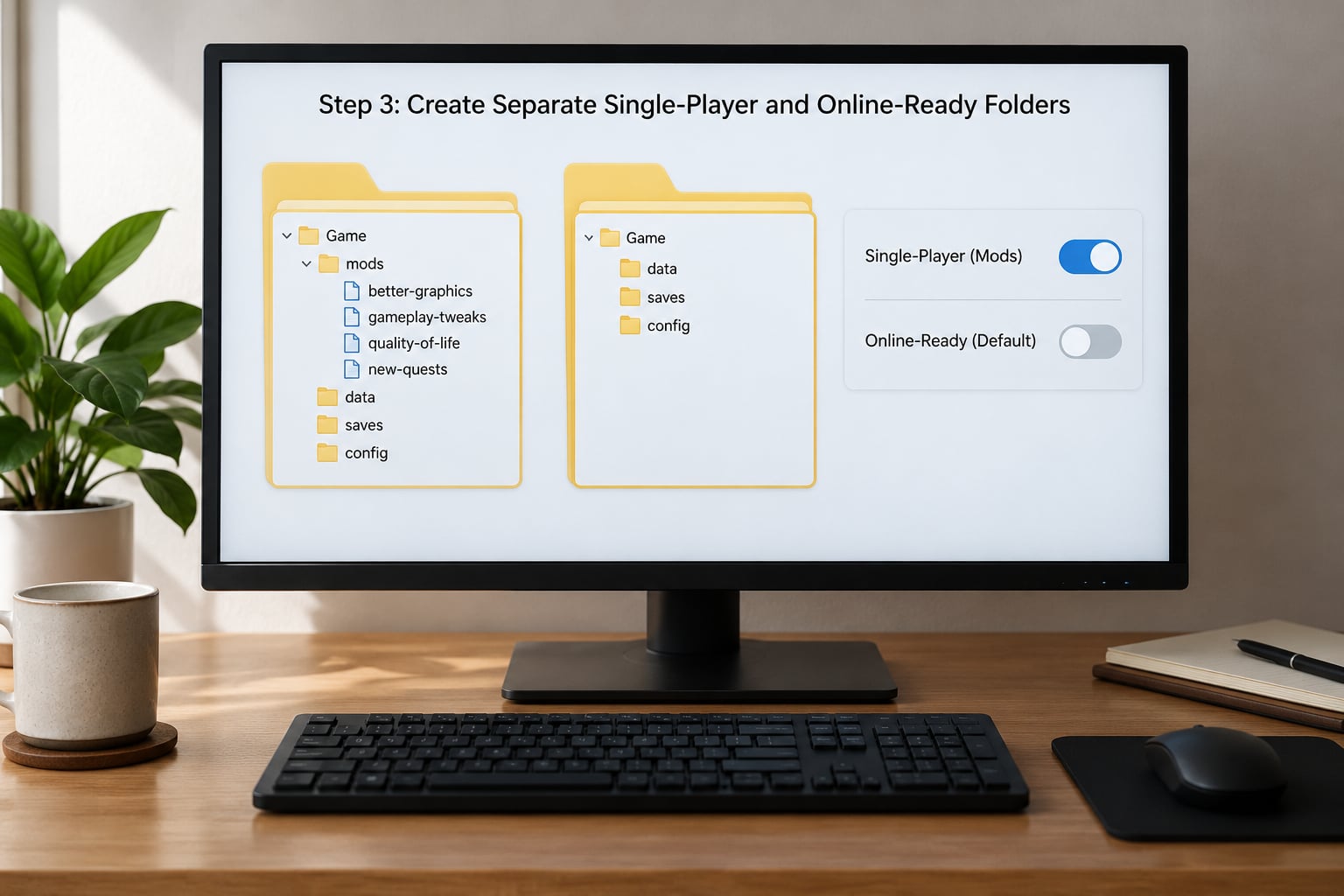
There are two practical ways to give your single-player mods their own home. Pick one and stick to it, because mixing approaches is how folders get out of sync.
Option A: the OpenIV mods folder toggle
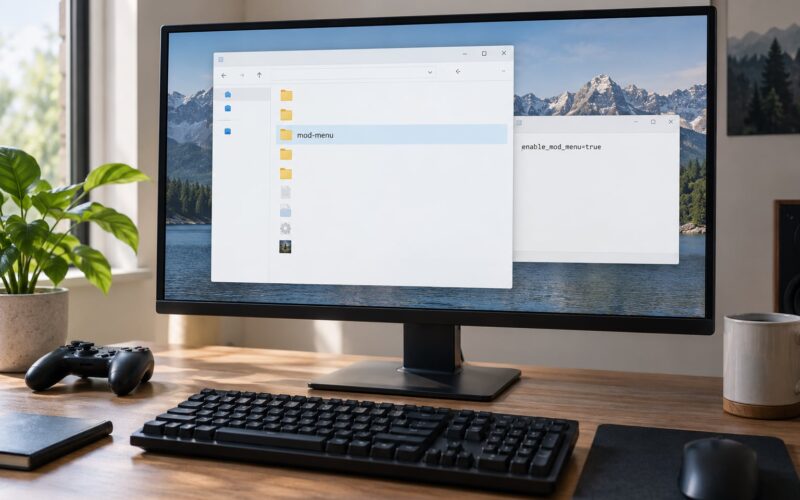
This is the cleanest option and it costs no extra disk space. Every mod goes inside the mods folder in the game directory, and a small config file tells the game whether to read that folder or ignore it.
Steps:
- Open the game folder in OpenIV and enable the folder view.
- Create a folder named
modsin the game root if one does not exist. - Move every mod file, replacement folder and archive into it. Not alongside it, inside it.
- Open OpenIV and go to Tools, then the ASI or OpenIV options entry for mods.
- Set the mods option to active. Load the game to confirm your mods appear.
- Set the same option to inactive before any online session. The mods folder is ignored on the next launch.
That toggle is the entire mechanism. When it is off, the game never reads the folder, so nothing inside it can be detected.
Option B: two separate installations
This costs a full second copy of the game on disk but removes all decision-making. One installation stays modded, the other stays permanently vanilla, and you point the launcher at whichever one you want.
Copy your existing installation to a new folder on another drive, name the two folders clearly, for example GTA V Mods and GTA V Vanilla, and then verify each one’s Rockstar edition and file integrity in the launcher. A community guide recommends the same approach in reverse, keeping an untouched copy intact while the other folder carries the mods.
Duplicate installs do raise a save question. Saves live in your user profile rather than the game folder, so both installations read the same Story Mode and GTA Online data by default. If you want truly separate single-player progress in the modded copy, keep a manual copy of the save file before you start, and swap it in when you want that version’s progress.
Which option fits which player
| Factor | Mods folder toggle | Two installations |
|---|---|---|
| Setup time | About an hour, once | A full extra game download |
| Disk space | None added | Roughly double |
| Switching modes | One toggle before launch | Choose the installation, then launch |
| Works with menus and injectors | Not reliably | Yes |
| Best for | Replacement mods and scripts | Anyone who wants zero thinking |
For the vanilla copy, let the launcher verify game files from the Rockstar Games Launcher menu. That gives you a clean reference point and repairs anything a stray mod write damaged.
Step 4: Remove Mods Before Starting an Online Session
Work through this list in order every time, before the launcher reaches the Rockstar login screen. It takes about two minutes.
- Close the game completely, including any mod menu still running in the background.
- Set the OpenIV mods toggle to inactive, or confirm it is already inactive.
- Check the game root folder for loaders and injectors. ScriptHookV files, ASI loader files and similar belong to the modded installation only. Move them out before an online launch.
- Confirm no loose replacement files sit directly in the game directory. Compare against your clean backup if you are unsure.
- Open your mod manager and disable everything, including any menu and any background scripts.
- Empty the recycle bin if you deleted mod files, so nothing recoverable remains in the folder tree.
The injector check in step three is the one people skip. Deleting the mods folder does not remove a loader, and a loader sitting in the root is exactly the file pattern that has historically drawn attention. One explainer on the subject makes the same point, that simply deleting folders leaves injectors in place.
If you use Option B, most of this list disappears. You are verifying the vanilla folder instead of stripping the modded one, which is why plenty of players on Steam forums settle on two installs and stop thinking about it.
Step 5: Verify the Clean State in the Launcher and Game
Now check what the game itself reports. In the Rockstar Games Launcher, open the game options for GTA V and run the verify or repair files check. It reads the installed files and repairs anything that does not match, which is a fast way to catch a replacement file you forgot about.
Launch the game to Story Mode only, with the launcher pointing at your vanilla installation if you built one. Look at the main menu and start a short free roam. What you are checking for is simple:
- Original character models, textures and interface, with no custom overlays or menus.
- No missing textures, no default-model cars and no strange lighting, all of which point to a half-removed replacement.
- No crash on load. A crash during the first minutes usually means a loader file is still active.
Confirm your Social Club or Rockstar Games account is the one you intend to use for online play before you connect. Signing into the wrong profile is a fast way to lose progress to the wrong character, and it has nothing to do with mods.
If you play on FiveM or another separate client, treat it the same way as GTA Online. FiveM uses its own installation and does not load Story Mode mods, so the rule is to keep the Rockstar Games copy of GTA V clean regardless of which client you use.
Step 6: Test Single-Player and Online Play Separately
Run each mode once, on its own, before you settle into a routine. Testing them together defeats the point.
For single-player: launch with mods active, load a save and check that your mods appear and that nothing crashes. Play ten minutes. Some mods only fail when a specific vehicle or area loads, so a longer session is worth it.
For online: launch with mods inactive and the vanilla installation selected, run your pre-flight checks again, then play a single match. Watch for anything unusual during the load-in screen, since that is when a leftover mod file surfaces.
Write down what you did for each mode in a plain text file next to your game folder. Which installation you selected, which toggle state you used, which folder holds your mods. When something goes wrong three weeks later, that file answers most of the questions faster than searching a forum.
Common Mistakes
Deleting the wrong files. Mods that replace original files leave the game broken when you remove them without restoring originals. Fix: restore from your clean backup or run the launcher’s verify files check before anything else.
Leaving a loader active. Removing the mods folder does not remove an injector or a ScriptHookV file sitting in the game root. Fix: check the root folder explicitly, every single time, not just the mods folder.
Using a mod built for the other edition. A Legacy mod on an Enhanced install, or the reverse, either fails to load or leaves files half-replaced. Fix: confirm your edition in the launcher and download mods labelled for it.
Relying on a copied savegame. A save copied from a modded run can load into a clean install and behave oddly, or vanish when the launcher syncs. Fix: keep a dated copy of your saves outside the game folder and restore deliberately rather than keeping it in the live folder.
Assuming FiveM loads your GTA V mods. FiveM runs its own client and does not use your Story Mode mod files. Fix: keep the Rockstar Games installation clean and install what FiveM needs through FiveM’s own tooling.
Forgetting to disable mods before switching modes. This is the most common one and the easiest to fix once the checklist exists. Fix: run the Step 4 list every time, no exceptions, even for a quick ten-minute online session.
One more safety habit worth adding: back up before each major game update too. Updates rewrite large parts of the game folder, and a mod installed a month ago may be quietly overwritten by a patch, which leaves you unsure which files are original.
Frequently Asked Questions
Do I need two separate copies of GTA V to mod Story Mode and play online?
No, not if you use the OpenIV mods folder with the mods toggle. One installation is enough when every mod sits inside the mods folder and the toggle is set to inactive before any online launch. A second install is the safer choice if you use menus, injectors or loose replacement files, because those cannot be toggled and have to be physically moved out. The second copy costs disk space but removes the chance of forgetting a step.
Will single player mods get me banned from GTA Online?
Mods in GTA Online can get your account suspended and eventually permanently banned. Mods in Story Mode are allowed, but Rockstar checks the files your client loads when you connect, not what you use during a match. That means leftover mod files or an injector sitting in the game folder count even when you never use them online. Set the mods toggle to inactive and remove loaders before launching.
Can you use single player mods in GTA Online?
No. Any mod, mod menu or injector used in GTA Online violates the Rockstar Games Terms of Service, and online play is the one mode where the restriction is absolute. Story Mode has no such restriction. Keep the two separated physically rather than relying on willpower, and treat risk as decided at launch rather than during play.
How do I disable OpenIV mods before launching GTA Online?
Open the game folder in OpenIV, go to Tools, then the ASI or OpenIV mods option, and set it to inactive. The game ignores the mods folder on the next launch. Close the game first so nothing reloads the folder. After that, check the game root for loader and injector files and move them out, since the toggle alone does not cover those.
Can I mod GTA V on PlayStation or Xbox?
There is no supported way to install mods on PlayStation or Xbox consoles, so console players do not face this separation problem at all. All of the tooling discussed here, including OpenIV, the mods folder, mod managers and FiveM, is PC-only. On PC, either Steam or Rockstar Games Launcher works, and you need the PC version of the game.
What should I do if my only clean copy is a backup?
Restore the backup over the installed game, then run the verify files check in the Rockstar Games Launcher. Saves live outside the game folder, so restoring game files should not affect your Story Mode or GTA Online progress, but copy your saves to another drive before you start anyway. If the backup itself will not launch, verify the backup on a second machine or reinstall and keep the restored files you still need.
Conclusion
Start by backing up your game folder and your mods to a drive outside the installation, then confirm the backup opens. After that, put every mod inside the OpenIV mods folder and toggle it inactive before each online session, or keep one permanently vanilla installation for GTA Online. Either way, check the game root for injectors and loaders every time, because that is the step that catches people who thought they were finished.