A RAR file will not open with a double-click in Windows File Explorer, and that is not a broken download. RAR is a proprietary archive format, so no operating system ships a handler for it, and a free extractor such as 7-Zip takes about two minutes to install and then reads every version of the format you are likely to meet.
Here is the short version. Install 7-Zip from its official site, right-click the .rar file, choose 7-Zip > Extract to FolderName*, and the files appear in a new folder next to the archive. On a Mac, install The Unarchiver or Keka. On Linux, Archive Manager is usually already there.
Everything below covers the versions of Windows 10 and Windows 11 most people are running as of 2026, and I have spelled out the exact menu paths because the right-click menu is the one part of this that trips up new users. The whole job takes under five minutes, and the extractor is free and open source, so nothing expires after a trial period.
Table of Contents
- 1What You Need to Open RAR Files Without Paid Software
- 2Step-by-Step
- 3Step 1: Check the RAR File and Download a Free Extractor
- 4Step 2: Open the RAR Archive
- 5Step 3: Extract the Files to a New Folder
- 6Step 4: Open or Install the Extracted Files
- 7Alternative Ways to Open RAR Files
- 8How to Open a RAR File on Android or macOS
- 9Common Mistakes
- 10Safety Tips for Opening Downloaded Archives
- 11Frequently Asked Questions
- 12Can 7-Zip open a RAR file?
- 13Is WinRAR free for PC?
- 14Is there a free alternative to WinRAR?
- 15How can I recover the password from a RAR file for free?
- 16Is there a free online tool to convert RAR to ZIP?
- 17Why can’t Windows File Explorer open a RAR file?
What You Need to Open RAR Files Without Paid Software
You need a Windows 10 or 11 PC, about 40MB of free space, and one archive tool. That is the whole requirements list, which is why this task is easy once you know the format is the obstacle rather than the file itself.
RAR was created by Alexander Roshal in 1993 and compresses files into a single package using solid compression, where similar files are packed together as one block. Windows Explorer and macOS both handle ZIP natively because ZIP is an open standard, and neither one handles RAR because reading RAR requires a licence from the format’s owner. Free tools are allowed to read it. Creating a new .rar archive is the part that still costs money.
Before you install anything, note what to avoid. WinRAR shows a licence reminder on every launch and is a paid product with a trial period, and plenty of download portals wrap free archivers in extra software you did not ask for. Get 7-Zip, PeaZip, Bandizip or NanaZip straight from the developer’s own page, never from a “free download” aggregator.
- Windows: 7-Zip or NanaZip, both free and open source.
- macOS: The Unarchiver or Keka from the App Store.
- Linux: Archive Manager (File Roller), usually preinstalled.
- No install rights: a browser-based extractor, or the tar command built into Windows.
Step-by-Step
Step 1: Check the RAR File and Download a Free Extractor
Look at the file extension first. If it ends in .rar, .rar01 or .part1.rar, you have a RAR archive. If it ends in .zip, Windows already opens it on its own and none of this is needed.
Download 7-Zip from the official 7-zip.org download page, run the installer, and accept the default destination. The install takes well under a minute. Once it finishes, you will see a 7-Zip entry in the right-click menu of any file on your PC, which is how you know it took.
That menu entry is the entire fix for most people. It is not visible in File Explorer’s own toolbar by default, and that is the reason so many searches end with “how do I extract a rar with 7-Zip” and the answer is simply that the option is in the context menu rather than the ribbon.
Step 2: Open the RAR Archive
Two ways in. Right-click the .rar file and hover 7-Zip to see the submenu, or double-click the file once you have ticked “Open 7-Zip” during setup, which sets it as the default handler.
Choosing Open archive shows the file list inside the archive without unpacking anything, so you can check what is in there before you commit disk space. Test in the same submenu checks the archive’s integrity, which is the fastest way to find out whether an incomplete download is the reason nothing came out.
Step 3: Extract the Files to a New Folder

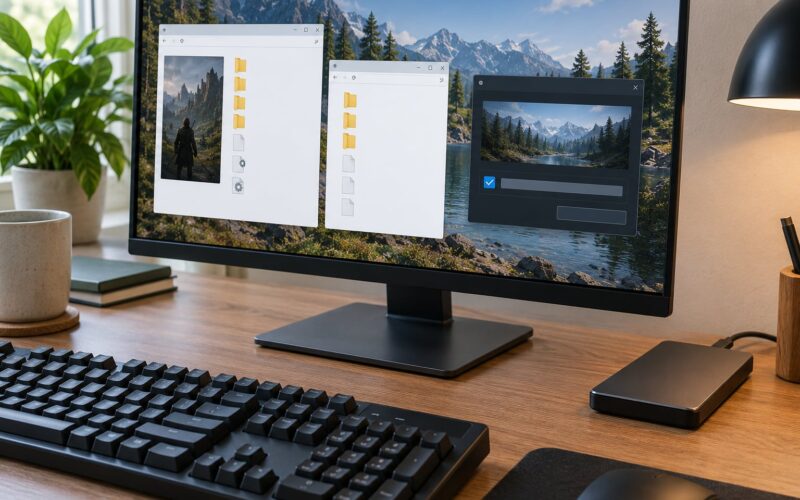
Right-click again, choose 7-Zip > Extract files, and a dialog appears with a destination path. By default it suggests a folder named after the archive in the same place, which is exactly what you want for a game mod or a texture pack. Change it if you would rather keep mods in a separate directory.
Leave the other options alone. Extract to with the format set to Auto works for every archive from a 2004 forum download to a current RAR5 pack, and it preserves your folder structure so the mod’s own readme lands where the installer expects it.
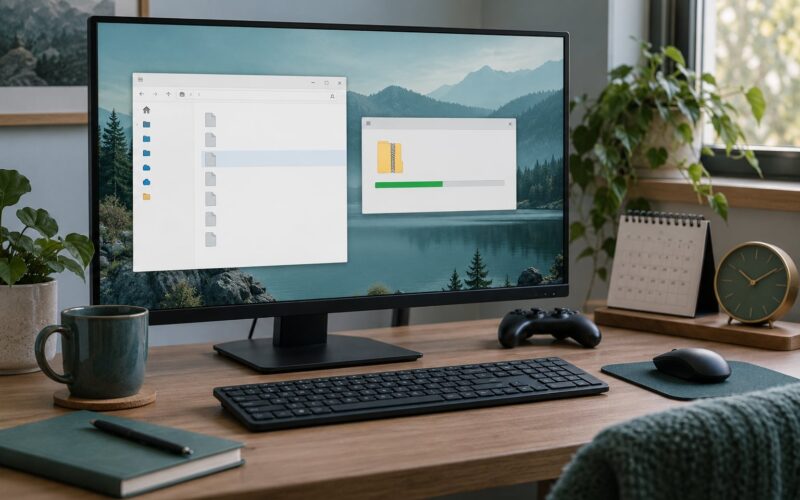
Press Extract and watch the progress bar. When it finishes, the new folder sits next to the archive, and its contents match what you saw in the file list. If the archive is password protected, a password box appears first, and there is no way around that box other than knowing the password.
Step 4: Open or Install the Extracted Files
Ordinary files, images, videos and text documents just open with a double-click. Look for a readme or install.txt first, because for anything that modifies a game it almost always lists the exact folder the files belong in and whether the archive replaces or adds to what is already there.
For a game mod, copy the extracted folder into the game’s own mod or add-on directory rather than running an installer from inside Downloads. Find the game-specific path in a mod install guide before you move anything, because the difference between the mods folder and the main game folder is where most broken installs come from.
Before you overwrite anything, copy your current game files or save to a separate slot. A mod folder that replaces the wrong directory can leave the game unlaunchable, and a backup takes a couple of minutes while a repair can take an evening.
Alternative Ways to Open RAR Files
If 7-Zip’s dated-looking interface bothers you, several free tools do the same job with a more modern design. NanaZip is a Mac App Store port of 7-Zip that works on Apple Silicon and adds the right-click menu macOS users miss. PeaZip, recommended on r/DigitalEscapeTools for anyone who wants a modern GUI, runs on Windows, macOS, Linux and BSD and handles over 200 formats. Bandizip is the one to pick if you mostly drag and drop.
Converting is another option, and it is more useful than most guides admit. With the archive open in 7-Zip, click Convert in the toolbar, pick ZIP or 7z as the output format, and start. A ZIP opens natively on every platform, so converting once solves the problem for every other machine you might meet the file on.
Browser-based extractors need no install at all, which makes them the answer on a school or work PC where you have no administrator rights. They work by uploading the archive to a server, unpacking it there and sending the files back. The catch is honest and worth knowing: most cap out around 400MB, they cannot open password protected archives, and your file leaves your machine in the process. Fine for a small readme, unwise for anything private.
One more trick for locked-down Windows machines. Windows 10 and later ship a command-line archiver called tar, and it can read RAR. Open Command Prompt, run tar -xf filename.rar in the folder containing the archive, and the contents unpack in place. No installer, no admin rights, no payment.
How to Open a RAR File on Android or macOS
On macOS there is no official 7-Zip build, which is the question that fills the Microsoft Tech Community threads on this topic. Install The Unarchiver from the App Store, or Keka if you would rather have a fuller archiver with its own window. Double-click the .rar, the contents appear in a new folder beside it, and you can drag single files out instead of extracting everything.
On Android, ZArchiver is the long-standing answer and handles RAR and RAR5 without root. RAR for Android, made by the same company as WinRAR, is another solid option. Both let you tap a file inside the archive to open just that file, which saves a lot of storage on a phone.
iOS is the awkward one. The Files app can preview many archives, and dedicated apps in the App Store handle RAR too, but password protected and multi-part archives are hit or miss. On a phone, extracting to view a file works fine; installing a mod does not. Do that one on a desktop.
Common Mistakes
“The archive is corrupt” or “unexpected end of archive”. Almost always an incomplete download, and more often a multi-part set than a single file. Redownload, and if it came from a torrent, verify the piece count finished before you extract again.
“Enter password to open”. The archive is encrypted, usually with AES-256. No free tool, online service or “recovery trick” can bypass it, and any site promising otherwise is running a scam or worse. Ask the sender for the password.
Multi-part sets like .part1.rar, .part2.rar. Put every volume in one folder, keep the original names, and open part1 only. 7-Zip finds the rest on its own. If it asks you to browse for the next volume, one of the parts is missing or was renamed.
Nothing useful inside, or a single odd file. The archive was downloaded inside another archive, a common trick on file-sharing sites. Read the forum post’s instructions to find the second layer, and expect to extract twice.
The file is not really a RAR. Some downloads are misnamed ZIP files. Rename a copy from .rar to .zip and try opening it, or open it in 7-Zip, which sniffs the real format regardless of the extension.
7-Zip refuses an old RAR5 file. A very old extractor build is the cause. Update the tool. Current versions of 7-Zip, PeaZip and Bandizip all read both RAR4 and RAR5.
Safety Tips for Opening Downloaded Archives
Check where the archive came from. Mod sites, official patch pages and the forum thread that linked it are all reasonable; a bare link in a random comment is not.
Scan before you open it. Right-click the .rar and choose Scan with Microsoft Defender, or upload it to VirusTotal and read what several engines say. Scanning the archive is safe; the danger is the executable inside it.
Never run a self-extracting archive that ends in .exe. A .rar is inert data. A .exe named “mod installer” runs code the moment you open it, and no antivirus-free “disable your protection” prompt is ever legitimate. If a mod needs a .bat file to install, read it line by line first.
And keep a backup of your game files before a mod touches them. It is the cheapest insurance there is.
Frequently Asked Questions
Can 7-Zip open a RAR file?
Yes. 7-Zip reads and extracts RAR archives, including the current RAR5 format, at no cost. Install it from the official site, then right-click the archive and choose 7-Zip u0026gt; Extract files. It can also test an archive for damage and convert a RAR to ZIP or 7z. The one thing it cannot do for free is create a new RAR archive, because that part of the format still requires a paid licence.
Is WinRAR free for PC?
WinRAR is a paid product with a trial period, and the trial is nagged at you every time you open the program. That reminder is why people look for a replacement. 7-Zip, NanaZip, PeaZip and Bandizip are all genuinely free with no prompts, no expiry and no bundled extras. If you only need to read RAR files, none of the free tools make you pay anything.
Is there a free alternative to WinRAR?
Several, and the choice depends on what you need. 7-Zip is the default answer on Windows and opens with a right-click menu. NanaZip is a modern Mac App Store build of the same engine. PeaZip runs on Windows, macOS, Linux and BSD with a clean interface. Bandizip suits people who prefer drag and drop. All of them read RAR without a licence, and none of them nag.
How can I recover the password from a RAR file for free?
You cannot, and any tool that claims otherwise is not working. Password protected RAR archives are encrypted with AES-256, and no free program, online service or recovery trick will open one without the password. Guessing at short passwords takes a very long time. If the archive came from a friend or a mod page, ask them for it. Sites offering to unlock your RAR are trying to install something on your PC.
Is there a free online tool to convert RAR to ZIP?
There are browser-based converters and extractors that do this with nothing installed, and they work fine for small archives. Most cap uploads around 400MB and cannot handle password protected files at all. Remember that your archive is uploaded to someone else’s server, so skip this for anything private. A 5GB game repack is better converted locally with 7-Zip on your own machine.
Why can’t Windows File Explorer open a RAR file?
Because RAR is a proprietary format and Windows only supports open standards like ZIP natively. Microsoft does not ship a RAR handler, so double-clicking does nothing useful and the archive looks like an unknown file type. Any free extractor adds that handler, and 7-Zip goes further by taking over the right-click menu for every archive type Windows cannot open.
Start with 7-Zip from 7-zip.org, install it, and use the right-click menu. That single step covers every RAR file you will meet on Windows, and if you are on a managed PC with no install rights, the built-in tar command gets the job done instead.