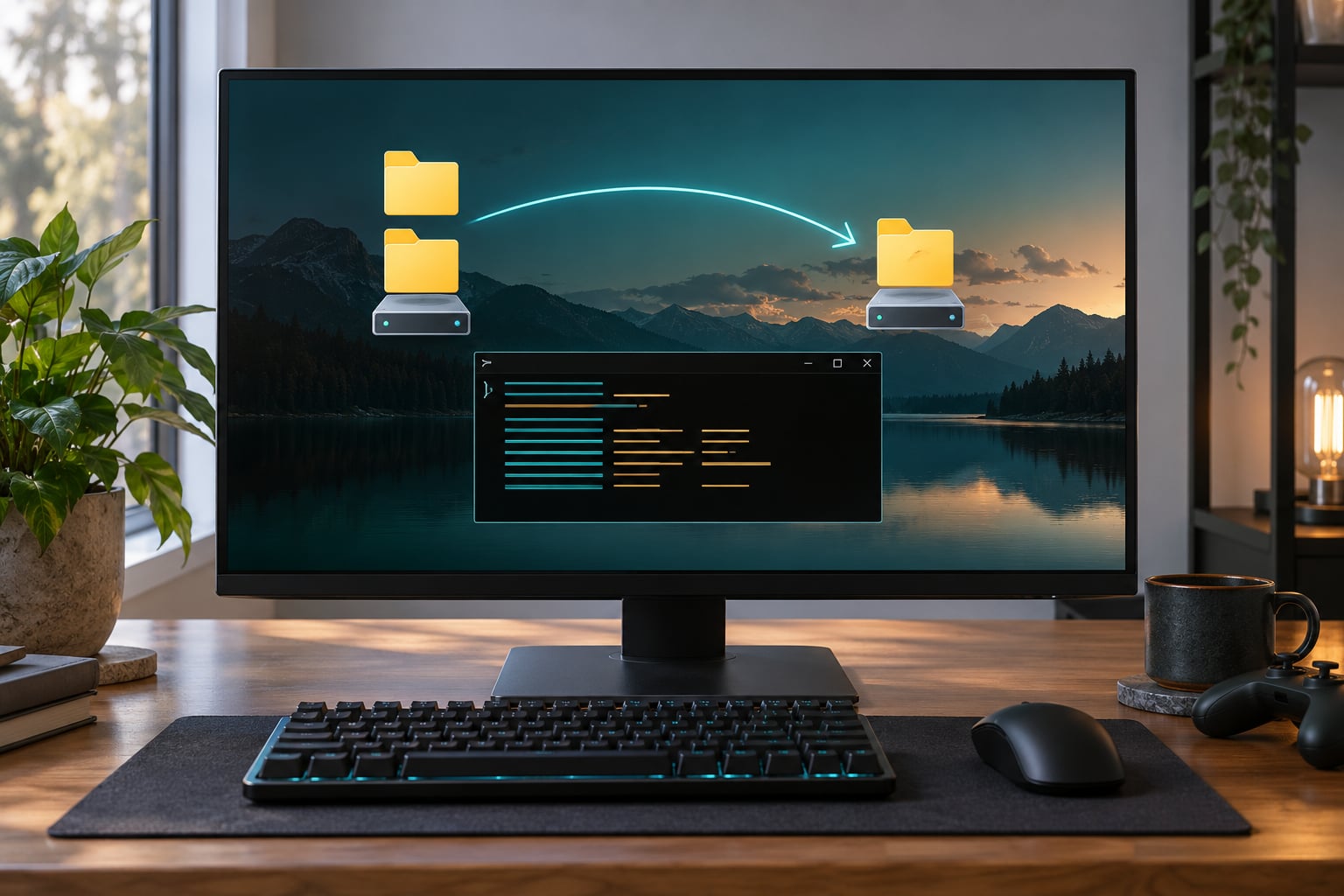
To use symbolic links to manage two game installs, you move the bulky shared files to one master folder on another drive, then create a directory junction at each install’s original path. Windows sends reads and writes to the single real copy, so both installs open the same game files while keeping their own saves, presets and configuration. The whole job takes about 20 minutes per folder and needs Administrator rights.
A symbolic link is a small filesystem object that points at a folder stored somewhere else, and a directory junction is the Windows-specific version of the same idea. A junction behaves like the real folder to every program that touches it, including your launcher, so the game never knows anything unusual happened.
The mistake nearly everyone makes is reversing the order. If you create the link first and move files afterwards, Windows copies the data instead of linking it, and you end up with two full installs and no space saved. Move the files first, confirm the original folder is gone, then create the link.
On this site I work mostly with GTA V, so examples below use Rockstar folder names. The technique is not GTA-specific though, and the same commands handle any game where one install folder and one user folder hold everything that matters.
Table of Contents
- 1What You Need
- 2Step-by-Step: How to Use Symbolic Links to Manage Two Game Installs
- 31. Map the files each game install needs
- 42. Back up saves, settings, and mod folders
- 53. Choose a shared storage location
- 64. Move shared files instead of copying them
- 75. Create the first link on Windows
- 86. Point the second install at the same folder
- 97. Keep saves and presets separate
- 108. Test both game launches and keep a restore path
- 11Common Mistakes
- 12Windows symbolic links versus directory junctions
- 13Safe-use tips
- 14Frequently Asked Questions
- 15Do symbolic links save disk space when managing two game installs?
- 16Are Windows directory junctions better than symbolic links for shared game folders?
- 17Can I share mods but keep saves and graphics presets separate?
- 18What happens if the drive containing a linked game-mod folder is disconnected?
- 19How do I remove a symbolic link or junction without deleting my files?
- 20Does linking a GTA V mod folder affect Rockstar Games Launcher or anti-cheat checks?
- 21Conclusion
What You Need
You need Windows 10 or 11, and both the drive holding the original install and the drive that will hold the shared files should use NTFS. You also need the right permissions, both install paths, and a backup you have actually opened and checked.
- Windows 10 or 11 with NTFS on both drives. Junctions do not work on FAT32 or exFAT drives, so a USB stick formatted that way will not accept one.
- Administrator rights, or Developer Mode. Turning on Developer Mode in Settings, then Privacy and security, then For developers lets standard accounts create symbolic links without elevating every command.
- File Explorer for comparing folders, plus Command Prompt or PowerShell for creating the link.
- Both complete install paths. In Steam, right click the game, Manage, then Browse local files. For a Rockstar install, right click the desktop shortcut, Properties, then read the Target line.
- A tested backup of your saves and settings on a different drive. Open the backup folder and confirm the files are really there before you move anything.
One note on permissions: junctions generally need fewer privileges than symbolic links. A standard user can usually create a junction with mklink /J, while mklink /D typically triggers the elevated-prompt error. If you are only managing local folders on your own machine, a junction is the lower-friction choice.
Step-by-Step: How to Use Symbolic Links to Manage Two Game Installs
The example paths below are placeholders. Replace INSTALL_PATH with your real install root, SHARED_PATH with the master folder on the other drive, and DOCS_PATH with your user Documents folder.
1. Map the files each game install needs
Open File Explorer and compare both game roots side by side, then do the same for the two matching folders under Documents. The goal is one list of things both installs can share and one list of things that must stay independent.
Shared candidates are the big ones: a mods folder, vehicle packs, texture packs, any large asset library. They are large, they rarely change, and both builds want them.
Install-specific items are everything the game writes to: the executable and the main game files, saves, profiles, logs, crash dumps, and settings or config files. Linking any of those between two installs is how saves end up overwriting each other.
Do not assume folder names are identical across releases. GTA V and its story mode counterpart keep different folders, and the names shifted between editions, so read what is actually in each directory rather than pattern matching.
2. Back up saves, settings, and mod folders
Close the game, your launcher, the Rockstar Games Launcher and any mod tools you use. Anything still holding a file open can make a move fail halfway, which is the moment a half-finished move turns into a mess.
Copy your saves, profiles, configuration files and every folder you plan to link onto a separate drive. Drag and drop a folder, or right click it, Copy, then paste into a folder on the other drive.
Then open the backup and compare. Count the folders at the top level and open a couple of the larger ones. If the numbers look wrong, fix the backup now, because it is the only copy of the data you are about to move.
3. Choose a shared storage location
Create one plainly named folder on the drive with the free space, for example D:GameSharedGTA5. Short names and shallow paths are worth the effort, because some older games and installers choke on deep folder trees.
Give it enough free room for everything you intend to move. Avoid folders that are cloud-only. A OneDrive-backed folder treated as online-only will break the link the moment the files are evicted from the local cache, which is a confusing failure to diagnose later.
Do not point the link at a network drive or a mapped share either. Junctions cannot reliably span network paths, and streaming game files over a network is slow enough to feel broken.
4. Move shared files instead of copying them
Move the shared folder from the primary install into your storage location. Use cut and paste, or hold Shift while dragging in Explorer so Windows moves rather than copies.
BEFORE
C:Program Files (x86)Rockstar GamesGTATVmods

AFTER
C:Program Files (x86)Rockstar GamesGTATVmods   (empty, removed)
D:GameSharedGTA5mods                                (the real files)
Check the original path is now empty or gone before continuing. That empty folder is what you are about to convert into a junction, and if files are still sitting in it the junction command will refuse to overwrite them.
Compare the file count in the moved folder with the backup. Open a couple of the large files from each location and make sure they behave normally.
5. Create the first link on Windows
Open Command Prompt with Run as administrator, paste the command, and adjust the three placeholder paths. Paths with spaces need the quotes exactly as shown.
mklink /J "INSTALL_PATHmods" "SHARED_PATHmods"Reading it left to right: mklink is the Windows link command, /J creates a directory junction, the first quoted path is the link that will sit where the game expects its mods folder, and the second quoted path is the real folder you moved.
When it works you get one line back that says symbolic link created, and the junction shows up in Explorer as a normal folder with a slightly different icon. If you see an error instead, the troubleshooting table further down has the fix.
6. Point the second install at the same folder
Repeat the same command for the second install root, using that install’s mods path as the link and the same shared path as the target. Both installs now read one copy of the files.
mklink /J "SECOND_INSTALL_PATHmods" "SHARED_PATHmods"This is the part people rush, so three rules. Do not nest links, meaning no junction pointing at another junction. Do not create a link over a folder that still holds files. And never point an install at a link that lives inside the folder it links to, which creates a circular path that will lock up file operations.
Verify each target by right clicking the link in Explorer, Properties, then checking the target field, or by running this in PowerShell.
Get-Item "INSTALL_PATHmods" | Format-List Name, LinkType, TargetLinkType should read Junction and Target should show your shared path on the other drive.
7. Keep saves and presets separate
Leave saves, profiles, logs and settings unlinked. Those folders stay physically inside each install, so each build writes to its own disk and neither can overwrite the other’s progress.
Where the game supports named profiles or per-install identifiers, set a different one on each copy so stored graphics settings do not follow you between them. If a preset is safe to share, copy the file rather than linking the folder, because a link means both installs write to the same file the next time someone changes a setting.
Stay away from linking any config file the game rewrites on exit. That is the folder most likely to bleed settings from a modded build into a clean one.
8. Test both game launches and keep a restore path
Launch each install independently, load an existing save, and test one shared mod or vehicle from the linked folder. Change one nonessential setting, close the game cleanly, and check that the second install still starts.
Confirm the space saving on both drives. The drive that held the original files should have gained the size of the folder you moved, and the other drive should hold exactly one copy of the shared assets.
To undo everything, delete the link only. Right click the junction in Explorer and delete it, or run this in an elevated prompt.
rmdir "INSTALL_PATHmods"Use rmdir, not del and not rmdir /s. A junction is a pointer, and removing the pointer leaves the real folder and every file inside it untouched on the other drive.
Common Mistakes
Almost every failure here has one of a handful of causes. Each row below pairs the symptom with the fix and the check that proves it worked.
| What you see | Why it happens | Fix and how to verify |
|---|---|---|
| You must be running this command from an elevated command prompt | Symbolic links need elevation or Developer Mode | Use mklink /J instead of /D, or right click Command Prompt and choose Run as administrator. Verify with fsutil reparsepoint query "path", which should report the junction. |
| The system cannot find the file specified | One of the paths has a typo, trailing space, or wrong drive letter | Copy the path from the address bar in Explorer rather than typing it. Verify both paths exist in Explorer first, then rerun the command. |
| The item already exists | The original folder still holds files | Move or rename the existing folder until the path is clear, then rerun. Verify the path is empty in Explorer, not in a terminal listing. |
| No space was saved | Files were copied instead of moved, so a full duplicate remains | Check the free space on both drives in Explorer. Compare the folder sizes; two identical copies means you skipped the move step. |
| Saves vanish or revert between installs | The save folder got linked along with the shared assets | Delete the save junction and keep the folders physical. Verify each install has its own save path in Documents. |
| The game regenerates an empty folder or will not launch | The target drive is disconnected or the target folder was renamed | Reconnect the drive and restart. Confirm the target with Get-Item; a broken link reports a target that no longer exists. |
| Files duplicate and conflict constantly | The shared folder sits inside a cloud-synced location | Move the shared folder to a plain local path. Verify by checking that the folder has no cloud status icon in Explorer. |
| Config resets or settings bleed between builds | A folder the game rewrites was linked, or a mod overwrote it | Unlink the config folder and let each install own its file. Verify by launching one build, changing a setting, then checking the other build did not change. |
| Launcher or anti-cheat complains at launch | Some launchers dislike a reparse point on the install path | Keep the junction on a data folder such as mods rather than on the install root. Verify by launching with no mods linked; if it still fails, remove the link and launch clean. |
Windows symbolic links versus directory junctions
Junctions win for local folders because they need fewer privileges and are not affected by Developer Mode settings. Symbolic links are the better choice only when you need relative targets or a link that must resolve on another machine.
| Link type | Needs Administrator | Cross-drive targets | Relative target paths | Network paths | Best use here |
|---|---|---|---|---|---|
Symbolic link (mklink /D) | Yes, unless Developer Mode is on | Yes | Yes | Yes | Shared mods folder on another PC or portable config |
Directory junction (mklink /J) | Usually no | Yes | No, stored as an absolute path | No, not reliable | Sharing one local game or mods folder between two installs |
Hard link (mklink /H) | Yes | No, cannot span volumes | Not applicable | No | Deduplicating individual large files on one drive |
| Shortcut (.lnk file) | No | Yes | Yes | Yes | Quick launch only. The game will not follow it as an install path |
Hard links deserve the extra warning: they cannot cross volumes, so a hard link cannot point from your C drive to your D drive. And a shortcut is not a link at all. It is a pointer file that programs often ignore, which is why an install path pointing at a shortcut fails silently.
Safe-use tips
A few habits keep this setup boring instead of stressful.
- Update one game copy at a time. If an update rebuilds game files, it can follow a junction at the install root and touch shared data.
- Never drag a linked folder in Explorer to move it. Explorer may follow the link and move the real files. Cut and paste the link itself instead.
- Connect the shared drive before launching the game. A junction to a missing drive looks like an empty folder, and games react badly to empty folders.
- Test with one mod first, then add more. One known-good mod tells you whether the link works before you are debugging five at once.
- Keep the backup until both installs have run cleanly several times.
- Label the second install clearly, by shortcut name or desktop folder, so you always know which build you are opening. Most save confusion is really launch confusion.
If a mod manager already handles profiles for the game you are modding, use it instead. A manager tracks load order and per-profile enable lists for you, which manual links do not do. Manual links are the better answer when you want two builds that never need to be switched between, or when the game has no manager at all.
Frequently Asked Questions
Do symbolic links save disk space when managing two game installs?
Yes, but only if you move the files before you create the link. Both installs then read one physical copy of the game or mods folder, so a second install costs only its own saves and settings. If you copy first and link afterwards, the duplicate remains and you have saved nothing. Check free space on both drives after linking to confirm which happened.
Are Windows directory junctions better than symbolic links for shared game folders?
For local folders, yes. A junction created with mklink /J usually needs no Administrator rights, stores an absolute path, and behaves exactly like the real folder to launchers and installers. Symbolic links need elevation or Developer Mode and can store relative targets, which only matters if the folder moves or is read on another machine.
Can I share mods but keep saves and graphics presets separate?
That is the setup most people actually want. Link only the mods folder or asset library, and leave saves, profiles and config files as real folders inside each install. Each build then writes its own progress and settings to its own disk. Copy a preset file across if you want the same look on both, rather than linking the folder the game rewrites.
What happens if the drive containing a linked game-mod folder is disconnected?
The link still exists but its target does not, so the game sees an empty folder and may refuse to launch or quietly regenerate one. Reconnect the drive and restart the game. Check the target with Get-Item in PowerShell, which prints the path the link expects. If the target folder was renamed, recreate the junction with the new path.
How do I remove a symbolic link or junction without deleting my files?
Delete the link, not the target. Use rmdir on the link path in Command Prompt, or right click the junction in Explorer and delete it. Do not use del or rmdir /s, since those follow the link into the real folder. Your files stay on the other drive untouched, and you can put them back by dragging them into the original path.
Does linking a GTA V mod folder affect Rockstar Games Launcher or anti-cheat checks?
Usually not, when you keep the junction on a data folder such as mods instead of on the install root. A link on the install path itself is what some launchers object to, and moving your Rockstar folder by hand can break the launcher’s own records. Keep the install root untouched, update one copy at a time, and launch clean once with the link removed if a check does fail.
Conclusion
Back up your saves and settings first, then classify every folder as either shared or install-specific. Move the shared content to your master folder, confirm the original path is empty, and create one junction with mklink /J. Test that install, then repeat carefully for the second.
Keep saves, profiles and config files unlinked the whole way through, and test an existing save plus one mod in both builds before you trust the setup. Last updated October 2026.