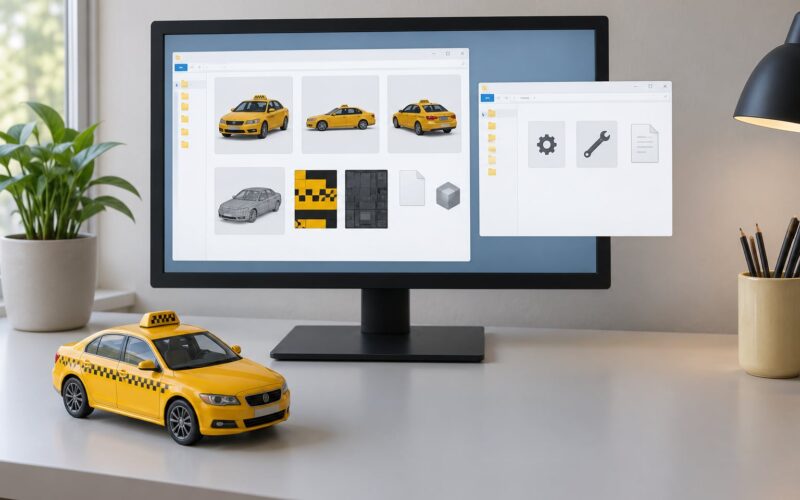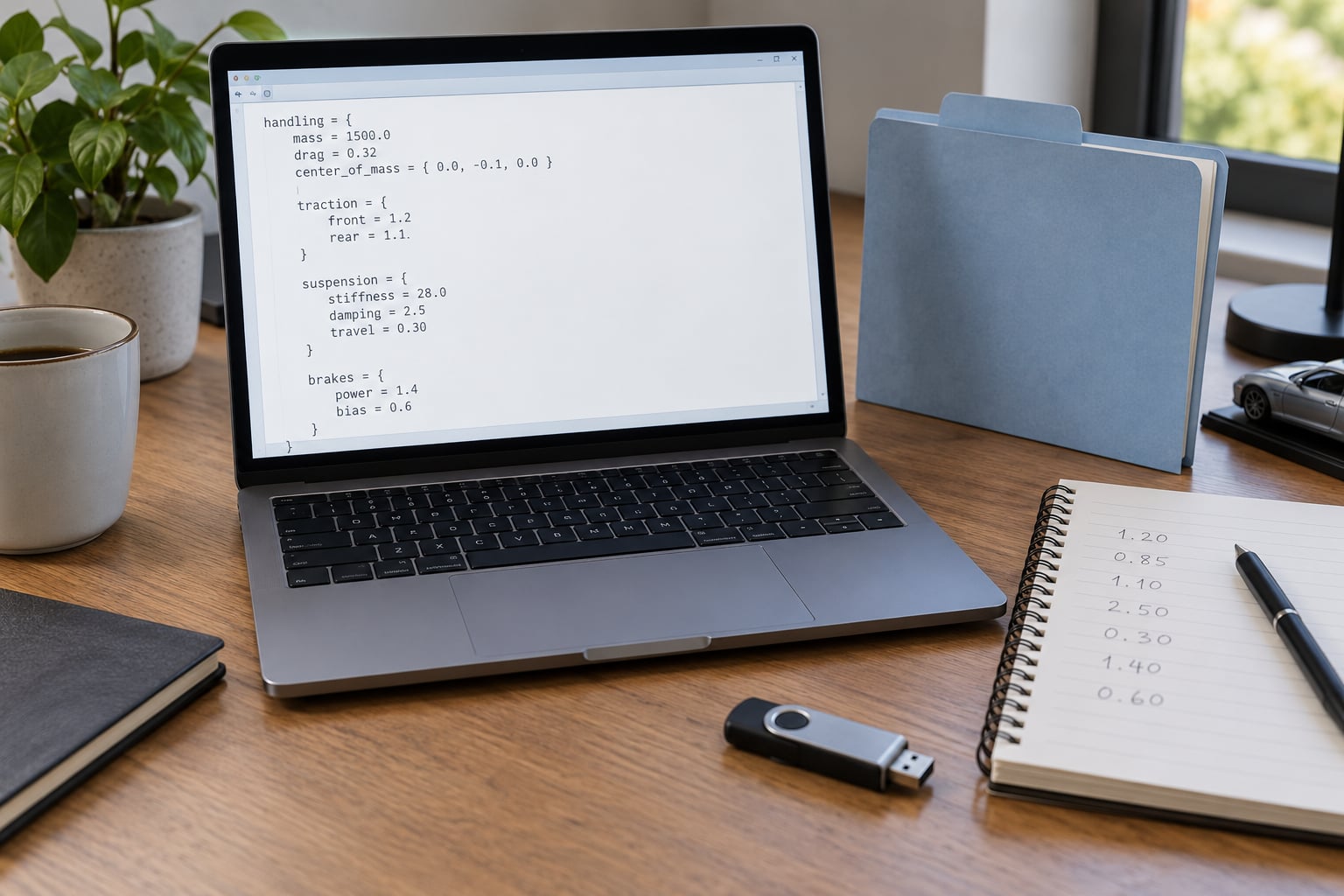
To change a car handling file in GTA 5, you edit handling.meta, a plain-text file that holds the physics for every vehicle in the game, and you open it with OpenIV or any text editor. The file lives in the commondata folder of the game directory for base game cars, or inside the add-on car’s own folder for a modded car. The whole job takes about 15 minutes once OpenIV is set up, and it is fully reversible if you keep a backup.
That last part is the one beginners skip, then regret. Nothing here is dangerous, but a handling file is a large XML document and a single stray character can stop the game loading it, so a copy of the original is the difference between a five-minute fix and reinstalling.
Here is the full walkthrough: finding the right file, backing it up, finding the block that belongs to your car, editing a value, and testing the result.
Table of Contents
- 1What You Need
- 2Step-by-Step: How to Change a Car Handling File
- 3Identify the Correct Handling File
- 4Back Up the Original File
- 5Open and Edit the Handling Values in Your Car Handling File
- 6Save and Test the Vehicle
- 7Common Mistakes
- 8Frequently Asked Questions
- 9Where is the handling.meta file located in GTA 5?
- 10Do I need OpenIV to edit handling.meta?
- 11Which handlingName block should I edit for my car?
- 12Why are my handling.meta changes not working?
- 13How do I convert fInitialDriveMaxFlatVel into km/h or mph?
- 14How do I restore the original handling file?
- 15Conclusion
What You Need
Four things, and you probably have two of them already.
- OpenIV, the mod manager. It reads the game’s files, lets you open handling.meta in its own editor and write changes back.
- A plain-text editor. Notepad works for a first edit. Notepad++, VS Code or anything that shows line numbers is better once you start hunting for a block by eye.
- A backup folder somewhere outside the game directory, named so you will recognise it in six months. Something like
handling-backup-originalis enough. - Ten quiet minutes and a save point you can return to.
OpenIV needs one bit of setup before it will write anything. Launch it, go to Tools then OpenIV Editor, and tick Enable editor mode. Without that tick, OpenIV opens files read-only and your save button does nothing at all, which is a very common first-hour frustration.
You also need to confirm two things before you touch a value: which game you are actually running, and whether the car is stock or an add-on. Paths and supported values differ between titles. San Andreas and the older games use entirely different file names and a different syntax, GTA IV has its own arrangement, and only GTA V uses the XML structure described below.
| What you are editing | Which file holds the handling data | Where to look |
|---|---|---|
| Base game stock car, GTA V | handling.meta | Grand Theft Auto Vcommondata |
| Add-on car you installed | handling.meta inside the add-on folder | modscars<carfolder>, using OpenIV’s mods view |
| Vehicle on a FiveM server | handling.meta inside the resource | resources[resource]data on the server or in your local cache |
| Stock car, GTA IV | handling.dat | Inside the commondata game folder |
| Stock car, GTA III / Vice City / San Andreas | Vehicle data inside the .cfg files | data in the game directory |
Two more terms worth knowing before you start, because sources use them loosely. handling.meta is the physics: weight, grip, gearing, suspension, brakes. vehicles.meta is the appearance and identity: model name, whether it exists at all, lights, damage model, the handlingName that points back to the physics block. carvariations.meta holds versions of the same car, like a police variant with a light bar. You edit handling.meta for how a car drives, and the other two when you want it to look or behave differently as a model.
Step-by-Step: How to Change a Car Handling File
Identify the Correct Handling File
For GTA V single player, the base game file is at Grand Theft Auto Vcommondata. Open OpenIV, switch to Windows mode, navigate to Grand Theft Auto V then common then data, and you will see handling.meta sitting in the list. Open it with the editor button and the XML appears in a text pane you can edit directly.
If the car is an add-on you downloaded, do not touch the base game file. OpenIV’s mods mode can only see a mods folder if one exists in your game directory; if it does not, create an empty folder called mods in the GTA V root and restart OpenIV. Then the path to your car is modscars<carfolder>handling.meta. That single file is the right one to edit, and it overrides the base game values for that car only, which means a mistake affects one car and not the whole game.
Now the part that confuses everyone on the first try: the base game file holds hundreds of vehicle blocks, and DLC cars are not all in one tidy list. Your car is a <CCarHandlingData> block identified by a <handlingName> tag near the top. Search the file for the model’s name in vehicles.meta rather than guessing from the display name, because the display name and the internal name rarely match.
A block looks like this once you find it:
<CCarHandlingData>
  <handlingName>ADDER</handlingName>
  <fMass>1600.000000</fMass>
  <strAdvancedFlags>4800053</strAdvancedFlags>
  <strHandlingFlags>27</strHandlingFlags>
  <fInitialDriveMaxFlatVel>69.444000</fInitialDriveMaxFlatVel>
  <fInitialDriveForce>0.330000</fInitialDriveForce>
  ...
  <SubHandlingData>
    <CCarHandlingData>
      <fDriveBiasFront>0.000000</fDriveBiasFront>
      <fAntiRollBarForce>0.400000</fAntiRollBarForce>
    </CCarHandlingData>
  </SubHandlingData>
</CCarHandlingData>
One warning that has caught out a lot of people: some vehicles share a single handling entry. The Sovereign, for example, uses the same block as the POLICEB, so editing what you think is the Sovereign quietly changes that police car too. If two cars on your server feel like they changed at the same time, you edited a shared block. Nothing is broken, but the fix is to give your car its own handlingName in vehicles.meta and a matching block of its own.
Back Up the Original File
Do this before opening the editor, not after. In OpenIV, right-click handling.meta and copy it to a folder you create outside the game directory. Name it with the car and the date so several backups can live side by side. For an add-on car, the backup is just the file from the modscars folder.
Verify the copy exists before continuing. A backup you cannot find later is not a backup, and finding it later is much harder than making it now. The restore path is the same copy operation in reverse: drag the saved file back over the one in the game folder and the stock behaviour returns immediately.
Open and Edit the Handling Values in Your Car Handling File
Change one value, save, test, and only then touch a second one. Editing six values at once tells you nothing about which one caused the result you liked or hated, and beginners regularly end up with a car that is fast and impossible to brake because they adjusted a whole block by feel.
These are the values you will use most often, with roughly what stock cars tend to sit at.
| Value | What it controls | Typical range | What beginners do with it |
|---|---|---|---|
fMass | Weight, which feeds grip, braking and rollover resistance | 800 to 3000 | Raise it a little to make a car planted and less twitchy |
fInitialDriveForce | Drive force, roughly the pull from a standstill | 0.1 to 1.5 | Raise for launch, lower for a smoother idle |
fInitialDriveMaxFlatVel | Top speed on the flat | 20 to 100 | The main lever for speed |
nInitialDriveGears | Number of forward gears | 3 to 7 | Fewer gears feels punchier, more gears feel smoother |
fDriveBiasFront | Drivetrain split | 0.0 to 1.0 | 0.0 rear, 0.5 all-wheel, 1.0 front |
fBrakeForce | Braking strength | 0.5 to 15 | Raise when a mod car will not stop |
fBrakeBiasFront | How much braking goes to the front | 0.4 to 0.8 | Lower for more rear rotation, higher to stop diving |
fTractionCurveLateral | Side grip in a corner | 1.0 to 2.5 | The main grip lever for cornering |
fAntiRollBarForce | How much body roll is resisted | 0.0 to 3.0 | Raise to stop a car leaning in corners |
fCentreOfMassOffsetZ | Height of the centre of mass | -1.0 to 1.0 | Lower it for stability, raise slightly to lift grip |
fSteeringLock | Maximum steering angle | 0.5 to 0.9 | Raise for tighter turning, lower for calmer high speed |
fHandBrakeForce | Handbrake bite | 0.1 to 3.0 | Raise for drift setups |
Here is a real edit. This car is too slow off the line and the top speed is capped low, so two values change and nothing else does.
<!-- before -->
<fInitialDriveMaxFlatVel>40.000000</fInitialDriveMaxFlatVel>
<fInitialDriveForce>0.180000</fInitialDriveForce>

<!-- after -->
<fInitialDriveMaxFlatVel>62.000000</fInitialDriveMaxFlatVel>
<fInitialDriveForce>0.400000</fInitialDriveForce>
Top speed takes a bit of arithmetic, because the value is not in km/h. Multiply by 1.32 to get roughly km/h, or by 0.82 for roughly mph. So a value of 62 lands near 82 km/h or 51 mph, and a value of 100 lands near 132 km/h or 82 mph. Enter the number you want in km/h, then divide it by 1.32 to get the figure the file needs.
For grip and cornering, the second value in the pair is what beginners usually miss:
<!-- before -->
<fTractionCurveLateral>1.150000</fTractionCurveLateral>
<fLowSpeedTractionLossMult>0.950000</fLowSpeedTractionLossMult>
<fAntiRollBarForce>0.300000</fAntiRollBarForce>
<fCentreOfMassOffsetZ>0.350000</fCentreOfMassOffsetZ>

<!-- after -->
<fTractionCurveLateral>1.800000</fTractionCurveLateral>
<fLowSpeedTractionLossMult>0.700000</fLowSpeedTractionLossMult>
<fAntiRollBarForce>1.200000</fAntiRollBarForce>
<fCentreOfMassOffsetZ>0.050000</fCentreOfMassOffsetZ>
That combination is the standard answer to a car that slides wide or lifts onto two wheels in every corner: more lateral grip, less traction loss at low speed, a stiffer anti-roll bar and a lower centre of mass. Take it in two stages rather than all four at once if the result feels odd.
Switching a car to all-wheel drive is a single number inside the SubHandlingData block:
<fDriveBiasFront>0.000000</fDriveBiasFront> <!-- rear-wheel drive -->
<fDriveBiasFront>0.500000</fDriveBiasFront> <!-- all-wheel drive -->
<fDriveBiasFront>1.000000</fDriveBiasFront> <!-- front-wheel drive -->
Keep decimal places, keep the closing tag on the same line and do not add units. The file will load with a value of 62 but the game reads it differently from 62.000000, so match the formatting of the line you are editing.
Save and Test the Vehicle
Save the file in the same place you opened it from. OpenIV handles this directly when you edit inside it; with an external editor, save, then use OpenIV to copy the file back over the original and confirm the replace prompt.
Then the step everyone misses, and the reason so many beginners conclude their edit failed. The vehicle already on screen keeps its old physics until it is despawned. Drive away, or call a menu that deletes the vehicle, then spawn it again. On a FiveM server, reload the resource first, then delete the vehicle and spawn a new one. The same rule applies in single player: a car sitting outside your window when you press save is running yesterday’s values.
Test on a flat area before anything else. Check four things in order: does it pull away cleanly or spin the wheels, does it stop in a straight line, does it sit flat through a corner, and does it stay planted at speed. Take it slowly, because a handling setup that feels exciting at walking pace can be unpleasant at 150 km/h.
If the car is undrivable, stop guessing. Put the backup back and change one value next time.
Common Mistakes
Every one of these has been described by beginners on r/GTAV_Mods and r/FiveM, and every one has a straightforward fix.
| What you notice | Likely cause | What to change |
|---|---|---|
| Edits seem to have no effect | Vehicle was not despawned, or editor mode is off in OpenIV | Respawn the car, enable OpenIV Editor, save again |
| Game will not load or car is missing | Broken tag, missing slash or a removed closing tag | Restore the backup and re-check the line you edited |
| Two different cars changed | They share one handling block | Check the handlingName and give the car its own block |
| Car flips over in corners | Low mass, high centre of mass, weak anti-roll bar | fAntiRollBarForce up, fCentreOfMassOffsetZ down, fMass up |
| Excessive wheelspin on launch | Drive force too high for the grip available | Lower fInitialDriveForce or raise fTractionCurveLateral |
| Fast on paper but feels weak | Top speed raised without matching drive force | Raise fInitialDriveForce alongside the speed value |
| Car will not stop in a straight line | Brake force too low for the new weight | Raise fBrakeForce and check fBrakeBiasFront |
| Car slides through every bend | Lateral grip and low-speed traction too low | Raise fTractionCurveLateral, lower fLowSpeedTractionLossMult |
| Very slow to reach its top speed | Drag coefficient cut too far | Restore fInitialDragCoeff toward stock; slowing a car with drag costs acceleration too |
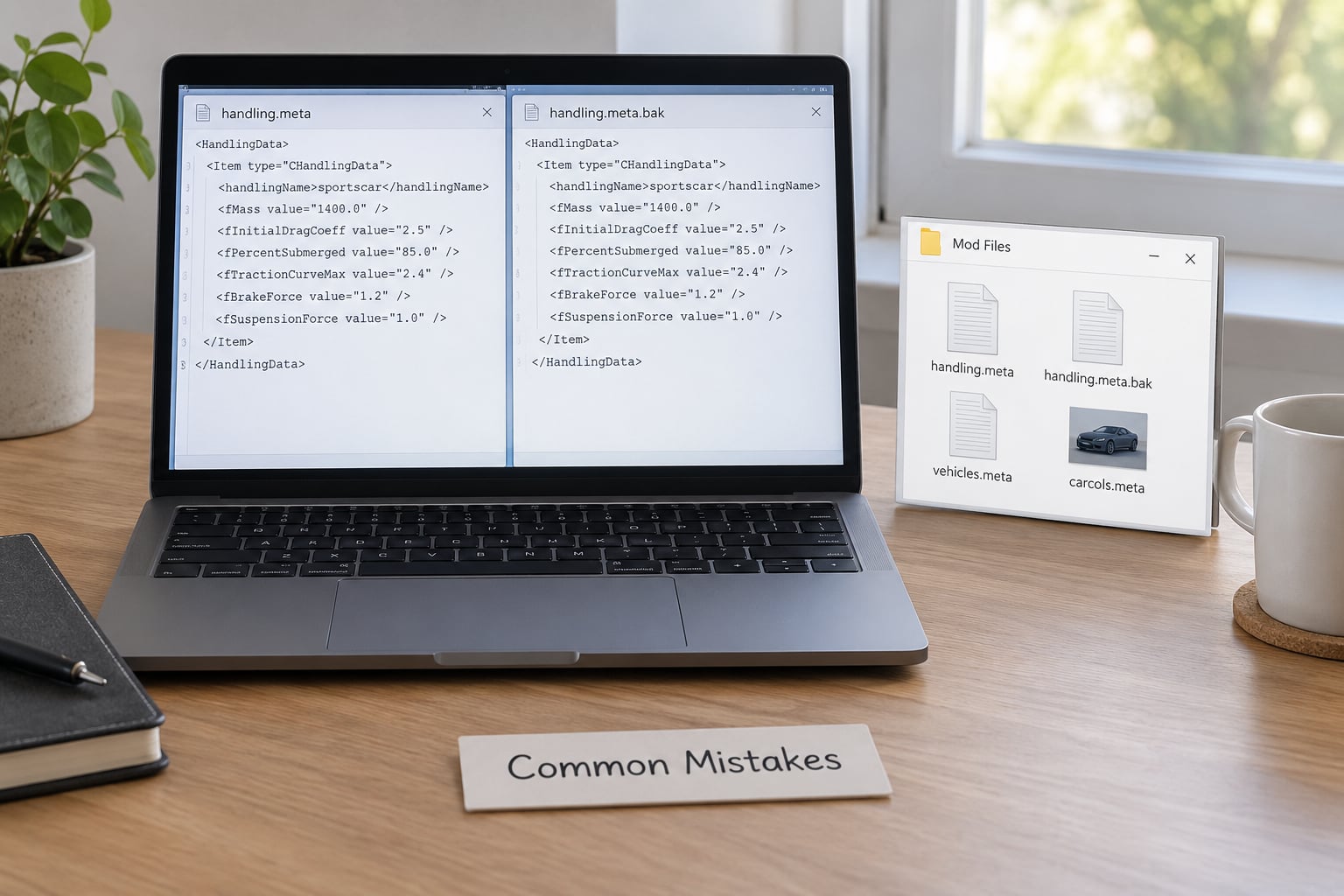
Two more habits that save beginners real trouble. Never overwrite the entire vanilla handling.meta with a downloaded replacement on your first attempt, because a bad copy takes out every car in the game rather than one. Edit the one block instead, and keep the backup until you are happy.
And keep a note of what you changed and by how much. A small text file with three lines of it, the date and the result saves you guessing when a car feels wrong a week later.
Finally, be realistic about extremes. Values that make a car absurdly fast are usually a sign that something else, usually mass or drag, is out of balance with them. Tuning that feels good at one speed and terrible at the next usually means two values need to move together rather than one being pushed further.
Frequently Asked Questions
Where is the handling.meta file located in GTA 5?
For the base game, handling.meta sits in the common data folder inside your GTA V directory, at Grand Theft Auto Vu005ccommonu005cdatau005chandling.meta. Add-on cars keep their own copy in the modsu005ccarsu005ccarfolder path, which overrides the base game values for that car only. On a FiveM server, the file belongs to the vehicle resource, usually in a data folder inside that resource.
Do I need OpenIV to edit handling.meta?
You need some way to read a protected game file, and OpenIV is the standard tool. Once you have editor mode enabled in OpenIV, you can edit the file in its own text pane, or in a separate editor such as Notepad++ and copy the result back. Editing the file directly in the game folder without OpenIV will not save, because the file is read-only.
Which handlingName block should I edit for my car?
Open vehicles.meta for the car and read its handlingName, then search for that exact name in handling.meta. Do not go by the display name shown in the game, because it rarely matches the internal one. Check for shared blocks too: the Sovereign uses the same entry as the POLICEB, so editing one changes the other until you give the car its own block.
Why are my handling.meta changes not working?
Nine times out of ten the vehicle has not been despawned, so it is still running the values it loaded with. Drive away, delete the car, then spawn a new one. On a server, reload the resource before spawning. If it still fails, confirm editor mode is enabled in OpenIV and check that you edited the handlingName your car actually points to.
How do I convert fInitialDriveMaxFlatVel into km/h or mph?
The value is not in km/h. Multiply it by 1.32 for an approximate km/h figure, or by 0.82 for an approximate mph figure. A value of 62 is about 82 km/h or 51 mph. To set a target speed, work backwards: decide the km/h you want, then divide it by 1.32 to get the number to type into the file.
How do I restore the original handling file?
Copy the backup file you saved before editing back over the one in the game folder, either through OpenIV or by placing it in the same path, then respawn the vehicle. If you never made a backup, OpenIV can restore the original base game file from the game cache. If you edited an add-on car, deleting its modsu005ccars folder removes the override and returns it to stock behaviour.
Conclusion
Start with the safest possible action: find the handlingName your car points to, copy the file somewhere you can find it again, then change one value, save it properly, despawn the car and spawn it fresh in a flat area. Once you have one working edit under your belt, the second one takes half the time, and you always have a way back if the car starts flipping in corners.
Last updated October 2026. Game patches change which values exist in handling.meta, so check that your file still contains the tag before you edit it.