Most mod bloat is not junk files. Your mod manager keeps an archive copy, a staged copy and a deployed copy of every mod, so a 500-mod library can occupy three to five times the size of the mods themselves. To free up disk space when hoarding mods, you size each folder first, then purge the redundant copies from inside your mod manager while keeping one recoverable backup.
Here is the honest version: on a heavily modded install, the download archive folder and the staging folder are where most of the reclaimable gigabytes sit. One user on the Nexus Mods Vortex support forum described Vortex taking roughly 170 GB of a 500 GB SSD with no clear explanation of where it went.
This guide covers Windows 10 and Windows 11 with Vortex or Mod Organizer 2. Allow about 45 minutes for the full pass, and ten if your drive is currently full and you just need breathing room.
Table of Contents
- 1What You Need
- 2Step-by-Step: How to Free Up Disk Space When Hoarding Mods
- 3Check Windows Storage Usage First
- 4Find the Largest Mod Folders: Where Your Mod Space Actually Goes
- 5Separate Active Mods from Archived Mods
- 6Compress Folders That Do Not Need Instant Access
- 7Move Large Collections to Another Drive
- 8Remove Duplicates and Broken Downloads
- 9Clean Old Installers, Cover Images, and Temporary Files
- 10Verify Free Space and Protect the Best Mods
- 11Common Mistakes
- 12Deleting the wrong version of a mod
- 13Moving files while a game or mod manager is running
- 14Compressing active game folders
- 15Trusting duplicate names
- 16Forgetting that Vortex and MO2 are not cleaned the same way
- 17Assuming an archive is safe because the mod is installed
- 18Ignoring MO2 overwrite files
- 19Frequently Asked Questions
- 20Can I delete mods I don’t play to free up disk space?
- 21Can I clear my Vortex downloads folder?
- 22How do I clean mods in MO2?
- 23Which mod files are safe to compress?
- 24Where are my mod files stored on Windows?
- 25How much space does a large mod collection need?
- 26Conclusion
What You Need
Gather these before you delete anything. Cleaning a mod library with no backup is how people lose a working setup that took a weekend to build.
- File Explorer with the size column visible, so you can sort folders by size rather than guess.
- Your mod manager – Vortex or Mod Organizer 2 – closed when you are not actively using it, so it cannot rewrite folders while you move them.
- 7-Zip for archiving and for opening .rar and .7z mod files that Windows Explorer cannot extract on its own.
- A disk usage analyzer if you want a visual map. WizTree and TreeSize Free are the two most commonly recommended ones, and both run read-only scans.
- An external drive or secondary SSD for anything you plan to keep but not use often. USB 3.2 external SSDs run at roughly 1 GB/s, which is plenty for archived mods you never touch again.
- An exported load order or modlist from your mod manager. In MO2 that is a .mos file. In Vortex it is the modlist export plus a copy of your load order.
- A backup of anything irreplaceable – your own texture overhauls, scripted quest edits, config folders you hand-tuned, or any mod not available for re-download.
If you use Wabbajack, add its Wabbajack Archive Manager and Wabbajack Library Cleaner to that list. The Library Cleaner is a small open-source utility that finds orphaned mods and old versions sitting in a Wabbajack install, and it exists precisely because those installs get enormous.
Step-by-Step: How to Free Up Disk Space When Hoarding Mods
Work in the order below. Each stage is safe on its own, and you can stop after any of them. Do not skip the backup step, even if you think you know which files are expendable.
Check Windows Storage Usage First
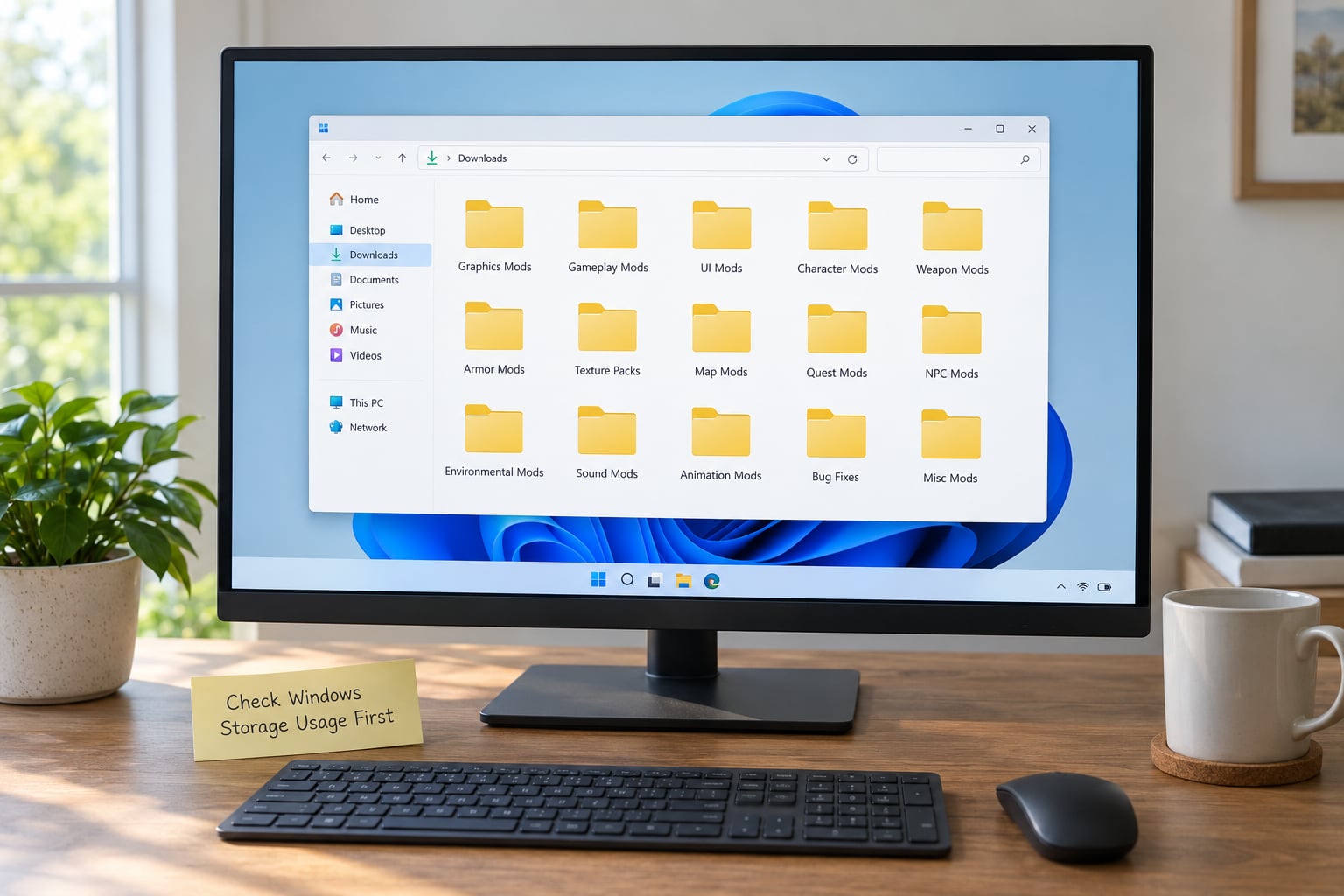
Start by seeing what Windows itself reports, because the category names there will tell you whether your problem is mods or something else entirely.
On Windows 11, open Settings > System > Storage. Temporary files sit behind the Temporary files button, where you can clear Windows Update cleanup, Delivery Optimization files, the Recycle Bin and thumbnails. Scroll further for the category breakdown, which lists Apps, Documents, Pictures, Videos, and a catch-all labelled Other or System and other.
On Windows 10 the path is Settings > System > Storage, then the Storage recommendations card at the top for temporary files, and the category list underneath for the breakdown.
Here is the distinction that matters: temporary files are Windows-created cache and cleanup targets. Your mod folders are not temporary files and Storage will not offer to clear them. A drive where Games and Other are enormous while Temporary files is modest is a mod library problem, not a Windows problem.
That Other bucket is also where people get stuck. It swallows restore points, hibernation data, page file and app data that Windows cannot itemise. Steam Deck owners hit the same confusion on internal storage, where shaders plus an unlabelled Other category keep filling the drive even after games are moved to a microSD card.
You can reclaim part of Other with the hibernation file. Run powercfg /hibernate off in an elevated Command Prompt and the hiberfil.sys disappears, usually worth between a third and a half of your RAM size. That only works if you never use hibernate; Fast Startup goes with it.
Find the Largest Mod Folders: Where Your Mod Space Actually Goes
Sorting by size tells you where to aim in about two minutes. Open the drive you care about in File Explorer, switch to the View tab, tick Size, then right-click the Size column header and choose Sort by size, decreasing.
For a Bethesda modded setup, check these paths in order, because between them they hold nearly everything:
C:Program Files (x86)Steamsteamappsworkshop– the content folder holds installed Workshop mods, downloads holds the cached archives.%APPDATA%Vortex– under Vortex you will find downloads, staging, modlist cache (Vortex 1) or per-modlist caches, overwrite, profiles and installs.DocumentsMy Gamesand%USERPROFILE%Documents– where many Bethesda games keep saves, configurations and profile data.%LOCALAPPDATA%– game logs, shader caches and crash dumps.Downloads– where mod archives land when your browser or Nexus Mods downloader saves them instead of streaming.C:Program FilesRockstar GamesandC:Program Files (x86)Rockstar Games– GTA modding installs and the Rockstar Games launcher library.- Your MO2 instance folder, which contains
mods,downloads,overwrite,profilesandarchive cache.
The duplication is the reason a modest mod list looks enormous. As a user on r/skyrimmods described it, with hundreds of mods installed Vortex appears to copy every mod to both the game’s Data folder and its own staging folder. Delete the game folder copy alone and you recover almost nothing, because the archive and the staged copy remain.
Use the table below as your working verdict sheet. Sizes are ranges for a typical heavily modded install rather than fixed figures, so measure yours before assuming.
| Folder | What it is | Safe to delete? | Typical range | How to purge it |
|---|---|---|---|---|
| Vortex downloads | Original archives of every installed mod | Yes, with the modlist exported first | 10-100+ GB | Vortex Storage tab, delete downloads, or empty the folder with Vortex closed |
| Vortex staging | Unpacked working copies before deployment | Yes, rebuilt on next deploy | 10-80 GB | Purge cache from the Mods list, or delete with Vortex closed |
| Vortex modlist cache | JSON metadata for profiles and modlists | Yes, regenerated | Under 1 GB | Delete the cache subfolder with Vortex closed |
| Vortex overwrite | Loose files your modlist drops into the game | Careful – these can hold unique config | Under 1 GB | Review contents, then clear |
| MO2 downloads | Archives you installed from | Yes, this is the standard purge | 5-60 GB | Delete folder contents, or right-click the Downloads pane and choose Remove Orphan Downloads |
| MO2 overwrite | Conflict winners and loose files | Only after checking for unique settings | Under 2 GB | MO2 Conflict Manager, then delete the overwrite folder contents |
| Steam workshop downloads | Cached archives of subscribed mods | Yes | 20-100+ GB | Delete contents of steamapps/workshop/downloads |
| Steam workshop content | Installed Workshop mod files | No – those are your live mods | 50-200+ GB | Unsubscribe via the client instead |
| Browser downloads | Archives you already installed | Usually yes | Varies wildly | Delete, keep one archive copy elsewhere |
| shader caches | Compiled shaders, rebuilt per game | Yes, expect a stutter on next launch | 1-20 GB | Delete the game’s shader cache folder |
Wabbajack installs deserve their own line in your notes. A large curated modlist can sit in the hundreds of gigabytes once unpacked, and the download cache beside it is pure waste once the install completes.
Separate Active Mods from Archived Mods
Most hoarding problems are organisational rather than technical. Build one flat folder with four subfolders and the collection becomes manageable.
Active holds mods you load this month. Archived holds installed but dormant collections for saves you still intend to return to. Projects holds work in progress. Completed holds mods you finished, exported and will never need again, except as an archive.
Move files between these folders, never inside them. Dragging a loose file out of an archive or renaming a mod folder inside an install breaks the mod’s internal paths, and the game will either fail to load it or silently drop it.
For archived mods, moving the whole folder is safe. For active mods, leave them where the mod manager expects them. Your mod manager knows the path it deployed to, and moving deployed files out from under it leaves you with a broken install and a full Recycle Bin.
Advanced users on the Steam Community forums make the same point in different words: with MO2, select the mods you no longer want in the load order and remove them in bulk instead of one at a time. That frees the modlist entry, the archive cache reference and the deployed files together.
Compress Folders That Do Not Need Instant Access
Compression is the cheapest win for anything in your Archived or Completed folder. Right-click the folder, choose Compress to ZIP file, and Windows handles it with no extra software.
7-Zip does better when the folder already holds archives. Its .7z format offers higher compression ratios and can use solid archives, which packs many small files into one stream more efficiently than ZIP manages.
Set expectations honestly: mod archives from Nexus Mods usually arrive as .7z or .zip, which are already compressed. Re-compressing them saves a small percentage at best. Compression pays off on folders of loose files – extracted mods, screenshots, config backups, texture projects.
Never compress a folder the game or mod manager reads directly. A zipped Data folder will not load, and a zipped Vortex or MO2 install is a broken install. Compress what is offline, not what is live.
Move Large Collections to Another Drive
Archiving to an external SSD or a secondary drive is the only real long-term fix when your collection is bigger than your boot drive. The mechanics differ slightly by tool.
For MO2, change the mods directory in Settings > Paths to a folder on the other drive, then move your mods there and point MO2 at the new location. For Vortex, set the mod install directory in the Vortex settings to the second drive before deploying.
For plain game and mod folders that Windows needs to find, create a directory junction instead of copying. Open Command Prompt as administrator and run:
mklink /J "C:GamesSkyrim Special EditionData" "E:ModsSkyrim Data"
Windows treats the new location as if it were at the original path. Programs, launchers and save editors all keep working because nothing about the original path changed.
Verify the move before you delete the original. Compare file counts and total size between source and destination, launch the game, load a save and confirm your mods still work. Drag and drop across a cable can finish without an error dialog and still leave you short a folder.
Two things to avoid: never move a game or mod folder while the game, launcher or mod manager is running, and never move files across drives while your mod manager holds them open.
Remove Duplicates and Broken Downloads
Duplicates accumulate quietly. The same archive sits in your browser downloads, in the mod manager’s downloads folder and in a folder you made for one specific playthrough.
Sort by size descending inside each mod folder and look for identical file sizes repeated under different names. Add the date modified column too, because version numbers and dates together tell you which copy is newest.
Partial and broken downloads have a tell. A .crdownload or .part file means an interrupted transfer, and a zero-byte archive is a failed one. Search for those extensions in your mod folders and clear them; they can be many gigabytes of nothing.
The rule that saves you from regret: before deleting a duplicate, confirm one copy survives somewhere. Pick the most complete version, move it to your Archived folder, and only then remove the rest. Mod authors delete old uploads, so a file you have twice today can be gone from the source tomorrow.
Clean Old Installers, Cover Images, and Temporary Files
Once the mod work is done, a good chunk of the drive is installer debris. These are safe to remove with the game closed and your backup in place.
- Extracted archives – if you have both the .7z and an extracted copy of the same mod, keep the archive.
- Setup executables – game installers, DirectX redistributables and driver packages left in Downloads.
- Cover images – mod manager caches can accumulate thousands of small preview images, none individually significant.
- Crash dumps –
%LOCALAPPDATA%CrashDumpsand per-game crash folders from the last time something broke badly. - Windows temporary files – the Temporary files section in Settings > System > Storage, which we covered first.
- The Recycle Bin – check it before you start, because deleted archives sit there consuming real space.
Turn on Storage Sense while you are in those settings and let Windows handle the small stuff on a schedule. Leave registry cleaning to nobody. Aggressive registry cleaners and PC optimizer software cause more problems than they solve, and no reputable modding guide recommends them.
Verify Free Space and Protect the Best Mods
Check the free space total on the drive in File Explorer. Then test that you did not break anything: launch the game, load a save from after your cleanup, and confirm your mods are still present and behaving.
Watch the load order closely on the first launch. A mod that silently stopped deploying usually means a file moved or was deleted out from under the mod manager.
Then protect what is genuinely rare. Back up your own work, your heavily customised configuration folders, and any mod that is no longer downloadable. Keep the exported .mos or modlist file next to the backup, because a load order file with no mods behind it is useless.
A catalog helps more than people expect. A spreadsheet listing each save, its modlist name and the date you last played it turns future cleanup into a two-minute job instead of an archaeology project.
Common Mistakes
These are the errors that cost people their setups. Each one has a straightforward fix.
Deleting the wrong version of a mod
Mod authors update files in place and keep older versions available briefly. Deleting by filename alone is how a save ends up running a version mismatch. Compare date modified and size, and keep the newest copy before removing anything else.
Moving files while a game or mod manager is running
Files held open get copied incompletely or written back over your changes. Close the game, close the mod manager, then move. This is the single most common cause of a deployment that looks correct but is not.
Compressing active game folders
Zip a Data folder and the game will not read it. Compression is for archives and offline storage only, never for anything a running game or an active mod manager touches.
Trusting duplicate names
Two files named the same can be entirely different mods. Two archives with different names can be the identical mod. Sort by size and date before deciding which one to keep.
Forgetting that Vortex and MO2 are not cleaned the same way
This is where most of the confusion lives. MO2 installs non-destructively and its downloads folder is a straightforward purge, which is why experienced users on the Steam Community forums recommend clearing it entirely. Vortex behaves differently, copying into staging as well as deploying, and its options live in the Mods list, the Storage tab and the Settings screens.
That difference also explains the most confusing bug report on the Nexus Mods forums, where Vortex reported a full disk while 1.2 TB remained. If your mod manager claims it is out of space but Windows shows room, check whether the drive the manager measures is the same drive you are looking at.
Assuming an archive is safe because the mod is installed
An installed mod depends on the archive for clean reinstalls, conflict resolution and updates. Export your modlist, then decide deliberately. If you can re-download the mod and its page is still live, the archive is expendable. If the mod was pulled or is custom, it is not.
Ignoring MO2 overwrite files
The overwrite folder in MO2 accumulates conflict winners and loose files with no built-in cleanup guidance. Use MO2 Conflict Manager to see what is there, and read anything that looks like a hand-edited configuration before you delete it.
Frequently Asked Questions
Can I delete mods I don’t play to free up disk space?
Yes, but remove them through your mod manager rather than deleting files by hand. In MO2, select the unused mods in the left pane and remove them in bulk so the modlist entry, archive cache reference and deployed files are cleaned together. In Vortex, select the mods and uninstall them from the Mods list. Deleting files directly leaves the manager’s metadata pointing at missing data and can break your load order. Export your modlist first so you can rebuild if you change your mind.
Can I clear my Vortex downloads folder?
Yes, provided you have exported your modlist and load order first. The downloads folder holds the original mod archives, and clearing it does not remove deployed files from your game. Vortex can still reinstall, reinstall updates or roll back a mod without the original archive in some cases, so keep archives for anything you cannot re-download. Close Vortex before deleting the folder contents by hand rather than through the interface.
How do I clean mods in MO2?
Delete the contents of the downloads folder, right-click the Downloads pane and choose Remove Orphan Downloads, then run MO2 Conflict Manager to review overwrite files before clearing them. For dormant mods, remove them from the modlist in bulk rather than one at a time. Experienced users on the Steam Community forums specifically recommend clearing the entire downloads folder contents because MO2 installs non-destructively and does not need the archives afterward.
Which mod files are safe to compress?
Compress anything offline: archived and completed mod folders, your own texture or script projects, config backups and screenshots. Do not compress anything the game or mod manager reads directly, including a game’s Data folder, a Vortex deployment or staging folder, or an active MO2 mods directory. Mod archives arriving as .7z or .zip are already compressed, so re-compressing saves only a few percent. Loose extracted files benefit far more.
Where are my mod files stored on Windows?
It depends on the game and the manager. Steam Workshop mods live under steamapps/workshop/content and steamapps/workshop/downloads inside your Steam library. Vortex keeps downloads, staging, caches and overwrite under the Vortex folder in your AppData directory, with deployed files in the game’s own Data folder. MO2 keeps mods, downloads, overwrite and profiles inside its instance folder. Saves and configs often sit under Documents, and game caches under LocalAppData.
How much space does a large mod collection need?
There is no fixed figure, because duplication is the variable that matters. A heavily modded install with several hundred mods commonly runs into the tens of gigabytes in archives plus similar amounts in staging and deployment. One user on the Nexus Mods Vortex support forum reported Vortex consuming roughly 170 GB of a 500 GB SSD. Wabbajack modlist installs run larger still, which is why Library Cleaner exists for orphaned downloads.
Conclusion
Start with one action: open Settings > System > Storage, note the Games and Other totals, then sort File Explorer by size to find your biggest mod folder. Most of the reclaimable space sits in download and staging folders, and purging those from inside your mod manager costs you nothing but a few minutes of careful work.
Export your load order before anything else, and revisit the Archived folder once a quarter. Modding is supposed to be fun, and a library you can actually navigate beats one you are afraid to open.