Game updates rewrite the files, code and data structures your mods read from and hook into. A mod built for last month’s version can no longer find the files it was written against, so it quietly fails to load or crashes the game. Since mods are made by third parties rather than the developer, nobody fixes that gap for you except the mod’s own creator.
That is the honest answer to why mods stop working after a game update, and it explains why the fix is never a single click. What you can change is how fast you get back to a working setup, and how much time you lose doing it. I’ll walk through the diagnosis first, because most of the wasted effort comes from reinstalling everything before checking whether the unmodded game even launches.
Table of Contents
- 1Why Mods Stop Working After a Game Update
- 2How to Tell Whether the Update or the Mod Is Broken
- 3How to Fix Mods After a Game Update
- 41. Confirm the game version and read the patch notes
- 52. Back up the current setup before changing anything
- 63. Verify or reinstall the base game files
- 74. Update the mod manager and force-update outdated mods
- 85. Repair load order and dependencies
- 96. Clear the game cache
- 107. Test from a clean boot
- 118. Re-download the mods that still fail
- 12GTA V, GTA IV, and San Andreas Differences
- 13What to Do When a Mod Has Not Been Updated
- 14How to Prevent the Next Update from Breaking Your Setup
- 15Frequently Asked Questions
- 16Do all my mods stop working after a game update?
- 17Why does a mod work before an update but not after?
- 18Can I reinstall an older version of the game to use my mods?
- 19Should I delete my mod folder after every game update?
- 20How do I find out which mod is causing a crash?
- 21Conclusion
Why Mods Stop Working After a Game Update
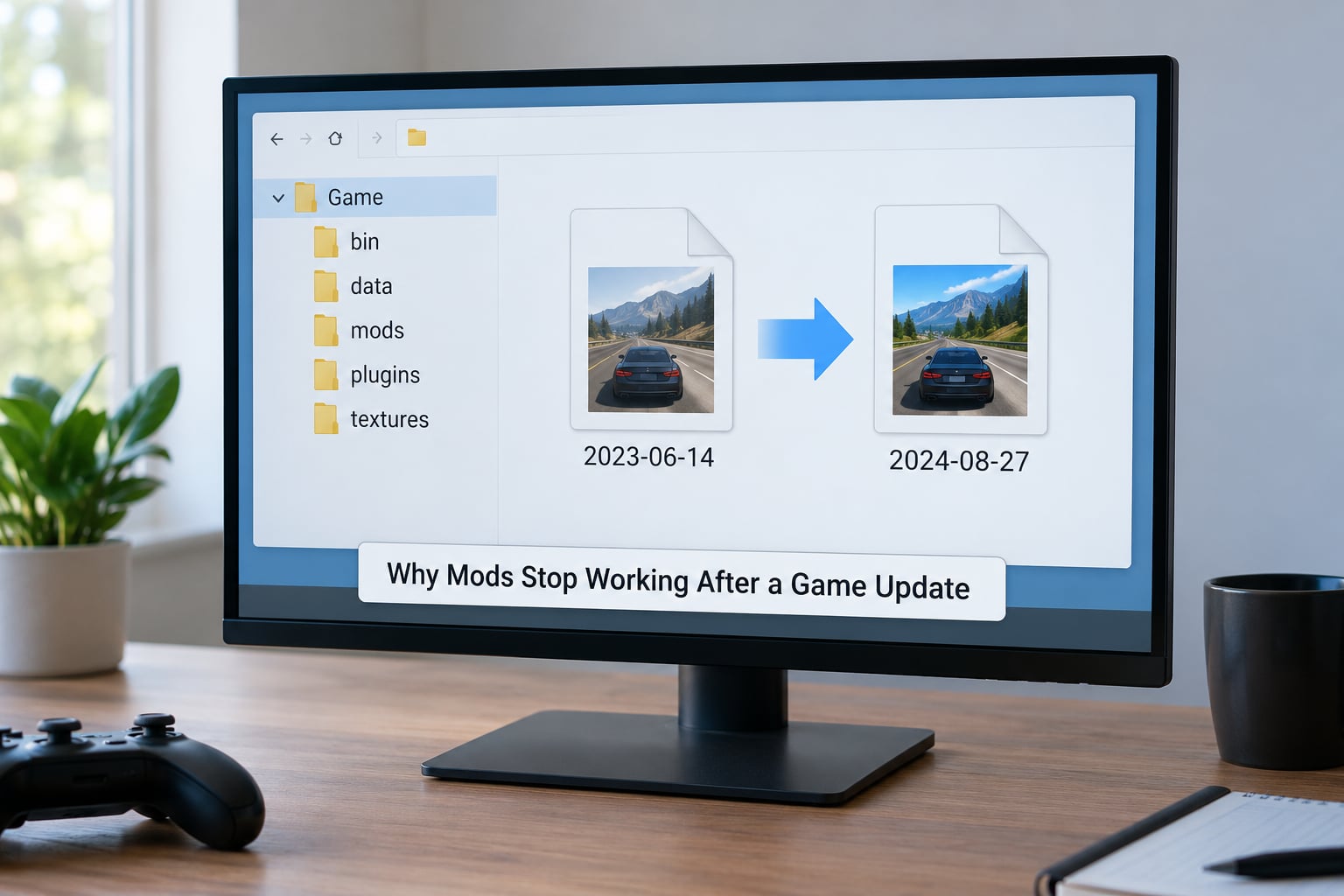
A patch does not add to the game, it replaces parts of it. The executable, the script runtime, the asset packages and the configuration files all get new versions, and a mod that referenced an exact filename or an internal value from the old build simply stops finding it.
On top of that, the update can change the format itself. Renamed folders, restructured asset packages, new load order rules and a rewritten plugin framework all invalidate workarounds that used to be correct. Load order and dependency chains matter more here than most people expect: if a mod that fifteen other mods depend on stops loading, everything downstream goes with it.
Worth separating two failure types. A temporary crash usually means the game files are mid-update, the cache is stale, or one dependency is missing. A permanently broken install means files were overwritten, deleted or corrupted and nothing will load until you repair or reinstall.
How to Tell Whether the Update or the Mod Is Broken
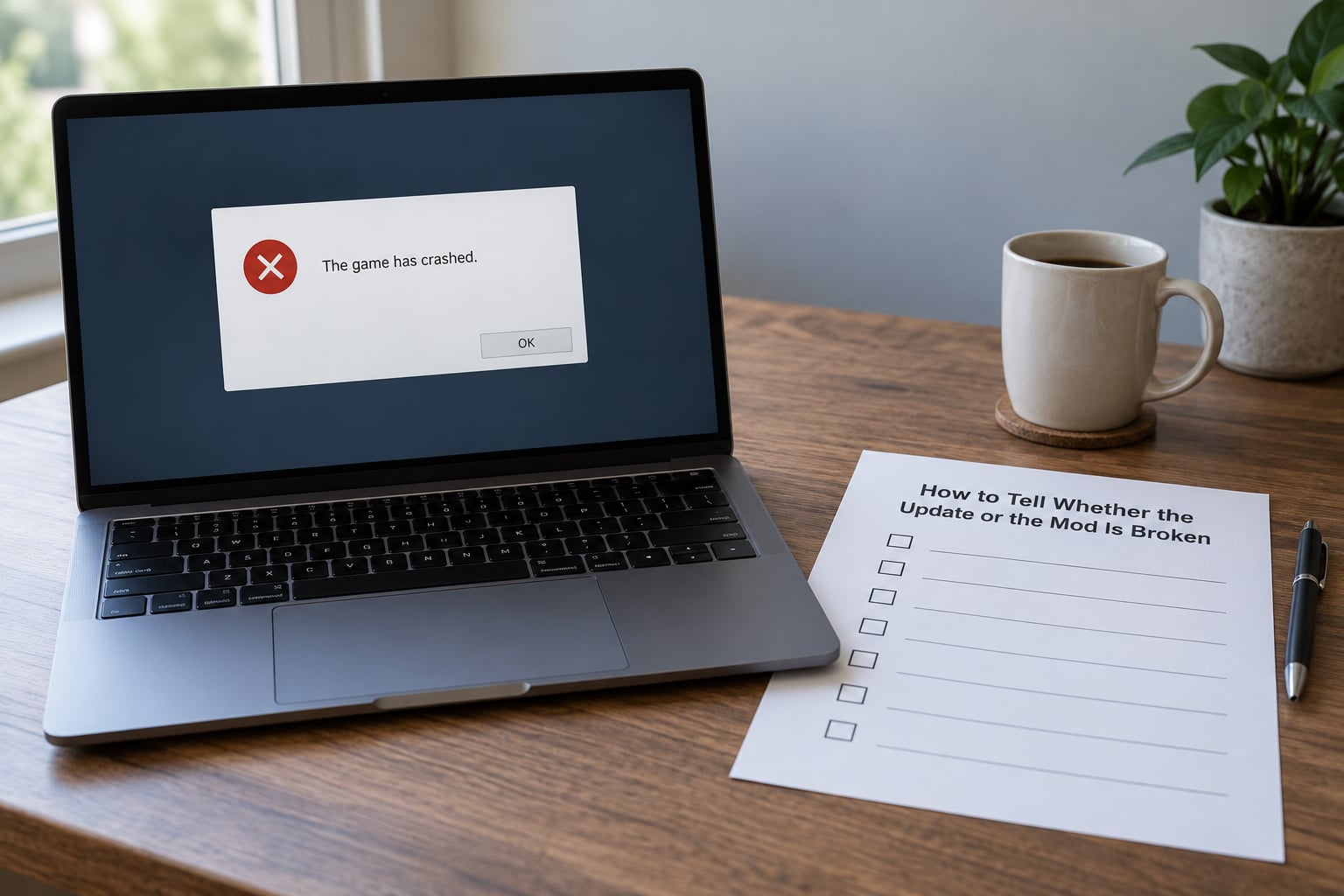
Run this in order and stop at the first answer that changes what you do. Each step takes a couple of minutes and rules out a whole category of causes.
- Launch the game with every mod disabled. If it still fails, the problem is the game install, not your mods. Verify files or reinstall.
- Enable one mod at a time if you have a short list, or half the list if you do not. If one mod fails alone, that is your culprit.
- If every mod fails but the clean game runs, the culprit is shared: the script extender, a dependency, or the mod manager’s configuration.
- Read the actual message. Launcher notices about missing frameworks, crash logs naming a file path, and errors on a specific screen all point somewhere different.
| Symptom | Likely cause | First move |
|---|---|---|
| Game will not launch at all | Scripted mod or missing dependency, or a partially applied update | Boot clean, then add mods back in batches |
| Mods missing from the load screen | Files overwritten by the patch, or content under a renamed folder | Verify game files, then reinstall affected mods |
| Crashes while loading a save | Conflicting mods, or one mod expecting an older file layout | Batch test to isolate |
| Mods work, then stop hours later | Scripts purged from memory, not an update issue at all | Check memory and script extender version |
| Recolored content missing | The original mesh it depended on is gone | Reinstall the base item first |
That last row is the one people miss most. A recolor is not a self-contained file; it is an overlay on top of someone else’s mesh, and if the base content is missing the recolor has nothing to sit on.
How to Fix Mods After a Game Update
Work through this in order rather than jumping around it. Each step is cheap and rules something out.
1. Confirm the game version and read the patch notes
Check the version number your launcher or console shows, then read what the patch actually changed. When notes mention a new script runtime or a rewritten asset system, you already know which of your mods are at risk.
2. Back up the current setup before changing anything
Copy the mods folder somewhere outside the game directory, and save a screenshot or text file of your load order and every enabled or disabled setting. You want the broken state preserved so you can compare, not overwritten before you have looked at it.
3. Verify or reinstall the base game files
In Steam, that is right-click the game, Properties, Installed Files, Verify integrity of game files. It replaces anything the patch clobbered and leaves everything else alone. On other launchers the equivalent option sits under the same library context menu.
4. Update the mod manager and force-update outdated mods
Open your mod manager and run its scan. Most will flag mods built for the previous version, and the force-update option pulls the newest build in one pass. For anyone running a hundred mods or more this is the single biggest time saver, because it does in a minute what a manual check across a hundred mod pages never will.
5. Repair load order and dependencies
Let the mod manager re-sort load order automatically rather than hand-fixing it. Then check that your script extender is current: mods that inject code into the game’s processes cannot load without it, and a stale extender produces the same symptom as a broken mod.
6. Clear the game cache
A stale cache keeps pointing at the old file layout, so freshly reinstalled mods can stay invisible until it is cleared. This is the answer to mods that load but do not show up, and it costs one folder rename and a restart.
7. Test from a clean boot
Disable everything, launch, confirm the game runs, then re-enable in thirds. First third works? Enable the second. Keep going until it breaks. Binary testing halves the list each round, which beats testing mods one by one when you cannot say which of several hundred is at fault.
8. Re-download the mods that still fail
Partially extracted files are a real and underappreciated cause. A reinstall from the original download is cheap and rules out corrupted files permanently.
GTA V, GTA IV, and San Andreas Differences
The same general rule applies across Rockstar’s older titles, but the tooling differs enough to be worth knowing before you start.
GTA V on PC depends on ScriptHookV to let mods touch the game at all. If the update changes the executable, ScriptHookV needs its own update, and until it does, every mod built on it fails together. OpenIV handles installation and editing, and mods installed by hand rather than through a manager are the ones most likely to land in the wrong folder or with the wrong file extension after an update.
GTA IV modding runs through the same family of tools, but the game engine is older and community support is thinner. When an update lands, fixes often take considerably longer to appear because fewer people maintain mods for it. Plan on waiting rather than repairing in place.
San Andreas has a large mod scene built on older engine conventions, so it is the title where folder and naming changes bite hardest. A mod that worked because of a legacy path stops working the moment that path changes.
On console, mods come through curated in-game lists rather than folders you manage yourself. Updates there can reset or trim those lists, and the fix is entirely in the hands of the platform. On Android ports, the real problem is different: those are unofficial ports running on an engine the original mods were never written for, so after any port update you usually need a separately maintained version of each mod. An update to the original PC game tells you nothing about the Android version.
What to Do When a Mod Has Not Been Updated
Some mods never get fixed. The creator moved on, the game lost interest, or the mod depended on a system the developer removed. There is no universal patch for that, and nobody is coming.
When it happens, you have four honest options. Wait, if the game still gets meaningful play from you and the creator has a history of updating. Contact the creator, briefly, with your game version and what broke. Replace it, if an actively maintained mod covers the same need. Remove it, which is the option people avoid because they feel they are losing something, but a mod that no longer loads costs you nothing except clutter.
Rolling back to an older game version is the escape hatch plenty of players reach for, and it works where the platform allows it. Treat it as temporary. Older versions carry their own problems, some modes stop working, and you will eventually want to move forward. It buys you time to wait for proper updates, not a permanent solution.
How to Prevent the Next Update from Breaking Your Setup
You cannot stop patches. You can make them boring.
- Back up before you update, every time. A copy of the mods folder plus a saved load order turns an evening of repair into an afternoon.
- Keep backups outside the game folder. In-game copies get wiped by the very reinstall they were meant to protect against.
- Write down your load order. If your manager cannot reproduce it automatically, a text file is the difference between restoring a setup and rebuilding one.
- Validate game files on a schedule. Regular checks catch overwritten files before you assume the mod is at fault.
- Use a mod manager with automatic scanning. Manually checking a hundred mod pages after every patch does not scale.
- Handle automatic updates carefully. Turning them off is the most common advice across modding communities, and it buys you control over timing. It also means you run security fixes late, miss new features, and on some online modes can be locked out or flagged for an outdated client. Turn them off if you can live with those trade-offs, not on autopilot.
If your setup is a long-standing project, a monthly maintenance pass is worth it: update the manager, run the scan, update what updated, and clear out what has been broken for months without you noticing.
Frequently Asked Questions
Do all my mods stop working after a game update?
No. Cosmetic content such as clothing, hair and textures usually survives a patch, because it only replaces files rather than injecting code. Scripted mods, which add new behaviour, are the ones that break, and they break often enough that some players disable everything before updating. How many of your mods fail also depends on how large the patch was and whether mod authors had warning.
Why does a mod work before an update but not after?
Because the mod was written against a specific version of the game. It references exact filenames, internal values and code that the patch replaced or renamed. Nothing about the mod itself changed, so it still looks correct on disk, but the game can no longer read it. Only the mod’s creator can rebuild it against the new version, which is why updates arrive days or weeks before fixes do.
Can I reinstall an older version of the game to use my mods?
On some platforms, yes. Several launchers let you roll back to a previous build, and it is a common stopgap while mod authors catch up. The costs are real: security fixes and new features are skipped, and some modes can refuse to connect on an outdated client. Treat rollback as a few weeks of breathing room, not a long-term setup.
Should I delete my mod folder after every game update?
No. Deleting everything is the most expensive possible response, and it destroys your working setup along with the broken part. Most breakage is a handful of mods, a script extender or a cache problem. Verify game files, update through your mod manager, then test in batches. Delete individual mods only after you have confirmed they are the specific thing failing.
How do I find out which mod is causing a crash?
Disable everything and launch clean, then re-enable in thirds. If the first third crashes, narrow to halves until you reach a single mod. Keep the list in a text file so you are not rebuilding it from memory each time. Tools like FO4Edit for Bethesda games can scan for conflicts, though they miss crashes caused by a missing dependency or a script extender that needs updating.
Conclusion
Start by launching the game with no mods at all. If it runs clean, the update is fine and your problem is a mod, a dependency or the script extender. From there, update through your mod manager, force-update anything flagged as outdated, clear the cache, then re-enable in thirds until you land on the culprit.
Back up the mods folder and your load order before you update next time. That one habit is the difference between an evening lost and an evening saved, and it is why this stops being an emergency the second time it happens.