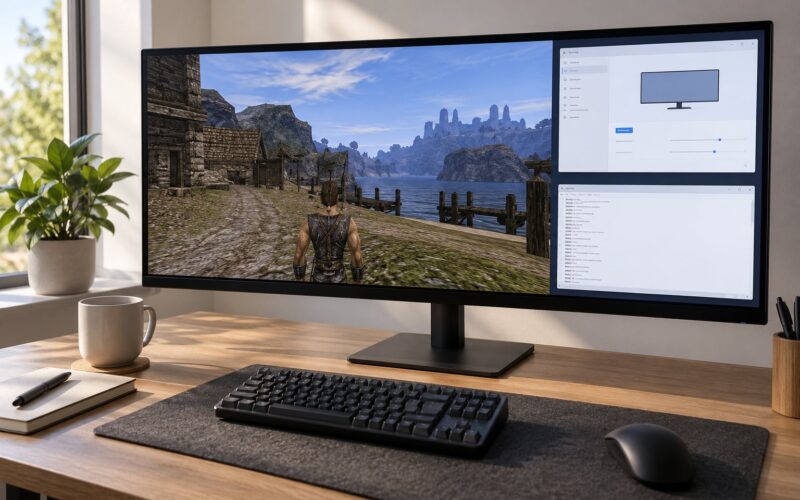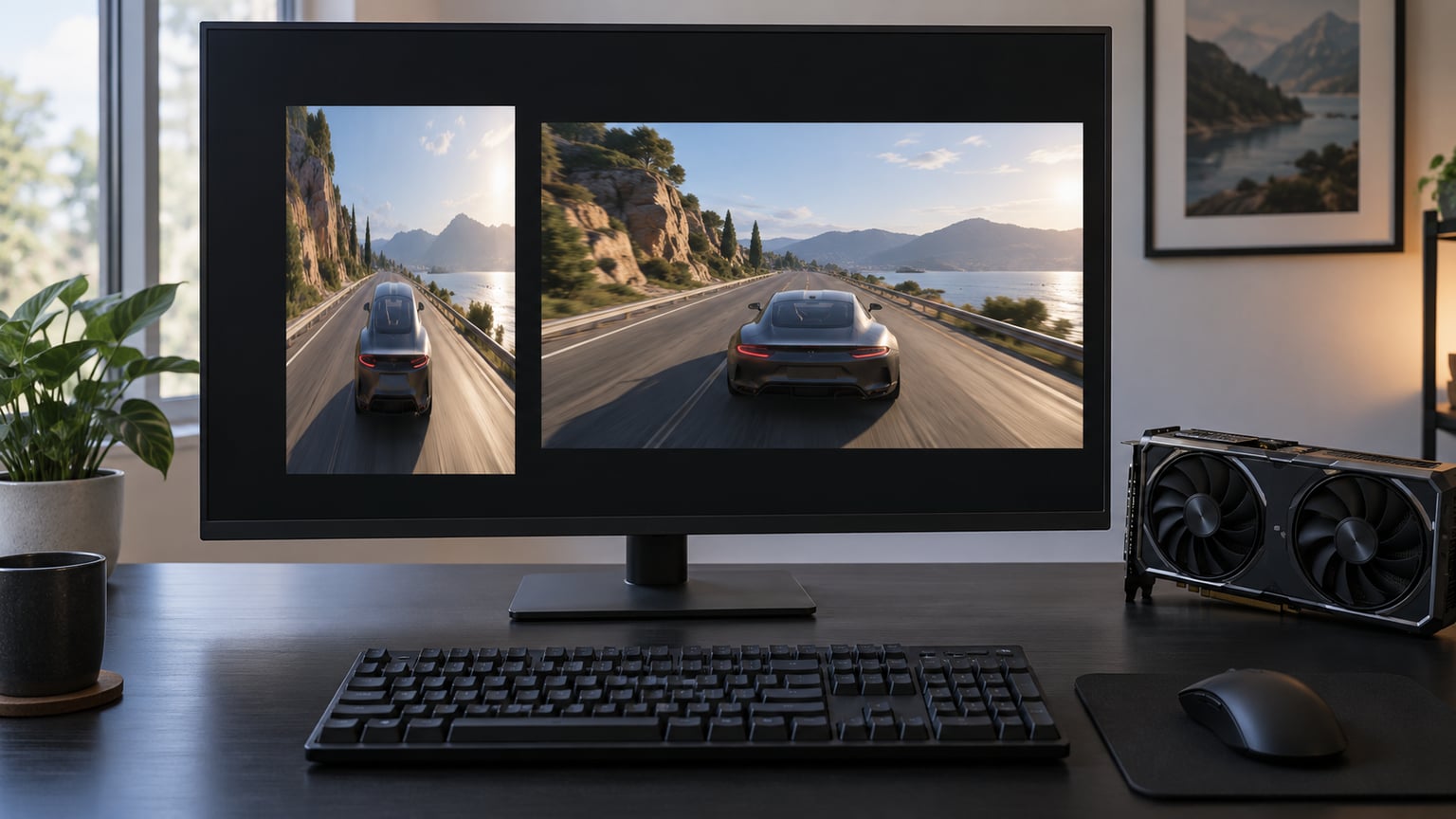
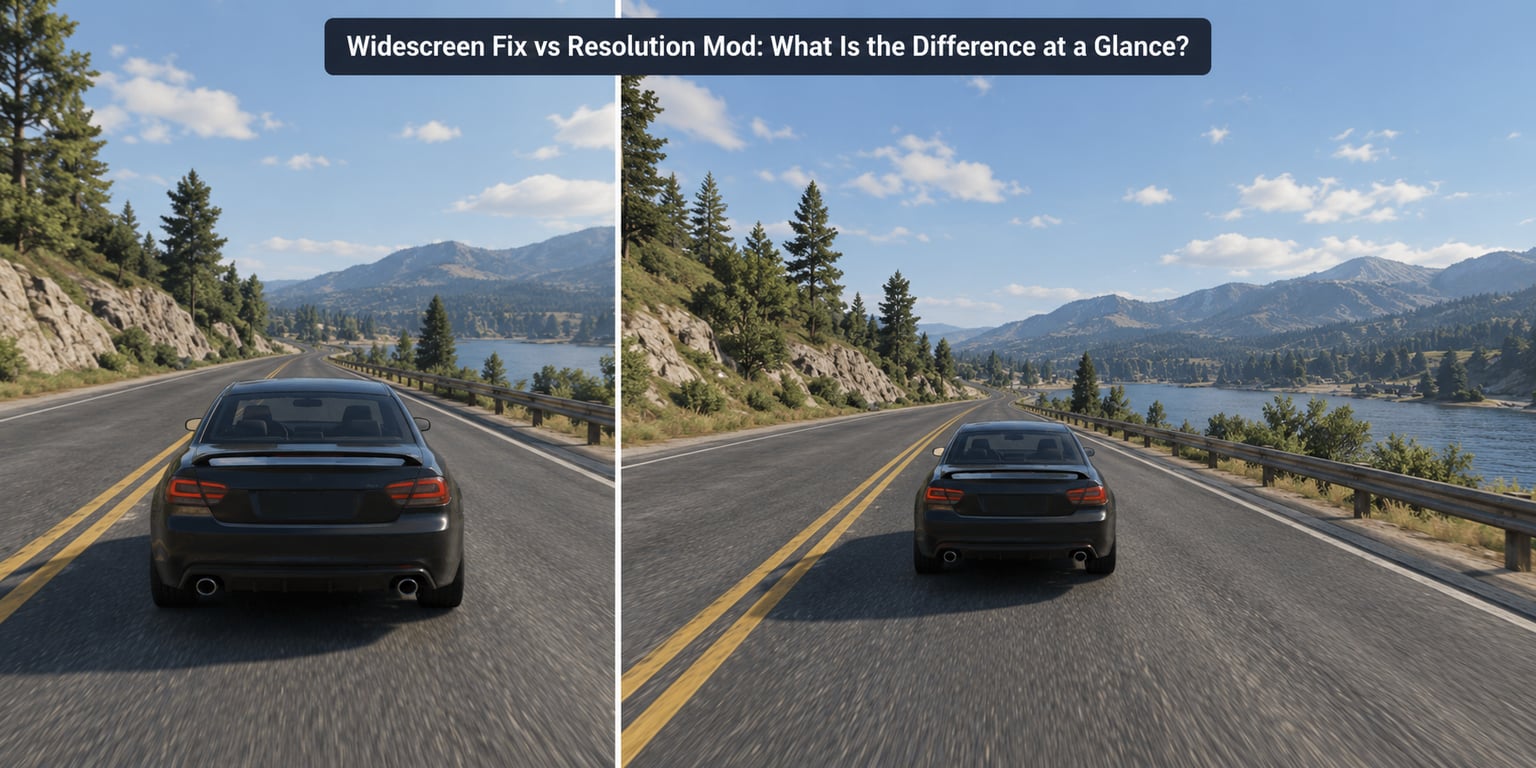
Here is the short version of the widescreen fix vs resolution mod question: a widescreen fix corrects the shape of the image, and a resolution mod changes how many pixels the game draws. Black bars, stretched cars and a fat-looking character model are aspect-ratio problems. A soft or pixelated picture is a resolution problem. Confusing the two is the single most common reason a display fix seems not to work.
On this site most of the traffic that lands here arrives with a GTA V or San Andreas save file open in another window, so the examples below lean that way. The mechanics, though, are the same in any PC game from the last three decades.
Quick note before we start: if your game already ships with a widescreen option in its own graphics menu, you probably need neither. Check first, install nothing, and save yourself an evening of troubleshooting.
Table of Contents
- 1Widescreen Fix vs Resolution Mod: What Is the Difference at a Glance?
- 2What Is a Widescreen Fix?
- 3How a widescreen fix actually works
- 4What Is a Resolution Mod?
- 5Render resolution versus texture resolution
- 6Upscaling is not the same as rendering higher
- 7Field of View: Widescreen Fix or Resolution Mod?
- 8Image Shape, Geometry, and HUD Scaling
- 9What the difference looks like in practice
- 10Sharpness, Clipping, and Visual Quality
- 11Performance and System Requirements
- 12The install-order conflict
- 13Compatibility with GTA V, GTA IV, and San Andreas
- 14GTA V
- 15GTA IV
- 16San Andreas
- 17Which Should You Choose?
- 18When both make sense
- 19Frequently Asked Questions
- 20Is a widescreen fix the same as increasing resolution?
- 21Does a widescreen fix add more field of view without stretching?
- 22Can I use a widescreen fix and a resolution mod together?
- 23Why does my ultrawide monitor still show stretched cars or distorted HUDs?
- 24Is a higher-resolution mod always better for GTA V?
- 25Do resolution mods make old GTA games widescreen?
- 26Conclusion
Widescreen Fix vs Resolution Mod: What Is the Difference at a Glance?
| What it changes | Widescreen fix | Resolution mod |
|---|---|---|
| Aspect ratio | Corrects it to match your monitor | Leaves it exactly as the game renders it |
| Black bars | Removes them | Does nothing about them |
| Field of view | Widens horizontally (or adds a chosen amount) | Unchanged |
| Stretched characters and cars | Fixes them, except in hand-painted 2D art | No effect |
| HUD, minimap, subtitles | Re-anchors to the correct safe area | No effect |
| Image sharpness | Unchanged | Noticeably sharper at higher render resolution |
| VRAM and frame rate cost | Close to zero | Real cost that scales with pixel count |
| Typical install | Drop-in DLL or .asi in the game folder | Launcher, config tool or script |
| Best for | 16:9, 16:10 and ultrawide displays running older titles | Soft, low internal resolution on a sharper panel |
Read that table twice, because the two columns never overlap. If a fix removed your black bars, it did not make anything sharper. If a resolution mod made your game crisp, your geometry is still wrong.
What Is a Widescreen Fix?
A widescreen fix is an aspect-ratio correction. The game was built to assume a certain screen shape, usually 4:3, and on a modern 16:9 or 21:9 panel it either letterboxes, pillarboxes, or stretches the frame to cover.
Most older engines do something crude: they render a 4:3 image and stretch it sideways to fill your display. That is why a 1990s-era character looks like they gained twenty pounds overnight. The circles are not circles anymore, cars are wide, and the road ahead feels oddly narrow.
How a widescreen fix actually works
Under the hood, a fix hooks the game and rewrites two things: the projection matrix that controls field of view, and the UI scale factors that decide where the HUD and menu elements sit. Once the projection matrix is corrected, the engine renders a properly proportioned 16:9 frame instead of a squashed 4:3 one.
Three implementation styles are still common in 2026:
- Classic DLL proxy. A file such as dinput8.dll or dwpatcher.dll sits in the game folder and intercepts DirectX calls. This is the model the famous widescreen fix packs grew out of, and it is still how many titles get patched.
- ASI plugins. An ASI loader plus a small .asi file, dropped into the game root and removed by deleting them. The Widescreen Fixes Pack by ThirteenAG uses exactly this approach, with FusionFix plugins for individual games, and it uninstalls cleanly because nothing touches your registry.
- Config tools and scripts. Older titles expose an ini or config entry that a community utility rewrites for you. This is the San Andreas route.
One warning: widescreen fixes cannot repair pre-rendered art. If a game’s background was painted for 4:3 and stretched by the original port, a fix stops further distortion but does not redraw the artwork. Nothing does.
What Is a Resolution Mod?
A resolution mod changes the number of pixels the game renders at. It does not touch aspect ratio, field of view, HUD placement or black bars in any way. Its entire job is sharpness and the option of a different frame rate at a given pixel count.
The mechanism is usually a backbuffer or swapchain override: the game is told to draw into a larger render target than it was compiled to expect, then either outputs that natively or upscales it to your panel.
Render resolution versus texture resolution
These two get tangled constantly, so keep them apart:
- Render resolution is the size of the image the game draws each frame, expressed in pixels such as 1920×1080 or 3840×2160. A resolution mod changes this.
- Texture resolution is the size of the individual images wrapped on surfaces. HD texture packs change this. They are a different product with a different download.
Raising render resolution sharpens geometry edges, thin objects, text in the world and aliasing. It does nothing for blurry wall textures, which is why people install both and expect one mod to do the other one’s job.
Upscaling is not the same as rendering higher
Running a 1280×720 game on a 4K panel without a resolution mod means the game renders 1280×720 and your monitor or GPU upscales the result to fill 3840×2160. You are filling every pixel, but you are filling them with interpolated guesses. Text and edges look soft because there is no real detail there to show.
A resolution mod makes the engine render at the higher count, so there is genuine detail in those pixels. The trade is the obvious one: roughly four times the pixels of 720p at 4K, and the frame rate follows the bill.
Field of View: Widescreen Fix or Resolution Mod?
Only a widescreen fix touches field of view, and this is where most first-time modders get their expectations wrong.
Horizontal FOV and vertical FOV are linked. When a fix widens the horizontal view to match a wider screen, it has to take that width from somewhere, and it usually takes it from the vertical view. Forum users describe exactly this trade in plain terms: the horizontal field of view stays the same, the vertical view is reduced, and in effect widescreen players see less up and down.
That is not a bug. It is geometry. Something has to give when you widen the frame.
The second thing to understand is the difference between adding FOV and stretching pixels. A fix that only scales the 4:3 image horizontally gives you a wide picture with wide cars. A fix that genuinely recalculates the projection gives you a wide picture with correct proportions and a slightly shorter vertical view. The first is not a widescreen fix in any meaningful sense, even though plenty of forum downloads are marketed that way.
Modern fixes often expose an FOV slider, letting you dial in 16:9, 16:10 or 21:9 as separate presets, or push the horizontal value past what the original designers chose for a more cinematic look. That extra is a preference, not a correction.
Image Shape, Geometry, and HUD Scaling
This is the part a resolution mod can never help with, however much you raise the pixel count.
- Vehicles. A stretched port makes cars and bikes visibly wide. Corrected geometry restores wheelbase and cabin proportions.
- Road width. Fixing the projection restores the road to its intended width relative to a car, which changes how fast the world feels.
- Circles and spheres. Wheel rims, gauges and heads render round again instead of oval.
- Weapon models. A common early sign of a 4:3 stretch is a gun that looks oddly long and thin in the hands.
- HUD and minimap. These are drawn in screen space at fixed offsets, so without a UI correction they drift into corners or sit at odd heights on an ultrawide.
- Subtitles and menus. Long lines can be clipped on very wide panels unless the safe area is handled.
What the difference looks like in practice
Stretched 4:3 content, correct geometry and higher render resolution are three separate things you can see on screen at the same time, and any one of them can be right while the others are not. A 4K resolution mod on a 4:3-stretched game gives you a beautifully sharp, perfectly wrong picture. That is the most common disappointing outcome in this whole topic, and it is entirely avoidable.
One more expectation to set: a number of players report that after installing a widescreen fix the image still stops at roughly 85% of the screen width, leaving thin residual bars. That is usually safe-area and UI anchoring rather than a failed install, and some fixes expose a setting to push past it. Others simply do not have a fix for that title, and no config change will invent it.
Sharpness, Clipping, and Visual Quality
Sharpness is where a resolution mod earns its place, and where a widescreen fix does nothing at all.
Native render resolution at your panel’s actual pixel count gives you clean edges on geometry, readable signage, defined silhouettes at distance and no shimmer on thin objects. It is the only setting where the image has real detail to display.
Filtering and anti-aliasing work alongside it rather than replacing it. Anisotropic filtering sharpens textures at grazing angles, anti-aliasing smooths geometry edges, and both look better when they are not asked to compensate for a resolution that is genuinely too low.
Dynamic resolution scaling sits in the same family. It varies the render resolution frame by frame to hold a target frame rate, which trades sharpness for steadiness. Some players prefer a locked high resolution and a variable frame rate; others prefer the opposite. Neither is a widescreen fix, and neither changes your aspect ratio.
The visual quality gained by combining a resolution mod with high-resolution texture packs is real and widely reported, but it is a combination of two separate downloads doing two separate jobs.
Performance and System Requirements
Aspect-ratio fixes are close to free. Once the projection matrix is corrected, the game renders the same amount of content in a wider frame, so the pixel count barely moves and the frame rate usually stays where it was.
Resolution mods are the opposite. Cost scales with pixels, not with aspect ratio. A rough rule: 1080p to 1440p is about 1.8 times the pixels, and 1440p to 4K is about 2.8 times. Your GPU feels that directly, and VRAM pressure often arrive before frame rate does.
The install-order conflict
Installing both is fine, but installing both that fight over the same setting is not. Forum reports describe the pattern clearly: the widescreen tool writes a resolution value into the config, the default config tool overwrites it, and whichever runs last wins. The player is left with correct geometry and the wrong resolution, or the reverse, with no obvious error message.
Pick one tool to own your resolution settings. If you use an ASI-based fix, let it control the geometry and set resolution through the game’s own menu or your graphics driver instead.
Compatibility with GTA V, GTA IV, and San Andreas
Fixes are not interchangeable across games or releases, because each one is written against a specific engine and a specific build.
GTA V
GTA V renders widescreen natively across 16:9, 16:10 and 21:9 and already exposes a full resolution list, so a classic widescreen fix is usually unnecessary here. What you may want is a resolution mod to match a 4K panel, plus a widescreen mod for FOV presets if the default range feels narrow for you. On ultrawide, GTA V works, though some HUD elements sit further from the edges than on 16:9.
GTA IV
The older titles in the series are the classic target for a widescreen fix, since their original aspect ratio handling was built for a narrower frame. A fix here genuinely adds something the base game lacks.
San Andreas
San Andreas is the community’s favourite case because the tooling is mature and the community documentation is deep. The usual route is a widescreen fix with aspect-ratio correction, installed alongside a configuration tool that handles resolution and other engine settings. That combination is also the clearest illustration of the rule above: let one tool own geometry, let the other own resolution, and check which one wrote last.
If a fix breaks after a game update, that is the expected failure mode. Patches change memory layouts, and every fix has to be rebuilt for the new build.
Which Should You Choose?
Work from the symptom rather than from the download name. It is faster and far less frustrating.
- Black bars top and bottom on a wide monitor? You need a widescreen fix. No resolution mod will touch them.
- Black bars on the sides, or content that only fills part of an ultrawide? You need a fix with a 21:9 profile, or a fix whose FOV slider goes far enough.
- Cars, characters or circles look stretched? Aspect-ratio correction. This is the clearest signal of all.
- HUD, minimap or subtitles pinned to the wrong spot? A fix with UI scaling. Expect to fiddle with safe-area options.
- Everything is correctly shaped but soft or pixelated? Resolution mod, set to your panel’s native resolution.
- Texture detail is blocky up close while edges are fine? Neither. That is a texture pack, a different download entirely.
- Your game has a working widescreen option and looks correct? Install nothing.
When both make sense
They are not rivals. A correct aspect ratio and a higher render resolution are independent improvements, and plenty of setups use both: an aspect-ratio fix for geometry and FOV, plus a resolution mod for sharpness at native resolution. The only rule is to avoid two tools writing the same resolution key, and to know which one wrote last if something looks wrong after an install.
Install the aspect-ratio fix first. It is the one that changes the shape of everything else you will judge, and it is the one with near-zero performance cost. Then decide about resolution with your frame rate in mind.
Frequently Asked Questions
Is a widescreen fix the same as increasing resolution?
No. A widescreen fix changes the shape of the frame: it corrects aspect ratio, widens horizontal field of view and re-anchors the HUD. A resolution mod changes the pixel count the game renders at, which sharpens the image. A fix will not remove blur, and a resolution mod will not remove black bars or stretched geometry.
Does a widescreen fix add more field of view without stretching?
It can, but only when it recalculates the projection matrix instead of simply stretching the 4:3 image. Widening the horizontal view normally narrows the vertical view, since the two are linked and the extra width has to come from somewhere. A download that only scales the frame sideways gives you a wide image with wide cars, which is not a real widescreen fix.
Can I use a widescreen fix and a resolution mod together?
Yes, in practice most players use both, because they solve unrelated problems. The catch is configuration: two tools that write the same resolution value will overwrite each other, and whichever was installed or run last is the one that takes effect. Let one tool own geometry and set resolution through the game menu or your graphics driver instead.
Why does my ultrawide monitor still show stretched cars or distorted HUDs?
Usually the fix you installed targets 16:9 and stretches that frame across a 21:9 panel, or it corrects the world but not the interface. Check that the plugin has a 21:9 profile or an adjustable field of view slider, and look for UI scaling options. If the fix has no ultrawide preset, no resolution setting will fix it; you need a different patch or a higher field of view value.
Is a higher-resolution mod always better for GTA V?
No. GTA V already supports widescreen natively and offers a wide resolution list, so a classic widescreen fix is rarely needed. Matching native resolution helps up to a point, after which the frame rate cost grows quickly and you trade away the smoothness the series is known for. On a 4K panel, native 4K or a modest dynamic resolution setting is usually the better balance.
Do resolution mods make old GTA games widescreen?
They cannot. Resolution mods only change the pixel count, so a 4:3-era title keeps its original aspect ratio, field of view and black bars no matter how high you render. For San Andreas and similar older entries you want a widescreen fix with aspect-ratio correction, often paired with a configuration tool that handles resolution and engine settings separately.
Conclusion
A widescreen fix changes the shape of the image; a resolution mod changes the number of pixels behind it. If your geometry is wrong, install the aspect-ratio fix first because it costs almost nothing in performance. Only then consider a resolution mod, and only if sharpness or resolution options are the problem you actually have.