To fix controller not detected in a modded game, work backwards from the pad to the launcher rather than forward from the error message. Most of the time, a controller stops being detected the moment you turn mods on, not because the pad broke. A modded game runs through a different executable — the mod manager or the script extender loader — so the controller settings you configured for the original game no longer apply. This guide walks the fix in order, from a two-minute cable check to a mod bisection, and covers PC, Steam Deck, Proton and console setups along the way.
Before you start: if the controller is missing from the game but still shows up in your operating system’s own controller panel, the hardware is fine and the problem is configuration. That single distinction saves most people from buying a new pad.
Table of Contents
- 1What You Need
- 2Step-by-Step
- 31. Confirm the Controller Works Outside the Modded Game
- 42. Check the Connection and Controller Assignment
- 53. Verify the Mod Loader and Original Game Files
- 64. Disable Mods and Test the Game
- 75. Resolve Input Scripts and Mod Conflicts
- 86. Adjust Platform Permissions and Runtime Settings
- 97. Reinstall the Controller Driver or Pairing Software
- 10Common Mistakes
- 11Frequently Asked Questions
- 12Why isn’t my controller detected in the game?
- 13Why isn’t my controller detected in Steam games?
- 14Is my controller XInput or DirectInput?
- 15Why is my controller detected but not working in the game?
- 16How to get controller to work on emulator?
- 17Can PlayStation detect modded controllers?
- 18Conclusion
What You Need
To fix controller not detected in a modded game, you need five things ready before you touch any settings.
- The controller itself, plus the cable or wireless adapter you normally use with it.
- The unmodded game installation — the original folder, still intact, so you can test it side by side.
- Your mod manager: Vortex, Mod Organizer 2, or whatever tool your game uses.
- The script extender loader, if the game has one: SKSE64 for Skyrim Special Edition, a Script Extender for Fallout titles, or the equivalent.
- Your mod list and load order, exported before you change anything.
Export the load order first. Vortex writes a profiles folder and MO2 writes a modlist.txt, and either one will tell you which mods were active when input broke. If you have to reinstall the game later, that file saves an evening.
On Linux and Steam Deck you also want terminal access. On Android you want the game and the mod loader both installed, plus a way to return to the stock launcher without uninstalling anything.
Step-by-Step
Work through these in order. Each step either proves the controller healthy or rules out one whole category of cause, so skipping ahead just means you end up at the same dead end with more things changed.
1. Confirm the Controller Works Outside the Modded Game
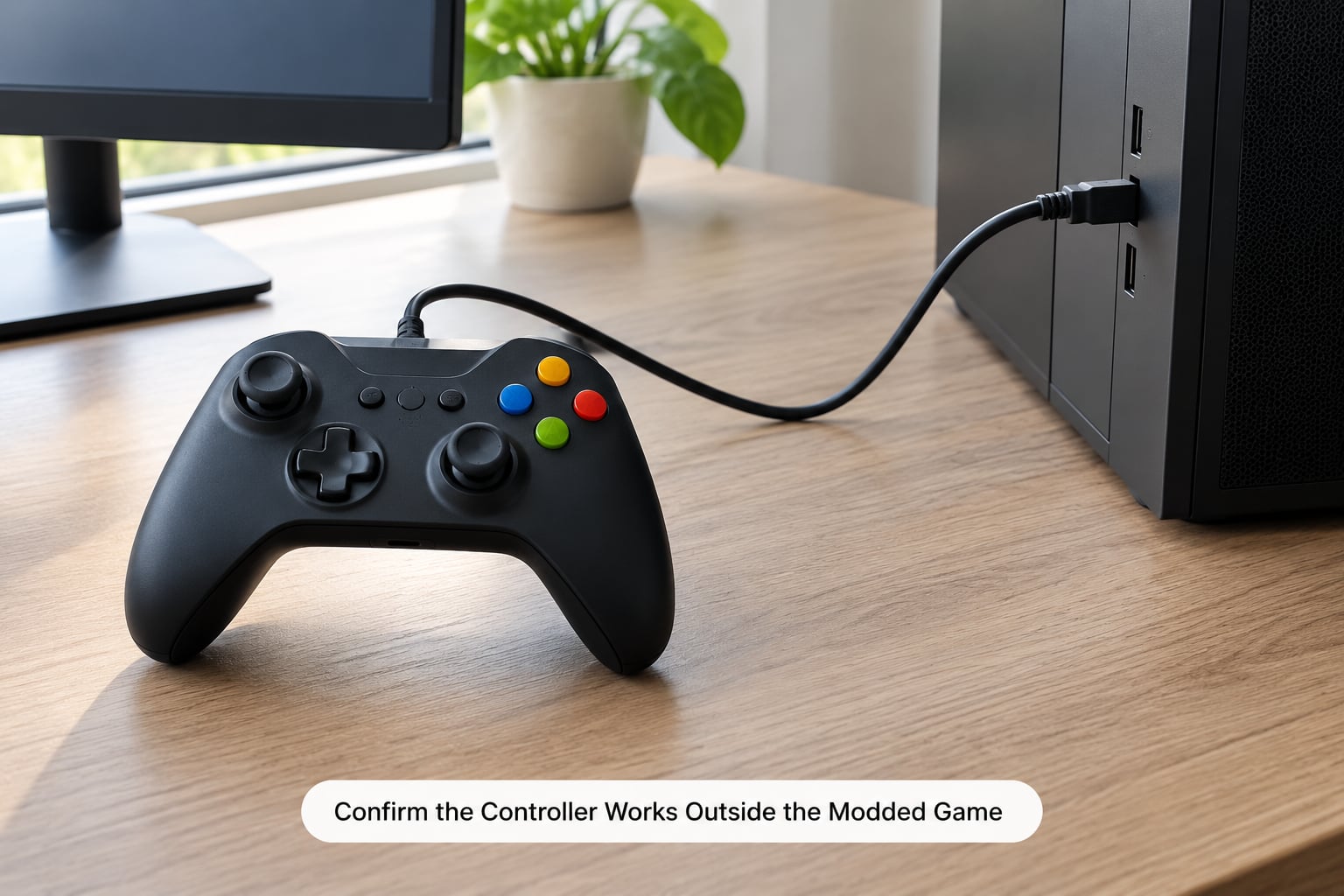
The fastest test is to launch the original, unmodded game executable directly — bypass the mod manager — and see whether the controller appears.
On Windows, press Win+R, type joy.cpl, and hit Enter. The Game Controllers panel that opens is the single most useful diagnostic tool on the platform. Click Properties and press buttons: if the lights change and the axes move, your controller, cable, driver and wireless pairing are all fine. If nothing moves, the fault is at the OS level and no mod fix will help.
Steam’s own controller settings are the next checkpoint. Open Steam, choose Controller, and check that your pad is listed as connected. Then launch any game from your library that uses a controller. That game working plus joy.cpl working means the problem sits somewhere between your mod manager and the modded build.
Console and handheld players have equivalent checks. On a Steam Deck or other handheld, open the Steam menu overlay while a game runs and look at the controller section. On Android, use an on-screen input tester app from the store, then test inside the game without mods.
How to read the result: controller responds in joy.cpl but not in the game means an input layer mismatch, not dead hardware. Nothing in joy.cpl at all means go straight to step 7.
2. Check the Connection and Controller Assignment
If the pad works on the desktop but not in the modded game, look at how it is physically connected and which input device the game is being handed.
For a wired pad, move it to a different USB port. Front-panel ports on desktops frequently lack the bandwidth for some controllers, and a hub with several devices plugged in can starve one of them. Test with the hub removed entirely.
For a wireless pad, remove it from the system and pair it again rather than just waking it. On Windows, forget the device in Bluetooth settings, then hold the pairing button until the controller’s light pattern changes. The old pairing record is a frequent cause of a pad that appears in menus but never reaches gameplay.
Phantom entries steal input slots. PCGamingWiki documents “HID-compliant game controller” entries in Device Manager that come from unrelated peripherals and can occupy the slot a game expects. Open Device Manager, expand Human Interface Devices, and disable any entry that is not your controller. Then use Action, Scan for hardware changes.
Finally, check the per-user controller assignment your platform exposes. Steam stores a controller configuration per launcher target, and Windows keeps its own last-used device in Settings, Bluetooth and devices, Devices. Both need to match the game you are actually launching.
The same check reads differently depending on what you are holding. Use this table as a quick branch for your pad.
| Controller | How it appears in Windows | Usual modding pitfall |
|---|---|---|
| Xbox Series and earlier Xbox pads | HID-compliant game controller with XInput support | Works unmodded, vanishes through the mod manager, because settings are bound to the original game entry |
| DualSense and other PlayStation pads | Sometimes listed twice: a wireless entry and a wired entry | Two entries mean two device slots; disable the stale one in Device Manager |
| Switch Pro controller | HID-compliant game controller, often after a Bluetooth pairing | Pads in last among connected devices, so a stale record usually wins the slot |
| Generic USB pads | HID-compliant game controller with no XInput flag | Games expecting XInput never see it; needs a translation layer or Steam Input |
| Steam Deck and other handhelds | Built in, listed in gaming mode and desktop mode separately | Configured in the wrong mode, so the change appears to do nothing |
3. Verify the Mod Loader and Original Game Files
This is where most guides go wrong, because they assume the controller is broken when the launch target has quietly changed.
A modded game is not launched by the game. Vortex runs the game through its own binary, MO2 runs it inside a virtualized folder, and SKSE-based games are started by the loader. Your controller configuration is bound to a program, and the program just changed. The most-reported answer on the Vortex support forums is exactly this: add the script extender launcher itself as a game in Steam, then set the controller options on that launcher rather than on the original title.
If nothing on the connection side helped, confirm which executable actually starts. That single check fixes controller not detected in a modded game more often than any other step. In Vortex, hover the Play button to see the full command line. In MO2, check the executables tab. If you see the loader or the mod manager binary rather than the game’s own exe, that is your answer.
Next, confirm the mod targets your installed game version. A mod built for an older build can load its files and still break scripts that touch menus and input. Check the version listed on the mod page against your game build, then validate the base installation through your platform — Steam’s Properties, Installed Files, Verify Integrity of Game Files, or the equivalent in your launcher.
If verification restores files, the controller often returns immediately. That is a clear signal the problem was corrupted data, not configuration.
4. Disable Mods and Test the Game
Now isolate whether mods are the cause. Launch the game with every mod disabled and a brand new save, not an existing one.
The new save matters. A UI overhaul mod rewrites the game’s interface configuration, and that configuration gets baked into your save. Returning to an old save can restore the broken prompts and menus, which sends you chasing the wrong cause for hours.
In Vortex, disable all mods and play. In MO2, uncheck every mod in the left pane rather than removing them. Then re-enable them in halves: load the first half, test on a new save, add the second half, test again. Each pass halves the search space, so twenty mods take about five sessions instead of twenty.
Pay attention to which class of mod turns up first: user interface overhauls, script extender plugins, control rebinding mods, vehicle scripts, HUD replacements, graphics and lighting mods. Interface and rebinding mods are the usual culprits, because they overwrite the menu files that hold controller bindings.
One mod reporter described a mod that restored the game’s original interface config groups and fixed favorites-menu button bindings outright. That is the same class of fix, applied to one file instead of twenty mods.
5. Resolve Input Scripts and Mod Conflicts
If the culprit is a mod, you have three options: repair it, remove it, or override it.
Check whether the mod page lists controller support or a known conflict. Repair first — in Vortex, right-click the mod and choose Repair; in MO2, let the mod manager run its verification after you change the load order. Many conflicts come from two mods both patching the same settings file, and changing the load order fixes them without touching anything else.
Then inspect the input layer itself. A controller wrapper, remapping tool or overlay can sit between the game and the pad and take input that never reaches the game. Exit overlays, recording software and third-party remappers before testing again. Several forum fixes came down to disabling Steam’s Xbox and PlayStation controller remapping support entirely.
For games that only speak one input dialect, a translation layer can rescue a pad the game refuses to see. XInput is what most modern PC games speak; DirectInput is the older, broader standard some Bethesda-era titles prefer. A DirectInput-to-XInput wrapper exposes a DirectInput pad as an XInput device, and Steam Input offers the same abstraction from inside Steam. Neither fixes a broken driver, but both fix a compatibility mismatch.
Check for a duplicate script extender too. Running two loaders, or a plugin built for a different version of the extender, leaves the game without a working input module even though the menus load.
6. Adjust Platform Permissions and Runtime Settings
Platform quirks account for a surprising share of these reports, and the fix differs everywhere.
Windows. Overlays from Discord, GeForce Experience and recording tools can hold input. Add the mod manager executable as a standard, non-elevated application in the overlay’s game list so it gets injected cleanly. If your launch options include flags from an old guide, remove them one at a time.
Steam Deck and handhelds. Desktop mode and gaming mode keep separate settings. Emulator front ends often ship with controller support turned off by default, and enabling it in desktop mode fixes detection in a lot of cases. In gaming mode, check that the controller type is set correctly under the Steam controller configuration.
Linux and Proton. This is the branch almost nobody documents properly. Your user needs read and write access to /dev/uinput for Steam’s controller remapping to function, and a member of the input group typically resolves it. Without it, Steam Input settings save but never apply, which looks identical to a controller problem.
Console. Re-pair the controller through the system’s own controller settings, confirm it is assigned as player one, and restart the console after pairing so the pairing table reloads.
Android. Grant the game input permission after installing the mod loader, and check that Bluetooth input is enabled for the profile the game runs under. Third-party launchers can lose permission after an update.
7. Reinstall the Controller Driver or Pairing Software
Only reach this step when joy.cpl shows nothing, or when the device appears with a warning icon in Device Manager. Everything before this point assumes a healthy driver.
In Device Manager, expand the controller’s entry, double-click the device, open the Driver tab and choose Uninstall Device. Tick the box to remove driver software, then unplug the pad and restart. Reconnect it and let Windows install the driver fresh from its own catalogue.
Update firmware through the manufacturer’s own utility rather than a generic driver site. Firmware mismatches produce a device that enumerates but never sends input, and they are a common cause of a pad that worked for years and then quit after a system update.
For Bluetooth controllers, remove the pairing on both sides. Forget it in the system settings, clear the controller’s own paired-device list with the button combination from its manual, and pair fresh. Wireless pads that drop mid-session are usually a sleep-and-resume problem rather than a driver problem, and a full power cycle of both the pad and the console fixes the majority of those.
Add the controller as a Steam game so you get Steam Input as a fallback layer. That gives you an on-screen layout editor, a virtual controller when hardware fails, and per-launcher profiles that survive future mod installs.
Common Mistakes
Almost every repeated failure in this topic comes from one of six mistakes.
Buying a new controller. The pad is nearly never dead. If joy.cpl responds, stop shopping and start configuring.
Configuring the game instead of the launcher. Settings bound to the original game executable do nothing once a mod manager or script extender starts the game. Configure the launcher entry.
Reinstalling the whole game. A full reinstall rarely touches the profile where your mods live, so the same broken mod breaks the same fresh install. Export your load order and bisect instead.
Testing on an old save. Interface overhauls write their changes into save data. Test on a new save every time you change that class of mod.
Leaving overlays and remappers running. An overlay that targets the game but not the mod manager can sit between the pad and the game and eat the input.
Mixing input modes without a bridge. A DirectInput-only pad launched into an XInput-only game will never be seen. Use Steam Input or a DirectInput-to-XInput wrapper.
Use this table to jump straight to the likely cause.
| Symptom | Likely cause | Fix |
|---|---|---|
| Controller missing everywhere, including joy.cpl | Driver, firmware or pairing failure | Reinstall the driver in Device Manager, update firmware, re-pair from scratch |
| Works unmodded, missing through the mod manager | Launcher target changed; settings bound to the old exe | Add the mod manager or script extender launcher as a game in Steam and configure the controller on it |
| Detected but no button responds | Input mode mismatch or a wrapper intercepting input | Check XInput versus DirectInput, close overlays, enable Steam Input |
| Wrong button prompts after installing a mod | Interface overhaul or settings file overwritten | Load the unmodded game on a new save, then re-enable the interface mod last |
| Menus work, gameplay does not | Control rebinding or script extender plugin conflict | Bisect mods, check load order, remove the rebinding mod |
| Steam Input saves but does nothing on Linux | No write access to the uinput device | Grant your user read and write permission on the uinput device |
| Works on desktop, not in an emulator | Controller support disabled in the emulator front end | Enable controller support in desktop mode and remap in the emulator |
| Drops out after a few minutes on wireless | Bluetooth sleep and pairing record | Re-pair, update the Bluetooth driver, disable USB selective suspend in power options |
Frequently Asked Questions
Why isn’t my controller detected in the game?
Almost always because a mod manager or script extender now launches the game from a different executable than the one your controller settings are attached to. Confirm it by running joy.cpl and the unmodded game. If both work, add the launcher as its own game in Steam and set the controller configuration there.
Why isn’t my controller detected in Steam games?
Check that Steam lists the pad as connected under Controller, then open the game’s Manage, Controller Configuration. If a mod manager is involved, that panel must be set on the launcher entry rather than the original game. On Linux, confirm your user has read and write access to the uinput device, without which Steam Input settings save but never apply.
Is my controller XInput or DirectInput?
XInput is the modern standard most current PC games use; DirectInput is the older and broader one some titles still speak. Windows treats both automatically in most cases, so the distinction only matters when a game refuses a pad. Open joy.cpl to see how the system lists it, and check the game’s requirements for which dialect it expects.
Why is my controller detected but not working in the game?
Detection without response usually means an input layer sits between the pad and the game. Close overlays and third-party remappers, confirm the game expects the same input dialect your pad speaks, and test with a new save after disabling mods. A script extender plugin conflict produces the same symptom, so bisect your mods if nothing else changes it.
How to get controller to work on emulator?
Most emulator front ends ship with controller support disabled, so start in desktop mode and switch it on there before launching anything. Remap the pad inside the emulator’s own settings rather than at the desktop level. On Steam Deck, check gaming mode settings separately, since desktop mode and gaming mode keep their own controller configuration.
Can PlayStation detect modded controllers?
Yes. A DualSense pad behaves like any other controller on PC, including when the game is modded, provided Windows recognises it and the game supports the input dialect it speaks. The usual failure is not the pad but the launcher target. Adding the script extender launcher as its own entry in Steam fixes it for most players.
Conclusion
Start with the controller outside the game, then check the connection and pairing, then confirm which executable the mod manager actually launches. Once the controller works unmodded and the launcher target is configured correctly, disable all mods, test on a new save and re-enable them in halves to find the culprit. Repair or remove that one mod, and your controller stays working through every future install. That order is what actually fixes controller not detected in a modded game for good.