An old game usually refuses 1080p because it was built with a short list of hardcoded resolutions, often 640×480 or 800×600, and nothing in the engine renders above that top mode. To force 1080p you override that list, and the usual order is: check Windows and in-game settings, set GPU scaling, edit the config file, pass a launch flag, then drop a wrapper such as dgVoodoo2 into the game folder. Most games fall over one of those five within ten minutes.
The word “scale” does two jobs here. It means the game ignores your monitor and sits in a corner, and it means the image gets smeared across the screen with black bars or stretched geometry. Both come from the same place: a renderer that only knows about CRT-era modes.
Getting a clean 1920×1080 image matters because a 640×480 frame pushed to a 1080p panel becomes roughly 307,200 pixels blown up to 2,073,600. Any uneven scale shows up as shimmer in the HUD, soft text and circles that turn into ovals.
Table of Contents
- 1What You Need
- 2Step-by-Step
- 3How to Force 1080p in an Old Game That Will Not Scale
- 4Check the Windows Display Resolution
- 5Set the Resolution in the Game
- 6Use Your GPU Control Panel
- 7Edit the Game Configuration
- 8Try Launch Options or Compatibility Tools
- 9Verify the Result
- 10Common Mistakes
- 11Frequently Asked Questions
- 12How do I force a game to run in 1920×1080 on Steam?
- 13Why can’t I change my resolution to 1920×1080?
- 14Is fullscreen or borderless windowed better for old games?
- 15Can I fix an old game that has no graphics options menu at all?
- 16Will editing a configuration file damage my save game?
- 17Conclusion
What You Need
Before you change anything, gather these so you are not hunting mid-fix:
- The game itself, installed and launching normally, plus the ability to open its folder
- Windows display settings, and confirmation of which monitor you actually want to use
- Your current graphics driver, updated through the vendor’s own app rather than Windows Update
- Administrator access, needed for some compatibility properties and for dropping DLLs into protected folders
- A plain text editor such as Notepad or Notepad++
- Your GPU control panel: NVIDIA Control Panel, AMD Software, or Intel Graphics Command Center
- Optional: dgVoodoo2 and Special K, both free community tools, for games with no usable resolution selector
Make one backup of the whole game folder first. It is a few hundred megabytes at worst, and it is the only way back from a bad config edit.
Step-by-Step
Work in this order. Each rung costs more effort and gives up more reversibility than the one above it, so stopping as soon as the image looks right is the sensible move.
How to Force 1080p in an Old Game That Will Not Scale
The direct answer is that you override whichever layer is enforcing the old resolution. Start at the desktop and work inward: Windows display resolution, then the game’s own options menu, then the GPU control panel, then the config file, then a command-line flag, then an API wrapper. Stop at the first step that produces a full-screen 1920×1080 image.
For the specific job of learning how to force 1080p in an old game that will not scale, the fastest route is usually a config file edit or a wrapper, because those two do not depend on the game’s menu existing at all.
Check the Windows Display Resolution
Open Settings, then System, then Display, and confirm the resolution dropdown reads 1920×1080 on the monitor you are sitting at. While you are there, check the refresh rate and pick the highest value the display offers, since old games sometimes lock to 60 Hz or inherit a mismatched rate from a second screen.
Change the desktop resolution only while the game is closed. Editing it with the game running confuses both, and you can end up with a mode the game cannot restore on exit. If you have two monitors and scaling looks wrong, unplug or disable the second one before continuing; the game may be following the wrong device.
Set the Resolution in the Game
Open the graphics or video options and look for a resolution list. Older titles split this into separate controls, so check every one: output resolution, screen size, display mode, and a fullscreen toggle. A game with a list that stops at 1024×768 cannot reach 1920×1080 through that menu, no matter how many times you click it.
Pay attention to which fullscreen mode you pick. Exclusive fullscreen gives true 1920×1080 and lets the game swap modes cleanly. Borderless windowed always matches the desktop resolution, which is handy on multi-monitor setups but occasionally leaves the image scaled by the driver rather than rendered at native size. If the game offers windowed mode with a fixed window size, that setting usually stays at the last resolution and gives the crispest result for menus.
Choosing a resolution higher than your panel is worth avoiding. The extra pixels get clipped rather than shrunk, so you lose the edges of the HUD instead of gaining detail.
Use Your GPU Control Panel
The driver can take over scaling when a game will not. In NVIDIA Control Panel, open Adjust desktop size and position, set Scaling mode to Aspect ratio or No scaling, and tick Perform scaling on the GPU. Under Adjust image settings with preview you can also set the preferred resolution to the native panel resolution. The current NVIDIA app exposes the same controls in a Settings, Graphics or Scaling section.
In AMD Software, the Display tab has GPU Scaling, which you switch on, plus a Scaling mode choice of Full panel, Center, or Preserve aspect. In the Intel Graphics Command Center, the equivalent lives under Display, where Scale can be set to Aspect ratio, Stretch, or Center.
These scaling controls grey out when your desktop resolution already equals the monitor’s native resolution, which is exactly when you want them. The workaround that VOGONS users rely on: drop the desktop resolution one notch below native, open the scaling control, set Centered or Preserve Aspect Ratio while the option is unlocked, apply it, then restore the native desktop resolution. The setting sticks even though the control greys out again afterwards.
One more trap from the same forum: Preserve Aspect Ratio sometimes reverts to Full Screen after you click Apply. Reopen the panel and check the value actually saved before you close it.
Edit the Game Configuration
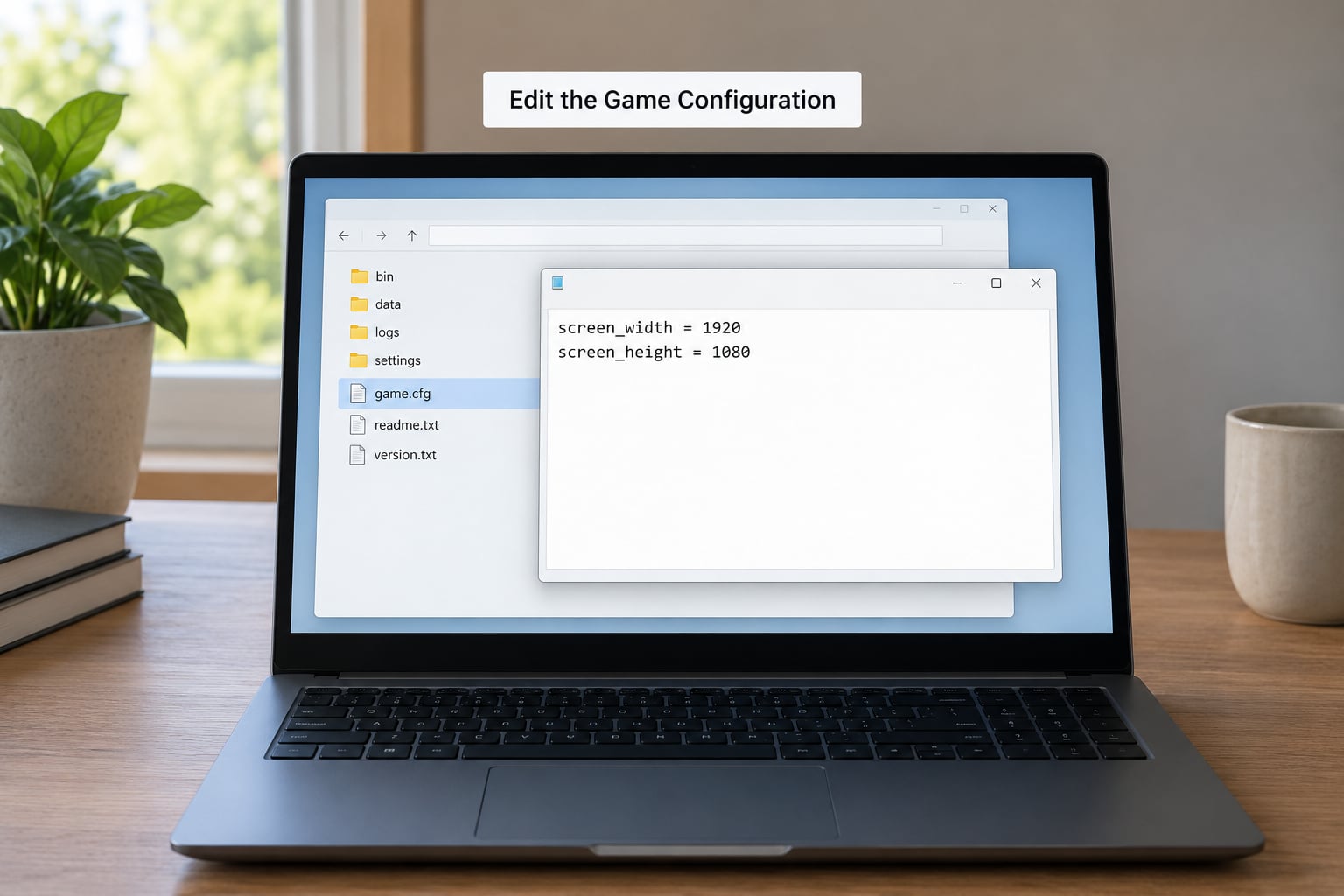
Most games of this era keep settings in an INI, CFG, or registry-style file inside the folder. Look for names like config.ini, game.cfg, settings.cfg, display.cfg, or anything containing the word screen. If you cannot find one, launch the game once, change a setting, quit properly, and check the modification time on the files in the folder to see which one it wrote.
Back the file up, then change the width, height and fullscreen values. A typical block looks like this:
ScreenWidth 1920

ScreenHeight 1080

FullScreen 1

AspectRatio 1.777778
Key names vary, which is the usual snag. Source-engine titles accept launch flags instead, Unreal-era games often use a resolution name rather than numbers, and some 1990s games only read a display section from the Windows registry rather than any file.
Two rules save a lot of frustration. Copy the existing file first and keep the copy, because a game that finds a config it cannot parse may silently reset to defaults. And avoid pasting a config downloaded for a different version or a different game; those files list keys the current build ignores and omit keys it depends on.
Registry-based titles respond to a different trick. Create a new text file, enter the game path under a registry key such as HKEY_CURRENT_USERSoftwareVirtualDub, or the vendor key the game’s readme names, and save it with a .reg extension. Double-clicking it applies the keys. Run the game once so it writes its own settings, export those keys, then edit the width and height values there.
Try Launch Options or Compatibility Tools
Command-line flags override the config file, so they work when a config edit gets stomped on every launch. In Steam, right-click the game, choose Properties, open the Launch Options box, and enter the flags the engine accepts. Source and GoldSrc titles use -width 1920 -height 1080 -windowed. Quake and Quake II use +set r_mode -1 +set vid_width 1920 +set vid_height 1080. Add -fullscreen or -windowed where the engine supports it. GOG and GOG Galaxy expose the same box under Manage installation properties and Launch options.
Alt+Enter toggles windowed and fullscreen in many of these engines, and it is the fastest way to test whether the flag stuck.
Windows compatibility properties come next. Right-click the executable, open Properties, go to the Compatibility tab, and try Change high DPI settings, then Override high DPI scaling behaviour and pick Application. Disable fullscreen optimizations sits on the same tab and is worth testing, since it changes how the compositor treats a borderless window. None of this raises the render resolution, but it fixes wrong-looking output where the resolution itself is already correct.
When the game offers nothing usable, wrap the graphics API. dgVoodoo2 is a translation layer that sits between the game and your GPU, and it lets you force a virtual resolution the game never shipped with. Copy the right DLL from its x86 folder into the game folder: ddraw.dll for DirectDraw 2D titles, d3d8.dll for Direct3D 1 through 8, d3d9.dll for Direct3D 9, and glide2x.dll for Glide-era 3dfx titles. Then run dgVoodooCpl.exe from the game folder and set Forced Resolution to 1920×1080, choose a scaling mode of stretched, centered or aspect-corrected, pick Direct3D 11 or 12 as the output API, and disable the watermark. Hit apply, then start the game.
dgVoodoo also has a plain text config, dgVoodoo.conf, usually kept in the Windows or SysWOW64 folder. One line there saves a lot of grief: under the GeneralExt section, set PresentationModel to flip_discard. If it stays on the default BitBlt discard and you then run Special K, the two disagree and you get enormous log files and a frame rate that collapses. It also fixes the double cursor you can otherwise get on a high-DPI display.
Special K goes in the game folder as a DLL and opens its own overlay with Ctrl plus Shift plus Backspace. It adds frame caps, an FPS overlay, HDR toggles and, through its dgVoodoo integration, some of Special K’s features on titles too old to support it natively.
Lossless Scaling works at the capture level, taking any window and upscaling it. r/losslessscaling users report that layering it over dgVoodoo2, enabling MSAA at the highest level and running through DirectX 12 is what finally made it cooperate with an old DirectDraw game. Others set the in-game resolution below the panel and force windowed mode, then let Lossless Scaling do the upscale. Expect the image to darken on some titles, and treat its frame generation as a separate decision from resolution.
If you use ReShade alongside dgVoodoo2, install the DirectX 11 or 12 build. The legacy DirectX build is the version that fails to load in that combination.
Last on the ladder is a community widescreen patch, which is often the best answer when one exists for your title. The Widescreen Fixes Pack and per-game patches such as the bigg series extend the mode table properly and correct field of view at the same time, which a wrapper cannot do. Check the game’s Nexus Mods page, PCGamingWiki entry, Steam Community guides and GameFAQs boards before writing your own config.
Verify the Result
A correct 1080p render has four tells. The image fills the panel edge to edge with no black bars on the sides for a 16:9 title, or expected bars of equal size on both sides for a 4:3 one. Menu text and the HUD are sharp, with square pixels of even size. Circles look like circles. And a screenshot taken at full resolution measures 1920×1080.
Also check that nothing stuttered. Going from 640×480 to 1920×1080 multiplies the pixels the renderer has to draw by roughly 6.75, and from 1024×768 by about 2.6. Old fixed-function titles often cope; anything with heavy texture work may not. That is the real trade-off of forcing 1080p, and it is worth measuring frame time before and after rather than guessing.
If the image looks wrong, do not move on. Black bars on both sides usually mean the game is rendering below the panel and nobody is scaling it. Stretching means scaling is set to full screen or full panel with the aspect ratio unlocked. A correct aspect ratio with soft edges means the scaling is happening at the compositor instead of the GPU, which integer scaling fixes.
Common Mistakes
Changing desktop resolution with the game open. Close it first. Windows and the game will fight over the mode and you can end up with a display you have to reset by hand.
Editing the wrong config file. Games often ship several with similar names, and some only read the one inside the folder rather than the one in Documents. Change a value, save, launch, and if it reverted you touched the wrong file.
Scaling greyed out in the GPU panel. Use the lower-the-desktop-resolution workaround described above.
Using GPU scaling when the game needs borderless. Borderless windowed and a forced GPU scale can fight each other. Pick exclusive fullscreen when you want the driver scaling.
Forcing an aspect ratio the game was not built for. Stretching 4:3 output to 16:9 makes everything look fat. 640×480 scales to 1440×1080 at the correct 4:3, which leaves even bars on a 1080p panel, and that is the correct look rather than a failure.
Wrapping a game with hardcoded framebuffers. A few engines lock their own backbuffer and ignore forced resolutions completely. When a wrapper has no effect, the remaining option is patching the executable or using a community patch built for that game.
Leaving a wrapper in place after a patch. If you install a widescreen patch later, remove the dgVoodoo DLLs or you can end up with two layers fighting over the same swap chain. Every step above is reversible by deleting what you added.
Frequently Asked Questions
How do I force a game to run in 1920×1080 on Steam?
Use the Launch Options box under the game’s Properties in Steam. Source and GoldSrc titles accept -width 1920 -height 1080 -fullscreen, and Quake-style engines take +set vid_width 1920 +set vid_height 1080. Launch flags take priority over the config file, so they survive a game that rewrites its settings. If the flags are ignored, the engine has no resolution switch and you need dgVoodoo2 or a widescreen patch instead.
Why can’t I change my resolution to 1920×1080?
Because the game only renders modes that were hardcoded into it when it was made, usually a table ending at 800×600 or 1024×768. No monitor setting or driver option can add a mode the engine does not have. You either patch that mode table with a community widescreen patch, or intercept the graphics API with dgVoodoo2 and force a virtual resolution of 1920×1080 yourself.
Is fullscreen or borderless windowed better for old games?
Exclusive fullscreen gives a true mode switch to 1920×1080 and usually the cleanest scaling, which makes it the better choice when the image is wrong. Borderless windowed is easier to alt-tab from and avoids flicker on some panels, but the compositor can scale the window for you, which is a common source of soft, uneven pixels. If borderless looks wrong, switch to exclusive fullscreen before blaming the wrapper.
Can I fix an old game that has no graphics options menu at all?
Yes, and this is the normal case for DOSBox titles, DirectDraw 2D games and anything from the 1990s. Skip the menu entirely and use a launch flag, a config file edit, or dgVoodoo2 with Forced Resolution set to 1920×1080. DOS games need the resolution set inside DOSBox or a wrapper such as dgVoodoo’s glide layer, since there is no Windows display involved at all.
Will editing a configuration file damage my save game?
Very rarely, and only if you edit the file that stores the save itself. Resolution settings normally live in a separate config or options file, so changing them does not touch your saves. Close the game before editing so it cannot overwrite your changes on exit, keep the backup copy, and if a broken config makes the game refuse to start, delete or rename the file and let the game regenerate defaults.
Conclusion
Set Windows and the game to 1920×1080 first, with the game closed, and check the fullscreen mode. If that does not produce a full-screen 1920×1080 image, move to the GPU scaling controls, then to a config file edit, then to launch flags, and only then to a wrapper like dgVoodoo2. Every step is reversible, so back up the game folder before you start and stop as soon as the picture fills the screen correctly.