Here is how to fix widescreen support in older games, in the order that costs you the least effort: a GPU driver scaling setting, an edit to the game’s config file, a community-made widescreen patch, or a hex edit of the game executable. Almost every engine built since the late 1990s can already draw a wider image than 4:3 — the developers just hid it behind a fixed list of resolutions.
Start with the free steps. Check the video menu, try windowed mode, and set scaling in your graphics control panel; those three take a couple of minutes and fix a large share of titles. Most of the rest need a per-game patch, and a small number of games genuinely cannot be widened.
Table of Contents
- 1What You Need
- 2Step-by-Step
- 31. Identify the Game and Release
- 42. Test the Monitor’s Native Resolution
- 53. Check the Game’s Built-in Widescreen Options
- 64. Apply a Widescreen Fix or Aspect-Ratio Tool
- 75. Edit the Configuration File Correctly
- 86. Fix Letterboxing or Stretched Graphics
- 97. Verify the Result and Troubleshoot Crashes
- 10Common Mistakes
- 11Frequently Asked Questions
- 12Can I make an old single-player game widescreen without modifying files?
- 13Why does my widescreen fix work in the main menu but not inside the game?
- 14What aspect ratio should I use for a 16:9 or 21:9 monitor?
- 15Do widescreen tools work with multiplayer games?
- 16Why are there still black bars after I enable widescreen mode?
- 17Can I use a widescreen fix on an emulator?
- 18Games You Can Genuinely Not Widen
What You Need
Gather these before you change anything. The list is short, and every item is free.
- The exact game and release: which platform you own it on, and which version. Steam, GOG, an original disc, a portable or handheld build each ship a different executable.
- Access to the game’s install folder, so you can find the config file and read it in a plain text editor such as Notepad or Notepad++.
- Your graphics control panel: NVIDIA Control Panel, AMD Software, or Intel Graphics Command Center on a laptop.
- A backup copy of the game folder, or at minimum the executable and any .ini or .cfg file you plan to touch.
- Optional, only if steps 1 to 3 are not enough: a widescreen fix tool. Somewhat Universal Widescreen Fix (SUWSF) covers a wide range of titles, Flawless Widescreen handles a fixed list of supported games, and Universal Widescreen (UniWS) covers older titles like the older Need for Speed and strategy releases.
- Optional, last resort: a hex editor such as HxD or 010 Editor, plus a memory scanner like Cheat Engine.
Step-by-Step
1. Identify the Game and Release
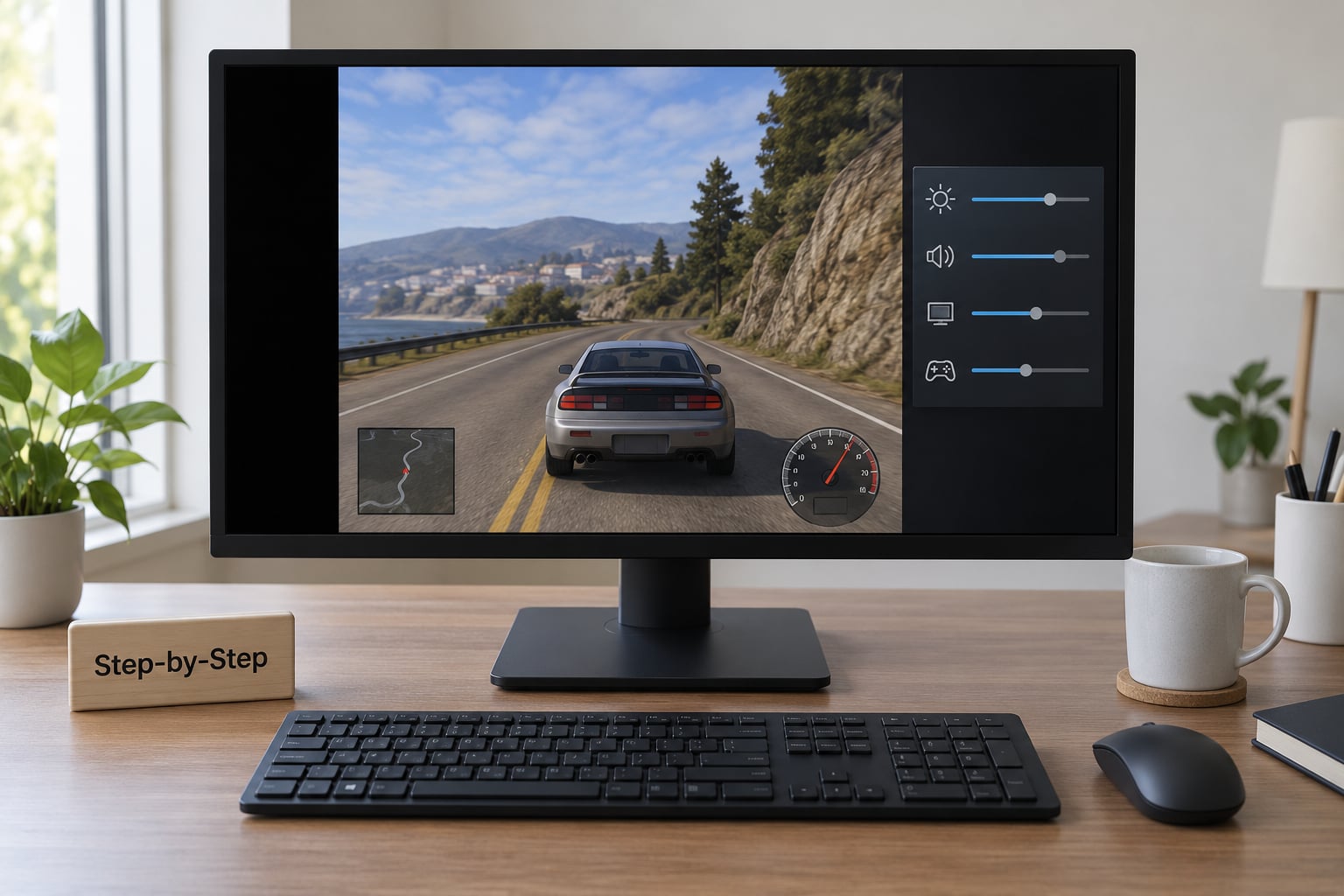
Open the game’s install folder and find the executable, usually the .exe with the game’s name or the largest file in the list. The path tells you a lot: a Steam library path means the launcher may re-verify and overwrite files you change, while a GOG or disc install is far more forgiving to edit.
Check expansions too. A widescreen patch built for the base game often breaks when a second expansion is present, because the resolution values moved to a different part of the executable.
2. Test the Monitor’s Native Resolution
Set your desktop to the monitor’s native resolution and its highest refresh rate before launching anything. On Windows, that is Settings, System, Display, then Display resolution and Advanced display.
Many legacy titles offer only 640×480, 800×600 or 1024×768, and a modern panel may refuse those modes. Setting the desktop to a lower resolution is a crude but effective test: if the game looks correct at a lower desktop resolution, the problem is the game’s resolution list, not your display.
3. Check the Game’s Built-in Widescreen Options
Open the video settings in the game and look through every tab, including advanced or advanced graphics settings. You are looking for a widescreen toggle, an aspect ratio slider, an explicit 16:9 or 21:9 option, or a custom resolution field. The wording changes with age: late 1990s titles tend to have an Aspect Ratio slider, mid-2000s releases an Aspect Ratio dropdown, and 2010s titles an Aspect Ratio or Display Mode menu.
Console versions are a different story. Consoles handle scaling in the system menu rather than in the game, so on PlayStation or Xbox the equivalent setting sits in the console’s own video output options, where you can usually choose between 4:3, 16:9 and automatic.
Also test windowed or borderless windowed mode. It costs nothing, it never distorts the image, and community players on gaming forums still call it the most underrated fix for a game stuck at a low resolution.
4. Apply a Widescreen Fix or Aspect-Ratio Tool
If the game has no working option, look for a patch before you build one. That is the step where most people stop halfway through learning how to fix widescreen support in older games, and it is the step that solves the titles nobody shipped a 16:9 mode for. The Widescreen Gaming Forum (WSGF) and PCGamingWiki both index per-game patches, and the PCGamingWiki community files section is where most modern ASI Loader patches live.
The modern pattern is simple: drop the patch’s files into the game folder, place an ASI Loader such as ThirteenAG’s Ultimate ASI Loader alongside the executable, then set the resolution and field of view factor in the patch’s config file. SUWSF works the same way but pulls its patches from a shared repository, so a single install covers many games. Flawless Widescreen uses per-game LUA or XML plugins and needs the Microsoft Visual C++ 2010 Redistributable installed.
Match the target ratio to your panel: 2560×1080 for 21:9, 3440×1440 for 32:9. Keep the patch files in the same folder as the executable, and make your backup before the first run so uninstalling is just a delete.
5. Edit the Configuration File Correctly
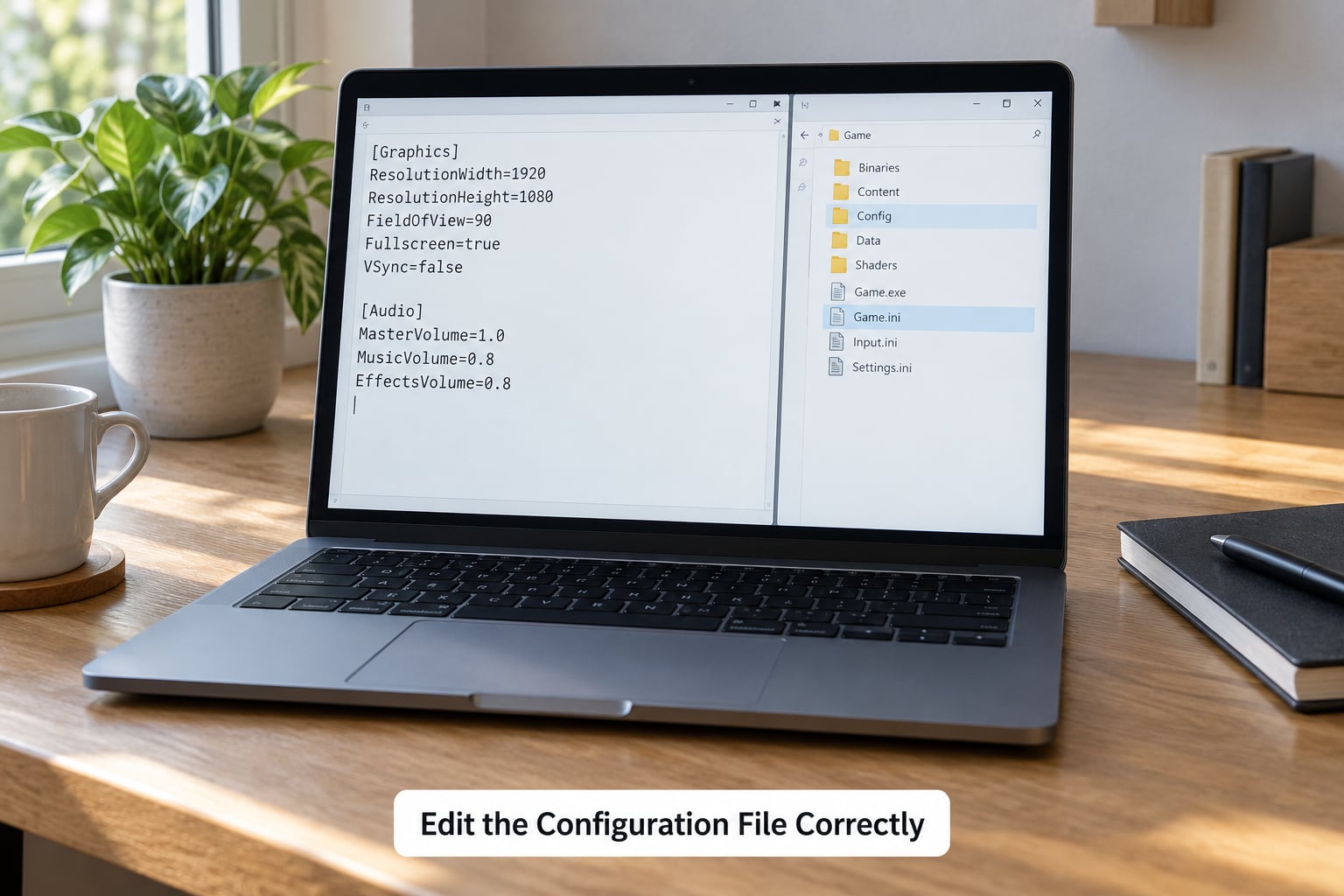
Many games store display settings in a file beside the executable: a .ini, .cfg or .xml with settings like ScreenWidth, ScreenHeight, Fullscreen, FOV or Resolution. Close the game first, because most of these files get rewritten on exit and your edits will vanish.
Copy the original file, rename the copy so you have a way back, then change only the width and height values and, if present, the aspect ratio line. Add keys only if the game’s own documentation or a patch readme mentions them. Random keys are ignored at best and can stop the game launching at worst.
If nothing changes, the game may keep settings in the Windows registry under HKEY_CURRENT_USERSOFTWARE, in a folder named after the game. Press Win key plus R, type regedit, and search there for the game’s name or the string FullScreenMode.
6. Fix Letterboxing or Stretched Graphics
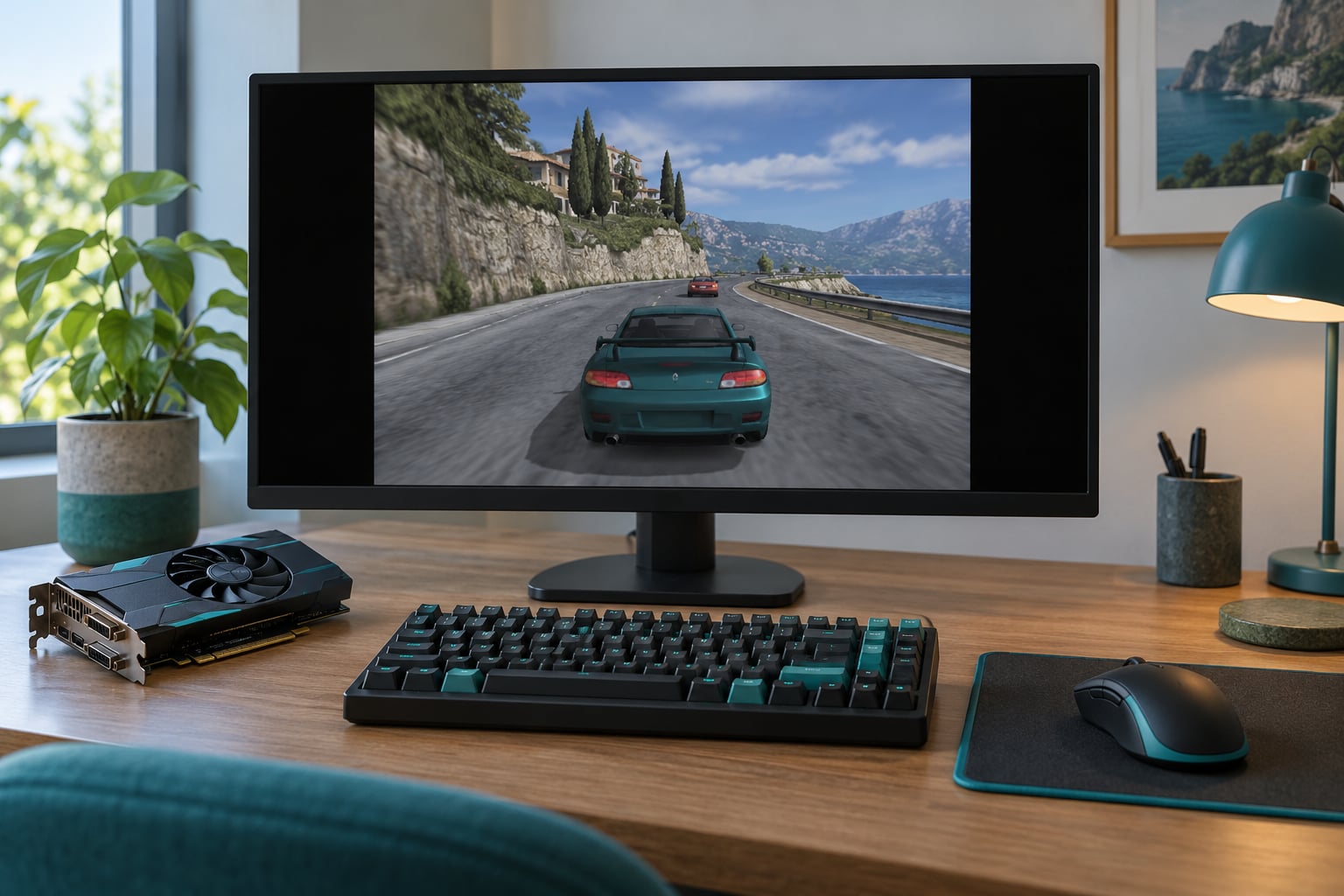
Not all black bars are a problem. Cinematic bars at 2.39:1 or 2.35:1 are part of the film transfer and should stay. Pillar bars on both sides of a 4:3 image on a widescreen panel are the game telling you honestly that it does not support the width.
Stretched output, where characters look wide and round, is the opposite problem: the image is being scaled without regard for proportion. Fix it in the graphics driver rather than in the game. In the NVIDIA Control Panel, set Adjust desktop size and position to No scaling, or to Aspect ratio with Full-screen. In AMD Software, look under Display for Keep aspect ratio. On Intel Graphics Command Center, the same option sits under Display settings. Community users on the GOG boards point out one catch: a VGA cable bypasses driver scaling entirely, while DVI and HDMI enable it, so an old cable can defeat the setting.
If the image is correctly proportioned but cut off at the edges, check the monitor’s own overscan control in its menu. Overscan trimmed for console input will chop a PC signal.
One more thing to fix at the same time: field of view. Widen the resolution and most engines scale the view down vertically to compensate, a habit the community calls Vert-. Characters look squat and the camera sits closer than it should. A field of view calculator, the one hosted on WSGF, tells you the multiplier that keeps vertical view constant and adds the extra width at the sides. The result is called Hor+, and that is what most people mean when they say a proper widescreen fix.
7. Verify the Result and Troubleshoot Crashes
Load a save or start a new game and look at three things: the image fills the panel with no distortion, the HUD sits where it should, and the vertical view matches what you had in 4:3. A main menu that looks right proves nothing, because menus often ignore the game camera.
If the game now crashes or starts to a black screen, work backwards through what you added. Turn off overlays from Discord, GeForce Experience, MSI Afterburner or the Steam overlay, since injected overlay DLLs are the most common cause of a crash after adding an ASI Loader patch. Remove the patch files and confirm the game launches clean. If it fails with a missing DLL error such as Error 126, install the Microsoft Visual C++ Redistributable for the version the tool asks for, and check whether the patch expects a dsound.dll sitting in the game folder.
Outdated graphics drivers cause their own strange scaling behaviour on Windows 10 and 11, where the aspect ratio option stops responding until the driver is reinstalled. For emulated consoles, change the resolution in the emulator’s own video settings, not in the guest game’s menu, and turn off any aspect-ratio correction in the emulator until the guest game is running.
Common Mistakes
Almost every failure here has a simple cause. Work down this list in order.
- Black bars on both sides after enabling widescreen mode. The fix changed the render size but the driver is still correcting the aspect ratio. Set the driver to No scaling, or drop the in-game resolution until the image reaches the edges.
- Everything looks stretched. The image is being scaled without proportion. Set aspect-ratio scaling in the graphics driver, and check the cable type if the option seems to have no effect.
- Menus are cropped at the sides. The game renders at a wider ratio than the interface was built for. Lower the in-game resolution by one step, or apply a patch that fixes both the camera and the HUD.
- The game crashes on launch after a patch. Remove every file the patch added, verify the game runs, then add files back one at a time. Overlays are the usual culprit.
- The screen flickers or the image stutters. Usually a vertical sync mismatch between the game and the driver at the new resolution. Try fullscreen exclusive instead of borderless, and test with V-Sync off.
- Settings reset every time the game launches. The config file is read-only, or the game keeps its settings in the registry. Clear the read-only flag, and edit the registry key instead.
- The patch does nothing at all. Wrong folder, or the game uses a different executable than the one you patched. Confirm the .asi file sits next to the .exe the launcher actually starts.
- The view feels wrong even after a successful patch. That is a field of view problem, not a resolution problem. Apply the Hor+ correction from step 6.
Frequently Asked Questions
Can I make an old single-player game widescreen without modifying files?
Often, yes. Start with the driver’s aspect ratio scaling, then try windowed or borderless windowed mode, which fixes the distortion without touching a single game file. Older console releases can often be corrected from the console’s own video output menu. You only need to modify files when you want true Hor+ output, where you see more of the scene rather than the same view with a wider shape.
Why does my widescreen fix work in the main menu but not inside the game?
The menu and the game camera use separate values in most engines, so a fix that touches only one leaves the other unchanged. Apply a patch that corrects the in-game field of view as well, or adjust the view multiplier in the patch config. Check a real gameplay scene, not a menu, whenever you verify a widescreen fix.
What aspect ratio should I use for a 16:9 or 21:9 monitor?
On a 16:9 display, 2560×1440 is the normal target. On a 21:9 panel, 2560×1080 gives true ultrawide. On 32:9, use 3440×1440, and on 48:9 super ultrawide, 7680×1600. If a patch only offers 21:9 on a 32:9 screen, run it in 21:9 and let the driver pillarbox the remainder rather than stretching.
Do widescreen tools work with multiplayer games?
Usually not safely. Tools that inject a DLL or use an ASI Loader can be treated as cheating by anti-cheat systems, which range from a warning to a permanent ban. SUWSF and the other general fixers both carry explicit anti-cheat warnings. Stay on unpatched settings for anything with competitive or ranked play, and use the fixes on single-player titles only.
Why are there still black bars after I enable widescreen mode?
Three causes cover most cases. The game renders at the old ratio while the panel expects the new one, the driver is adding aspect correction on top of the game’s own scaling, or the video signal is arriving over a cable or port the console treats as a legacy scan-out mode. Set the driver to No scaling first, then confirm the image fills the panel on a gameplay screen rather than in the menu.
Can I use a widescreen fix on an emulator?
Yes, but not the same fix. Emulators such as PCSX2, Dolphin, PCSX-Qt and RPCS3 have their own resolution and aspect-ratio settings, and those handle most console widescreen requests on their own. Set the internal resolution to match your panel and let the emulator scale the output. Memory patches built for the original PC executable will not apply to an emulated console game.
Games You Can Genuinely Not Widen
Some titles have no widescreen version coming, and no patch will change that. Two-dimensional games built on pre-rendered backdrops, with Diablo II the example people on WSGF always name, draw their backgrounds as fixed images that cannot be extended past the original frame. Games with a hard-locked resolution and no config file fall into the same bucket.
There is a reasonable alternative for those: run them in windowed mode, or set the desktop resolution to match and let the whole screen take over. Older players on the GOG forums generally prefer this to a bad patch, and they are right to. A sharp 4:3 image with small borders beats a wider frame full of artifacts every time.
So start here if you are searching how to fix widescreen support in older games: check the in-game video options first, then the desktop and driver settings. Those cost you ten minutes and need nothing installed. If the game is still wrong afterwards, search the Widescreen Gaming Forum and the PCGamingWiki community files for a per-game patch before you consider editing anything yourself.