
To fix out of memory errors in modded games, start by working out which memory ran out and why, then isolate the cause before changing any settings. Most cases come down to one of four things: a hard ceiling in the game itself, video memory pressure, a mod that leaks memory over time, or a corrupted save. The fix that works depends entirely on which one you have.
Most of this takes about 20 minutes, and none of it requires buying hardware. If you cannot tell a VRAM error from a RAM error, you will spend hours on changes that do nothing.
Last updated: October 2026
Table of Contents
- 1What You Need
- 2Step-by-Step: How to Fix Out of Memory Errors in Modded Games
- 31. Confirm the Error and the Affected Game
- 42. Check the Mod’s Requirements and Compatibility
- 53. Disable Other Mods and Test the Problem Mod Alone
- 64. Repair or Reinstall the Game Files
- 75. Clear the Mod Cache and Temporary Files
- 86. Lower Graphics and Texture-Memory Settings
- 97. Remove or Replace the Mod Causing the Error
- 108. Improve Memory and Background Performance
- 11Game-specific fixes
- 12Common Mistakes
- 13Frequently Asked Questions
- 14Does increasing virtual memory or the pagefile fix out of memory errors in modded games?
- 15Why does my modded game report out of memory when Task Manager shows plenty free?
- 16How do I read a crash log to find the real cause?
- 17How do I reduce VRAM usage from high-resolution texture mods?
- 18Are there memory limits on console and Android modding?
- 19When should I report a mod as incompatible rather than keep debugging?
- 20Conclusion
What You Need
Collect these first. Troubleshooting goes much faster when you are not guessing.
- The exact error text. Copy the full message, including the file path if there is one. “Out of memory”, “out of video memory” and “system ran out of memory” are three different problems wearing similar names.
- The game version and edition you are running, plus your operating system. A mod built for one edition frequently refuses to load on another.
- The official system requirements for the unmodded game. This gives you a floor to compare against, and modded setups usually need considerably more than the listed numbers.
- The mod’s own documentation — the page you downloaded it from, including its stated game version, required libraries and known conflicts.
- Your crash log or error log if one was generated. It usually names the file or mod that failed, which saves an entire round of testing.
- Administrator access on Windows if you plan to verify game files in a protected installation folder.
- A backup of your saves and configuration files. Several fixes below involve deleting things, and losing a long playthrough to a cache folder is a bad afternoon.
Step-by-Step: How to Fix Out of Memory Errors in Modded Games
Work through these in order. Each step is cheaper than the one after it, and skipping ahead to the reinstall wastes an evening and often erases the evidence you need.
1. Confirm the Error and the Affected Game
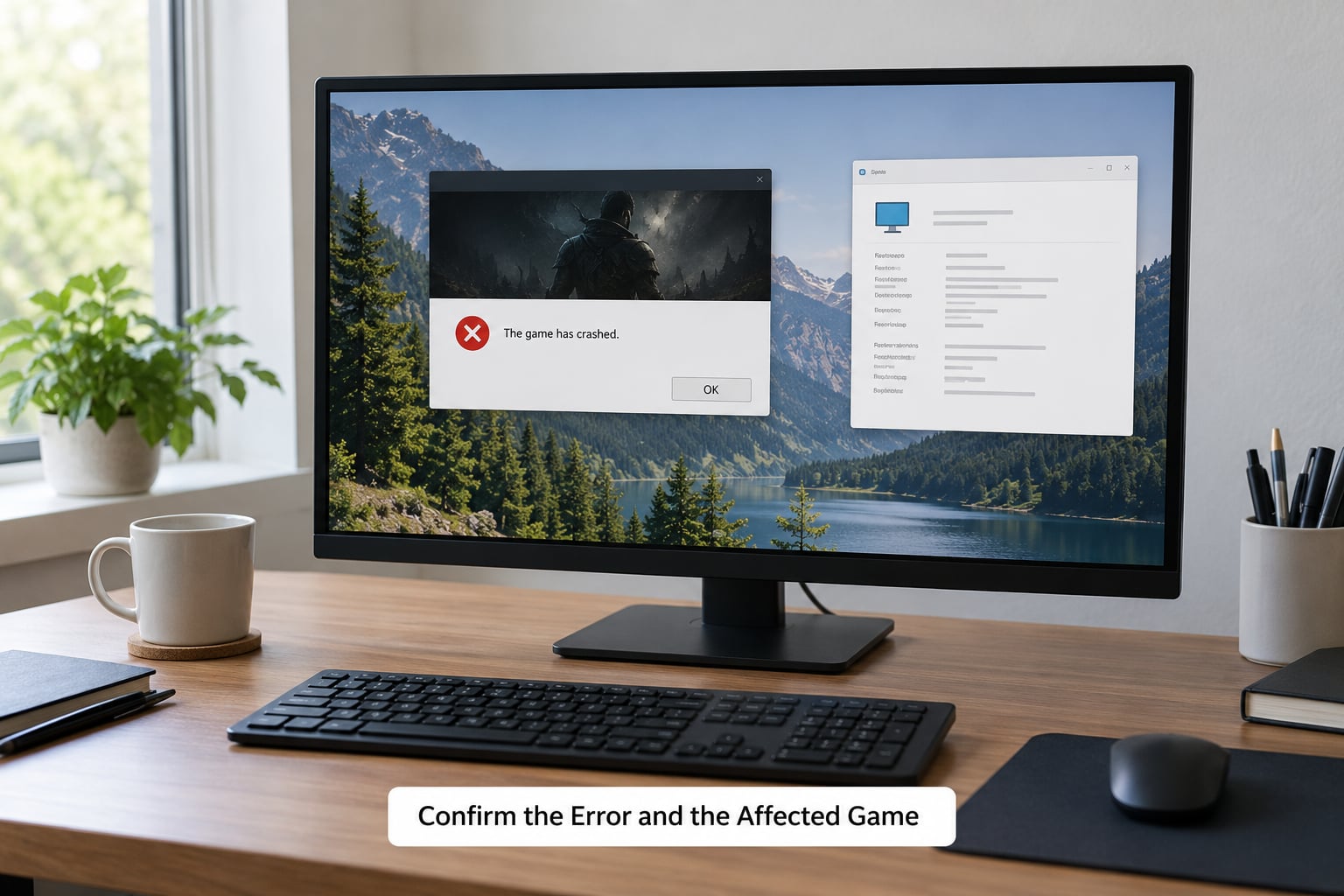
Read the message word by word, because the wording tells you where the failure happened. A failed memory allocation, a graphics driver reset, a scripting error and a corrupt asset file can all surface as a generic crash, and only one of them is actually a memory problem.
Note two more details while you are there: whether it fails the moment the world loads, or after a set stretch of play. An immediate crash points at requirements, conflicts or file corruption. A crash 25 minutes in points at a leak. That distinction saves you from fixing the wrong thing.
Write it down before you change anything. You will forget which message you started with.
2. Check the Mod’s Requirements and Compatibility
Compare what the mod asks for against what you have. Check the required game version first, since a version mismatch is the single most common cause of a modded game failing at load.
Then check the other listed dependencies: a specific engine or script extender build, a particular graphics API, a library the mod bundles rather than declares, and any mod it explicitly conflicts with. Two map mods of the same type, for example, routinely fight over the same resource and the failure often reads like a memory error.
Check your load order too, if the game uses one. Out-of-order entries frequently trigger a failure inside another mod’s code that gets reported in a confusing place.
3. Disable Other Mods and Test the Problem Mod Alone
Move every mod out of the active folder rather than toggling them one by one in a launcher. Renaming the mods folder to something else entirely is the fastest way to guarantee the game launches clean.
Launch with no mods. If the game runs fine, the problem is in your mod set. If it still fails, the problem is the base game, your save or your settings, and no amount of mod editing will help.
Once you know the clean base works, put the mods back in halves. Put half in, test, and only continue if it runs. This is a binary search, and it turns an evening of one-at-a-time testing into a handful of launches.
Keep a written record of which group you tested. The moment you lose track of it, you end up where you started.
4. Repair or Reinstall the Game Files
Verify the installation before you reinstall anything. On Steam, open the game’s Properties, open the Installed Files tab and choose Verify integrity of game files. On GOG the same job sits under Verify integrity. On Xbox and Microsoft Store titles, use the Repair option under Apps and Features in Windows Settings.
On Epic Games Store, open the launcher and choose Manage, then Verify. None of these touch your save files, which sit outside the game installation.
Reinstall only if verification does not clear it. Save folders live in their own locations — AppData for Bethesda titles, the saves folder inside the Minecraft directory for Java edition — and a full uninstall can wipe them, so copy them out before you start if they matter to you.
5. Clear the Mod Cache and Temporary Files
Caches accumulate and can genuinely leak. On Minecraft Java edition, the launcher regenerates shader and asset caches from the versions folder, and a stale cache is a known trigger for slowdowns and memory growth.
There is a well-documented cache fix for Java edition specifically: deleting the webcache2 directory inside the .minecraft folder resolved a Java memory leak for one EndeavourOS forum user. It is a safe thing to try because the game rebuilds it on the next launch.
On Windows, clearing the temp folders and the crash-report folder gives you a cleaner error message next time, which is its own kind of fix. On Linux, the equivalent lives under the cache directory in your home folder, usually hidden and named after the launcher.
On consoles, clearing the local save cache is different from deleting the save itself. Check your console’s storage management screen and use the option that clears cache, not the one that clears data.
6. Lower Graphics and Texture-Memory Settings
Texture quality and render distance are the two settings that move video memory the most. Halving render distance and switching textures from high to medium often resolves an out-of-video-memory message on its own, and it costs you very little visually at normal viewing distances.
Shadow quality, anti-aliasing, volumetrics and reflection effects also sit in video memory, though less dramatically. Turn them down one at a time rather than all at once, so you know which one mattered.
Be honest about what this accomplishes. Lowering graphics reduces pressure and buys headroom; it does not repair a leak. If the error keeps returning after 25 minutes at low settings, the cause is not your graphics configuration.
7. Remove or Replace the Mod Causing the Error
Once your bisect points at a specific mod, check its page for a newer build. A large share of memory errors in modded games were fixed by the author in a later version, and updating is cheaper than replacing the mod entirely.
If there is no update, look for a maintained alternative that covers the same content. Say goodbye to the culprit cleanly — remove its configuration folder as well as the mod file, because leftover config blocks are a known source of conflicts.
Before restoring the rest of your loadout, note the conflict you found. Some combinations never play well together, and knowing that in advance saves you rediscovering it after the next update.
Worth remembering that some of these failures are not memory at all. A thread on r/MinecraftMod about a leaking mod pack turned out to be outdated graphics drivers plus two competing map mods, and a mix of Fabric and Forge through Connector. Drivers and conflicts imitate memory problems constantly.
8. Improve Memory and Background Performance
Close what you do not need. Overlays, screen recorders and browser tabs consume memory that a memory-hungry game cannot spare, and disabling the Steam overlay is a reasonable first try.
On virtual memory, raise it rather than disable it. Windows manages a pagefile by default and lets it grow; setting a fixed small size, or unticking automatic management, removes the buffer that absorbs a spike. Leave it on system-managed unless you have a specific reason.
Then confirm physical memory is really the constraint. r/starsector users report leaks developing around eight to nine hours into a session on a 16 GB system with 6 GB allocated, which is a leak pattern rather than a capacity one, and restarting or starting a new save is the only real answer.
Game-specific fixes
Minecraft (Forge and Fabric). The Java heap, set with the -Xmx launch argument in the launcher’s JVM arguments field, is the ceiling you actually control. Give it a value below your physical memory and above what the vanilla game needs. A heap value larger than your installed RAM leaves the machine unable to honour it.
Fallout New Vegas. The 4GB patch raises the 32-bit address-space ceiling, but it does not prevent memory errors — r/FalloutMods has users with both the 4GB patch and the auto purge patch still hitting out of memory. Verify the patch applied rather than assuming: open the console with xNVSE and JIPLN installed and type GetIsLaa. It must return 2. A 0 means the patch failed, and that check comes from an expert reply on the Nexus Mods forums.
Garry’s Mod. Addons dominate memory use, and one addon can hold gigabytes. Remove map, vehicle and high-resolution texture addons first, then reinstall any that came from an unreliable source.
Terraria tModLoader. A Terraria thread on Steam Community shows why Task Manager confuses people: a user with 16 GB of RAM was crashing while the game showed roughly 2000 MB in use. The game was hitting its own limit, not the machine’s.
Common Mistakes
Installing every mod at once. You lose the ability to attribute the failure. Add mods in small groups and test between batches.
Using a mod for the wrong game edition or version. Check the mod page against your exact version. Different editions have different data, and the mismatch surfaces as an odd crash rather than a clear refusal.
Confusing low storage with low memory. A full drive produces its own errors, but they are disk errors. Check free space separately from RAM before you start troubleshooting memory.
Deleting save files while troubleshooting. Caches and saves sit in different places, and clearing the wrong one costs you a world. Back up saves before touching anything.
Changing ten settings in one sitting. If the crash stops you cannot tell which change did it. Adjust one thing, retest, keep notes.
Buying more memory first. This is the expensive dead end, and it is where most people start. More RAM does nothing for a VRAM overflow, a 32-bit ceiling or a leak in one mod.
One reassurance worth having: these errors are a game failing to allocate, not hardware damage. Nothing here is going to hurt your PC.
Frequently Asked Questions
Does increasing virtual memory or the pagefile fix out of memory errors in modded games?
Sometimes, and it is cheap to try. A pagefile lets the game spill memory to disk, which smooths short spikes. But if the ceiling is a 32-bit address-space limit or available video memory, a larger pagefile changes nothing. Keep pagefile management on system-managed, because a fixed small pagefile removes the buffer that absorbs a spike.
Why does my modded game report out of memory when Task Manager shows plenty free?
Because the ceiling is not your total RAM. It is the memory assigned to that game, the Java heap if it is a Java title, the 32-bit address-space limit, or video memory on the GPU. A Terraria user on Steam Community had 16 GB installed and crashed while the game used roughly 2000 MB, because the game hit its own limit first.
How do I read a crash log to find the real cause?
Open the log file the game writes on crash and read the last 20 lines. Look for a named mod, a missing file path or a failed allocation size. A named mod gives you a culprit; a missing asset points at file corruption; a hard allocation size points at a genuine ceiling. Delete old logs so you are reading the current failure and not a previous one.
How do I reduce VRAM usage from high-resolution texture mods?
Set texture quality to medium or low, cut render distance, and turn off shadows and anti-aliasing one at a time. High-resolution texture and vehicle mods are the usual cause of a full video memory pool even on systems with plenty of RAM. A Formula Legends thread on Steam Community shows this exact pattern, where video memory filled while system memory sat above 16 GB.
Are there memory limits on console and Android modding?
Yes, and they are much tighter than on PC. Consoles cap usable memory for a title, and some of that is reserved for the system, so you have far less headroom than the marketing numbers suggest. Android adds its own background process limits. On both platforms, a smaller mod set and lower graphics settings usually matter more than allocation settings you cannot change.
When should I report a mod as incompatible rather than keep debugging?
Report it when the mod fails on a clean installation with no other mods present, on the game version it claims to support. That combination removes conflicts and version mismatch as explanations. Include your log file, the mod version, the game version and your system specs. If it only fails inside your loadout, keep bisecting first.
Conclusion
Work in the cheapest order. Check the mod’s requirements against your setup, run the game with the mods removed to confirm a clean base, bisect your mod list in halves to find the culprit, then verify game files and clear caches before you touch graphics settings or your system configuration.
Most of it costs nothing and takes one evening. Start with the error text, because everything else follows from it.