If your aim, camera or menu cursor feels wrong after installing a mod, the cause is almost never your mouse hardware. A mod, a config replacement or a control script changed how the game reads your input. Back up your current setup, disable the most recently added mod or config change, and test before you edit anything else. Most people solve it in under fifteen minutes.
That first paragraph matters because the instinct after a bad aiming session is to start dragging sliders. Sliders are usually the last thing that broke and the first thing you should leave alone. This guide walks through the repair in order, starting from finding out what changed and ending with a test that proves the fix holds across several launches.
I have watched a lot of players chase this the wrong way. They spend an evening nudging sensitivity down two points at a time, then launch again and find it snapped back, because the game rewrote the config on exit. Ten minutes of diagnosis beats an hour of guessing.
Worth saying up front: this covers PC, where mouse input is actually adjustable. Console and Android players have very different options, and I flag those differences where they matter rather than pretending one guide fits all three.
Table of Contents
- 1What You Need
- 2Step-by-Step
- 31. Confirm What Changed
- 42. Disable Suspected Mods One at a Time
- 53. Check In-Game Sensitivity and Camera Options
- 64. Reset or Restore Configuration Files
- 75. Fix Scripted Input Conflicts
- 86. Test the Fix in the Same Play Conditions
- 9Common Mistakes
- 10Frequently Asked Questions
- 11Why did my mouse sensitivity change after installing a GTA mod?
- 12Should I change mouse sensitivity in Windows or inside GTA?
- 13Does fixing mouse sensitivity mean I need to remove all my mods?
- 14Why does aiming feel wrong even when the sensitivity slider looks normal?
- 15Do console and Android GTA builds let you set mouse sensitivity at all?
- 16Conclusion
What You Need
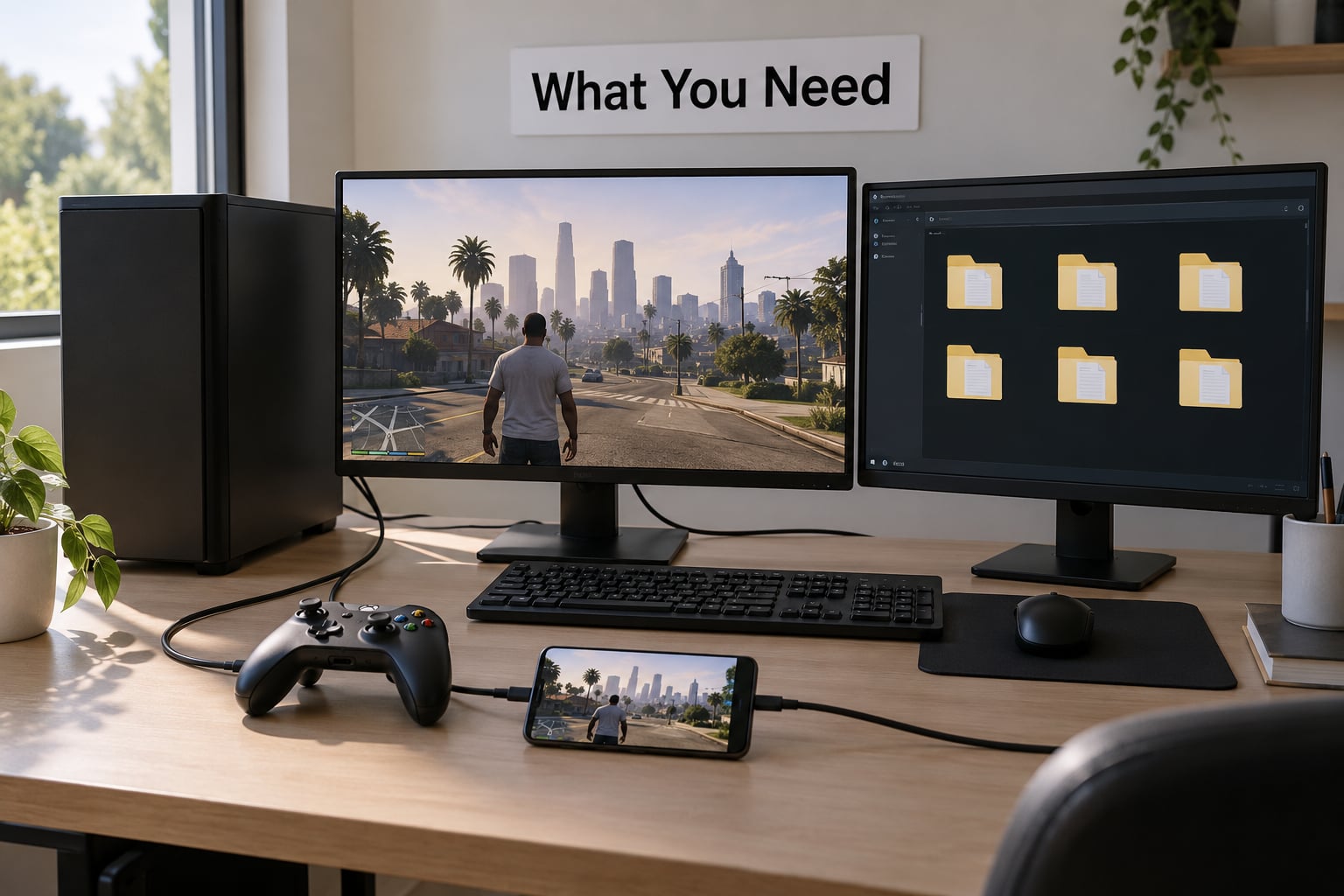
You do not need specialist equipment. You need five things, and four of them are already on your machine.
- The exact game version and edition. GTA V on PC, GTA IV, or one of the San Andreas or Liberty City releases. Editions differ, and so do the file paths and control menus.
- A list of everything you changed last. Mods added, scripts enabled, graphics presets applied, config files copied in, game updates installed. The list is what makes step one fast.
- Access to the game’s settings and its config file. Both matter, because the menu controls what you feel day to day and the file controls what survives a restart.
- Backup access. Somewhere to copy the current config before you touch it. A plain folder with a dated copy is enough.
- A text editor. Notepad works. A code editor with search and line numbers makes finding the right key much faster.
A screenshot of your current in-game control settings is worth taking too. If you end up needing to undo something, a screenshot recovers your setup in seconds when you no longer remember the numbers.
On PC you also want to know which mod manager you use, if any. MO2 and Vortex both keep mods in their own folders and control what the game loads, and that changes how you isolate the culprit. Without a manager, a clean removal means moving files out of the game directory by hand, which works fine but takes longer.
Console players do not need any of this. Aim and look sensitivity live in the console’s own settings, and mods are installed as official add-ons or through whatever your console supports. Android builds usually expose a sensitivity or aim-assist slider in their on-screen settings and leave nothing to edit by hand.
Step-by-Step
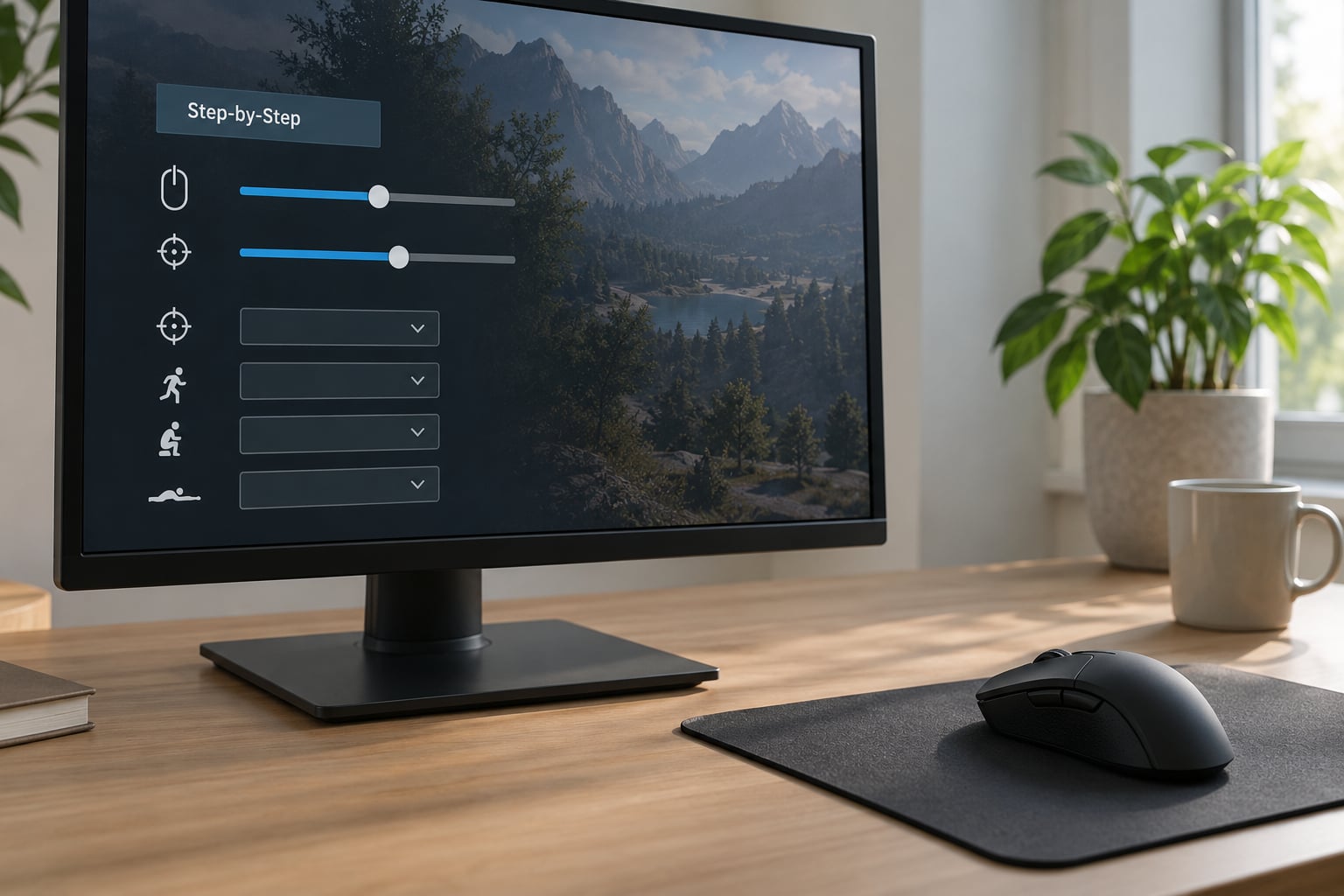
Work through these in order. Each step rules something out, and skipping ahead to step three is how people end up editing config files that were never the problem.
1. Confirm What Changed
Establish the exact moment the behaviour changed, because that single fact decides the rest of the process. Was it after a specific mod, after you replaced a config file someone gave you, after a script went into your load order, after a graphics or performance overhaul, after a game update, or after you reset your controls by accident?
A game update is worth separating out, because it can rewrite your settings file on its own without any mod being involved. If the timing lines up with an update and not with a mod, you are looking at a settings reset rather than a mod override, and the repair is different.
To find out how it worked before, read this out of your current setup and compare it with what you see now: which mods are loaded, in what order, and which of them touch input, controls or gameplay. A screenshot of the loaded mods list taken before you started is the fastest evidence, and if you do not have one, your mod manager’s load order screen is your starting point.
2. Disable Suspected Mods One at a Time
Start with the newest mod and work backwards. Turn off one mod, launch, do a two-minute aiming test, and note the result before touching the next one.
A two-minute test means walking, aiming at a wall, opening the map, turning sharply left and right, and riding a vehicle. Fast turns are where acceleration and smoothing problems hide, so a quick look around is not enough to call it fixed.
Mods most likely to affect input are the ones that advertise control schemes, aim assistance, camera behaviour, freelook, player animation or UI scaling. Texture packs and pure visual overhauls rarely touch sensitivity, so start at the other end of your list if that is all you have installed.
If you use MO2, disable through the mod list rather than deleting folders, so you can re-enable in one click. With Vortex, the same applies to its mod list. Keep a note of the order you disable them in; when the problem disappears you will want to know exactly which one you turned off last.
3. Check In-Game Sensitivity and Camera Options
Once mods are ruled out, look at the control settings inside the game. Open the controls or settings menu and inspect, in this order:
- Mouse look sensitivity — the base camera speed.
- Aim sensitivity — often separate from camera speed in GTA titles, and frequently the one that actually feels wrong.
- Camera speed — third-person and vehicle camera behaviour.
- Invert look or invert Y — a flipped axis reads as broken sensitivity.
- Acceleration or smoothing options — where the title exposes them.
- Input method — raw input versus Windows-style input, which some titles expose and some do not.
- Controller versus mouse assignment — a pluggable controller can move the active profile.
Labels and positions vary by title and platform, so look for the equivalent rather than the exact name. Save any change you make, exit the game fully, and relaunch before judging it, because some titles only write settings on a clean exit.
If you are on console, the same list applies with console wording: aim sensitivity, camera speed, invert control and aiming style. On Android, expect a sensitivity or aim-assist slider and a limited set of controls, with no file editing available.
4. Reset or Restore Configuration Files
On PC, your settings live in a file inside your user documents folder, and mods are a common reason that file suddenly looks wrong. The path varies by title and by store, with the Rockstar titles typically keeping their settings under a Rockstar Games folder in Documents, and older titles using their own named user files folder.
Some of those folders are hidden on Windows. To see them, open File Explorer, click View, tick Hidden items, and then navigate. Alternatively paste the AppData path directly into the Explorer address bar and it will open whether or not the folder is visible.
Before editing anything, copy the file and paste the copy into a folder with today’s date in the name. That one step is the difference between a two-minute undo and a lost settings file.
Open the copy with your text editor and find the controls section. What you are looking for is a pair of values: one for mouse acceleration and one for the mouse look or heading sensitivity. Many files contain several near-identical keys, and the in-game menu writes only some of them, which is why a setting you can see on screen is not always the setting the game reads.
The safe order is default-first. Set acceleration to zero, set the look sensitivity to the value you want, save the file, then run the game once and check. If the game rewrote your number on exit, something is managing that file and step five is your real problem.
If your backup copy from before the problem looks correct, restoring it in place is faster than editing, and it puts you back on a known-good baseline.
5. Fix Scripted Input Conflicts
Some mods change input at runtime rather than through the settings file. A control framework, an input hook, a script library or an ASI loader can inject code that rescales your mouse input after the game reads it, which means no file edit will ever stick.
The tell is simple: you set a value, it applies in the menus, and it feels wrong in the world. Or it applies for one session and reverts the next. Both point at a script rather than a setting.
Check the mod’s documentation for input or control changes, then check your load order. Two mods touching the same input hooks conflict even when neither is broken on its own, and load order decides which one wins.
Performance overhauls are the exception worth naming here. They can replace input handling entirely, which is why a change to the acceleration value can appear to do nothing at all. On those setups, the overhaul’s own configuration file is where the input setting lives, and you have to edit it there. Disabling the overhaul is a valid test, and it is the fastest way to prove whether it is responsible.
Controller plug-ins deserve a separate mention. If you plug in a gamepad while the game is running or have one connected during launch, the active control profile can change and swap mouse settings for gamepad settings. Unplug it and relaunch to test that possibility.
6. Test the Fix in the Same Play Conditions
Now verify it properly. Do the test in the same place, at the same time of day, with the same mod loadout you will actually play with.
Run through these in order:
- Menus. Cursor speed should match what you set, with no drift or sluggishness.
- Aiming. Track a moving target slowly, then fast. Both should feel the same.
- Free-look camera. Turn 180 degrees in each direction. This is the sharpest test for acceleration.
- Aim while moving. Combined input reveals smoothing that standing still hides.
- Vehicle steering. Camera behaviour in a car is separate on most titles.
- Repeated launches. Close fully, relaunch, test again. Do this at least twice.
That last one is the real proof. A fix that survives two clean launches and a config rewrite is a fix. If the number changed back, something is writing that file on exit, and you go back to step five.
Common Mistakes
These are the errors I see most often, and each one sends you down a path that wastes an evening.
Changing the game sensitivity and your Windows pointer settings together. Now you cannot tell which one did the work, and if the game rewrites its config you are left with two altered systems instead of one. Fix one layer at a time, starting with the in-game setting.
Testing with every mod enabled. If you cannot reproduce the problem on a clean load order, you have learned nothing from the test. Isolate first, then add back in small groups.
Editing the wrong config file. Several titles keep a settings file, a defaults file and a per-profile file in the same folder. The game reads whichever one matches your platform and edition, so an edit to the other one changes nothing. If a value does not survive a restart, you are probably in the wrong file.
Ignoring per-game control profiles. A gamepad connected at launch, or a profile switch inside the game, swaps the active control set. Test once with no controller plugged in at all.
Assuming a console sensitivity setting applies to PC mouse input. It does not. Console aim sensitivity and PC look sensitivity are different systems on different hardware, and a value that works on one tells you nothing about the other.
Lowering Windows pointer speed as a first move. It works as a last resort, and it is genuinely useful when a game bottoms out at its minimum slider. As a first move it hides the real cause and makes menus and other apps feel wrong. Use it after the game-side fix, not instead of it.
Editing while the game is running. Some titles write their settings file on exit, so an edit made mid-session gets overwritten minutes later. Always close the game first.
Reinstalling the game before checking the mod list. A clean reinstall removes hundreds of files and often keeps your mods active, so the problem returns identical. Isolate the mod first; it costs one launch instead of an hour.
Frequently Asked Questions
Why did my mouse sensitivity change after installing a GTA mod?
A mod can replace a configuration file, load a script that changes input behaviour at runtime, or conflict with another mod already handling controls. Some titles also rewrite your settings on exit after an update, which looks identical to a mod override. The way to tell them apart is timing: if the change started right after a mod went in, suspect the mod first.
Should I change mouse sensitivity in Windows or inside GTA?
For most PC players, start inside the game, because that is the setting that affects GTA’s camera and aiming directly. Windows pointer speed changes how fast the cursor moves everywhere, including menus you use outside the game, so it is a blunt instrument by comparison. Touching Windows only makes sense as a last resort, usually when a game bottoms out at its own minimum slider and you still need it slower.
Does fixing mouse sensitivity mean I need to remove all my mods?
No. Disabling everything is a diagnostic test, not a solution. If the problem disappears with a clean load order, re-enable your mods in small groups to find the one responsible, then work around it or drop that single mod. Most setups only lose one or two scripts. Wholesale removal leaves you with a working game and no modding.
Why does aiming feel wrong even when the sensitivity slider looks normal?
The slider only controls base camera speed. A mod can change aiming response, camera speed, control inversion or add smoothing that you never set yourself, so the number looks right while the feel is not. Check the aiming and camera options separately from look sensitivity, and look for input scripts or a performance overhaul that may be rescaling your input at runtime.
Do console and Android GTA builds let you set mouse sensitivity at all?
Console builds expose aim sensitivity, camera speed and invert control in the console settings, and there is no config file to edit, so mods cannot silently change your values the way a PC script can. Android builds usually offer a sensitivity or aim-assist slider in their on-screen settings with a narrower range. Neither platform has a mouse sensitivity floor problem the way PC does.
Conclusion
Back up the config file you are about to touch, disable the most recently added mod or config change, and run a clean two-minute aiming test before you alter a single setting. In most cases that one test names the culprit, and everything after it is restoring a value rather than hunting a fault.
If the test comes back clean and the problem is still there, the file is being rewritten on exit, and step five is where you will find out why. Updating this guide for 2026 seemed worthwhile precisely because mods, load orders and settings paths shift between releases, and a fix written for last year’s build is worth checking against your own version.