Cap your frame rate about 3 frames below your monitor’s refresh rate and apply it with one limiter only. That is how to limit fps to stop micro stutter in modded games: 141 FPS on a 144 Hz screen, 117 on 120 Hz, 57 on 60 Hz. Set it through RTSS, your graphics driver, or the game’s own menu, then verify with a frame time overlay rather than the FPS counter.
Micro-stutter is not a frame rate problem. It is a delivery problem: your GPU hands the display an uneven stream of frames, so motion hitches even while the counter reads 80. A cap fixes that by giving every frame the same amount of time to land inside a refresh window.
Modded builds make this worse than vanilla does, and that is the part most guides skip. A script-heavy mod list taxes the CPU main thread, an ENB or post-process stack adds render passes, and 2K texture packs push VRAM past the point where assets stream in mid-corner. Your frame times stop being a clean line and start looking like a sawtooth. On top of that, a mod manager and a script extender are running in the same process, so any hitch they cause shows up as game stutter.
The forum advice you will read is also inconsistent. One person swears by 141 on 144 Hz, another says 60 still stutters and 120 is the real sweet spot, a third reports that every limiter they tried made things worse. All three can be describing the same underlying problem: more than one limiter fighting, or a cap applied through the wrong tool.
Table of Contents
- 1What You Need
- 2Step-by-Step
- 3How to Limit FPS to Stop Micro Stutter on Windows
- 4Set an NVIDIA Frame Rate Cap
- 5Set an AMD Frame Rate Cap
- 6Use the Game’s Frame Limiter
- 7Use RTSS When the Driver Cap Is Not Enough
- 8Test the Cap and Isolate the Remaining Stutter
- 9Recommended FPS Cap by Monitor Refresh Rate
- 10Common Mistakes
- 11Frequently Asked Questions
- 12Should I limit FPS to my monitor’s refresh rate?
- 13Is it better to cap FPS with RTSS, the GPU driver, or VSync?
- 14Why does my game stutter after I set an FPS cap?
- 15How do I fix micro stutter on a laptop with integrated and dedicated graphics?
- 16Does lowering my FPS cap reduce GPU load?
- 17Conclusion
What You Need
Before you change a single setting, get four things in place. Without them you are guessing, and guessing is what produces the endless reinstall-and-reboot threads.
A recent graphics driver. Not the optional bundle update, the clean Game Ready or Adrenalin driver. If you are on Windows 10 or 11, note which one; the menus differ and the limits behave differently.
A way to read frame time. MSI Afterburner with RivaTuner Statistics Server is the standard because it draws the graph on top of the game and shows per-frame values, not just an average. CapFrame or the in-engine counters built into modern engines work too. The average FPS number alone cannot tell you whether a cap took effect.
Access to the game’s graphics settings and to your driver control panel. Both are usually open at once during this process, so close what you don’t need rather than leaving a menu half-configured behind a game.
Exactly one cap source. Pick one: the NVIDIA App or Control Panel, AMD Software, the game’s own limiter, or RTSS. Not two. The single most reported cause of “capping made it worse” is a driver cap and an RTSS cap both active, or an in-game cap layered on a driver cap. Two limiters fight each other and the result is a periodic dip that feels worse than no cap at all.
Step-by-Step
How to Limit FPS to Stop Micro Stutter on Windows
Start by confirming Windows is not adding a variable of its own. On Windows 11, open Settings, then System, then Display, then Display advanced, and set the refresh rate to the highest value your panel supports. On Windows 10 it is Settings, System, Display, then Advanced display settings, with the same refresh rate drop-down. If your monitor is running at 60 Hz because Windows picked that default, every cap you set above 60 is wasted.
Next, turn off the background capture layer while you test. Press Win+G to confirm the Xbox Game Bar is closed rather than minimized, and disable Settings, Gaming, Captures, background recording. That recorder hooks the graphics pipeline and adds a frame of latency at minimum.
Two more switches matter. In Settings, Gaming, Game Mode, turn Game Mode off, because it throttles background recording and can shift frame pacing. In Settings, System, Display, Graphics, click your game’s exe, then Options, and switch Optimizations for windowed games to Off so fullscreen optimizations do not force a borderless swap chain. Set your power plan to High Performance in Control Panel, Hardware and Sound, Power Options, and leave HDR off for the test run, since toggling it changes the presentation path.
Set an NVIDIA Frame Rate Cap
There are two places in the current stack. In the NVIDIA App, open Settings, then System, then Performance, and use the Frame Rate Limit slider. For a fixed number, open Control Panel, Program Settings, Add, pick the game executable, then go to Manage 3D Settings, Program Settings, and set Max Frame Rate to your target value.
Set Max Frame Rate On, then decide the value from the table below. Leave V-Sync Off in the driver when you use this cap, and let G-SYNC handle the range. If you are not using a variable refresh rate display, turn V-Sync off entirely rather than double-pacing frames, because V-Sync plus a cap adds input latency for no visible gain.
Set an AMD Frame Rate Cap
Open AMD Software: Adrenalin Edition, then Settings, then Gaming, then Radeon Chill. Turn it On and drag Maximum FPS to your cap. In the same panel, Maximum Framerate gives you the same limit if you would rather set a number than a range, and V-Sync should be Off in that panel when the cap is doing the work.
Older Adrenalin releases label these controls differently and place them under Display or per-game profiles, so the layout may not match the current one. The behaviour is the same: the driver holds the frame rate, and the game’s own limiter should be off.
Use the Game’s Frame Limiter
Most engines expose a V-Sync toggle and sometimes a numeric cap. In GTA V PC, open Settings, then Graphics, and the display options sit on the main Graphics tab; V-Sync is a checkbox there. Similar open-world titles put a frame rate limit in Display, Video, or Advanced.
Understand the difference: a V-Sync toggle does not set a target frame rate. It synchronises presentation to the display, which caps you at the refresh rate with added latency. If you want a fixed number below refresh, you need an actual limit field, and if the game does not offer one, that is your cue to move to a driver or RTSS cap.
Use RTSS When the Driver Cap Is Not Enough
Install MSI Afterburner, which bundles RivaTuner Statistics Server, and open RTSS. Click the startup tab, tick Frametime limit, and Latch, then set the limit in the box at the top. The default is 16.7 ms, which equals 60 FPS. Change it to your own value: 7.08 ms for 141 FPS, 8.5 ms for 117 FPS, 17.5 ms for 57 FPS.
Frametime limit is the setting that fixes an inconsistent cap. A framerate limit lets frames land early and wait, which produces a visible tick every second or two; a frametime limit forces each frame to be held at exactly the target duration, which is smoother. Latch mode stops late frames from dropping below the cap, which is the pattern reported by users whose capped games dip a few frames on a schedule.
Add the game under the RTSS On-Screen Display tab by clicking the add button, the folder icon, and choosing the executable. Keep the Ligation slider at the front so the overlay stays on top of the game’s own display mode. If the limit does not take, confirm the executable you added is the one you actually launch, check that a second limiter is not still running in the driver, and verify your frametime value is not so low that your normal frame times sit above it.
Test the Cap and Isolate the Remaining Stutter
Pick one repeatable route through the world before you change anything: a street, a highway, a dense forest, whatever stresses the same systems every time. Stand in the same spot, run the same pass, and write down the average FPS, the 1% low, the 0.1% low, and peak VRAM use. Comparing the same pass after each change is the only way to know whether you helped.
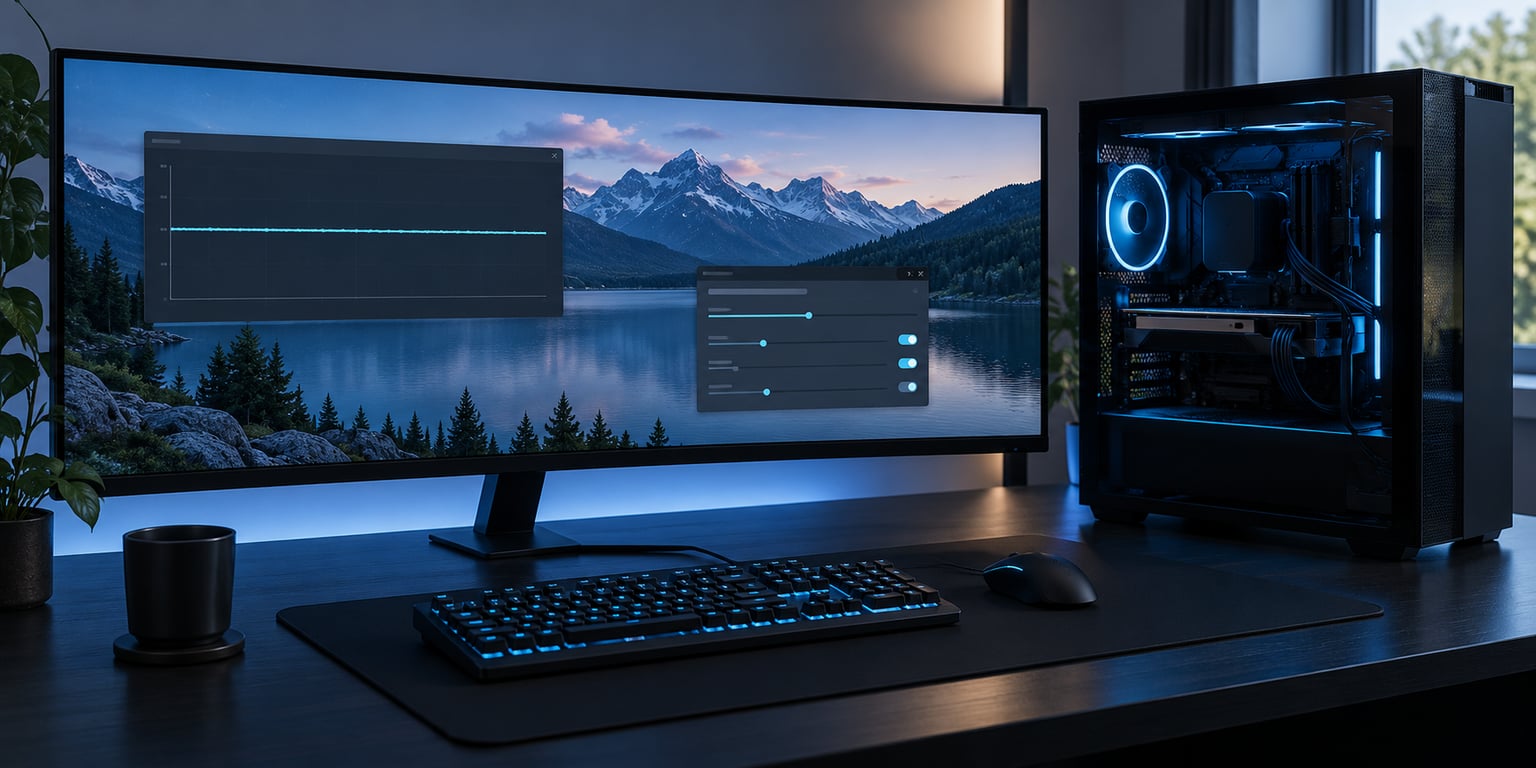
Watch the frame time graph rather than the counter. A flat line at 7.08 ms means the cap is working and the pacing is even. A line that sits at 7 ms with regular spikes to 25 ms means the game itself is hitching, and the cap is only holding the ceiling. If the average is healthy but the 0.1% low is in the teens, you will feel that as a periodic stutter even though every screenshot looks fine.
Then separate CPU from GPU. Drop the resolution until the GPU sits near 99% load, and if the stutter disappears, it is GPU-side. If the stutter stays, the CPU main thread is the constraint, usually draw calls, crowd density, view distance, or foliage. That split tells you which settings to lower and saves you from chasing graphics options that were never the problem.
For the mod-specific cases, bisect. Load the game with no mods and run the route. If vanilla is clean, add back a quarter of the list, test, and keep going. Script-heavy mods and large texture packs are the usual culprits, and this finds them faster than any amount of driver reinstalling. Users on r/skyrimmods have reported a stable 60 FPS build that suddenly began stuttering at 59 with no new mods installed, which is the signature of a cap conflict or a main-thread change rather than a graphics problem. If you arrived here after modding a game for the first time, the mod install walkthroughs on this site cover getting the load order right before you touch frame rate settings.
Recommended FPS Cap by Monitor Refresh Rate
| Monitor refresh rate | Recommended cap | Frame time to enter in RTSS |
|---|---|---|
| 60 Hz | 57 FPS | 17.5 ms |
| 75 Hz | 72 FPS | 13.9 ms |
| 90 Hz | 87 FPS | 11.5 ms |
| 120 Hz | 117 FPS | 8.5 ms |
| 144 Hz | 141 FPS | 7.1 ms |
| 165 Hz | 162 FPS | 6.2 ms |
| 240 Hz | 237 FPS | 4.2 ms |
| 360 Hz | 357 FPS | 2.8 ms |
Common Mistakes
Setting the cap equal to your refresh rate. At exactly 60 or 144 you are always fighting the display for the frame window, which is where V-Sync overhead and tearing show up. Drop 3 frames below refresh and the pacing settles.
Running two limiters at once. A driver cap plus RTSS, or an in-game cap on top of either, produces the periodic dip that makes players think the cap caused the stutter. Leave exactly one active and restart the game so both take effect cleanly.
Leaving V-Sync on while capping. With a fixed cap, V-Sync adds latency and occasionally reintroduces the hitch you were trying to remove. Turn it off, or leave the cap off entirely and use V-Sync if you are not on a variable refresh rate display.
Expecting a cap to fix CPU-bound stutter. A limiter only regulates delivery. If the main thread is missing frames because of a script-heavy mod, view distance, or draw calls, the graph still spikes no matter where the cap sits. Drop those settings or bisect the mod list.
Not restarting the game after changing a cap. Driver caps and RTSS settings are read at launch. Change them, then fully exit and relaunch, or you are reading numbers from the old configuration.
Assuming V-Sync solves it. V-Sync with no cap gives you refresh rate with a variable ceiling. If the game dips below refresh, the double buffering pauses and you get the exact stutter you were trying to remove. It is a cap that fixes it, not a toggle.
Two habits prevent most of this. Cap 3 frames below refresh every time, and change one variable per test. If you cap, swap the texture mod, and disable the overlay in one session, you will not know which one moved the number.
Frequently Asked Questions
Should I limit FPS to my monitor’s refresh rate?
Limit to about 3 frames below it, not at it. A 144 Hz display pairs with 141 FPS, a 120 Hz with 117, a 60 Hz with 57. Matching the refresh rate exactly leaves no room for the frame to land cleanly inside its window, which is where tearing and V-Sync overhead appear. On a variable refresh rate display, staying below the range also keeps G-SYNC or FreeSync in charge of presentation.
Is it better to cap FPS with RTSS, the GPU driver, or VSync?
RTSS wins for consistency. It sits at the API level, works per game, and can hold a frame time instead of a frame rate, which removes the periodic tick that driver caps sometimes produce. A driver cap is simpler and is the right choice when you want one global limit with no extra software running. V-Sync is not a frame rate limit at all; it synchronises presentation and adds input latency.
Why does my game stutter after I set an FPS cap?
Usually two limiters are active at once, such as a driver cap plus RTSS or an in-game cap on top of either. They fight, and you get a dip every second or two that feels worse than uncapped play. A second cause is setting the cap where your normal frame times already sit, so the limiter engages constantly. Check the RTSS frame time graph for a flat line, and keep a single cap source active.
How do I fix micro stutter on a laptop with integrated and dedicated graphics?
Cap frames on the GPU that is actually rendering, and confirm which one that is. On hybrid graphics laptops, the display often runs through the integrated chip while the game renders on the dedicated one, so a cap set on the wrong adapter does nothing. Set the Windows graphics preference to High performance for the game, verify with a frame time overlay, and lower in-game settings such as resolution scale, since laptops rarely hit a frame rate a desktop would.
Does lowering my FPS cap reduce GPU load?
It reduces load spikes more reliably than it reduces the average. When a frame that barely fits its window finishes late, the next one misses entirely and the GPU stalls. Capping with headroom gives every frame time to land, so the 1% and 0.1% lows improve even when the average barely moves. It also lowers heat and power draw, which on a laptop can raise sustained clocks rather than lower them.
Conclusion
Record your baseline first: average FPS, 1% low, 0.1% low, GPU load, CPU load, and a frame time trace on a fixed route. Then choose one cap source and set it 3 frames below your monitor’s refresh rate, with V-Sync off unless you are relying on variable refresh.
That is the whole job. Learning how to limit fps to stop micro stutter in modded games is about picking a single limiter and verifying it with a frame time graph instead of trusting an average number. If the graph goes flat and the hitches are gone, the cap did its job. If spikes remain, you have a CPU-side or mod-side problem, and the fastest way to find it is to test vanilla and add mods back in small groups. That beats reinstalling drivers or changing hardware.