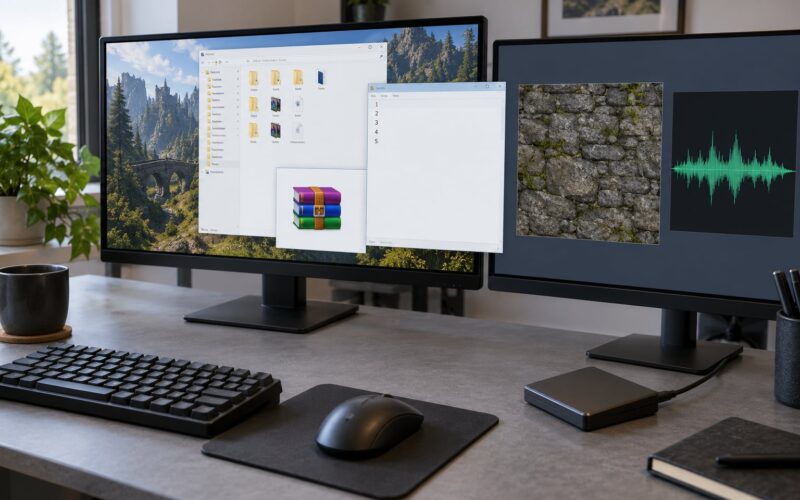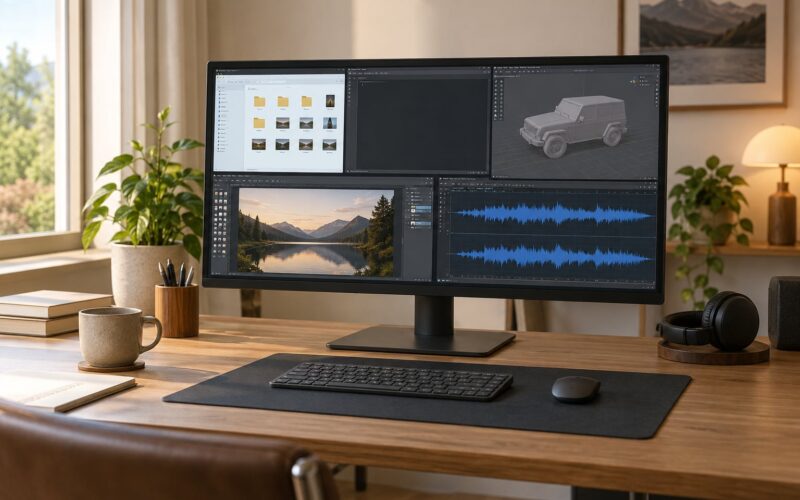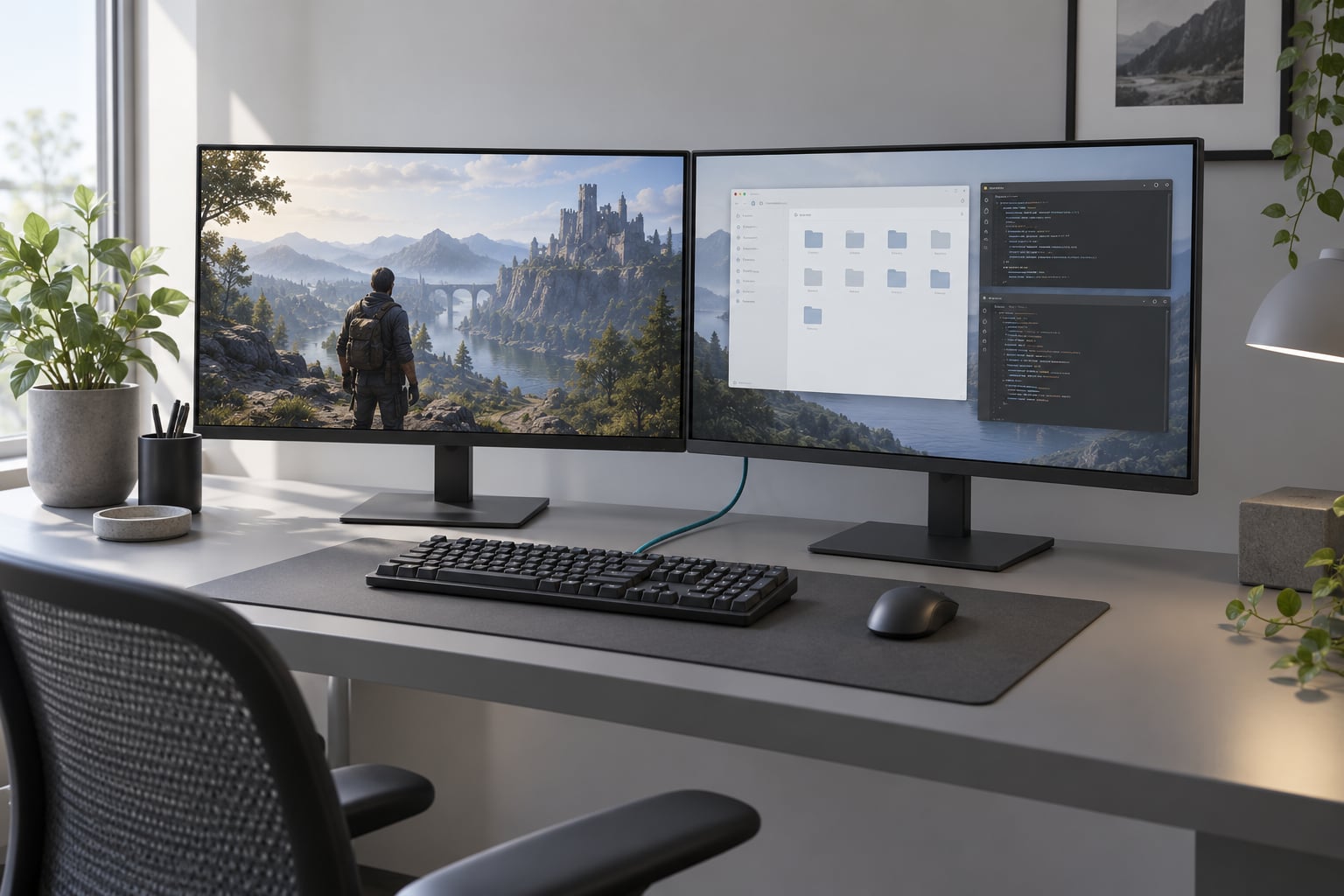
How to set up a dual monitor setup for modding work takes about fifteen minutes once the hardware is on the desk. Plug both displays into the graphics card, open Settings > System > Display in Windows 11, click Identify, then choose Extend these displays and set your game screen as the main display. Everything after that is layout, scaling and testing your mod in the actual game.
The reason this matters for modders specifically is simple. Every time you check a log, look up a file path or confirm a config value without a second screen, you alt-tab away from the game, lose your place, and reload. A second monitor removes that interruption entirely.
This guide covers Windows 11 first, with the Windows 10 differences called out as you go, and it is written for 2026 versions of both. No new hardware is required if you already have a spare display and a free port on the graphics card.
Table of Contents
- 1What You Need
- 2Step-by-Step: How to Set Up a Dual Monitor Setup for Modding Work
- 3Choose the Right Role for Each Monitor
- 4Connect the Displays and Choose the Right Input
- 5Configure Display Detection and Layout in Windows
- 6Test Your Modding Workflow
- 7Common Mistakes and Quick Fixes
- 8Frequently Asked Questions
- 9Do I need matching monitors for a dual monitor setup for modding work?
- 10Can I use one monitor for GTA V and the other for modding tools?
- 11What is the best way to connect two monitors to a gaming PC?
- 12How do I make Windows treat the second monitor as an extension?
- 13Can I use a laptop with two external monitors for modding?
- 14Should I use an ultrawide monitor instead of two screens?
- 15Conclusion
What You Need
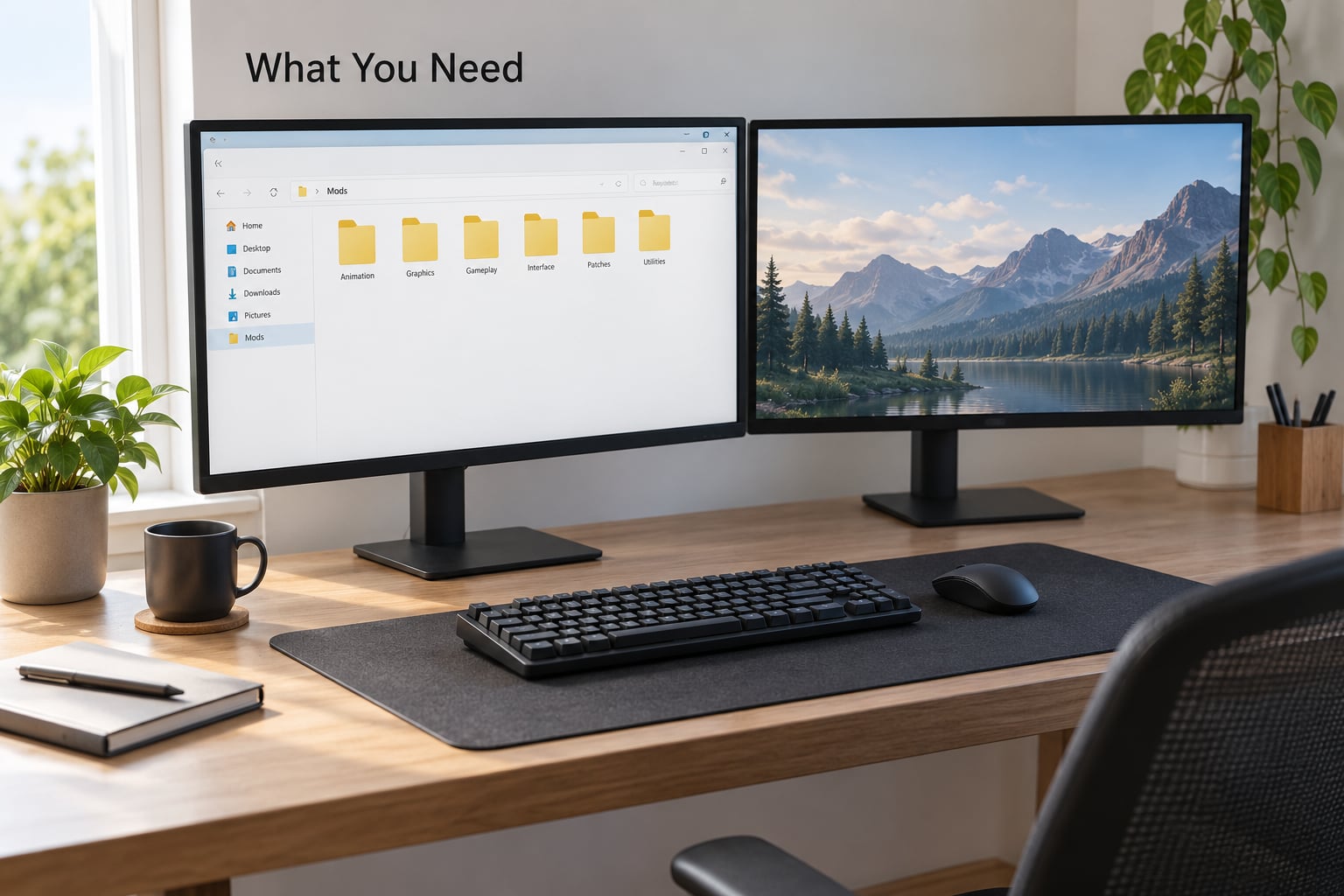
Two displays are the core requirement. They do not need to be the same model. Peer consensus on the Tom’s Hardware dual monitor forum thread is clear on this: mismatched panels work fine, and matching is a preference rather than a requirement. What matters more is panel size, resolution and how the two sit on your desk.
Beyond the displays you need one cable per screen that matches a free port on your graphics card, and that port decides which cable you need.
- DisplayPort is the best default for a gaming PC. It carries high refresh rates at 1440p and above, and every modern card has at least one.
- HDMI works fine for 1080p and 1440p and is the most common port on a laptop.
- USB-C only carries video when the port supports DisplayPort Alt Mode, and many do not.
- DVI is still encountered on older cards and does not carry audio.
A docking station or adapter is optional. If your card has two spare ports, skip it. If it has one, you can run two monitors off a single port with a DisplayPort or HDMI splitter, though a splitter mirrors the image rather than extending it, so you will still need a second port for a true extended desktop.
Optional extras that earn their place for modding work: a window management tool for pinning apps to a screen, a colour picker for matching texture values across two panels, and a hardware-accelerated browser so video on the second screen stays smooth while a game runs.
Before you buy anything, check what your graphics card actually outputs. Look at the physical ports on the card itself rather than the spec sheet, and open the manual for each monitor to confirm the maximum resolution and refresh rate it accepts over each input type. A 144 Hz panel fed by an HDMI 1.4 cable will cap out far below its rating, and that surprise is the single most common cause of a disappointing second screen.
Step-by-Step: How to Set Up a Dual Monitor Setup for Modding Work
Choose the Right Role for Each Monitor
Assign each screen a job before you plug anything in, because the role decides where the screen physically goes. For modding, most people want one of these arrangements:
- Gaming display – the one running the modded game. Put it directly in front of you.
- Editing display – a config editor, script editor or texture tool. Angle it about 30 degrees off to one side.
- Documentation display – browser tabs with installation guides, file paths and walkthrough references.
- Performance display – optional, showing frame time, temperatures or an overlay so you can see stutter without leaving the game.
Peers on r/Monitors give consistent ergonomics advice here: main screen directly in front, second one to the side, and explicitly not both monitors centred in front of you. That arrangement keeps your neck neutral and means the second screen stays reachable without twisting.
Do not assume identical monitors. A common pairing is a 1440p gaming panel plus a 1080p secondary, and Windows handles that cleanly as long as you set each one’s scale independently.
Connect the Displays and Choose the Right Input
Connect each display to the graphics card rather than the motherboard. Ports on the back of the motherboard are often tied to the integrated graphics chip, so a desktop with a dedicated card may show nothing on the motherboard port even with the power on.
Then confirm each cable is doing video and not just data or power. USB-C cables are the usual culprit: many charge a laptop and carry USB data but no video at all, so Windows never sees a display on it. Read the cable’s own specification rather than trusting the connector shape.
Check the success signal at each end. The monitor’s OSD menu should report the input it received and the resolution it locked to, and Windows should play its connection chime. If the monitor says no signal, the problem is upstream of Windows entirely and no amount of settings work will fix it.
Configure Display Detection and Layout in Windows
Open display settings with the Windows key plus I. On Windows 11 the path is Settings > System > Display, reached by arrowing to System from the left rail. On Windows 10 it is Settings > System > Display as well, though the panel is laid out differently and the monitor thumbnails sit further up the page.
- Check both screens appear. Each connected display gets a numbered rectangle. If only one is listed, the second one is not being detected and you should work through the troubleshooting section below before continuing.
- Click Identify. Large numbers flash on each physical screen so you know which rectangle is which.
- Choose Extend these displays. This is the setting that makes modding work. Duplicate shows the same image on both screens, which defeats the purpose entirely.
- Drag the rectangles to match your desk. Put the gaming screen in position 1 and the tools screen to its side or above, matching where the hardware actually sits.
- Set the main display. Select the gaming rectangle, then choose Main display. This moves the taskbar, the Windows watermark and the location new windows open to that screen.
- Set resolution and refresh rate per screen. Select each rectangle in turn and pick the highest resolution and highest refresh rate the drop-downs offer. Windows supports different values on each monitor.
- Set scale per screen. Choose each display, open Scale, and pick 100, 125, 150 or 175 percent. Match the setting to the panel size and resolution so text and tool windows stay crisp.
Setting the main display last matters more than most guides admit. Changing which screen is main relocates the taskbar, the watermark and the default spawn point for new windows, which is a common reason a game or editor keeps opening in the wrong place.
One correction worth making early: Windows virtual desktops are shared across all monitors in both Windows 10 and Windows 11. Switching desktops changes both screens at once, so Win 11 does not give you a separate desktop per monitor. Per-monitor desktops need a third-party tool.
Test Your Modding Workflow
Settings are not finished until the game behaves. Start the modded game and work through this order.
- Confirm the game opens on the intended display. Windows remembers which screen an app last used and reopens it there, so if the game has been on the wrong monitor, move it once with Win + Shift + an arrow key and it will stay there.
- Test windowed and borderless modes. Exclusive fullscreen often locks a game to one display and can blank the second. Borderless windowed usually keeps both usable.
- Check alt-tab behaviour. Switch away and confirm the game minimises rather than vanishing entirely, then switch back and confirm it restores to the right screen.
- Verify your tools stay usable. A file browser, a texture editor, a console window and a log viewer should all stay open and responsive on the second screen while the game runs.
- Watch for stutter. If a browser on the second screen chatters during play, disable hardware acceleration or lower its video quality, which has resolved this exact symptom for players on r/pcmasterrace.
If that last step keeps biting you, a window management tool saves real time. DisplayFusion and Actual Multiple Monitors both add per-monitor virtual desktops and profile-based window rules, so a config editor always reopens on your tools screen and the game always reopens on your gaming screen.
Common Mistakes and Quick Fixes
The second screen is blank or shows no signal. This is a hardware problem, not a Windows problem. Reseat the cable at both ends, try the other port on the graphics card, and confirm the monitor is on the correct input via its own menu. Success check: the monitor’s on-screen display reports a resolution.
Windows only sees one monitor. Power-cycle the graphics card with Win + Ctrl + Shift + B, which resets the display driver without rebooting. If the second screen is still missing after that, check Device Manager for a disabled or errored display adapter, and update your graphics driver. Success check: two numbered rectangles appear in Display settings.
The second screen is stuck at 1920×1080. This is almost always cable bandwidth. An HDMI 1.4 cable or a DisplayPort cable rated too low cannot carry the resolution and refresh rate the panel expects, so Windows falls back to a mode both ends support. Swap to a cable rated for the target resolution and refresh rate, or use DisplayPort. Success check: the native resolution of your panel appears in the display dropdown.
Both screens show the same desktop. Display mode is set to Duplicate. Open display settings and switch to Extend these displays. Success check: moving the mouse past the edge of one screen continues onto the other rather than duplicating the cursor.
Text looks blurry on the second screen. The two displays have different resolutions or scale settings, so Windows is upscaling. Set each display’s scale independently under Display, and match the resolution to the panel’s native value. Success check: small text in your config editor has hard edges rather than soft outlines.
The game opens on the wrong monitor. Either the game is set to launch fullscreen on its last-used display, or the main display setting moved it. Move the window once with Win + Shift + an arrow key, then check the game’s own graphics options for a display selector. Success check: the game starts on the intended screen twice in a row.
The game stutters or the second screen flickers. Check whether HDR is enabled on both displays, because Windows keeps HDR off on the other screen when only one supports it, and that toggle causes visible flicker when it changes. Setting HDR to the same state on both screens, or off entirely, removes the flicker.
Refresh rate is missing from the dropdown. The rate your panel advertises has to be supported by the connection, and on some cards only certain ports are wired for high refresh rates. Test each port directly. Success check: the advertised refresh rate of each monitor appears as an available option.
The second screen is a TV with switching problems. You generally cannot switch a TV’s HDMI input from the PC, so a second input on the same TV competes with your PC signal. You also cannot expect refresh rate passthrough through that path. Connect the PC directly to the TV, or switch input manually with a remote or an external switch box.
Frequently Asked Questions
Do I need matching monitors for a dual monitor setup for modding work?
No. Windows treats each display independently, so mixed brands, sizes and resolutions work together without issue. Set resolution, refresh rate and scale separately for each panel in Display settings. Matched pairs only reduce the mismatch you have to tune yourself, and matching matters far less for modding than panel size and desk position.
Can I use one monitor for GTA V and the other for modding tools?
Yes, and this is the most common reason people build a dual setup for modding. Run the game in windowed or borderless windowed mode on one screen and keep your config editor, log viewer and documentation on the other. Exclusive fullscreen can lock the game to a single display and disable the second screen, which is why borderless is usually the better choice here.
What is the best way to connect two monitors to a gaming PC?
Use DisplayPort on both screens when your graphics card has two DisplayPort outputs. It is the most reliable option for high refresh rates at 1440p and above, and every modern card includes at least one DisplayPort port. HDMI works for 1080p and 1440p. A splitter can drive two screens from one port, but it mirrors rather than extends the desktop.
How do I make Windows treat the second monitor as an extension?
Press Windows key plus I, open System then Display, click Identify, and choose Extend these displays from the multiple displays dropdown. If the second screen is missing from the panel entirely, Windows is not detecting it and no mode setting will help. Reset the driver with Win plus Ctrl plus Shift plus B, then reseat the cable and try another port.
Can I use a laptop with two external monitors for modding?
It depends on the laptop. Most modern models with USB-C that supports DisplayPort Alt Mode, or with Thunderbolt, can drive two external displays. Check the manufacturer specifications for the exact number of supported outputs, since some budget laptops cap out at one. Remember that the USB-C port must carry video, not just power and data.
Should I use an ultrawide monitor instead of two screens?
An ultrawide gives you one continuous space with no bezel to look across, which feels better for very wide tools and open worlds. Two separate monitors give you independent scaling, independent refresh rates and a clearer split between the game and your tools. For modding work where you constantly switch between the two, that split usually wins.
Conclusion
Start with the hardware check: confirm two free ports on the graphics card and cables rated for the resolution and refresh rate each monitor actually needs. Then connect both displays, open Settings and go to System and Display, click Identify, choose Extend these displays, and set the gaming screen as main display last.
Finish by launching your modded game in borderless windowed mode and confirming your config editor, log viewer and documentation tab stay open on the second screen. Once that works, pin your tools with a window manager and the setup stops being something you configure and starts being something you forget about.