Two mods are compatible when they can sit in the same load order without one silently overwriting the other, claiming the same identifier, or contradicting it in code. To learn how to make your mod compatible with other mods, you namespace your assets, declare dependencies in your manifest instead of hard-coding someone else’s files, load optional content only when the other mod is present, and test in stages.
That is mostly a set of decisions made before you publish, not after. It also helps to be clear about who this is for: mod authors packaging their own work, and players stuck resolving a pair of mods that were never designed to meet.
The author side takes a weekend of careful work. The player side takes an evening, and sometimes ends in the honest conclusion that two mods simply cannot run together.
Table of Contents
- 1What You Need
- 2Step-by-Step: How to Make Your Mod Compatible With Other Mods
- 31. Confirm the Game Version and Every Mod’s Requirements
- 42. Back Up the Original Game and Your Current Mods
- 53. Identify the Files and Features That Can Conflict
- 64. Set Load Order and Installation Priority Deliberately
- 75. Install the Mods in Small Groups
- 86. Test Gameplay, Loading and Performance
- 97. Resolve Conflicts Without Losing Working Features
- 108. Save and Document the Stable Combination
- 11Common Mistakes
- 12Frequently Asked Questions
- 13Are all mods compatible with each other?
- 14What should my mod load order be?
- 15How do I resolve conflicts on MO2?
- 16Can I use older mods on a newer game version?
- 17Is it legal to reuse another mod’s assets in a compatibility patch?
- 18How do I test a mod for compatibility with others?
- 19Conclusion
What You Need
- The exact game edition and build number. Not just the game name. Editions and platform versions ship different files, and mods built for one quietly break on another.
- Your own mod sources and build tools — the script or code project, the asset pipeline, whatever compiles it.
- A mod manager such as Vortex or MO2 if you are testing the player experience, and a copy of the mod manager your target audience actually uses.
- Original, unmodified game files in a known good state. An already-broken install makes every later test meaningless.
- An archive tool such as 7-Zip for reading mod packages without installing them.
- The other mod’s package and readme, including its stated version range and any list of mods it is known to conflict with.
- A clean backup of the game folder and of your current mod setup, made before you touch anything.
If the other mod is closed source and you only have the installed version, work from the installed files rather than guessing. Read-only comparison still tells you which files both mods touch.
Step-by-Step: How to Make Your Mod Compatible With Other Mods
1. Confirm the Game Version and Every Mod’s Requirements
Start by writing down the precise build both mods claim to support. Most compatibility failures that look like conflicts are really version mismatches, where one mod was written against a game patch that changed how data files are read.
Then list what each mod requires to run. That includes scripting libraries, texture packs, framework versions such as the loader a mod expects, and any data files it reads at load time. A mod that reads a table from another mod is creating a dependency whether it admits it or not, and the readme is where that usually shows up first.
2. Back Up the Original Game and Your Current Mods
Copy your working game folder somewhere safe before the first change, and keep a second copy of the current mod configuration. Restoration is the difference between a ten-minute fix and a lost evening.
Back up the mod list, the load order and the enabled or disabled file list too, not just the archives. When a conflict shows up, knowing exactly what you had before is worth more than the mods themselves.
3. Identify the Files and Features That Can Conflict
Mods break each other in three distinct ways, and each one has a different fix. Working out which kind you are looking at saves a lot of guessing.
File conflicts. Two mods write to the same path in the game folder. The last one installed wins, usually without a warning, and the other mod quietly loses a change. You spot these by diffing the two package contents, or by reading the conflict list in a mod manager. Fix: pick one file, reapply the other mod’s change deliberately, and tell the user which one wins.
Resource conflicts. Both mods register the same name, tag, identifier, command or GUI name, and the second registration collides with the first. This is the category that produces the worst failures, because a single missing or duplicated identifier can invalidate an entire data file and cascade into unrelated errors. Fix: namespace everything you register, and check your identifiers against other mods in the same load order.
Logic conflicts. Both mods load fine and the game runs, but their behaviour contradicts each other: two systems hooking the same event with mutually exclusive assumptions, or a scripted reward that should come from an item another mod already handles. Fix: patch the game through the mod API instead of editing its files, so both behaviours can coexist.
A mod can also expose a pre-existing bug without causing it. When something breaks, check whether it also breaks with the other mod removed before you assume a conflict.
4. Set Load Order and Installation Priority Deliberately
Load order decides which mod gets to define a shared file and which one gets overridden. Follow the order each author recommends before you apply your own judgement, because a load order that works for two mods rarely transfers unchanged to ten.
Where the mod manager exposes it, use a declared dependency rather than dragging entries around by hand. Dependencies and a load-after hint are read by the manager and applied for you; manual positions are lost the moment someone reinstalls a mod. Where a mod supports an incompatibility flag, marking the pair as cannot-apply-together stops the manager from building a broken combination in the first place.
When your mod genuinely needs to override a shared file, make that override intentional and documented, and make the losing side recoverable rather than a silent overwrite.
5. Install the Mods in Small Groups
Install your mod, launch, and confirm it works alone. Then add one other mod, launch again, and repeat. The whole method is about keeping each launch attributable to one change.
If a group of four breaks, remove two and test again. You will find the culprit in a couple of rounds instead of reinstalling everything and hoping. This bisect habit is what stops a modpack from becoming an hour of trial and error.
6. Test Gameplay, Loading and Performance
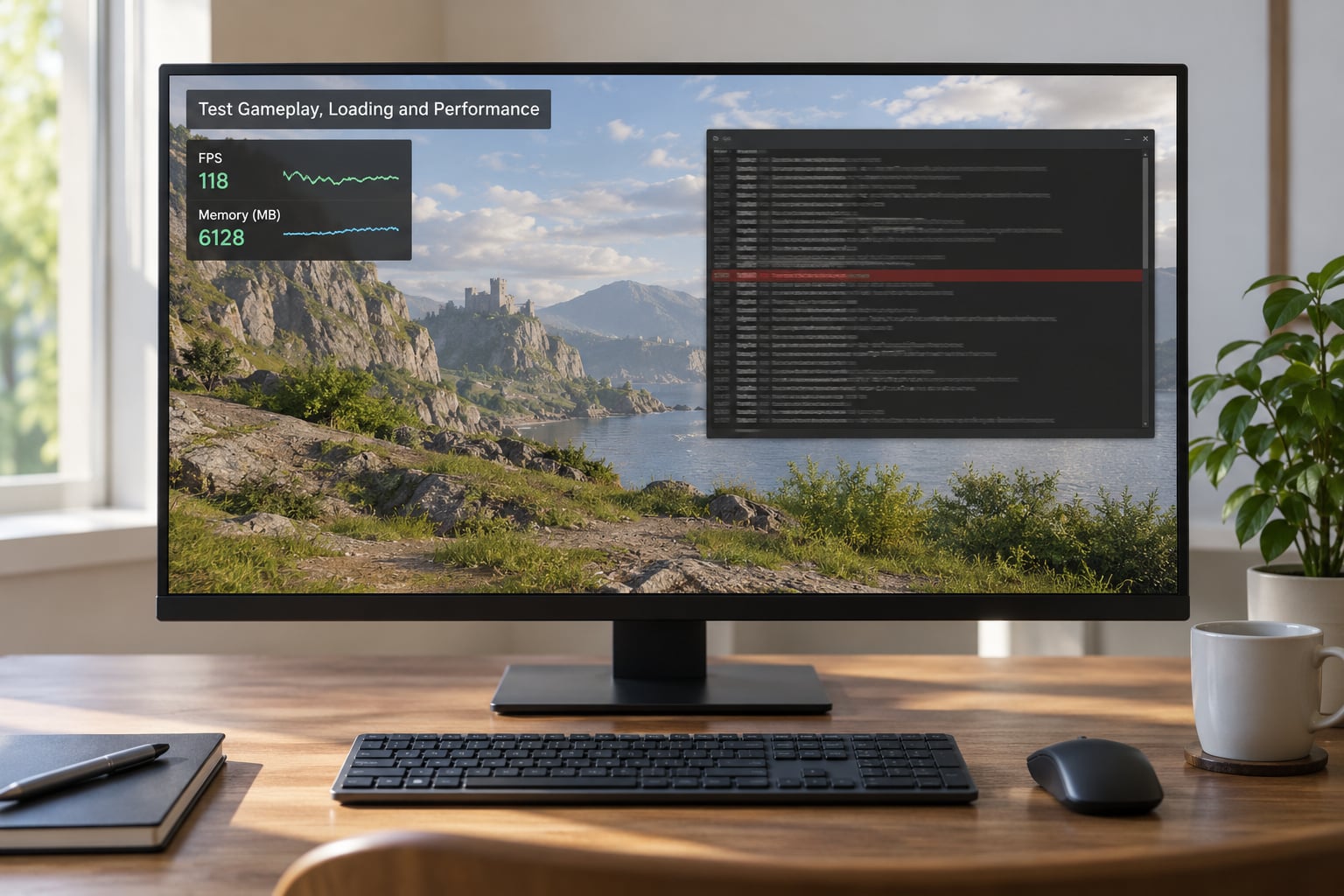
Opening the game is not a test. Load the save you use, open the menus and screens your mod touches, drive or spawn the content you added, run a mission or two, and travel across map areas the mod modifies.
Watch frame rate and memory with a profiler overlay while you do it, and compare against a baseline run with the mods disabled. A 10 percent drop from a texture mod is worth knowing about; a 40 percent drop from a script running every frame is a real defect.
Read the log after each launch. Depending on the game you will find a player log, a crash log, or an output log next to the game files, and the first error naming your files is usually the cause rather than the last error printed. Mod managers often have their own log view that flags which mod installed or replaced each file.
7. Resolve Conflicts Without Losing Working Features
Work down this order, because each step is cheaper than the one after it.
- Match versions. If both mods support the same game build, update the older one before anything else.
- Remove duplicate files. If neither mod truly needs a shared file, strip it from the weaker package. Unchecking files a player does not care about also makes the mod manager surface only the conflicts that matter.
- Choose one override. When both need the file, keep the fuller version, reapply the missing changes, and note it in your documentation.
- Adjust priority or load order so the intended file wins, then record that position in your manifest rather than relying on the player to guess.
- Make the content conditional. Instead of referencing another mod’s item directly, use a placeholder or tag entry and swap it at load time only when that mod is installed. This is how recipes, loot tables and texture references survive an absent mod instead of throwing a missing-texture error.
- Patch instead of overwrite. If behaviour is the problem, use the mod API’s hook and patch functions to modify game code at runtime. Nothing on disk changes, so no other mod can lose a file to you.
Whitelist and tag systems need care. A rule that says an item can be combined with everything blocks the entire modded item set rather than the handful of entries you meant, and users hit that as a mysterious empty list.
8. Save and Document the Stable Combination
Write down the game build, both mod versions, the installation order, required files, the mod manager tested with, and any intentional override. Note the save conditions you tested under, because a combination that works on a fresh save can behave differently on an old one.
Mark the combination as tested and dated. Documentation freshness is one of the strongest trust signals in modding, and a dated list saves every user in your thread from re-running your experiments.
If you reuse another author’s code or assets in a compatibility patch, get permission first and credit them. Mod authors ask about the legal side constantly and the answer is always the same: the licence and the author’s terms govern, not the fact that the files were easy to reach.
Common Mistakes
Installing a mod built for a different game version. It usually loads, then fails in odd places. Fix: pin your supported build range in the manifest and test at both ends of it before publishing.
Overwriting shared files with no load order. Whoever installed last wins, and the user has no idea. Fix: keep shared-file edits minimal, namespace your own assets, and declare the dependency so the mod manager orders things for you.
Hard-coding another mod’s identifier. One missing name takes down the whole data file, and the error message points somewhere else entirely. Fix: use tags, placeholders or conditional entries and test with the other mod absent.
Testing five changes in one session. You learn almost nothing. Fix: one change per launch, and bisect groups until you find the first failure.
Mixing vanilla and modded saves. Loading a modded save into a clean install, or the reverse, corrupts or deletes progress. Fix: keep a separate save slot for modded testing and never reuse it for a clean run.
Assuming a successful launch means full compatibility. The game opening proves only that nothing failed early. Fix: test features, performance and log warnings before you call a combination stable.
One habit covers most of these: uncheck every file you do not care about being overwritten, so your manager only reports conflicts that actually matter to you.
Frequently Asked Questions
Are all mods compatible with each other?
No. Two mods conflict when they edit the same file, register the same identifier, or behave in incompatible ways. Plenty of well-made mods are simply built around assumptions the other one does not share. Check the author notes for known conflicts before you install, and expect to resolve some pairs yourself using load order or a patch.
What should my mod load order be?
Follow the order the authors recommend, then place the mod that should win the shared file last. If your mod manager supports dependencies, declare them rather than dragging entries by hand, because manual positions get lost on reinstall. Keep conflicts at zero wherever possible so the order never becomes load-bearing for basic functionality.
How do I resolve conflicts on MO2?
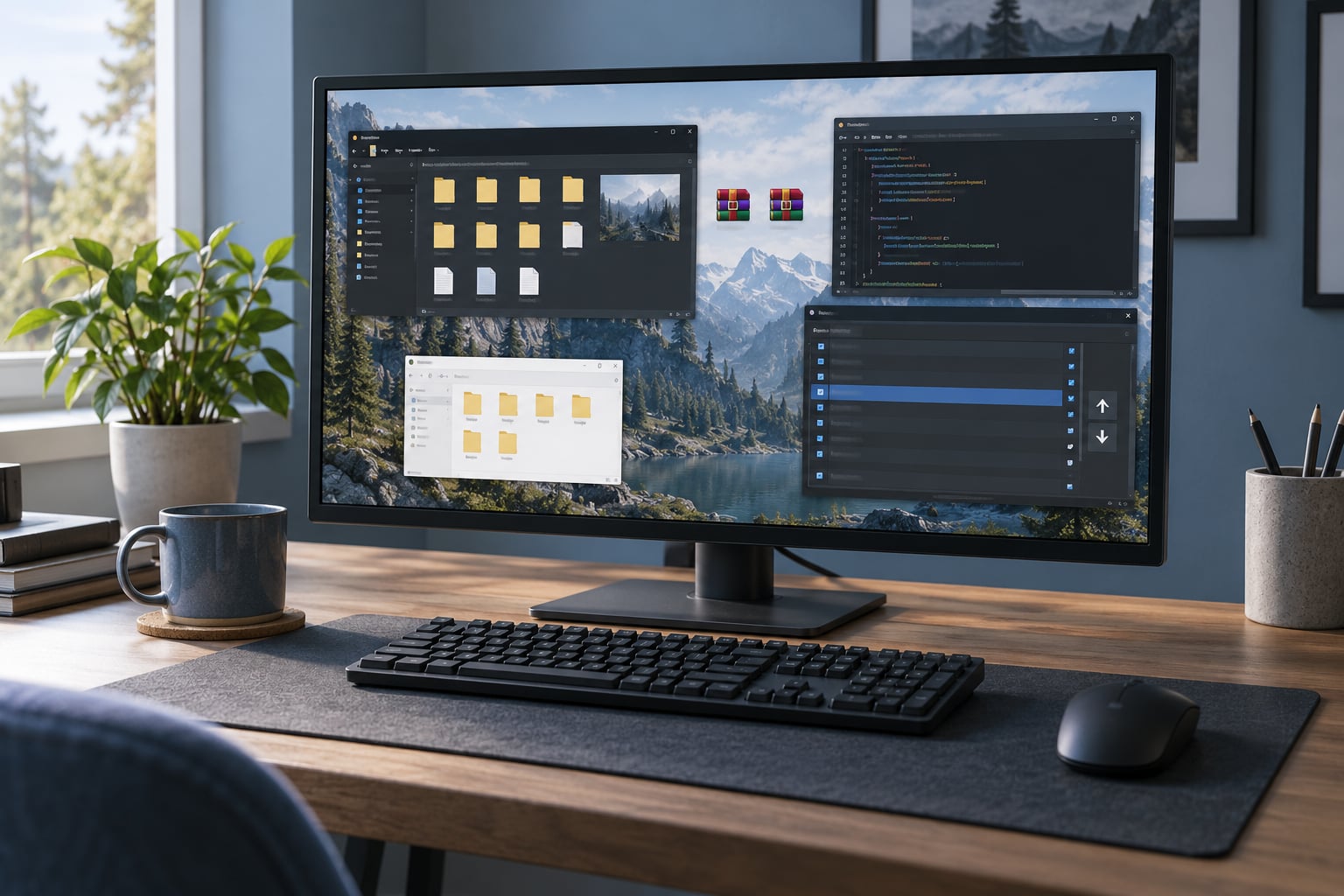
Right-click the mod and choose the winning version after the manager shows you which files it would overwrite. Uncheck the files you do not care about so only meaningful conflicts remain visible. Then move the winning mod below the other one in the priority list, apply the changes, and check the mod list shows zero conflicts before launching.
Can I use older mods on a newer game version?
Sometimes, and it is worth trying before you reinstall everything. Older mods break for two reasons: the game changed how a file is read, or a dependency library moved. A mod that still works after a game update usually fails on one specific feature rather than everywhere, and that tells you exactly where the patch went in.
Is it legal to reuse another mod’s assets in a compatibility patch?
It depends entirely on that mod’s licence and the author’s terms, not on how easy the files are to copy. Many mods require explicit permission and attribution. A written compatibility patch that calls the other mod through its API, without copying assets or code, is the safer path and is usually welcomed.
How do I test a mod for compatibility with others?
Build a small matrix rather than testing everything at once. Run your mod alone, then pair it with the mods most likely to overlap, then with a larger group. After every launch, read the log, exercise the features your mod touches, and check the profiler. Record each working combination with versions and dates so the next test starts from known ground.
Conclusion
Start with the backup, then list the shared files and identifiers your mod touches. Those two lists are where nearly every conflict lives, and knowing them turns a guess into a fix.
From there, add one mod at a time and launch after each change rather than testing a batch. Once a pair works, write down the versions and the order, and keep that combination as a profile you can return to instead of editing files until something breaks again.
Compatibility is not a feature you add at the end. It is a set of habits in how you name things, what you declare, and what you test, and once they are in place your mod stops being the reason someone’s evening went sideways.