An INI file is a plain-text configuration file that a game reads at launch. It stores settings as simple key=value lines grouped under bracketed section headers, and any line starting with a semicolon is a comment the engine skips. Edit one, change a value, save, and the next time the game starts it picks your setting up. You cannot permanently break a game by editing its INI file as long as you keep a copy of the original somewhere outside the game’s folders first.
That last part is the whole article. A backup takes about ten seconds and turns an unlaunchable game into a thirty-second fix. The rest is just knowing which file, which editor, and which value.
Windows is the platform this applies to, and the folder logic holds on Linux and Steam Deck through the Proton prefix. On console and cloud-saved installs, config files are often read-only, so this method does not transfer directly.
Table of Contents
- 1What You Need
- 2Step-by-Step: How to Edit INI Files Without Breaking the Game
- 3Step 1: Close the Game and Locate the Correct INI File
- 4Step 2: Make a Backup Before Changing Anything
- 5Step 3: Open the File in a Plain-Text Editor
- 6Step 4: Change Only Supported Settings
- 7Step 5: Save with the Original Extension and Encoding
- 8Step 6: Launch the Game and Check for Errors
- 9How to Read Common INI File Syntax
- 10How to Fix a Broken or Unreadable INI File
- 11Common Mistakes
- 12Frequently Asked Questions
- 13How do I edit an INI file in Notepad++?
- 14Where are INI files stored?
- 15Why are my INI changes not taking effect?
- 16Is it safe to delete an INI file?
- 17Do I need to close the game before editing an INI file?
- 18Will editing an INI file disable my achievements?
- 19Conclusion
What You Need

Three things, and one of them is optional.
- A plain-text editor. Windows Notepad works. Notepad++ or Visual Studio Code are better because they colour section headers and keys so mistakes are visible at a glance.
- File Explorer with hidden items shown. Most game settings live in AppData, which is hidden by default. In File Explorer, click View, then Show, then Hidden items.
- A spare folder outside the game. Desktop or Documents. Not a subfolder inside the game’s own directory, because updates and reinstalls clear those out.
- Optional: a mod manager, if you use one. Mod Organizer 2, Vortex and Nexus Mod Manager all intercept INI files, and editing the loose file directly will get overwritten. Covered in step four below.
On which file to edit: the ones you want are the loose .ini text files with a name like Engine.ini, GameUserSettings.ini or GamePrefs.ini, sitting in a folder you can see. Leave alone are files inside a compressed container, such as anything ending in .big, .pak or .ini.big, since those cannot be opened in a text editor at all. Also skip .exe, .dll and .xml unless you already know exactly what you are doing, and skip anything inside a read-only program folder where Windows will refuse to save.
If the file does not exist yet, that is normal. Many games write their INI files only on first launch, so launch once, quit, then go looking.
Step-by-Step: How to Edit INI Files Without Breaking the Game
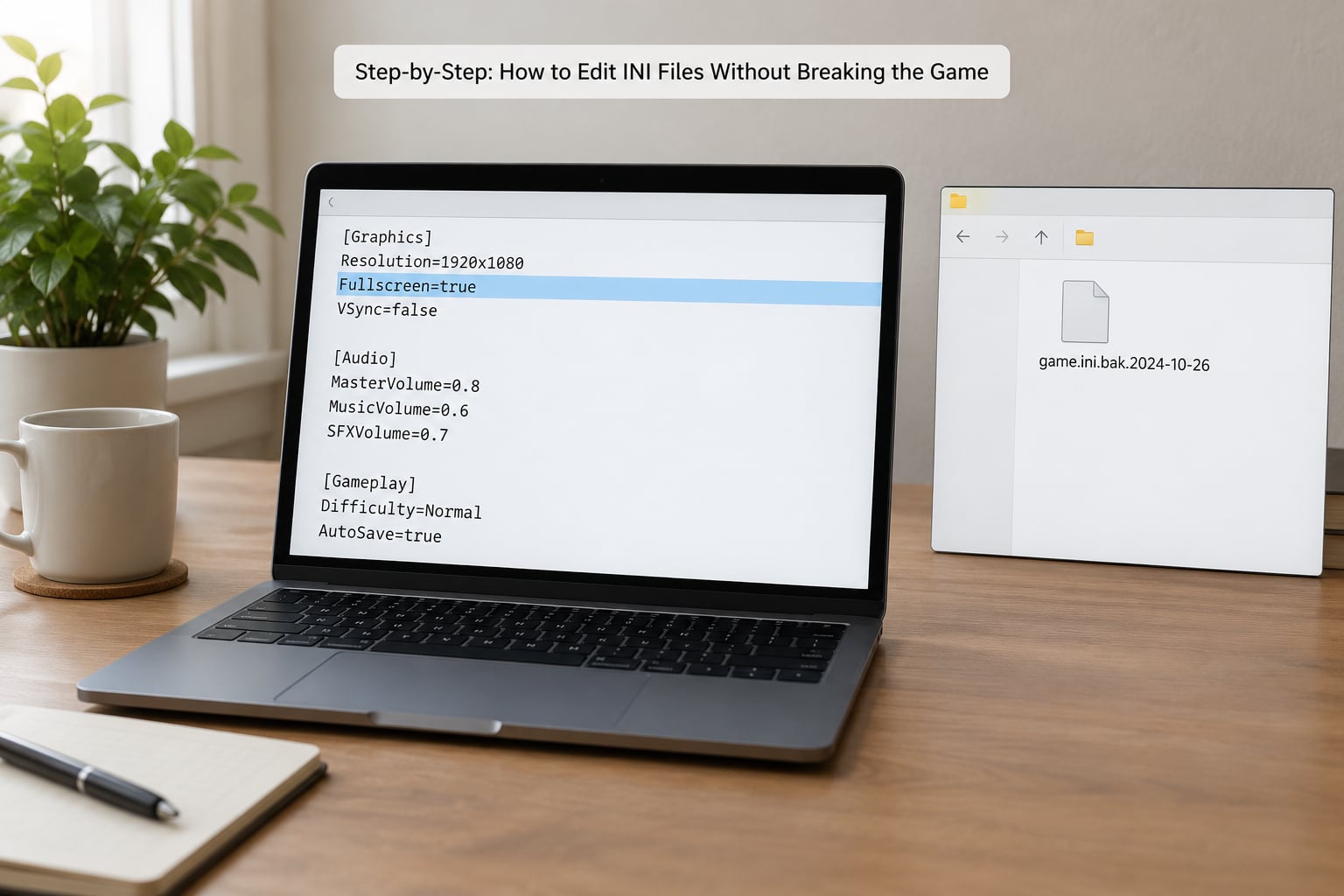
Step 1: Close the Game and Locate the Correct INI File
Quit the game completely, including the launcher, before you touch anything. A running game holds its settings in memory and writes them back when it exits, so anything you type during a session is gone the moment you close the window.
Then find the file. Games use a handful of standard locations, and the same game often has several INI files in different places:
DocumentsMy GamesGameName— the most common home for player-facing settings, including resolution, frame rate and control bindings.AppDataRoamingGameNameandAppDataLocalGameName— user configuration, mod lists and load-order data.- The game install folder itself — engine-level files, or older titles that never moved settings out of the install directory.
Type %USERPROFILE%DocumentsMy Games into the File Explorer address bar to jump straight to the folder people hunt for most. If you cannot tell which of several same-named files is live, edit the one in the user data folder, not the one in the install folder, and confirm by changing a harmless value like a key binding first. Success looks like the setting behaving differently on the next launch.
Step 2: Make a Backup Before Changing Anything
Select the file, copy it with Ctrl+C, then paste it into your spare folder outside the game and rename it to something unmistakable, like GameUserSettings.ini.backup-good. Copy and paste beats Save As here: Save As in Notepad can silently change the extension or encoding, and a copy is byte-for-byte identical to what shipped.
One backup copy, taken once, is enough. Every experienced person on the forums treats it as non-negotiable, and it is the only reason a bad edit is ever a non-event. Success means you can see the original file sitting somewhere safe.
Step 3: Open the File in a Plain-Text Editor
Right-click the INI file and choose Open With, then pick Notepad++ or Visual Studio Code. If you want to stop choosing every time, use Open With, Choose another app, and tick Always, so double-clicking any INI file from then on opens your editor directly.
Do not use Word, Google Docs or any word processor. They wrap long lines, replace straight quotation marks with smart ones, and save a proprietary format inside the file, all of which the engine cannot parse. A file that looks perfect on screen and does nothing in game is very often an editor problem, not a syntax problem. Success looks like lines of plain text with no formatting toolbar behaviour and no smart quotes.
Step 4: Change Only Supported Settings
Change keys that already exist in the file, using the same spelling, and keep each one under its original section header. A setting under the wrong section is scoped to the wrong group and gets ignored with no error message. A misspelled key name behaves the same way.
If you want to add a new line, copy an existing line’s exact pattern and edit the copy. If you see a line commented out with a semicolon and want that setting on, remove the semicolon from the front rather than adding a duplicate line further down. Never invent a value the game has no documentation for, and never inflate a number to test the limits. When a distance, cell count or load limit is set far past what the hardware can handle, the symptom is stuttering, very long load screens, or a crash loop. Success looks like one changed value and nothing else touched.
Step 5: Save with the Original Extension and Encoding
Save with Ctrl+S in the same file, keeping the name and the .ini extension exactly as they were. Do not rename it to .ini.txt by accident, and do not change the file type in a Save dialog. Windows will happily append .txt if file extensions are hidden, and the game will ignore the file completely.
Encoding matters and almost nobody warns you about it. Older Windows Notepad versions saved as UTF-16, and a number of game engines cannot parse UTF-16 INI files at all — the save appears to work, the file is there, and the game reads none of it. In Notepad++ use the Encoding menu and confirm the file is UTF-8 without a byte order mark. Visual Studio Code defaults to UTF-8, which makes it the safer of the two. Success looks like the file still opening in a plain text editor with the same layout after saving.
Step 6: Launch the Game and Check for Errors
Start the game normally and check the setting you changed, not something else. A working change is obvious: the option is different, the frame rate cap is gone, the load distance extends further.
If the game fails to start, or starts and crashes to desktop, close it and copy your backup file back over the edited one. That is the whole recovery. If the game starts fine but the setting is unchanged, work through the causes in the fix section below. Most of the time it is the wrong copy of the file or a mod manager overwriting it, not a syntax error.
How to Read Common INI File Syntax
Every INI file follows the same four-part structure, and once you can read one you can edit any of them.
; ExampleGame.ini — note the extension and the plain layout

[Display]                        ; section header in square brackets
ResolutionWidth=1920             ; key=value pair, whole number
ResolutionHeight=1080
Vsync=0                          ; 0 or 1, 1 usually means on
FrameRateLimit=0.0               ; decimals use a period, not a comma
ShadowQuality=3                  ; 0 to 4, higher is more detail
ShadowDistance=8000.0            ; world distance, a bigger number is heavier
[Display] is a section header. Every key below it belongs to that group until the next header appears, and a value placed under the wrong header is not applied.
ResolutionWidth=1920 is a key and a value, split by an equals sign with no spaces around it. Booleans are 0 and 1, never true and false. Decimals use a period, so FrameRateLimit=0.0 is valid and FrameRateLimit=0,0 is not.
The semicolon at the start of a line comments out everything after it, which is how games ship disabled options you can switch on by deleting that one character. Blank lines are ignored and are there for readability. Multiple values sometimes go on one line separated by commas, like EnabledMods=ModA,ModB,ModC.
Section names and key names are case-sensitive on some engines and forgiving on others, so match what is already in the file rather than guessing at capitalisation.
How to Fix a Broken or Unreadable INI File
Start with the simplest explanation. If the game will not launch at all, the file is probably truncated, badly encoded, or has an unbalanced bracket. If the game launches but ignores your change, the line itself is being skipped.
Duplicate lines with the same key. When the same key appears twice, behaviour differs between engines and is rarely what you want. Delete the copies you did not intend, keeping one.
Stray quotation marks or smart quotes. If a value needs quoting, the engine expects straight double quotes. Curly quotes copied out of a web page or a word processor will not parse, so retype them.
Wrong extension or double extension. Rename Engine.ini.txt back to Engine.ini with extensions shown in File Explorer. This one catches people constantly, because everything still looks correct in Notepad.
Mangled encoding. If the file contains garbled characters or the game now ignores a file it used to read, open it in Notepad++, use Encoding, convert to UTF-8 without a byte order mark, and save.
A missing file where the file should be. Deleting it is a legitimate repair, not a last resort. Close the game, delete the INI, then launch the game once and it writes a clean set of defaults. This is the most reassuring recovery fact in the whole practice, and it is why a corrupted config is rarely a serious problem. Your saves live in their own files and are not affected.
If none of that works, restore the backup. That is the outcome you bought yourself in step two.
Common Mistakes
Editing while the game is open. Symptom: the edit vanishes the next time you quit. The game writes its in-memory settings over your file on exit. Fix: close the game and any launcher first, every time.
Editing the wrong copy of the file. Symptom: nothing changes, no error anywhere. A game can hold three files with the same name in three folders. Fix: confirm the path before editing, and test with a setting you will notice immediately, such as a key binding.
Saving as UTF-16. Symptom: the file saves cleanly and the game behaves as if you never touched it. Fix: save as UTF-8 without a byte order mark. This is the single most under-reported cause of ignored edits.
Leaving the semicolon on a comment line. Symptom: the setting stays at its default. Fix: delete the semicolon at the very start of the line rather than adding a second copy of the setting underneath.
Putting a key under the wrong section. Symptom: silently ignored, no warning. Fix: keep every change inside the section header it came from.
Typing a value far past the sensible range. Symptom: stuttering, multi-minute load screens, then a crash loop. Fix: raise a number in modest steps, test, and stop where performance gets worse instead of better.
No backup at all. Symptom: hours of troubleshooting and possibly an unlaunchable game. Fix: the copy-paste step from step two, every single time.
Mod manager overwrite. Symptom: your edits vanish whenever a mod is installed or enabled. The manager assembles a virtual file at launch and ignores the loose copy on disk. Fix: edit through the manager’s own INI tool, or use its overwrite folder, so the change travels with your load order.
One habit covers most of the above: change a single value, launch, check, and only then move to the next one. Batching five changes means that when something breaks you have five suspects instead of one.
One more thing worth knowing. Game updates can rewrite or reset INI files, so a change that worked yesterday may be gone after a patch. Before assuming a setting broke, check whether the game updated. This is normal in 2026 more than ever, since config files are regenerated as part of the update process.
Frequently Asked Questions
How do I edit an INI file in Notepad++?
Open Notepad++, then use File and Open to pick the .ini file directly from your game folder. The extension will not appear in the file picker unless you change the file type filter, so type the full file name including the .ini ending. Make your change, press Ctrl+S, and confirm under the Encoding menu that the file is UTF-8 without a byte order mark before you close it.
Where are INI files stored?
Most games keep player settings in a folder under DocumentsMy Games named after the game. Others use AppDataRoaming or AppDataLocal, which Windows hides by default. Older titles and engine-level files sometimes stay in the install folder itself. A reliable trick is to launch the game once, quit, then search your user folder for .ini and sort by date modified, because the file the game just wrote is the live one.
Why are my INI changes not taking effect?
Check these in order: you edited the wrong copy of the file, the game regenerated it at launch, a mod manager is supplying its own version, the line is still commented out with a semicolon, the key sits under the wrong section header, the file saved as UTF-16, or the editor appended a .txt extension. A typo in a key name is also ignored without any error message, so compare the new line against an existing working one character by character.
Is it safe to delete an INI file?
Yes, as long as the game is closed. Delete it, launch the game once, and it writes a fresh set of factory defaults, which is a reliable way to undo a bad edit. Your save games are stored separately and are not touched by this. Keep your backup copy anyway, since a game that does not regenerate the file until some later step will simply start from nothing.
Do I need to close the game before editing an INI file?
Yes, always. A running game holds its current settings in memory and writes the whole file back when it exits, so your edit is silently discarded. Close the game and any launcher or mod manager too. The same rule applies to dedicated servers: config changes made while the server is online are gone the next time it stops, so edit only while it is shut down.
Will editing an INI file disable my achievements?
That depends entirely on the game and the setting. Adjusting graphics, audio or interface options is normally fine, but some online games flag configuration changes as modification of client files, and competitive titles may treat any external config edit as a problem. For single-player games it is rarely an issue. If achievements matter to you, check the game’s own policy or community forum before changing anything beyond personal preferences.
Conclusion
Copy the file out, change one value, save as UTF-8, launch, and look. That loop takes about a minute and it is the difference between a setting you adjusted and a game you cannot start.
If something does go wrong, put the backup back or delete the INI and let the game write fresh defaults. Nothing you do to a configuration file permanently damages your saves, and the file itself is always one launch away from being rebuilt.