To unlock higher draw distance in old games, work up a ladder: set the in-game slider as high as it goes, push past the cap by editing the game’s config file, and only then add a draw-distance mod. Most titles hide the real limit in a text file the menu never mentions. Budget about 20 minutes per game the first time, plus a few minutes for each retest after a change.
Old games shipped with conservative limits because the hardware of the day could not hold more. A modern machine often has five to ten times the memory those caps assumed, so the engine can usually go further than the developer ever tested. The catch is that engines allocate fixed-size buffers, and a value that is too large will not just look bad, it will hang the game on load.
Table of Contents
- 1What You Need
- 2Step-by-Step: How to Unlock Higher Draw Distance in Old Games
- 31. Check the Original Graphics Options
- 42. Unlock Higher Draw Distance That the Menu Caps Out
- 53. Edit the Configuration File Carefully
- 64. Test the New Distance at a Safe Resolution
- 75. Fine-Tune Fog, Streaming, and Graphics Settings
- 8Common Mistakes
- 9Frequently Asked Questions
- 10Why does raising draw distance make my frame rate collapse?
- 11Can I increase draw distance on Xbox, PlayStation, or Switch?
- 12Does the same config key work across different old games?
- 13Are draw distance and LOD mods safe to install?
- 14Does more draw distance always make a game look better?
- 15Conclusion
What You Need
Before touching a single number, get these four things in place. Skipping any of them is how people end up with a config they cannot get back to a working state.
- The game you actually own and play. The Steam, GOG, or retail copy matters, because each can ship a different config file and different default values. Check which release you have before you copy key names from a guide written for a different version.
- A copy of the current settings. Take a screenshot of the graphics menu. You want to know exactly what the slider read before you changed anything, because that is your rollback value.
- A plain text editor. Notepad on Windows is fine. Word is not, because it can add hidden formatting and quotes that break the file format. An editor that shows line numbers also makes it far easier to find a value later.
- A backup of the config file. Copy it, then rename the copy with a .bak extension in the same folder. This is the only reliable way back, and it takes two seconds.
- A repeatable test route. Pick one spot you know well, walk the same path, and note the frame rate before and after. A single visit to a new area tells you nothing.
One more thing worth adding: a way to undo. If the game writes its config file on exit, some titles will overwrite your edits when you close them, so check whether your change survived a restart before you assume it failed.
Step-by-Step: How to Unlock Higher Draw Distance in Old Games
1. Check the Original Graphics Options
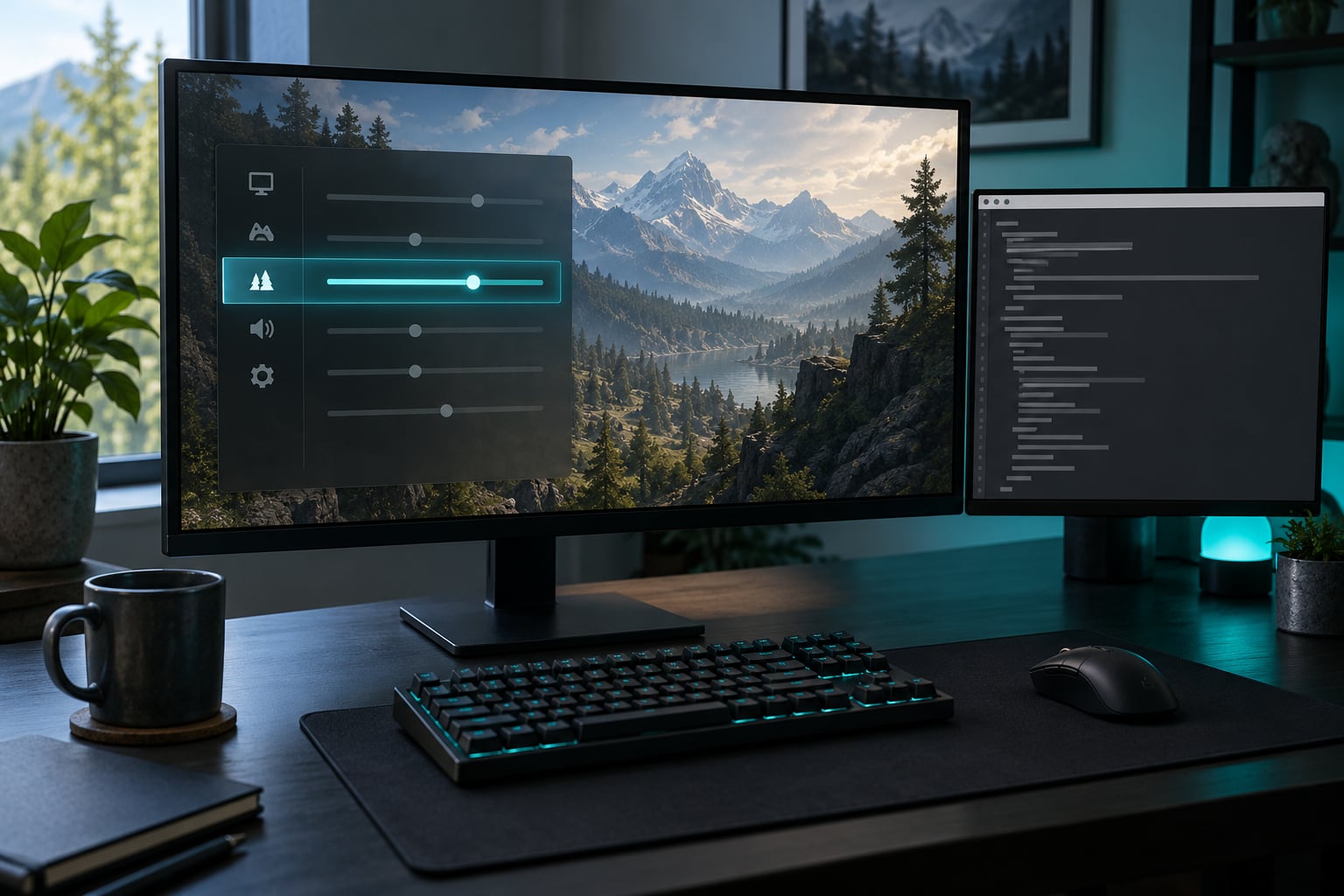
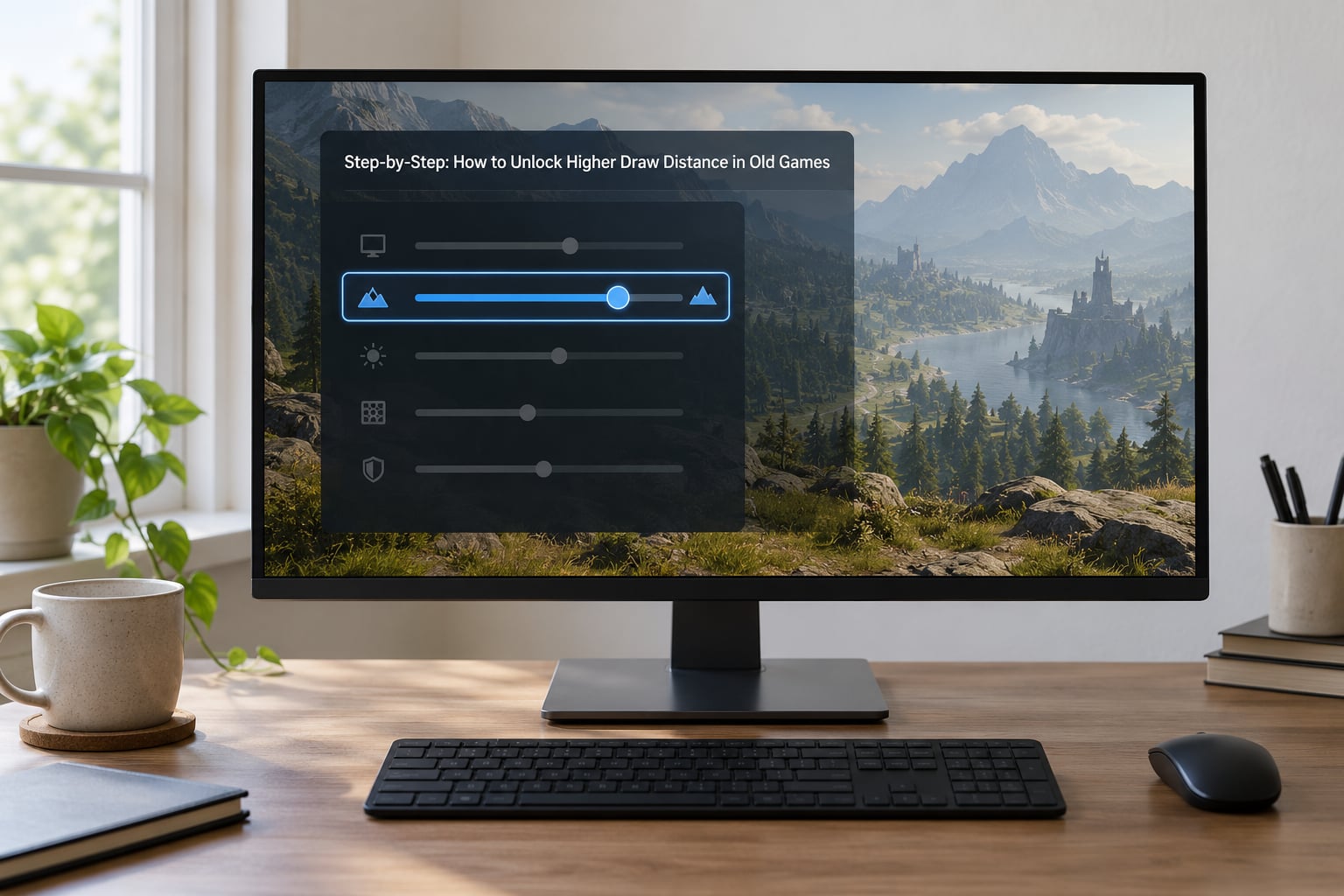
Start in the game’s own menu, because that setting is free and reversible. Open the video, display, world, or advanced options panel and look for anything named draw distance, view distance, render distance, terrain distance, fog distance, or LOD range. Games rarely use the term you searched for, and the label alone does not tell you what the value controls.
Write the current number down before you change it. On many older titles the menu slider is not a display value at all; it is a 0 to 1 scale that the config file later multiplies into an actual distance. That mismatch is the reason a slider at maximum can still look short.
| Method | Effort | Typical visual gain | Frame rate cost |
|---|---|---|---|
| In-game slider | 1 minute | Small to moderate | Low |
| Console command or developer console | 5 minutes | Moderate | Low to moderate |
| Config file edit | 10 to 15 minutes | Large | Moderate to high |
| Draw distance or LOD mod | 30 to 90 minutes | Very large | High |
| GPU driver override | 10 minutes | Sharper, not longer | Moderate |
2. Unlock Higher Draw Distance That the Menu Caps Out
When the slider stops at a number that looks suspiciously round, you have hit a developer cap rather than a hardware limit. Four things can move it. An official setting in an advanced or expert tab that the default profile hides is the cleanest option, so check there first. Some titles also read an environment variable or a launcher flag that takes precedence over the menu.
Second, check for a developer console. Games that ship one usually accept a command such as a draw distance or fog distance variable, and the console will happily accept a value far past what the slider allows. The catch is that console changes are often session-only, which is a useful property: it tells you whether the value is even survivable before you commit it to a file.
Third, a modded engine build can raise the cap directly. Community engine projects for older Bethesda and id Software titles routinely expose distance settings the retail build hides behind a hard limit. Fourth, a trusted configuration utility can do the edit for you, which is fine as long as you still know which file and key it changes so you can verify the result yourself.
3. Edit the Configuration File Carefully
This is the method that actually unlocks things on most older titles, and it is the step most guides skip. The process is the same every time, whatever the game.
Find the config file. It usually sits in the game’s install folder, in a folder named after the engine, or in your user documents folder under a folder with the game’s name. Files end in .ini, .cfg, or .conf. If the game has a folder called UserSettings, Config, or GameData, start there. Searching the whole install folder for draw, lod, or distant finds the key faster than guessing filenames.
Copy the file, rename the copy to add .bak, and open the original in a plain text editor. Then use Find to search for these key names, which are the most common across engines of that era:
uGridDistantCountin the Elder Scrolls games, which sets how many distant object cells loadDrawDistanceorr_drawdistancein many Source, id Tech, and open engine titlesDistant Landsin Morrowind, including community engine builds that lift the original capFarClipPlaneorzfar, which is the camera’s hard cutoff and is a different setting from draw distanceFogStartandFogEnd, which control the haze, not the geometry
Change one value, save the file, and change nothing else. Many of these files list several related keys, and the game picks the smallest or last one depending on version, so editing two distance keys at once can leave you guessing which one took effect. Save in plain text format, keep the brackets and quotes exactly as they were, and leave the line ending alone. If the game refuses to start, you almost certainly broke the formatting rather than the value.
Raise in steps rather than jumping to the largest number you have seen recommended. Double the value, test, then double again if it holds. Community consensus across the forums I read for this topic is the same: incremental testing with a repeatable benchmark beats one enormous number every time, and the jump from 32 to 64 is usually where things break.
4. Test the New Distance at a Safe Resolution
Test before you admire. Load the game, walk your saved route, and watch the horizon rather than the ground in front of you. Distant buildings, roads, and trees that appear out of nothing are pop-in, and pop-in that gets worse as you raise the value means the engine cannot build that many objects fast enough.
Then measure. Note the frame rate in the same spot before and after, and watch for stutter rather than the average number alone. A game that holds a steady 50 but stutters every few seconds feels worse than one holding 45 smoothly, and a hitching game usually means you are past what the streaming buffers can handle.
| Symptom | Likely cause | Fix |
|---|---|---|
| Objects pop in badly at distance | Value is above what the engine can build | Back the distance down one step |
| Visible fog wall that never lifts | Fog end is still capped low | Raise fog end to match the new distance |
| Black screen or no horizon at all | Far clip plane is still low, or too high for the renderer | Match far clip plane to the new draw distance |
| Hangs or loops on world load | Buffers overflowed from an oversized value | Restore the .bak copy and use a smaller step |
| Textures load in after the geometry | Streaming memory budget too low | Raise the streaming pool, then re-test |
5. Fine-Tune Fog, Streaming, and Graphics Settings
Draw distance on its own rarely fixes the view, because the other distance-related settings still describe the old world. Match fog first. If fog end sits well below your new draw distance, you get a wall of haze sitting in the middle of the horizon, which is the single most common complaint in these threads and the easiest fix in the list. Push fog end to roughly the same figure as the draw distance and the wall disappears.
Then give the game more streaming memory. Texture and object streaming pools were sized for the original hardware, and when you raise the distance you are asking for more assets to be resident at once. Most engines expose a pool size in the same config file, and the fix for distant textures that pop in after the geometry is a larger pool, not a smaller distance.
Level of detail is the quiet one. Raising draw distance without lowering LOD thresholds means the engine renders far more low-detail objects, which is cheap on paper and expensive in practice. Pulling the LOD thresholds down is usually what makes a large increase survivable on mid-range hardware.
Resolution and anti-aliasing are your pressure valves. Drop resolution scaling or turn anti-aliasing off before you give up a large distance increase, because the frames you recover there buy more horizon than trimming the distance back. On NVIDIA cards, Dynamic Super Resolution in the control panel does the same job, and AMD’s Virtual Super Resolution is the same idea; both render above your output resolution and downscale, so enable one and measure again. Finally, lower grass and vegetation distance, which is a separate slider on many titles and one of the heaviest items in the frame budget.
Common Mistakes
Changing fog instead of draw distance. This is the most frequent error. Fog end changes what the world looks like at the edge; it does not load more of the world. If your edit produced a taller haze bank and the same short horizon, you edited the wrong key.
Editing the wrong file. Games often keep a default config in the install folder and a user config that overrides it. Change the default and the game ignores you completely. If your edit seems to have no effect, check the file’s modified date after launching the game; the one that changed is the one the engine is reading.
Setting the value to an absurd number. A key set to 99999 does not give you 99999 units of horizon. It overflows a fixed buffer, and the symptom is a crash, a corrupted save, or a load that never finishes. Values in the range of a few hundred are usually where the curve flattens anyway.
Expecting the same menus on console and Android. On Xbox, PlayStation, and Switch builds there is no config file you can reach, and the option list is often trimmed. The same is true for many Android ports, where settings live in a simplified overlay. On those platforms your options are the in-game menu, any built-in preset or graphics mode, and a display-resolution change if the port supports it. Some of these ports also reload the old value on restart, so check whether your setting persisted.
Applying third-party files with no backup. Mods, widescreen patches, and engine injectors are written by people, not by your game developer. Save a copy of your save folder, read what a file claims to change, and install one thing at a time. Several crashes people report after a game update trace back to a leftover configuration file the patch was supposed to replace, and deleting that one file was the whole fix.
Modding a multiplayer game. Graphics mods and config edits belong in single-player. Online games with anti-cheat can treat modified files as tampering, and your account is the thing at risk, not the game.
Frequently Asked Questions
Why does raising draw distance make my frame rate collapse?
Every extra unit of distance asks the engine to build, light, and draw more objects at once, and the cost climbs faster than the distance does. Low-detail geometry adds up quickly once the horizon passes a few hundred units. Lower the LOD thresholds, shrink grass and vegetation distance, and raise the streaming memory pool before you cut the distance again. Measure on the same route each time, because averages from different areas are not comparable.
Can I increase draw distance on Xbox, PlayStation, or Switch?
Usually not in the way you can on PC. Console builds normally hide their config files inside system storage, and the graphics menus are trimmed compared with the PC version, so slider values are often the highest you can reach. Your realistic options are the in-game quality presets, any separate performance or fidelity mode the console offers, and lowering output resolution. On PC versions of the same title, the config file route is open and the difference is dramatic.
Does the same config key work across different old games?
No. Each engine family uses its own naming, and the file location changes with the release you own. Older id Software and Source titles tend toward short camera-style keys, the Elder Scrolls games use grid cell counts, and RenderWare and Build engine games use entirely different schemes. The reliable method is to open the config file and search for words like draw, lod, or distant, then confirm which key the game actually reads by changing one value and watching the horizon. Copying a key name from a different game usually does nothing at all.
Are draw distance and LOD mods safe to install?
They are generally safe for single-player games you own, and the risk is a file conflict rather than anything harmful. The practical precautions are simple: back up your saves, note the game’s version number, and install one mod at a time so you can tell which change caused a problem. Mods are version-specific, so a game update can stop one working or make it overwrite your own edits. Avoid anything in multiplayer, where modified files can be treated as cheating.
Does more draw distance always make a game look better?
No. Past a certain point you are mostly paying frame rate for detail you never look at, and on open worlds the memory cost can be worse than the visual gain. A modest increase that removes the fog wall and shows the next landmark is usually enough. Large increases only pay off when you spend a lot of time looking at the horizon, such as in a survival game or a simulator. It is also worth remembering that the same controls work in reverse, since lowering draw distance is the cheapest frame rate gain available on weak hardware.
Conclusion
Open the game’s own menu first and record what the distance slider currently reads. Copy the config file, change one distance key in small steps, and take it out to the same spot in the world each time to check for pop-in and stutter before you decide whether the new value is worth keeping. That loop takes about twenty minutes and it is the difference between a longer view and a game that will not load.