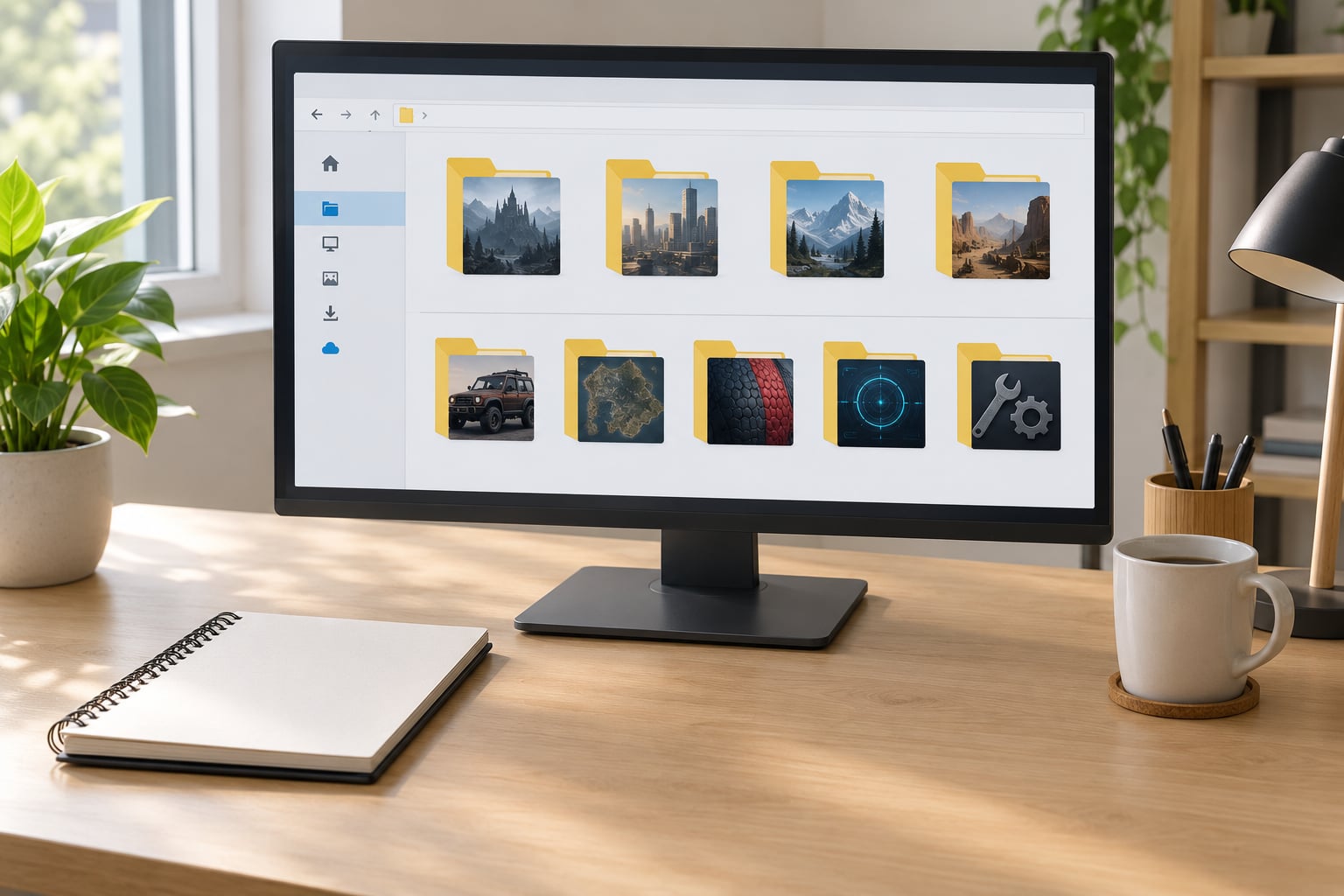
Organizing a mod library with folders and tags is really three separate jobs. A shallow folder tree decides where each file physically lives, a short tag list decides how you find it six months later, and a category layer inside your mod manager decides how the tool itself displays it.
For a few hundred mods, the whole build takes about an hour. Keeping it clean afterwards costs about ten minutes a week. The game matters less than you would think, but the install path and any folder depth limit matter enormously.
Table of Contents
- 1What You Need
- 2Folders, Categories, or Tags: Which Primitive Does What
- 3Step-by-Step: How to Organize a Mod Library with Folders and Tags
- 4Step 1: Create a Simple Library Structure
- 5Step 2: Use Consistent File and Folder Names
- 6Step 3: Add Tags for Fast Filtering
- 7Step 4: Track Important Mod Details
- 8Step 5: Test, Archive, and Maintain the Library
- 9Troubleshooting: What Breaks After You Rearrange
- 10Common Mistakes
- 11Frequently Asked Questions
- 12Can I organize my mods into folders?
- 13Should I organize mods by creator or by type?
- 14Do folders affect load order?
- 15Will a game patch or modlist update wipe my folder structure?
- 16How long does reorganizing a mod library take?
- 17How do I organize mods on Android or console ports?
What You Need
None of this needs paid software. Everything below runs on a standard Windows or Mac setup, and the same folders work for console ports and Android if you are organizing files on your PC before transferring them.
Install path first, because it decides everything else. On PC, The Sims 4 keeps its Mods folder inside your Documents folder under Electronic Arts, and Skyrim Special Edition takes loose files in a Data folder inside the game install directory. Unity and Unreal titles usually have a BepInEx or similar framework folder where mods and plugins live together. Confirm yours before moving anything, because a library built on the wrong root has to be rebuilt.
- A clean, working mods folder. Your game runs correctly right now, with mods you have tested. Restructure from a known-good state, not from a broken one.
- A file manager. Windows File Explorer is enough. A dual-pane tool makes the sorting faster, but it is not required.
- A text editor and a spreadsheet. Notepad for notes, a spreadsheet for the tracking sheet. You will use both more than you expect.
- A tag list of 12 to 15 tags maximum. Write it down before you start tagging. Community advice from modding forums is consistent on this: a shallow vocabulary beats a perfect taxonomy you abandon in week two.
- Backup storage. One full copy of the game folder and the Mods folder, somewhere else. This is the one step people skip and the one that costs them a weekend.
One clarification before you begin. The paths and rules below differ by game and platform, so confirm your own before moving a single file. On PC, The Sims 4 keeps its Mods folder inside your Documents folder under Electronic Arts, while Bethesda titles such as Skyrim use a Data folder inside the game install directory.
Android ports are the odd one out. Those files usually live on the device or in an APK, not on your PC, so treat them as a separate library with its own conversion folder.
Folders, Categories, or Tags: Which Primitive Does What
Folders, categories and tags get used interchangeably in most guides, and that is why so many libraries end up with three systems that disagree. They answer three different questions. Give each one a single job and the argument stops.
| Primitive | What it is | Use it for | Limit |
|---|---|---|---|
| Folder | A real directory on disk | Where a file physically lives | Counts against the engine’s folder depth limit |
| Category | A grouping row inside your mod manager | How the tool displays and sorts the mod list | Changes nothing on disk; moving a mod between categories never breaks a load |
| Tag | A short text label on one mod | Filtering, auditing, answering a question later | No effect on loading at all, and no shared vocabulary between tools |
The test I use: if a question starts with where, it is a folder. If it starts with which group, it is a category. If it starts with show me everything that, it is a tag.
There is a fourth layer people forget, which is the mod manager’s own profile or loadout. That is not organization either, it is a saved state of what is active, and it is the tool’s job, not yours.
Step-by-Step: How to Organize a Mod Library with Folders and Tags
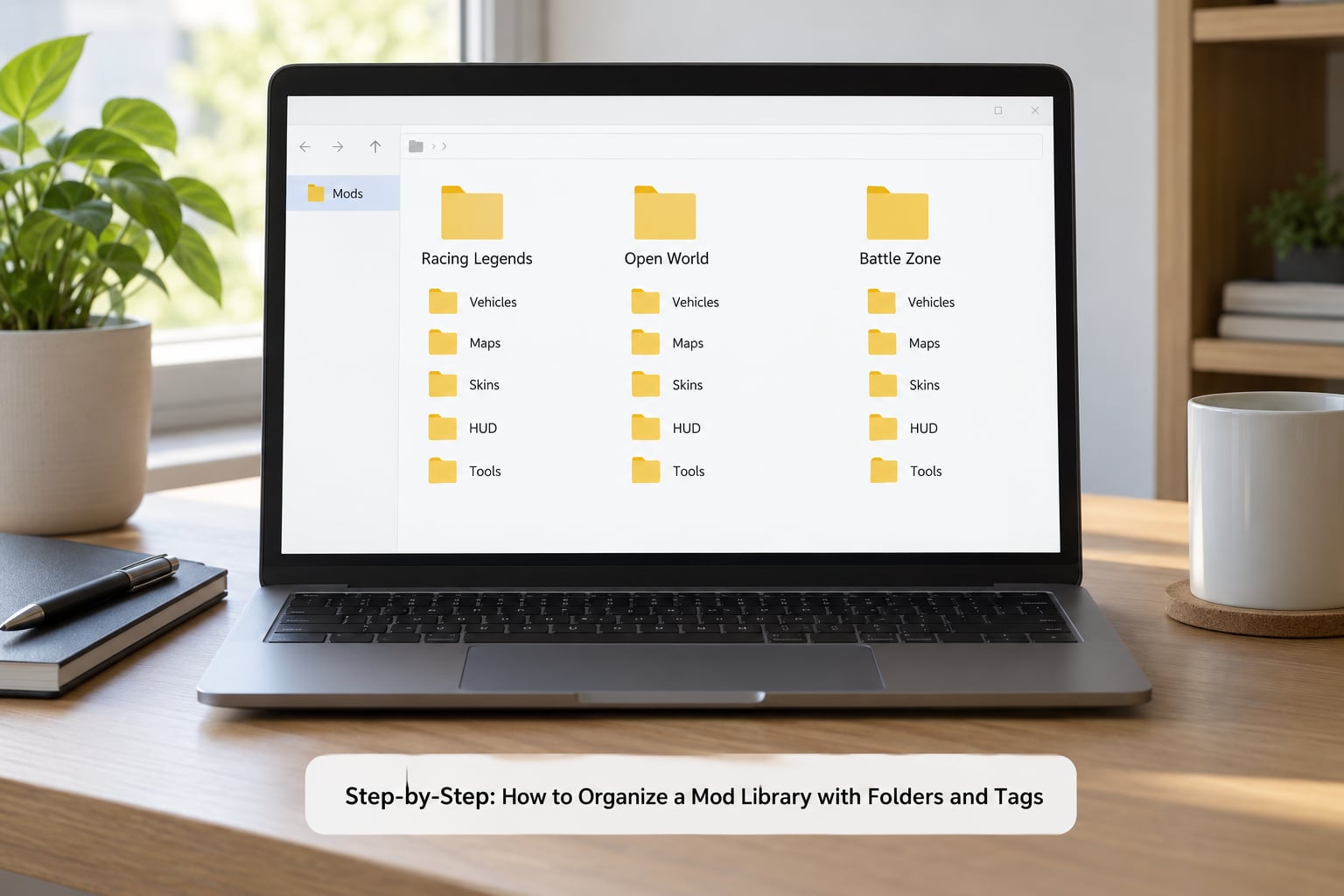
Work in this order and you will never end up with a half-sorted library. Each step assumes the previous one is finished.
Step 1: Create a Simple Library Structure
Start with a single master folder, one level above anything game-specific. Inside it, create one folder per game. Inside each game folder, create a small set of category folders.
Keep the tree shallow on purpose. Two levels inside the game folder is comfortable, three is the practical maximum. Every extra level is another place a file can end up too deep for the game to read it.
ModLibrary/
├── GameA/
│   ├── 01_Vehicles/
│   ├── 02_Maps/
│   ├── 03_Skins/
│   ├── 04_HUD/
│   ├── 05_Tools/
│   └── 99_Untested/
├── GameB/
│   ├── 01_Vehicles/
│   ├── 02_Characters/
│   └── 99_Untested/
└── 00_Converted/
    ├── Android/
    └── Console/
The numbered prefixes are there to force sort order in File Explorer, which sorts alphabetically by default. Rename 01_Vehicles to 10_Vehicles next month and the order falls apart, so keep the numbers fixed.
Players on The Sims 4 use a variant of this that works well: top-level folders for Build, Buy, CAS, Game Mods, Defaults and a testing folder, with creator subfolders underneath. It is the most-repeated structure in the community, and it survives because each folder answers a question you actually ask.
Step 2: Use Consistent File and Folder Names
Searchability is the whole point of naming. A name that tells you nothing costs you a search every single time you touch that file.
Use this pattern for files and folders: game, what it is, creator, version, file type. Written out, that gives you something like GameA_Radio_Vector_v3.2_asi. Underscores, no spaces. Several games and tools trip over spaces in file paths, and underscores never cost you anything.
What to avoid is worse than ugly. Avoid vague names entirely: new, final, fixed, untitled, and the other words you were tired of typing at 2am. Avoid names that duplicate the folder they sit in. If a file is already in 01_Vehicles, the folder name does not need to be in the file name too.
What to keep: the creator name when the mod page gives you one, and a version marker when the mod gets updated. Finding out a year-old version is already incompatible with your game build takes five minutes of digging when the name carries it and twenty when it does not.
Step 3: Add Tags for Fast Filtering
Tags are labels on individual mods. They do not change where a file lives, and they never affect how the game reads it. They exist so you can ask a question like which mods still work, which ones came from that list I installed in March, and which two touch the same file.
Keep the vocabulary short and use it in passes. Tag everything in one folder, then move on to the next. Trying to assign every possible tag to every file in one sitting is how libraries get abandoned halfway.
| Tag | What it means | When you apply it |
|---|---|---|
| vehicle | Replaces or adds a vehicle | On import, to every vehicle file |
| replace | Overwrites an existing game asset | On import, always |
| script | Runs code rather than shipping assets | On import, especially for script mods |
| patch | Fixes a conflict with another mod | Only when you know which mod it patches |
| needs-work | Not confirmed working yet | On import, cleared after testing |
| needs-update | Broke after a game patch | After patches, during an audit |
| from-list | Came from a modlist install | On import, note which list |
| creators-pay | Creator asks for a donation or has a paid tier | On import, before you delete anything |
| mobile | Converted for an Android or console port | When you make the converted copy |
| untested | Never launched in game | On import |
Tags mean different things in different tools, and none of them travel between tools automatically. Write your vocabulary into a plain text file so you can copy it into whatever the next tool expects.
A mod manager with its own category tree gives you a third layer. Folders hold files on disk, categories group them inside the manager, and tags filter them. Use each one for a single job and you avoid the classic problem of three overlapping systems that quietly disagree with each other.
Step 4: Track Important Mod Details
Some information exists only on the page you downloaded from, and it disappears the moment you close the tab. Capture it on the way in, while you are still looking at it.
For each mod, record six things: the source link, the download date, the version number, any stated requirements, the folder you filed it into, and whether it has been tested in game. Add a notes column for anything surprising, such as a specific game version it depends on.
A spreadsheet is the pragmatic choice. Columns are cheap, sorting works, and you can filter by tested status to find out what to check after a patch. A text file works too, and it survives being copied between machines.
Do not record your load order in the same sheet. Organization and load order are different jobs, and mixing them in one list is the single most common way people end up with a sheet they no longer trust. If you use a manager, let the manager own load order.
Step 5: Test, Archive, and Maintain the Library
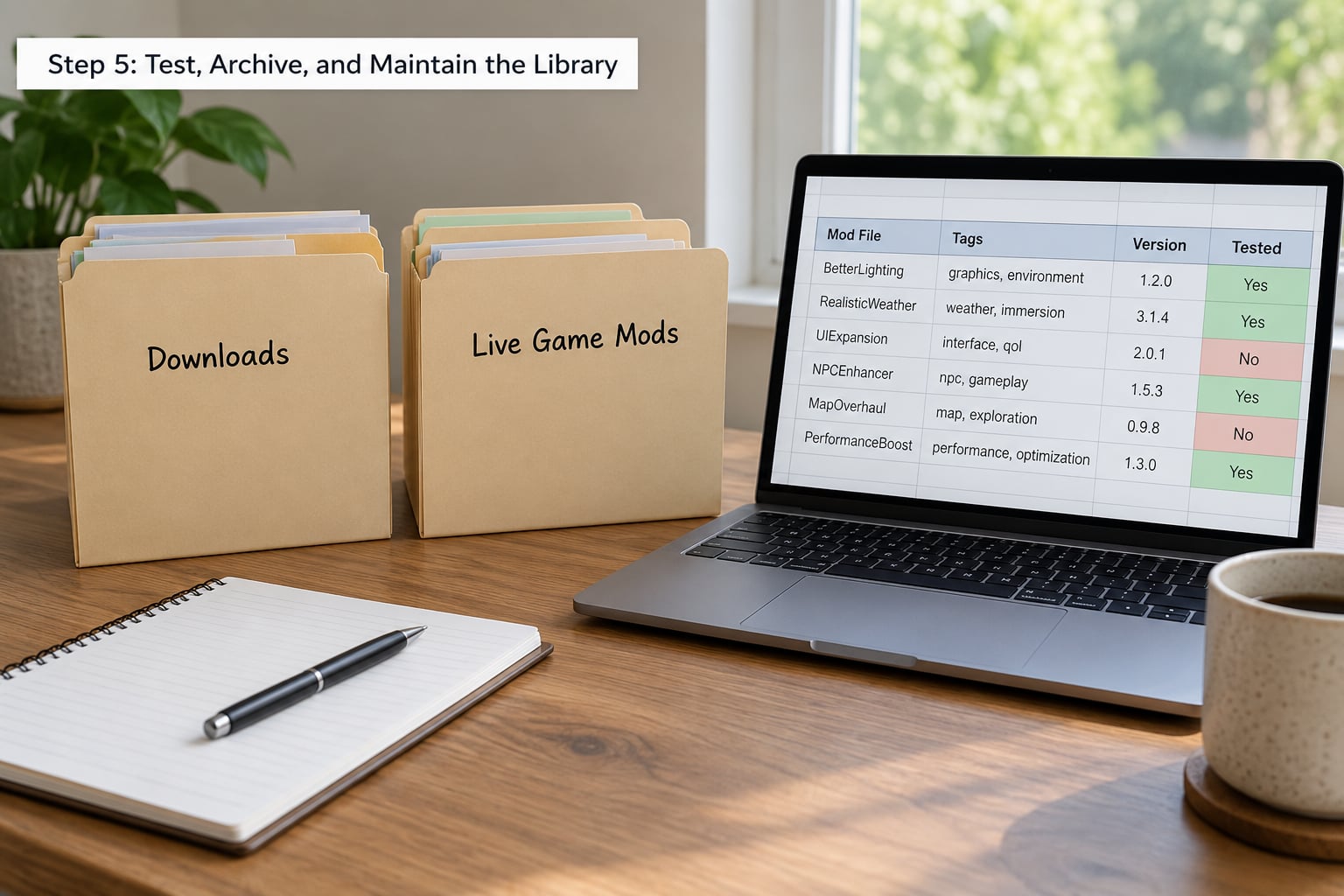
Your download folder and your live game folder should be two different places. New files land in downloads, get tested there, and only move into the library once they are confirmed working. That single rule prevents most of the mess people complain about later.
Test one mod at a time where you can. Install it, launch the game, check the thing it changes, then decide. If something breaks and you have three new files in play, you are guessing instead of diagnosing.
When a library gets big, duplicates appear. The same vehicle from two different creators, the same texture pack downloaded twice, a file that exists in three modlist packs. Run a hash-based duplicate finder over the library once, decide which copy wins, and move the rest into an archive folder rather than deleting them. Modders report archive-then-delete far more often than immediate deletion, and it is the right instinct.
Then build a rhythm. Each week, clear the untested folder: anything there for more than a month either gets tested or gets archived. Once a quarter, sweep for files with no tag and no spreadsheet row, and check the mods that were working before the last game patch.
A quarterly audit of a few hundred mods takes about 45 minutes. Save the mod list from your manager before and after each audit so you can diff the two and see exactly what changed.
For games with a mod manager, do the sorting inside the tool as well. Mod Organizer 2 users build structure in the mod list pane with separators, or virtual folders through the TrueFolders plugin. Vortex users work with categories in the same pane instead. Whichever you pick, keep the manager’s structure flat and let your disk folders handle depth.
One warning from the TrueFolders community: hand-made structure can be wiped by a modlist update, because the nesting marker sits in front of the mod name and breaks the no-delete tag match. Export your structure before you install someone else’s list, and diff afterwards.
Troubleshooting: What Breaks After You Rearrange
Most post-restructure problems are not caused by the restructure itself. They were already there, and moving files changed which of them you can see.
A mod stopped showing up after you moved it. Almost always depth. Count the directories from the game’s mods root to the file. If the count exceeds what your engine reads, pull the file up a level. Script files need this more than asset files.
Content loads but the game caches the old version. Several games keep a thumbnail and content cache, and Sims 4 players delete its cache file after a big re-sort. Check whether your game includes a similar cache before assuming the move failed.
One mod breaks everything and you cannot tell which. Use the community’s 50/50 method: disable half your mods, test, and if it still breaks disable the other half. Three or four rounds isolate a single file. It sounds slow and it takes about ten minutes.
Loose files keep getting overwritten. In Mod Organizer 2 this happens when something outside the tool writes straight to the game folder, or when a mod’s own Overwrite folder conflicts. Move anything you edited by hand into a proper mod folder so the tool can track it.
Your structure vanished after installing a modlist. Recover from the export you made beforehand. If you did not make one, reinstall your own mods from the archive folder and rebuild the categories; the files themselves are almost always fine.
One thing to know when moving a library to an external drive: the game usually loads mods fine from there, but some tools care about the drive letter, which Windows reassigns on replug. Set the letter to something fixed in Disk Management and nothing else changes.
Common Mistakes
Nesting too deep. Most engines stop reading at a fixed subfolder depth. The Sims reads its Mods folder and roughly five levels of subfolders by default, which people extend with a Resource.cfg file placed in the same directory. Go past the limit and content simply never appears, which reads exactly like a broken mod. Keep script mods shallower than asset mods, because their loading is less forgiving.
Using vague names. A folder called new or temp is a promise to yourself that you will sort it later. Rename on import instead, while you are extracting, rather than moving whole creator folders around afterwards.
Tagging too broadly. A tag that applies to 80 percent of your library is not a tag, it is decoration. If a filter returns half your mod list, it tells you nothing.
Keeping only one copy. Duplicates are how you recover from a mod that breaks after a patch. Archive the loser, keep the winner, and record which one is which.
Editing inside the live game folder. Move a file in or out while the game is closed, and make sure your manager is not mid-deploy. A half-finished deploy plus a manual move is how loose files end up overwritten by the wrong source.
Trusting the filename instead of testing. A file called ready_to_use may be a two-year-old build that no longer loads. Test status is the only status that counts.
Organizing across game versions without noting them. A library shared between an older and a newer game build needs a version marker, or you will eventually install a file that quietly breaks one of them.
Two more that are worth a line each. Do not put saves inside the mods folder: several games keep saves in a separate documents directory, and mixing them means a restore pulls back the wrong thing. And do not edit Resource.cfg or similar config files as part of a re-sort. Config files are not organizational files, and a restructure is the wrong moment to discover a duplicate one.
Frequently Asked Questions
Can I organize my mods into folders?
Yes, for most games, with one exception to check first. Engines have a maximum folder depth they will read, usually around five levels of subfolders, and content placed deeper simply does not load. Script mods are the most sensitive to this and should stay closer to the root than asset mods. Games driven by a mod manager often ignore folders on disk entirely, because the manager assembles the load itself.
Should I organize mods by creator or by type?
By type first, then by creator underneath. Type folders answer the questions you ask most, such as what to disable when a map breaks the minimap, and they stay stable when you swap creators. Creator subfolders still work well as a second level, which is why The Sims 4 players commonly use Build, Buy, CAS, Game Mods and Defaults on top with creators below. Avoid going deeper than two levels of sorting.
Do folders affect load order?
No. Folders decide where files sit on disk, load order decides which file wins when two mods change the same thing. If your game uses a mod manager, load order is controlled by plugins, profiles or the in-game list, and moving files between folders does nothing to it. If you edit files by hand instead, load order follows folder and file naming conventions that you have to research per game.
Will a game patch or modlist update wipe my folder structure?
Game patches usually leave disk folders alone. Modlist updates are different, because they write over the mod list itself. Mod Organizer 2 users running virtual folders have reported losing hand-made structure after an update, since the nesting marker sits before the mod name and breaks the no-delete tag match. Export or screenshot your structure before installing a list, and diff your mod list afterwards.
How long does reorganizing a mod library take?
Plan on about 60 to 90 minutes for a library of a few hundred mods. Back up first, which takes longer than you expect on a large library, then sort in passes of one folder at a time rather than all of it at once. The recording step is what adds time, and it is the part people cut and later regret. A large library on an external drive can take hours just to copy.
How do I organize mods on Android or console ports?
Treat the port as its own library rather than a copy of your PC folder. Converted files often need different names, formats or loading methods than the PC originals, so keep them in a separate converted folder with the source noted. Tagging carries over perfectly well, since it is just metadata. Test conversions one at a time, because a port that boots to a black screen gives you no clue which file caused it.
Start tomorrow with the backup and the master folder. Create one folder per game, one set of category folders per game, and write your 12 tags on a notecard before you tag a single file.
Everything after that is maintenance, not a project.