How to restore a mod setup on a new PC comes down to three separate things: the mod files, your configuration and load order, and your save games. Each one lives in a different folder, and each has its own restore step. Miss the configuration and the game launches looking vanilla; miss the saves and you start over from the beginning of the story.
This guide covers the Steam, Epic Games and Rockstar versions of GTA V, plus Singleplayer and GTA Online. Console and Android setups work differently because those platforms reset themselves, so there is a separate short section for those near the end.
The full runbook, in order:
- Back up the mod archive, configuration files and saves from the old PC.
- Write down or export your mod list and the game build number.
- Install the same game edition and the same build on the new PC.
- Reinstall your loader, tools and script dependencies.
- Restore the mod files to the exact folders they came from.
- Rebuild mods.cfg and any load order you no longer have a file for.
- Test vanilla first, then add mods back in small groups.
Budget a couple of hours for a full restoration. Most of that time is copying files, not configuring anything.
Table of Contents
- 1What You Need
- 2Step-by-Step
- 3Identify and Back Up the Old Mod Setup
- 4Install the Game and Required Mod Tools
- 5Restore Mod Files and Replace the Mod-Ready Game Files
- 6Rebuild Configuration Files, Dependencies, and Load Order
- 7Test the Setup in Stages
- 8Save and Document the Restored Setup
- 9Common Mistakes
- 10Game-Specific and Platform Notes
- 11Frequently Asked Questions
- 12Can I restore GTA mods on a new PC without reinstalling every mod?
- 13Where should I copy my GTA mod files on a new PC?
- 14Why does my restored GTA mod setup crash even though the mods worked before?
- 15Can I transfer my modded GTA save to a new PC?
- 16Do console and Android GTA mods survive a new system?
- 17Do I need a full reinstall after a new PC, or can I fix the existing one?
- 18Conclusion
What You Need
Gather these before you touch the new PC, because several of them only exist on the machine you are replacing.
- The game installation on the old drive, including the Rockstar Games folder if Rockstar Game Pass was used.
- Your mod archive: the loose .rpf files, .asi loaders, .ytd textures, .dll plugins and winMods folders.
- Your loader or mod manager — OpenIV, Vortex, Mod Organizer 2, or a manual install with no manager at all.
- Scripting and archive tools: ASI Loader, Script Hook V, Archive Extractor, an archive utility, and a text editor for mods.cfg.
- Configuration files, especially mods.cfg and any manager profile or load order export.
- Save games from DocumentsRockstar GamesGTA VUser Games.
- An external drive or NAS large enough for the game plus your mod folder.
Also know your compatibility rules before starting. A mod built for one game build can crash or silently break on another, so the build number decides what you are allowed to restore. Read the notes the old setup used if you still have them.
Step-by-Step
Identify and Back Up the Old Mod Setup
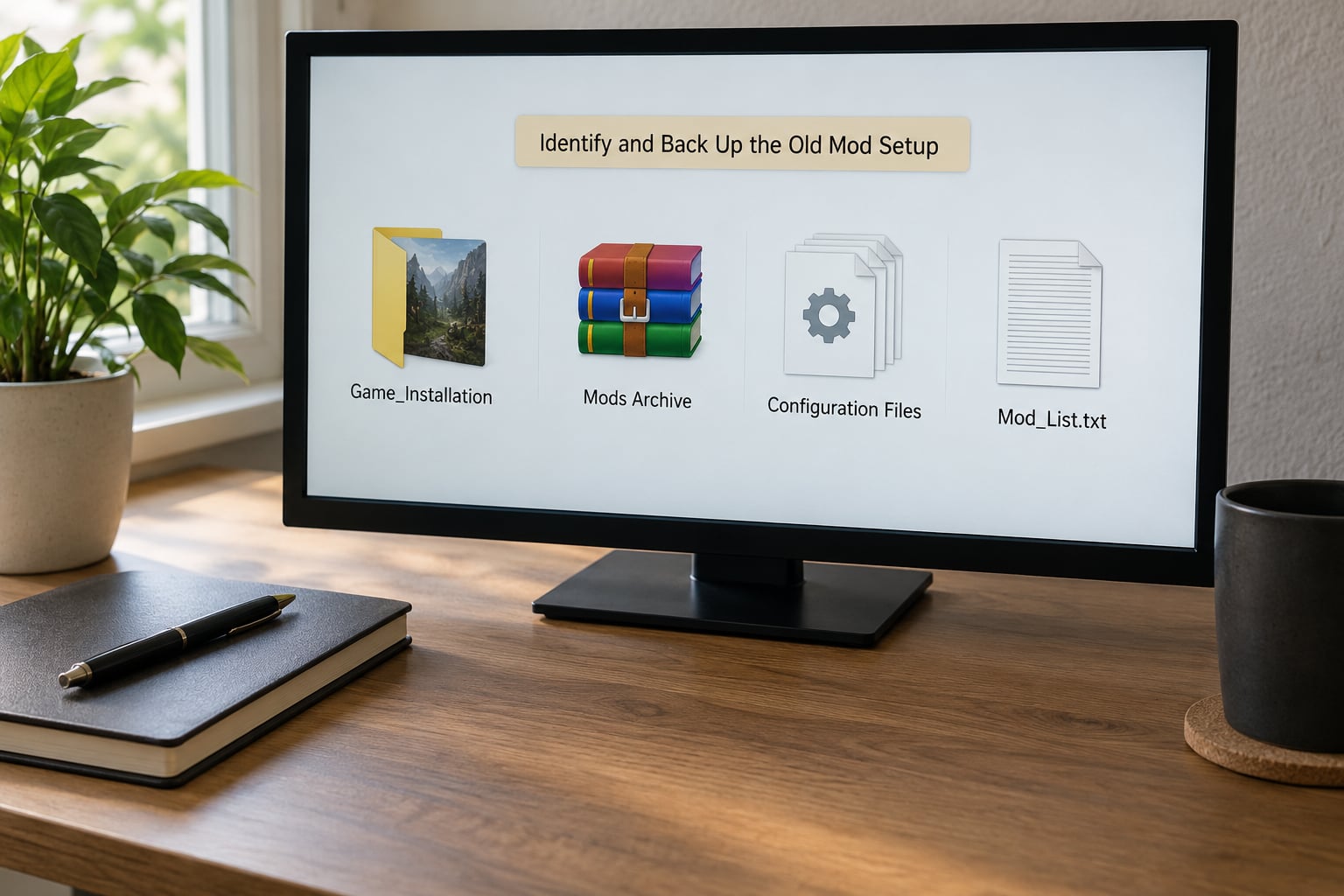
Start here, because after a motherboard failure the old drive may never boot again. Copy everything below to an external drive before you wipe, format or sell anything.
| Folder path on the old PC | What it holds | Must back up |
|---|---|---|
| DocumentsRockstar GamesGTA VUser Games | Singleplayer saves | Yes |
| C:Program FilesRockstar GamesGTA V | Game install, including mods and winMods | Mod files yes, game files optional |
| C:Program FilesRockstar GamesSocial Club Mods | GTA Online mod data | Only if you use it |
| DocumentsRockstar GamesGTA VScripts | Script mod folders and configuration | Yes |
| DocumentsRockstar GamesGTA VProfiles | Profile and save backups | Recommended |
| Any mods.cfg you edited | Your load order | Yes |
| Vortex or MO2 instance folder | Mods, downloads, profiles, staging | Yes |
The downloads or staging folder inside a Vortex or Mod Organizer 2 instance is the difference between copying a few gigabytes and re-downloading 400 mods. Files that only ever existed in a Vortex staging folder were never installed to the game, and they cannot be recovered unless you saved that folder before the move.
Export a mod list while you still can. Vortex and Mod Organizer 2 both export their mod list to a text file, and a written list of download names plus versions is faster to rebuild than scrolling screenshots. Add a note with the game build number your mods were made for.
Install the Game and Required Mod Tools
Install the exact same edition you had: Steam, Epic Games, or Rockstar Game Pass. A different launcher stores the files differently, and mixing them is a common cause of a setup that loads but looks untouched.
Match the build number before you restore anything. If your notes do not record it, launch the game on the old PC, open the pause menu and check the build at the bottom of the Rockstar Games Launcher or the Steam properties window. Then let the launcher update or roll back as needed for 2026 releases. A mismatch is fixable now with a clean re-download; it is much harder to diagnose later.
Run verify integrity of game files once, before any mod files go back in. This gives you a clean baseline and tells you the launcher really owns that folder.
Now reinstall your tools: OpenIV, ASI Loader, Script Hook V matched to that build, Archive Extractor, and whichever framework your script mods need. Reinstall the same version you used before if you remember it, since loader versions move fast.
Restore Mod Files and Replace the Mod-Ready Game Files
Put the game back in the same folder path it used on the old PC when you can. Absolute paths break when the drive letter changes, and keeping C:Program FilesRockstar GamesGTA V saves a lot of fixing.
Then place each file type where it belongs:
- .rpf replacements (vehicles, maps, weapons, peds) go straight into the matching folders inside the GTA V directory, such as x64 folders under dlcpacks, mods or peds.
- winMods stay in their own folder at the root of the GTA V directory.
- .asi and Script folder items go into DocumentsRockstar GamesGTA VScripts, which is where Script Hook V loads them from.
- .ytd, .dll and .ini files follow whatever their installer or readme says, usually inside the same folders as the .rpf they belong to.
Never mix files from two different game builds in one folder. Half the reason a mod “disappears” after a move is that an older .rpf overwrote a newer one, or a stray duplicate file in the same path wins over the copy you just restored.
Rebuild Configuration Files, Dependencies, and Load Order
This is the step that decides whether your restoration looks like the old setup or like a fresh install with mods in it. Open mods.cfg in the GTA V folder with a plain text editor.
Check three things in it. First, every mod entry has a line number that is not blank, since blank lines and duplicates are ignored. Second, the order is the order you want, because earlier lines load first. Third, line69 and the last entries are still commented or uncommented the way you had them; many setups toggle a few high-numbered lines to disable a whole block.
Dependencies go back in at the same time. ASI Loader and Script Hook V must load before any .asi file that needs them, and OpenIV or a Script folder loader needs its own dependency list. If you never wrote a load order file down, rebuild it from your exported mod list in this order: frameworks and script loaders, then textures and visual replacements, then gameplay scripts, then anything with a dependency list that names another mod.
If a manager held your profiles, export or copy that profile too. On a manual setup, save this mods.cfg as your new baseline file before you launch.
Test the Setup in Stages
Do not launch with everything enabled. Test in layers so a crash tells you where to look.
- Launch vanilla with mods.cfg emptied. If this crashes, the problem is the game install or the build, not your mods.
- Add the loaders only: ASI Loader, Script Hook V, Script folder.
- Add visual replacements in groups of roughly ten.
- Add script mods last, one group at a time.
- Rebuild mods.cfg line by line, launching after each small batch.
When something fails, open DocumentsRockstar GamesGTA Vgame.log. It names the last .asi or .dll it tried to load, which usually points straight at the culprit instead of sending you through a full reinstall.
Save and Document the Restored Setup
Once it runs clean, write the whole thing down. Record the game build number, every tool and its version, the full mod list with versions, and the state of every mods.cfg line that you toggled.
Keep the archive copy of your mods somewhere separate from the game drive, and keep the old PC powered and connected as a source until you have played a few sessions. The expensive part of a modded setup is the configuration, and configuration is what gets lost quietly.
Common Mistakes
Almost every failure after a move falls into one of these patterns.
| Symptom | Likely cause | Fix |
|---|---|---|
| Game launches but looks completely vanilla | mods.cfg empty, wrong file, or left in edit mode with no changes saved | Reopen mods.cfg, confirm entries and save, then exit edit mode properly before launching |
| Only some mods appear | Blank or duplicate line numbers in mods.cfg | Renumber entries so every line has a unique number |
| Crash on launch | Game build mismatch, or a .asi loading before its dependency | Match the build number, then load frameworks before scripts in mods.cfg |
| One vehicle or map reverts to the original | Two copies of the same .rpf, older one winning | Search the game folder for duplicate file names and keep only the newest |
| Textures missing or black | Files mixed across two game builds | Clean reinstall, verify integrity, then restore files from one archive only |
| Saves missing after the move | Saves were never copied out of User Games | Restore from a previous save copy; there is no recovery path if none was made |
| Mods vanish or re-download themselves | Cloud sync or antivirus touching the mod folder | Pause OneDrive sync for the Rockstar folders and exclude the game directory from antivirus scanning |
| Launcher cannot see the game | Game moved to a different drive or folder path | Verify integrity in the launcher, which lets it detect the new location |
| Script mods do nothing | Script Hook V version does not match the game build | Install the build-matched version and confirm the Script folder path |
Two habits prevent most of that list. Back up saves before anything else, and keep your mods archive in one dated folder rather than scattered across the game directory. Windows Search for .rpt and .rpf inside the GTA V folder takes a minute and shows you exactly what duplicates you are dealing with.
Game-Specific and Platform Notes
PlayStation and Xbox consoles cannot be modded the way a PC can, so restoring means reinstalling the game, re-downloading your purchased mods from the console store, and reapplying saved data from a backup or cloud copy. Anything not backed up is gone when the console storage is reformatted.
Android works differently too. Modded APK or XAPK files have to be reinstalled with the same game version, and Android versions change often enough that an old modded package may not install at all. Copy your game data folder and your mod package to external storage before reinstalling.
Frequently Asked Questions
Can I restore GTA mods on a new PC without reinstalling every mod?
Yes, if you still have the original mod files, configuration folders and version information. Install the same GTA edition and game version first, then restore the files and dependencies in a controlled order. Copying your mod archive from the old PC is far faster than downloading 400 mods again.
Where should I copy my GTA mod files on a new PC?
Most PC mods go into the GTA V directory or into Documentsu005cRockstar Gamesu005cGTA Vu005cScripts. Replacement .rpf files match their folder inside the game directory, winMods stays at the root, and .asi files load from Scripts. Keeping the same drive letter and folder path as your old setup prevents path errors.
Why does my restored GTA mod setup crash even though the mods worked before?
A crash usually means a missing dependency, an outdated script, a different game version, a conflicting mod or a damaged replacement file. Restore a clean base game and test it with no mods first, then add files back in small groups while reading game.log, which names the last component it tried to load.
Can I transfer my modded GTA save to a new PC?
Usually yes, as long as the save matches the same game edition and story progress. Copy the files from Documentsu005cRockstar Gamesu005cGTA Vu005cUser Games on the old PC into the same folder on the new one, after installing the identical game version. Keep the original backup until the restored save loads correctly.
Do console and Android GTA mods survive a new system?
No. Consoles store mods as part of the game package, so they must be re-downloaded from the console store after reinstalling the game. Android mod packages often stop installing after an update because the game version changed, so keep your mod files and game data folder backed up to external storage.
Do I need a full reinstall after a new PC, or can I fix the existing one?
If the old PC still boots and its drive is readable, copy your mod archive, mods.cfg and saves to external storage first, then repair the system rather than reinstalling Windows. A fresh Windows install is the right call only when the drive is failing, being wiped, or the hardware change makes the old system unstable.
Conclusion
Back up the mod archive, mods.cfg and your saves before anything else happens to the old machine. Install the same edition and build on the new PC, restore files to the same paths, then test vanilla before adding mods back in small groups. Write down your build number and mod list while you are there, and the next move becomes an afternoon instead of a rebuild.