VRAM usage explained for texture mod packs comes down to one rule: texture memory grows with the square of texture resolution, so a pack moving from 2K to 4K images costs roughly four times the graphics memory. Your GPU holds those textures in dedicated VRAM, streams them in from storage as you move around, and stutters when the scene asks for more than the card can hold.
That is the whole idea. The rest is measurement. Instead of trusting a number printed on a box, read the peak dedicated GPU memory in the heaviest part of the map you actually play, then lower whichever setting costs you the least visually.
Updated for October 2026.
Table of Contents
- 1VRAM Usage Explained for Texture Mod Packs: What a Pack Actually Loads
- 2Dedicated GPU Memory vs Shared System Memory
- 3How Texture Streaming Fits Into VRAM
- 4How Much VRAM Does Your Resolution Need?
- 5How to Calculate a Texture Pack Budget
- 6What Changes VRAM Usage the Most?
- 7Does Draw Distance Use a Lot of VRAM?
- 8How to Check Your Actual VRAM Usage
- 9How to Check VRAM in Windows 11 Task Manager
- 10How to Track Peak VRAM in MSI Afterburner
- 11How to Reduce VRAM Without Removing the Mod Pack
- 12Which Settings Should You Lower First?
- 13What Happens When a Texture Mod Pack Exceeds VRAM?
- 14Frequently Asked Questions
- 15Will adding more system RAM fix an overloaded texture mod pack?
- 16Can a game use more VRAM than the amount printed on the GPU?
- 17Do compressed texture files automatically guarantee low VRAM usage?
- 18Is 8 GB of VRAM enough for high-resolution texture mod packs?
- 19Can texture mod packs work on consoles or mobile devices?
- 20Conclusion: Start With Your Actual Peak Usage
VRAM Usage Explained for Texture Mod Packs: What a Pack Actually Loads
A texture is just an image sitting in video memory. Your GPU samples it thousands of times per frame to paint a wall, a car door, a tree trunk or a face. When a mod pack replaces low-resolution assets with high-resolution ones, each of those images gets bigger, and the graphics card has to keep more of them resident at the same time.
Here is a concrete example. A single 2048 by 2048 image with four colour channels takes about 16 MiB in VRAM. The same wall at 4096 by 4096 takes about 64 MiB. One material, four times the memory, and the character barely notices at normal viewing distance.
Multiply that by every surface within view distance and by the number of maps each material carries — colour, normal, roughness, specular, ambient occlusion, and often a metal or smoothness map layered on top. A car in a GTA V-style mod setup can easily reference eight or more textures. That is where the totals get big.
Dedicated GPU Memory vs Shared System Memory
Dedicated GPU memory is VRAM soldered onto the graphics card, with its own high-speed connection to the GPU. Shared GPU memory is your system RAM being borrowed by the driver when a frame needs more than the card has.
Shared memory is not free capacity. It runs over a much slower path, so a texture pulled from there is read far more slowly than one sitting in dedicated VRAM. A card labelled 8 GB can technically report 16 GB total GPU memory, but that second 8 GB is your RAM, not the card.
This is exactly why a card with a printed 8 GB does not behave like an unlimited 8 GB texture budget. When a modded scene crosses the dedicated limit, the driver starts evicting and re-fetching textures, and frame times climb even though the average memory graph looks acceptable.
Two numbers get mixed up constantly: allocation and usage. A card can reserve a large block of memory for a game at launch and barely touch it, while an overlay shows a big figure that reflects reserved space rather than what is actually in use. Learning to tell those apart is more useful than any forum argument about how much memory a game “really” needs.
How Texture Streaming Fits Into VRAM
Games do not load an entire map’s worth of textures at once. They keep a working set in VRAM and stream the rest from the SSD or drive as you approach. When you drive fast, or the mod adds assets the streaming system did not expect, it cannot keep up, and you get the classic pop-in and hitching.
This is why average VRAM use is the wrong number to look at. A ten-minute drive through the countryside might average 4 GB and then spike to 11 GB in the city centre. Peak is the figure that predicts stutter.
Memory speed matters too. Beyond a certain point, the GPU can wait on the memory bus faster than the textures arrive, which is why two cards with the same VRAM amount can feel very different in a streaming-heavy game.
How Much VRAM Does Your Resolution Need?
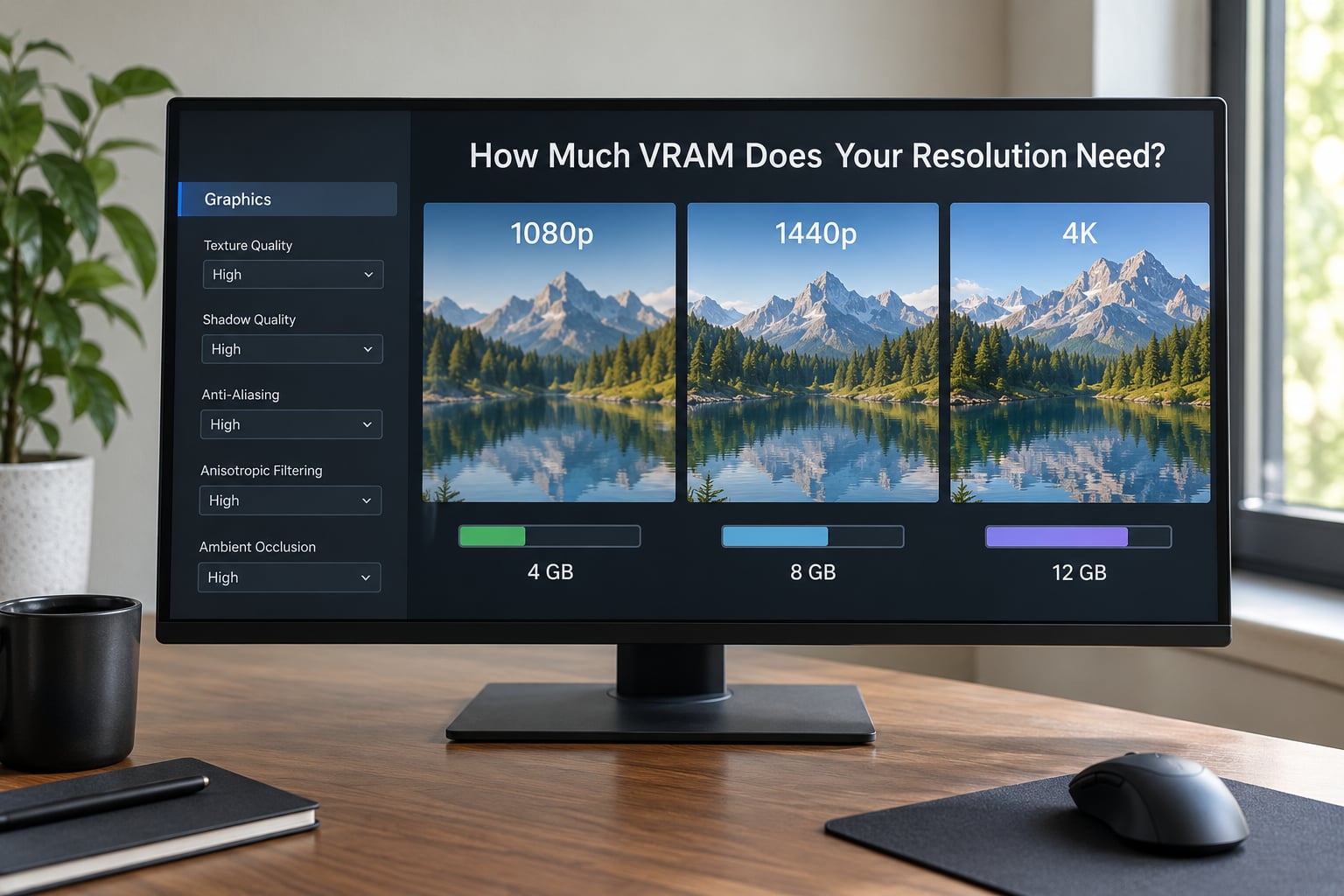
Start with the cheapest number to calculate: one full-screen image. At four bytes per pixel — the usual RGBA8 format — the figures below are pure arithmetic, not a game budget.
| Output resolution | Pixels | One RGBA8 frame | Two frames buffered |
|---|---|---|---|
| 1920 x 1080 | 2.07 M | 7.9 MiB | 15.8 MiB |
| 2560 x 1440 | 3.69 M | 14.1 MiB | 28.1 MiB |
| 3840 x 2160 | 8.29 M | 31.6 MiB | 63.3 MiB |
Notice how 4K costs four times 1080p. Same square rule as textures. An ultrawide 3440 by 1440 sits just above the 1440p row at about 18.9 MiB per frame.
These numbers are small because a framebuffer is a flat image. A real game needs depth buffers, shadow maps, render targets for post-processing, and every texture you listed above. That is why a machine sitting around 4 to 5 GB of dedicated VRAM on an unmodified GTA V at 1080p on Very High is not running out of framebuffers. It is running out of textures and render targets.
How to Calculate a Texture Pack Budget
The formula behind every texture number is width multiplied by height, multiplied by bytes per pixel, multiplied by 1.33 for mipmaps.
Mipmaps are the chain of smaller, pre-blurred versions a GPU uses when a surface is far away or at a glancing angle. They add roughly a third to the total and they cut shimmer, so disabling mipmaps is not a real saving — it moves the cost to frame time.
| Texture resolution | Uncompressed per map | With mipmaps | Cost vs 1K |
|---|---|---|---|
| 1K — 1024 x 1024 | 1 MiB | 1.33 MiB | 1x |
| 2K — 2048 x 2048 | 16 MiB | 21.3 MiB | 4x |
| 4K — 4096 x 4096 | 64 MiB | 85.3 MiB | 16x |
| 8K — 8192 x 8192 | 256 MiB | 341 MiB | 64x |
Now stack the extra columns a real mod adds. Overlap layers for decals, dirt, bullet holes and paint variation can multiply a single wall’s memory several times over. Normal, roughness and mask maps add one to three more full-size images each.
Compression changes the picture again. A BC3 or BC7 texture uses about one byte per pixel, roughly a quarter of RGBA8, so the same 4K map drops from 64 MiB to about 16 MiB. A pack that ships uncompressed files is not just a bigger download — it genuinely costs more VRAM once loaded, which is why install size alone tells you very little.
What Changes VRAM Usage the Most?
Here is a rough ranking of what moves the dedicated memory number, largest effect first. Effects vary by engine and scene, so treat it as an ordering rather than a promise.
| Setting or change | Typical VRAM effect | Why |
|---|---|---|
| Texture resolution tier in the pack | Very high | Scales with the square of resolution |
| Output resolution | High | Framebuffers, shadow maps and render targets scale with pixel count |
| Overlap layers per material | High | Each layer is a separate full-size texture |
| Shadow map resolution | Medium to high | Large cascades of high-resolution depth maps |
| Texture format and compression | Medium | BC3 and BC7 cut per-map cost roughly fourfold |
| Anti-aliasing sample count | Medium | Extra sample buffers and history targets |
| View and draw distance | Low to medium | More geometry and more streaming pressure |
| Recording, overlays and background apps | Low but real | Frame capture and video encode buffers |
| Anisotropic filtering | Very low | Sample cache, not resident texture size |
One common mix-up: the texture quality setting in the graphics menu is not the same thing as texture resolution. Texture quality usually toggles extra material maps and higher-resolution assets on top of whatever pack you installed. A pack of 4K textures with texture quality set to High can still cost more than a pack of 2K textures with quality at Very High, because the pack decides the base resolution and the menu decides how much sits on top.
Does Draw Distance Use a Lot of VRAM?
Mostly no. Draw distance governs geometry and animation, so its main cost is frame rate and memory bandwidth rather than resident texture size. Textures for newly streamed meshes still land in VRAM, though, which is why pushing draw distance to maximum alongside an 8K pack often tips a scene over its budget.
The bigger reason draw distance gets blamed is perception. Longer view distance means more streaming happening at once, so the hitching you notice is a streaming problem even when the texture pool itself is fine.
How to Check Your Actual VRAM Usage
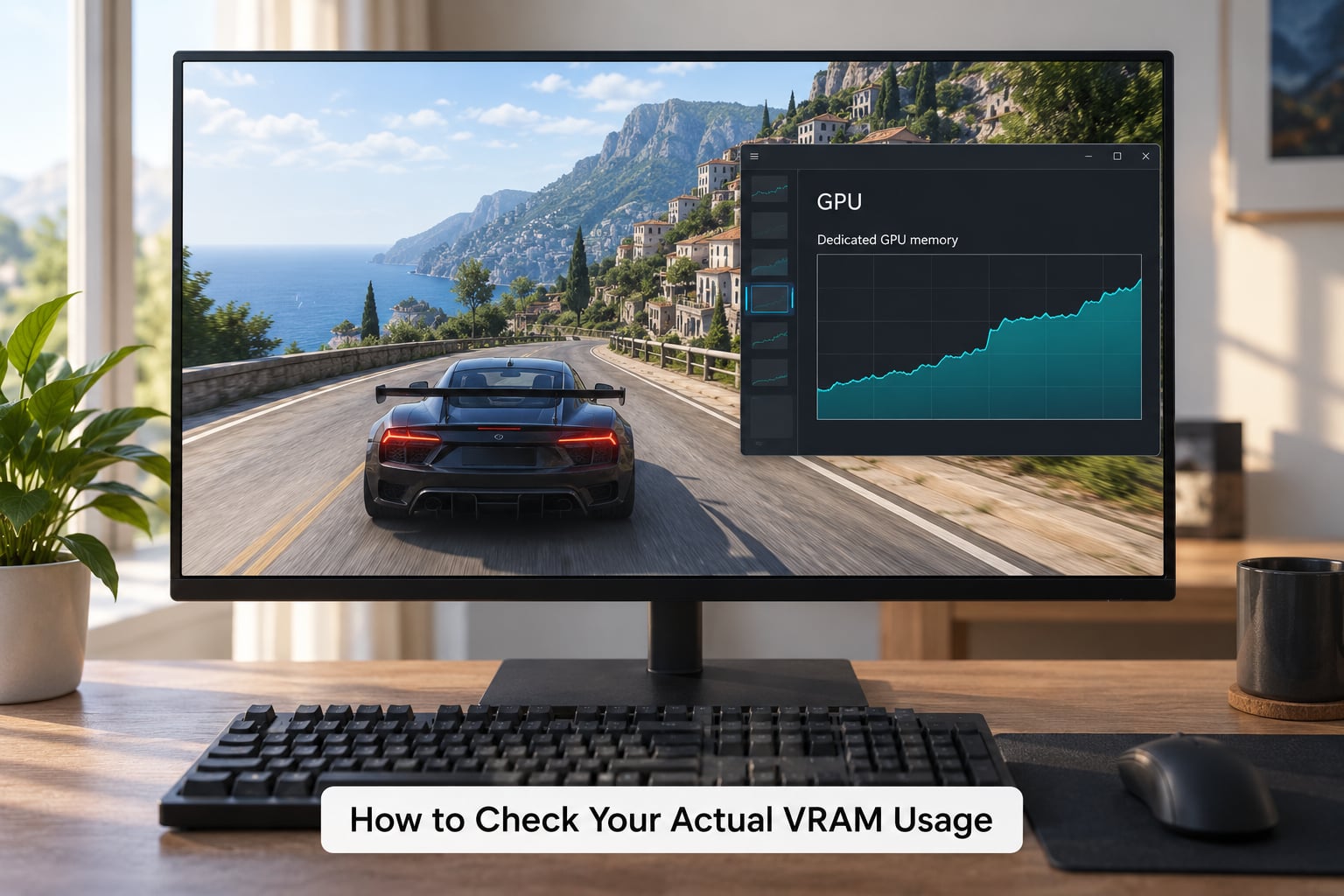
Two readings matter: the current value and the highest value the game hit. Record the peak in the heaviest area, because a comfortable average says nothing about the two minutes of stutter you are trying to fix.
Reproduce the scene deliberately. Load a save in the dense part of the city, look at the biggest landmarks, and hold the view while the on-screen readout runs. Then check the number against your card’s dedicated capacity with about 10 to 15 percent held back for background apps and recording tools.
How to Check VRAM in Windows 11 Task Manager
Press Ctrl+Shift+Esc to open Task Manager, click Performance in the sidebar, then select GPU at the top-left of the graph list. The Memory column shows several rows, and mixing them up is the source of most confusion.
Dedicated GPU memory is the number to watch. Shared GPU memory is borrowed system RAM. Total GPU memory is the sum of both, so a card with 8 GB of VRAM can show 16 GB of total GPU memory on a machine with 8 GB free in RAM. Read the dedicated row only.
The graph underneath updates live. Run the game, drive to the demanding area, and note the highest point. Task Manager will not tell you which resource caused a specific stutter, so pair it with the next method.
How to Track Peak VRAM in MSI Afterburner
Open MSI Afterburner with your GPU vendor’s driver, click the settings icon to open the on-screen display, and enable the dedicated memory readout in the GPU section. Check the hardware acceleration section too if you see blank values, since an overlay without it often shows nothing.
In-game, press the key you assigned to hide and show the overlay, drive into the heaviest area, and watch the dedicated memory figure climb. Afterburner also keeps a maximum value for the session, so you can read off the peak without trying to catch it live.
Extra tools like GPU-Z, HWiNFO or the driver control panel give the same numbers in different clothing. Use whichever you will actually open, and prefer one with a peak reading.
How to Reduce VRAM Without Removing the Mod Pack
Most of the loss from trimming one setting is smaller than the gain from keeping the pack you like. Work down this order and stop when the peak fits inside your dedicated memory with headroom.
- Drop native output resolution one step — 1440p to 1080p, or 4K to 1440p. This frees framebuffers, shadow map space and post-processing targets all at once, and it is the single biggest saving available.
- Lower texture quality in the graphics menu — not the pack, the in-game setting. This trims the extra material maps layered over your pack’s base textures.
- Reduce shadow quality — shadow maps scale with resolution and cascade count, so this frees real memory at a modest visual cost.
- Trim anti-aliasing — fewer samples means smaller buffers and fewer history targets.
- Cut draw distance and dense geometry options — grass quality, particle density and similar settings. These help frame rate more than memory, but they reduce the peak scene complexity.
- Strip heavy post-processing stacks — an ENB or ReShade preset adds its own render targets on top of everything else, and stacking a 4K pack with a full preset commonly pushes a dense scene past 7 GB of dedicated memory.
- Close background capture tools — game recording, Discord overlays and hardware-accelerated browser windows each take a slice of dedicated memory.
Which Settings Should You Lower First?
Resolution first, then texture quality, then shadows and anti-aliasing, then geometry options. That order goes from invisible cost to visible cost.
The reason is that a framebuffer saves memory without touching your textures at all. Your 4K pack still looks the same when you render it at 1080p — it is just upscaled, so you get slight softness but no missing detail. Lowering texture quality, by contrast, removes the extra maps that make surfaces look less flat, and you will spot it if you look for it.
Draw distance and advanced graphics options come last because they are mostly frame-rate tools. That last part varies by game — menu names, whether a setting exists at all, and whether Alt+Enter fullscreen is supported all differ between titles, so treat the ordering as the principle rather than the menu path.
What Happens When a Texture Mod Pack Exceeds VRAM?
Usually the game slows down gradually rather than failing outright. Loading screens stretch first, because textures have to be read from storage before a frame can use them. Once you are moving, streaming stutter shows up as periodic hitches that get worse the faster you travel.
Next comes shared memory fallback. The driver keeps the frame running by borrowing system RAM, and frame times climb because reads come from a much slower bus. This is the stage that makes a low-memory card feel broken even when the frame rate counter still shows a plausible number.
Beyond that you can get visual glitches — grey or black surfaces, missing decals, textures that never finish loading — and finally a crash to the desktop or a hard freeze. Behaviour varies by engine, GPU, memory speed and scene, so a pack that runs fine in the countryside can fail in the city.
Not every hitch is a VRAM problem, though. CPU bottlenecks and streaming failures from slow storage look similar from the player’s seat. Confirm with a dedicated memory peak before you start turning settings down.
Frequently Asked Questions
Will adding more system RAM fix an overloaded texture mod pack?
Only partly. Extra system RAM gives shared GPU memory more room to work with, which reduces crashes and freezes when a scene spills past your dedicated VRAM. It does not speed up the spill itself, because those reads still cross the slower system memory path. If your peak dedicated usage already fits inside your card, more RAM changes nothing at all.
Can a game use more VRAM than the amount printed on the GPU?
Not dedicated VRAM. A card physically has the amount printed on it, and Windows will report exactly that under dedicated GPU memory. What you may also see is shared GPU memory borrowed from system RAM, and total GPU memory being the sum of the two. Read the dedicated row when judging whether a texture pack will fit.
Do compressed texture files automatically guarantee low VRAM usage?
No. Compression only helps if the game decodes to the same format once loaded. A BC3 or BC7 texture stays compressed in VRAM and costs about a quarter of an equivalent RGBA8 image. Some formats decompress on load, so the on-disk size tells you nothing. Measure the in-game peak instead of trusting the file size or the download total.
Is 8 GB of VRAM enough for high-resolution texture mod packs?
Often yes, if you stay at 1080p and avoid stacking a heavy ENB or ReShade preset on top. At 1440p or with a large post-processing stack, 8 GB gets tight in dense scenes — a 4K pack with a full ENB stack commonly lands past 7 GB, which leaves very little headroom for recording tools.
Can texture mod packs work on consoles or mobile devices?
Generally not in the way PC mods do. Consoles run closed hardware with fixed memory, and texture replacements normally require code execution that the platform does not allow. Mobile devices share system memory for graphics entirely, so a high-resolution pack either fails to load or pushes other apps out of memory. Custom texture injection on mobile is a niche, unofficial practice.
Conclusion: Start With Your Actual Peak Usage
The useful part of VRAM usage explained for texture mod packs is the measurement, not the number on the box. Load the heaviest area of your map, read the peak dedicated GPU memory in Windows 11 Task Manager or MSI Afterburner, and subtract 10 to 15 percent for background apps.
Then lower the highest-impact setting that still leaves the pack you want installed, starting with output resolution and moving down through texture quality, shadows and anti-aliasing. If the peak fits with headroom after one change, you do not need a bigger card.