Short answer to how much RAM do you need for a heavy mod list: 16 GB is the practical floor for many modded games, 32 GB is the safer target for a genuinely heavy mod list, and 64 GB only makes sense for very large loads, heavy background tooling, or a system you plan to keep for years. Capacity is the piece people get wrong, because the useful number is what the game actually uses at peak, not how many mods you installed.
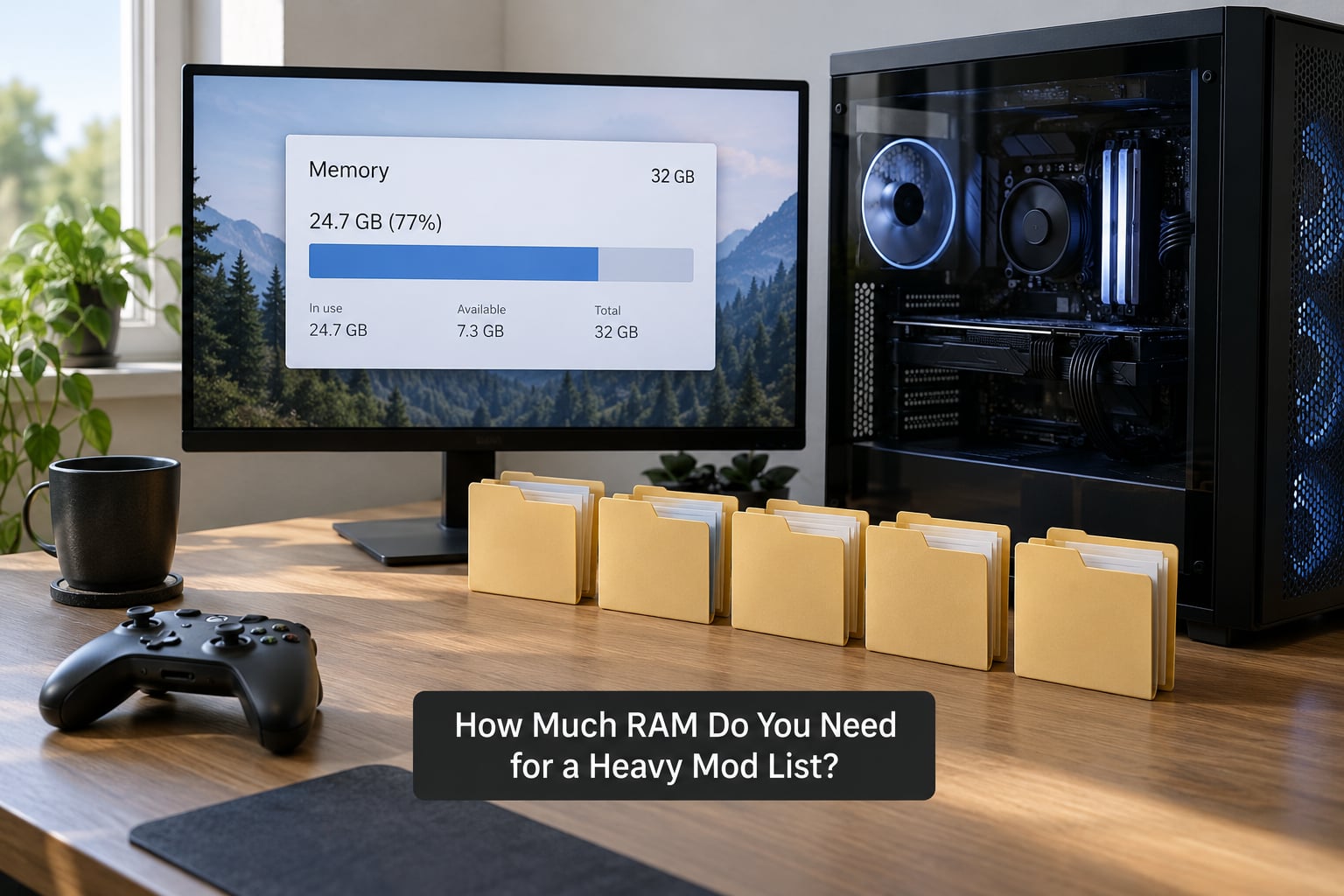
That last point matters more than it sounds. One Steam user running roughly 120 Skyrim mods reports peak usage near 14 GB of 32 GB installed, while a Reddit commenter in r/FalloutMods says 130 mods is not heavy at all and runs 250 to 400. Mod count is a weak proxy. The mod types you install decide the number.
Table of Contents
- 1RAM Requirements by Game and Mod Load
- 2How much RAM do you need for a heavy Skyrim mod list?
- 316 GB, 32 GB, or 64 GB: Which Capacity Fits?
- 4What Counts as a Heavy Mod List?
- 5Mods that add heavy memory pressure
- 6Self-check: estimate your own load
- 7RAM Speed, Timings, and Dual-Channel Configuration
- 8How to Check Your Current RAM Usage
- 9Why Heavy Mods Still Stutter or Crash
- 10How to Choose RAM for a Modding PC
- 11Frequently Asked Questions
- 12Is 16GB enough for a heavy mod list, or should I go to 32GB?
- 13Does 64GB of RAM improve frame rate in modded games?
- 14Does RAM speed matter more than capacity for modded games?
- 15Should I allocate all my RAM to the game?
- 16When is a full system upgrade better than adding more RAM?
- 17Conclusion
RAM Requirements by Game and Mod Load
Use this table as a starting point, then confirm with your own numbers. The tiers below assume Windows 11 plus a browser, Discord, and a mod manager running alongside the game.
| Game and setup | Minimum to launch | Recommended installed | Comfortable with headroom |
|---|---|---|---|
| Skyrim Special Edition or Anniversary Edition, 50 to 150 mods | 16 GB | 16 GB | 32 GB |
| Skyrim SE or AE, 150 to 300 mods with ENB and a script extender | 16 GB | 32 GB | 32 GB |
| Fallout 4, 150 or more mods | 16 GB | 32 GB | 32 GB |
| Fallout: New Vegas, 100 to 200 mods | 16 GB | 16 GB | 32 GB |
| Cities: Skylines II, 100 or more assets and gameplay mods | 16 GB | 32 GB | 32 GB |
| Minecraft, Forge or Fabric, 200 or more mods | 4 GB allocated to the game | 16 GB | 32 GB |
| Stardew Valley, large expansion content list | 8 GB | 16 GB | 16 GB |
| Starfield, heavily modded | 16 GB | 32 GB | 32 GB |
| Cyberpunk 2077, large mod list | 16 GB | 32 GB | 32 GB |
| Long sessions, 4 or more hours, with streaming software running | 16 GB | 32 GB | 64 GB |
Cities: Skylines II is the one non-Bethesda title that regularly shows up in memory discussions, because its asset handling and simulation scale with how much of the map is loaded. Modded Minecraft works differently: the game only gets a slice of your RAM, set by the launcher’s memory setting, and the rest stays with Windows and your other apps.
How much RAM do you need for a heavy Skyrim mod list?
For a Skyrim Special Edition load of 200 or more plugins with weather, lighting, and a script extender, 32 GB of installed RAM is the sensible target. Sixteen GB still launches many loads, but you will be watching the commit meter, and streaming or a second monitor full of browser tabs turns a comfortable session into a stuttering one.
16 GB, 32 GB, or 64 GB: Which Capacity Fits?
| Capacity | Who it suits | Where it runs out |
|---|---|---|
| 16 GB (2x8GB) | Light to moderate lists, 50 to 120 mods, single background app | Large texture and map packs, ENB plus many scripts, Discord and OBS open |
| 32 GB (2x16GB) | Heavy lists, 150 to 300 mods, long sessions, streaming while playing | Very rare on client-side single-player loads |
| 64 GB (2x32GB) | Extremely large lists, heavy asset tools, recording, running a local server | Almost never, on a single game |
More RAM does not raise your frame rate by itself. If the game is already GPU-bound, sitting at 12 GB of 32 GB produces the same frames as sitting at 12 GB of 16 GB. What extra capacity buys is stability and freedom: no page file swapping, room to leave a browser and Discord open, and the option to run something else beside the game.
There is one real exception, and it is more about speed than capacity. When the system runs out of physical memory it spills to the page file on your SSD, and that fallback is dramatically slower than RAM. Frame pacing falls apart first, which readers experience as stutter rather than as a low frame counter.
What Counts as a Heavy Mod List?
Heavy is a combination of asset types, not a number in a load order window. A 200-mod list of small gameplay tweaks costs far less than 60 mods that replace every vehicle, overhaul every texture set, add a full map region, and run a weather overhaul plus ENB.
Mods that add heavy memory pressure
- High-resolution texture packs, especially 4K and 8K replacements applied across the whole game
- Vehicle, weapon, and character replacements that bring new meshes and animation data
- Map and world-space additions, which add streamed cells the engine has to keep resident
- Script-extender and framework mods that add their own overhead, such as Script Extender, Addressable Library System, or an ENB preset
- Graphics overhauls like ENB, plus weather, volumetrics, and lighting mods layered together
- Physics, AI, and NPC overhauls that build large behaviour tables at load
- Total conversion-style lists that add new quests, dialogue, and world data
Self-check: estimate your own load
Answer these and you have a better picture than any mod count chart:
- Are you replacing textures globally, or adding a handful of new ones?
- How many vehicle or object replacements did you install?
- Are you running an ENB preset, a script extender, or a framework like AIO or USSEP?
- Do any mods add new maps or large outdoor spaces?
- Will you play for three hours or more in one session?
- Will Discord, OBS, Chrome, or a second game run at the same time?
Three or more yes answers usually means you are looking at 32 GB as a working target rather than an aspiration.
RAM Speed, Timings, and Dual-Channel Configuration
Capacity and speed are different jobs. Capacity stops the system from swapping. Speed and dual-channel configuration help the CPU feed the engine data quickly enough, which shows up as smoother frame pacing in bandwidth-sensitive engines like Bethesda’s Creation Engine.
Two sticks beat one stick of the same total. A single 32 GB stick runs single-channel on most consumer boards and gives the memory controller half the bandwidth. Two matched 16 GB sticks run dual-channel and cost the same. This is the cheapest upgrade on a modding PC and the one I would always do first.
On DDR4 platforms, kits in the 3200 to 3600 MT/s range are a sensible place to sit. On DDR5 platforms, 5600 to 6000 MT/s is the common pairing with current desktop CPUs. The number that matters is not the marketing figure but whether the kit is on your motherboard’s supported list, because unsupported speeds usually fall back silently to a slower JEDEC setting.
Timings show up in synthetic benchmarks more clearly than in a modded game. Spending heavily on tight CAS latency buys little for texture streaming and script execution. Spending on a stable dual-channel kit of the right capacity buys a lot.
How to Check Your Current RAM Usage
Measuring beats guessing. Here is the exact path on Windows 11, and it takes about five minutes.
- Open Task Manager with Ctrl + Shift + Esc, then click the Performance tab and choose Memory in the sidebar. This screen shows total installed, in use, available, and committed memory, plus the current memory speed and the slots used.
- Start the game, load your save or world, and play the part of the map with the most content: a major city, your full vehicle collection on screen, the area with the heaviest weather.
- Switch back to Task Manager and sort the Processes list by memory. Watch the game process, not the total alone, and note the peak value in the Memory column.
- Watch the Committed figure. When committed approaches the limit, the system is paging to disk, and that is the moment stutter shows up.
- For a cleaner per-process view, use Resource Monitor: press Windows + R, type
resmon, go to the Memory tab, and sort by the Hard Faults column. A climbing hard fault count means the game is reading from disk because RAM ran out.
If you use Mod Organizer 2, launch the game from the mod manager and add it to your taskbar instead. Vortex works the same way. The point is to measure the game, not a launcher.
For Minecraft, the number that matters is the value in your launcher profile, set in the launcher or a JVM argument like -Xmx8G. If your pack is heavy, start at 8 GB allocated and raise it if the game keeps getting killed. Allocating every stick to the game leaves nothing for Windows, and a system under that pressure will feel worse, not better.
Reddit r/PHbuildapc threads about 64 GB at 6000 MT/s for gaming and modding come up constantly. The honest answer is that capacity is the part you will use; the speed figure is secondary as long as the kit is stable and dual-channel.
Why Heavy Mods Still Stutter or Crash
Plenty of people upgrade RAM and the problem stays. These are the usual reasons, and how to tell them apart.
| Symptom | Likely cause | How to check |
|---|---|---|
| Stutter that comes and goes, frame times spike, commit near limit | RAM exhausted, paging to SSD | Task Manager committed value, Resource Monitor hard faults |
| Crash to desktop with plenty of RAM free | Stack overflow, script error, or conflicting mods | Game log file, load order, recent mod additions |
| Textures grey, flat, or missing, frame rate fine | VRAM starvation | GPU memory usage overlay during play |
| Stutter only in heavy weather or interiors, CPU usage high | CPU-bound, not memory-bound | Task Manager CPU column per process |
| Very long load times, world chunks appearing late | SSD speed, mod manager virtual installs, decompression overhead | Drive health, whether mods sit on an HDD or a network share |
| Crashes soon after a graphics change | ENB or graphics preset exceeding VRAM or forcing bad settings | Revert the preset, test with a lighter one |
| Unstable under load, random crashes anywhere | Unstable memory timings or overclock | Load BIOS defaults, retest at JEDEC speed |
A short diagnostic sequence: confirm committed memory never reaches the limit, then check VRAM usage during the worst scene, then watch CPU. If memory and VRAM are both comfortable and CPU sits near a full core or several, more RAM will not change anything. The bottleneck is the processor, and the fix is load order work, a lighter ENB preset, or fewer per-frame script mods.
One more wrinkle: mod managers themselves take memory. Virtualised installs, where the manager runs the game from a separate folder tree, add a little overhead. A couple of hundred extra files is not a problem, but a 300 mod list built badly can cost you real headroom.
How to Choose RAM for a Modding PC
Turn the answer into a short buying checklist:
- Pick the capacity from your measured peak. If your heaviest session peaked at 15 GB, install 32 GB. If it peaked at 26 GB, install 64 GB. Do not guess from mod count.
- Buy a matched two-stick kit. 2x16GB for a 32 GB target, 2x32GB for 64 GB. Avoid single-stick and mismatched kits from two different sets.
- Check motherboard support first. Look up the board’s supported memory type and speed list. Four sticks rarely help on consumer boards and can reduce stability.
- Do not overspend on timings. For modding, capacity and dual-channel stability matter more than CAS latency numbers.
- Budget for background apps. Windows 11 sits near 4 GB on its own, Chrome commonly runs 2 to 4 GB across tabs, Discord runs roughly 200 to 300 MB, and OBS 500 MB to 1 GB with recording active. That is 4 to 8 GB before the game even launches.
- Keep the page file on the SSD, system-managed. Turning it off removes your safety net and turns a slowdown into a crash.
- On laptops, check before you buy. Many thin laptops ship with soldered memory and integrated graphics. With shared graphics, VRAM is carved out of system RAM, so 16 GB of installed memory leaves the game less than the sticker suggests.
If you are on a server, the sizing rules change again. A dedicated Forge, Fabric, or NeoForge server is allocated on its own through JVM flags, and player count, view distance, and world generation matter more than the client’s mod count. Large packs often need 14 to 24 GB allocated, and highly automated servers push toward 16 to 32 GB, on a machine where the game is the only thing running.
Frequently Asked Questions
Is 16GB enough for a heavy mod list, or should I go to 32GB?
Sixteen GB still launches plenty of modded games, usually up to around 120 to 150 mods depending on the mod types. Once you add global texture replacements, ENB, map additions, and a script extender, 32 GB is the safer target. If you play long sessions with Discord and a browser open, start at 32 GB. Measure your own peak usage first, since mod count is a poor guide.
Does 64GB of RAM improve frame rate in modded games?
Not by itself. If a game is GPU-bound, going from 16 GB to 64 GB produces the same frames per second. Extra capacity only helps when the system was actually exhausting memory and paging to disk, or when you want to leave heavy background tools and recording software running alongside the game. Most single-player mod lists never need 64 GB for performance alone.
Does RAM speed matter more than capacity for modded games?
Capacity matters more. Speed and dual-channel configuration help with frame pacing in bandwidth-sensitive engines, and a two-stick kit gives noticeably better results than a single stick of the same total. But the gap between a slow supported DDR4 kit and a fast one is far smaller than the gap between having enough memory and running out of it. Buy a stable matched kit within your motherboard’s supported list.
Should I allocate all my RAM to the game?
No, and doing so causes its own problems. Windows, your browser, Discord, and your mod manager all need memory too. On Minecraft, allocate enough for the pack, usually 8 GB for a heavy one, and keep the rest for the system. On single-player PC games the allocation is automatic, so instead keep your page file system-managed on the SSD so the game has a fallback instead of crashing.
When is a full system upgrade better than adding more RAM?
When the bottleneck is not memory. If your CPU sits near full usage during the worst scenes, if VRAM runs out with grey or missing textures, or if load times stay long with a healthy SSD, an extra memory kit will not help. Those are processor, graphics, and load-order problems. Add RAM when committed memory approaches the limit or hard faults climb during play, and upgrade other parts when memory and VRAM are both comfortable.
Conclusion
Start by checking your actual peak usage in Task Manager during the heaviest part of your playthrough, then identify which mod categories are driving it. If your peak sits near 15 GB, 32 GB is the right target for a heavy setup; if it is already above 25 GB, look at 64 GB. If it sits comfortably lower, spend your money on a graphics card or a faster processor instead, because memory is rarely the part holding a heavy mod list back. Updated for 2026.