Most classic open world games from the late 1990s through the mid-2000s still run fine on a current Windows 10 or 11 machine. The trouble is rarely your hardware. It is the games themselves: hard-coded 4:3 resolutions, missing 32-bit DirectX runtimes, installers written in 2002, and bugs nobody fixed because the community moved on. Knowing how to play old open world games on a modern PC mostly means working through a short fix order and installing one well-chosen patch per title.
This guide covers that fix order, the specific patches that repair the most-loved open worlds, and the four mistakes that trip people up. It takes about an hour for a first game, ten minutes for every one after that. Updated for 2026.
Table of Contents
- 1What You Need
- 2A Windows 10 or 11 machine with current graphics drivers
- 3The game itself, from a source you trust
- 4A controller or keyboard and mouse
- 5Free disk space and a save backup habit
- 6Optional helpers: PCGamingWiki and a DirectX wrapper
- 7Step-by-Step
- 8Check how to play old open world games on a modern PC before you install anything
- 9Update drivers and verify the game files
- 10Apply the official patch first
- 11Look the title up on PCGamingWiki
- 12Install the named community patch or engine re-implementation
- 13Fix the display: widescreen, field of view and UI scaling
- 14Set up your controller or mouse
- 15Check performance, then cap the frame rate
- 16Common Mistakes
- 17Crashing every time the options menu opens
- 18Installing every fix at once
- 19Installing patches from random download sites
- 20Old multiplayer and co-op
- 21Do you need DOSBox at all?
- 22Frequently Asked Questions
- 23Can I play old open world games on Windows 11?
- 24Do I need a special compatibility patch for classic GTA games?
- 25How do I fix an old open world game crashing on a modern PC?
- 26Can I use a modern controller with older open world games?
- 27Are old PC game mods safe to install on Windows?
- 28Where should I back up my saves before changing game settings?
- 29Conclusion
What You Need
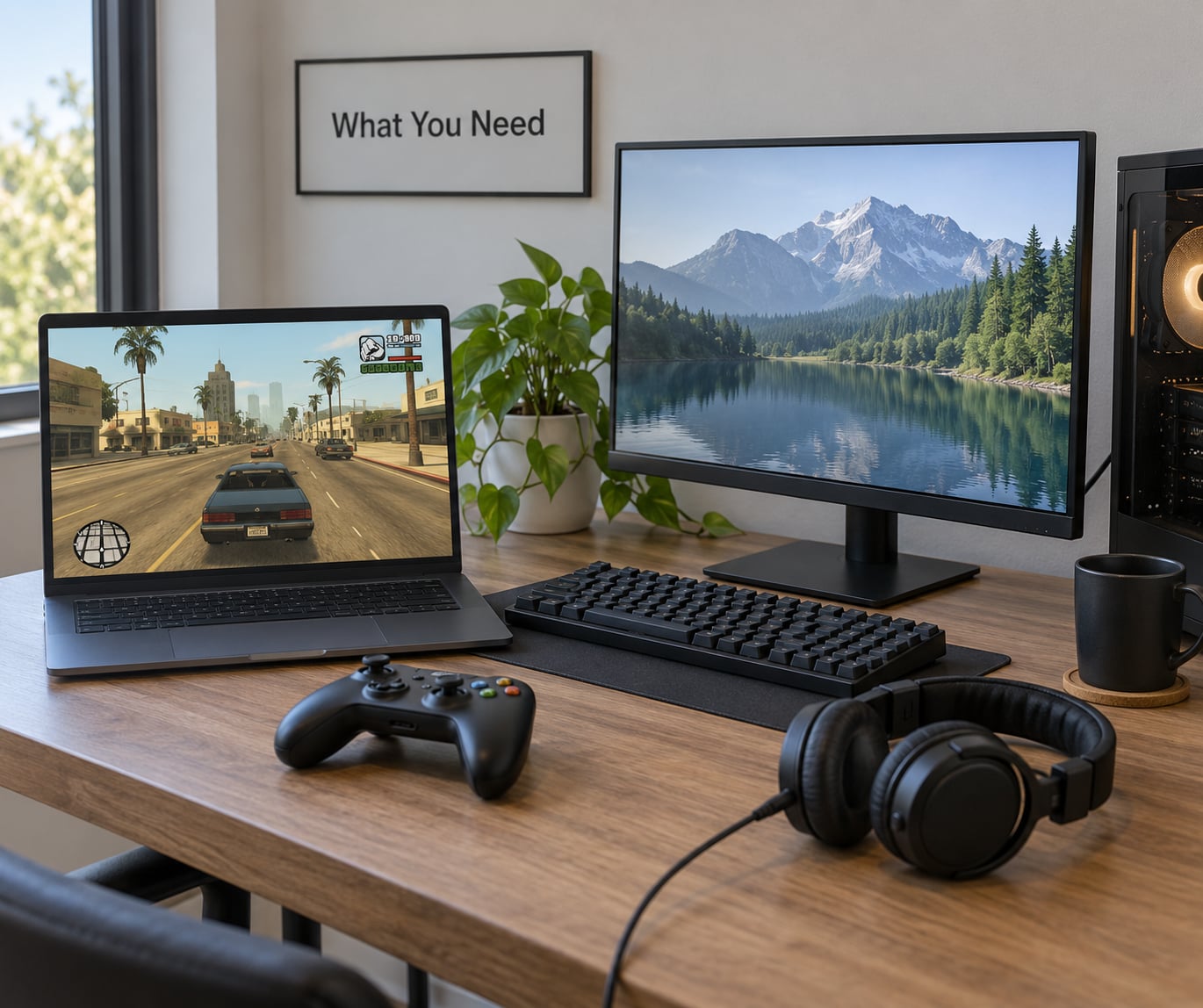
Almost nothing. A modern PC is far more powerful than any of these games ever asked for, which is the whole reason the classics are worth revisiting.
A Windows 10 or 11 machine with current graphics drivers
Install the latest driver for your graphics card before anything else. Old games and new drivers occasionally disagree, and the driver is the cheapest thing to update and the easiest to roll back.
The game itself, from a source you trust
Where you get the game matters more than where you get the patch. DRM-free builds on GOG and Steam work well, and disc-based copies run fine once you have a drive that reads them. Whatever the source, the files should be the original retail ones, not a repack that quietly bundles old third-party runtimes.
A controller or keyboard and mouse
Older open world games were designed around keyboard and mouse, and some input schemes need remapping before a modern controller feels right. A wired pad is the least troublesome option for old titles.
Free disk space and a save backup habit
Leave a few gigabytes for patches, texture packs and the original files you may need to restore. Copy your save folder somewhere else before installing any fixpack. Patches that change game data can invalidate an existing playthrough, and rolling back is far easier when you have the old saves.
Optional helpers: PCGamingWiki and a DirectX wrapper
PCGamingWiki has a page for essentially every game worth fixing, and each page lists the specific unofficial patches, widescreen fixes and settings that work. Check there before you guess. For titles that complain about a missing 32-bit DirectX runtime, a wrapper DLL such as dgVoodoo translates old graphics calls so they run on modern Windows without hunting down decade-old installers.
Step-by-Step
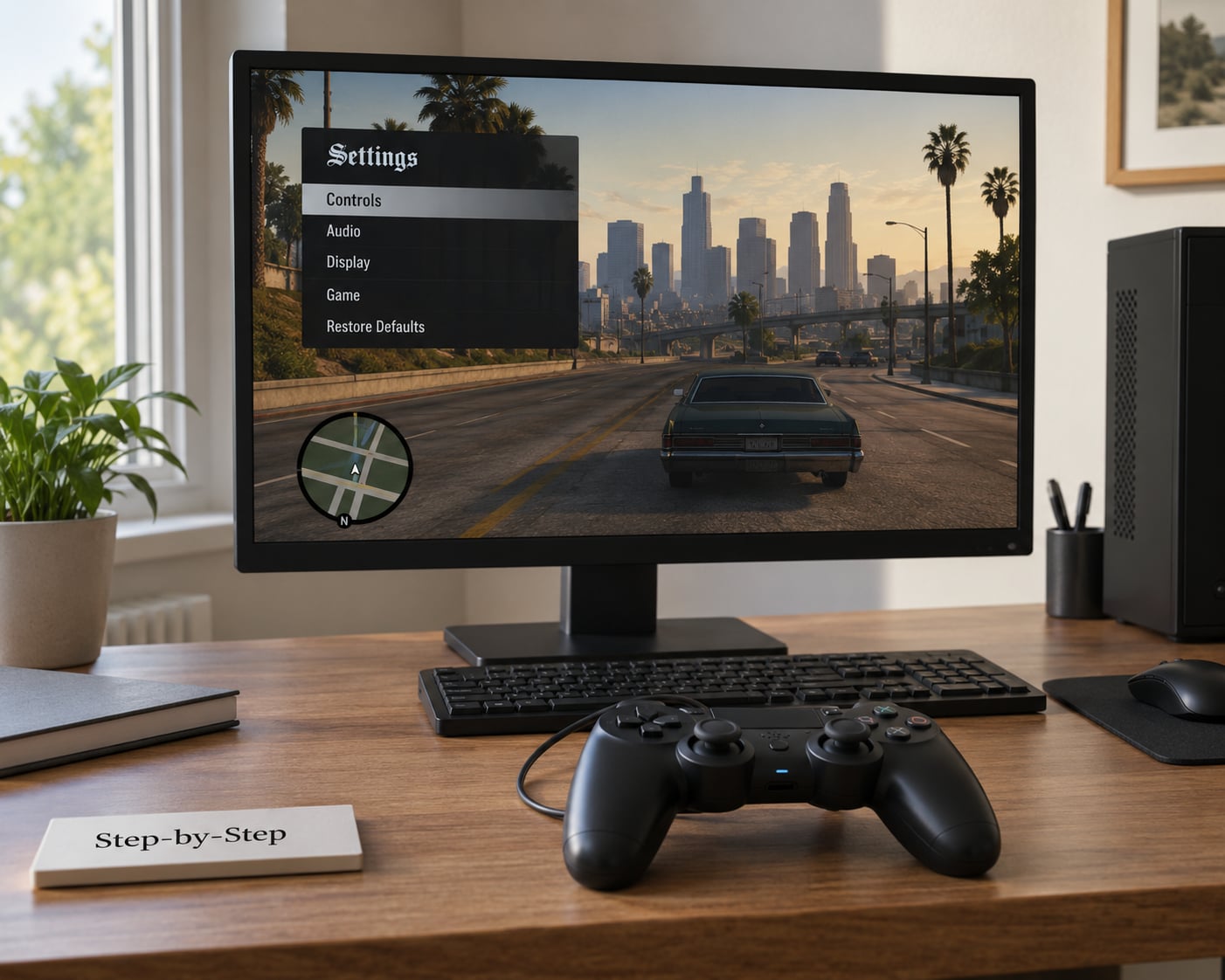
Work top to bottom and stop as soon as the problem goes away. Changing six things at once is how people end up blaming the wrong fix.
Check how to play old open world games on a modern PC before you install anything
Decide which titles you care about and search each one on PCGamingWiki. The wiki page tells you the platform, the known launch issues and which patches exist. Two minutes here saves an hour of blind troubleshooting later.
Update drivers and verify the game files
Update your graphics driver, then use the launcher’s verify or repair option. In Steam it sits under the game’s Properties, Installed Files, Verify integrity of game files. In GOG Galaxy it is a similar repair command. Verification removes corrupted downloads, which is the cause of a surprising number of “the game is broken” reports.
Apply the official patch first
If the developer shipped a patch, install it before any community fix. Several open world classics have an official final patch that removes copy-protection software and fixes quest bugs, and community tools sometimes expect it to be present.
Look the title up on PCGamingWiki
Find the game’s page and read the availability section. You are looking for three things: an unofficial patch for stability, a widescreen fix for the display, and any notes about an engine re-implementation such as OpenMW or a source port.
Install the named community patch or engine re-implementation
Download from the source the wiki links, or from the project’s own release page. GitHub release pages are the usual home for these tools, and the wiki exists precisely so you do not have to guess which download is the real one. Install one tool at a time and launch the game before adding the next.
Fix the display: widescreen, field of view and UI scaling
These games render 4:3 images and stretch them across a 16:9 screen, which makes everything look wide and thin. A widescreen fix unlocks your monitor’s native resolution, corrects the field of view so you can see as much to the sides as the original players did, and scales the interface up so the text is readable at 1080p or 4K. If a game only offers a handful of resolutions, this is the fix that changes it most.
Set up your controller or mouse
Old games read controllers through DirectInput, which predates the modern standards. Plug the pad in before launching so the game detects it on startup. If the right stick or triggers misbehave, set a deadzone in the wrapper DLL or in the game’s own options. Turn off mouse acceleration in Windows search for Pointer Speed and set Enhance Pointer Precision to off, because a 2004 game was tuned for a raw pointer.
Check performance, then cap the frame rate
Old engines often cannot handle a modern frame rate, so physics, audio or menus start breaking above a certain speed. Cap the frame rate to a multiple the game can handle, usually 30 or 60, using the wrapper DLL or your graphics driver. Lock your monitor to its maximum refresh rate too, because a 60Hz default setting can make a smooth game feel sluggish. If stutter happens in dense areas, cut shadow quality and draw distance before anything else; fog and draw distance are the two settings that decide whether an old open world feels like a world or a corridor.
Common Mistakes
Four failures account for most of the problems people post about. Match your symptom in the table, apply the fix, and try again.
| Symptom | Why it happens | The fix |
|---|---|---|
| The game will not launch or closes immediately | Corrupt install, or an installer too old for current Windows | Verify game files, then apply the unofficial patch listed on PCGamingWiki |
| Error about a missing 32-bit DirectX component | Windows 10 and 11 no longer ship the legacy runtime | Install a DirectX wrapper DLL such as dgVoodoo into the game folder |
| Black screen with sound, or a crash when opening the options menu | The renderer does not support your resolution or refresh rate | Switch to the DirectX 9 or DirectDraw wrapper in the wrapper’s config, or set a lower resolution |
| Everything looks stretched and the UI text is tiny | Hard-coded 4:3 resolution and no UI scaling | Install the game’s widescreen fix and set the native resolution |
| Controller not detected or the right stick drifts | Old DirectInput handling and no deadzone | Connect the pad before launch and raise the deadzone in the wrapper config |
| Stutter in cities, audio crackle, menus misbehaving | Physics and audio cannot run at an uncapped frame rate | Cap the frame rate to 30 or 60 and lower shadow quality |
Crashing every time the options menu opens
This is a recurring report on old titles, and it is nearly always a resolution or renderer problem rather than a damaged install. Run the game at a lower resolution once, open the menu, change the setting, and then apply the widescreen fix so you can move to your monitor’s native resolution permanently.
Installing every fix at once
Patches conflict. A widescreen fix, a texture pack and an unofficial patch built for a different version can each overwrite the same executable. Apply them one at a time, launch between each, and keep your original files in a separate folder so you can roll back.
Installing patches from random download sites
Community patches are executable files that run with your user account. Download them from the project’s GitHub releases or the link on PCGamingWiki, never from a file-sharing mirror with a download button and no version history.
Old multiplayer and co-op
Single-player open worlds are straightforward. Online play is different: many of these games used services that no longer exist, and the ones still alive often cap player counts or rely on community servers. Local splitscreen, LAN play and the handful of active community multiplayer mods are the realistic options, so plan to play co-op through a local session rather than expecting the original online lobby to work.
Do you need DOSBox at all?
For Windows-era open world games from 1998 onward, usually not. Titles from the DOS era, and anything released before Windows 95, need an emulator such as DOSBox, and a modified front end like RetroArch with the DOSBox Pure core has solved many launch problems for people who want a single launcher. But if your game has a native Windows release, install the Windows version, grab the unofficial patch and skip the emulator entirely.
Frequently Asked Questions
Can I play old open world games on Windows 11?
Yes. Nearly every Windows-era open world game from 1998 onward runs on Windows 11, often better than it did on the hardware it shipped for. The usual obstacles are a missing 32-bit DirectX runtime, an installer that cannot complete, or hard-coded 4:3 output. Verify the game files, install a DirectX wrapper such as dgVoodoo, and apply the unofficial patch listed for your title on PCGamingWiki.
Do I need a special compatibility patch for classic GTA games?
For GTA III, Vice City and San Andreas, yes, and the community fixes are well documented. SilentPatch repairs physics, memory and traffic bugs, the Widescreen Fix unlocks your native resolution and corrects field of view, and Project2DFX sharpens textures at high resolutions. Install SilentPatch first, launch to confirm it works, then add the widescreen fix. Back up your saves before any of them.
How do I fix an old open world game crashing on a modern PC?
Start by verifying the game files to rule out a corrupt download, then check the PCGamingWiki page for that specific title. If the crash happens at launch, a DirectX wrapper DLL usually solves it. If it happens when opening the options menu, drop the resolution or switch the renderer in the wrapper configuration. Change one setting at a time so you know which fix worked.
Can I use a modern controller with older open world games?
Usually, but the buttons need work. Games from that era read controllers through DirectInput, so plug the pad in before launching the game. Aim and look behaviour is the main problem, and you will likely need to raise the stick deadzone and remap the right stick. Community tools such as SilentPatch or a wrapper DLL add controller support where the original game never had it.
Are old PC game mods safe to install on Windows?
They are safe when they come from the right place, and risky when they do not. Unofficial patches, widescreen fixes and mods are executable files that run with your user account, so download them from the project’s GitHub releases or the link on PCGamingWiki. Avoid mirrors with no version history. Scan any download with your antivirus before you run it, and install one mod at a time.
Where should I back up my saves before changing game settings?
Copy the game’s save folder out of the install directory before you apply any patch, and keep that copy outside your game folders entirely. On a modern PC this is usually a folder under Documents, created by the game itself. Label the backup with the date and the patch version, then keep a second copy after each patch. Rolling back a broken patch is then a copy-and-paste instead of a lost playthrough.
Conclusion
Start with the boring steps: current graphics drivers, verified game files, and the official patch if one exists. Then open the game’s PCGamingWiki page, install the single named community patch it recommends, fix the display with a widescreen patch, and only then touch settings or add mods. How to play old open world games on a modern PC is mostly a matter of order and patience, and each title you fix makes the next one faster.