To fix motion sickness in open world driving games, raise your field of view to around 90-105, turn motion blur and depth of field off, disable camera shake and head bob, hold your frame rate steady, and switch to the hood or bumper camera. Most people feel the relief within one short test drive.
That is the compressed version. The reason driving games hit harder than most other genres is specific: your eyes report cornering forces and a camera that swings with every steering input, while your inner ear reports a person sitting perfectly still in a chair.
It usually takes about ten minutes per round of changes and no tools beyond the game’s own settings menu. Difficulty is low, but the order matters. Change one thing, drive a short loop, and only move on when that change held.
Table of Contents
- 1What You Need
- 2Step-by-Step: How to Fix Motion Sickness in Open World Driving Games
- 31. Take a short break before changing anything
- 42. Reduce camera movement and field of view
- 53. Stabilize the chase camera
- 64. Change driving and view controls
- 75. Take regular movement breaks
- 86. Build a low-motion play profile
- 9Common Mistakes
- 10Frequently Asked Questions
- 11What FOV setting stops motion sickness in driving games?
- 12Why do open world driving games make me sick when other games do not?
- 13Should I turn off motion blur or fix FOV first?
- 14Is a higher frame rate better for motion sickness?
- 15How long do symptoms last after a bad session?
- 16What if the game has no field of view slider at all?
- 17Conclusion
What You Need
You need the in-game graphics or display menu, a recent save point, and somewhere comfortable to sit. That is genuinely the whole list. Everything else in this guide is optional.
Some people add a controller or a headset with a gyro or motion aim option, which helps because it reduces how much the camera is driven by a mouse. Neither one is required, and swapping input devices on its own rarely fixes the problem.
One thing worth knowing before you start: menu names are not the same everywhere. On PC the options usually sit under Graphics, Display or Video, PlayStation puts them under Display or Accessibility, Xbox splits them between Display and Accessibility, and Android titles often bury them in a Graphics or Advanced section.
The five option families to hunt for are the same everywhere, though. You are looking for field of view, motion effects, camera shake or dynamic camera, driving or vehicle camera, and control sensitivity. If you can find those five groups, you can complete the whole process.
Step-by-Step: How to Fix Motion Sickness in Open World Driving Games
Work down this list in order. Each step changes one thing only, so you can tell which adjustment actually helped instead of guessing.
1. Take a short break before changing anything
If you already feel queasy, stop driving right now. Get away from the screen for a few minutes and sit somewhere stable, then come back only when you feel normal again.
Saving before you touch the settings takes ten seconds and saves you from repeating a bad run. Do not push through a strong episode to reach a save point. Forcing it tends to stretch the symptoms well past the session.
Success here is simple. If you can read a menu comfortably without the room spinning, you are clear to continue.
2. Reduce camera movement and field of view
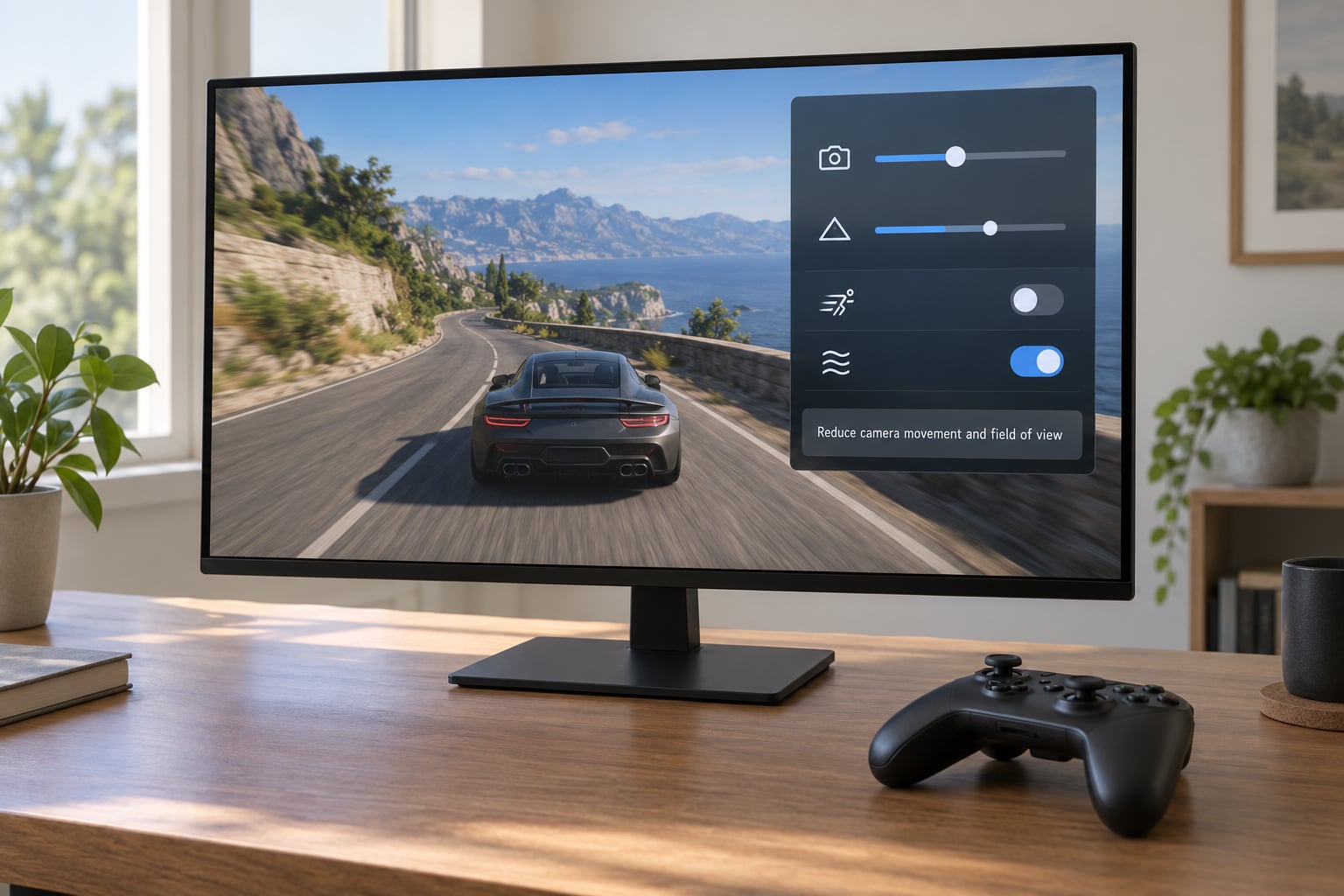
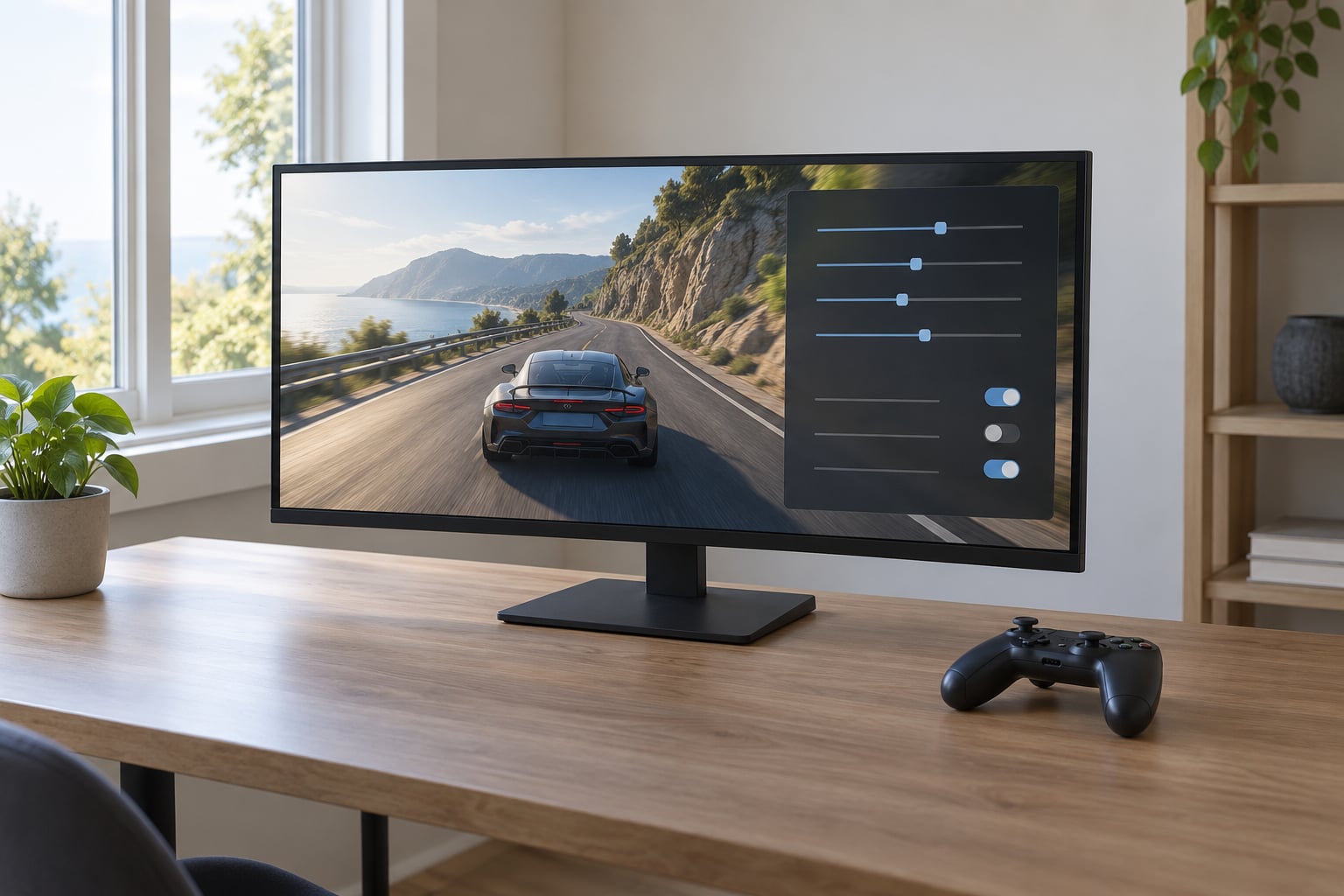
Open the display or graphics menu on your platform and look for field of view. The default in most open world driving games is narrower than your real field of vision, which pushes the edges of the world further out and magnifies every bit of movement at the sides of the screen.
Widen it gradually toward 90-105 and test there. A wider field of view shrinks the apparent speed of everything on screen, so your peripheral vision stops whipping past during acceleration.
Be careful with the ceiling. Pushing past roughly 110 on a flat monitor starts to introduce fisheye distortion at the edges, and some players find that uncomfortable in its own right. If a wide view feels worse, step back down.
While you are in the same menu, switch off motion blur and depth of field. Motion blur smears every frame in the direction of travel, which is exactly the optical flow signal that makes eyes and inner ear disagree.
Test drive a route with two real corners and one full-throttle stretch. You are looking for less visual rushing at the screen edges and a horizon that feels steady rather than sliding.
3. Stabilize the chase camera
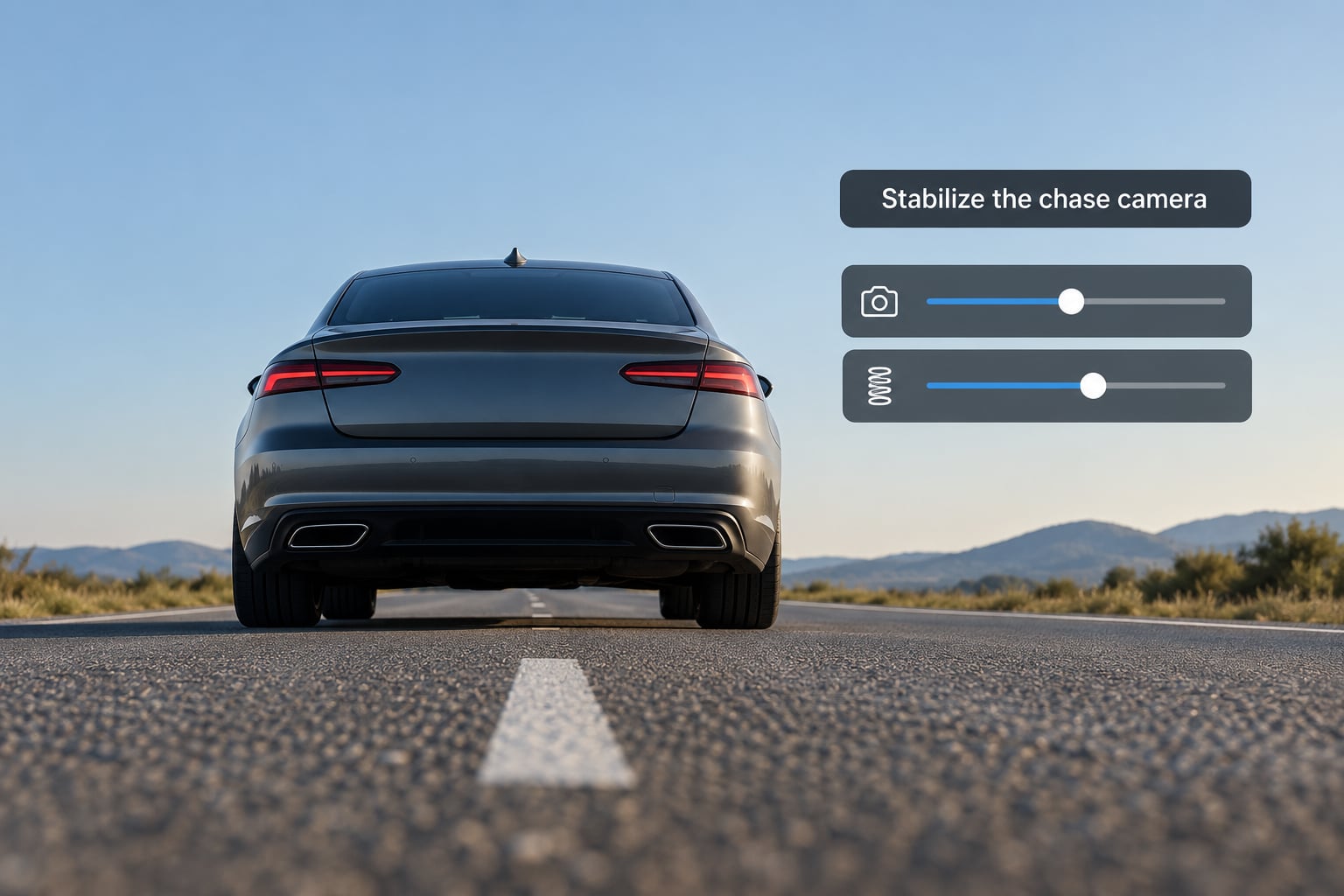
The chase camera is the usual culprit when the visuals feel floaty. Soft springs and a low follow strength let the camera lag behind the car, then catch up in a single jolt, and players describe that swing as the worst part of driving in these games.
Look in the driving, camera or vehicle settings for camera shake, dynamic camera, camera spring, follow distance or camera height. Where a slider exists, raise the spring stiffness or follow strength so the camera tracks tightly, and drop the height a little so the horizon sits near the middle of the screen.
Turn off any auto-centring behaviour that snaps the camera back after you look away, and disable the look-back camera if the game offers a manual alternative. A camera that keeps drifting back on its own means you are constantly re-aiming it, and that repeated correction is its own source of discomfort.
Exact paths vary by game and platform, so expect to hunt through two menus rather than one. Forza-style titles tend to bury camera options under the driving or assists tab, while GTA-style open world games usually keep vehicle camera settings in the graphics section alongside the field of view slider.
Test on a road with hairpins rather than a straight. If the camera now tracks the car without swinging past it and back, this step worked.
4. Change driving and view controls
Lower your look sensitivity and, on PC, turn mouse acceleration off in your mouse software or in the game’s raw input option. Acceleration means the same flick moves the camera further each time, so you learn to correct constantly.
If you are on mouse and keyboard and the game supports it, try a controller. An analog stick gives finer, smoother steering input, and a gyro aim option where available removes the need for mouse-look entirely.
Drive more gently while you test. Softer braking, earlier turns and lifting off before a corner reduces the lateral force and the amount of camera swing you have to fight. It also makes it far easier to tell whether a setting change helped.
Where the game lets you, switch the camera to the hood, bonnet or bumper view. These sit lower and narrower than a chase camera, which reduces how much of the world sweeps across your peripheral vision during a turn.
5. Take regular movement breaks
Stop after 20 to 30 minutes of driving. Look at something stationary and distant, not the screen, and stretch your legs, shoulders and neck gently for a minute or two.
Cool air helps more than most people expect. Open a window or point a fan at your face, because moving air on your skin adds the weak motion cue your inner ear is missing.
Resume for another short block rather than pushing straight back to a long session. If symptoms are building rather than fading, leave the game for the day. Nothing in a settings menu will rescue you mid-episode, and continuing only extends it.
Aim for two or three short blocks instead of one long sitting. Players who cannot do 20 minutes comfortably rarely get to an hour by trying to force it.
6. Build a low-motion play profile
Once a combination works, save it. Most games store graphics and camera presets separately, so note the numbers somewhere you can find them again before you reset anything.
The lowest-motion profile stacks these together: field of view near the low 90s, motion blur and depth of field off, camera shake and head bob off, a tight chase camera or the hood view, gentler look sensitivity, and display settings held at whatever runs your frame rate steadily.
A cinematic profile keeps the wide field of view and bloom and drops only the motion effects, which is the compromise most people settle on once they no longer feel actively sick. A maximum-comfort profile goes further: narrow the field of view back toward 75-85, use the bonnet or bumper camera, cap the frame rate, and accept a flatter look.
Pick one, drive a full normal session on a recent save, and only then decide whether it held. Recheck after major game updates too, since patch notes regularly reset camera and motion options back to defaults without saying so.
Common Mistakes
Most people who cannot fix this are not missing a setting. They are repeating one of these.
Changing everything in one sitting. If you lower FOV, kill blur, drop sensitivity and swap camera in the same five minutes, you learn nothing about what worked. One change, one short drive, one note to yourself.
Forcing an ultra-wide field of view. Widening helps up to a point. Past roughly 110 on a flat screen, edge distortion creates its own discomfort and players often blame the game for a problem they caused.
Trying to push through active nausea. Symptoms that last for hours usually start with a session someone refused to end. The correction is blunt: close the game, and treat the break as the fix rather than a setback.
Chasing frame rate instead of frame stability. A steady 60 frames per second beats an unstable 120 every time. Frame pacing problems, where the frame time jumps around, read to the eye as stuttering motion and feed the same conflict as a low frame rate.
Installing camera mods before trying the built-in options. Mods can help when a game ships with no slider at all, but they break with updates and often add shake of their own. Try the menu first.
Forgetting to save and re-test on a fresh session. Some symptoms only appear ten minutes in, on a long open road. After a successful test, drive a clean save under normal conditions before declaring the problem solved.
After any successful change, run one normal session from a recent save. That is how you find out whether the fix held or only worked for the two-minute loop you tested on.
Frequently Asked Questions
What FOV setting stops motion sickness in driving games?
Most players settle between 90 and 105 for open world driving on a flat monitor. Start at whatever the game defaults to and widen in small steps, then test a route with real corners. Going much past 110 introduces edge distortion that can feel uncomfortable on its own. In a cockpit or bonnet camera, drop lower, around 75-85, because the frame is already narrow.
Why do open world driving games make me sick when other games do not?
Driving puts you behind a camera at speed through constant corners. Your eyes see lateral force, banking and a camera that swings with steering, while your inner ear reports no movement at all. That mismatch drives nausea. This is also why people often feel fine during straight-line cruising and unwell through twisty roads, which is where most of these games keep you.
Should I turn off motion blur or fix FOV first?
Turn motion blur off first. It takes seconds and it is a toggle rather than a value, so you cannot get it wrong. Depth of field is the same. Once those are off, widen the field of view in small steps and test. If symptoms vanish after the blur change, you never needed to touch FOV at all.
Is a higher frame rate better for motion sickness?
A steady frame rate matters more than a high one. A locked 60 that never stutters is usually more comfortable than an unstable 120, because irregular frame timing reads as visual jolt. On console, a performance or quality mode with a frame cap is a reasonable compromise. If frame times spike constantly, lower the resolution or shadows before anything else.
How long do symptoms last after a bad session?
It varies widely. Plenty of players feel fine within an hour, while others report nausea, fatigue or dizziness lasting into the next day. The most common mistake is playing again during recovery, which restarts the clock. Rest in a lit room, drink water, and give it a day before testing again. Seek medical advice if symptoms are severe, persistent or come back every session.
What if the game has no field of view slider at all?
Check the accessibility menu first, since some titles hide the comfort options there rather than in graphics. On PC, the configuration file in the user documents folder usually exposes an FOV value that the menu omits, though the exact key differs per game. Beyond that, sitting further back, switching to the hood or bonnet camera, and shorter sessions are your remaining levers.
Conclusion
Start with the lowest-disruption change: turn off motion effects and widen your field of view toward 90-105, then drive a short loop with two corners. Stop the session the moment nausea returns rather than pushing another minute.
If that helps, keep going down the steps in order and save the combination as a profile. Comfort settings often need revisiting after a major game update, and patches like the ones rolling out in 2026 routinely reset camera and motion options back to defaults without mentioning it.