To set up a steering wheel for arcade driving games, clamp the wheel and pedals to a solid surface, connect the base by USB or console port, install the wheel’s software, then open the game’s control settings and map the steering axis and each pedal separately. On PC, most of that mapping happens inside MAME’s Options menu. Budget about 45 minutes the first time, plus 15 minutes per game that needs its own tweaks.
The reason this trips people up is that a wheel is one device with several independent axes, and games only see what you explicitly assign. A typical modern wheel exposes a steering axis, an accelerator axis, a brake axis and sometimes a separate clutch or handbrake axis. If you assign the steering and stop there, you get a car with no brakes.
Table of Contents
- 1What You Need
- 2Step-by-Step
- 3How to Set Up a Steering Wheel for Arcade Driving Games on PC
- 4How to Set Up a Steering Wheel for Arcade Driving Games on PlayStation
- 5How to Set Up a Steering Wheel for Arcade Driving Games on Xbox
- 6Common Mistakes
- 7Set Arcade-Friendly Driving Settings
- 8Frequently Asked Questions
- 9Can I use a modern steering wheel with old arcade racing games?
- 10Will a steering wheel work on PlayStation and Xbox?
- 11Why will MAME not assign my pedals when the wheel maps fine?
- 12Why does my steering wheel drift to one side in arcade games?
- 13Should I use a steering wheel or a gamepad for arcade racers?
- 14How do I reset the controls in MAME back to default?
- 15Conclusion
What You Need
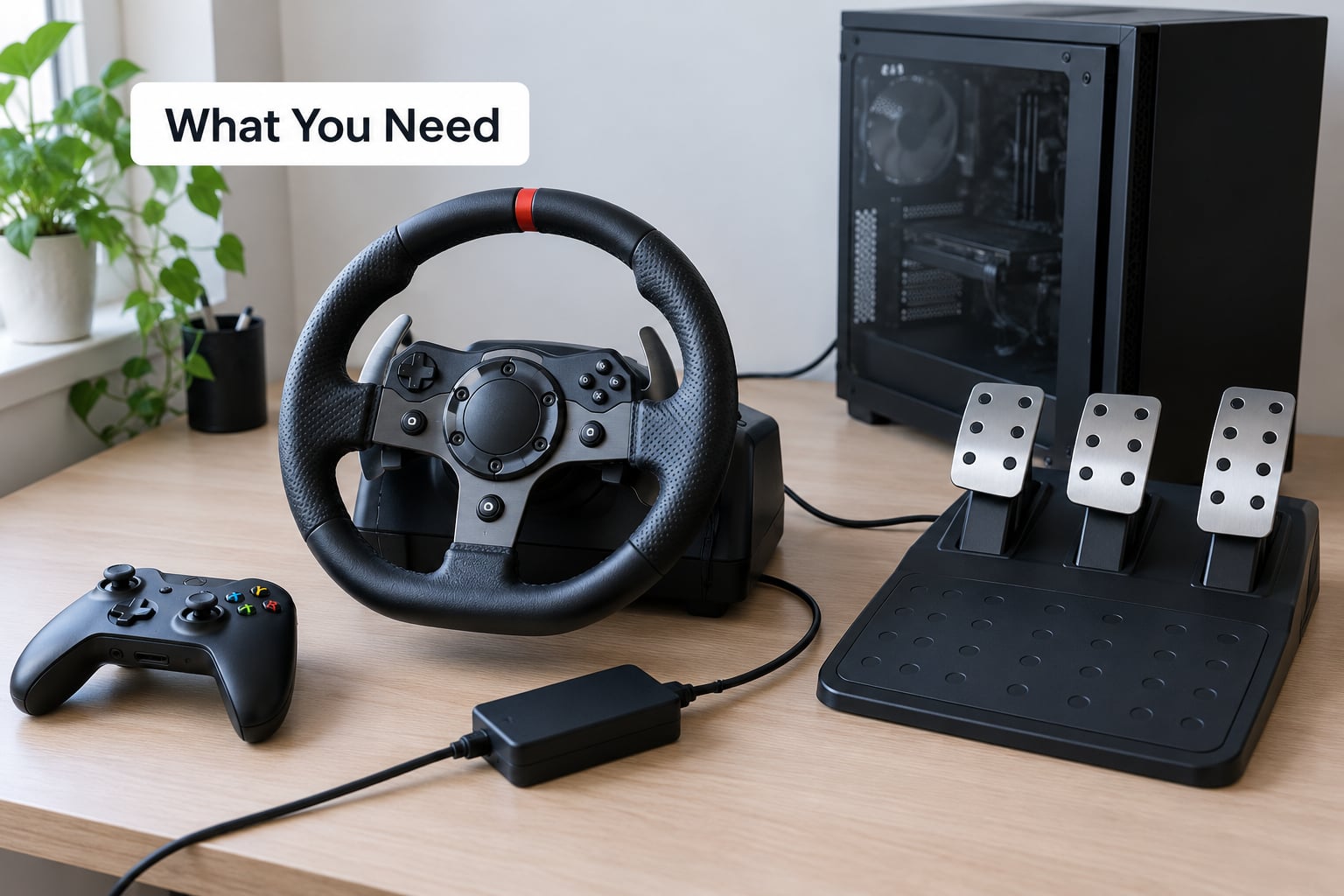
Gather this before you start, because half of setup frustration is troubleshooting hardware that was never in front of you.
- A wheel and base. Any USB wheel works with a PC. Console wheels usually ship with a USB adapter cable or a wireless dongle, so check what is in the box.
- A three-pedal set if the game has a clutch input, otherwise the two-pedal version is enough. Most arcade racers predate a clutch.
- The system you play on — a PC running MAME, a PlayStation, an Xbox, or a Raspberry Pi running RetroPie.
- The wheel’s own software or driver. This is what normalises the axes, sets the rotation lock and stores the centre position. Without it, the wheel may sit at an angle that is not actually its zero.
- The arcade driving game itself, plus its control options screen.
- Mounting hardware. A wheel clamp, a pedal board, or a cockpit frame. Tape on a desk is not a mount.
- On PC only: MAME, plus a control-panel utility such as Joy Control or the SDL test page if you want to confirm the axes are readable before launching anything.
Step-by-Step
Here is the whole process in order, before the platform specifics.
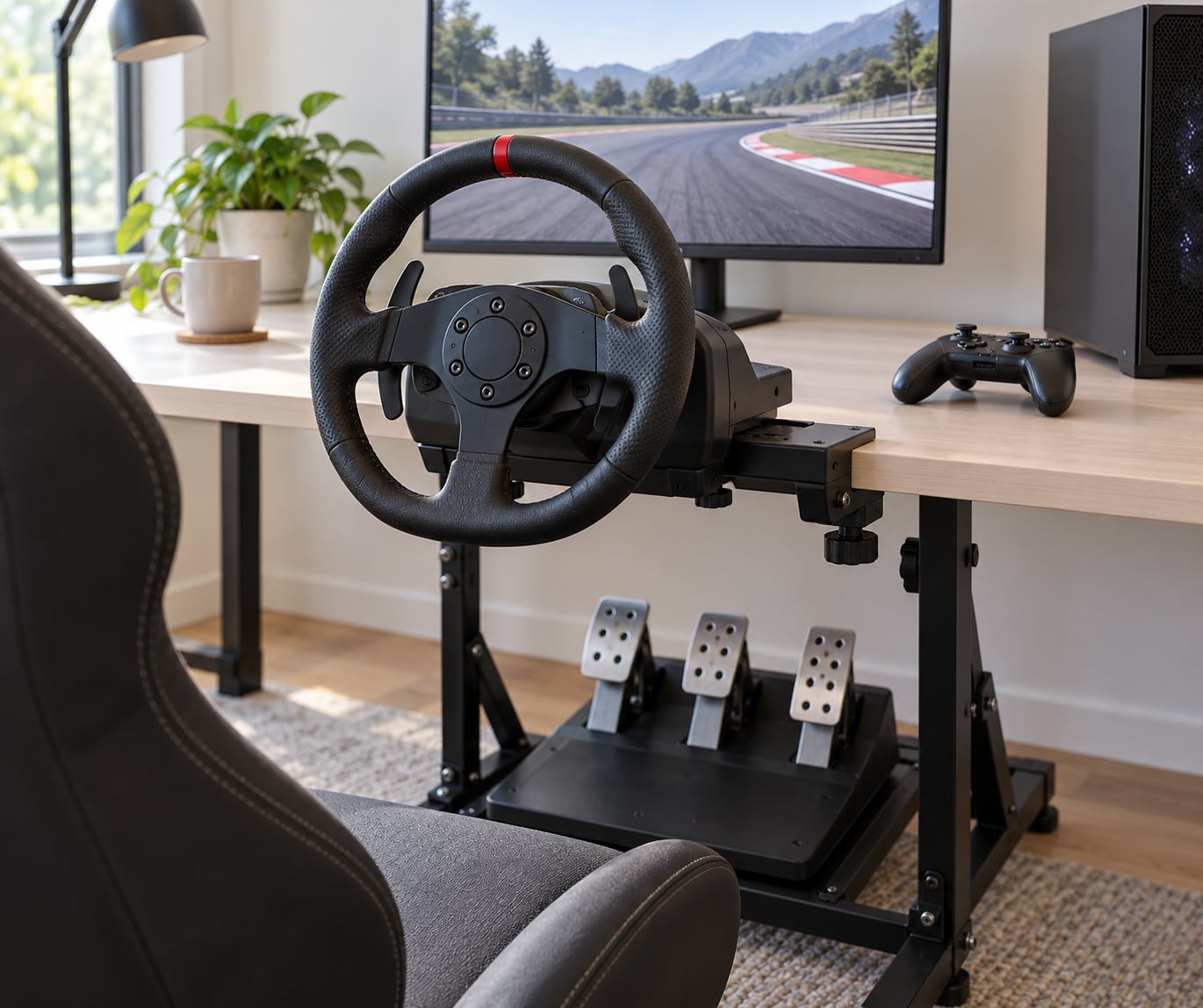
- Mount the wheel and pedals. Clamp the base to a desk leg or frame, set the pedals on a board angled slightly back, and sit with knees slightly bent at full pedal travel.
- Connect the base. USB into the PC, or into the console through the supplied adapter. Wireless wheels need their power adapter plugged in and their pairing button held, not just switched on.
- Install the wheel software and calibrate at rest. Centre the wheel, let the software find zero, and set the rotation lock the game expects.
- Confirm the system sees the axes. On PC, open a test page or MAME’s control settings and watch the steering bar move left and right and the pedal bars respond.
- Assign the device to a control port. On PC, assign the wheel to player 1’s port rather than leaving it unassigned. On consoles, set the active controller in the game options.
- Map the steering axis. Click the game’s steering input and move the wheel to full lock, then click confirm. Do not touch the mouse while doing this.
- Map each pedal to its own input. Accelerator, brake, and handbrake if present, one at a time.
- Tune deadzone, saturation and centering. These three numbers decide whether the wheel feels centred or permanently bent.
- Test drive, then save. Five minutes in a timed course beats twenty minutes of guessing in the menus.
How to Set Up a Steering Wheel for Arcade Driving Games on PC
PC is the most flexible route and the one most arcade driving games are played on through an emulator. MAME reads a wheel as a joystick-style device with several axes, and it will happily show you every one of them before you assign anything.
Open MAME, choose Options > Control Settings, and you land on a list of control ports. Set PORT 1 to the device name your wheel reports, usually something containing the manufacturer and model. Leave other ports alone unless you are building a two-player cabinet.
Now find the steering input for the game you are setting up. MAME offers an Analog Axis option, and for a modern wheel that is almost always the right choice. Select the input, click the dialog, and turn the wheel left, then right, through its full range. The bar should sweep smoothly from one side to the other. If it jumps or stops halfway, the rotation lock in the wheel software does not match what the game is asking for.
Below the axis there are three numbers that matter more than most people expect.
- Deadzone is the amount of movement near centre that the emulator ignores. Too little and the car pulls to one side; too much and there is a visible gap where nothing happens before the wheel bites.
- Saturation is the point at which the axis is treated as fully turned. Set it a little above the physical full lock and the car will reach maximum steering slightly earlier than the wheel does.
- Centering is the value representing straight ahead. If your wheel rests a degree or two off centre, this is the field that stops the car from drifting at the start of every race.
For a first pass, a deadzone of around 3 to 5 percent, saturation at about 90 to 95 percent, and centering wherever your wheel physically rests are sensible starting values. Change one number at a time and drive the same section of track so you can hear the difference.
For older titles that never had analog steering, use the digital option instead. Games such as Pole Position used an increment and decrement axis, which is why the MAME community still argues about whether to map a wheel to them at all. MAME lets you map a key or button press to each direction, so a wheel can drive them, but the result is a series of steps rather than a smooth input.
On a Raspberry Pi running RetroPie, the same steps apply with a different front end. Open the emulationstation configuration and the MAME control configuration from the RetroPie menu, use the same Options and Control Settings path, and expect one extra step: some USB wheels with their own dongles need to be plugged in before launch rather than hot-plugged.
How to Set Up a Steering Wheel for Arcade Driving Games on PlayStation
On PlayStation, the wheel connects by USB through a supplied adapter, or wirelessly through the console. Plug the adapter into a front or rear USB port, wait for the console to announce the device, then open the game.
Most current driving games treat wheels as a separate device class and expose their own calibration screen in the main menu, usually under options, controller or devices. Run that calibration first, with the wheel centred, and set the rotation lock to the value the game shows. If you skip this step, the game frequently assumes a 270-degree wheel on a 900-degree model and every corner feels wrong.
Set the active controller for player one to the steering wheel. A DualSense or DualShock plugged into the same slot can otherwise take priority for menu navigation, and a lot of players conclude the wheel is not working when the menus are simply being driven by the pad. Turn the wheel during the menu screen to see which device moves the cursor.
Also check the button mapping. Wheels expose face buttons, a D-pad, shift paddles and often a centre button cluster, and the defaults sometimes place the handbrake on a control you cannot reach from your seat position. Remap the handbrake and any look-behind button to something under your thumbs.
How to Set Up a Steering Wheel for Arcade Driving Games on Xbox
The process mirrors PlayStation, with a different port. Xbox-compatible wheels plug into a controller port on the console, or into a PC-style USB port on the Series X and Series S models. Wheels that are USB-only, meaning no X-input or D-input switch, may need an Xbox-specific adapter cable that is sold separately from the wheel’s maker.
Turn the console on before plugging the wheel in. Plugging a device into a powered-off Xbox is the single most common reason a wheel is not detected, and it is worth doing in that order every time you move the seat or swap cables.
Calibration on Xbox happens either in the wheel’s own software on a PC or through the game’s controller settings. Some current Xbox driving games do their own calibration on first launch, so expect a screen asking you to turn the wheel left, then right, until it learns the range. After that, set the in-game steering sensitivity rather than changing anything in the system layer.
Then load an arcade driving game and confirm the game is actually reading the wheel. A slow left-right turn of the wheel in the menu should move the steering indicator if input is registered. If it does not, check that the wheel is set as the active controller and that the game has steering wheel support enabled in its options.
Common Mistakes
The wheel does not appear at all. On Xbox, plug it in after the console is powered on. On PC, try a different USB port, and check the device manager for an unknown device. Wireless wheels need their power brick connected to mains, not just a USB port.
The steering axis maps but the pedals will not. This is the most reported failure on arcade forums, and it has a predictable cause. Many drivers present the pedals as a combined axis, or MAME assigns one pedal axis and then offers nothing for the second because the device reports only one pedal channel. Split the device: assign only the steering axis to the wheel device, then add a second control port entry for the pedals as their own device. The same thing happens with potentiometer and optical pedal sets, where the second pedal sometimes registers only when the first is fully released.
The wheel drifts to one side. Nearly always a centering or deadzone problem, not hardware. Recalibrate at rest in the wheel software, then set the centering value to match where the wheel sits when you let go of it. Add a little deadzone if the car pulls even at rest.
Steering feels reversed. Some wheels are mounted with the face pointing the wrong way, and some drivers invert the axis automatically. In MAME, edit the steering input and change the direction toggle before touching any settings.
Force feedback is violent. A heavy self-centring motor on a small desk will rattle the base and overwhelm a light-touch arcade racer. Most wheel software has a global effect strength multiplier. Set it to a low value before the first lap, then raise it slowly.
Buttons do nothing. The input is probably mapped to a control the game never reads. Remap anything that matters to a face button or shifter paddle, and test in a menu before you rely on it mid-corner.
The game ignores the wheel entirely. Older arcade conversions read only digital inputs. If the steering option in the control settings is a key rather than an axis, the title predates analog input and will need increment and decrement key mapping, or a different controller.
Set Arcade-Friendly Driving Settings
Arcade racers are tuned for quick, forgiving handling, and a wheel’s default simulation settings fight that. Start softer than feels right and add back in small steps.
- Steering sensitivity around 60 to 75 percent for a 900-degree wheel on an arcade racer. High values make the first flick of the rim feel like a twitch.
- Deadzone low but not zero, roughly 2 to 4 percent on a well-behaved wheel.
- Force feedback set to 25 to 40 percent of maximum. Arcade titles deliver their own on-screen forces, and a heavy motor on top of them is just noise.
- Rotation lock set to the figure the game recommends, which is often 270 or 540 degrees rather than the full 900.
- Traction control and stability assist on at the lowest setting available. They exist for the sim titles; in an arcade racer they soften the driving without making it feel better.
- Transmission on automatic, or with a sequential shifter mapped to a paddle. An H-pattern with clutch is for sims and is fiddly in a car that changes gear on its own anyway.
- Countersteer assist and stability control off, or on the lowest setting, if the game offers them.
These are starting points, not final answers. A cheap direct-drive wheel and a belt-driven force feedback wheel with a 900-degree lock behave nothing alike with the same numbers, and the game itself will change how they feel. Change one setting, drive the same stretch of track twice, and keep what is better.
Frequently Asked Questions
Can I use a modern steering wheel with old arcade racing games?
Yes, usually. MAME reads a modern USB wheel as a joystick-style device with several axes, and you can map the steering axis and each pedal to the game’s digital inputs. The catch is handling feel: titles built around a digital increment and decrement axis feel steppy on an analog wheel, so many players keep a gamepad for those specific games. Check the game’s control options for an Analog Axis choice before you commit.
Will a steering wheel work on PlayStation and Xbox?
It depends on the wheel, not the console. Wheels sold for one console often work on the other through a USB adapter, because PC-style input is the common denominator. You need a cable or wireless dongle for the platform you are on, and for Xbox you may need an Xbox-specific adapter if the wheel is USB-only. Any wheel works on PC over USB, though force feedback features vary by model.
Why will MAME not assign my pedals when the wheel maps fine?
The usual cause is that the driver reports the pedals as a combined or single axis, so MAME fills the first pedal input and leaves the second unavailable. Try assigning only the steering axis to the wheel device, then add the pedals as a separate control port entry. Potentiometer and optical pedal sets often need the same treatment, and a second pedal may only register when the first is fully released.
Why does my steering wheel drift to one side in arcade games?
Almost always a calibration or centering value, not a hardware fault. Recalibrate the wheel with it completely still, then set the centering value in the game’s control settings to match where the wheel physically rests when you release it. If the car still pulls at rest, add a small deadzone, around three to five percent, to absorb sensor noise near centre.
Should I use a steering wheel or a gamepad for arcade racers?
A gamepad is often the better tool for a genuine arcade racer. Those games are designed around quick digital flicks that a stick delivers faster than a large wheel, and they rarely punish small steering errors. A wheel earns its place in titles with analog steering, driving assists you want disabled, or when you have already built a cabinet around one and want every racer to feel consistent.
How do I reset the controls in MAME back to default?
Clear the control configuration from Options, or in the MAME folder delete the controls configuration file for that emulator, then restart MAME and reassign the device on each control port you use. Note that this removes per-port settings, so back up the file first if you have already spent time tuning deadzone and centering values. Per-game overrides live in a separate file and are not affected by a global reset.
Conclusion
Start by installing the wheel’s own software and letting it calibrate while the wheel is still. Then connect the base, assign the device to a control port, map the steering axis and each pedal one at a time, and set deadzone, saturation and centering to the starting values above.
Finish by dropping force feedback and steering sensitivity a long way down, then raising them a notch at a time until the car feels responsive. Calibration problems and steering feel problems look similar on screen but are fixed in completely different places, and that order keeps you from chasing the wrong one.