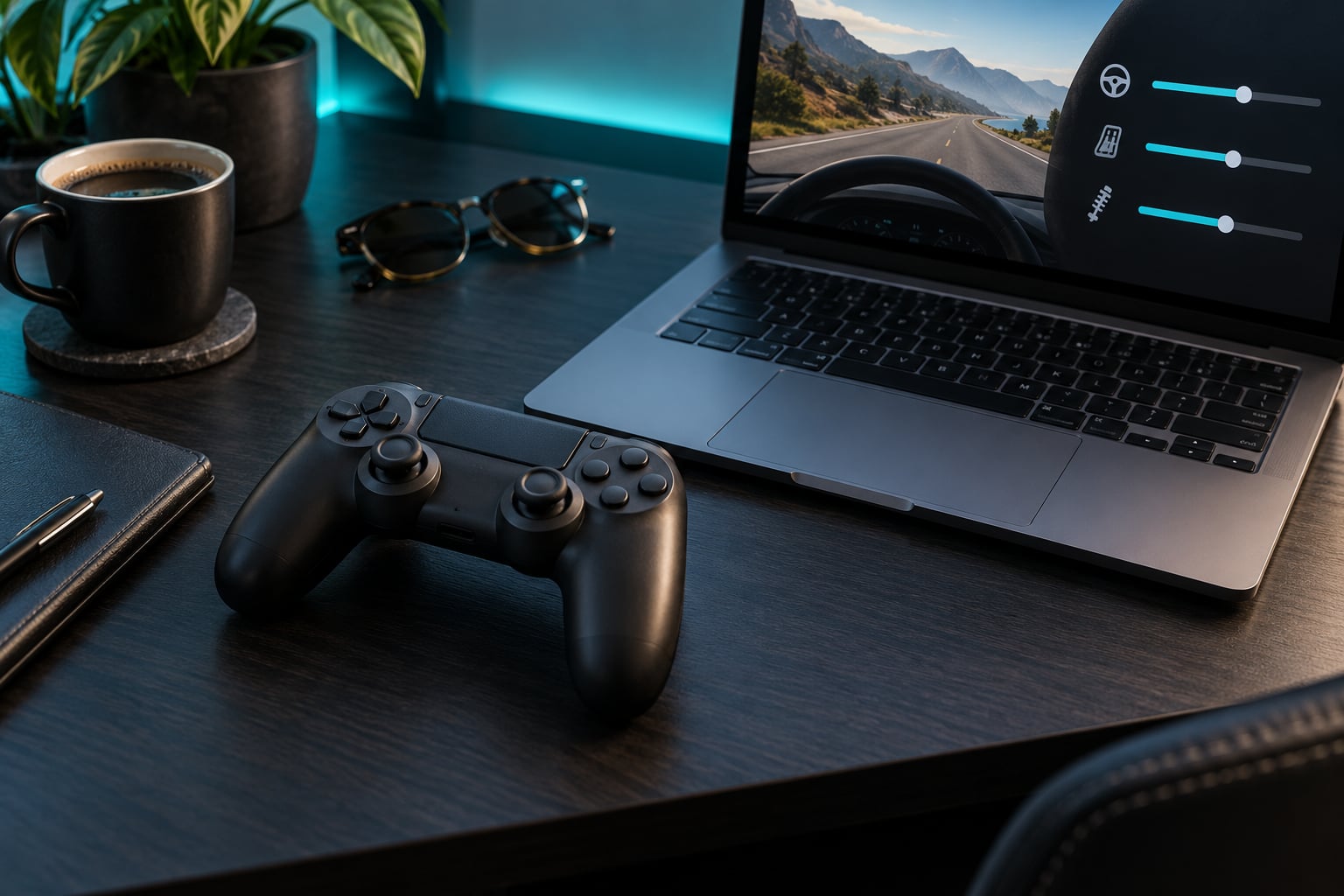
Learning how to improve driving feel with a controller comes down to three menus most players never open: dead zone, response curve and camera. Set them in the right order and the same car that felt like it was steering itself starts answering your thumb. You do not need a wheel, a load cell pedal kit or a new pad, and the whole job takes about twenty minutes.
The good news is that the fixes are cheap and reversible. The bad news is that the settings live in different places depending on which GTA title and which platform you play on, so the exact path matters. Below I walk through the tuning order that works, then the mistakes that undo it.
Table of Contents
- 1What You Need
- 2Where the settings live in each GTA game
- 3Step-by-Step: How to Improve Driving Feel With a Controller
- 41. Set the controller layout for predictable inputs
- 52. Lower the dead zone and tune analog sensitivity
- 63. Adjust acceleration and braking behavior
- 74. Use traction, damage and driving assists selectively
- 85. Tune the camera for better road awareness
- 96. Test in short drives to improve driving feel with a controller
- 10Common Mistakes
- 11Steering that never sits still
- 12Turning one corner and ending up facing backwards
- 13Constant wheelspin on every launch
- 14Reversing when you meant to stop
- 15A camera you cannot drive from
- 16Changing everything at once
- 17Frequently Asked Questions
- 18What controller works best for improving GTA driving feel?
- 19How do I stop my controller car from reversing when I brake?
- 20Should I use analog steering or trigger controls in GTA V?
- 21What driving assists give the best handling for a controller?
- 22How do I fix a controller camera that makes driving feel difficult?
- 23Do I need a steering wheel to improve driving feel in GTA games?
- 24Conclusion
What You Need
You need four things, and none of them cost money.
- A working controller. A standard wired or wireless pad is enough. Xbox, PlayStation and the common PC gamepads all expose the inputs this guide relies on.
- Your platform and title pinned down. GTA V, GTA IV, GTA Online and the newer entries all store controls differently, and knowing which one you play decides which menus you are looking for.
- A quiet road. Most tuning happens in empty streets or a parking area, not in traffic.
- Ten minutes of patience per step. You will change one thing, drive, then decide whether to keep it.
That is genuinely it. Hardware is the last option on this list, not the first. Players who buy a wheel before tuning a controller usually come back to the controller anyway, because the real problem was the setup, not the device.
Where the settings live in each GTA game
In GTA V on console, driving assists sit under Options, then Controller, then Driving Assist. That screen holds assisted acceleration and braking, plus the vehicle access options that control auto accelerate on hills and auto brake for reverse. Those last two are the source of most accidental-reverse complaints.
In GTA V on PC, the control panel is smaller: Settings, then Controller, with dead zone, sensitivity and aim sensitivity sliders. There is no response curve selector in the vanilla PC panel, so players who want a curve add one at the driver level rather than in the game.
GTA IV is the odd one out in a good way. It exposes separate assist levels for steering, throttle and braking, which makes it a genuinely useful place to learn what each assist does before turning them down in later games.
If you play GTA on PC through Steam, Steam Input sits outside the game entirely and gives you per-game dead zones and response curves without touching Windows settings. That is the cleanest route on PC.
Step-by-Step: How to Improve Driving Feel With a Controller
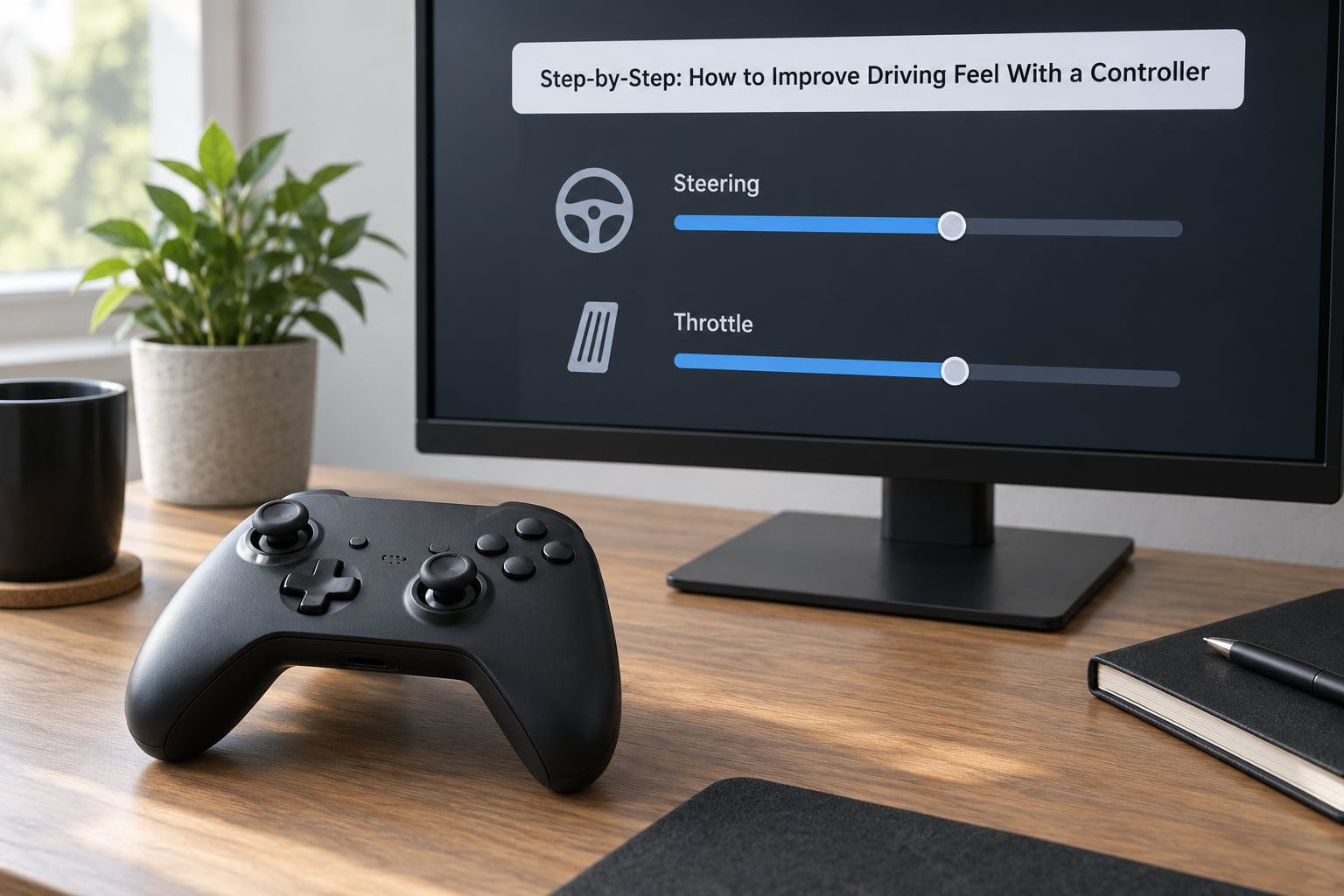
Work through these in order. The order matters because each step assumes the previous one is settled, and because later settings make earlier symptoms impossible to read.
1. Set the controller layout for predictable inputs
Start with buttons, not sticks. Open the controls menu and look at what accelerate, brake and reverse, handbrake, horn, look behind and camera reset are bound to.
On console, the default split puts accelerate on one trigger and brake and reverse on the other, which means stopping is fine and pulling away backwards is a single misfire away. Binding look behind to a stick click or a D-pad direction that you will not press while cornering removes the most common accidental input, and it frees your thumb.
On PC through Steam Input, lay the layer out by finger position rather than by convention. Anything you press every few seconds sits under a thumb; anything you press in a panic goes on a bumper, where you can hit it without looking down.
A good layout has one rule: the controls you use constantly sit where your hands already rest. You will know it worked if you can drive a full lap without your eyes leaving the road.
2. Lower the dead zone and tune analog sensitivity
The dead zone is the range of stick travel the game ignores around center. Too high and your car drifts on straights because a resting thumb reads as steering input. Too low and you cannot hold a fast corner without fighting micro-corrections.
Start from roughly five to ten percent on an analog steering axis, then judge it by driving a straight road at moderate speed with no input at all. If you need to keep correcting, lower it. If the wheel of the car twitches back and forth on its own, raise it a little and test again.
Sensitivity is the multiplier on top of that. Bumping it up feels like a quick win for a session or two and then becomes the reason you cannot hold a line. If you raise sensitivity, lower the dead zone slightly to compensate, and change one before you touch the other.
Console pads and PC gamepads do not share values. Console builds add their own smoothing layer on top of what you set, so a pad that feels perfect in a PC game may feel syrupy on console at identical numbers. Tune each copy of the game separately.
3. Adjust acceleration and braking behavior
Throttle and brake on a controller are triggers, and triggers have their own dead zones in some games and some drivers. On PC, Steam Input lets you set trigger dead zones independently of stick dead zones, which is often the single biggest upgrade for anyone whose car lunges when they mean to creep.
For braking, aim for consistency rather than maximum pressure. Press to about half and see whether the car stops predictably. If it locks and slides, raise the brake dead zone slightly so the early part of the pull registers more gently.
Test three things: a clean standing start on a flat road, a stop from moderate speed that ends without a lurch, and an immediate correction after you make a mistake. That third one is where throttle control lives, and it is the single biggest difference between a controller driver who improves and one who does not.
If your car reverses the moment you stop, turn off the auto brake for reverse option in the vehicle access menu. It is a small toggle with a large effect on frustration.
4. Use traction, damage and driving assists selectively
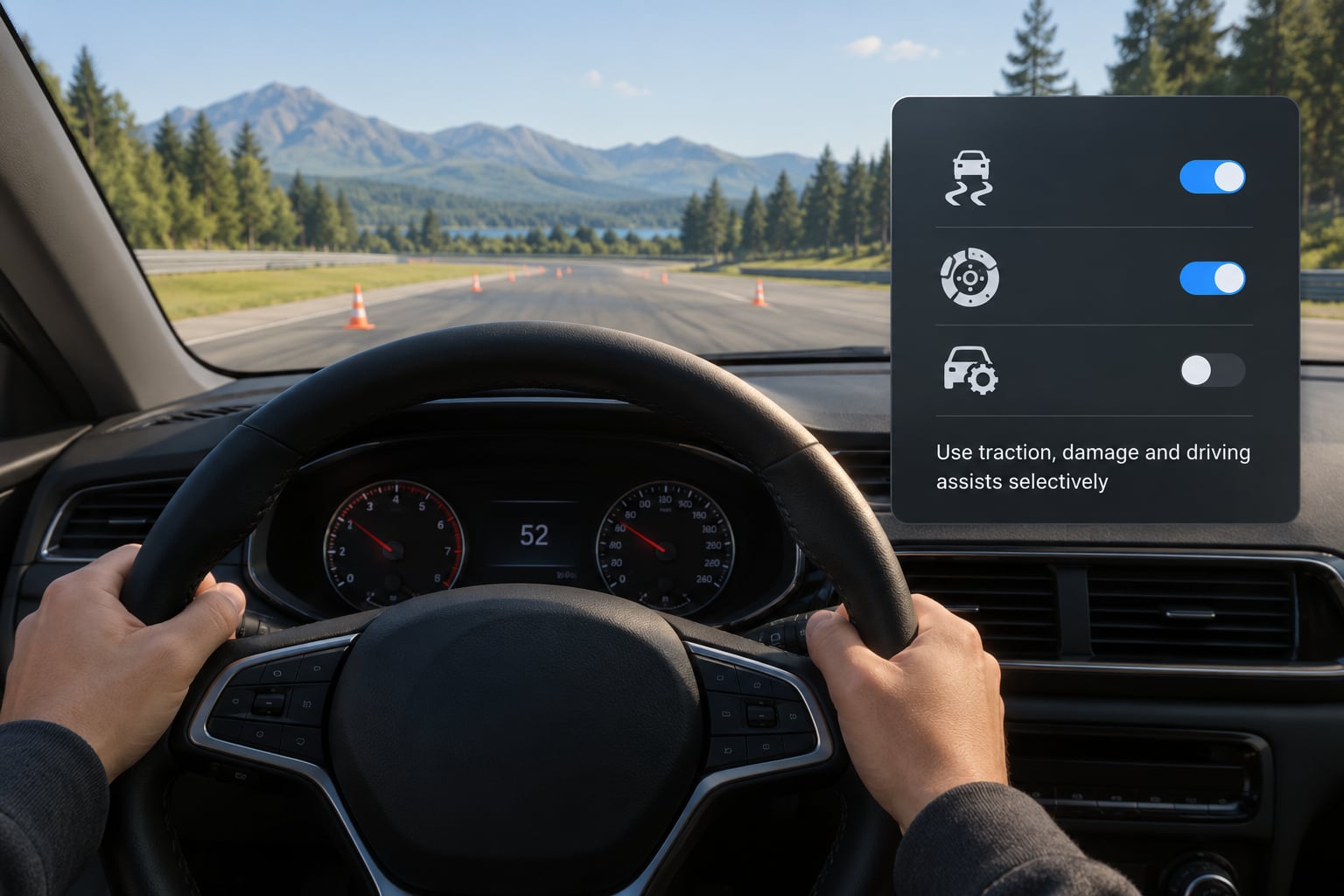
Assists are not a difficulty slider. They are separate systems that each fix one specific problem, and turning one on does not compensate for another being off.
Traction control cuts throttle when the wheels spin, which stops constant wheelspin on corner exit and dulls your throttle control while it is active. Traction control on medium is a reasonable training tool. It stays out of the way on exit and still catches the worst of it.
Assisted braking and steering smooth out the extremes: no lockups, no snap rotation. Turn assisted steering off first when you feel the car fighting small inputs, because it is the assist most likely to make a controller feel like it is steering itself.
Damage response matters more than most players expect. A car with heavy damage handling becomes vague and vague feels like bad settings. If a specific vehicle feels unfixable, check its damage state before touching anything else.
Heavier and older vehicles carry more weight and benefit from assists on for longer. Light, grippy cars let you run with assists reduced sooner. There is no universal answer here, which is exactly why the settings feel subjective to most players.
5. Tune the camera for better road awareness
Camera settings do not change handling, but they change how much of the road you can read, and reading the road is most of driving well.
In GTA V, the relevant options sit under Camera: follow distance, follow height, follow mode, look behind and vehicle camera shake. Follow distance too short makes fast driving feel twitchy because every input arrives with a large visual swing. Pull it back a little and the same corner looks calmer.
Look behind deserves its own binding. On the default setting the game drops into a camera view when you use it, and the transition costs you half a second exactly when you need it most. Check whether your version holds a side view instead, and use whichever is smoother.
Test twice: once at cruising speed on a straight road, and once during a high-speed pursuit where the camera shake and the view distance both matter. Chase situations expose a camera that normal driving hides.
6. Test in short drives to improve driving feel with a controller
Run the same short loop after every change: straight-line control at moderate speed, a tight turn, an emergency stop, a reverse and a sustained fast section. Twenty seconds each, five tests, about two minutes.
Change one setting per loop. If you change dead zone, linearity and assists together, you learn nothing about which one helped, and when a later change makes things worse you have no way to back out cleanly.
Write down what changed and how it felt, even in one line on your phone. Most players tune better over a week of short sessions than in one long one, because the honest notes are the only record of what actually improved.
When a lap feels predictable without constant correction, stop. You have found your baseline, and further tuning is refinement rather than repair.
Common Mistakes
Almost every bad controller setup is one of six recognizable problems.
Steering that never sits still
Symptom: the car weaves on straights and you correct constantly. Cause: dead zone too low, or sensitivity too high. Fix: raise the dead zone one step and test before touching anything else. If a pad is physically worn, raise it a little more.
Turning one corner and ending up facing backwards
Symptom: corner exit spins the car. Cause: throttle applied too early with assists low. Fix: lower throttle dead zone, add a small amount of traction control, and practice exit throttle in a parking area until the rear stays put.
Constant wheelspin on every launch
Symptom: the car lights up the tires every time you accelerate. Cause: throttle dead zone too low and traction control off. Fix: raise throttle dead zone, then add traction control on medium. Heavy vehicles need this more than light ones.
Reversing when you meant to stop
Symptom: every stop becomes a reverse. Cause: auto brake for reverse, or a brake trigger mapping that crosses into reverse too early. Fix: disable auto reverse braking in the vehicle access menu and pull the brake into reverse further along the trigger.
A camera you cannot drive from
Symptom: constant visual motion, corners appear late. Cause: follow distance too short and camera shake on. Fix: increase follow distance, reduce shake, and test again in a pursuit scenario rather than on an empty road.
Changing everything at once
Symptom: nothing improves and you cannot tell why. Cause: too many variables in one session. Fix: reset to defaults, then apply the steps above one at a time.
One last tip from the community side of this debate: treat settings other people publish as a starting point, never as an answer. The same numbers that work on one pad feel wrong on another, and the forum consensus that a lower dead zone with a higher linearity gives smoother but less responsive steering is a good rule of thumb, not a rule.
Frequently Asked Questions
What controller works best for improving GTA driving feel?
Any modern pad works, because the settings that matter live in software rather than in the hardware. An Xbox, a PlayStation pad or a common PC gamepad all expose the steering and trigger inputs you need. Pick the one with the lowest stick drift you can find, because wear shows up as constant weaving no setting can fix.
How do I stop my controller car from reversing when I brake?
Open the vehicle access options and turn off auto brake for reverse. That toggle stops the game from applying throttle in reverse the moment you come to a stop. On PC, also pull the point where the brake trigger shifts into reverse further along its travel so light braking never crosses over.
Should I use analog steering or trigger controls in GTA V?
Keep steering on the analog stick and throttle and braking on the triggers. That split gives you fine corrections with your thumb and weighty, deliberate inputs from your index fingers. Moving throttle to a stick loses the ramp that makes smooth corner exits possible, so most drivers do worse with that layout.
What driving assists give the best handling for a controller?
There is no single best combination, so treat assists as separate fixes. Traction control on medium catches wheelspin on corner exit without dulling your throttle. Assisted braking smooths lockups. Assisted steering is the one to reduce first, because it fights small corrections and makes a controller feel unresponsive.
How do I fix a controller camera that makes driving feel difficult?
Increase follow distance and reduce camera shake in the camera options. A close camera makes every input look like a large visual swing, which reads as twitchy handling even when your settings are correct. Check the look behind option too, and test again during a pursuit, where shake and distance matter most.
Do I need a steering wheel to improve driving feel in GTA games?
No. Wheel users who struggle usually arrive with settings copied from a guide instead of values tuned to their own hardware. Learning how to improve driving feel with a controller means calibrating dead zone, sensitivity, assists and camera for your hands. Finish that first, then decide whether hardware is what you actually want.
Conclusion
The fastest first adjustment is the dead zone, followed by a button layout that keeps look behind off your steering thumb. Those two changes solve more complaints than anything else in the menus, and they take about five minutes.
After that, work outward in this order: throttle and braking response, then assists, then the camera. Change one setting per short test drive and write down what happened. Save your profile once the car feels predictable, and revisit it after a few sessions, because the honest notes will show you which value was the problem.