A broken cutscene is a pre-rendered video or in-engine cinematic in an older PC game that fails on a modern Windows machine. It usually means a black screen with audio playing, a video that crawls at a few frames per second, a scene that ends early or is skipped entirely, sound that drifts out of sync with the picture, or an outright crash the moment the cinematic starts.
The good news is that most of it comes down to one missing decoder, one conflicting codec filter, or one setting that modern Windows changed without telling anyone. Knowing how to fix broken cutscenes in old PC games is mostly a matter of working through the right checks in the right order, stopping as soon as the picture comes back.
Here is the order I would use. Work down the list and stop when the cutscene plays, because every step past the one that works only adds risk to your install.
- Identify the exact symptom before touching anything.
- Verify the game files and restore any missing movie data.
- Update only the components that matter for video playback.
- Fix display, audio and decoder settings.
- Disable mods and test the unmodified game.
- Repair the individual cutscene video or mission data.
- Reset configuration, then reinstall only as a last resort.
Most readers finish somewhere between steps two and four. The rest need a virtual machine, which sounds heavier than it is once you know which one to use.
Table of Contents
- 1What You Need
- 2How to Fix Broken Cutscenes in Old PC Games: Step-by-Step
- 31. Identify Where the Cutscene Breaks
- 42. Verify the Game Files and Repair Missing Data
- 53. Update Only the Components That Matter
- 64. Fix Display, Audio, and Decoder Settings
- 75. Disable Mods and Test the Original Game
- 86. Repair the Cutscene Video or Mission Data
- 97. Reset Configuration and Reinstall as a Last Resort
- 10Common Mistakes
- 11Frequently Asked Questions
- 12Why does my PC skip a cutscene instead of showing it?
- 13Should I run an old PC game as an administrator?
- 14Why do cutscenes work on my desktop but crash on my laptop?
- 15Can I restore a cutscene without replaying the whole game?
- 16Will deleting the original game files stop cutscenes from breaking?
- 17Conclusion
What You Need
You do not need much. Most of this is done inside the game folder and the Windows Properties dialog, with no file editing and no command line.
The game itself, plus a way to reinstall it cleanly if it turns out the install is damaged. A GOG installer you can re-run, a Steam library entry you can verify, or the original discs. If you no longer have any of those, back up the game folder before you start changing things.
Administrator access for your Windows account. Several compatibility settings refuse to stick otherwise.
Current device drivers for your graphics card. Old driver versions cause their own cutscene problems, especially flickering and black frames.
Optional extras, in this order of usefulness: RAD Video Tools from RAD Game Tools, which ships the Bink and Smacker decoders and plays the files outside the game so you can tell a broken file from a broken game; dgVoodoo, a wrapper that fixes old DirectDraw and Direct3D calls; and a video editor or ffmpeg, only if you end up needing to re-encode a movie file.
One safety note before you begin. Do not delete .bik or .smk files because a forum post suggests it. Several players reported that deleting them let the game launch at all, but the cutscene then became a black screen or crashed the game outright. Moving files aside is reversible, deleting them is not.
How to Fix Broken Cutscenes in Old PC Games: Step-by-Step
Each step below assumes the previous one did not do it. Keep a short note of what you tried and what changed, because the fix that works is often the third thing you try and you will want to remember it for the next game.
1. Identify Where the Cutscene Breaks
Write down the symptom in your own words before you change a setting. “Black screen but I can hear the dialogue” and “the game freezes on a still frame” have completely different causes, and mixing them up sends you down the wrong path for an hour.
Reproduce the failure on purpose. Note the exact chapter or mission, and note whether the game crashes to desktop, hangs, or recovers. Then check whether it happens every single time or only sometimes, because intermittent problems point at drivers or overlays rather than at missing files.
| Symptom | Likely cause | First thing to try |
|---|---|---|
| Black screen, audio plays | Missing or hijacked Bink decoder, binkw32.dll not loading | Verify game files, then install RAD Video Tools |
| Nothing at all, no audio | Scene skipped by a setting, or a file failed to load | Check skip settings, verify files |
| Video plays at a crawl | Wrong refresh rate, vsync wait, CPU throttling | Match refresh rate, alt-tab out and back in |
| Picture but no sound | Missing audio component, muted in mixer | Check mixer, install Media Feature Pack |
| Sound drifts from picture | Sample rate mismatch, audio enhancements, exclusive mode | Turn off enhancements and exclusive mode |
| Crash when the scene starts | Conflicting DirectShow filter, bad mod, missing runtime | Remove codec packs, disable mods |
One more check that saves hours: does the same cutscene work on another machine? If it plays on a desktop and dies on a laptop, the game file is fine and the problem is on the system side.
2. Verify the Game Files and Repair Missing Data
Verify integrity of game files first, always. It is free, it takes a couple of minutes, and it rules out the single most common cause, which is a bad install or a patch that half-applied.
On Steam, open your library, right-click the game, choose Properties, then Installed Files, then Verify integrity of game files. On GOG, open Galaxy, find the game in your shelf and use Verify / Repair files in the game’s right-click menu. For a disc-installed game, run Setup again from the discs or run the installer in repair mode.
Then look at the movie folder inside the game directory. Cutscene files usually sit in a folder named Movies, Video, FMV or Cinematics. A Bink-era game expects binkw32.dll in the game root, and that file is the single most commonly missing item after a botched install or a repack. If a folder of .bik files is empty or holds files of zero bytes, verification did not restore them and you should reinstall.
Installing RAD Video Tools and opening one of those .bik files tells you whether the file itself is readable. If the codec plays the movie but the game does not, the movie is fine and the game is the problem. That single test saves you from re-encoding files that never needed it.
3. Update Only the Components That Matter
Create a restore point before you touch drivers. Search for Create a restore point in the Start menu, open it, and follow the wizard. It takes two minutes and it is your way back if a driver update makes things worse.
For video playback specifically, four things matter:
- Graphics driver, installed cleanly rather than stacked on top of an old one.
- DirectX End-User Runtime, which covers the older DirectX components many pre-2005 titles still call for.
- Visual C++ Redistributable, both the 32-bit and 64-bit packages, because 32-bit games need the 32-bit one.
- Windows Media Feature Pack on N editions of Windows, which removes the media components those builds leave out. One player on r/RuinedKing solved a broken cutscene this exact way.
Roll back rather than forward when the cutscene broke right after a driver or Windows update. In Device Manager, open the display adapter, choose Properties, then Driver, then Roll Back Driver. Windows 11 updates have been blamed for cutscene regressions on specific titles, and going back one version is often cleaner than working around it.
Do not blanket-update everything. Multiple driver versions fighting over the same file cause the flickering and black frames people blame on the game.
4. Fix Display, Audio, and Decoder Settings
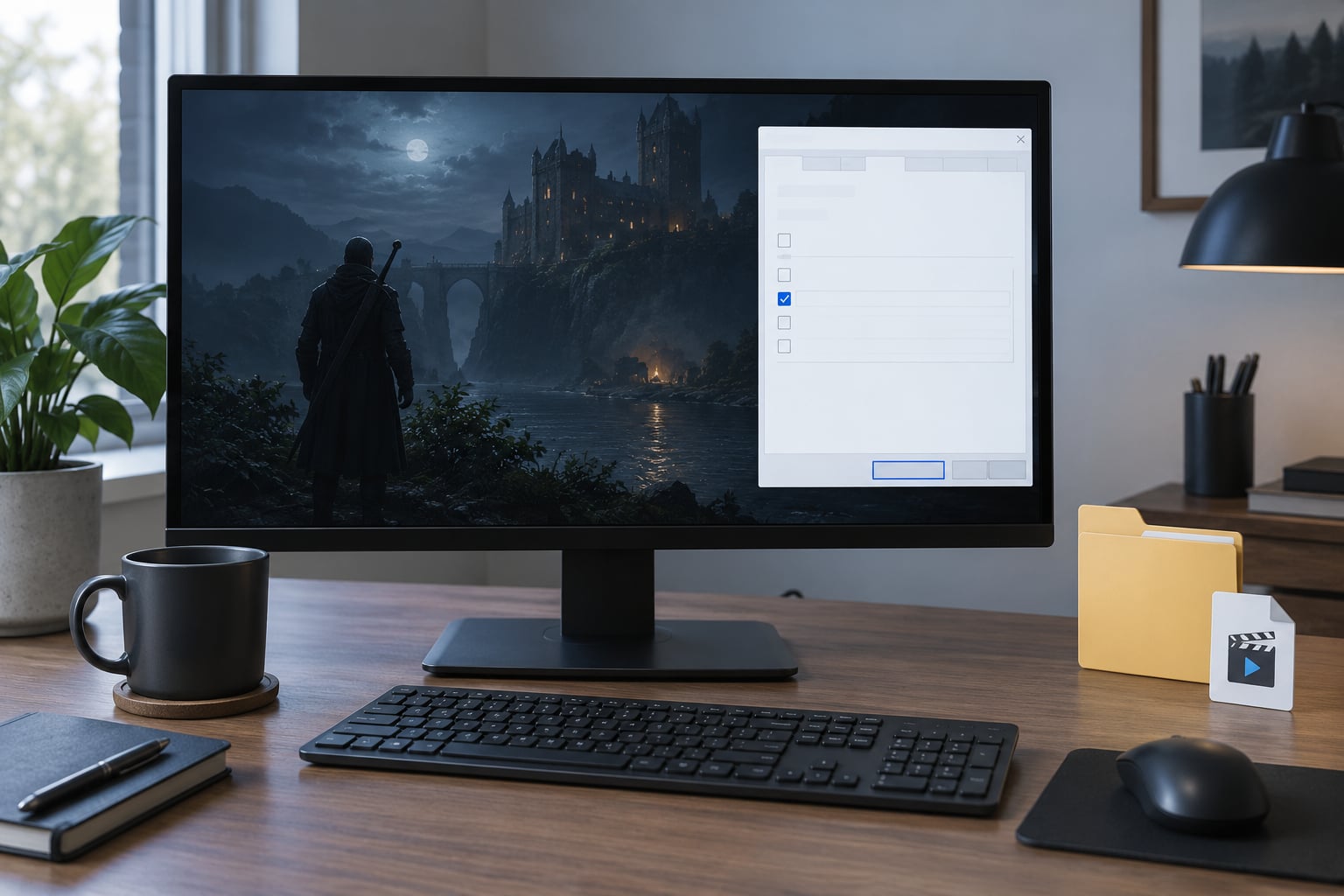
Compatibility mode is the highest-yield setting change, and players usually pick the wrong mode first. Right-click the game’s executable, open Properties, go to the Compatibility tab, tick Run this program in compatibility mode, and start with Windows 8.1. If that does nothing, try Windows 7, then XP Service Pack 3. Avoid the Reduced color fidelity checkbox unless the game looks washed out.
While you are on that tab, tick Disable fullscreen optimizations. This forces the game through the Windows compositor instead of the driver path, and it is the fix that brought Gothic 2 cutscenes back for players using borderless mode.
If a cutscene plays at a crawl, do not start installing things. Set your monitor refresh rate in Settings, System, Display, Advanced display to the native rate of the mode the game is actually using, and disable VSync in the driver control panel if the game exposes it. There is also an old community trick worth trying once: alt-tab out of the scene and back in. For Heroes of Annihilated Empires, a patch makes the cutscenes play at all, and players on the GOG forum reported they still run at a crawl until that alt-tab.
For black video with sound, the decoder is the suspect. Install RAD Video Tools, then uninstall anything you added for video editing or streaming. A codec pack such as Community Codec Pack installs its own DirectShow filters, which take priority over the game’s own Bink decoder and produce sound with no picture. Settings, Apps, Installed apps, sort by install date, and remove the codec packs you added after the game.
For audio out of sync, the checks are quick. In Settings, System, Sound, Audio, Advanced, switch off all enhancements and turn off Allow applications to take exclusive control of this device. Match the default sample rate in that same panel to what the game expects, and reset any audio device that has been plugged into a docking station or a second display. Alt-tabging out and back in also resyncs most of these old decoders.
For flickering or black textures only during cutscenes, the driver is fighting Windows over the multi-plane overlay. Turn off hardware-accelerated video decoding and the multi-plane overlay option in your graphics control panel, and test again.
5. Disable Mods and Test the Original Game
Do not uninstall your mods. Create a mods folder outside the game directory, move everything into it, and launch the untouched game. If the cutscene works, move mods back in one category at a time.
Order matters when you isolate. Script mods change the sequence that triggers a cinematic, so test them last. Texture and model mods can replace a file the cutscene engine loads. HUD, interface and graphics mods often alter resolution or frame pacing, which shows up as stutter. Video mods replace the movie files outright, so if you are running one, compare its folder against a clean copy before anything else.
Also check for third-party overlays. Recording software, Discord, GeForce Experience and Steam’s own overlay all inject into the render path, and injected video filters are a frequent cause of a cutscene that plays fine until one of them updates.
6. Repair the Cutscene Video or Mission Data
Most pre-2005 cutscenes are Bink (.bik), Smacker (.smk) or uncompressed AVI. Smacker came from RAD Game Tools too, and Bink has been licensed for thousands of games, which is why these files appear in almost every classic you own. AVI and older MPEG or DivX files are easier to repair because any modern player handles them.
To replace one file safely, copy it out of a clean install of the same game and edition. Confirm the filename matches exactly, including case and any leading zeroes, because many engines open these files by name and silently fail when the name does not match. Confirm the file lives in the folder the engine expects, not a subfolder you created.
Re-encoding is the last repair step. Convert the movie to a plain AVI or MP4 with ffmpeg, keep the original filename and extension, and place the new file where the old one was. Back up the original first, and test with one cutscene before converting the whole game.
Some cutscenes are tied to mission scripts rather than video files. If a mission will not start and the game logs an error about a missing scene or trigger, roll back to a save made before that mission instead of editing assets. Loading a slightly earlier save costs ten minutes; editing trigger tables costs an evening.
7. Reset Configuration and Reinstall as a Last Resort
Configuration files break more often than people expect, especially after a display change. Close the game, back up the game’s .ini or .cfg file to your desktop, then rename it to something like config.old and launch the game. It will write a fresh one with current settings, and the cutscene often plays. Delete the backup once you are satisfied.
Next, test permissions and compatibility modes together. Run as administrator from the Compatibility tab, and test both the XP Service Pack 3 and Windows 8.1 modes. A game that needs to write to Program Files without administrator rights can fail exactly when it tries to cache a decoded movie.
If nothing on Windows works, run the game in a virtual machine. Build a Windows 98 or XP machine in VirtualBox or VMware, install an evaluation copy of the operating system, install the game from your backup, and the cutscene will play because you have recreated the environment it was written for. VirtualBox is free and the setup takes about an hour. It is heavier than everything else in this guide, which is why it sits here.
On Steam Deck and Linux, the equivalent step is changing Proton builds. Right-click the game, choose Properties, then Compatibility, and force a different Proton version. Players have fixed black-screen cutscenes in Legacy of Kain: Soul Reaver, Transformers: Fall of Cybertron and Deadpool by installing Proton 7.2-GE-2 through ProtonUp-Qt. Bink playback is unusually sensitive to the Wine version underneath, so a game that ran badly last month can work this month.
Reinstall last. Keep your saves by copying them somewhere safe first, because a clean install is exactly the situation where save directories get wiped. Preserve your mods folder too. Then verify the new install before you reinstall anything else.
Common Mistakes
Changing everything at once. You toggle six settings, the cutscene works, and you have no idea which one did it. The next game on your list needs the same fix and you cannot reproduce it. Make one change, test, note it, move on.
Downloading random codec packs. This is the most common mistake on this whole list, and it usually makes things worse. A bundle installs its own DirectShow filters that outrank the game’s decoder. The safer fix is to uninstall codec packs and install RAD Video Tools from the vendor instead. Prevention: keep codec management to one source.
Deleting the movie files. Players have found that removing .bik files lets the game launch, which feels like progress. It is a trade, not a fix, and it converts a video glitch into a black screen or a crash. If you want to test the theory, move the folder to your desktop first. Prevention: never delete game data during troubleshooting.
Deleting every save file. Saves often sit in a documents folder outside the game directory, so wiping the game folder does not even remove them, but wiping that folder does. A rollback to an earlier save fixes most mission-script failures. Prevention: back up your saves before any big change, including driver work.
Mixing files from different editions or patches. Dropping a patch built for one edition into another install is a fair way to break a working game, and the resulting crash looks exactly like a cutscene bug. Verify the edition and patch level on PCGamingWiki before installing anything, then verify game files again afterwards. Prevention: patches go with a clean install, never on top of a modded one.
Frequently Asked Questions
Why does my PC skip a cutscene instead of showing it?
Most games have a setting that skips cinematics you have already seen, usually under Video, Gameplay or a separate Cinematics tab, and some remember that choice per save file. It can also be a mod that removes scenes, or a skip flag left over from a previous playthrough. Open the game’s options and reset cutscene and story settings to default, then start a new game or load an older save, since some games latch the skip flag onto the save itself.
Should I run an old PC game as an administrator?
Only when you have a reason. Administrator access helps if the game cannot write to its own folder in Program Files, which commonly shows up as a crash when a cutscene tries to cache a decoded movie. It does nothing for video decoding or codec problems, so run as administrator as a test rather than as a default setting. If it fixes the crash, leave it on for that game only, and set it on the Compatibility tab so it stays after you move the executable.
Why do cutscenes work on my desktop but crash on my laptop?
The game file is fine on both machines, so the difference is the environment. A laptop usually ships with a different graphics driver, a power-saving profile that caps the GPU, and often less free memory. Check that hardware acceleration is enabled for video playback in the browser or player the game uses, plug the laptop in so it stops throttling the CPU, and close hardware-accelerated overlay software. If it still crashes, a virtual machine with Windows XP will run the game as intended.
Can I restore a cutscene without replaying the whole game?
Usually yes, and it depends on what broke. If the movie file is corrupt, copy it from a clean install of the same edition, keep the exact filename, and drop it into the same folder. If the mission script itself failed, load a save made before that chapter and replay only the last few minutes. If the whole sequence is unskippable and the trigger file is gone, re-verifying game files restores the trigger without touching your progress.
Will deleting the original game files stop cutscenes from breaking?
No, and it is the fix most often recommended online that actually causes new problems. Deleting or moving .bik files can let a game launch that previously hung, but the cutscene becomes a black screen or the game crashes on entering the scene. The decoder, not the video, is the part that is usually missing. Verify game files, install RAD Video Tools, and remove any codec pack that hijacked playback before you touch the movie folder.
Conclusion
Start by naming the symptom, because black screen, crawl, desync and crash all point somewhere different. Then verify the original game files, disable mods and overlays, install RAD Video Tools and remove any codec pack you added. Only after those come the heavier moves: compatibility mode settings, replacing a single cutscene asset from a clean install, changing the Proton build on Linux, or running the game in a Windows XP virtual machine.
Work down that list in order and stop at the first fix that works. You will be able to reuse the answer on the next classic that breaks, instead of reinstalling everything twice.