How to fix DLL not found errors when launching a modded game comes down to one question: which of the two very different errors are you actually seeing? A Windows pop-up naming a file like VCRUNTIME140.dll means a shared system library is missing, while an in-game or loader message reading “A DLL plugin has failed to load correctly” means a mod is missing a dependency. Both are fixable in minutes, and neither needs a fresh game install.
Before you change anything, back up your save folder. None of the steps below touch saves, but a panic reinstall does, and having a copy lets you breathe while you troubleshoot.
Table of Contents
- 1What You Need
- 2Step-by-Step: How to Fix DLL Not Found Errors When Launching a Modded Game
- 31. Read the error and work out which kind you have
- 42. Check the mod matches your game version and platform
- 53. Verify game files and repair the Windows runtimes
- 64. Reinstall the mod and install only the dependencies it lists
- 75. Launch a clean test and update only what is necessary
- 8Symptom to Fix Lookup
- 9Common Mistakes
- 10Frequently Asked Questions
- 11Can I download the missing DLL file on its own?
- 12How do I check if a DLL is blocked in Windows 10 or 11?
- 13Did my antivirus cause this missing DLL error?
- 14How do I tell a 32-bit versus 64-bit mismatch?
- 15Is reinstalling the mod or verifying game files safe for my save?
- 16Do I have to reinstall the whole game to fix this?
- 17Conclusion
What You Need
Most of these fixes take under ten minutes if you have the right material in front of you.
- A legitimate copy of the game on its own platform (Steam, Epic, Rockstar, EA App or GOG).
- A clean game installation, or at least a verified one.
- The mod’s installation instructions and its required game version or build number.
- The original mod archive, so you can start the deployment over rather than patch a broken one.
- A trusted source for dependencies: the mod author’s page, the official Microsoft pages for runtimes, or the mod manager’s built-in installer.
- A text editor and an archive tool such as 7-Zip, for reading the readme and extracting archives correctly.
One thing to set expectations on: antivirus exclusions are not part of the standard fix. Add one only after you have confirmed a security tool is actively deleting a specific mod file, and remove it as soon as that is sorted.
Step-by-Step: How to Fix DLL Not Found Errors When Launching a Modded Game
1. Read the error and work out which kind you have
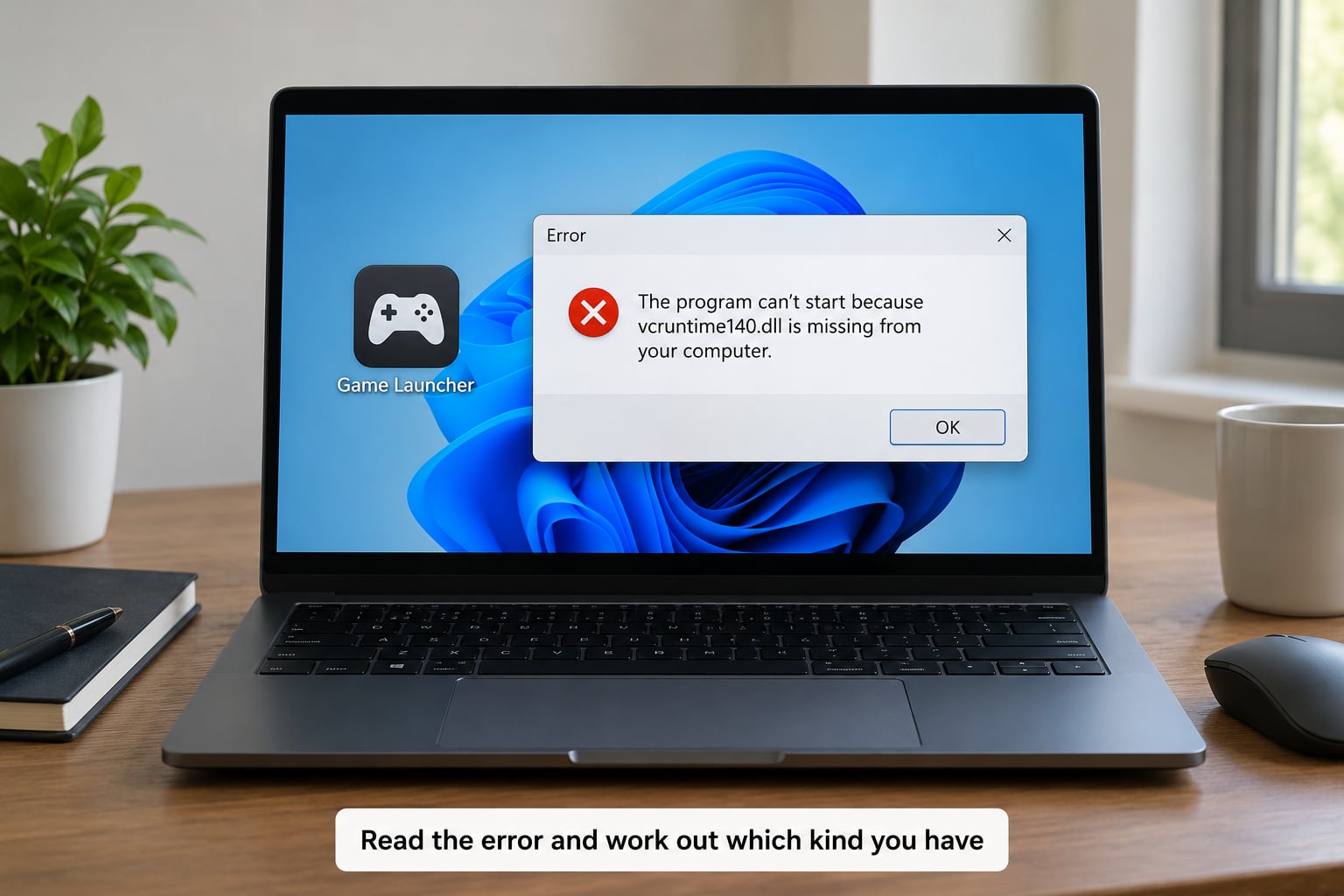
Write down the exact text before you click anything. Users paste two very different strings and treat them the same way.
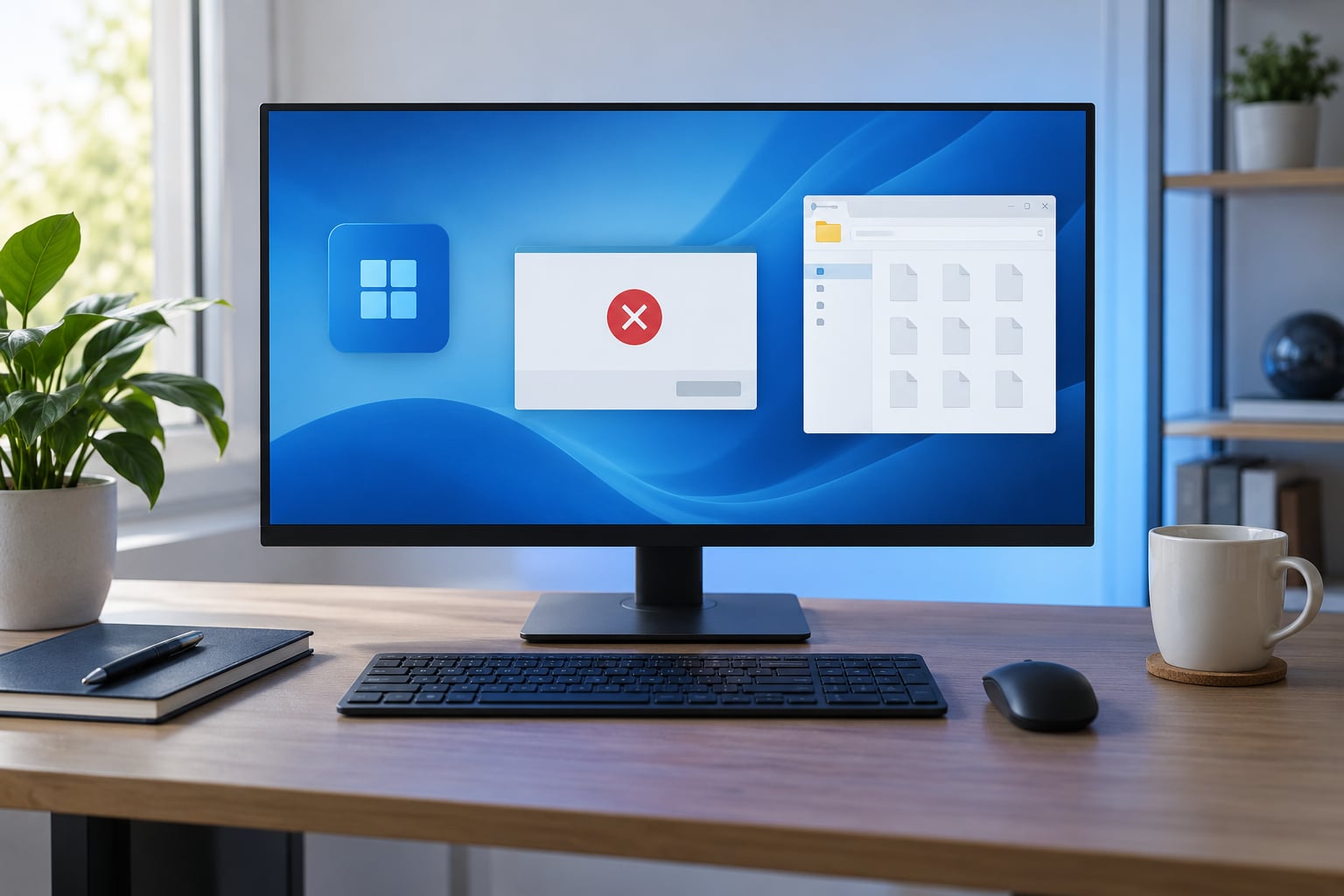
The first family is the Windows pop-up: “The code execution cannot proceed because VCRUNTIME140.dll was not found.” It appears before the game window ever opens, sometimes when you double-click the launcher and sometimes when you launch the modded executable. Windows cannot find a library that the program needs in order to start, so it refuses to start the program.
The second family is the mod plugin warning: “A DLL plugin has failed to load correctly. If a new version of the game was just released, the plugin needs to be updated.” followed by lines such as EngineFixes.dll: couldn’t load plugin (0000007E). Here the game did start. A mod, its script extender or one of its required libraries failed inside the loader.
The distinction matters because the fixes are unrelated. The first is a Windows runtime problem you fix with an official Microsoft package. The second is a mod dependency or version problem you fix on the mod’s page. If you have the second kind and you go install runtimes, you waste an hour and change nothing.
One more thing the filename does not tell you: seeing a mod’s DLL name does not prove that mod is at fault. It only proves the loader named the file it could not load. The real cause is usually the mod’s dependency, not the mod in the message.
Success check: you can state which of the two errors you have and where the message appeared — before the window, inside the window, or in a small separate loader window.
2. Check the mod matches your game version and platform
Most plugin load failures are a version mismatch, and this is the single most common cause. Compare five things:
- The game edition and executable you are launching (vanilla or the mod manager’s shortcut).
- The game version or build number, usually shown on the launcher or on the main menu.
- The mod’s stated requirement on its download page.
- The mod’s release or update date compared with your game version’s date.
- The platform target: a PC mod does not run on a console or an Android build, and a mobile port often needs separate files.
Frameworks such as SKSE and SKSE64 are version-locked to a specific game build. When a game updates, the old framework binary simply stops working until you install the build that matches. That is why a setup that ran fine yesterday fails today with no change on your side.
If the mod page lists requirements, treat them as mandatory. A popular thread on r/skyrimmods had the top answer spelling out the standard diagnosis in one line: you have Mod A, Mod A relies on Mod B, and Mod B was never installed. That missing master file is the cause behind a surprising share of these pop-ups.
Success check: the mod page’s version requirement and your installed game version match exactly, and every listed requirement is installed.
3. Verify game files and repair the Windows runtimes
Start with the base game, not the mods. If the unmodded game launches, the game install is fine and the problem sits in the mod layer.
Verify through your launcher:
- Steam: Library, right-click the game, Properties, Updates, Verify integrity of game files.
- Epic Games Launcher: Library, the three dots beside the game, Manage, Verify installation.
- Rockstar Launcher: Settings, Install or Repair, Rockstar Games Launcher, run repair.
- EA App: Library, the three dots, Manage, Verify installation.
Know the consequence before you click it. Verification restores every game file to its original state, which wipes loose-file mod deployments that were placed straight into the game folder. You will need to redeploy through your mod manager afterwards. That is why backing up your save first matters.
Then repair the runtimes. Install the Microsoft Visual C++ 2015-2022 Redistributable, x64 and then x86, from Microsoft’s official site — one package covers every generation in that range. Install both architectures because a 64-bit game can still call a 32-bit library, and you cannot tell which one the missing file is from the error text alone.
For d3dx9, d3dx11 and similar names, install the DirectX End-User Runtime (directx_Jun2010_redist.exe) from Microsoft’s official download. It is a set of legacy libraries that a modern Windows install does not include, and it is what most older games and mod tools ask for.
Last in this step, repair Windows itself. Open Command Prompt or Terminal as administrator and run sfc /scannow, let it finish, then run DISM /Online /Cleanup-Image /RestoreHealth. The order matters — DISM repairs the component store that the system file checker draws from.
Be realistic about these tools. The system file checker repairs Windows’ own files. It will not install a runtime your game needs, and it will not fix a mod dependency. If the unmodded game already runs, skip straight to the next step.
Success check: the vanilla executable launches with no mods installed and no pop-up.
4. Reinstall the mod and install only the dependencies it lists
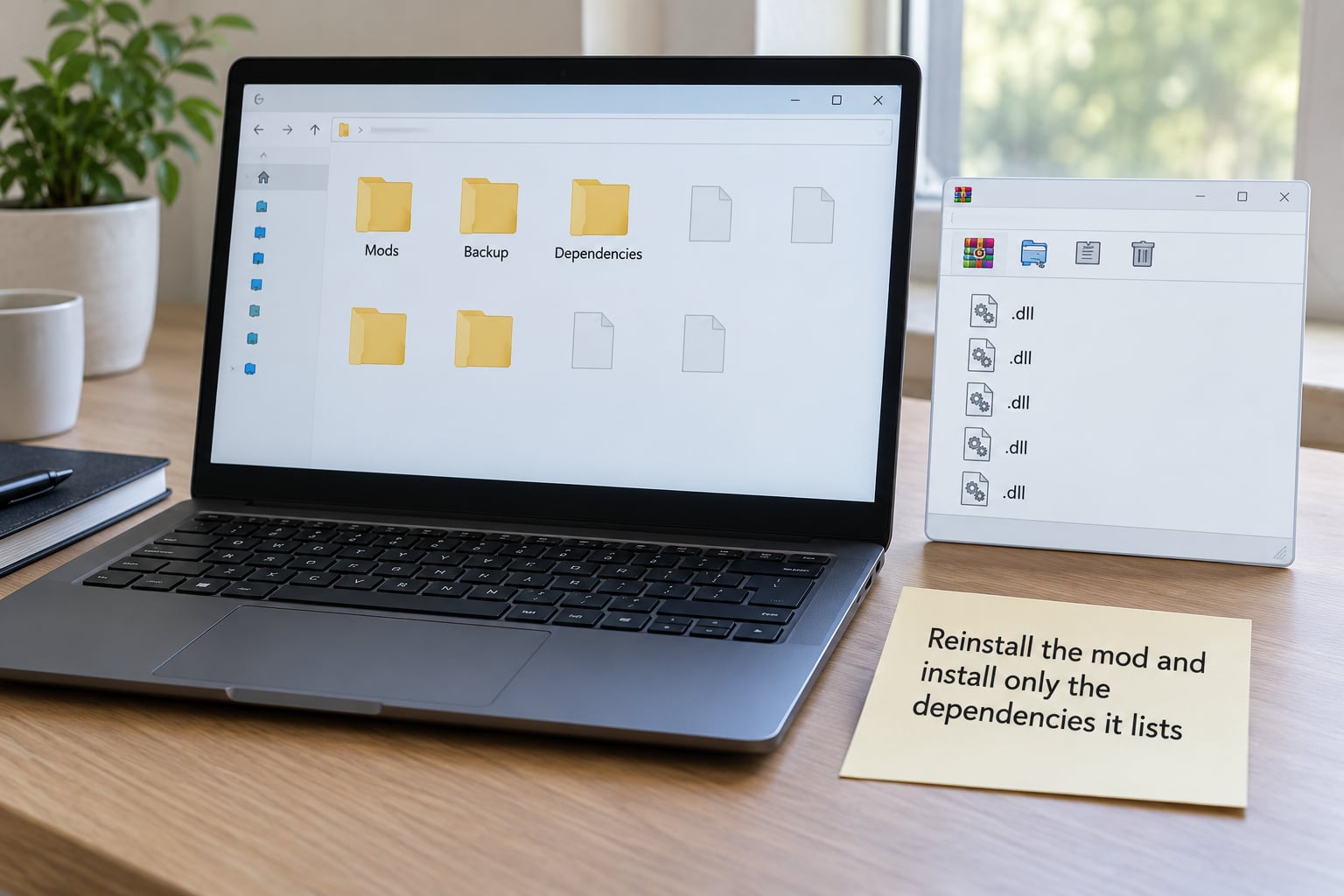
Remove the failed deployment first. In your mod manager, disable or remove the mod, then redeploy from the original archive. Do not try to fix a half-extracted folder by copying one more file into it.
Read the mod’s readme properly. It usually tells you which folder each file goes in, whether the mod needs a framework, and what the load order has to be. Follow that structure exactly.
Install only the dependencies the page names. For script extenders and similar tools that is usually the framework binary matching your game build. For load order, use LOOT with the mod manager’s integration rather than sorting the list by hand.
Then check the part most guides skip: is your mod manager actually launching the game? In Mod Organizer 2 you should be using the shortcut the mod manager creates, not the shortcut in your start menu, because the mod manager only applies its virtual file system through its own executable path. In Vortex, confirm the game is deployed rather than assuming installing a mod was enough. If you see the launcher complaining about its own DLL, the problem may be the launcher or anti-cheat layer rather than a single mod.
Success check: the mod deploys cleanly, its dependencies show as installed, and the game launches through the mod manager shortcut.
5. Launch a clean test and update only what is necessary
Test in stages so you know which change fixed it. First launch the base game with no mods. Then launch with the mod manager shortcut but the mod disabled. Then re-enable the mod. The stage where it starts working tells you the cause, and that knowledge stops you repeating the wrong fix next time.
When something works, watch for three quiet failure causes. File paths on Windows are case-insensitive but some loaders are not, so a folder name that reads correctly can still fail to resolve. Folder permissions can block writes when the game folder sits under Program Files. And security software can quarantine a mod DLL silently, leaving the mod manager to report a missing file with no explanation — check your quarantine list if a file you installed is simply not there.
If you update, do it in this order: game, launcher, framework, then mods. Updating the game invalidates the framework, which invalidates the mods that depend on it. Update from the bottom of that list upward and you avoid the whole cascade.
If the game still refuses to launch after all of this, the mod is broken for your build. Report it on the mod’s own page with your game version and the exact error text. That is a mod bug, not something on your machine.
Success check: the modded game launches, and the error text no longer appears.
Symptom to Fix Lookup
Find your exact message below, then jump to the matching step.
- “The code execution cannot proceed because VCRUNTIME140.dll was not found” — Visual C++ runtime missing or damaged. Install the Visual C++ 2015-2022 Redistributable, x64 and x86, then restart.
- VCRUNTIME140_1.dll not found — the 32-bit companion library is absent. Install the x86 package of the same redistributable even on a 64-bit system.
- MSVCP140.dll not found — the C++ standard library is missing, usually after an update removed an old runtime. Reinstall the same redistributable package.
- d3dx9_43.dll or a d3dx11 file not found — legacy DirectX component. Install the DirectX End-User Runtime.
- Error code 0xC0000135 — a required library could not be located. Same path as the runtime names above.
- Error code 0xC000007B — wrong architecture or a corrupt library. You loaded a 32-bit file on a 64-bit game, or the reverse.
- Error code 0000007E in a loader log — the named mod plugin could not load. Almost always a missing dependency or an outdated build, not a Windows problem.
- loader.dll missing — the mod loader framework was never installed, or it was installed for a different game build.
- “A DLL plugin has failed to load correctly” after a game update — update your framework to the new build first, then update mods.
- Pop-up appears but the game runs anyway — a harmless warning from a plugin that is not essential. Restart and continue; your save is not affected.
Common Mistakes
Downloading a single DLL from a third-party site. These sites rank well for this query and most of them are malware distribution. Fix the package the file belongs to instead — the official redistributable, the mod author’s archive, or the mod manager’s installer.
Confusing the game folder with the mod folder. A file in the game directory may be shadowed by the mod manager’s virtual file system, or the reverse. Deploy through the manager and let it own the folder.
Mixing 32-bit and 64-bit files. A 64-bit game can still load 32-bit libraries, but a 64-bit library in a 32-bit process will not load. Install both runtime packages rather than guessing which one is missing.
Taking dependencies from a different game version. Frameworks are build-specific. An older framework binary produces the same error as no framework at all.
Forgetting the framework or the dependency chain. Check the requirements list on the mod page before reinstalling anything, and run a missing-masters check in your mod manager.
Overwriting clean files. Copying mod files over an existing modded install creates a state nobody can debug. Remove, restore, redeploy.
Extracting an archive wrong. Dragging a folder out of a zip instead of extracting its contents leaves a nesting level the loader cannot find. Always extract to a clean folder.
Changing five variables at once. Installing a framework, redeploying three mods and verifying files in one go tells you nothing if it still fails. One change, one retest.
Force-closing the mod manager mid-load. Interrupting a deployment can leave a read-only state on the mod list that produces odd errors later. Let it finish.
To stop this coming back, verify game files before a major mod session, re-check your framework version after every game update, and keep a list of each mod’s requirements next to your setup notes. Do not let the mod manager auto-update mods during a base-game update week; pause, update the framework, then update mods.
Frequently Asked Questions
Can I download the missing DLL file on its own?
No. Individual DLL download sites exist to rank for this search, and the files they hand you are a well-known malware delivery route. The missing file is a symptom, not the problem. Install the official Visual C++ Redistributable, the DirectX End-User Runtime, the mod loader framework or the mod’s own dependency, all from the publisher or mod author.
How do I check if a DLL is blocked in Windows 10 or 11?
Right-click the file, open Properties, and look at the General tab. If Windows blocked the file on download, an Unblock checkbox appears at the bottom. Tick it, apply, close, then launch again. You can also select a group of files and unblock them in one go from the same dialog.
Did my antivirus cause this missing DLL error?
It can. Windows Defender and other security tools sometimes quarantine mod DLLs without asking, and the mod manager then reports the file as missing with no explanation. Check your quarantine list for the filename in the error, restore it if present, and add a temporary exclusion for that mod folder until you finish the session.
How do I tell a 32-bit versus 64-bit mismatch?
Error code 0xC000007B is the usual signature. To check a file, right-click it, choose Properties, then Details, and look at the bit depth under the name. On a 64-bit game install both the x64 and x86 Visual C++ packages, since a 64-bit process can still load a 32-bit library.
Is reinstalling the mod or verifying game files safe for my save?
Yes, neither one touches your save files. Game files and mod files are separate from the save folder. Back up the saves first anyway, and remember that verifying game files wipes loose-file mod deployments, so redeploy through your mod manager afterwards before launching.
Do I have to reinstall the whole game to fix this?
Almost never. Start by verifying game files, then repair the runtimes, then reinstall only the mod and its listed dependencies. A full game reinstall is a last resort, and it will not fix a mod built for a different game version, because the reinstalled game has the same version you already had.
Conclusion
Write down the exact error text first, because that single line tells you which of the two error families you have. Check the mod page against your installed game version, verify the base game launches clean, then reinstall only the mod and only the dependencies it lists.
Do not download an isolated DLL from a third-party site, and do not delete folders from your game install to experiment. The fix for this is almost always an official runtime package, a matching framework build or one missing dependency mod, and your save is never the thing at fault.