Thermal throttling is your CPU or GPU cutting its own clock speed because a sensor hit the maximum safe junction temperature, often called TjMax or Tcase. It shows up as a smooth FPS line for the first minute and then a slow slide downward. Most of the fixable causes are workload and airflow, not failed hardware, so measuring first saves you from repasting a machine that never needed it.
The eight steps below run in the order I would actually work them: confirm it is heat and not a power limit, cut the workload, fix the airflow, then decide if the machine needs service. Budget an hour for the software half of this, and another hour if your case opens easily. No step requires anything riskier than a browser download.
Table of Contents
- 1What You Need
- 2Desktop PC, gaming laptop or handheld
- 3Step-by-Step: How to Stop Thermal Throttling While Gaming
- 41. Confirm that thermal throttling is happening
- 52. Check whether the game is creating a bottleneck
- 63. Improve ventilation without blocking airflow
- 74. Limit frame rate and reduce the graphics workload
- 85. Change in-game settings to stop thermal throttling while gaming
- 96. Close background workloads and tune power settings
- 107. Update drivers, firmware, and game settings
- 118. Test the fix and know when servicing is needed
- 12Common Mistakes
- 13Frequently Asked Questions
- 14What temperature is too high for gaming?
- 15Can thermal throttling damage my laptop or PC permanently?
- 16Does undervolting stop thermal throttling?
- 17Why does my laptop fan suddenly become very loud while gaming?
- 18Do consoles get hot and throttle during games?
- 19Conclusion
What You Need
A temperature and clock monitor is the one tool that matters here. HWiNFO64 is free on Windows and shows sensors, clocks, package power and limit reasons in one window. ThrottleStop does the same job for Intel laptops and adds the voltage and power controls, and MSI Afterburner covers the GPU side. You only need one of them, but HWiNFO plus Afterburner is a solid pairing if you want both CPU and GPU figures.
Beyond that, access to your game’s graphics menu, your graphics driver control panel, and Windows power settings. Keep your laptop charger plugged in for every test, since battery mode changes available power on most machines. A stable internet connection covers the driver and firmware downloads in step 7.
Also grab the manufacturer’s specification sheet for your machine. It lists the rated TDP, the maximum junction temperature and the supported power limits, and those numbers tell you whether 89 C on a thin laptop is expected behaviour or a fault.
Desktop PC, gaming laptop or handheld
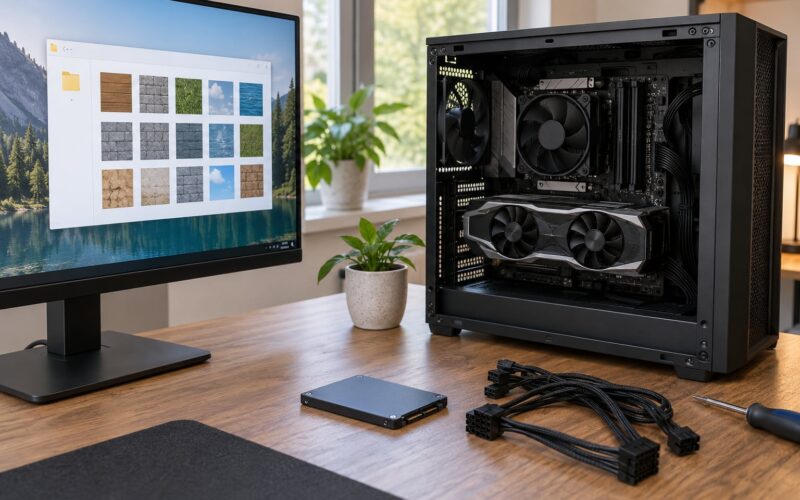
The diagnosis steps are identical across all three. What changes is where the heat goes and which fixes you have available. A desktop has a case with front and rear intake, so airflow work is mostly about position and dust. A gaming laptop has a shared heat pipe between CPU and GPU, so fixing one benefits the other and the fix options are narrower. A handheld runs a single chip with no intake filter and a small passive shell, so workload reduction and ambient room temperature matter far more than internal cleaning.
Step-by-Step: How to Stop Thermal Throttling While Gaming
1. Confirm that thermal throttling is happening
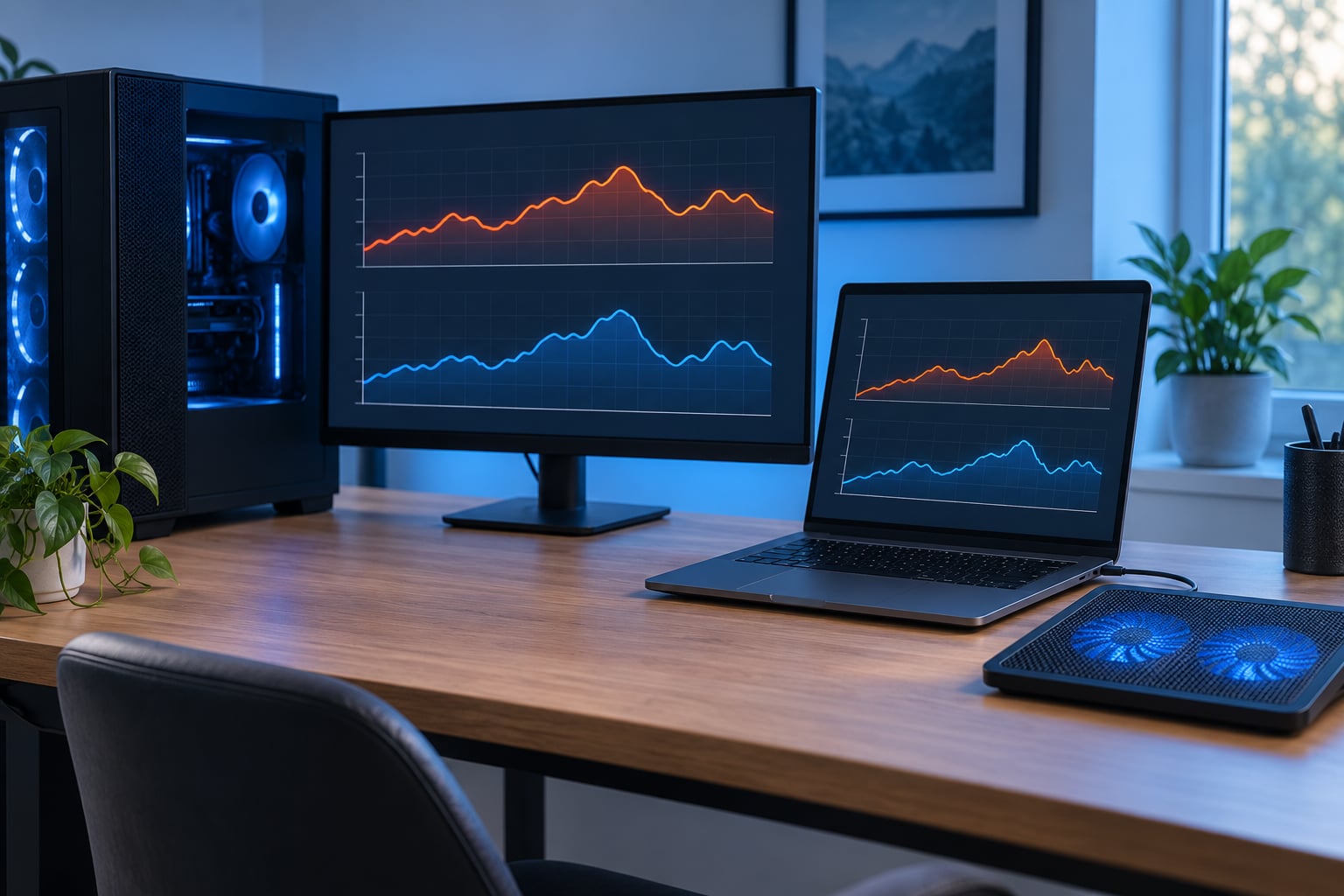
Open HWiNFO64 and run it in sensors-only mode while you play the scene where you lose frames. Watch the CPU package temperature, core clocks and package power, and leave the GPU core clock and temperature panels open too. Write down the numbers at 30 seconds and again at three minutes. If clocks are high and temperatures climb slowly, you are not throttling. If clocks were high and then step down while temperature sits near the top of its range, you are.
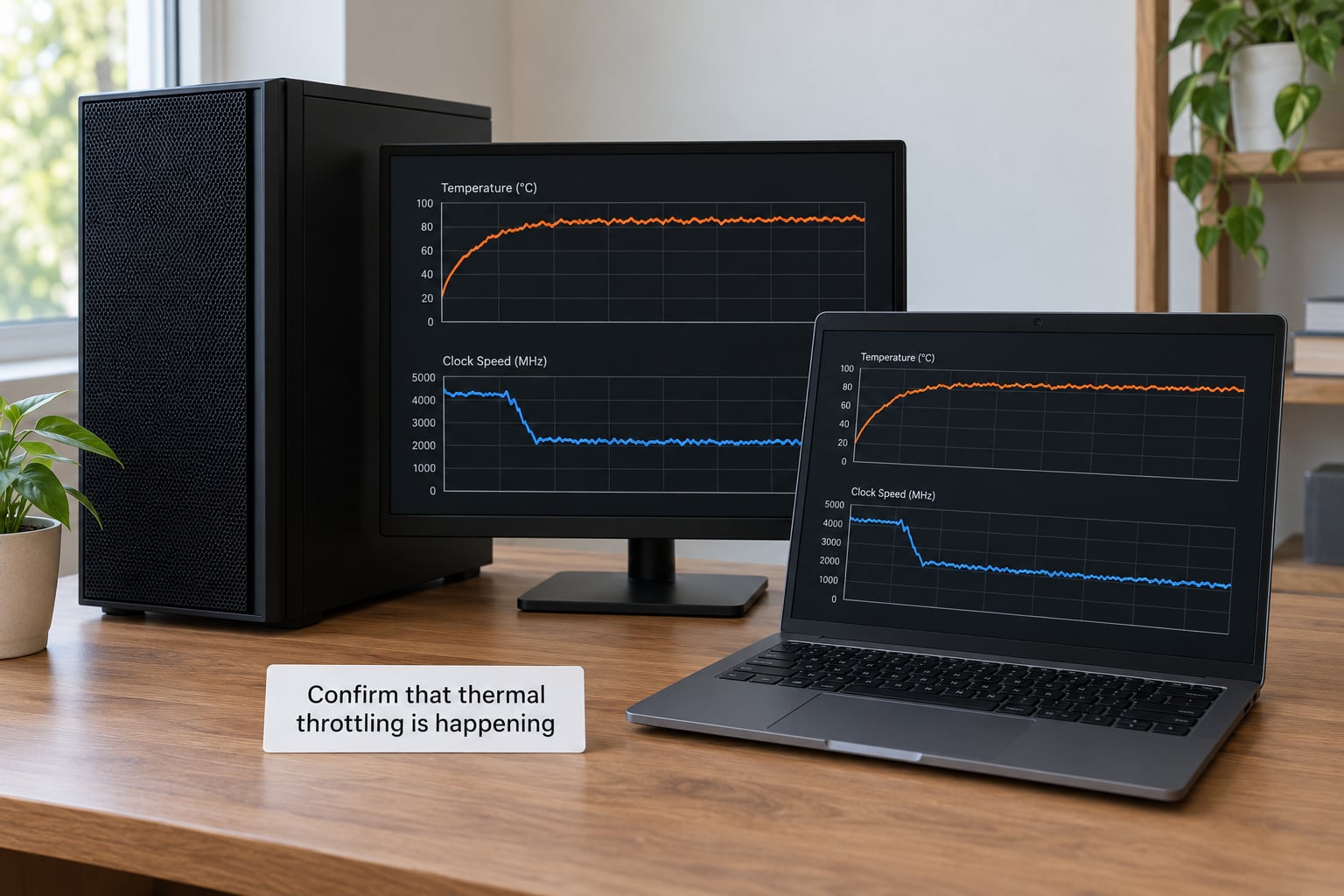
The clearest confirmation is a limit flag. In HWiNFO’s sensor list, look for Thermal, PL1, PL2, BD PROCHOT and PROCHOT EXT under the throttle reason fields. Thermal means the junction sensor crossed its limit. PL1 or PL2 means the long-term or short-term power cap was hit instead. BD PROCHOT is a signal from another component, often a GPU or an ACPI thermal zone, asking the CPU to back off.
Timing tells you a lot too. Frame drops that arrive two seconds into a load usually mean power limits. Drops that arrive 30 to 50 seconds in usually mean accumulated heat. Forum threads on gaming laptops repeat this pattern constantly: reviewers describe identical frame rates in Balanced and Performance modes because a hidden limit is active long before heat becomes the problem.
2. Check whether the game is creating a bottleneck
Watch utilization at the same time as temperature. GPU at 99 percent with the CPU around 40 percent means the game is GPU-bound and the CPU heat is mostly incidental. CPU near 100 percent with the GPU in the 60s means the game is CPU-bound, and that is the case where clock throttling actually destroys your frame rate.
High utilization alone does not prove throttling. A chip can sit at 99 percent utilization and hold a stable clock all session. What matters is whether the clock falls while utilization stays high.
3. Improve ventilation without blocking airflow
Move the machine first. A laptop on a bed or in a sofa cushion gets almost nothing done, so put it on a hard desk and raise the rear edge on a book or a proper stand to open the intake path underneath. A desktop needs clearance at the front and rear intake and at least a few centimetres of space at every vent. Never push a tower against a wall in a closed cupboard.
Room temperature counts too. In a warm room the internal cooler has less room to work, and the same machine that holds 78 C in winter can sit near its limit in summer.
Look for dust next. Blowing compressed air through the vents and filters clears a surprising amount, and on a desktop the intake dust filter is usually a cheap, tool-free removal. Skip the static-shedding brush technique and never use a vacuum, because static can kill a component. Never open a powered laptop or route compressed air at a spinning fan without holding the blades still.
A cooling pad is the other cheap lever. Community comparisons on gaming laptops show a CPU at 89 C with no pad, 78 C at 1000 RPM and 72 C at 2800 RPM, with the GPU falling from 70 C to 56 C at the lower speed. In one Time Spy run a pad on maximum took the CPU from 93 C to 82 C and the GPU from 73 C to 63 C. The trade is always noise, and reviewers generally rate the big Llano pads as the loudest option, so test at low speed first.
4. Limit frame rate and reduce the graphics workload
Cap the frame rate. If your game can draw 280 FPS but your cooling can only sustain 140, it is generating heat for frames you never see. Locking to a rate your machine holds steadily is the single cheapest heat reduction available.
On an NVIDIA card, open Control Panel, set the global frame rate cap, or use the in-game limiter. On AMD, the equivalent lives in Adrenalin under the game’s profile, and turning off AMD Chill matters because that feature deliberately holds lower clocks. Windows display settings can also cap the refresh rate, which works on both vendors and on laptops that ignore driver caps.
If the game is GPU-bound, drop the resolution or one heavy setting rather than everything at once. If it is CPU-bound, turn off ray tracing, because the CPU-side cost of ray-traced frames is often what pushes you into the thermal limit.
5. Change in-game settings to stop thermal throttling while gaming
Work down this order, because the impact is not equal across titles: ray tracing, resolution scale, shadows, volumetric lighting, anti-aliasing, then frame generation. Most players lose nothing noticeable by turning ray tracing off and holding the resolution scale above native with sharpening on.
Change one setting, play the same scene for three minutes, then write down the temperature and the frame rate. That is the only way to know what actually mattered on your machine. Exact menu names differ per title, so look for the graphics, display and advanced video sections.
6. Close background workloads and tune power settings
Close what does not need to run. Browser tabs with video, game launchers running background downloads, screen recorders, RGB control panels, voice chat and hardware monitoring overlays all add load and all add noise. Streamers cannot close the capture software, but they can usually drop the hardware-accelerated encoder or record at a lower resolution.
In Windows 11, open Settings, then System, then Power and battery, then Power mode. Best power efficiency lowers heat and costs frames. Balanced is the sensible starting point. In practice a lot of players report better long-session stability on Balanced than on Performance, because the peak clocks are lower and the machine never crosses its limit.
Many laptop manufacturers also ship their own mode switch in their control software, sometimes with a Turbo or Extreme setting that raises both heat and noise. Try each mode on the same scene and keep the one that holds frame rate, rather than assuming the loudest mode wins.
Battery operation is a different machine. On most laptops the charger enables a higher power profile, so test plugged in and treat battery results as a separate scenario.
7. Update drivers, firmware, and game settings
Get graphics driver updates from the card vendor or the laptop manufacturer, and firmware and BIOS from the manufacturer. Chip vendor drivers can be more aggressive than the laptop maker’s tuned package, and thermal and power behaviour is often exactly what those tuning packages manage. If your machine is stable today, note your current driver version before changing anything.
Create a restore point on Windows before updating, since a newer driver occasionally fixes throttling and occasionally introduces a new one. Some laptops also have a performance mode hidden behind a firmware or control-software update that quietly raises sustained power limits.
If a frame drop started right after an update, roll that driver back to the previous version and retest. There is no prize for being on the newest build.
8. Test the fix and know when servicing is needed
Repeat the exact same scene, in the same place, for at least 30 minutes. Record the average frame rate, the 1 percent lows, the temperature, the core clock and whether the frame rate held steady. Short benchmarks miss this entirely because they never reach the point where the cooler is saturated.
Service or replacement makes sense when a clean system with clear vents still climbs to its limit within minutes, when more than one fan has died or rattles, when temperatures sit near the maximum even on an idle desktop, or when a laptop several years old throttles harder than it used to. On older laptops, dried thermal pads on the VRM and memory, and degraded paste under the die, are common culprits.
Thermal paste replacement is commonly cited as roughly a 5 to 10 C improvement on a machine that has never been repasted. On a laptop, have a technician do it. Warranty-sensitive or difficult-to-open systems belong in professional hands, and opening them yourself risks breaking the seal or the warranty terms.
Common Mistakes
Assuming every frame drop is thermal throttling. Check the limit flags first. A game bug, a driver regression or an overlay can produce identical symptoms, and on one Tom’s Hardware thread a clean reinstall of the game fixed behaviour that looked exactly like throttling for weeks.
Chasing power limits with cooling upgrades. If PL1 or PL2 is the flag, your cooler is not the problem. A thinner power profile or lower voltage offset moves the needle; a new fan does not.
Ignoring dust until the machine is already throttling. Filters and heatsink fins clog quietly over a year or two. A two-minute cleaning with compressed air is cheaper than any part.
Blocking the vents on a laptop. A blanket, a couch cushion or a closed lid turns a thin laptop into a sealed oven. This is the fastest way to force throttling that did not exist last month.
Disabling turbo boost outright. Players report large, disappointing frame rate losses in CPU-bound games. Lower turbo ratios or a modest undervolt keep most of the speed with less heat.
Undervolting in one big jump. Move in small steps, test stability after each, and revert to zero if anything crashes. An unstable undervolt corrupts saved games and saved work.
Reinstalling drivers on a loop. Each attempt changes two variables at once, so you learn nothing. Change one thing, test for 30 minutes, record the result.
Using unknown fan-control utilities. Random overclocking and fan-curve tools are a common source of instability. The tools that ship with your laptop or your GPU driver cover 90 percent of the useful range.
Expecting software to repair dead cooling hardware. If a fan has failed or a heat pipe has failed, no setting restores the missing cooling. Diagnose it, then service or replace.
If you only do three things: cap the frame rate at a rate your machine sustains, give the intake real air and clear space, and read the limit flags during a 30-minute session. Those three separate real thermal throttling from almost every other cause of lost frame rate.
Frequently Asked Questions
What temperature is too high for gaming?
There is no single number, because the limit is set per chip. Many desktop and laptop CPUs carry a maximum junction temperature around 90 to 100 C, and some run to 105 C, so a hot reading may be normal for that part. Check the manufacturer’s specification for your processor and treat sustained operation at that ceiling as throttling. GPU limits sit much lower, usually near 80 to 83 C core and 110 C for the hot spot.
Can thermal throttling damage my laptop or PC permanently?
Throttling itself is protection, not damage. The chip is designed to slow down at its temperature ceiling, and doing so repeatedly is normal. What shortens lifespan is running at the ceiling constantly with fans at full speed, because the heat itself stresses the silicon, the VRM, the thermal pads and the fans. Fixing the underlying cooling problem, capping the frame rate and cleaning the dust usually bring sustained temperatures down enough to remove the stress.
Does undervolting stop thermal throttling?
Not by itself. An undervolt lowers the voltage the chip needs, so it produces less heat at the same clock speed, which can push it back under the thermal limit. In practice it helps most in CPU-bound games and on laptops whose cooling is marginal. If the limit flag reads PL1 or PL2, the gain is small because the constraint is power, not heat. Test in small steps and revert anything that causes a crash or a stutter.
Why does my laptop fan suddenly become very loud while gaming?
Usually the cooler is working correctly and you are asking it for more heat than it can move quietly. A fan curve that reaches full speed early makes noise without buying much extra temperature headroom, so a gentler curve is often quieter at similar temperatures. Loud, pulsing or rattling noise instead points to a failing bearing or a fan hitting an obstructed intake, which is a repair rather than a setting. Check for dust before anything else.
Do consoles get hot and throttle during games?
Yes. Consoles use the same protection mechanism, cutting clocks when the SoC or the console shell gets too hot. You normally see it as a resolution drop, a frame rate drop or a sudden loss of smoothness after 20 to 30 minutes, and it is most common in a poorly ventilated cabinet or a hot room. Moving the console to open air, standing it vertically if the manual allows, and clearing dust from the intake usually restores full performance.
Conclusion
Start by measuring. Open HWiNFO64, play the scene where you lose frames, and read the temperature, the clock and the limit flags over a full 30 minutes. If the clock falls while temperature or power sits at a limit, you know which problem you have.
Then fix the obvious: cap the frame rate, give the intake real air, close the background load and pick the power mode that holds its frame rate. If a clean, unobstructed machine still climbs to its ceiling within minutes, it is a service job, not a settings job. Knowing how to stop thermal throttling while gaming comes down to that order of work, and the best outcome is not the lowest temperature, it is stable performance with hardware sitting inside the manufacturer’s limits.