Save file loss on Android after a mod is almost always caused by one thing: Android treats a modded APK with a different package name or a different signing certificate as a completely different app, so installing it removes the old app’s data folder along with the save inside it. The recovery is straightforward once you know where the save lives — stop opening the game, copy the surviving save directory before touching anything else, and put back the newest backup that was made from the same game version.
Most of this can be done on the phone with a file manager. No computer is required unless you need ADB.
Table of Contents
- 1What You Need
- 2Step-by-Step
- 3How to Fix Save File Loss on Android After a Mod Without a Computer
- 4Restore the Save From an Android Backup
- 5Reinstall the Mod and Test the Save
- 6Common Mistakes
- 7Protect Saves Before Installing More Mods
- 8Frequently Asked Questions
- 9Can I recover a GTA save lost after installing a mod on Android?
- 10Why did my Android game save disappear after I installed a mod?
- 11Are game saves stored in the normal Android Downloads folder?
- 12Can I use a save file created by the PC version on Android?
- 13Conclusion
What You Need
Gather these five things before you change a single file. Rushing past this stage is how people end up deleting the one folder that still held their progress.
- The exact game name and its package name. The package name is the folder in
Android/data, usually in the formcom.company.game. You can find it in Settings, Apps, then App info for the installed game. - The mod source. Note which site or folder the mod came from and whether it replaced the Play Store version or the previous modded APK.
- Your Android version. Android 11 and later restrict access to
Android/data, and that changes which recovery methods are available. - A file manager with root access to internal storage. Built-in Android storage browsing can see the folder name but often refuses to open or copy files out of it.
- At least one backup of the save. Cloud sync, Google Drive, a copied folder on the SD card, or a save exported from the same game version.
Make sure you also have roughly the size of the game’s data folder free on the phone. A failed write caused by a full storage chip often looks exactly like a deleted save, because the new save never replaces the old one.
Step-by-Step
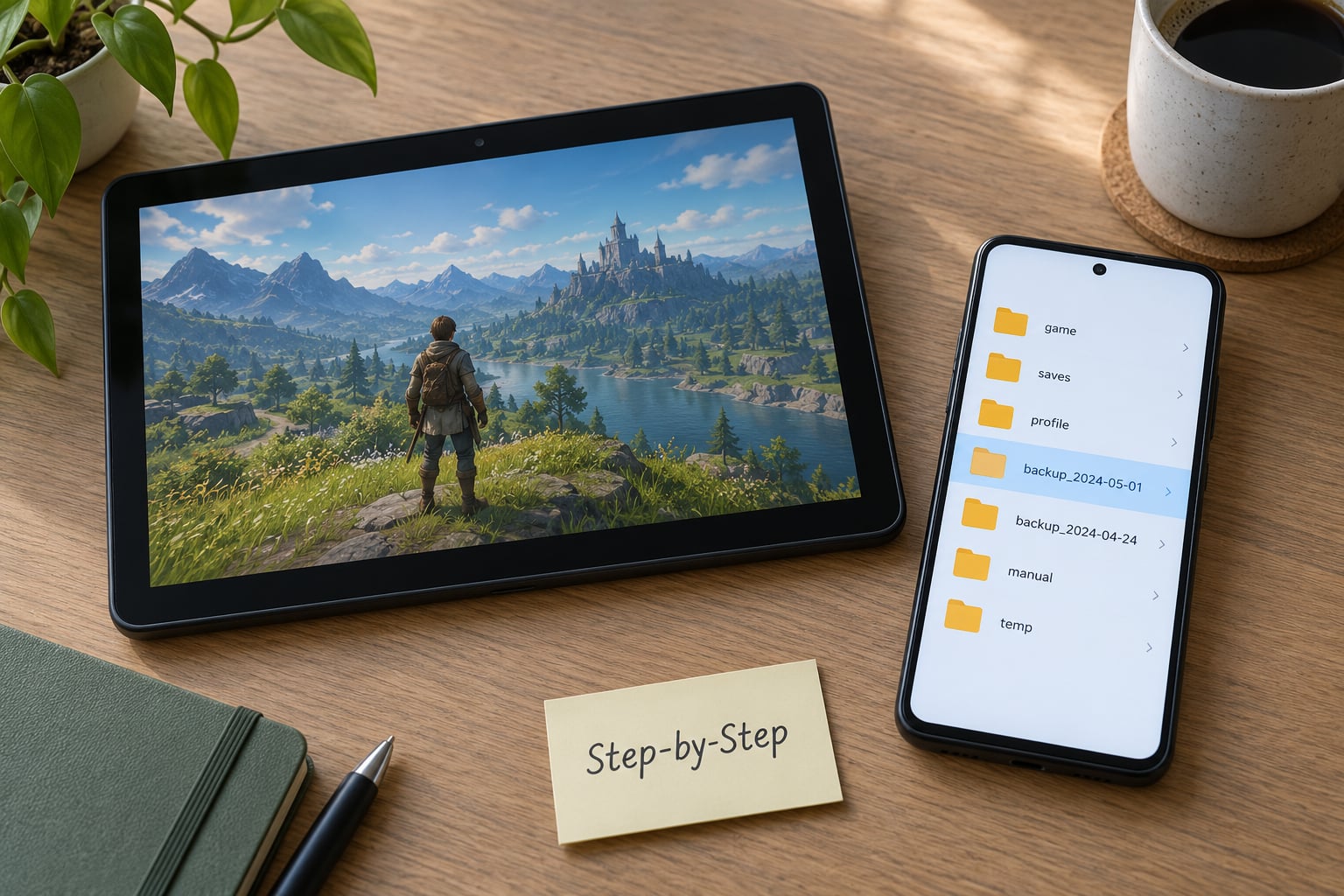
Work through these in order and stop as soon as saving works again. Each step is less destructive than the one after it.
How to Fix Save File Loss on Android After a Mod Without a Computer
Start by stopping the loss. Do not launch the game, do not clear its data, and do not reinstall anything yet. Every launch can rewrite or reset the folder you are trying to rescue.
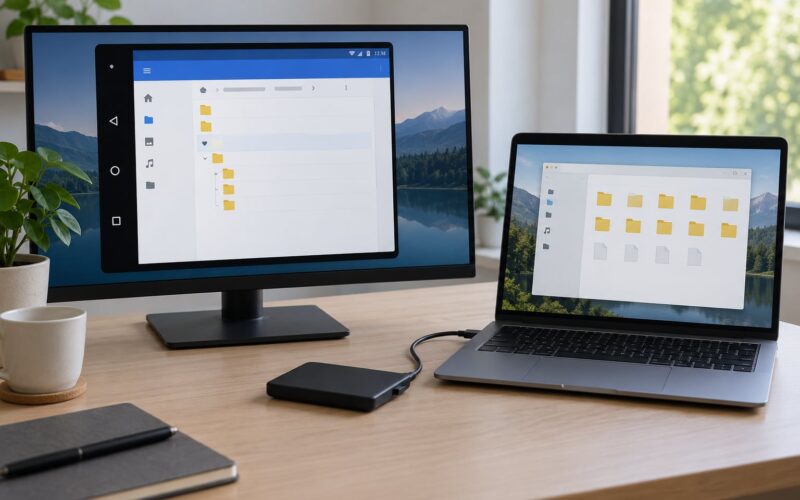
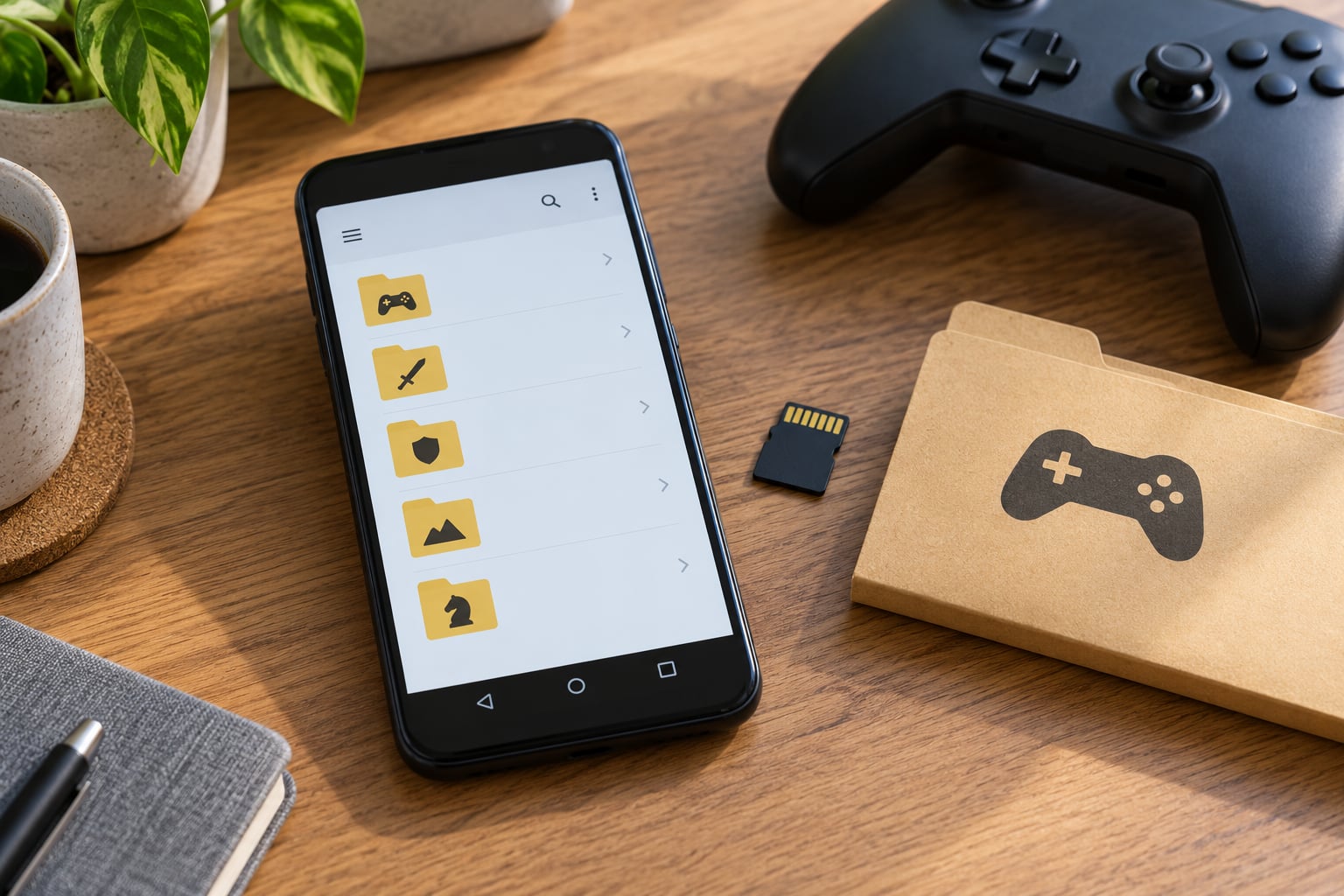
Open your file manager and go to Internal storage, then Android, then data. Look for a folder matching the package name of the game you play now. If you find one with files in it, copy the whole folder to SD card or Download before touching it.
Also check the same location under Android/obb. That folder holds game assets rather than your save, but a lot of players clear it while chasing a save problem and lose the ability to load the game at all.
Turn on the hidden-folder view in your file manager, usually a switch in the settings menu or a long press in the folder listing. Mods and some ports park save data inside a folder starting with a dot, and it will look empty otherwise.
Then check whether the game has a second slot. Several games keep one file for the main save and another for a slot, profile or manual-save slot. A new empty file appearing in the folder usually means the game created a fresh save rather than finding the old one, which narrows the cause down to a version mismatch or a missing supporting file.
Only after you have copied the folder should you clear the game’s cache from Settings, Apps, Storage. Clearing cache removes temporary files and costs you nothing. Clearing storage or data is a different action, and it wipes the folder you just inspected, so skip it unless you are certain the save is unrecoverable.
You can tell this worked when the game launches and the folder in Android/data shows your old file dates instead of today’s date.
Restore the Save From an Android Backup
If you have a backup, restoring is the fix that actually recovers progress. Find the newest copy that was made from the same game version, because a save from an older build is often rejected or read as corrupt.
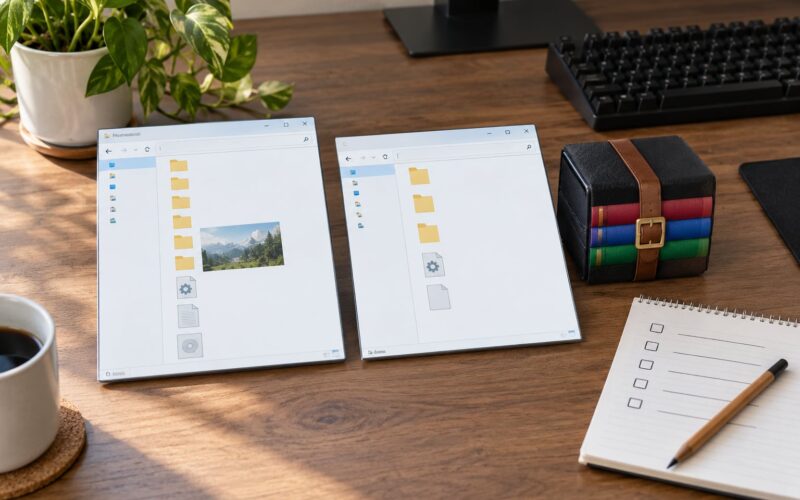
Copy the backup into the game’s folder and match the structure it came from. Files copied from a cloud or Drive backup belong in Android/data/<package>/files or its subfolder, with the extension unchanged. Do not rename files to make them look tidier; the game matches the exact name.
Keep the mod files in place while you do this. The save folder and the modded assets are separate directories, and swapping the save should not require removing the mod you already have installed.
Launch the game once and check whether it loads the restored progress. If it does not, verify three things in order: the package name folder matches the game you are launching, the file extension is intact, and the backup came from the same version or a nearby one.
A save edited on the PC version of the game is worth trying only if the Android port reads the same format. Ports frequently store saves in incompatible layouts, and a mismatched file either fails silently or triggers the corrupt data message.
It worked when the restored file remains in place after a game restart and the progress screen shows your old level, money or chapter.
Reinstall the Mod and Test the Save
Once progress is back, remove the mod that broke saving rather than leaving it installed.
Uninstall the current modded APK, then delete its leftover data folder from Android/data using your file manager. This is the point of no return for anything you did not copy, so confirm your backup folder is complete first.
Reinstall a mod built for your game’s current version and using the same package name as the game you were playing. A mod built for a different package name will create a second data folder and your restored save will sit in the first one, looking lost again.
Launch the game, make a manual save from the pause menu, close the game fully, and reopen it. Manual saves from the pause menu are reported as far more reliable than autosave or quick save on modded Android games, and this test takes two minutes.
If progress saves and reloads correctly, install the mod again and repeat the same test. If it fails, the mod is writing or reading saves incorrectly, so fall back to the version you know worked.
Common Mistakes
Most save losses come down to six repeatable mistakes. Here is what you see, what it usually means, and what to do about it.
- The save folder exists but is empty after installing a mod. The mod APK used a different package name or a different signing certificate, so Android removed the old data folder on install. Restore from backup into the new folder name, and reinstall the original APK before the mod next time.
- The game says corrupt data found and will not load. A save from another game version, or a save copied into the wrong folder. Restore a backup from the matching version and check the folder path and file extension.
- The save disappears days later with no warning. Autosave failed because storage was full or a permission was denied, so the newest write never landed. Free up several gigabytes, then use manual saves and check the folder date after each one.
- Progress reverts to an older state. Cloud sync restored an older copy and overwrote local progress, which is unrelated to the mod. Turn off automatic cloud restore for the game before restoring a local backup.
- Progress keeps rolling back but the folder looks fine. Two package folders exist and the game keeps syncing the older one. Compare both folders, keep the newer save, and reinstall with one consistent package name.
- The file manager shows Android/data but will not open it. Scoped storage on Android 11 and later blocks app folders to non-rooted file managers. Use a file manager with All files access, or copy the save through a rooted file manager.
Two habits cause most of the damage. Writing save files into Downloads instead of the game’s folder means the game never reads them, so the player thinks progress is being lost when it is simply going somewhere the game cannot see. And changing mods after a save point regularly causes a mismatch between the save and the data the mod expects to read.
Deleting the Android/data folder hoping the game will rebuild a working save is the worst of the three. That folder usually holds the only recoverable copy, and clearing it removes the evidence as well as the symptom.
Protect Saves Before Installing More Mods
A save backup takes about two minutes. Set up a routine that makes it automatic.
- Copy the entire save folder, not a single file inside it. Games keep supporting files next to the save, and restoring one file alone often fails.
- Name the backup with the game, the mod version and the date. An unnamed folder is useless a month later.
- Keep one untouched copy from the unmodified game. This is the vanilla save you roll back to when a mod breaks progress.
- Test one mod at a time and launch the game between installs. Two mods at once means you cannot tell which one caused the change.
- Save manually from the pause menu rather than relying on autosave, and confirm the folder’s file date updates after each manual save.
- Keep at least two backups off the phone. A phone reset or a failed update takes the local copies with it, and losing access to a modded install after a factory reset is a recurring report in modding groups.
- For rooted devices, a TWRP nandroid backup covers far more than an app-level copy. An ADB backup is better than nothing but captures only part of the data partition, so treat it as a supplement.
Cloud sync through Google Play Games is useful for moving progress between devices, but it is not a backup you control. Players have reported it quietly restoring a version from around three weeks earlier and overwriting newer local progress.
Frequently Asked Questions
Can I recover a GTA save lost after installing a mod on Android?
Yes, if a backup or cloud copy exists. Stop opening the game, check the game’s original save folder and Android hidden folders, then restore the newest save made for the same game version. If no backup exists, look for a second package folder or a leftover copy on the SD card. Without any copy, the progress is gone.
Why did my Android game save disappear after I installed a mod?
The mod replaced the game’s data directory, used a different file structure, or created a new folder the game does not read. Version mismatches and a different package name both cause this. Android also removes the old data folder when the new APK carries a different signing certificate, which is the most common single cause.
Are game saves stored in the normal Android Downloads folder?
Usually not. Depending on the game and port, saves may sit in the app’s private data directory, an Android/data folder, a mod-specific folder, or a hidden directory. Use a file manager with access to internal storage and check Android/data using the package name. Downloads is only a sensible place for your own backups.
Can I use a save file created by the PC version on Android?
Only when the port and game version use the same save format and content. PC and Android saves can differ, and a later Android update may reject older files. Install a backup made from the same version instead. Keep the original file untouched so you can retry once the versions match.
Conclusion
Close the game and leave the storage alone. That is the single action that matters, because every launch and every clear-data tap can overwrite the folder you need.
Copy the game’s folder from Android/data to the SD card, restore the newest backup that matches the game version, and reinstall the mod using the original package name so the save folder and the game stay in one place. Set up the copy-first routine before the next mod and the problem does not come back.