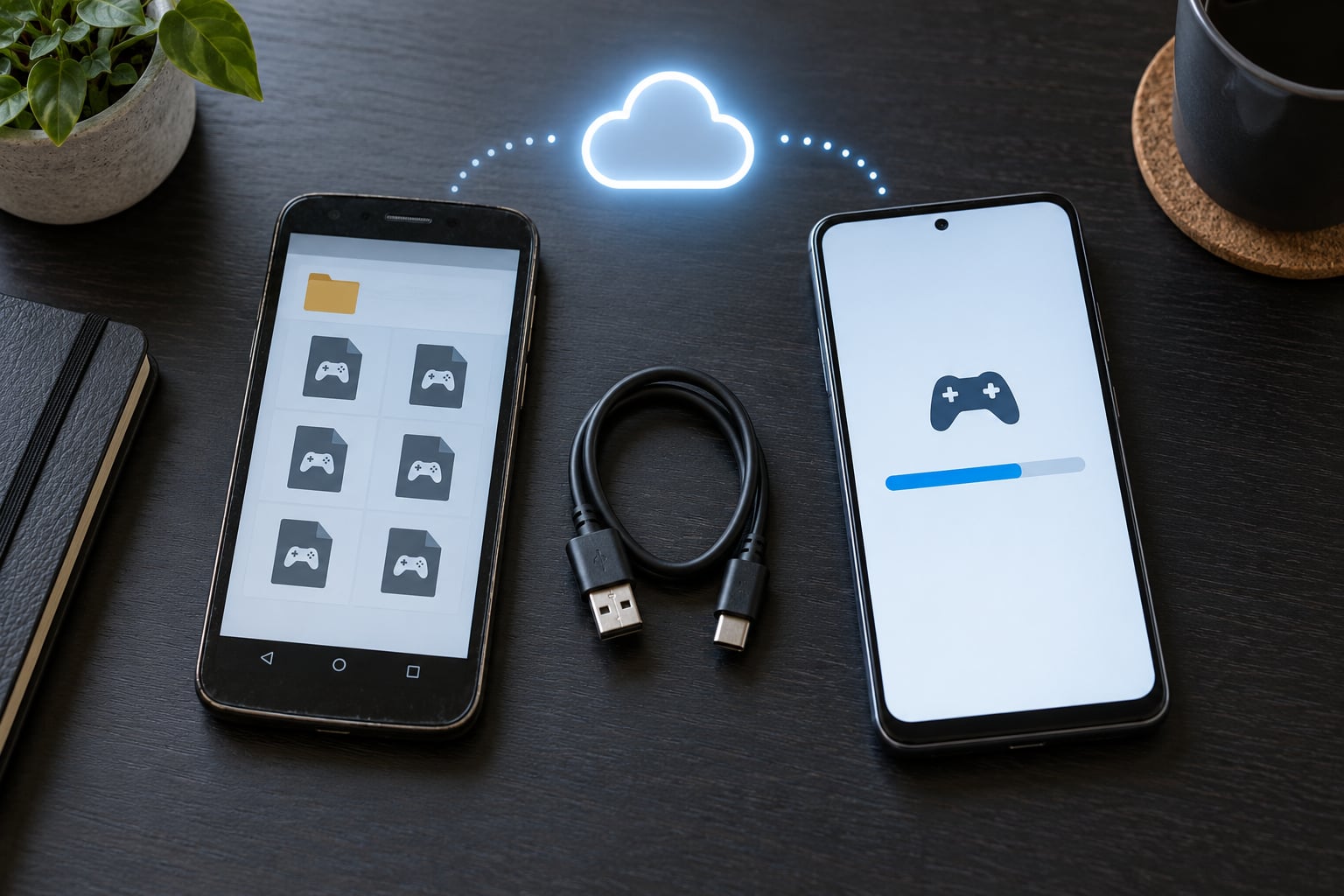
If you have been wondering how to move Android game data to a new phone, the short answer is that progress usually moves with your account, not with the app. Sign into the same Google Play Games or in-game account on the new device and the save reloads from the cloud; if your game saves locally only, you copy the Android/data and Android/obb folders by hand. Most transfers take about ten minutes once you know which kind of game you have.
The catch is that reinstalling a game gives you the app, not your progress. A new phone ships with an empty app data folder, so anything that never reached a server or a backup is gone. That is why the order matters: push the save to the cloud on the old phone first, then set up the new one.
Table of Contents
- 1What You Need Before You Move Android Game Data to a New Phone
- 2Step-by-Step
- 3How to Move Android Game Data Using Google Play Games
- 4How to Move Android Game Data With Android Backup
- 5How to Move Android Game Data With the Game’s Own Transfer System
- 6How to Move Android Game Data to a New Phone Manually
- 7Verify the Transfer and Sign In to the Right Account
- 8Common Mistakes
- 9Frequently Asked Questions
- 10Can I move Android game data to a new phone without an internet connection?
- 11Will all my game progress transfer automatically to a new Android phone?
- 12How do I move game data from Android to Android when the files are not visible?
- 13Can I transfer Android game data using a USB cable?
- 14What happens if my Android game progress is missing after the transfer?
- 15Conclusion
What You Need Before You Move Android Game Data to a New Phone
You need the old Android phone, the new phone, a working cable or a Wi-Fi connection for the transfer, and the login details for the game. That login is usually a Google account, a Facebook login, or a publisher account such as a Supercell ID.
You also need free storage on the new phone. Games with large expansion files can need several gigabytes beyond the app download itself, and a phone that is nearly full will fail the restore halfway through.
Before anything else, decide how your game saves. There are three cases, and the fix is completely different for each one:
- Cloud save tied to an account. The game syncs to a server. Signing back in restores everything. This covers most major mobile games.
- Account that exists but no cloud save. Some games have a login screen but keep progress on the device. Signing in only proves who you are, it does not move the file.
- No account at all. Offline puzzle games and older offline titles save to a local file only. These need a manual folder copy.
How to tell which one you have is simple. Open the game on the old phone and look for a settings screen with a cloud sync note, a Google Play Games login button, or a Facebook sign-in. If none of those exist anywhere, assume a local save and plan on the manual method.
Step-by-Step
How to Move Android Game Data Using Google Play Games
This is the method to try first, because it needs nothing from the old phone except your Google login. Use it when the game shows a Play Games sign-in, a Games tab, or syncs progress automatically in the background.
- On the old phone, open Google Play Games at play.google.com/games or launch the Play Store and tap your profile picture, then Games.
- Confirm your profile shows the correct Google account. If you have more than one account on the phone, check the avatar in the corner matches the one you actually play with.
- Open the game and play for a minute, then close it properly with the back button rather than swiping it away. The save writes on exit.
- On the new phone, sign into that same Google account during setup.
- Install the game from the Play Store and open it.
- Wait. Progress can take several minutes to download, and the first load after a restore is noticeably slow.
If progress does not appear, fully close the game and reopen it. A restart is usually enough to force a sync that stalled. One rule catches people out here: a single Play Games profile holds one save per game. Signing into a second profile replaces which save loads, so double-check you are on the account you meant to use before you panic about lost progress.
How to Move Android Game Data With Android Backup
Google Backup carries app data for a lot of games, and it works even when the old phone is already gone. It is a good second option after Play Games sync fails.
- On the old phone, open Settings, then Accounts, then Google, then your account, then Manage, then Backup.
- Tap Back up now. Turn on Back up device data if it was switched off, and leave the phone plugged in and on Wi-Fi until it finishes.
- Note the timestamp at the top of that screen. That tells you how fresh your save is.
- On the new phone, during setup choose Restore data from backup, and pick the most recent one from the same Google account.
- Or on an already-set-up phone: Settings, Accounts, Google, your account, Manage, Backup, Restore.
Two caveats worth knowing. Google Backup caps app data at a set size per app, so a large local save file can be skipped entirely. And a game that writes its save as a hidden cache file may not be included at all. If the game reopens at level 1 after a clean restore, the backup did not contain it.
How to Move Android Game Data With the Game’s Own Transfer System
Plenty of games run their own account layer on top of the Google one: a Supercell ID, a Facebook Login, a Nintendo account, or a publisher-specific portal with a support page for moving progress between devices. When one exists, it is the most reliable method you have.
- On the old phone, open the game’s settings and find the account or profile section.
- Sign out of it, then sign back in and pick the permanent option, often labelled link account or connect, rather than guest or continue as player. A guest session cannot be recovered later.
- If the game uses Facebook Login, disconnect it, reconnect, and confirm the account shown at the bottom of the menu is the right profile.
- On the new phone, install the game and choose the same login method. Never create a fresh account.
- For games with a publisher transfer tool, run that tool from the old phone first. It usually produces a transfer code you enter on the new device.
One warning: do this before you open the game on the new phone for a serious session. A new local save created on the new device can replace the older one the moment the account links, and that is where a lot of progress quietly disappears.
How to Move Android Game Data to a New Phone Manually
Manual copying is the fallback for games with no cloud save, no account, and games that no longer exist on the Play Store. No root is required, though modern Android versions need a helper app.
Here is how to move Android game data to a new phone by hand:
- On the old phone, open the file manager and go to Internal storage, then the Android folder.
- Copy the whole data folder for your game from Android/data, and the matching folder from Android/obb if it exists. The obb folder holds expansion files that many games need before they will launch.
- Move both folders to a cloud drive folder, an SD card, or a USB drive. Do not leave them only on the old phone.
- On the new phone, install the game before copying the files back. Installing first sets the app permissions and creates the folders, so writing into them will not be blocked.
- Launch the game once, close it, then copy the old folders into Android/data and Android/obb, overwriting the fresh empty ones.
- Restart the new phone and open the game to check the save.
On Android 11 and later, most file managers can see Android/data but cannot write into it. Scoped storage, the Android version’s storage restriction, blocks that silently, so the copy appears to work and produces nothing. Two workarounds exist without root. Shizuku is a small service that runs ADB-level commands over a wireless debugging connection; Material Files or the fv file explorer then works with it and copies folders no other file manager can touch. On older Android versions with no restriction, a plain file manager does the job.
For a game that was pulled from the Play Store, you also need the original app file. Copy the APK from wherever you installed it to a Downloads folder, sideload it on the new phone with Install unknown apps enabled, then restore the data and obb folders. Once installed, allow the installer to open the app so Android keeps it.
Verify the Transfer and Sign In to the Right Account
Do this before you erase, sell, or trade in the old phone. It takes two minutes and it is the only thing standing between you and a save with no home.
- Check your level, currency, characters, and unlocked items against a screenshot from the old phone. Take that screenshot before you start the move.
- Check that settings inside the game carried over, not just the progress.
- Confirm your purchases are back. Games with an account system restore purchases automatically once you are signed in.
- Confirm the in-game account name in the menu matches the old one, letter for letter.
- Open the game once more after a reboot to be sure the save writes properly.
If the wrong account loaded, sign out inside the game and sign into the correct one, then restart the app. Do not uninstall and reinstall yet, because reinstalling can overwrite the recovered save with a fresh empty one.
Common Mistakes
The wrong Google account is signed in. Progress restores to a different profile and looks like a total loss. Settings, Accounts, Google, then check the address, and check the Play Games avatar in the Play Store against the old phone.
Achievements came back but progress started at level 1. This is the most reported failure of the whole process. Achievements are tied to the account profile on the server, while save data often lives in a separate local file that Google never backed up. It happened to a Bejeweled Classic player moving from Android 8 to Android 15. Your account is fine; the save file is missing, so you need the in-game login method or a manual folder copy.
The phone-to-phone transfer reported success but game data is gone. That transfer copies apps, accounts and photos. It does not reliably copy a game’s deep save state, and it says nothing about whether your progress moved. Always sign in to the game account afterwards.
The game launches to a black screen after a manual copy. The obb folder is usually missing or went to the wrong place. Copy Android/obb as well as Android/data, make sure you overwrote rather than merged, and restart.
Android/data will not let you paste files. You are on Android 11 or later and hit scoped storage. Use Shizuku with Material Files instead of forcing a plain copy.
A third-party backup app failed. Helium-style backup apps often break on newer Android releases, and restoring through Google Drive or Dropbox can fail or demand a paid plan. Treat them as a backup copy, never as your only copy, and keep the manual folder copy until you have confirmed the new phone works.
The old phone is already gone. Then Play Games sync, in-game login and a Google One restore are all still open to you. Manual folder copying is not, so check those three first.
Frequently Asked Questions
Can I move Android game data to a new phone without an internet connection?
Partly. A manual folder copy over USB, an SD card or a laptop works entirely offline, since nothing is uploaded. Cloud methods cannot: Google Play Games sync, in-game account linking and Google Backup all need a connection at some point. If you are stuck without data, copy the Android/data and Android/obb folders offline first, then get online on the new phone to confirm the account.
Will all my game progress transfer automatically to a new Android phone?
No. Progress transfers automatically only when the game saves to a cloud account and you sign into the same one. Games with a local-only save, or games where the login is just a profile badge, start fresh. Many people assume every game syncs, then find out hours later that one title is empty. Check the game on the old phone for a cloud or account option before you wipe anything.
How do I move game data from Android to Android when the files are not visible?
Use a file manager with access to Android/data, which usually means Shizuku paired with Material Files or fv file explorer. On Android 11 and later, scoped storage lets you see those folders but not write to them, so a plain copy silently fails. Set up Shizuku over wireless debugging, grant the file manager the permission it asks for, and the copy will go through without root.
Can I transfer Android game data using a USB cable?
Yes, and it is the most reliable way to move files directly. Connect both phones to a computer, browse the old phone as storage, copy the game folders out of Android/data and Android/obb, then plug in the new phone and copy them back after installing the game. A cable avoids cloud delays and network limits, though it does not restore anything already lost.
What happens if my Android game progress is missing after the transfer?
Do not launch the game further or reinstall it, because a fresh session can overwrite the recoverable file. Sign into the correct account first, then try Google Backup restore. If the save is still missing, the progress was probably only ever on the old phone, so look for a manual copy in your cloud drive or on the SD card. Once you wipe the old device, a local-only save is usually gone for good.
Conclusion
Start with the cloud, because it takes five minutes and it is the method that quietly works for most games. Sign into the same Google Play Games or in-game account on the new phone, let the save load, and check your level against a screenshot from the old device. Only reach for the Android/data and Android/obb folder copy when a game has no cloud save at all, and use Shizuku on Android 11 or later so the copy actually lands. Keep the old phone intact until you have played a session on the new one and confirmed the progress is real.