Is 8GB VRAM enough for 4K texture packs? Often yes for a single high-resolution pack in a game built around modern streaming, and almost never for a stacked 4K overhaul with a heavy post-processing chain running alongside it. The number that decides it is not the pack’s resolution on paper but what your card sits at during a busy scene.
I’ve spent enough time reading through Steam and Reddit threads on this that the pattern is consistent: people install a 4K pack, get a stutter loop they cannot explain, and assume their card is broken. Usually the card is fine. The memory pool simply ran out, and the game started trading frames for textures.
Table of Contents
- 1Is 8GB VRAM Enough for 4K Texture Packs? The Short Answer
- 2What Determines Whether 8GB VRAM Is Enough?
- 34K Textures vs. 4K Game Resolution
- 4How Much VRAM Do 4K Texture Packs Need?
- 58GB VRAM by Game and Mod Setup
- 6Is 8GB VRAM enough for 4K texture packs in Skyrim, Fallout 4 and similar mod lists?
- 7How to Test VRAM and Texture Performance
- 8How to Fix VRAM Overload and Stuttering
- 9Windows and GPU driver checks
- 10When 8GB VRAM Is Not Enough
- 118GB vs. More VRAM for Texture Mods
- 12Frequently Asked Questions
- 13Is 8GB VRAM enough for GTA V 4K texture packs?
- 14Do I need a 4K monitor to use 4K textures?
- 15Why does a 4K texture pack cause stuttering with 8GB VRAM?
- 16How can I reduce VRAM usage in a modded game?
- 17Is 8GB system RAM different from 8GB VRAM?
- 18Will upgrading to 12GB or 16GB VRAM make texture packs smoother?
- 19Where to Start
Is 8GB VRAM Enough for 4K Texture Packs? The Short Answer
Yes, an 8GB card can run a 4K texture pack, but loading and running are two different claims. If the total texture set stays under roughly 8GB, it runs fine. Once it goes over, the engine streams replacements from system RAM every time you turn a corner, and you get stutter and pop-in instead of a clean crash.
Three things have to line up: the size of the pack, what else is drawing from the same pool, and how much memory the engine needs for everything that is not a texture.
What Determines Whether 8GB VRAM Is Enough?
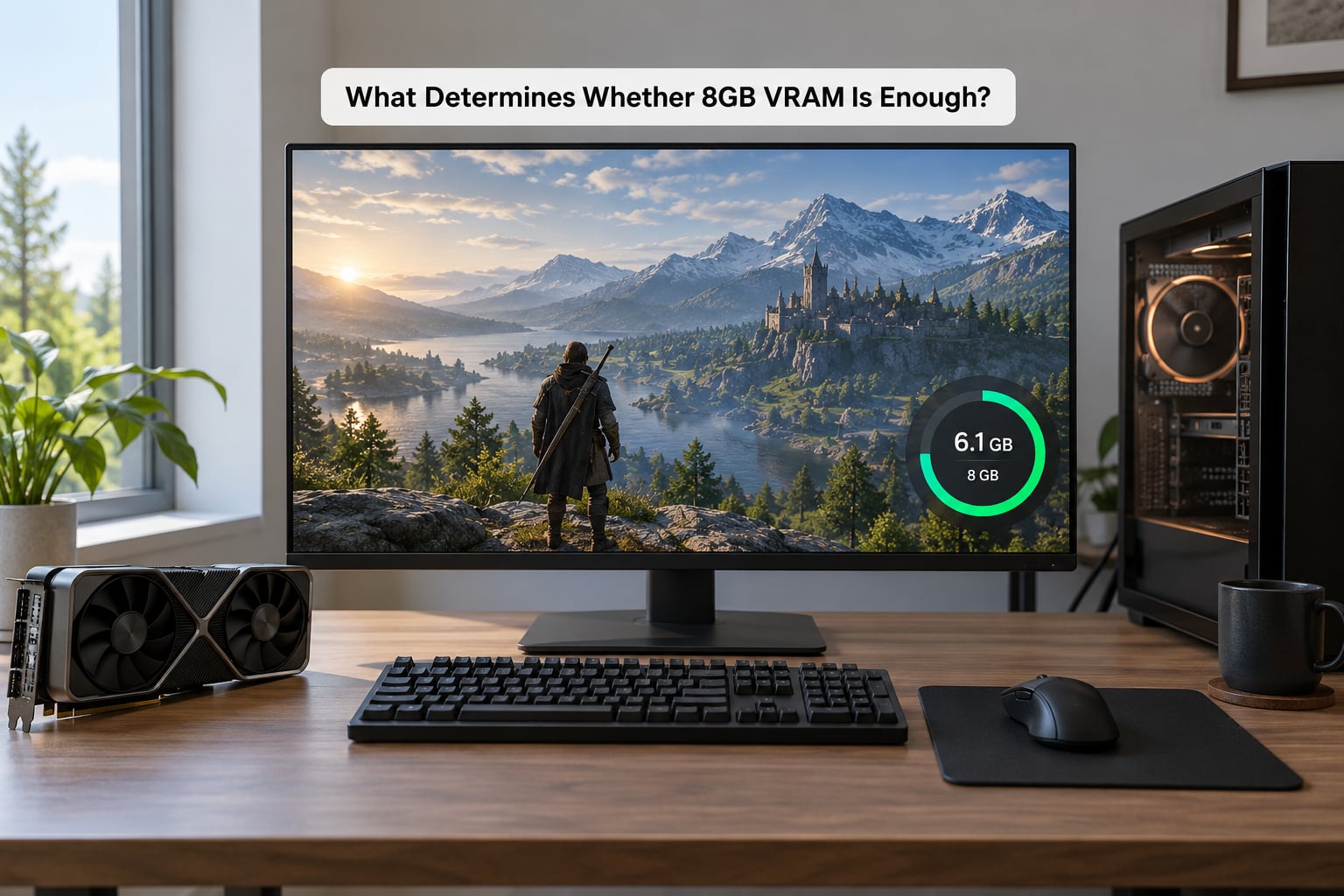
The pool is shared. Textures are only part of what lives in VRAM, which is why a card that fits one setup can fail in another with almost nothing changed.
- The engine and its texture streamer. Modern engines keep a moving window of nearby textures in VRAM and pull the rest in on demand. Older titles, and some modded Bethesda games running through a 32-bit path, cap out well below the card’s capacity no matter what card you fit.
- How much you replaced. A full retexture of every building, road surface and foliage asset in a city map is a different order of memory than swapping character and clothing textures.
- Post-processing on top. ENB and similar stacks hold their own render targets, depth effects and lighting buffers that scale with resolution and cost VRAM the texture pack never asked for.
- Output resolution. Framebuffers, shadow maps and anti-aliasing buffers all grow as resolution rises, so running at 4K eats memory a 1080p session would never touch.
- What else is open. Browsers with video, screen capture overlays and hardware-accelerated apps hold memory the game may never get back while it’s running.
4K Textures vs. 4K Game Resolution
These get tangled together constantly, and the confusion is behind a lot of bad buying decisions. A 4K texture asset is a 4096×4096 image file the game draws onto surfaces. Rendering at 4K means producing 3840×2160 pixels every frame. You can do either one without the other.
Texture resolution drives memory directly. Display resolution drives rendering workload and, secondarily, memory through framebuffers and effect buffers.
So a 4K texture pack on a 1080p monitor still needs the same VRAM, and a 1080p texture pack at 4K output still costs more memory than it did at 1080p output. Which one is your problem is a separate question, and mixing them up leads to swapping settings that change nothing.
How Much VRAM Do 4K Texture Packs Need?
The table below is practical ranges rather than guarantees. Mod order, install options and your ENB preset move these numbers more than most people expect, so treat them as a starting point for planning, not a spec sheet.
| Texture tier | Small or linear game | Mid-size open world | Large open world |
|---|---|---|---|
| 2K textures | 2-3GB | 3-4GB | 4-5GB |
| 4K textures, single pack | 4-5GB | 5-7GB | 7-9GB |
| 4K textures plus ENB or heavy shader stack | 6-8GB | 8-10GB | 10-14GB |
| Full conversion with layered assets | 8-10GB | 10-13GB | 14GB and up |
Those ranges describe the texture set itself. Windows and the desktop reserve roughly 1GB, and a post-processing stack can add several gigabytes on top, which is why a pack that quotes a modest number can still overrun an 8GB card.
Community reports give useful calibration. A Steam thread for the Fable community puts a 4K pack at around 21GB at 4K output, with the same title on High preset sitting near 8-10GB without it. A Skyrim Special Edition user reports their card starting low and then pinning at roughly 8058MB once a 4K load was active, which is what a full card looks like. A GameFAQs user reports Far Cry 6 at 4K on max needing about 8-9GB and running fine, which is the vanilla case where 8GB genuinely is enough.
8GB VRAM by Game and Mod Setup
Is 8GB VRAM enough for 4K texture packs in Skyrim, Fallout 4 and similar mod lists?
For visual replacements, yes. Retexures, cleaner materials and architecture packs fit comfortably on 8GB, especially with a moderate ENB preset. Those are swaps, not additions.
Total-conversion overhauls that rewrite the entire asset library are where 8GB starts to struggle, particularly in Skyrim Special Edition and Anniversary Edition. Add dense environmental mods such as SMIM on top of Noble Skyrim or a Skyland-style 4K pack and the total can pass 8GB on load.
Vehicles deserve their own warning. Each custom car brings its own texture set, and a mod list with thirty of them behaves nothing like a single-car list. The same goes for character and clothing packs when a hub area loads several outfits at once.
Minecraft sits in its own category. A high-resolution resource pack plus a shader stack pushes hard against 8GB, and the blocky world gives you plenty of places to watch memory climb.
How to Test VRAM and Texture Performance
You cannot tune this blind. Here is the sequence that takes a few minutes.
- Open Task Manager before you launch the game. Press Ctrl+Shift+Esc, go to the Performance tab, pick your GPU, and expand the Dedicated GPU memory row. Watch that number, not the percentage graph, which reads total adapter memory on some systems.
- Add an overlay for detail. MSI Afterburner with the RivaTuner Statistics Server overlay shows dedicated memory usage, frame rate, frame time and GPU load on one line, and it updates while you play. NVIDIA’s own overlay covers the same ground on recent drivers.
- Check the in-engine counter. Many games have a VRAM or GPU memory line in their own settings or debug display. Modded titles often expose an ENB or engine console counter, which is more accurate than a system-wide reading because it excludes background apps.
- Run the same route twice. Drive or walk a fixed loop through the heaviest area, one lap with the pack installed and one without. Compare frame times rather than average frame rate, since stutter hides in the averages.
A full meter is not proof of a problem on its own. Plenty of well-behaved sessions sit at 95% with smooth frame pacing. What matters is whether the number spikes and falls during play, because that movement is the streamer thrashing.
How to Fix VRAM Overload and Stuttering
Work down this list in order. The first two cost nothing and solve most cases.
- Drop texture quality one notch. The in-game texture setting is the fastest lever you have, and it changes the pool size without touching anything else.
- Fall back to 2K for one layer. Keeping a 2K environment pack with a 4K character pack is nearly invisible in motion and saves real memory.
- Trim the post-processing stack. A lighter ENB preset or fewer stacked effects releases several gigabytes of render targets.
- Remove duplicated replacements. If two packs replace the same assets, one of them is doing nothing but taking memory.
- Cap unrelated settings. Shadows, volumetrics, ambient occlusion and anti-aliasing all hold buffers. Reduce them one at a time and note which one fixed it.
- Move the mod library to an NVMe drive. This does not add VRAM. It fixes the separate problem of textures streaming in slowly from storage.
- Add system RAM last. It only helps if memory pressure is genuinely causing the stall. More RAM does not enlarge the video memory pool.
Windows and GPU driver checks
Before installing anything, confirm Windows is actually giving the game the whole card. Windows Settings, System, Display, Graphics lists per-app GPU preference, where a high-performance GPU can be assigned explicitly. Device Manager should show no warning icon on the display adapter.
Update the GPU driver, then check that hardware-accelerated GPU scheduling is not thrashing. A clean reinstall of the driver is worth doing before you assume your card is the limit, since corrupted driver state produces stutter that looks identical to memory overflow.
When 8GB VRAM Is Not Enough
There is a point where tuning stops helping, and the signs are specific enough to name.
- The game refuses to load a save or exits to desktop when entering a dense area.
- Surfaces stay flat, grey or untextured permanently rather than resolving after a moment.
- Textures resolve and then un-resolve as you move, forming a pop-in loop.
- Frame times spike every few seconds regardless of what you are looking at.
- Frame rate stays low even after shadows, effects and anti-aliasing are turned down, because textures are not affected by those settings.
That last one is the clearest test. If dropping every other setting changes nothing, memory is your constraint. A Steam user described the pattern well in an r/gpu thread: a long loop of pop-in arrives before the frame rate collapses, and that pop-in loop is the early warning people mistake for a broken card.
When you are there, your options are a smaller texture pack, a 2K version, moving heavy assets to a mod you only load when needed, or more VRAM.
8GB vs. More VRAM for Texture Mods
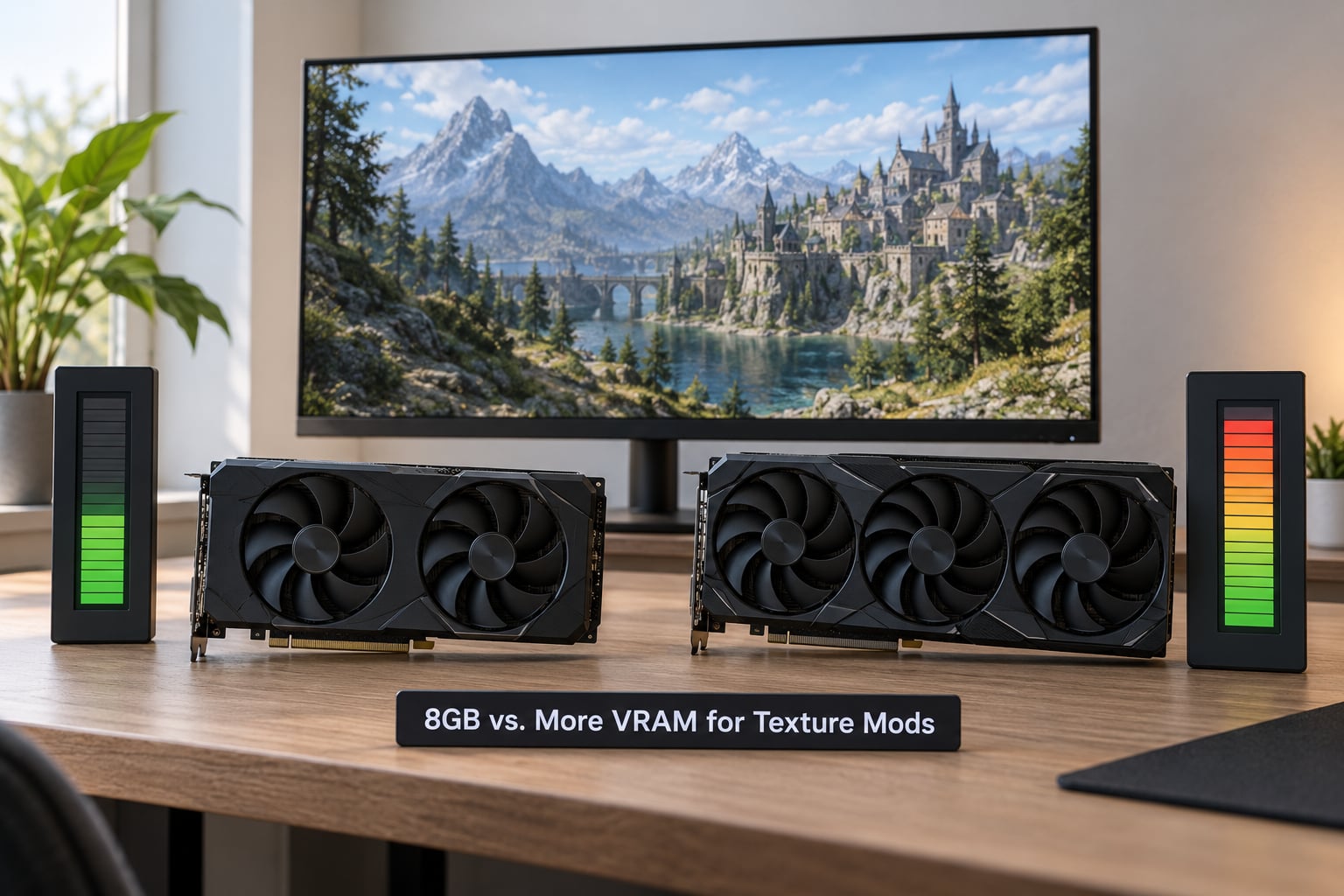
| VRAM tier | What it handles well | Where it runs out |
|---|---|---|
| 4GB | 1080p, 2K textures, light retexture mods | Any 4K pack; anything with ENB at high resolution |
| 8GB | 1440p, single 4K pack, visual replacements, moderate ENB | Stacked 4K overhauls, large vehicle counts, shader-heavy stacks |
| 12GB | 4K with a full 4K pack plus ENB, heavier total conversions | Very large overhaul lists with layered assets |
| 16GB and up | Large mod lists, 4K output, multiple high-res packs at once | Rarely the limiting factor in these builds |
More VRAM removes one specific ceiling. It does not add frames when the bottleneck sits elsewhere, and anyone who tells you a 16GB card makes a stuttering mod run smoothly is selling something.
A CPU-limited scene stays CPU-limited. Excess draw calls from heavy mod lists, a slow drive streaming assets, frame pacing in a 32-bit engine and memory size are four separate problems with four separate fixes.
Worth keeping in mind: the claim that 8GB is dead and 16GB is the minimum gets repeated as settled fact online, and players in one r/pcgaming thread pushed back on it directly. Plenty of people run large mod lists on 8GB with a sensible texture choice and never touch it again.
Frequently Asked Questions
Is 8GB VRAM enough for GTA V 4K texture packs?
Usually yes for a single visual pack, since GTA V streams textures and keeps the 8GB budget manageable at 1440p. It gets tight when you combine a 4K pack with a heavy trainer or ENB-style effect stack at 4K output. Measure dedicated memory during the densest part of the city. If it pins at the card limit and textures pop in as you drive, drop texture quality one notch before anything else.
Do I need a 4K monitor to use 4K textures?
No. A 4K texture pack means 4096×4096 texture files, which is unrelated to your display resolution. On a 1080p monitor you will not see the detail difference much, but the VRAM cost is identical. The reverse also holds: 2K textures at 4K output look softer but use less video memory. So is 8GB VRAM enough for 4K texture packs depends on the assets you load, not the panel you own.
Why does a 4K texture pack cause stuttering with 8GB VRAM?
Because the engine runs out of video memory and starts pulling textures from system RAM mid-frame. System RAM is far slower, so each fetch shows up as a frame time spike and a visible pop-in. You can confirm it with MSI Afterburner: watch dedicated memory hover at the card limit while frame time jumps every few seconds. Lower the texture quality setting one notch and the spikes usually go away.
How can I reduce VRAM usage in a modded game?
Drop the in-game texture quality setting one notch first, then move heavy environments to a 2K version while keeping 4K on characters and weapons. Remove duplicate replacements where two mods touch the same assets, and lighten your ENB or post-processing preset, which holds its own render targets. Cutting shadows and volumetrics frees buffers too. Move the mod library to an NVMe drive to fix storage streaming hitches, though that does not add VRAM.
Is 8GB system RAM different from 8GB VRAM?
Completely different hardware with very different jobs. VRAM sits on the graphics card and feeds the processor directly at hundreds of gigabytes per second. System RAM holds your mods, save files and the game, and acts as the slow overflow store the streamer pulls from when VRAM runs out. Thirty-two gigabytes of system RAM will not make an 8GB card hold a 4K texture set any better, though it does help with loading times.
Will upgrading to 12GB or 16GB VRAM make texture packs smoother?
It makes large texture sets fit without streaming, which is a real gain on a heavy mod list at 4K. It will not fix stutter caused by CPU load, draw calls, slow storage or a 32-bit engine ceiling. Check your frame rate with textures at 2K first: if that is already smooth, memory is your limit and more VRAM helps. If it stutters either way, the bottleneck is elsewhere and the upgrade will not help.
Where to Start
Open your GPU memory counter before you change anything, run your heaviest area, and see whether the number sits at the card limit. If it does, drop texture quality one notch and test again. That single check takes five minutes and tells you whether any of this is your card’s problem at all.