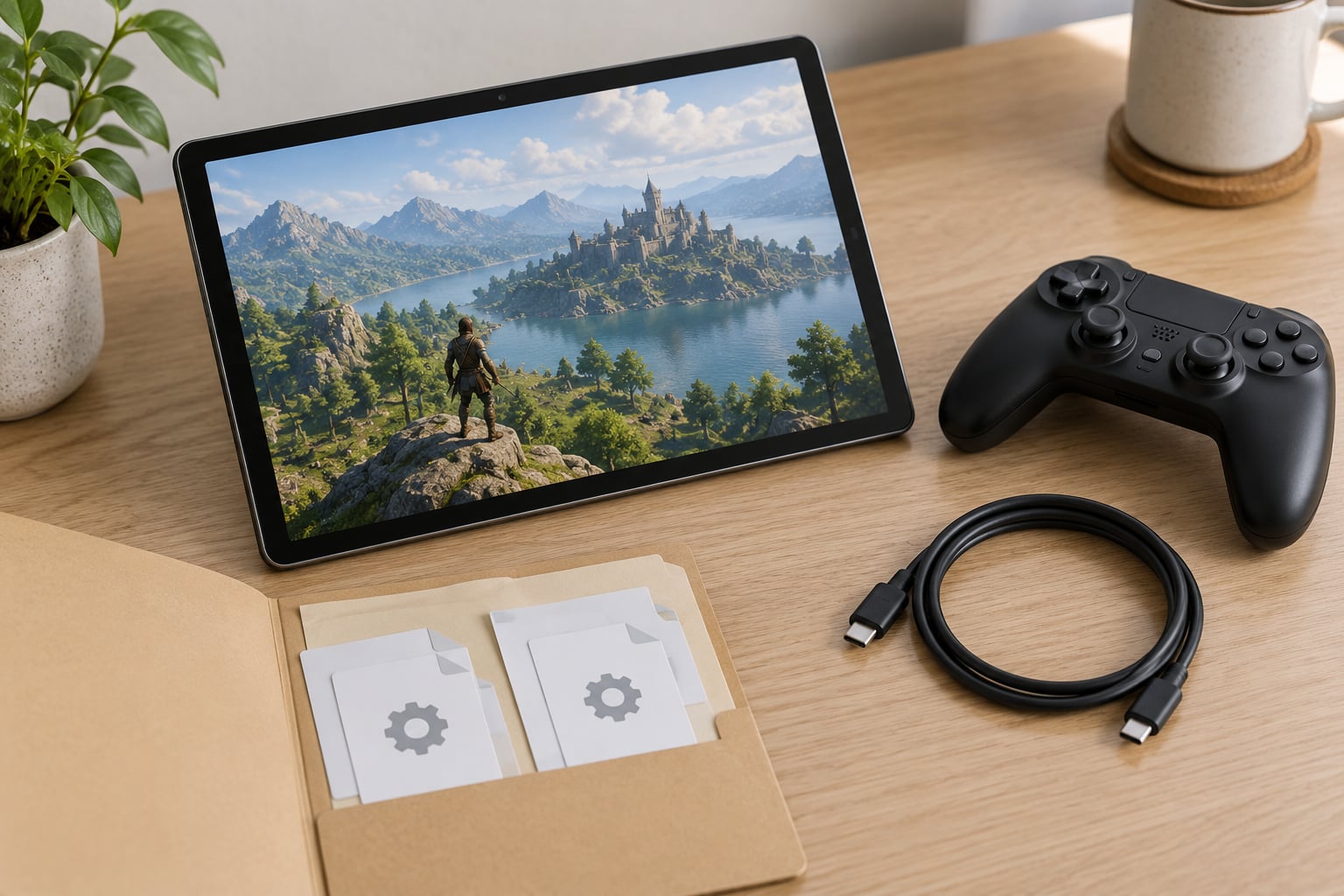
Most modded Android games are built for thumbs, not sticks, so plugging in a controller often gets you nothing more than a battery drain. This guide shows how to use a gamepad with Android game mods properly: check whether the mod actually reads controller input, pair the pad, pick the right mode, and build a mapping profile that survives mod updates. The whole setup takes about fifteen minutes the first time.
There are two separate things happening here, and confusing them is what wastes people’s evening. Some games read controller events directly. Others ignore them completely, and the only way to play with a pad is an overlay that translates each button press into a tap on the on-screen stick. A mod can be built on either kind of base game, and the mod itself rarely changes which one it is.
Table of Contents
- 1What You Need
- 2How to Use a Gamepad With Android Game Mods: Step-by-Step
- 31. Check Whether the Mod Supports Gamepad Controls
- 42. Connect and Pair the Gamepad With Android
- 53. Start the Modded Game in Controller Mode
- 64. Set the On-Screen Control Layout
- 75. Remap Buttons If the Controls Are Wrong
- 86. Test the Controls in the Modded Environment
- 97. Update the Configuration After Installing a New Mod
- 10Common Mistakes
- 11Frequently Asked Questions
- 12Do Android game mods support gamepads?
- 13Do I need root to use a gamepad on a modded game?
- 14Is Bluetooth or USB better for Android gaming?
- 15Which Android versions support controllers well?
- 16Does every GTA-style Android mod support a controller?
- 17Conclusion
What You Need
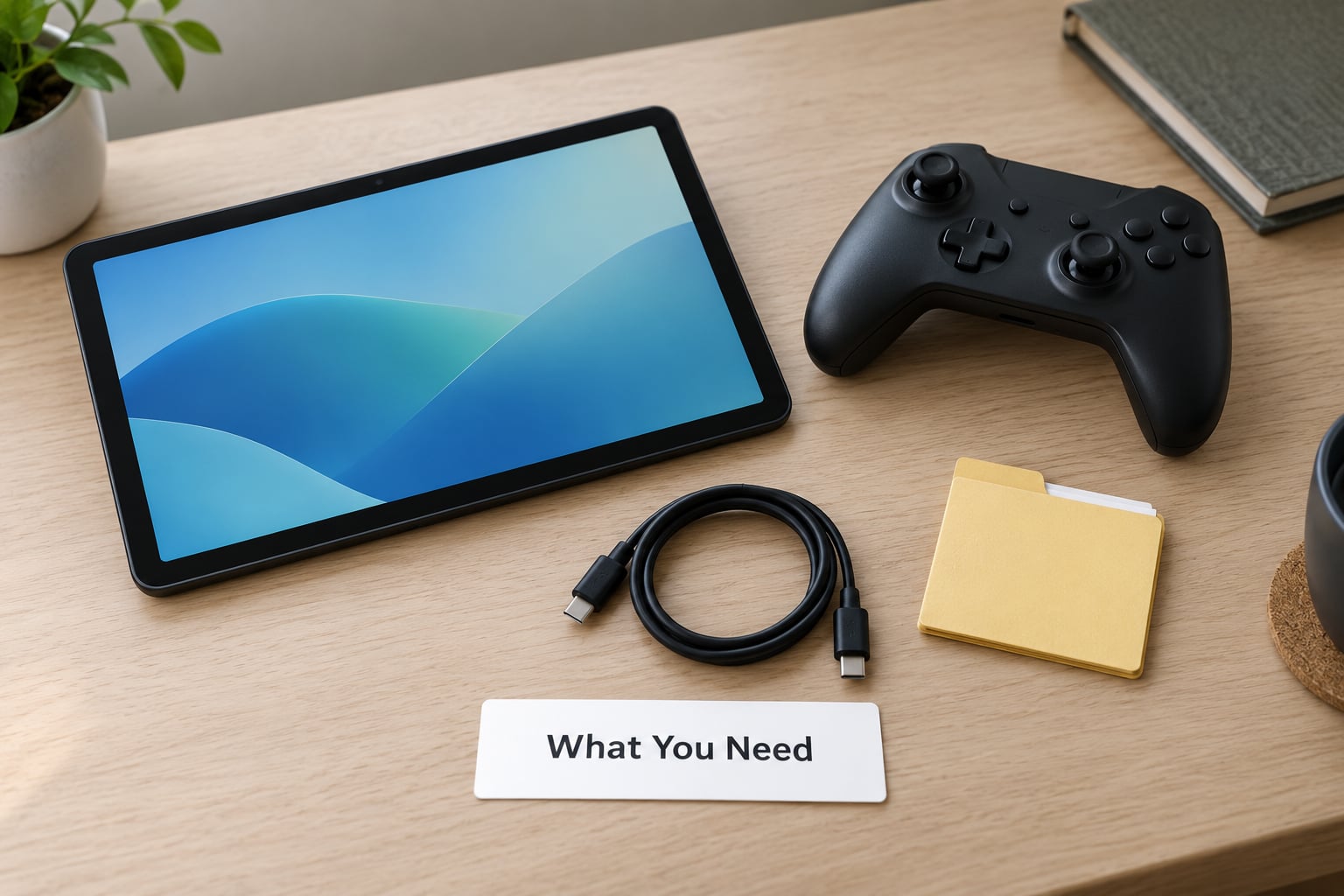
You need very little beyond the pad itself. Gathering it all before you start means you are not halfway through a mapping profile when you realise the game files are still zipped.
- A gamepad: a Bluetooth pad, a USB pad, or any controller Android recognises as a standard input device. Console pads from 8BitDo, DualShock, DualSense and the Xbox Wireless Controller all pair directly over Bluetooth on current Android versions.
- An Android device: a phone or tablet with enough free space for the modded APK plus its data folder.
- A connection method: Bluetooth, or a USB OTG adapter if your pad is wired only.
- The modded game or APK: installed and launched at least once so its first-run screens are behind you.
- A mapping option: either the game’s own control settings, or a key-mapping app with an overlay accessibility service. This is the fallback for anything without native gamepad support.
- A file manager: if the mod loads config files from a folder you will need to edit them directly.
- Game-specific files: control schemes, keybind or .cfg files, or the extra data folder the mod shipped with.
Nothing on this list needs root, and nothing needs an unlocked bootloader. That only changes if you plan to patch the game’s library files, which I would skip unless you already know exactly what you are doing.
How to Use a Gamepad With Android Game Mods: Step-by-Step
Work through these in order. Each step ends with a way to confirm it worked, so if something breaks you know exactly where to stop and fix it.
1. Check Whether the Mod Supports Gamepad Controls
Installing a mod does not add controller support. If the original game reads gamepad events, your mod almost certainly does too, because mods swap assets and behaviour rather than rewriting the input layer. If the original is touch-only, the mod is touch-only unless its author added something.
Look for a controller option in the game’s settings, or for on-screen prompts that change shape when you move the sticks. On some builds the game binary already carries controller code paths inherited from a console or TV variant, so the support exists but is not advertised. You can confirm that behaviour empirically: launch the game and press a button before you map anything.
How it worked: the on-screen controls disappear, stick icons light up, or nothing happens at all. Nothing happening tells you to go straight to step 5.
2. Connect and Pair the Gamepad With Android
For Bluetooth, hold the pairing button on the pad until its light flashes rapidly, then open Settings, tap Connected devices, then Pair new device, and pick the controller from the list. Older Android versions hide it under Settings, then Developer options, then Input, where a connected gamepad shows its name and status.
For USB, plug the pad into a USB OTG adapter, connect the adapter to the phone, and drag the notification shade down to set the USB mode to file transfer rather than charging only. A pad that is drawing power but never appears in Input is usually charging-only.
How it worked: the controller name shows in Developer options, under Input, with a status that reads connected or active. Test it in a web page with a gamepad tester before you blame the game, which saves a lot of guesswork later.
3. Start the Modded Game in Controller Mode
Launch the mod, not the original. Some builds ship separate entry points, and a few launchers ask you to choose between touch and controller input on start. Look for a Controller, Gamepad or Joystick mode in the options menu and select it.
Then test three things: stick movement, camera control by dragging the right stick, and the confirm and cancel actions. Confirm is the face button bottom-right on a PlayStation layout and the bottom one on an Xbox layout; cancel is its opposite. Getting these two backwards is normal at first and takes a remap to fix.
How it worked: the character walks with the stick and the camera pans smoothly instead of snapping.
4. Set the On-Screen Control Layout
Where the game or the mapping overlay gives you the choice, turn off on-screen prompts first. They often sit exactly where you need to see, and they are the single most common reason a working setup still feels wrong.
Next, adjust vibration and dead zone. The dead zone is the small movement the stick reports when you are not touching it; raise it until idle drift stops, but not so far that slow walking becomes impossible. If your pad supports adjustable stick sensitivity, set that in the pad’s own companion app on the PC or phone side first, because the game sees whatever the hardware reports.
How it worked: leave the character standing still for a full minute. If the character walks on its own, the dead zone is still too low.
5. Remap Buttons If the Controls Are Wrong
Use the game’s own mapping screen when it has one. It is cleaner than any overlay because the game receives real button events. Some mod builds also ship a keybind or .cfg file in their data folder that you can edit in a text editor and reload from the same menu.
For anything the game ignores, use an Android remapping tool. These run as an accessibility overlay: the app draws your virtual stick and buttons on screen, reads your physical pad, and injects a tap at the coordinates each control occupies. You assign a pad button to a region, then tap start the game and it plays that control.
Expect to spend the most time on the triggers and shoulder buttons. Many touch layouts put brake and accelerator in odd corners, so map those first, then the face buttons, then anything secondary. Save the profile under the mod’s name rather than a generic one, because you will have more than one.
How it worked: every button you press produces the movement you intended, with no on-screen key lighting up by itself.
6. Test the Controls in the Modded Environment
Test in the main menu first, because a menu failure tells you the overlay is wrong. If menus respond, move into a safe in-game area and test the actions the mod actually adds, not just walking and shooting.
Mods that add vehicles are a good stress test. Steering is analog on the pad and digital on screen, so if your on-screen d-pad and your stick disagree, you will feel it immediately. If the mod adds new menus or inventory screens, test those with the stick as well, since overlays sometimes work in the world and fail in a menu.
How it worked: you drove or used the mod’s feature end to end without touching the screen.
7. Update the Configuration After Installing a New Mod
A mod update can replace the game’s data folder, and with it your config. Do not assume the settings from the original game or from your previous mod carry over. After every update, relaunch the game, check the controller mode is still selected, and run through one movement and one action.
If controls break after an update, the mapping app’s profile is usually still fine, so check the in-game control option before you rebuild anything. Export a copy of the profile after each successful test so restoring it takes a minute rather than an evening.
Common Mistakes
These are the problems that come up again and again, in roughly this order of frequency. Work down the table rather than guessing.
| Symptom | Likely cause | Fix |
|---|---|---|
| Android does not list the controller at all | USB mode is charging-only, or the pad is already paired to another device | Set the USB mode to file transfer, or forget the pad on the old device and pair again |
| Controller is listed but the character does not move | The build ignores gamepad events entirely | Open the mapping overlay, assign the stick, and confirm the virtual stick appears on screen |
| Movement drifts with nobody touching the stick | Dead zone too low, or cheap stick hardware | Raise the dead zone in the game or overlay; adjust sensitivity in the pad’s companion app |
| Character walks on its own while the overlay is closed | An old virtual stick is still enabled | Turn off the profile for that game, then re-enable it fresh |
| Left and right directions are reversed | Axis inverted, or a modded build with its own layout | Flip the horizontal axis in the overlay or in the game’s control settings |
| Confirm and cancel do the wrong thing | Default layout differs from the pad you own | Remap both actions in the game menu first, then in the overlay profile |
| Buttons press but nothing happens | The mod’s own UI has no controller bindings, or an overlay sits on top of it | Use the overlay for the world, and the pad for menus where the game supports it |
| Pad disconnects mid-session | Battery save or a weak Bluetooth link | Exclude the game from battery optimisation and keep the device close to the pad |
| Controls broke after a mod update | The game’s config folder was replaced | Recheck the in-game control option, then restore your saved profile |
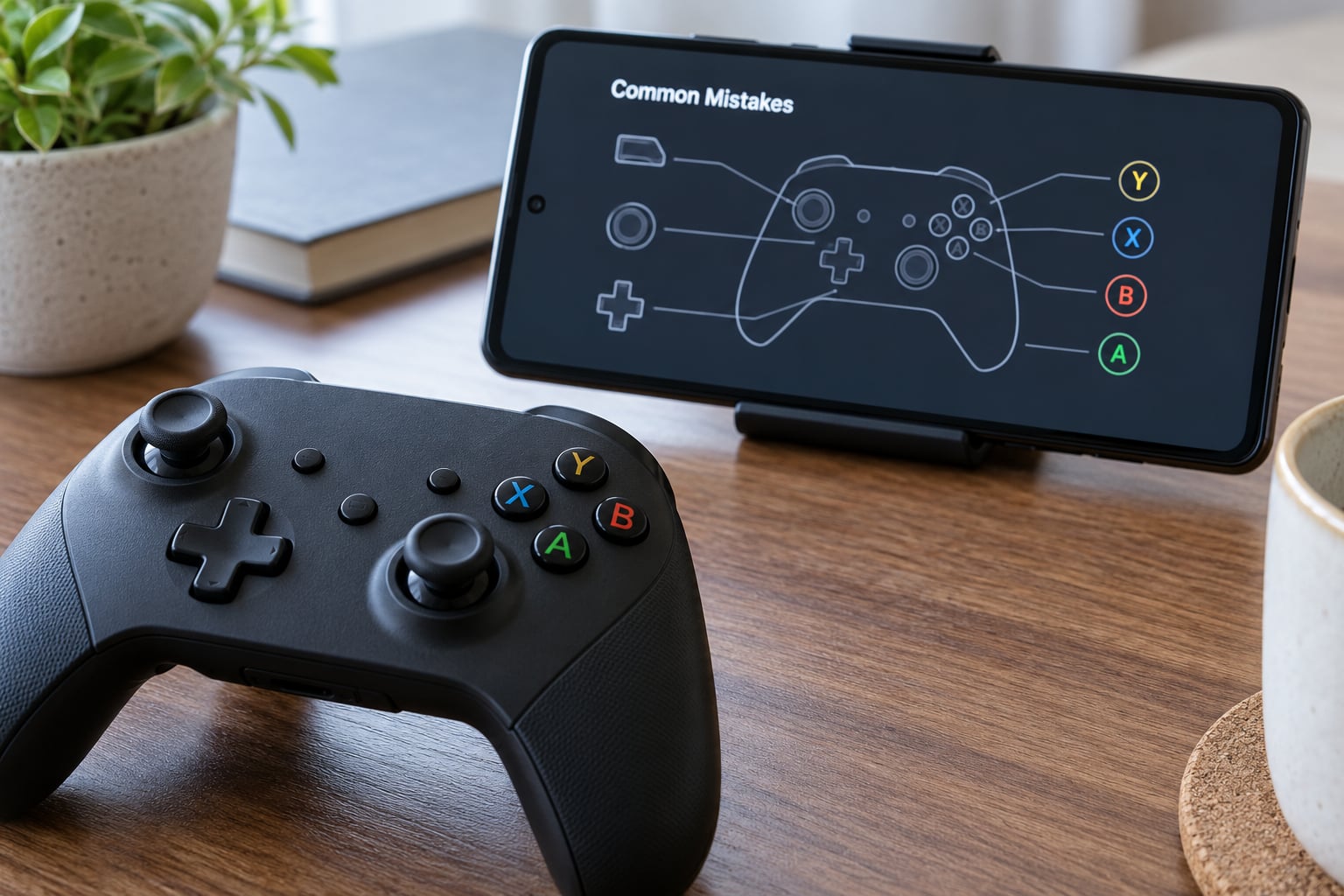
One thing worth knowing: an overlay sits above the game’s own interface, so it can cover menus, inventory screens and buttons the mod adds. On builds with heavy UI this is the difference between a comfortable session and a frustrating one. If your overlay covers something important, reposition its elements or reduce their size before you rebuild the whole profile.
Frequently Asked Questions
Do Android game mods support gamepads?
Some do, and the mod itself rarely decides. If the base game reads controller events, a mod built on it usually keeps that support. If the base game is touch-only, you need an overlay key mapper that turns each pad button into a tap on the on-screen control. Check the game’s settings for a controller or gamepad option before you install anything extra.
Do I need root to use a gamepad on a modded game?
No, not for controller input. Pairing a Bluetooth or USB OTG pad and running an overlay key mapper both work on an unrooted device. Root only matters if you plan to patch the game’s library files yourself, or use a mapper that hooks directly into input events instead of injecting touches. The overlay approach is the safer starting point.
Is Bluetooth or USB better for Android gaming?
Bluetooth is more convenient and avoids cable drag across a tablet, and modern pads pair without an adapter. USB OTG is steadier: no pairing drops and no battery drain on the pad, which matters during long sessions. Both work with modded games. Choose USB first if your pad disconnects or the game feels laggy while you play.
Which Android versions support controllers well?
Current Android versions pair standard Bluetooth HID pads without extra setup, and Developer options under Input shows whether the system sees one. Older releases had more variation, particularly for console pads that emulate a keyboard rather than a gamepad. If a pad connects but nothing happens, test it in a gamepad tester page before changing anything else.
Does every GTA-style Android mod support a controller?
No. Most open-world style ports on Android are touch-first, so the controller is ignored until you add an overlay mapper and assign the controls yourself. A few builds ship an in-game controller mode, and those work far more smoothly because the game receives real input events. Check the options menu on first launch before you build a mapping profile.
Conclusion
Start here: confirm the specific mod reads controller input, pair the pad, select controller mode in the game’s options, and test one movement and one action before you commit to a long session. That takes two minutes and tells you immediately whether you need a mapping overlay or whether the mod already handles it. Save the profile once it works, because the next mod update is the thing most likely to break it again.