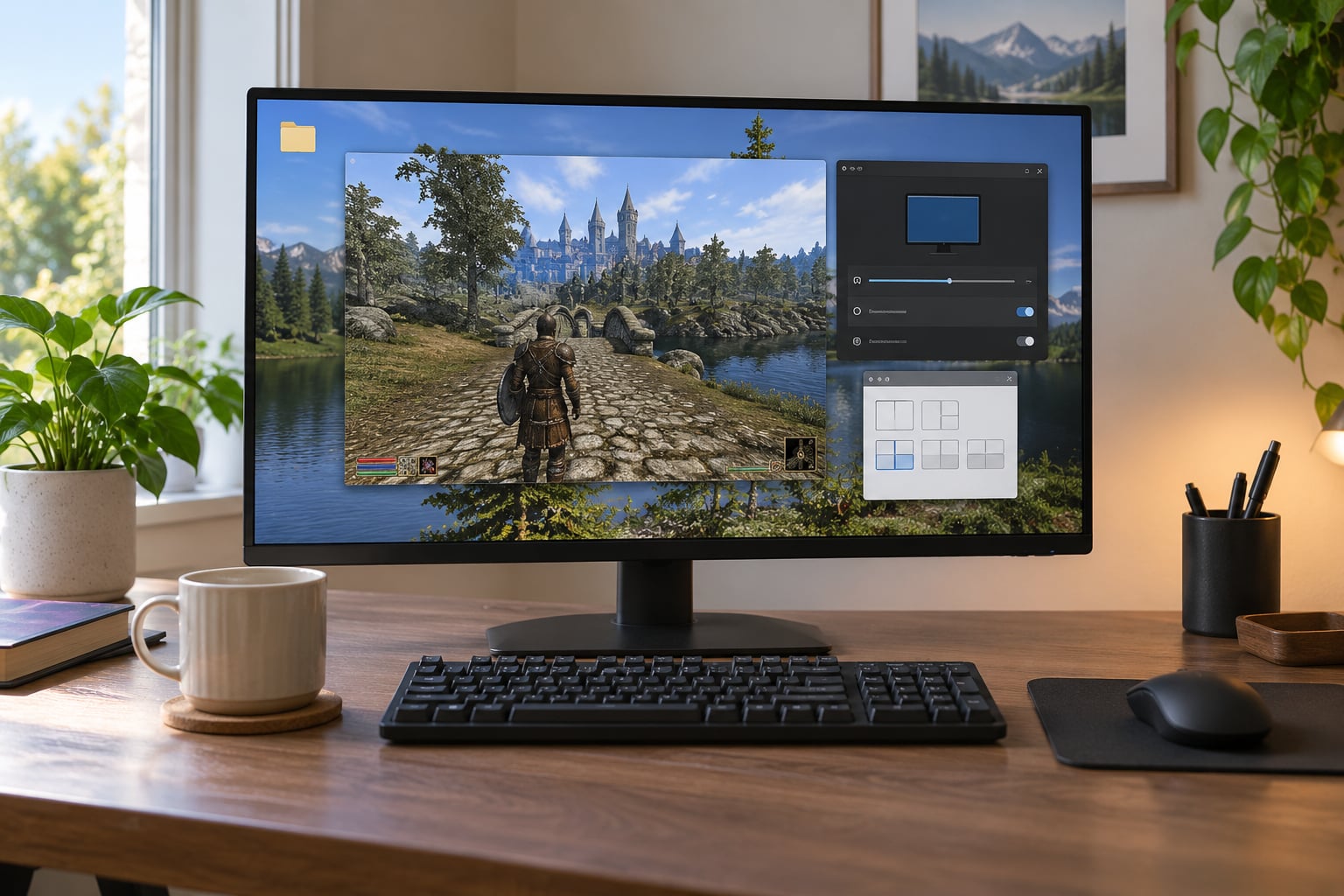
If you want to run older games in windowed borderless mode, press Alt+Enter while the game is running before anything else. If nothing happens, move down the ladder: check the game’s own video menu, try a launch flag on the shortcut, then use a borderless window tool such as Borderless Gaming or a wrapper like DxWnd.
Borderless mode matters for older PC games because exclusive fullscreen takes the whole display away from Windows. You cannot alt-tab to Discord, you cannot capture a clean recording, and a 640×480 or 4:3 title looks lost on a widescreen monitor. Windowed borderless keeps the image at native resolution while the desktop stays reachable.
Most of these methods take under five minutes once you know where to click. The order below goes from cheapest to most involved, and you can stop as soon as one works.
Table of Contents
- 1What You Need
- 2Step-by-Step: How to Run Older Games in Windowed Borderless Mode
- 3Check the Game’s Own Video Settings First
- 4Set the Correct Windows Resolution and Scaling
- 5Use a Borderless Window Wrapper
- 6Create a Simple Windowed Configuration
- 7Troubleshoot Black Borders, Stretching, or Flickering
- 8Common Mistakes
- 9Frequently Asked Questions
- 10Does windowed borderless mode reduce gaming performance?
- 11Can older games use windowed borderless mode on Windows 11?
- 12Why does my game show black bars in borderless mode?
- 13How do I switch between two monitors in borderless mode?
- 14Is a borderless window always better than fullscreen mode?
- 15What should I do if the game will not launch in borderless mode?
What You Need
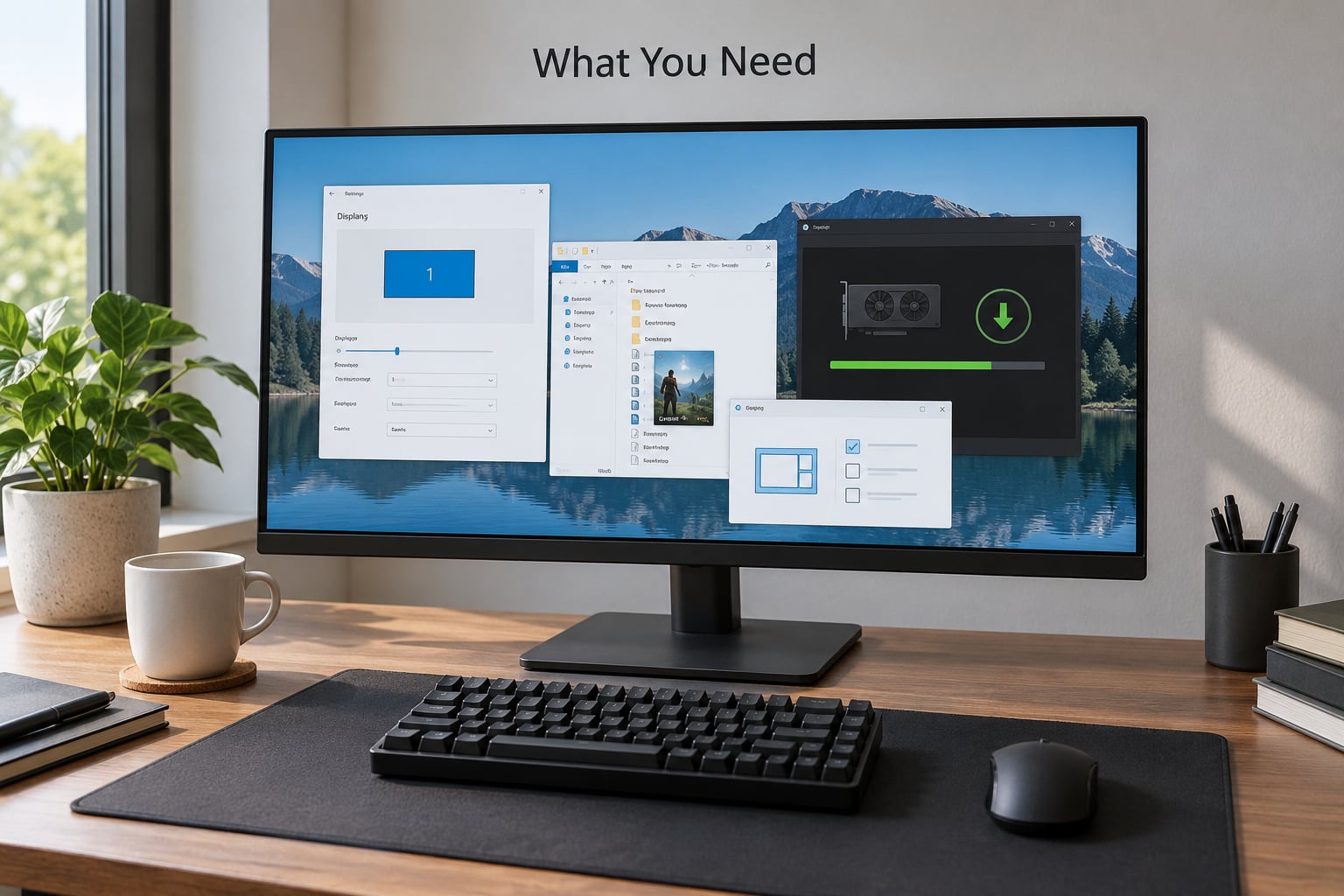
Before you start, make sure you have the game’s actual executable, not just a shortcut to a launcher. Find it in the install folder, or right-click the desktop shortcut and choose Open file location to trace it back.
- A Windows PC, ideally Windows 10 or 11. The same steps work on Windows 7 and 8.
- Current display drivers. Out-of-date drivers cause more scaling weirdness than any borderless tool causes.
- Your original configuration files. Older titles write a .ini or .cfg file next to the executable, and copying it before you start means you can undo a bad edit.
- Optional tools: Borderless Gaming for faking a borderless display mode, DxWnd for wrapping DirectX games, WinExplorer for hiding a stubborn title bar, or a command-line flag typed into a shortcut.
You do not need a second monitor, a capture card or a mod. Xbox Game Bar is built into Windows and works on a borderless game once the game no longer holds exclusive fullscreen.
Step-by-Step: How to Run Older Games in Windowed Borderless Mode
Work through these steps in order and stop at the first one that gives you a borderless window you can alt-tab out of. The final check is always the same: hit Alt+Tab and confirm the desktop appears while the game keeps running.
Check the Game’s Own Video Settings First
Start by opening the video menu inside the game, because newer titles already ship the option and no tool is needed. Look for Options > Video Settings, Graphics > Display Mode, or a Display tab with a dropdown listing Fullscreen, Windowed and Borderless.
If Borderless is in that list, select it and confirm. That is the whole fix. Unity-engine games are the usual trap here: they label borderless as simply Fullscreen, so a dropdown showing only Fullscreen and Windowed often means the game already runs borderless and nothing is broken.
When the game is running in fullscreen, press Alt+Enter. That shortcut is handled by the engine, not the game, and it works on plenty of DirectX 8 and DirectX 9 titles. It also does nothing at all on many other titles, including a lot of GOG releases, which tells you the engine ignores the key and you need to move to the next step.
Set the Correct Windows Resolution and Scaling
Windows has to agree with the game before a borderless window can look right. On Windows 11, right-click the desktop and choose Display settings. On Windows 10, right-click the desktop, choose Display settings, then scroll to Advanced display settings.
Set the resolution to your monitor’s native value, which is usually the recommended option. If the game runs at 640×480 or 800×600 and the desktop is at 1920×1080, the scaling is done by the GPU and it often looks wrong. Set Scale to 100 percent when a game keeps producing black bars or a squashed picture, then change the resolution inside the game to match.
On an ultrawide display, NVIDIA users can open the NVIDIA Control Panel, go to Adjust desktop size and position, and pick Use NVIDIA scaling with a fixed aspect ratio to correct 4:3 games. AMD users find the equivalent under GPU scaling and Aspect ratio correction.
Use a Borderless Window Wrapper
A borderless window tool fakes the fullscreen display mode, so the game draws to a window at your desktop resolution with no title bar. Borderless Gaming is the common choice, and DxWnd is the usual fallback for older DirectX titles.
With Borderless Gaming: install it somewhere outside the Desktop folder, which is a known gotcha that breaks its config file, then open it. Go to Applications, click Add, and pick the game’s executable. Set Windowed Fullscreen, choose your desktop resolution, and save. Launch the game, and leave Borderless Gaming running in the system tray.
The ordering trips a lot of people up. Some versions need the game already in windowed mode before they can grab the window, and some need the game restarted after you add it. If the tool shows a blank list, start the game windowed first, alt-tab back to the tool, and add it there.
For DxWnd, extract the archive to a folder outside the Desktop, run DxWnd as administrator, choose Edit > Add, pick the executable, and save. Restart the game afterwards. Forum consensus still puts DxWnd near the top of the list for pre-2010 DirectX titles.
Several of these tools ask for Run as administrator and inject DLLs into the game process. That prompt is normal for this class of software, but stick to maintained versions and skip any wrapper from an unfamiliar download page.
Create a Simple Windowed Configuration
Some older games only offer Fullscreen or Windowed with no flag or option in between. For those, set the game to Windowed, match its resolution to the desktop, then remove the frame around it.
Flags go in the shortcut’s target line. Right-click the desktop shortcut, choose Properties, click in the Target box at the end of the path, and type a space followed by the flag. Shortcuts inside a Steam library go under the Launch Options field on the game’s Properties page in the Steam client.
- -w or -window starts the game windowed. Type it on the shortcut target line.
- -windowed is the same idea spelled out in full, on the shortcut target line.
- -windowmode does the same on certain engines, on the shortcut target line.
- -f 1024×768 forces a starting resolution, on the shortcut target line.
- -popupwindow is a windowed mode that usually carries no border. Use it in Steam launch options.
- -noborder drops the title bar on some games. Type it on the shortcut target line.
Try one flag at a time, because a game that ignores an unknown argument may also ignore the one you care about. WinExplorer can hide a title bar that refuses to go away, and the same task works in AutoHotkey if you prefer a script to a program.
Once the window is borderless and unlocked, drag its corner to resize it. Hold the window’s aspect ratio by default on Windows; hold Shift while dragging an edge if the picture stretches instead of scaling.
Troubleshoot Black Borders, Stretching, or Flickering
Black bars usually mean the game’s internal resolution does not match the desktop. Set the game’s resolution to the monitor’s native value, set Windows scale to 100 percent, and reload the graphics config with the game closed so it does not overwrite your change on exit.
Flickering on a borderless window is usually one of three things: a refresh rate the game does not support, HDR enabled for a game that predates it, or an overlay sitting on top. Turn off HDR for the display, drop the game’s refresh rate to 60 Hz as a test, and close Discord, GeForce Experience, MSI Afterburner and Steam’s overlay one at a time.
On a two-monitor setup, force the game onto one display by setting it to fullscreen windowed while only that monitor is active in Windows display settings. A game that opens across both screens is a resolution mismatch, not a borderless problem.
Common Mistakes
The game crashes on launch after a tool is applied. Turn the tool off, launch normally, confirm the game still runs, then re-add it. If it crashes again immediately, that combination is not supported and you need a different tool rather than a retry.
No sound after switching modes. Alt-tabbed audio belongs to whichever app is focused. Check the volume mixer with right-click on the speaker icon, and make sure the game is not muted per application.
Black screen with sound. Press Alt+Tab to bring the window forward. If it is invisible, open the game’s config file with Notepad and reset the fullscreen flag to 0.
The mouse cursor leaves the game window. Usually a game using raw input that never received a proper focus event. Alt+Tab out and back in, or start the game from a wrapper that handles focus correctly.
The window keeps resizing itself. The game is enforcing a resolution on launch. Set the matching desktop resolution first, or hold the window and skip the wrapper.
Stuttering that was not there in fullscreen. Borderless goes through the Desktop Window Manager and can add a frame of input lag. Close overlays and make sure hardware-accelerated GPU scheduling is not toggling in the background.
To undo everything, delete the tool’s configuration folder, remove the flags from the shortcut, and restore the .ini or .cfg file you copied at the start. That gets you back to a clean state in a couple of minutes.
Frequently Asked Questions
Does windowed borderless mode reduce gaming performance?
Barely on modern hardware. Borderless runs through the Desktop Window Manager, so there is a small amount of extra compositing work and sometimes a frame of added input lag compared with exclusive fullscreen. On older games that were never demanding to begin with, the difference is usually not something you will notice.
Can older games use windowed borderless mode on Windows 11?
Yes. Windows 10 and 11 both include fullscreen optimizations that quietly convert many older DirectX 9 titles into borderless windows without any tool at all. If the game still takes exclusive fullscreen, the Alt+Enter route, a launch flag and the borderless tools all work the same way they do on Windows 10.
Why does my game show black bars in borderless mode?
Usually a resolution mismatch. Borderless mode draws at the desktop resolution while the game renders at its own internal resolution, so the extra space becomes bars. Set the game’s resolution to the monitor’s native value, set Windows display scaling to 100 percent, and restart the game.
How do I switch between two monitors in borderless mode?
Set the game to borderless while only one monitor is active in Windows display settings, then use the game’s own monitor dropdown or the Windows Win+P shortcut to send it to the second screen. Borderless windows can be dragged between monitors like any other window once they are unlocked.
Is a borderless window always better than fullscreen mode?
No. Exclusive fullscreen can still win on frame pacing and on titles that misbehave in a windowed mode. Borderless is the better choice when you need alt-tab, screen capture or streaming, or when you want a small-resolution game to fill a modern display. Both are worth testing on the same game.
What should I do if the game will not launch in borderless mode?
Work backwards. Remove the flags, delete the wrapper config, restore the original config file and confirm the game runs normally. Then try the next method. Trying several tools and flags at once is the reason people give up, since you cannot tell which change caused the failure.
Start with Alt+Enter. If the game ignores it, check the video menu for a borderless option, then try one launch flag on the shortcut. If both fail, add the game to Borderless Gaming and restart it, and fall back to DxWnd for the really old DirectX titles. Once you land on a method that works, copy the game folder’s config file somewhere safe so you never have to redo it.