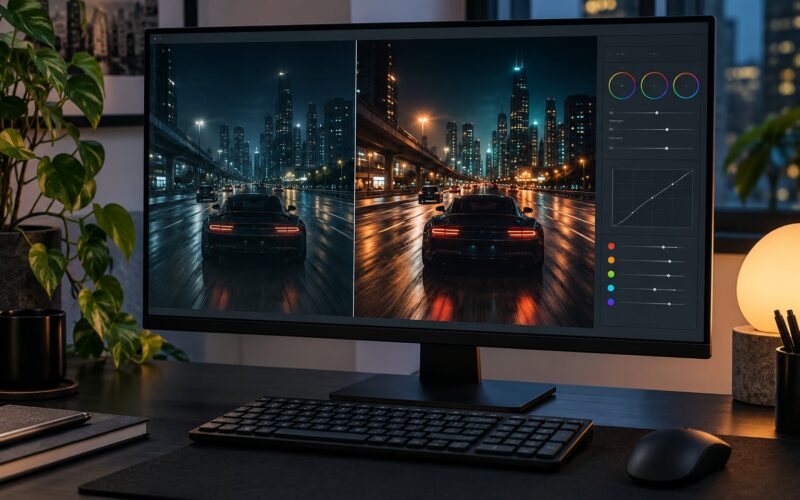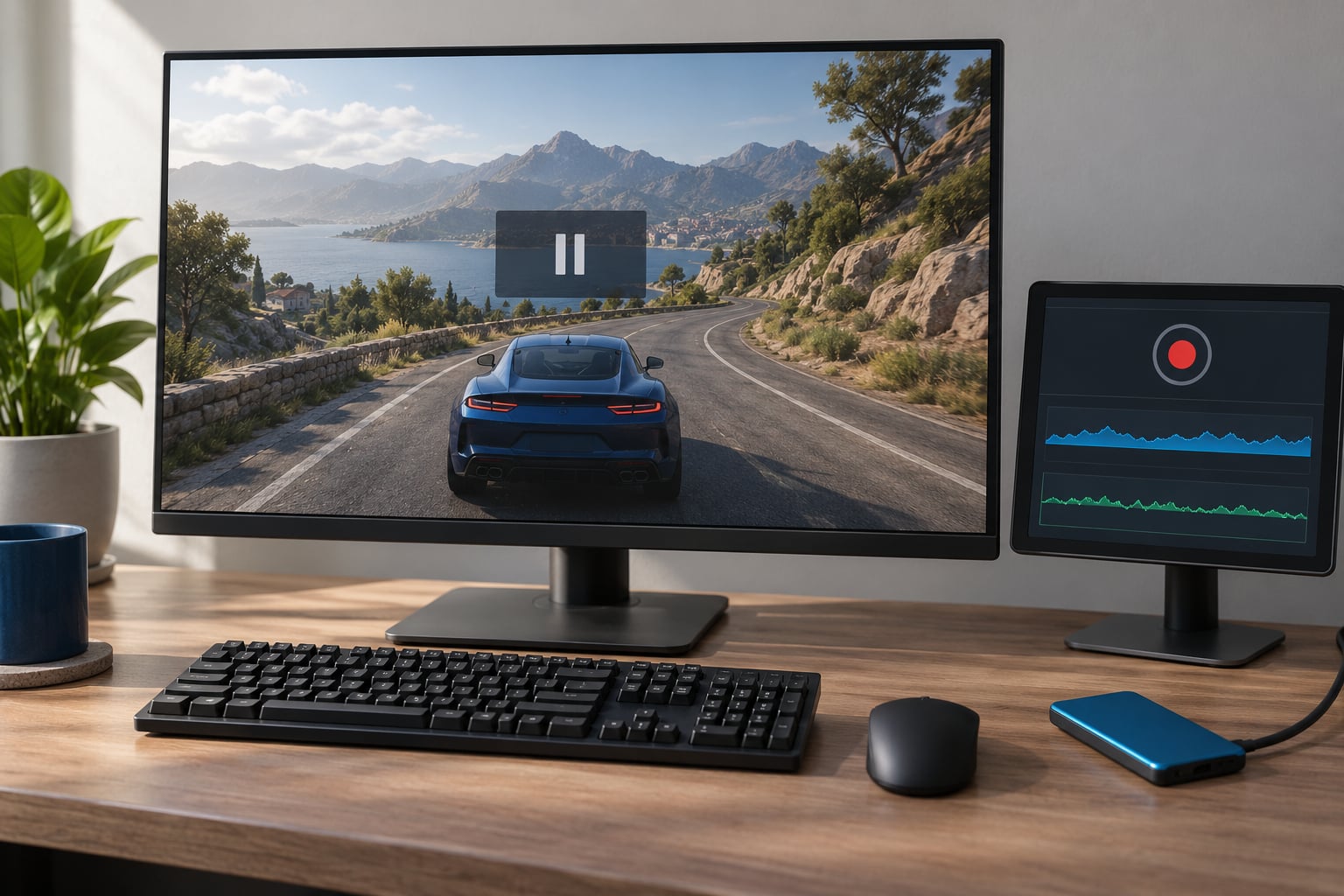
Most people searching how to record gameplay footage without lag are actually chasing three different problems that need three different fixes: a game that dips frames the moment recording starts, a file that stutters on playback, and audio that drifts out of sync. On any PC with a discrete or recent integrated GPU, the answer is nearly always the same: switch to a hardware encoder, cap your in-game frame rate just below your monitor refresh rate, and record at 1080p60 rather than something bigger.
This guide covers the whole setup, including exact menu paths, encoder presets per GPU vendor, and how to read the OBS Stats window so you know which of the four levers to pull. Budget about fifteen minutes for the first full pass.
Table of Contents
- 1What You Need
- 2Hardware baseline
- 3The three tools worth choosing between
- 4Step-by-Step: How to Record Gameplay Footage Without Lag
- 51. Close background apps and set a performance baseline
- 62. Choose the right recording method
- 73. Configure OBS Studio for smooth gameplay capture
- 84. Configure NVIDIA ShadowPlay or GeForce Overlay
- 95. Configure Xbox Game Bar on Windows 10 or 11
- 106. Test the recording under real gameplay load
- 117. Record, monitor and export the final gameplay footage
- 12Common Mistakes
- 13Frequently Asked Questions
- 14Does recording gameplay cause lag?
- 15Can I record gameplay on a laptop without stuttering?
- 16What is the best recording setting for a low-end PC?
- 17Should I record at 60 FPS or 30 FPS?
- 18Can I record console or mobile gameplay on my PC?
- 19Where are Xbox Game Bar recordings saved?
- 20How to Start Without Lag
What You Need
The good news is that you probably have everything you need already. Recording gameplay does not require a fast CPU, a capture card, or any paid software. It requires a GPU with a hardware encoder, a few gigabytes of disk space, and about fifteen minutes of settings work.
Hardware baseline
- A GPU with a hardware encoder. NVIDIA cards from the GTX 900 series onward have NVENC. AMD cards have AMF. Intel CPUs with Quick Sync (11th generation and newer, plus most 10th generation) have QSV. If OBS does not list a hardware encoder in Settings, your drivers or GPU are the limitation, not your capture settings.
- A free drive with room. A 1080p60 recording at 16 Mbps runs about 7 GB per hour. A two-hour session needs roughly 15 GB, so keep that much clear on the drive you record to.
- A reasonably fast write target. Any modern NVMe SSD handles 1080p60 comfortably. A slow or nearly full mechanical drive is one of the most common causes of dropped frames at the end of a long session.
- For laptops specifically: plug in the power adapter and turn off battery saver. Thermal throttling under a sustained encoding load is a bigger laptop problem than raw performance.
The three tools worth choosing between
OBS Studio is the free, open-source recorder that every serious creator uses. It takes longer to configure and gives you total control over bitrate, encoder and audio tracks.
NVIDIA App Instant Replay (formerly GeForce Experience ShadowPlay) lives in the driver overlay, starts instantly, and keeps a rolling buffer on your GPU. On NVIDIA hardware it is usually the lowest-overhead option available.
Xbox Game Bar ships with Windows 10 and 11, records with the Win+Alt+R shortcut, and needs no installation. Its controls are thin, which is the trade.
Step-by-Step: How to Record Gameplay Footage Without Lag
1. Close background apps and set a performance baseline
Before you touch a single recorder setting, find out what your machine does with nothing else running. Open Task Manager, play the game for two minutes in the area you will record, and note the average and the lowest frame rate in the Performance tab. That low number is your baseline.
Then close everything that is not the game: Discord, browsers with twenty tabs, Spotify, launchers, cloud sync clients. A single browser chewing 15 percent of your CPU can be the entire problem on a mid-range machine.
Once you know the baseline, you can tell the two most common situations apart. If the game runs at 60 FPS normally and 52 FPS the moment you hit record, the recorder is competing for a resource. If it drops to 52 FPS whether or not you are recording, the game itself is the constraint and no capture setting will fix it.
2. Choose the right recording method
Pick one. Running OBS and Instant Replay at the same time doubles the encoding work for no benefit, and that is a common self-inflicted cause of stutter.
| Method | Setup time | Overhead | Audio control | Best for |
|---|---|---|---|---|
| OBS Studio | 10-20 minutes | Low with hardware encoder | Full, per-track | YouTube uploads, any hardware |
| NVIDIA App Instant Replay | 2 minutes | Very low on NVIDIA GPUs | Basic, mic on/off | Quick clips and highlights |
| Xbox Game Bar | Under a minute | Low | Basic | Try it before anything else |
| H.264 capture card | 30+ minutes, hardware | Near zero on the game PC | Follows source device | Consoles and second-PC setups |
One persistent myth from the forums needs clearing up: a capture card is not required to record without lag. It is only necessary when the source is a console or a second PC, because it records the HDMI signal instead of sharing your GPU.
3. Configure OBS Studio for smooth gameplay capture
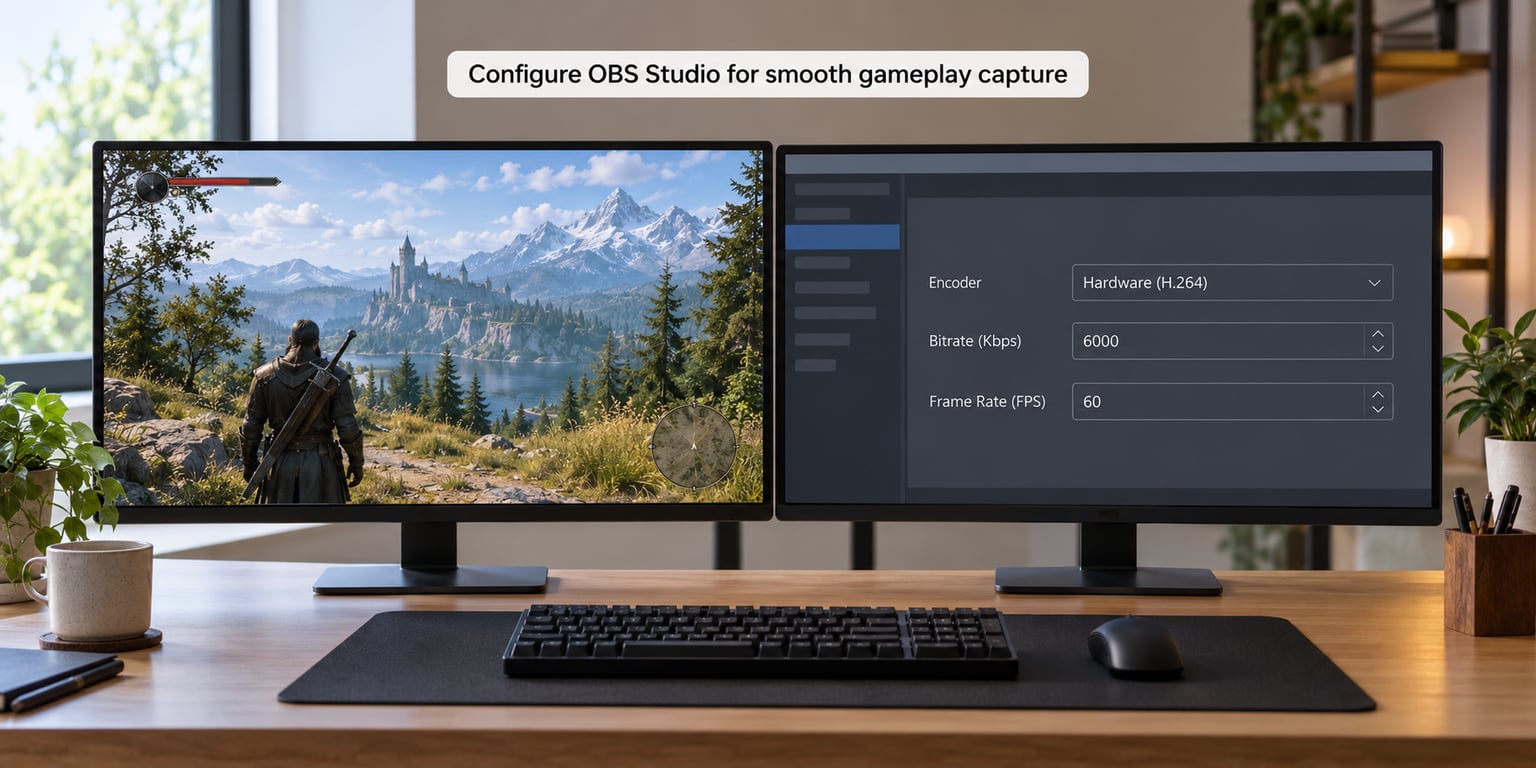
In OBS, open Settings > Output, switch Recording Mode to Advanced, and set Encoder to your hardware option: NVENC on NVIDIA, AMF on AMD, or Quick Sync H.264 on Intel. If you see only x264, your GPU path is unavailable, and that single fact explains most laptop recording lag.
Now the values that matter. Set Rate Control to CBR, Bitrate to 16000 Kbps, and Keyframe Interval to 2. Keep the output at 1920×1080 and 60 FPS.
Then set the encoder preset. On NVENC, start at P5 and move toward P4 only if quality looks soft; anything past P3 costs more GPU time for a difference most viewers will not notice. On AMF, use Balanced. On Quick Sync, use Balanced too.
Next, go to Settings > Video. Set the Base and Output resolution both to 1920×1080, and leave the downscale filter on Lanczos. If your GPU is already struggling, drop the Base canvas to 1280×720 and let OBS upscale. That single step is the most common recovery fix on r/obs.
Finally, in Settings > Output > Recording, change the container from MKV to MP4 only if you are recording casually. MKV is crash-safe: if your PC locks up mid-session, the file is still recoverable. Convert it after recording.
4. Configure NVIDIA ShadowPlay or GeForce Overlay
Open the NVIDIA App, go to Settings, and turn on In-game overlay plus Instant Replay. Assign a hotkey for save, save-and-mute, and toggle instant replay, then pick a buffer length. Six seconds is plenty for most clips; longer buffers cost memory.
Set the recording quality to High, which captures at your native resolution and refresh rate, and check Record fullscreen applications so borderless games are captured correctly. Audio records from the default device; if your mic is separate, set the recording microphone manually.
Video files land in your Videos folder under a Captures subfolder, named with the game and the date. Saving to the same NVMe drive as your game is fine.
5. Configure Xbox Game Bar on Windows 10 or 11
Open Settings > Gaming > Captures and set the video quality, frame rate, and save location. Turn on Record in the background while I’m playing a game if you want instant capture without pausing.
While in a game, press Win+G to open Game Bar and Win+Alt+R to start or stop recording. The audio checkbox controls game sound, but the microphone is a separate toggle in the overlay.
The limitation is honest and worth stating: Game Bar has no bitrate control, no encoder choice, and on many builds defaults to 30 FPS regardless of your settings. If your playback stutters, that fixed frame rate is usually why. Use it for testing, not for uploads.
6. Test the recording under real gameplay load
Do not record a two-hour session and hope. Open the game, load the heaviest scene you plan to capture, hit record for at least 30 seconds, stop, and open View > Stats in OBS while the file is still recording. That window tells you exactly what is wrong.
| Metric | Healthy reading | What a bad reading means |
|---|---|---|
| Rendering Lag | Under 5% | OBS cannot draw frames fast enough. Drop the base canvas to 720p, or check for CPU-bound games. |
| Encoding Lag | Under 5% | The encoder cannot keep up. Move to a hardware encoder, lower the preset number, or lower the recording frame rate. |
| Dropped Frames | 0 or near 0 | Usually a slow disk or a stalled encoder. Save to an NVMe drive with free space. |
| Skipped Frames | 0 or near 0 | The game itself was not presenting frames to capture. Fix the in-game frame rate, not OBS. |
If the numbers are clean but the file still stutters on playback, the recording frame rate is the culprit. Most often that means a mismatched 60 FPS source recorded at a fixed 30 FPS output.
Here is the tiered setting to fall back on once you know your hardware:
| System | Resolution | FPS | Bitrate | Encoder preset |
|---|---|---|---|---|
| Low-end laptop | 1280×720 | 60 | 8000 Kbps | NVENC P6 / AMF Speed / QSV Speed |
| Mid-range desktop | 1920×1080 | 60 | 16000 Kbps | NVENC P5 / Balanced |
| High-end or streaming too | 1920×1080 | 60 | 24000-30000 Kbps | NVENC P4 / Balanced |
7. Record, monitor and export the final gameplay footage
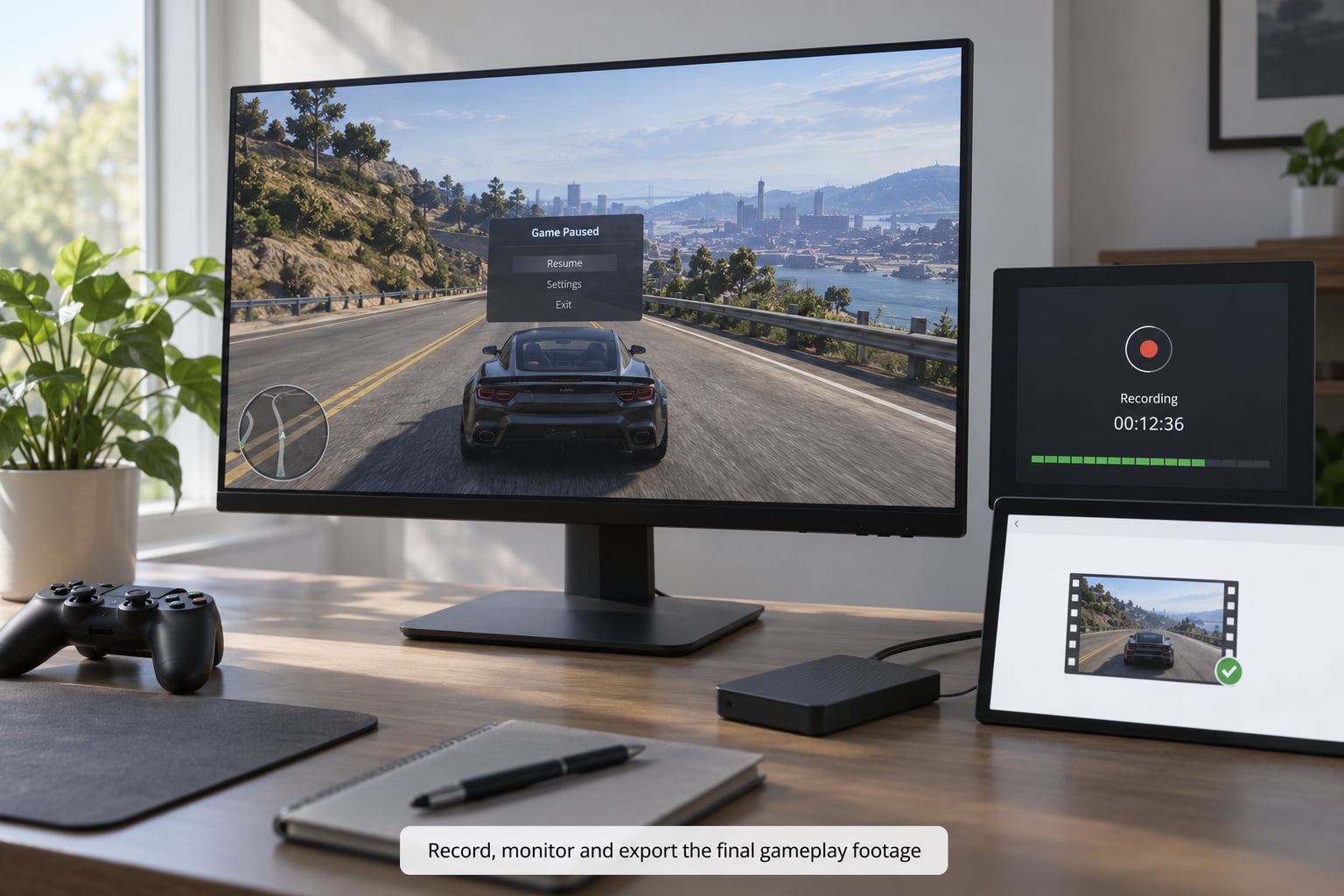
Start the recording from the hotkey rather than clicking through menus, give it a two-second buffer, and play normally. Keep the Stats window on a second monitor if you have one. Otherwise, let it run: watching a graph while playing is its own distraction.
Stop the recording from the same hotkey. Rename the file immediately with the game and a short description, while you still remember what it was. Then scrub through the first and last ten seconds in your player before you edit anything.
If those ten seconds look right, the rest is almost certainly right. If they stutter, go back to step 6 rather than discovering the problem an hour into an edit.
Common Mistakes
Almost every recording problem has one of these eight causes. Work down the symptom column until you find yours.
| Symptom | Direct fix |
|---|---|
| Game stutters the instant you hit record | Switch to a hardware encoder in Settings > Output > Recording. If none is listed, update your GPU driver. |
| Encoding Lag above 5% in the Stats window | Lower the encoder preset (NVENC P5 to P4) or drop the recording frame rate to 30 for a test. |
| Recording is smooth but playback stutters | Output frame rate does not match your capture. Set both to the same value, usually 60. |
| No game audio in the file | Audio is muted at the source. In Settings > Audio, check the Desktop Audio device and its per-source volume bar moves. |
| Black screen in the capture | Usually an overlay-based capture on a game using a fullscreen exclusive mode. Switch the game to borderless windowed. |
| Enormous files filling the drive | Lower the bitrate and record MKV rather than MP4. 16000 Kbps at 1080p60 is about 7 GB per hour. |
| Recording stops after an hour | The save drive filled up or ran out of write speed. Move to an NVMe drive with free space. |
| Files missing after a crash | You recorded MP4. Switch to MKV, which survives a crash and can be recovered. |
One more that deserves its own line: recording at 4K or 120 FPS because the option exists. It quadruples the encoding workload for footage most viewers watch on a phone. 1080p60 is the sane default unless you are capturing slow-motion gameplay.
Frequently Asked Questions
Does recording gameplay cause lag?
A small amount, yes. Every recorder encodes frames in real time while the game is drawing them, and that shares CPU, GPU, and disk time. With a hardware encoder at 1080p60 and background apps closed, most machines lose a couple of frames. With software x264 at 4K on a laptop, the game can crawl. Cap your frame rate and switch encoders if you notice a real drop.
Can I record gameplay on a laptop without stuttering?
Yes, at lower settings. Plug in the charger, turn off battery saver, use a hardware encoder rather than x264, and record 1280×720 at 60 FPS with an 8000 Kbps bitrate. Laptop GPUs also share memory with the CPU, so closing a dozen browser tabs can be as effective as dropping the resolution. Sustained heat is the real enemy of long sessions.
What is the best recording setting for a low-end PC?
1280×720 at 60 FPS, 8000 Kbps, CBR, with the hardware encoder set to a fast preset such as NVENC P6 or AMF Speed. If your PC has no hardware encoder at all, lower the recording frame rate to 30 rather than fighting software encoding. Test a 30-second clip in your heaviest scene and check the Stats window before recording anything longer.
Should I record at 60 FPS or 30 FPS?
Match the recording frame rate to what the game actually renders. If your game holds 60 FPS, record 60. If your monitor is 144 Hz and the game runs at 120 FPS, you can record 120, but only with a fast GPU and a fast drive. Mismatched rates are the usual reason a file looks fine in the recorder and stutters in a player.
Can I record console or mobile gameplay on my PC?
For a console, yes, but you need an H.264 or H.265 capture card and HDMI passthrough, then add it as a Video Capture Device source in OBS. The capture card records the signal, so it adds almost no load to the PC. For mobile gameplay, the simplest route is scrcpy or a wired mirror from the phone, connected as a phone camera source in OBS rather than trying to capture it from the PC display.
Where are Xbox Game Bar recordings saved?
In your Videos folder under Captures, usually at C:u005cUsersu005cYourNameu005cVideosu005cCaptures. You can change the location in Settings, Gaming, Captures. Note that Game Bar does not notify you before a session reaches the default storage limit, so keep an eye on free space there if you record long sessions on a small drive.
How to Start Without Lag
Here is the order to work in. Play the game for two minutes with nothing else running and note your lowest frame rate, because that number is what you are trying to protect. Then choose one recorder: OBS Studio for full control, NVIDIA App Instant Replay for speed on an NVIDIA card, Xbox Game Bar only as a quick test.
Set a hardware encoder, 1080p60, 16000 Kbps CBR, and a frame limit a few points under your refresh rate. Record a 30-second test clip in the heaviest scene you have, read the Stats window, and change only the setting that shows a bad number.
That is the whole method. Four levers, applied in that order, fix nearly every case of how to record gameplay footage without lag, and the Stats window tells you which lever to pull instead of guessing.