To tune ENB settings for performance, you change one setting at a time in a fixed order and measure after each change, starting with enblocal.ini rather than the pretty menu. Set your VRAM value correctly first, set DataSyncMode=0 and PriorityMode=0 second, then walk down the effect list from godrays to shadows. That whole process takes about 30 minutes and keeps most of the look that made you install ENB in the first place.
The reason most people give up is that they open the ENB menu, turn things off at random, and then cannot tell whether the frame rate improved or whether the stutter they still see is something else entirely. This guide is built around measurement instead of guesswork.
Every path and key below applies to Skyrim Legendary Edition, Skyrim Special Edition, Anniversary Edition and Fallout 4, with edition differences called out where they matter. Menu labels shift a little between ENB Series versions, so match by meaning rather than exact wording.
Table of Contents
- 1ENB Costs You Frame Rate Before You Change a Single Setting
- 2What You Need
- 3Step-by-Step: How to Tune ENB Settings for Performance
- 41. Establish a Baseline You Can Measure Against
- 52. Identify What Is Limiting Performance
- 63. Set Your VRAM Value Correctly
- 74. Fix enblocal.ini Memory and Thread Values
- 85. Tune Shadows and Soft Shadows
- 96. Reduce Reflections, Volumetrics and Screen Effects
- 107. Adjust Weather, Vegetation and Draw Distance
- 118. Save Named Presets and Re-Test
- 12Common Mistakes
- 13Frequently Asked Questions
- 14How do I tune ENB settings for performance without making Skyrim look bad?
- 15Should I use the ENB Performance preset or adjust the file manually?
- 16Why does Skyrim gain FPS after changing ENB settings but still stutter?
- 17Which ENB setting should I lower first on a low-end PC?
- 18Does lowering the resolution scale in a benchmark reduce the native ENB resolution?
- 19How do I know whether my ENB performance problem is caused by the GPU or CPU?
- 20Start With the Biggest Bottleneck
ENB Costs You Frame Rate Before You Change a Single Setting
Yes, installing the ENB binaries alone drops your FPS before you ever apply a preset, because every frame is re-rendered through the ENB post-processing chain instead of the game’s stock renderer. That cost is the price of the lighting rework, and it exists whether or not you touch a menu.
There are three separate places ENB gets configured, and confusing them is the most common reason a tuning attempt appears to do nothing:
- The in-game ENB menu, opened with Alt+Enter, which edits the active preset’s effect values live.
- The preset’s own INI files in the
enbseriesandenbevaefolders, which control effect quality, shadow resolution, water, weather and particle density. enblocal.ini, which controls memory and thread behaviour rather than visuals, and is the file most people never find.
Lowering an effect in the first two places reduces per-frame GPU cost. Fixing enblocal.ini reduces VRAM thrash and stutter. They are different problems and they need different fixes, so treat them as separate steps.
What You Need
You need five things before you start, and all of them are free:
- Your game edition named exactly — Legendary Edition, Special Edition, Anniversary Edition, or Fallout 4. This decides which settings apply at all.
- A plain text editor. Notepad works, but anything with bracket-aware search is better for finding keys inside
enblocal.ini. - A known-good save, and ideally a separate throwaway save for testing so a crash during tuning costs you nothing.
- An FPS overlay that shows average FPS and frame time, so you can catch stutter that an average hides.
VramSizeTest(theVramSizeDX9.exetool included with the ENB Series package) for the VRAM step, if you are on Skyrim Legendary Edition or another DX9 title.
One more thing worth knowing before you touch anything: if you run a mod manager such as MO2 or a STEP profile, your game folder contains a placeholder, not the INI the game actually reads. That single detail accounts for a large share of “my edits do nothing” reports.
Step-by-Step: How to Tune ENB Settings for Performance
1. Establish a Baseline You Can Measure Against
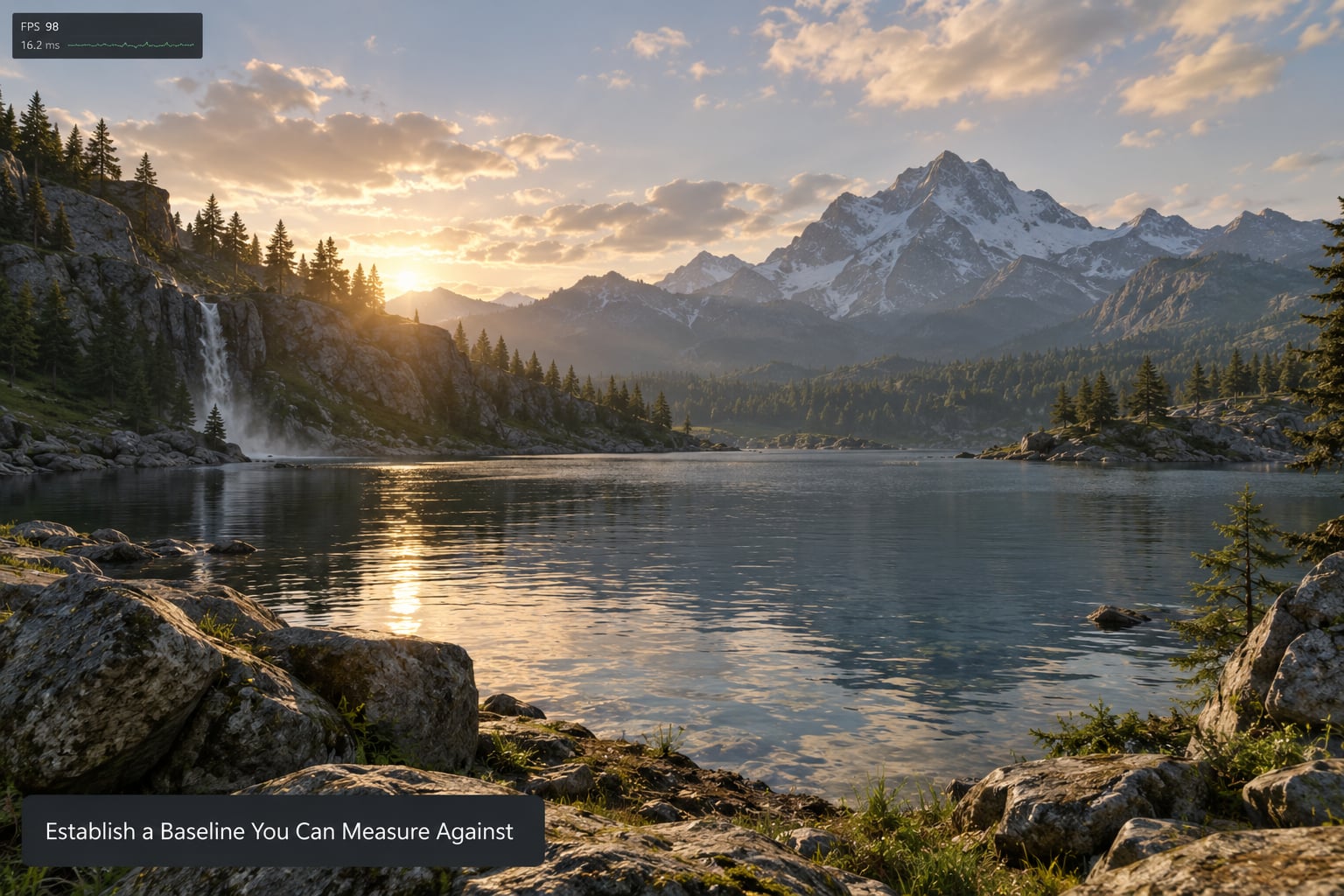
A baseline is just a repeatable route through the game where you record two numbers: average FPS and 1% low. Pick one short outdoor vista, one interior, and one rainy street, and run the same three every time you change something.
Keep the weather and time of day identical each run, and close overlays and menus that capture their own frames. If your test route changes weather halfway through, the numbers stop being comparable.
Write the numbers down somewhere outside the game. Without a written baseline, a 6 FPS gain after four changes is indistinguishable from run-to-run variance, which on most systems is larger than you would expect.
2. Identify What Is Limiting Performance
Check GPU utilization and VRAM use while you play before you change anything. A GPU pinned near 100% means you are fill-rate bound and should attack shadows, volumetrics and screen effects. A GPU sitting around 60% with a flat or climbing frame-time graph points at CPU or VRAM contention instead, and lowering visual quality will barely help you.
Watch frame time rather than FPS. A steady 16.7 ms is 60 FPS. An average of 60 FPS built from 8 ms spikes and 33 ms dips still looks bad, and that pattern is usually a texture streaming or memory problem rather than a shading one.
If you are on a card with 4 GB or less of VRAM, or on a laptop GPU that shares system memory, treat memory as your primary suspect and skip straight to step 3.
3. Set Your VRAM Value Correctly
VideoMemorySizeMb tells ENB how much video memory it may assume exists. Set too high, ENB asks for memory your card cannot give and the driver thrashes; set too low, you lose effects you did not intend to lose.
Run VramSizeDX9.exe from the ENB Series tools and note the number it reports. That figure reflects memory already in use by your system at the moment you ran it, so the reported usable amount will sit below your card’s advertised capacity.
Put that figure into VideoMemorySizeMb and set AutodetectVideoMemorySize=false so ENB stops second-guessing you. If your numbers are much higher than the card’s real VRAM, working down in steps until the stutter stops is more reliable than trusting a number copied from someone else’s post.
One Skyrim Legendary Edition caveat: DirectX 9 titles can see roughly 4 GB of VRAM on Windows 10 unless the Fall Creators Update-era fix is applied. If your card has more VRAM than ENB seems able to use, check that before you blame the preset.
4. Fix enblocal.ini Memory and Thread Values
The single most valuable edit in this whole guide is the memory block, because it fixes stutter rather than average FPS. Forum regulars on r/skyrimmods consistently point at setting VideoMemorySizeMb to a measured VRAM figure and changing nothing else as the first fix worth trying.
Here is a clean starting block. Paste it into enblocal.ini in your game’s Data folder, replacing the example VRAM figure with your own:
[GLOBAL]
UseDefferedRendering=false
UsePatchSpeedhackWithoutGraphics=true
ReduceSystemMemoryUsage=true
DisableDriverMemoryManager=true

[MEMORY]
ExpandSystemMemoryX64=true
VideoMemorySizeMb=YOUR_MEASURED_VALUE
AutodetectVideoMemorySize=false

[THREADS]
DataSyncMode=0
PriorityMode=0
ReduceSystemMemoryUsage is ENBoost, the memory management layer, and it only exists on Skyrim Legendary Edition. Skyrim Special Edition, Anniversary Edition and Fallout 4 have no ENBoost, so those keys do nothing there — delete them rather than leaving dead lines in the file.
DataSyncMode and PriorityMode go to zero because the community documentation treats the newer thread options as a source of frame drops and stuttering, and points at load game CTD fixes as the better remedy for load-game crashes. If you must choose between those keys and a load-order fix, take the load-order fix.
Two more keys get debated constantly: ReservedMemorySizeMb and EnableCompression. Both are worth an A/B test for micro-stutter, and neither is worth shipping blind. Change one, measure, keep it only if the frame-time graph improves.
| Key | Value to start with | What it does |
|---|---|---|
| VideoMemorySizeMb | Your VramSizeTest figure | VRAM ceiling ENB assumes; wrong values cause stutter |
| AutodetectVideoMemorySize | false | Stops ENB re-guessing your VRAM |
| ReduceSystemMemoryUsage | true (Legendary Edition only) | Turns on ENBoost memory management |
| UsePatchSpeedhackWithoutGraphics | true | Loads the address fix without the graphics layer |
| UseDefferedRendering | false | Deferred path switch; disabled in most builds |
| ExpandSystemMemoryX64 | true | Expands the usable address range on 64-bit systems |
| DataSyncMode | 0 | Thread sync behaviour; non-zero costs performance |
| PriorityMode | 0 | Thread priority mode; non-zero causes stutter |
If you are on Skyrim SE, Anniversary Edition or Fallout 4, delete the whole memory block above and keep only what your version recognises. Skyrim SE and Anniversary Edition also use DirectX 11 and have no ENBoost, so Legendary Edition memory advice is actively wrong there.
5. Tune Shadows and Soft Shadows
Shadows are usually the second-largest drain after volumetrics, and they are the safest thing to cut because a low shadow setting still reads correctly at typical viewing distance. Discussion threads consistently name godrays and shadows as the top two ENB drains.
Open the ENB menu with Alt+Enter and work down in this order: shadow quality first, then shadow resolution, then soft shadows, then shadow cascades. Dropping one step at each level keeps the contact shadows under characters and buildings that make the scene feel grounded.
Stop before shadows disappear entirely. A world with no shadows at all loses depth cues and looks flatter than one with cheap shadows, which is a poor trade for a modest gain.
Then save inside the ENB menu. Changes made in the Alt+Enter menu are lost unless you explicitly save and apply them, and this is the most repeated mistake in ENB tuning threads.
6. Reduce Reflections, Volumetrics and Screen Effects
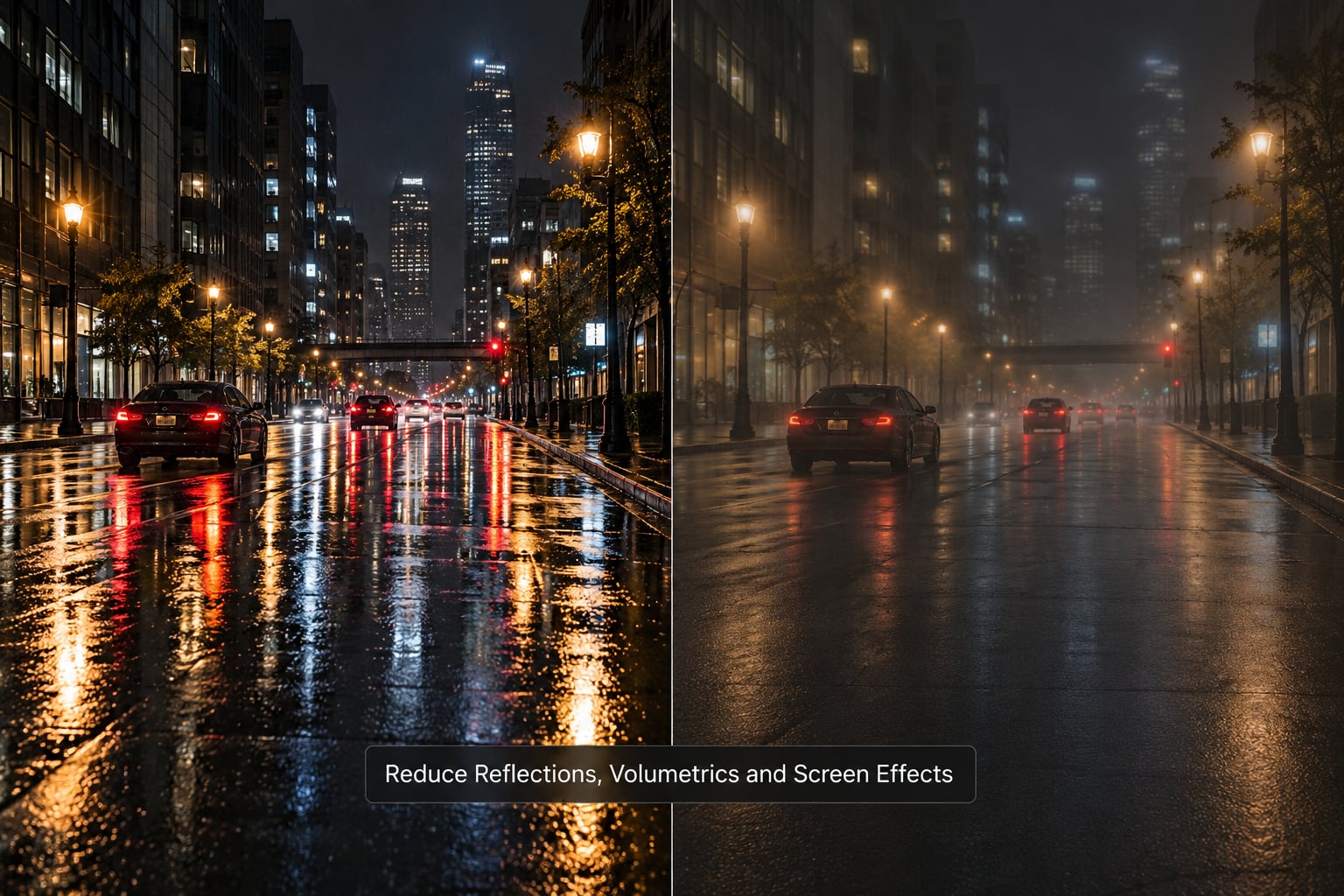
Godrays, screen space reflections, ambient occlusion and depth of field are the four effects the community treats as the biggest post-processing drains, and they are where you get the most frame rate per minute of work.
Volumetric light, which ENB labels godrays in most presets, is the most expensive and the most visually obvious at low quality. Low or off still gives you light shafts in doorways and cave mouths; high gives you the dense fogged look most people install ENB for.
Screen space reflections off is usually unnoticeable outside cities, where the fake reflections on wet asphalt stop being convincing anyway. Ambient occlusion down to low keeps contact darkening at doorways and under stairs. Depth of field off costs you almost nothing visually in normal play and helps most in busy interiors.
Lowering quality beats switching things off. Rather than turning off everything and losing the entire visual overhaul, reduce the quality setting for each effect — that keeps the effect present but cheap, which is usually the better outcome.
| Effect | Where it lives | Safe starting value | What you give up |
|---|---|---|---|
| Volumetric light / godrays | ENB menu, lighting section | Low, or off if still short | Dense light shafts and fogged interiors |
| Shadow quality | ENB menu or preset INI | Low or medium | Soft edge detail on cast shadows |
| Soft shadows | ENB menu | Off | Penumbra softness on large shadows |
| Screen space reflections | ENB menu, effects section | Off outside cities | Wet-road and puddle reflections |
| Ambient occlusion | ENB menu, effects section | Low | Depth of contact shadows in corners |
| Depth of field | ENB menu, effects section | Off, or very low master | Blurred distance and edges |
| Motion blur | ENB menu, effects section | Off | Blur during fast turns |
Typical costs on a mid-range GPU at 1080p run from a few percent for motion blur up to a double-digit percentage for godrays at high quality, so work down the table in order rather than starting at the bottom.
7. Adjust Weather, Vegetation and Draw Distance
Weather, grass and trees are where you tune for stutter rather than average frame rate, because these systems allocate memory on the fly as you move and unload.
Reduce foliage and grass cell radius before you reduce texture quality, since dense vegetation in open fields is a common source of hitching when a new cell streams in. Grass radius cuts of one or two steps are barely visible while moving at running speed.
Lower shadow draw distance before you lower shadow quality if your problem is outdoor pop-in, since a longer shadow distance is what pushes distant trees into the shadow pass. Keep the changes in this order: grass radius, foliage draw distance, shadow draw distance, then texture quality.
Texture quality is the last resort because it is the setting most likely to make an ENB preset look worse than the vanilla game. So dropping quality halfway gives you the worst of both.
The companion game settings matter here too. In skyrimprefs.ini, set iPresentInterval=0 for v-sync off while measuring, iMultiSample to 0 or 2, and iMaxAnisotropy to 4 or 8. In skyrim.ini, uGridsToLoad above 8 raises the chance of crash to desktop and save corruption, so raise it carefully and never above 8 with an ENB preset running.
8. Save Named Presets and Re-Test
Duplicate your preset folder before you start editing, then save three named versions as you go: a balanced one with the look intact, a high one you keep for good hardware, and a performance one you can fall back to at any moment.
After each change, reload your save and rerun the exact same three-scene route. A setting that gives a real gain gets kept in the performance preset; one that gives nothing gets reverted so the preset stays readable later.
When two consecutive settings produce no measurable change, stop tuning and switch to a lighter preset instead. Most preset families include a built-in performance INI, and testing that before touching any INI yourself saves an hour of edits that change nothing.
Common Mistakes
Six mistakes account for most failed ENB tuning attempts, and each has a straight fix:
- Not saving inside the ENB menu. Adjustments made with Alt+Enter revert to defaults at next launch unless you save and apply them inside the GUI.
- Editing the wrong INI under a mod manager. With MO2 or a STEP profile, the file in the game folder is not the one the game reads. Find the INI inside your mod manager’s virtual data path instead.
- Applying Legendary Edition values to Special Edition. Skyrim SE, Anniversary Edition and Fallout 4 have no ENBoost, so ENBoost settings are dead lines. Special Edition runs DirectX 11 with different VRAM behaviour.
- Copy-pasting someone else’s VRAM number. That value is tied to one card and one system. Measure your own with VramSizeTest instead.
- Optimising for average FPS while ignoring stutter. A good average with a spiky frame-time graph is a memory problem, and lowering visual quality will not fix it. Route stutter to
enblocal.iniand VRAM. - Changing five settings and never measuring. If you cannot attribute a gain to one change, you cannot keep or revert it, and your preset becomes a pile of guesswork.
Two more worth knowing. V-sync left switched on inside enblocal.ini is a common reason players report their frame rate sitting far lower than the menu claims, so measure with it off. And HDT physics mods are frame-rate tied through Havok, so if ragdolls start behaving strangely after tuning, your frame rate has drifted well outside the range you tested at rather than your settings being wrong.
If you are on Windows, also confirm that Game Mode and hardware-accelerated GPU scheduling are not overriding your driver’s profile, since driver-side anti-aliasing and anisotropic filtering settings then appear to do nothing.
Frequently Asked Questions
How do I tune ENB settings for performance without making Skyrim look bad?
Lower quality rather than switching effects off. Godrays to low, shadows to low or medium, ambient occlusion to low, and screen space reflections off still leave most of the ENB look intact because those effects remain present at reduced quality. The visual collapse people describe comes from disabling whole systems at once, not from dropping each one a single step.
Should I use the ENB Performance preset or adjust the file manually?
Use the built-in performance INI first. Nearly every preset family includes one tuned for weaker hardware, and it takes a minute to test. If it still stutters, move to enblocal.ini for the memory and thread values, then adjust effects one at a time in the Alt+Enter menu. Most presets need both, in that order.
Why does Skyrim gain FPS after changing ENB settings but still stutter?
Because average frame rate and stutter have different causes. Effects lower the per-frame GPU cost, so the average improves. Stutter usually comes from memory thrashing, VRAM pressure or streaming, which live in enblocal.ini and the cell load settings. A good average with a spiky frame-time graph means the graphics work is done and the memory work is not.
Which ENB setting should I lower first on a low-end PC?
Volumetric light, or godrays, is almost always first. It is the most expensive effect and the most obviously heavy in dense interiors. After that come shadows, then screen space reflections, then ambient occlusion, then depth of field. If you are on 4 GB VRAM or less, set VideoMemorySizeMb correctly before touching any visual setting.
Does lowering the resolution scale in a benchmark reduce the native ENB resolution?
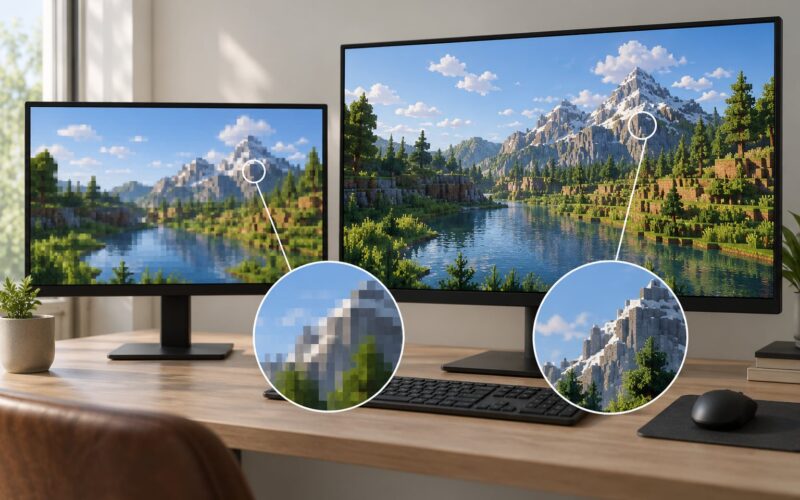
No. A benchmark resolution scale renders the frame internally at a lower resolution and upscales it, which lifts the reported frame rate without changing your native output resolution. Changing the resolution in the game’s display settings is a separate option and does apply to the ENB render. Keep the benchmark scale out of the comparison so your numbers stay comparable.
How do I know whether my ENB performance problem is caused by the GPU or CPU?
Watch GPU utilization while playing. Near 100% means the GPU is the limit and you should reduce fill-rate effects like godrays, shadows and screen space reflections. Around 60% or lower with a jumpy frame-time graph points at CPU or memory contention, where lowering visual quality gains little and enblocal.ini memory values matter far more.
Start With the Biggest Bottleneck
Measure first, then decide whether you are GPU-bound, CPU-bound or short on memory, because that one answer tells you which settings are worth opening. Change one setting, rerun the same route, keep it only if the numbers move.
And if you are wondering where to begin on 2026 hardware specifically, set VideoMemorySizeMb from a VramSizeTest run, leave DataSyncMode and PriorityMode at zero, and turn godrays down before anything else. That single ordered pass fixes most ENB performance complaints without costing you the look.