If you own a PC or console game and want its desktop mods running on your phone, the emulator route is easier: install the original game inside a Windows-on-Android app like GameNative or Winlator, then copy mods straight into the game folder. The native route is the better pick when you are patching an Android build’s own assets or config files, or when you want the lightest possible performance.
The two routes fail differently, and that is where most wasted evenings come from. Emulator mods break because the game or the wrapper updated, or because a mod targets a different engine build. Native modded APKs break because the app was repacked badly, the signature does not match, or the original app got reinstalled over the top and wiped every change.
One note before we start: on this site, “emulator” means two very different things. A console emulator runs a ROM you dumped yourself on a handheld. A Windows-on-Android wrapper runs a full desktop program through ARM translation. Every claim about emulator-based modding below refers to the second kind, because that is the one with a mod folder.
Table of Contents
- 1Emulator vs Native Android for Game Modding at a Glance
- 2What Is Emulator-Based Game Modding?
- 3Which wrapper suits which job
- 4What Is Native Android Game Modding?
- 5The native workflow, step by step
- 6Performance and Graphics: Which Runs Better?
- 7What your device needs for the emulator route
- 8Controls and Touch Compatibility
- 9Mod Compatibility and Installation
- 10Mapping mod types to a route: emulator vs native android for game modding
- 11Storage, Saves, Updates, and Maintenance
- 12Why mods disappear after an update, and how to fix it
- 13Which Should You Choose?
- 14Legal and safety basics
- 15Frequently Asked Questions
- 16Can I use PC game mods on a native Android version?
- 17Is emulator-based modding better for Android phones?
- 18Are native Android games faster than the same game in an emulator?
- 19Can I transfer mods from an emulator to a native Android game?
- 20Do I need root to mod an Android game?
- 21Do emulator mods survive game updates?
- 22Conclusion
Emulator vs Native Android for Game Modding at a Glance
The emulator route wins on setup speed and on the sheer size of the existing desktop mod library you can reuse. The native route wins on performance, battery, touch controls and mods that only exist for Android. Here is the short version, row by row.
| Criterion | Emulator route (GameNative, Winlator) | Native route (Android port or conversion) |
|---|---|---|
| Setup difficulty | Import a desktop game, find its folder, copy mods in. No repackaging. | Decompile the APK, edit assets or configs, repack, sign, reinstall. |
| Root required | No. Mod folders live inside the app’s own private storage. | No for the repack-and-sign workflow. Root only helps with read-only files or live data patches. |
| Mod library you can reuse | The entire desktop mod library for that game, if the engine version matches. | Android-only mods, plus config mods that work on any build. |
| Performance | Translation overhead. Frame rate depends heavily on your chipset and settings. | Native code on native hardware, usually the smoothest and most consistent result. |
| Touch controls | Needs a controller overlay or an on-screen keyboard; PC menu layouts fight touch input. | Built for touch from the start, usually with a controller option too. |
| Where saves live | Inside the wrapper’s container folder, next to the game directory. | App-private storage, reachable on a rooted device or through a backup or Android/data path. |
| Update breakage | A wrapper update or a game patch can break the mod layout. | Any app update replaces the package and removes your injected files. |
| Storage cost | Heavy. A desktop game plus a translated runtime plus your mod library. | Light. Roughly the size of the original app plus the mods. |
Read that table with one assumption: you own the game you are modifying. Nothing here changes if you do not.
What Is Emulator-Based Game Modding?
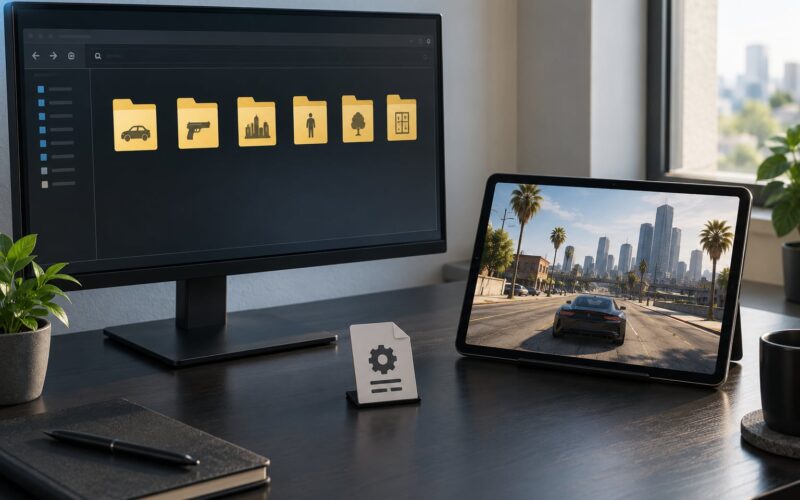
Emulator-based modding means running the original desktop game inside a Windows-on-Android wrapper and editing the game directory the same way you would on a laptop. You get a folder structure you already understand, mods written for the desktop build, and no signing step at all.
On the emulator route you need four things: the wrapper app, your own copy of the desktop game, the mod files, and a file manager with access to the container. That last piece is the part beginners miss. Game files do not sit in normal Downloads; they sit inside the app’s own directory, and most wrappers ship a built-in file browser or a mapped drive precisely so you can reach them without root.
Save data lives in the same container as the game. Many wrappers also support save states, which are snapshots of the full running state rather than the game’s own save files. A save state is not a substitute for a save file: a mod that changes the save format can load a state perfectly while corrupting the file.
Which wrapper suits which job
GameNative is a fork of Pluvia that uses Winlator as its backend, adds support for titles with DRM, and runs Steam natively. It also cannot run games that require an external launcher, and Notebookcheck’s hands-on put it as far from the most stable stage.
Winlator is the underlying translation engine, aimed at running Windows programs rather than curating a game library. GameHub and GameHub Lite wrap the same translation layer in a launcher front end, which suits players who want a library view instead of a manual import. Pluvia is the earlier, simpler fork. MiceWine targets older Windows-era titles and Wine-style apps rather than modern DirectX games.
For modding specifically, the wrapper matters less than three things: whether it exposes the game directory to a file manager, whether it lets you set the renderer and resolution, and whether the project is still being updated.
What Is Native Android Game Modding?
Native Android modding means changing files inside an Android package and getting that modified package installed on your device. Nothing is being translated, so the game runs as the developer intended, and any change you make has to survive being repacked and signed.
There are three flavours of native build. An official port is a release from the original developer or publisher, usually with its own file layout. A conversion is a community rebuild of a desktop game for Android, which behaves like a port but may lag behind desktop patches. A community port is an unofficial rebuild, often of an older console or PC title, maintained by volunteers. ES-DE now lists native ports as a first-class category in its ports system, which tells you how normal this has become.
Mods on this route must match the Android version’s file structure, rendering engine and control scheme. A config mod that changes a sensitivity or field-of-view value works on almost any build. A shader or UI mod built for the desktop engine version usually does not.
The native workflow, step by step
- Back up the save file. Find the game’s data folder and copy it somewhere outside the app’s storage before touching anything.
- Copy the original APK to your own working folder. Never decompile the app installed on your phone directly.
- Decompile it with apktool or an equivalent tool so you can see the assets and the config files.
- Replace or add your mod files. Textures usually go into the asset bundle structure, config mods overwrite the game’s own text or binary config.
- Repack and sign the package. Signing is mandatory; Android refuses to install an unsigned or mismatched-signature package.
- Uninstall the official app before installing your repack. Two packages with the same package name but different signatures cannot coexist.
- Launch and check the mod took effect before you re-enable cloud saves or linked accounts.
Without root, everything above works because you are replacing the whole app. With root, you can skip repacking for simple config edits and change live values directly, which is how cheat menus and value tweaks are usually done. Root is not required for either route, and it is optional rather than necessary in almost every case.
Performance and Graphics: Which Runs Better?
The native route runs better, and the gap is usually visible rather than subtle. A native build talks to the GPU and chipset drivers directly, while a desktop game in an emulator pays for ARM translation on every frame, plus overhead from the container.
Forum consensus matches that. In the r/EmulationOnAndroid discussions, a native build is described as generally running lighter and smoother, and a GameNative touchscreen session is noted as working well while chewing noticeably more battery than the equivalent native port. Players who care most about smooth frame pacing end up running both and switching.
Graphics settings follow the same pattern. A native port exposes the settings the developer shipped. An emulated desktop game exposes whatever the desktop build offered, resolution scaling and renderer choices included, which sounds like an advantage but costs frames. Higher resolution scaling on a phone screen makes small text crisper and the frame budget shorter.
What your device needs for the emulator route
Emulation on Android is chipset-sensitive, and this is where hardware guessing causes most frustration. The community consensus quoted in r/EmulationOnAndroid is that a Snapdragon 8 Gen 2-class chip is the current sweet spot for emulation specifically, because the translation layer maps well to Qualcomm hardware.
| Device level | What it handles |
|---|---|
| Snapdragon 8 Gen 2 or newer flagship | Modern DirectX titles at native panel resolution with sensible settings. |
| Snapdragon 8 Gen 1 or mid-range flagship | Older and 2D titles comfortably, recent 3D ports at reduced resolution scaling. |
| Exynos or lower-tier Snapdragon | Lightweight and older titles. Expect translation stutter on demanding games. |
| 4GB RAM | The commonly cited floor for emulation. Playable, but few games run alongside anything else. |
| 8GB RAM or more | Comfortable headroom for a desktop game, the wrapper runtime and mod assets at once. |
| Storage | Budget generously. A desktop game, its runtime layer and a texture pack easily reach tens of gigabytes. |
Numbers like frame rates vary by title and by settings, so treat any specific figure you read as a hint rather than a promise. What holds consistently is the direction: more hardware headroom means the emulator route becomes more viable, and the native route stays smooth on far weaker hardware.
Controls and Touch Compatibility
Native builds win on controls because they were designed for fingers. Emulated desktop games assume a keyboard, a mouse and shoulder buttons, so every control arrives at your device through an overlay or a mapping layer.
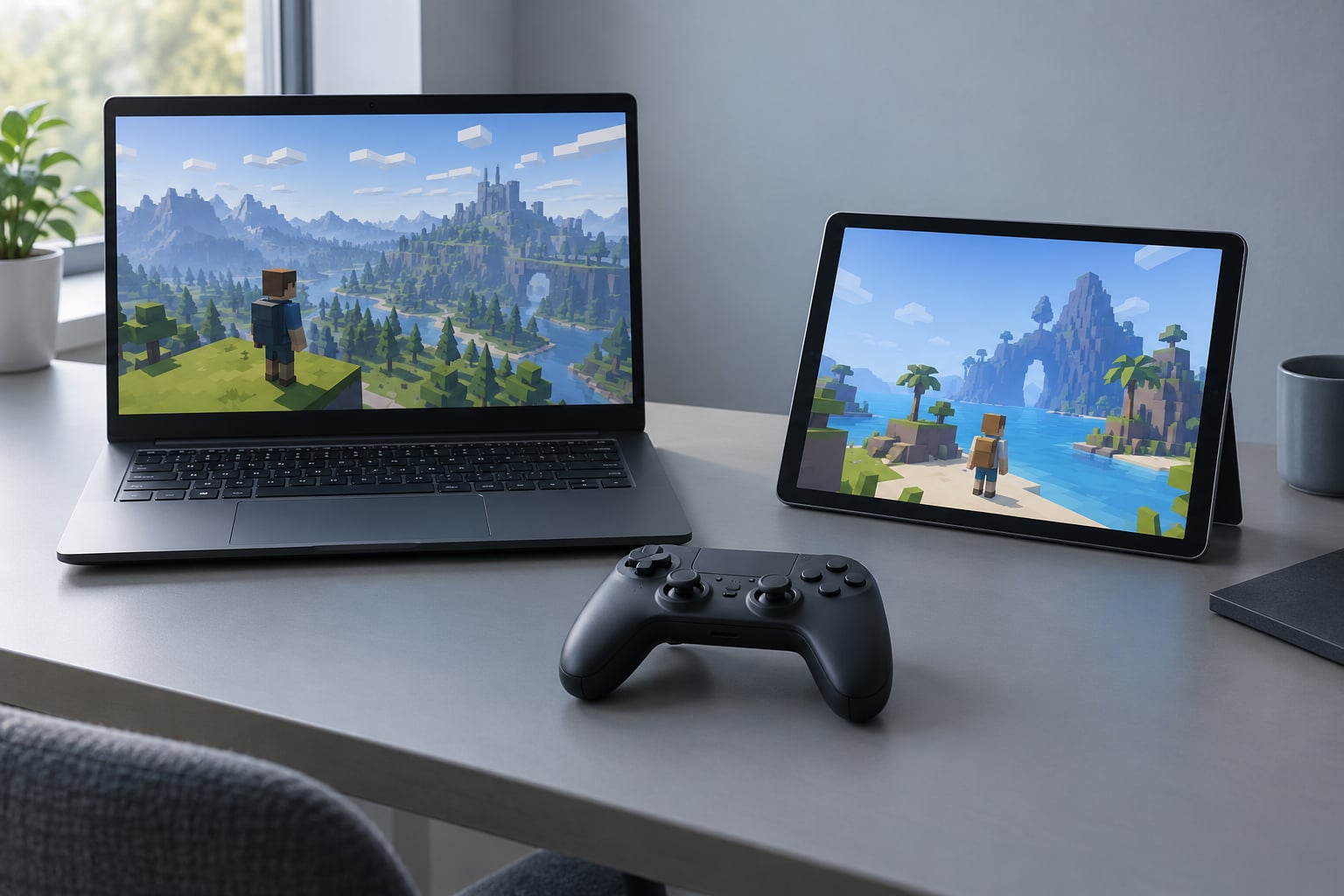
Most current wrappers handle this better than they used to. GameNative includes an on-screen keyboard and a controller overlay, and pairing a gamepad turns the phone into something close to a handheld PC. The friction is in the interface rather than the input itself: PC-style menus with tiny dropdowns, keyboard shortcuts in settings screens, and hover states that never appear on a touchscreen.
UI scaling is where the difference becomes work rather than a preference. Games that shipped a high-DPI option look fine on a modern phone panel. Games that do not need either lowered resolution scaling in the wrapper or an external scaling app. A handful of Android ports also ship a UI overhaul mod that reflows dense menus for touch, which is a mod type you simply do not have on the emulator route unless a modder has built it.
If you have no controller, the emulator route adds friction you should price in before you start. A gamepad turns the decision mostly around performance.
Mod Compatibility and Installation
Desktop mods and Android mods are not interchangeable, and that single fact decides more cases than any other. A desktop mod is built against the desktop build’s engine version, folder layout and file formats; an Android mod is built against whatever the Android package uses.
The practical test is simple: if the mod changes a file the desktop game reads from its own directory, you can try it on the emulator route. If the mod was made for an Android package’s asset structure, the native route is its only home. Config mods are the exception that works nearly everywhere, because a text or JSON value means the same thing in both worlds.
Mapping mod types to a route: emulator vs native android for game modding
The table below maps each common mod type to the route that handles it with the least fighting. Difficulty is listed for a first-timer on an unrooted device.
| Mod type | Emulator route | Native route | Difficulty |
|---|---|---|---|
| Texture and skin swap | Copy the files into the game folder. Works when the desktop and Android builds share asset formats. | Replace the asset bundle inside the APK and repack. | Easy on emulator, moderate on native. |
| Config file edit | Edit the game’s text or JSON config with any text editor. | Same edit, but the file lives inside the package. | Easy on both. |
| Cheat, script or memory tweak | Use the desktop build’s own console or trainer tools inside the container. | Needs a memory editor and usually a rooted device. | Moderate to hard. |
| UI overhaul for touch | Rarely exists. You would build one yourself. | The standard Android-only mod category. | Easy once you know the layout. |
| Total conversion or new story | Drop-in when it targets the same engine version. Large ones can demand more RAM than the wrapper allows. | Very rare. Almost always an emulator-route mod. | Hard on either route. |
Installing on the emulator route takes four steps: import or install the game in the wrapper, locate its directory using the wrapper’s file browser or a mapped drive, copy the mod files in, and relaunch. If the game is running, close it fully first, since many desktop engines cache assets at startup and will happily load your old files.
Installing on the native route takes the longer decompile-repack-sign sequence described earlier. The two failure points are predictable. A signature mismatch means the official app is still installed, so uninstall it and try again. An app that installs and crashes on launch usually means a repack with mismatched compression, a resource file the engine cannot read, or an asset placed in the wrong folder.
One more route exists that most guides ignore: the community port. A volunteer rebuild of an older console or PC title can run natively, feel better than any emulator, and carry its own small mod scene. It also updates when its maintainer has time, which is the trade you accept.
Storage, Saves, Updates, and Maintenance
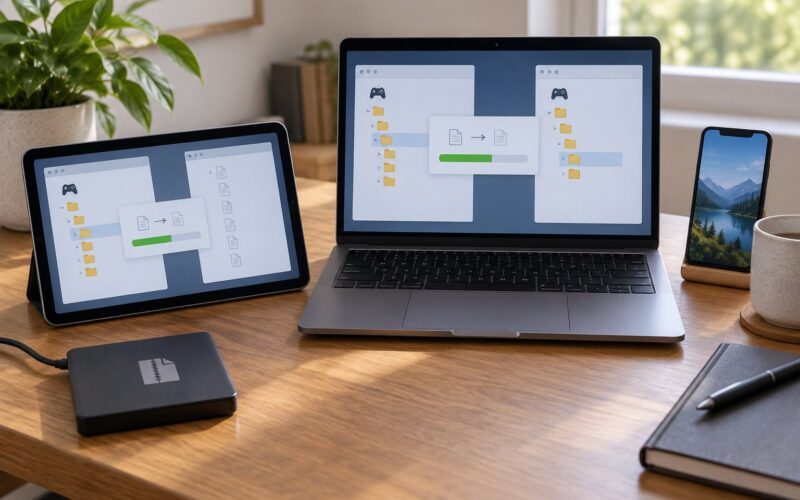
The emulator route costs the most storage and gives you the simplest backup. Game files, saves and mods all sit in one container folder you can copy wholesale to a PC or a cloud drive.
The native route is lighter but messier to back up. Saves live in app-private storage, so on an unrooted device you reach them through the game’s own cloud save, its in-game export feature, or a file manager granted access to the Android/data path. None of those are guaranteed for every publisher, and that uncertainty is the reason to back up before you mod rather than after something goes wrong.
A short backup routine covers both routes. Copy the save file out of the app’s storage to a folder you control. Copy the entire game directory on the emulator route, not just the save. Note the exact version or build number the mod was made for. Keep your repacked APK somewhere safe, because rebuilding it later can take longer than finding it again.
Why mods disappear after an update, and how to fix it
Updates are the main reason modded setups break, and the cause differs by route. On the native route, an app update replaces the package and removes every file you injected. Reinstalling your repacked APK fixes it, which is why keeping the signed file matters. On the emulator route, a game patch can move or rename files, and a wrapper update can change the container layout.
Recovery follows the same order every time. Confirm the game still launches unmodified. Check whether the mod’s files still exist in the expected folder. Compare the mod’s stated game version against the version now installed. If they differ, look for an updated release of the mod or fall back to the previous game version if the wrapper supports it. Reinstall one mod at a time to identify the offender, rather than restoring a whole pack and guessing.
Wrapper maintenance is the other half. These projects fork, rename and get abandoned, so check that the app still has recent updates before you commit a week to it. Games needing an external launcher, or protected by DRM, are the usual hard failures rather than performance problems.
Which Should You Choose?
Choose the emulator route when you own the desktop version and its mods already exist. It is the fastest path from “I found a mod” to “the mod is running”, it needs no root, and it costs you nothing in repackaging skill. This is the right pick for most people starting out.
Choose the native route when the mods exist only for Android, when you care more about frame pacing than about reusing a desktop mod library, or when your phone is not a flagship. It also wins if you play with touch only and never intend to attach a controller.
A few specific situations:
- Beginners. Start on the emulator route. Dropping files into a folder teaches you what mods actually are before you meet a build tool.
- Older or mid-range phones. Native route. You will get more from the hardware than you will from tuning a wrapper.
- Flagship devices. Emulator route. The headroom turns a fiddly setup into a smooth one.
- You own the desktop game already. Emulator route, no contest. The mod library is the deciding factor.
- Console-quality visuals. Native route for consistency; the emulator route for settings, if your device can afford them.
- Mobile-specific controls and UI mods. Native route. Those mods do not exist elsewhere.
Legal and safety basics
Emulation itself is generally treated as legal in most jurisdictions, and running a game you dumped from a disc you own is the widely accepted position. Modding is a different question: many game end-user licence agreements prohibit modifying files even when you own the game, and those agreements vary by publisher and by country.
On safety, install wrappers from their official project repositories rather than from APK mirror sites. A file manager with access to a game container is a normal permission, and it is also a permission a malicious repack would want. Sideloaded APKs need “install unknown apps” enabled, so keep it off when you are not actively using it. Keep your saves backed up outside the app, and treat any mod promising account or cloud-save unlocks as a red flag.
Frequently Asked Questions
Can I use PC game mods on a native Android version?
Usually not directly. PC mods depend on the original game’s files, engine, paths and capabilities, while native Android ports may use different formats and menus. A mod only works when its files, engine version and folder layout match the Android build. Config file mods are the most likely to cross over, because a text or JSON value means the same thing in both worlds.
Is emulator-based modding better for Android phones?
It can be better when the device is powerful, the desktop game is available, and the wrapper supports its engine. Emulator setups give you the existing desktop mod library and skip repackaging entirely. On a mid-range phone the same setup runs the game more slowly and drains the battery faster than a native port.
Are native Android games faster than the same game in an emulator?
Native Android versions generally run more efficiently because they are built for the operating system and the phone’s hardware. Emulator performance depends on translation efficiency, graphics settings, thermal limits and the wrapper in use. Forum consensus regularly describes native builds as lighter and smoother on the same device.
Can I transfer mods from an emulator to a native Android game?
Do not assume they will transfer. Even when both versions contain the same game world, their file formats, permissions, scripts, texture sizes and control systems can differ. Transfer only a mod you have verified by file name and format. A mod that loads in the emulator can crash the native build on its first frame.
Do I need root to mod an Android game?
No, on either route. The native route works without root because you repack, sign and reinstall the whole app. The emulator route never needs root because the game directory sits inside the app’s own container. Root only helps with read-only files, live memory edits and some data folder shortcuts.
Do emulator mods survive game updates?
Not reliably. A game patch can rename or move the files a mod expects, and a wrapper update can change the container layout. Native-route mods break differently: an app update replaces the package and removes your injected files. Keep the signed repack and a copy of the game directory so you can restore rather than rebuild.
Conclusion
The emulator vs native android for game modding question comes down to where the mods already exist. If they were made for a desktop game, the emulator route gets you running in an evening with no build tools. If they were made for Android, the native route is the only place they will ever work, and it is also the smoother and lighter option on the same phone.
Start with three things before you install anything. Confirm the exact official version of the game you are modifying, then check whether matching Android mods exist for that build. Run an unmodified setup until it launches, saves and quits cleanly, and only then add one mod at a time so you know which change caused which result.