Here is the fast answer: to check a phone’s GPU before installing mods, open a GPU information app and read the GL_RENDERER line, or open the dialer and enter *#*#4636#*#*. Either route takes under a minute and needs no root. The string tells you whether you have an Adreno, Mali or PowerVR chip, which is the one fact that decides whether a texture pack or shader mod will run or black-screen your game.
It is worth doing that minute of work before you download anything. A wrong-GPU install usually fails quietly at launch, and you end up troubleshooting a game you can no longer start.
Table of Contents
- 1What You Need
- 2Step-by-Step: Check Your Phone’s GPU Before Installing Mods
- 3Identify the GPU model on Android
- 4Check the GPU driver, architecture, and performance details
- 5Compare the GPU with the mod’s requirements
- 6Run a quick test before making changes
- 7Install the mod only if the match is safe
- 8Common Mistakes
- 9Tips for Testing Phone Mods Safely
- 10Frequently Asked Questions
- 11How do I know if my phone is Adreno or Mali?
- 12What is better for modded games, Adreno or Mali?
- 13Where do I find GPU info in Android Settings without installing an app?
- 14What GPU does GTA 5 need for mods?
- 15Is 95 or 100 percent GPU usage bad?
- 16How do I check my phone’s GPU before installing mods?
What You Need
You do not need a computer, root access or a special build. You need five things, and three of them are free.
- Your phone, charged above 50%. The check itself uses almost no power, but the benchmark and test session later will.
- The mod’s information page. Open it before you check anything, not after. You want its stated GPU requirements, the game version it targets and whether the author lists tested devices.
- A notes app or a screenshot. You will want the exact renderer string later, including the driver version at the end of it.
- A GPU information app, optional. Anything that shows OpenGL ES and Vulkan details will do. Several also show live GPU load and temperature, which saves you a separate monitoring app.
- A way to back up. A PC with a USB cable, or enough free cloud storage for the game’s data folder. This is the step most people skip and most regret.
One warning before you start: your phone’s marketing name tells you almost nothing about its GPU. Two phones with the same model name on the spec sheet can ship with different chips, sometimes in different regions and sometimes across a production run.
Step-by-Step: Check Your Phone’s GPU Before Installing Mods
Five steps, in order: find the name, read what is behind the name, compare it with what the mod asks for, prove it with a short test, then install with a rollback path ready. Skip nothing.
Identify the GPU model on Android
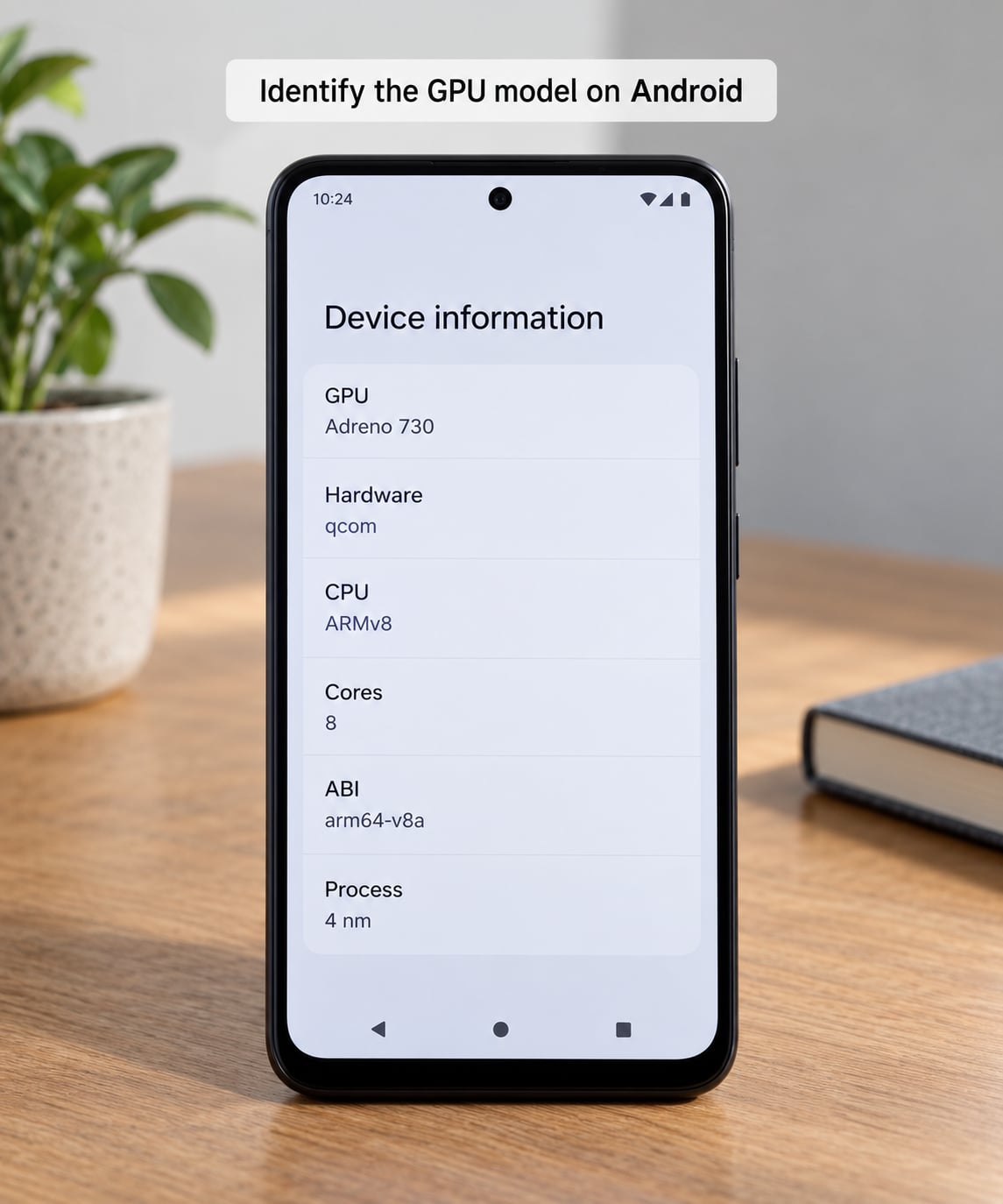
Start with the fastest route. Open a GPU information app from the Play Store and read the field labelled GL_RENDERER or GPU Renderer. That single line contains the family name, the model number and usually the driver version.
If you would rather not install anything, use the built-in hardware screen. Open Settings > About phone and look for an entry such as Hardware, SoC information or CPU. It lists the chipset, and the GPU is almost always tied to that chip. Samsung’s One UI hides the GPU on some models, so this route is less reliable there.
For the most detail without installing anything, use the dialer code. Open the phone app and enter *#*#4636#*#*, then tap Call. On most phones this opens a hidden diagnostics screen with a Hardware tab listing GPU and driver information. Some manufacturers have removed the code entirely, and on a few it does nothing but sit there, so treat a blank result as normal rather than broken.
The other route to the same hidden screen is Settings > About phone > tap Build number seven times. That message confirms you have enabled Developer Options, and from there you can reach related hardware pages depending on your phone.
Check the GPU driver, architecture, and performance details
Once you have the string, read past the brand name. A typical renderer string looks something like Adreno (TM) 740 or Mali-G710 MC10, and older devices often append a driver build and a date. That trailing part tells you how fresh the driver is, which matters because modded texture packs often depend on formats a stale driver will not decode.
Next, check the graphics API support listed on the same screen. Look for OpenGL ES and Vulkan version numbers. OpenGL ES 3.0 is the baseline almost every modern Android game expects. Vulkan support is a bonus and matters for mods that render through a Vulkan path, since a mod built against Vulkan drivers will not work on a device that only exposes OpenGL ES.
Now clear up the option many guides recommend and that does not work. Android’s built-in Profile GPU rendering switch, found in Developer Options, produces no usable data inside games. It works fine in ordinary apps like Settings or Calendar, which is why so many people recommend it. A long-running Stack Overflow thread documents exactly this: the profiler works on normal apps and returns nothing useful for game apps.
To read real performance numbers, use a monitoring app with an overlay, or a benchmark such as AnTuTu or GsBench. Watch two things. GPU usage sitting at 95 percent is normal for a demanding scene, but 100 percent sustained with a frame rate that never recovers tells you the phone is already at its limit before you add any mod on top. Thermal throttling is the other signal: if the clock speed drops within a few minutes of starting a game, the GPU has no headroom left for extra textures or shaders.
Compare the GPU with the mod’s requirements
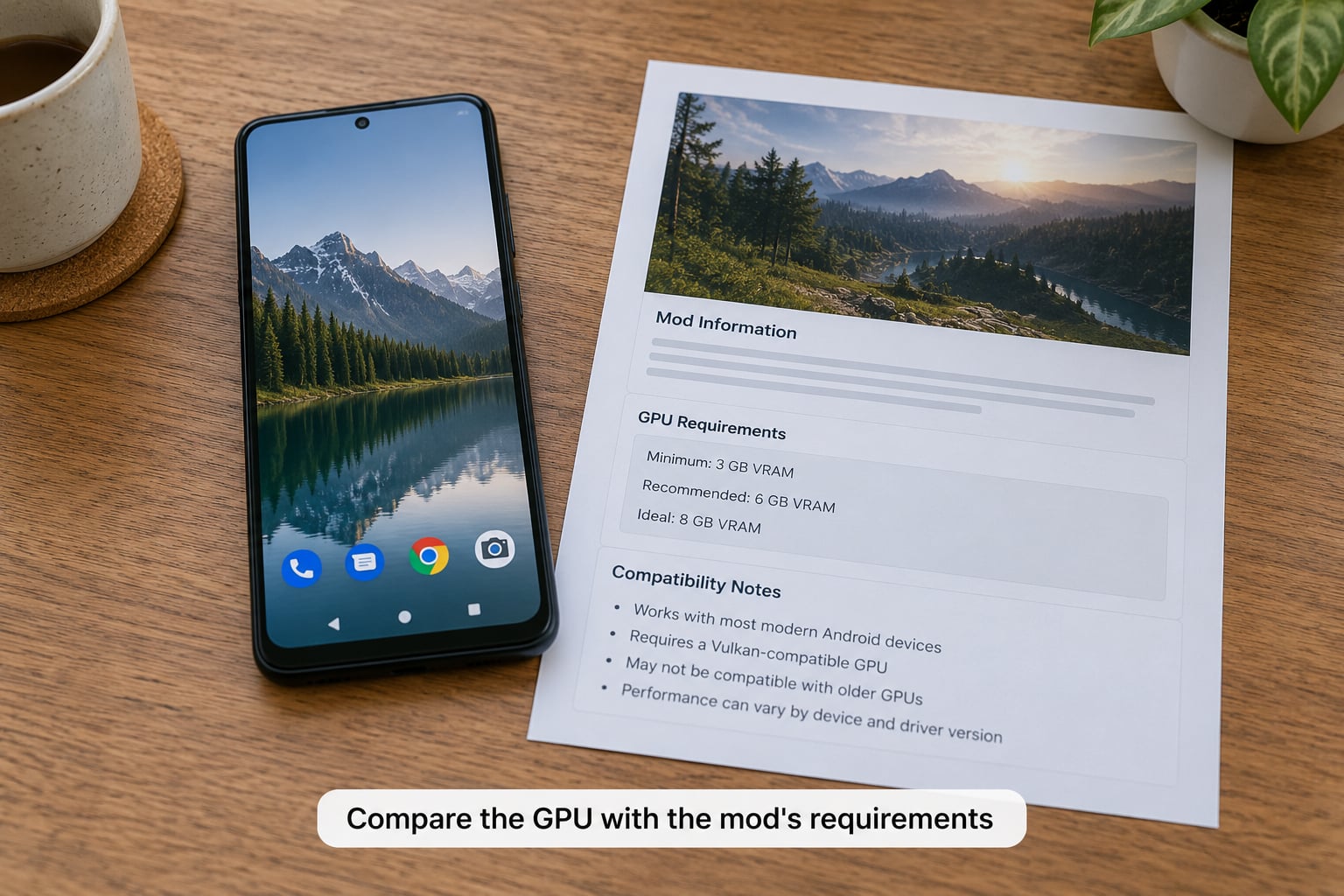
Compare like with like, starting with whether the mod is a mobile mod at all. A large share of texture packs and shader mods on the wider web are built for the PC version of a game. Those files carry formats Android’s texture pipeline will not load, and installing one wastes your time. If the mod page does not mention Android, mobile, ARM, Adreno or Mali anywhere, assume it was made for desktop.
Then separate minimum from recommended. Minimum usually means the author got it to load once. Recommended is closer to a playable result, and that is the number worth reading against your device. Mods also vary in what they demand: a skin or UI swap touches almost nothing, a texture pack at high resolution stresses memory bandwidth and storage, and a reshader or ENB-style effect spends a large share of your frame budget before the game even starts.
Use this table as a starting verdict, then adjust for the specific mod.
| GPU family and generation | Skin or UI swap | High-res texture pack | Shader or ENB-style mod | High-poly object replacement |
|---|---|---|---|---|
| Adreno 7xx series | Safe | Usually OK | Test first | Usually OK |
| Adreno 6xx series | Safe | Usually OK | Test first | Test first |
| Adreno 5xx series | Safe | Test first | Avoid | Avoid |
| Mali-G710, G78x and above | Safe | Test first | Avoid | Test first |
| Mali-G57, G68 and similar mid-tier | Safe | Avoid | Avoid | Avoid |
| Older Mali and PowerVR | Test first | Avoid | Avoid | Avoid |
The Adreno column is easier for shader work because Qualcomm’s drivers carry extensions that ARM’s do not. Mali GPUs are perfectly capable, but texture compression support and driver maturity differ enough that high-resolution texture packs fail more often there. If your phone has Mali, that is not a verdict against mods in general, it just narrows which ones are worth your evening.
Run a quick test before making changes
When the string is ambiguous or the mod page gives you numbers instead of a model name, settle it with a short test. Run the benchmark your mod page quotes, on the same settings, and compare. Benchmark totals vary between runs and versions, so treat anything within a few percent as a tie and let the game itself break it.
The better test is the game itself. Launch it unmodified, play the scene the mod touches, and note the frame rate and whether the phone gets warm. If the vanilla game already stutters there, a mod that adds texture detail will not rescue it. If the phone is already throttling in the menu, nothing you install afterwards will help.
Watch for the failure signs during that session: a black screen on load, a force-close a second after the game starts, missing or corrupted textures, and frame times that spike whenever you turn.
Install the mod only if the match is safe
Back up first. Copy the game’s .obb folder, its lib folder if you use one, and the app’s data folder from Settings > Apps > [game name] > Storage. On a rooted device this is where save data lives. On a non-rooted device you may not be able to copy the data folder, which is a good reason to keep cloud saves switched on for that game.
Install second. Follow the mod author’s folder paths exactly, check the permissions the mod asks for, and open the game once before you close the app so any first-run setup completes.
Then verify. Play the area the mod changes. If something is wrong, restore the folders you backed up rather than reinstalling from scratch, which is what most guides recommend and what takes the longest.
Be clear-eyed about the limits here. A matching GPU means the mod has a reasonable chance, not a guarantee. Script-based mods depend on the game’s own script engine and version, and some mods work on one game build and break on the next. Where a GPU check is genuinely decisive is textures, shaders and geometry, where it tells you whether the hardware can carry the extra load.
Common Mistakes
Treating the phone model as the GPU model. This is the most expensive error, because it leads to installing mods for hardware you do not have. Model names repeat across regions and across years.
Reading peak specs as sustained performance. A number quoted at room temperature on a cold device tells you what the GPU can do for ten seconds. Mods are played for thirty minutes on a phone that is warm. Sustained figures and thermal behaviour decide the outcome, and only a real session shows them.
Ignoring the game version. Mod pages name a version. Installing a mod built for a different build of the game fails in ways that look exactly like a GPU problem, which sends people off to reinstall graphics drivers for no reason.
Assuming one GPU name means one performance level. Two devices can both report a similar renderer string and behave very differently, because the chip is paired with different memory and a different cooling budget.
Blaming every crash on the GPU. An error like failed to read archive entry is a packaging mistake, not a hardware limit. Forum threads about Android modding run full of these, and they get misfiled under hardware problems constantly.
There is an order to this that saves time. Community advice on Reddit and other forums frequently starts with driver workarounds, swapping in an alternative graphics driver to unlock performance on a specific Adreno generation. That advice is only useful once you know your Adreno generation. Find the name first, then decide whether you need driver help at all.
Tips for Testing Phone Mods Safely
Drop one setting at a time. Start the mod at medium or low texture quality, confirm it is stable, then raise it. This tells you which setting triggers a problem instead of leaving you guessing.
Keep sessions short for the first few plays. Twenty minutes is enough to surface a crash or a leak. Long sessions hide problems until the phone is hot and the frame rate has already collapsed.
Read the temperature, not just the frame rate. A phone that stays near its normal operating range while playing the mod is in good shape. A phone that climbs steadily and starts dropping frames after ten minutes is telling you the mod sits past what the hardware can hold.
Keep one known-good backup and do not overwrite it. When you install the next mod, you want the original files intact.
Stop when things get unstable. Crashes, a black screen on launch or a game that will not save are signals to roll back. Repeating the install hoping for a different result costs more time than restoring does.
Frequently Asked Questions
How do I know if my phone is Adreno or Mali?
Read the GL_RENDERER line in a GPU information app, the hidden *#*#4636#*#* diagnostics screen, or a hardware section in Settings. A string containing Adreno means Qualcomm, usually paired with a Snapdragon chipset. Mali means an ARM GPU, common in MediaTek and Exynos phones. PowerVR appears mainly on older or Intel-based devices. The vendor word is always in the first part of the string.
What is better for modded games, Adreno or Mali?
For texture packs and shader mods, Adreno is usually the easier target. Qualcomm’s drivers carry extensions that ARM’s Mali drivers do not, so high-resolution texture packs and effect-heavy mods fail less often. Mali is not weak, but compression support and driver maturity narrow what runs smoothly. Skins, UI swaps and light edits work fine on either family.
Where do I find GPU info in Android Settings without installing an app?
Two routes work. Enter *#*#4636#*#* in the phone app and open the Hardware tab, or go to Settings, About phone and tap Build number seven times to turn on Developer Options, then look for a hardware or graphics entry. Menu names differ by manufacturer and Android version, and some phones hide the GPU entirely, so if both routes come up empty use a GPU information app instead.
What GPU does GTA 5 need for mods?
There is no single stated GPU requirement because the Android port runs across very different chips. What matters is matching your renderer string against what the mod needs. Adreno 6xx and 7xx parts handle texture packs and most effect mods. Mid-tier Mali such as G57 and G68 handles skins and UI swaps but often struggles with high-resolution textures. Always confirm the mod lists Android support and your game version.
Is 95 or 100 percent GPU usage bad?
Not on its own. A demanding scene pushing 95 percent means the GPU is fully busy, which is normal and often desirable. Watch what happens alongside it. Usage at 100 percent with frame times that never recover, or a frame rate that falls once the phone warms up, means you have no headroom left. That is the point where a texture pack or shader mod will make things worse rather than better.
How do I check my phone’s GPU before installing mods?
Open a GPU information app and read the GL_RENDERER field, or enter *#*#4636#*#* in the dialer and open the Hardware tab. Note the family, model number and driver version, then compare that against the mod’s stated requirements and its target game version. Back up the game folders, install, and keep the backup so you can roll back quickly if the first launch fails.
Start with the one-minute version: read the GL_RENDERER string from a GPU information app or the *#*#4636#*#* screen, write down the family and model, and check it against what the mod page actually asks for. Then confirm with one short unmodified play session before you touch a single file.
That check is how you check a phone’s GPU before installing mods without spending an evening rolling back a failed install. Find the name before you start chasing driver fixes, and keep a clean backup either way.
Last checked in 2026. GPU generations move quickly, so if your device is newer than anything covered here, treat the table as a starting point and let your own test session settle it.